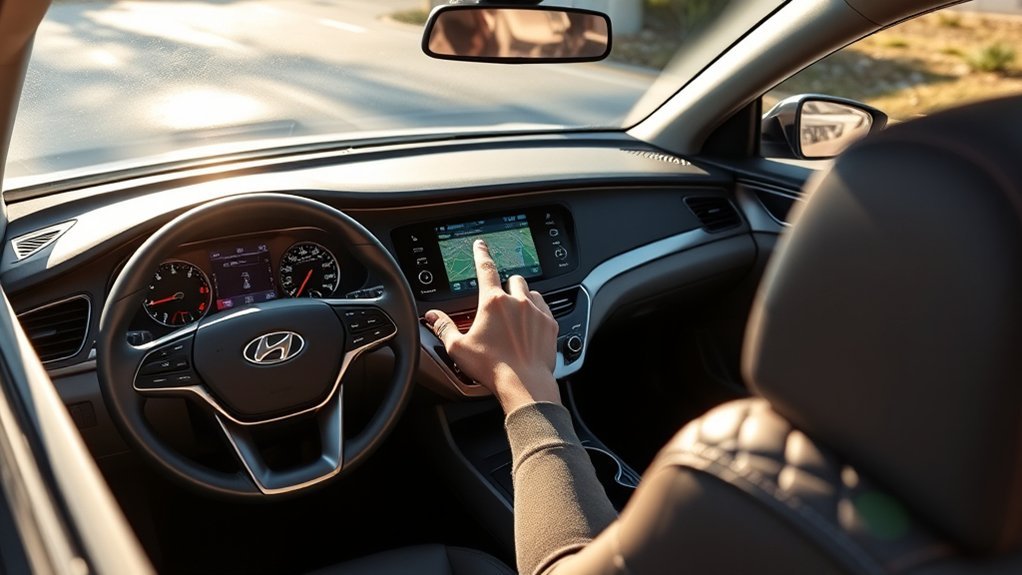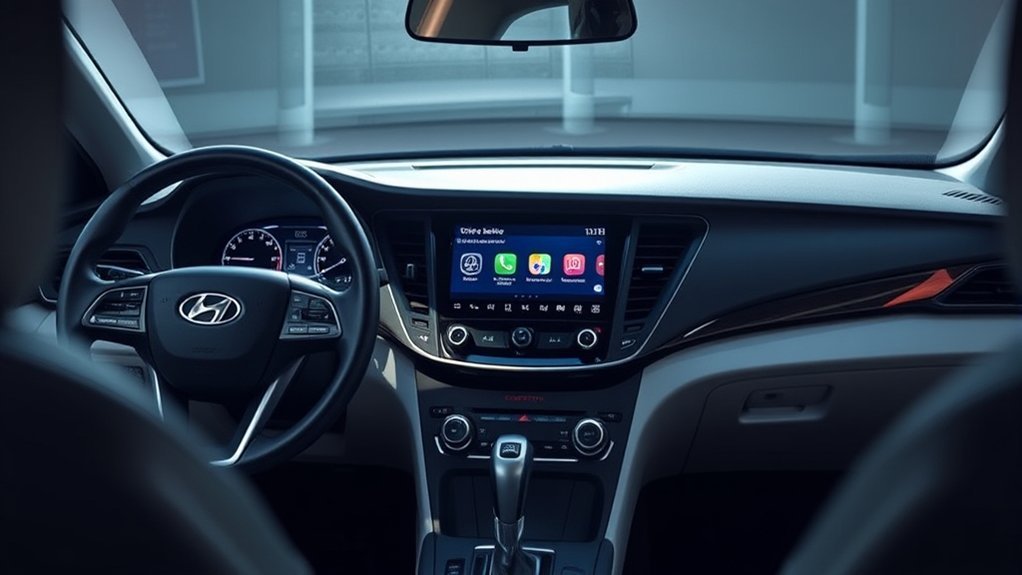
To change Hyundai Sonata driver assistance settings, park the car, turn it on, and open Setup or Settings > Vehicle > Driver Assistance. If the touchscreen does not show that menu, use the steering-wheel controls to check User Settings > Driver Assistance in the instrument cluster. The exact labels depend on model year, market, trim, hardware, and infotainment software. (Hyundai markets this group of features as part of its SmartSense driver-assistance suite.)
Last updated: August 19, 2026. The main paths and operating limits were rechecked against the official 2025 U.S.-market Sonata owner information, current Hyundai web manuals, NHTSA guidance, and Hyundai’s current update portal, and expanded with additional detail on Lane Safety settings and Highway Driving Assist limitations sourced from the same owner’s-manual pages.
Quick Answer
While parked, open Setup or Settings on the infotainment screen, select Vehicle, and choose Driver Assistance. Look for groups such as Warning Method or Warning Methods, Driving Safety, Driving Convenience, and Parking Safety. If the center screen does not show the option, check User Settings > Driver Assistance in the instrument cluster. A missing option usually means the feature is not equipped, is controlled elsewhere, is unavailable in the current operating state, or has a fault.
Key Takeaways
- Change driver assistance settings only while safely parked.
- Check both the infotainment screen and the instrument-cluster User Settings menu.
- Hyundai uses both Warning Method and Warning Methods wording across interfaces and model years.
- Warning Volume and Haptic Warning may interact on equipped systems, so both warning channels may not stay off together.
- Highway Driving Assist needs supported road and system conditions; enabling the menu does not guarantee immediate activation.
- Smart Cruise Control, Lane Following Assist, Lane Keeping Assist, and Highway Driving Assist remain driver-assistance features, not self-driving systems.
At a Glance
| Typical Time | About 2–5 minutes |
| Difficulty | Easy |
| Tools Needed | Infotainment screen or instrument-cluster controls |
| Cost | No cost |
Verification scope: This is a manual-based guide. The primary paths were checked against official 2025 U.S.-market Sonata owner information and current Hyundai interface documentation. Older Sonatas and vehicles sold outside the United States may use different names, buttons, or menu locations.
Which Hyundai Sonata Driver Assistance Menu Path Should You Use?
Hyundai has used more than one interface for driver assistance settings. Start with the path that matches the controls in your Sonata, then check the other interface before deciding an option is missing.
| Interface | Typical Path or Control | What It Usually Controls |
|---|---|---|
| Infotainment screen | Setup/Settings > Vehicle > Driver Assistance | Warning Method(s), Driving Safety, Driving Convenience, and Parking Safety on equipped vehicles |
| Instrument cluster | User Settings > Driver Assistance | Warning settings and feature controls on cluster-based interfaces |
| Steering-wheel or dashboard button | Lane Driving Assist, Driving Assist, cruise, following-distance, parking, or safety button | Turns supported functions on or off or changes an operating setting after menu preferences are configured |
Use this quick decision rule: If the setting changes how a warning sounds or how a feature behaves, look in the menu. If you are trying to start, stop, or operate lane or cruise assistance, also look for a physical button. Menu wording and availability can differ even between vehicles from the same model year, so use the manual for the exact VIN-equipped vehicle as the final authority.
Before You Change Driver Assistance Settings
Park the Sonata safely, keep the vehicle on, and read the full option description before changing it. These controls can affect warning volume, steering-wheel vibration, lane alerts, steering support, following behavior, and parking warnings.
Warning: Driver assistance does not make the Sonata self-driving. You must watch the road and remain ready to steer, brake, and accelerate. NHTSA describes adaptive cruise control and lane support as assistance that still requires a fully engaged, attentive driver.
If a feature is not shown, it may not be installed, may use the other interface, may be controlled by a physical button, may be unavailable in the current vehicle state, or may have a different name. A fault can also lock a setting until the affected system is inspected.
How Do You Change Hyundai Sonata Driver Assistance Settings?
Start with the Sonata safely parked and turned on. Try the infotainment path first:
- Press Setup or open Settings on the infotainment screen.
- Select Vehicle.
- Select Driver Assistance.
- Open the relevant group: Warning Method(s), Driving Safety, Driving Convenience, or Parking Safety.
- Change one option at a time so you can identify which setting changed the vehicle’s behavior.
- Check the instrument cluster for a status icon, warning, or confirmation.
If Driver Assistance does not appear on the center screen, use the steering-wheel menu controls to check User Settings > Driver Assistance in the instrument cluster. Official Hyundai owner information for recent interfaces shows both cluster and infotainment paths for some warning settings.
Common options include Warning Volume, Driving Safety Priority, Lane Safety, Forward Safety, Blind-Spot Safety, Driver Attention Warning, Smart Cruise Control controls, Parking Safety, and Highway Driving Assist. Haptic Warning is available only on supported hardware. For collision-warning controls, see the Hyundai Sonata FCA settings guide.
Hyundai’s current owner information shows that Warning Methods on the 2025 Sonata can be reached from the cluster or infotainment system, depending on equipment. Other current Hyundai interfaces use the singular label Warning Method.
Note: Do not assume a feature is absent until you have checked the center screen, instrument cluster, and any related steering-wheel or dashboard button.
How Do You Change Highway Driving Assist Settings?
Highway Driving Assist, or HDA, combines speed-and-distance assistance with lane-centering support on eligible highway main roads. It is not available on every Sonata, trim, market, or road.
To check the HDA setting while parked:
- Turn the vehicle on.
- Open Setup or Settings.
- Select Vehicle.
- Select Driver Assistance.
- Open Driving Convenience.
- Select Highway Driving Assist, if the option is shown.
On supported systems, the path is Setup > Vehicle > Driver Assistance > Driving Convenience > Highway Driving Assist. Some Sonata interfaces show the HDA choice inside the Driving Convenience page rather than as another nested page.
| HDA Check | What Must Be True |
|---|---|
| Feature availability | The vehicle must be equipped with HDA and the option must be enabled. |
| Supporting systems | Smart Cruise Control and Lane Following Assist must be operating for HDA to provide combined assistance. |
| Road eligibility | The vehicle must be on a supported highway or motorway main road recognized by the navigation system. |
| System readiness | Navigation, the front camera, radar, and related systems must be ready and free of active malfunction or limitation warnings. |
Enabling HDA in the menu does not force it to activate. Hyundai’s 2025 Sonata information says HDA may turn off on unsupported areas such as rest areas, intersections, and junctions, or when navigation is updating or restarting. Camera visibility, radar blockage, road markings, weather, construction, and map accuracy can also limit operation.
A few less obvious situations can also suspend HDA, per the same owner’s-manual source: GPS signal loss in a tunnel or other area with blocked satellite reception, Android Auto or CarPlay running on the main screen, the infotainment system handling a route search or voice command at the same moment HDA is trying to operate, and the driver going off the planned route or canceling navigation. Hyundai also recommends turning HDA off when towing a trailer or another vehicle.
Pro Tip: If HDA stays in standby, first confirm that Smart Cruise Control and Lane Following Assist are active, then check road eligibility and the cluster for a sensor, navigation, or system-limited message.
[Products Worth Considering]

Car Driving Positioning Stickers: These car driving positioning stickers (luminous arrow design) help new drivers align their vehicle in lanes, stick to dashboards/mirrors for easy road positioning and centered driving.

Function: This car steering wheel booster ball helps prevent issues such as manual transmission drivers struggling to shift gears while turning, difficulty parking in reverse, and steering wheel crossing during turns, making turns—especially U-turns and S-turns—smoother and more seamless.

【Durable Construction】: High-quality ABS shell is strong and wear-resistant, not easy to wear and tear and break even after long time exposure to the sun, ensuring a durable exterior construction. Sturdy metal ball bearings add to the solidity and stability of this steering wheel spinner.
What Can You Change in the Driver Assistance Menu?
The menu can change how warnings are delivered, whether an equipped safety function is enabled, and how some convenience systems respond. The choices below are common examples, not a guarantee of what every Sonata will display.
| Setting | What It Changes | Typical Location |
|---|---|---|
| Warning Volume | Adjusts supported driver-assistance warning sounds. | Driver Assistance > Warning Method(s) |
| Haptic Warning | Turns supported steering-wheel vibration warnings on or off. | Driver Assistance > Warning Method(s) |
| Driving Safety Priority | Lowers other audio volume when a driving-safety warning sounds. | Driver Assistance > Warning Method(s) |
| Forward Safety | Controls available forward-collision warning or assistance behavior. | Driver Assistance > Driving Safety |
| Lane Safety | Controls available lane-departure warning or steering support. | Driver Assistance > Driving Safety |
| Blind-Spot Safety | Controls supported blind-spot and related rear-side safety functions. | Driver Assistance > Driving Safety |
| Smart Cruise Control | Changes supported cruise preferences; operating speed and following distance are also controlled from the steering wheel. | Driver Assistance > Driving Convenience |
| Highway Driving Assist | Enables or disables HDA where the vehicle and road support it. | Driver Assistance > Driving Convenience |
| Parking Safety | Controls supported parking warnings, automatic warning activation, or collision-avoidance options. | Driver Assistance > Parking Safety |
How Do You Adjust Warning Volume?
Open Setup or Settings > Vehicle > Driver Assistance > Warning Method(s) > Warning Volume, or use the equivalent cluster path. Choose a level you can hear over normal cabin and road noise.
On the 2025 Sonata’s Warning Methods documentation, setting Warning Volume to 0 does not fully mute the system — the warning sound still plays at volume level 1. The interaction runs the other way too: turning Haptic Warning off while Warning Volume is at 0 automatically raises Warning Volume to level 2, so the vehicle always keeps at least one active warning channel on. Warning Volume and Haptic Warning are also linked more broadly on equipped systems, and changing a shared Warning Method may affect more than one driver-assistance feature at once.
What Is the Difference Between Lane Safety, LKA, LFA, and HDA?
| Feature | Main Job | Typical Control |
|---|---|---|
| Lane Safety | The menu category for lane-departure warning or steering-assist behavior. | Driving Safety menu |
| Lane Keeping Assist (LKA) | Responds when the vehicle detects a risk of unintentionally leaving the lane. | Lane Safety setting and/or Lane Driving Assist button |
| Lane Following Assist (LFA) | Provides more continuous lane-centering support when operating conditions are met. | Lane Driving Assist button |
| Highway Driving Assist (HDA) | Combines lane-centering and speed-and-distance assistance on supported highway main roads. | Driving Convenience menu plus active LFA and Smart Cruise Control |
Turning one lane-related function off does not necessarily disable every lane warning or steering-assistance function. Button behavior and restart behavior can also vary by model and software version.
On the 2025 Sonata, the Lane Safety menu setting itself has three states, not just an on/off toggle: Assist applies steering correction when the system detects unintended lane departure; Warning Only sounds an audible alert but does not apply steering torque, so you must steer the correction yourself; and Off turns Lane Keeping Assist off and clears its cluster indicator. On most U.S.-market Sonatas, pressing and holding the Lane Driving Assist button toggles Lane Keeping Assist on or off, while a short press toggles Lane Following Assist — and turning Lane Keeping Assist off with the button also switches the Lane Safety menu setting to Off. European, Australian, and Russian-market Sonatas instead turn Lane Keeping Assist on by default at every engine start. For a closer look at how LKA and LFA actually behave on the road, see our Hyundai Sonata Lane Keeping Assist guide and our Hyundai Sonata Lane Following Assist guide.
How Do You Enable Haptic Warning Feedback?
If your Sonata supports steering-wheel vibration warnings, use Setup or Settings > Vehicle > Driver Assistance > Warning Method(s) > Haptic Warning, or the equivalent cluster menu.
If the option is missing, the vehicle may not have the required hardware or the feature may be located in another interface. On applicable systems, Haptic Warning and Warning Volume may not remain off at the same time.
How Do You Use the Settings Safely?
Before driving, confirm that warning sounds are audible, haptic feedback feels appropriate, and the cluster icons match the functions you intend to use. Change one option at a time and test only in safe, legal conditions.
Camera and radar performance can be reduced by rain, snow, fog, glare, reflections, unclear lane markings, construction, dirt, ice, windshield film, bumper damage, or material covering a sensor area.
Warning: If the cluster says a driver-assistance system is limited, a camera is obscured, radar is blocked, or a system needs checking, do not rely on the affected feature. Clean only accessible sensor areas when it is safe. Arrange professional inspection if the message remains.
How Do You Change and Use Smart Cruise Control?
Smart Cruise Control helps maintain a selected speed and a chosen gap from a vehicle ahead. It does not replace your responsibility to monitor traffic, select a safe speed, steer, and brake.
[Products Worth Considering]
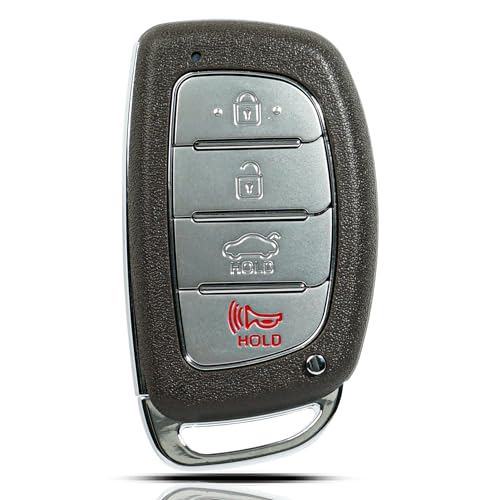
Replacement: For keyless entry remote car key FCC ID: CQOFD00120, Part Numbers:95440-C1000|95440-C1000NNA|95440-C1001. IC:1551E-FD00120. Chip: 8A

【Compatible With】: Compatible with Hyundai Sonata 2011 2012 2013 2014 2015.

Replacement: For Remote fob P/N: 95430-C1010, 95430-C1000; FCC ID: TQ8-RKE-4F16; Flip Key Fob Replacement Suitable for 2014-2017 Hyundai Sonata
How Do You Adjust Smart Cruise Control Preferences?
On equipped interfaces, preferences may appear under Settings > Vehicle > Driver Assistance > Driving Convenience > Smart Cruise Control. Some current Hyundai systems allow adjustments such as distance, acceleration, or reaction speed. The 2025 Sonata manual also notes that acceleration behavior can vary with the selected drive mode.
Menu preferences are separate from the steering-wheel following-distance button used while driving. For a comparison of conventional and traffic-aware cruise systems, see the Hyundai Sonata adaptive cruise control guide.
To operate Smart Cruise Control, use the Driving Assist or cruise-control button and the related steering-wheel switches. Set a legal speed and select a longer following distance when traffic, visibility, or weather reduces your safety margin.
How Do You Turn Lane Following Assist On or Off?
Lane Following Assist supports lane centering when it detects suitable lane information or a vehicle ahead and its operating conditions are met. On equipped vehicles, tap the Lane Driving Assist button on the steering wheel to turn LFA on or off.
Keep your hands on the steering wheel. A hands-off warning can appear if the system does not detect driver input, and LFA or HDA can cancel if the warning is ignored.
What Must You Still Monitor?
You remain responsible for posted speed limits, traffic, curves, construction, visibility, weather, and road hazards. Cancel Smart Cruise Control or HDA whenever manual speed control is safer.
Why Is a Driver Assistance Setting Missing or Grayed Out?
A missing or grayed-out setting does not automatically mean the infotainment system is defective. Use the symptom table first, then follow the detailed checks below.
| What You See | Likely Explanation | First Check |
|---|---|---|
| No Driver Assistance menu | The vehicle may use the instrument cluster or a different interface. | Check User Settings in the cluster. |
| One feature is missing | The feature may not be equipped or may use a physical button. | Verify equipment by VIN and inspect the steering wheel/dashboard controls. |
| Setting is grayed out | The vehicle may be moving, in the wrong operating state, or reporting a system fault. | Park safely, keep the vehicle on, and read the cluster message. |
| HDA is enabled but inactive | Road, navigation, LFA, SCC, camera, radar, or other operating conditions are not met. | Check the HDA indicator and supporting-system status. |
- Check the other interface. Look in both the infotainment Driver Assistance menu and the instrument-cluster User Settings menu.
- Confirm equipment by VIN. Features vary by trim, option package, market, and production specification.
- Park and keep the vehicle on. Some options cannot be changed while driving or in the wrong operating state.
- Check for a physical button. Lane, parking, blind-spot, and cruise functions may use steering-wheel or dashboard controls.
- Read the active warning. A system fault or sensor-limited message can prevent a setting from being changed.
- Inspect accessible sensor areas. Snow, ice, dirt, heavy rain, bumper damage, windshield film, or an obstructed radar cover can limit operation.
- Consider recent repairs. Windshield, bumper, grille, radar, camera, suspension, alignment, or collision work may require inspection or calibration.
- Check HDA road eligibility. HDA is intended for supported highway main roads, not every street, ramp, rest area, intersection, or junction.
- Check navigation status. Navigation-dependent functions may be limited while maps or the navigation system are unavailable, restarting, or updating.
Best Practices for Maintaining Driver Assistance Features
- Keep sensor areas clean. Clear snow, ice, mud, and debris from the windshield-camera area, radar cover, and bumper sensor areas without damaging them.
- Avoid sensor obstructions. Stickers, films, bumper guards, some plate frames, reflective dashboard objects, or accessories can interfere with camera or radar performance.
- Review settings after service. Recheck preferences after software updates, battery work, windshield replacement, collision repair, or sensor service.
- Use the exact manual. Menu names, operating conditions, and restart behavior can differ by equipment and software.
- Learn the cluster states. Know the difference between off, standby, active, temporarily limited, and malfunction before relying on a feature.
How Do You Update Sonata Infotainment or Navigation Software?
Hyundai’s public update portal provides compatible infotainment and navigation updates, which can affect navigation-dependent functions such as Highway Driving Assist’s road eligibility. The portal cannot add missing cameras, radar sensors, wiring, or other unsupported hardware, and it does not necessarily update every driver-assistance control module.
Check your installed version under Setup > General > SW Info/Update, then search the official Hyundai update website by VIN or vehicle type to confirm whether an update is available. After installing one, recheck Warning Method(s) and other saved driver-assistance preferences.
For the full walkthrough — including OTA eligibility, USB/SD-card preparation, and what to expect during installation — see our Sonata infotainment update guide.
Note: An infotainment or navigation update cannot make an unequipped Sonata support HDA, haptic warnings, radar-based cruise control, or another hardware-dependent feature.
When Should You Contact a Hyundai Dealer?
Contact a Hyundai dealer or qualified repair facility when a setting remains unavailable after you have confirmed the correct interface and equipment, or when a warning returns after accessible sensor areas are clean.
Professional inspection is especially appropriate when:
- A Check Driver Assistance, Check Highway Driving Assist, or similar malfunction message remains active.
- The problem began after windshield, bumper, grille, radar, camera, suspension, alignment, or collision repair.
- A sensor, sensor cover, wiring connector, or mounting area is damaged.
- Several unrelated driver-assistance systems become unavailable at the same time.
- The system behaves unexpectedly in normal weather with clear lane markings and unobstructed sensors.
- You need feature availability confirmed from the VIN or original equipment record.
Before the appointment, record the model year, trim, VIN, mileage, exact warning text, when the problem occurs, and any recent repairs. Photos of the cluster and settings screen can help the technician identify the system and operating state.
Frequently Asked Questions
Can I reset Hyundai Sonata driver assistance settings?
Some Hyundai infotainment systems include a reset for selected vehicle or Smart Cruise Control preferences, but the location and scope depend on the system. Check the exact owner and infotainment manuals before using a general reset because it may also affect profiles, paired devices, or other saved settings.
Why can I still hear a warning when Warning Volume is off?
On applicable Hyundai systems, selecting 0 or Off may still leave a low-volume safety warning — Hyundai’s documentation puts that floor at volume level 1. Some equipped systems also link Warning Volume and Haptic Warning so both warning channels do not remain off together; turning Haptic Warning off while Warning Volume is 0 can raise Warning Volume back up to level 2.
Can I temporarily turn off lane assistance?
Many Sonatas let you change Lane Safety in the Driver Assistance menu and use the Lane Driving Assist button for Lane Keeping Assist or Lane Following Assist. The exact button action and restart behavior vary, so turning off one lane function may not disable every lane warning or steering-assistance feature.
What do the Lane Safety “Assist,” “Warning Only,” and “Off” settings do?
Assist applies gentle steering correction when the system detects unintended lane departure. Warning Only sounds an audible alert but leaves the steering to you. Off disables Lane Keeping Assist entirely and turns off its cluster indicator. Selecting Off with the steering-wheel Lane Driving Assist button also switches this menu setting to Off automatically.
Does Highway Driving Assist need Smart Cruise Control and Lane Following Assist?
Yes, HDA’s combined speed, distance, and lane-centering support depends on Smart Cruise Control and Lane Following Assist operating on a supported highway main road. If either supporting function is off or limited, HDA may remain in standby or turn off.
Why does Highway Driving Assist turn off in a tunnel or while towing?
HDA relies on GPS and navigation data to confirm you’re on a supported highway main road, so it can drop out where GPS signal is blocked, such as in a tunnel. It can also be limited by Android Auto or CarPlay running, a simultaneous route search or voice command, or a canceled or changed route. Hyundai recommends turning HDA off while towing a trailer or another vehicle.
Will driver assistance work in rain, snow, or fog?
Performance may be limited. Rain, snow, fog, glare, dirty sensors, blocked radar, wet-road reflections, unclear lane markings, and construction can reduce or disable a function. Drive manually whenever sensor performance is uncertain.
Can a software update add Highway Driving Assist?
No. An infotainment or navigation update cannot add the cameras, radar, wiring, control modules, or original vehicle configuration required for a hardware-dependent feature. Use the VIN or original equipment record to confirm whether the Sonata was built with HDA.
Do warning settings stay saved after restarting the car?
Hyundai owner information for applicable systems says Warning Method or Warning Methods settings generally retain the previous selection after restart. Other driver-assistance features can have different restart behavior, so recheck them after software updates, service, or battery work.
Conclusion
Start with Setup or Settings > Vehicle > Driver Assistance. If that path is unavailable, check User Settings > Driver Assistance in the instrument cluster and look for a related steering-wheel or dashboard button. Change one option at a time and confirm the result in the cluster.
If a setting is missing or grayed out, verify the vehicle’s equipment by VIN, park with the vehicle on, read any active warning, inspect accessible sensor areas, and consider recent windshield or bumper work. For HDA, also confirm that Smart Cruise Control and Lane Following Assist are active on a supported highway main road. These systems can reduce workload, but the driver must remain attentive and ready to take immediate control.
Sources
- Hyundai 2025 Sonata Owner’s Manual — Highway Driving Assist Settings and Warning Methods — menu paths, saved settings, parking requirement, and feature availability.
- Hyundai 2025 Sonata Owner’s Manual — Highway Driving Assist Operation — HDA activation, supporting systems, status indicators, and hands-off cancellation.
- Hyundai 2025 Sonata Owner’s Manual — HDA Malfunction and Limitations — unsupported road areas, navigation limits, sensor limits, and malfunction guidance.
- Hyundai 2025 Sonata Owner’s Manual — Smart Cruise Control Settings — steering-wheel operation, following distance, drive-mode behavior, and warning settings.
- Hyundai 2025 Sonata Owner’s Manual — Lane Keeping Assist Settings — Lane Safety controls, button interaction, and warning methods.
- Hyundai 2025 Sonata Owner’s Manual — Parking Distance Warning Settings — parking-warning controls and Parking Distance Warning Auto On.
- Hyundai Infotainment User’s Manual — Vehicle Settings — Warning Method options and supported driver-assistance menu groups.
- NHTSA — Driver Assistance Technologies — definitions of adaptive cruise, lane centering, lane keeping, and continuing driver responsibility.
- Hyundai Official Infotainment and Navigation Update Website — VIN and vehicle-type update lookup.
- Hyundai Manuals and Warranties — model- and vehicle-specific owner information.