
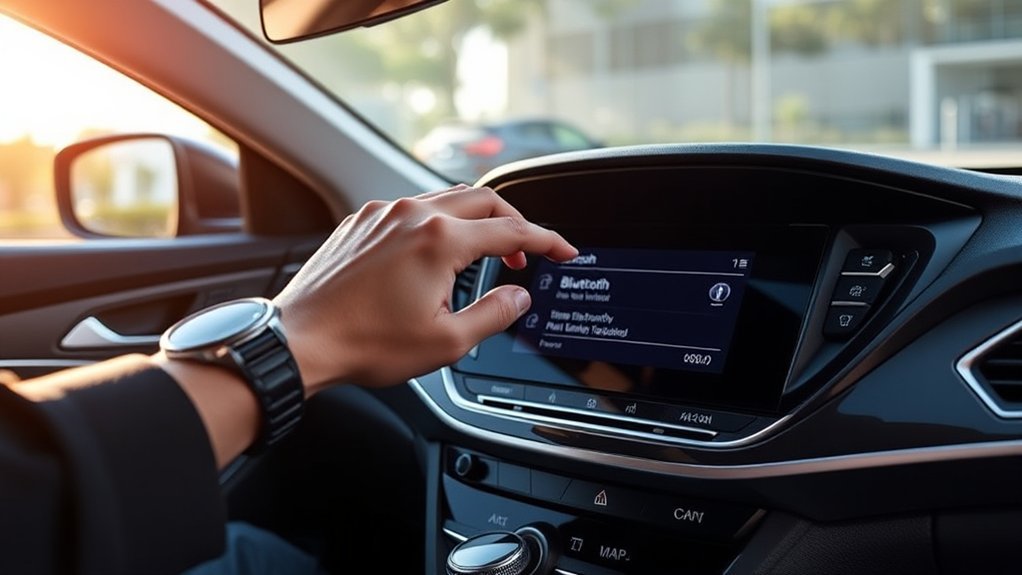
Pairing Bluetooth in a Hyundai Sonata usually takes only a few minutes when you start with the car parked, the infotainment system on, and your phone’s Bluetooth settings open. The exact menu names can change by model year and screen type, but the basic process stays the same: put the Sonata in pairing mode, select it on your phone, then approve the passkey and any contact permissions.
Quick Answer
To pair Bluetooth on a Hyundai Sonata, park the car, turn on the infotainment system, open Setup or Phone, choose Bluetooth or Device Connections, then select Add New or Pair New Device. On your phone, open Bluetooth settings, choose your Sonata, confirm the passkey, and allow contacts if you want hands-free calling.
Key Takeaways
- Always pair your phone while the Sonata is parked, not while driving.
- Menu names vary by model year, so look for Setup, Phone, Bluetooth, Device Connections, Add New, or Pair New Device.
- For iPhone, keep the Bluetooth settings screen open. For Android, use Pair new device under Connected devices.
- If pairing fails, delete the old Sonata connection from both the car and phone, restart both systems, then pair again.
- Contact syncing only works after you approve phone permissions for contacts, favorites, call history, or notifications.
At a Glance
| Time Required | 5 to 10 minutes |
| Difficulty | Easy |
| Tools Needed | Your Hyundai Sonata, your phone, and access to the infotainment screen |
| Cost | Free |
Warning: Set up Bluetooth only while parked. Phone pairing, screen taps, passkey checks, and contact permissions can take your eyes and attention away from driving. For safe driving guidance, review the NHTSA distracted driving resource.
Before You Pair Your Phone
Before you start, place the Sonata in PARK, turn on the vehicle or accessory mode, and keep your phone inside the cabin. Bluetooth works best at short range, so pairing is more reliable when the phone is near the infotainment screen.
- Turn Bluetooth on in your phone settings.
- Keep your phone unlocked during pairing.
- Open the Bluetooth screen before you start the Sonata pairing process.
- Remove old or unused phones from the Sonata if the device list is full.
- Check your model-year owner’s manual through Hyundai Owner Resources if your screen uses different menu names.
Note: Hyundai uses different infotainment layouts across Sonata model years. If you do not see the exact labels below, look for similar options such as Phone, Bluetooth, Device Connections, Bluetooth Connection, Add New, or Pair New Device.
Step-By-Step Guide to Pairing Your Hyundai Sonata With Bluetooth
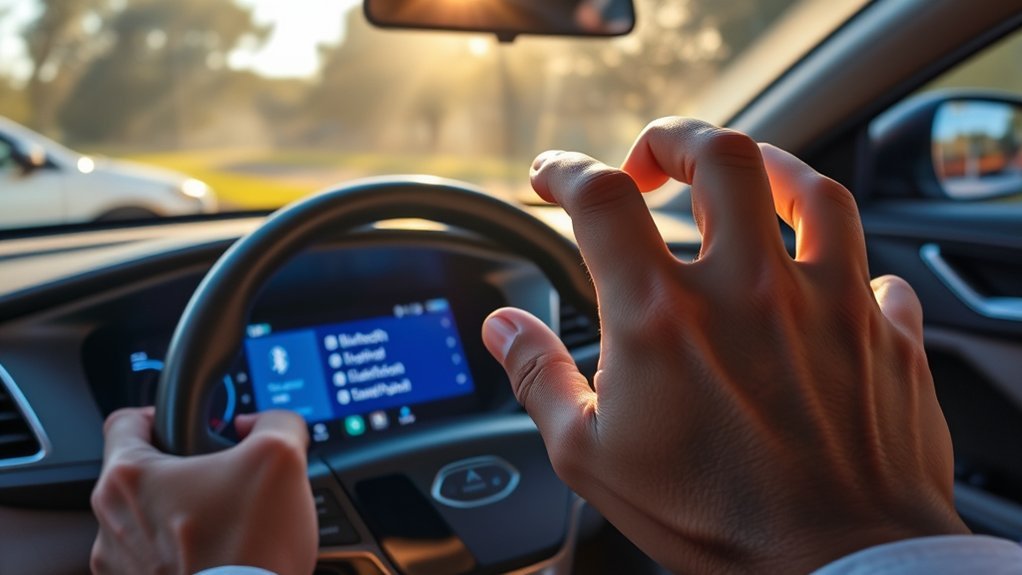
- Park and power on the Sonata. Put the vehicle in PARK and turn on the infotainment system.
- Open the Bluetooth menu. Press Setup if your Sonata has that button, then choose Bluetooth, Phone, Device Connections, or Bluetooth Connection.
- Start a new pairing. Select Add New, Pair New Device, or the similar option shown on your screen.
- Open Bluetooth on your phone. On iPhone, go to Settings > Bluetooth and keep that screen open. On Android, go to Settings > Connected devices > Pair new device. Apple explains Bluetooth pairing in its iPhone User Guide, and Google covers Android pairing in Android Help.
- Select your Sonata. Tap the vehicle name when it appears on your phone. It may show as Hyundai Sonata, SONATA, Hyundai, or a custom name saved in the vehicle.
- Confirm the passkey. Compare the code on the phone and the Sonata screen. If they match, tap Pair, OK, or Confirm on both screens.
- Allow useful permissions. Approve contacts, favorites, call history, or notifications if you want caller names, phonebook access, and hands-free calling from the vehicle screen.
- Test the connection. Make a quick hands-free test call while parked, then play a song and choose Bluetooth audio as the media source if needed.
Pro Tip: If your phone asks whether to sync contacts, allow it during the first pairing. If you deny the request, calls may still work, but names, favorites, and phonebook access may not appear on the Sonata screen.
[Products Worth Considering]

Turn your factory wired CarPlay into a wireless experience with this compact plug-and-play adapter from Enhanlife. It delivers fast auto-connection, stable performance with Bluetooth 5.3 and 5GHz Wi-Fi, and smooth access to navigation, music, calls, and Siri without cable clutter. Designed for broad vehicle compatibility and easy setup, it helps keep your dashboard clean while preserving the convenience of CarPlay.

This upgraded wireless CarPlay adapter converts factory wired CarPlay into a wireless experience with a simple one-time setup and automatic reconnection at every startup. Its mini design saves space while the dual-chip wireless technology helps deliver fast, stable performance with low latency. Compatible with most factory-installed wired CarPlay systems and iPhone models with supported iOS versions, it adds convenient hands-free access to navigation, music, calls, Siri, and messaging.

Convert factory wired CarPlay to a wireless experience with this compact plug-and-play adapter designed for compatible vehicles. It supports GPS navigation, music, calls, Siri, and messaging while automatically reconnecting for a smoother drive. The slim mini design helps keep your cabin tidy and delivers a stable, responsive connection with preserved audio quality.
Troubleshooting Common Bluetooth Connection Issues
If your Hyundai Sonata Bluetooth connection fails, start with the simplest fixes first. Keep the phone close to the infotainment screen, confirm Bluetooth is turned on, and make sure neither device is already trying to connect to another phone.
| Problem | What to Try |
|---|---|
| Your Sonata does not appear on your phone | Keep the phone’s Bluetooth screen open, restart pairing from the Sonata, and stay inside the car during the search. |
| Passkey does not match | Cancel pairing on both screens, delete the attempted connection, then start again and approve only if both codes match. |
| Phone connects for calls but not music | Choose Bluetooth Audio or Media on the Sonata, raise the phone volume, and confirm media audio is enabled in your phone’s Bluetooth settings. |
| Contacts do not show | Open your phone’s Bluetooth settings for the Sonata and allow contacts, favorites, call history, or notifications. |
| The wrong phone connects first | Set your preferred phone as the priority device in the Sonata Bluetooth settings, or turn Bluetooth off on the other saved phone. |
| Bluetooth keeps dropping | Restart the phone, delete and re-pair the connection, update your phone software, and check Hyundai owner resources for infotainment update guidance. |
If the same phone still refuses to connect, delete the pairing from both sides. On the Sonata, remove the phone from the Bluetooth device list. On your phone, tap the Sonata connection and choose Forget This Device, Unpair, or Forget. Restart the phone and the infotainment system, then pair again from the beginning.
[Products Worth Considering]

UPGRADED BLUETOOTH 4.0 RECEIVER: Experience seamless wireless audio streaming from any Bluetooth-enabled smartphone to your car's stereo system. This reliable adapter bridges the gap between modern devices and older vehicle stereos, delivering stable connections and clear sound quality for your daily commute or road trips without complicated installations.
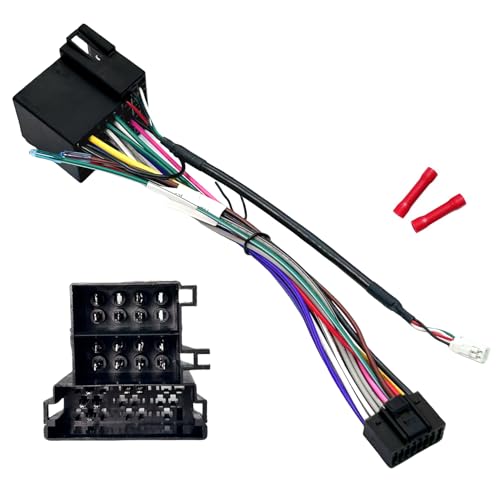
Aftermarket Stereo Radio Wiring Adapter: Work for select Hyundai/KIA radio wire harness, converts the 36Pin car's factory wiring connector into a 16-Pin standard ISO connection, suitable for aftermarket head units, match with most CD DVD bluetooth car audio receivers; ISO standard stereo connectors to power a new radio head unit;

Effortless Connectivity - The KAAB Antenna Adapter ensures seamless integration of your aftermarket car stereo, allowing you to enjoy local radio stations with superior reception in your 2007-2018 vehicle. See Fit Guide in images to verify your vehicle.
Key Bluetooth Features of Your Hyundai Sonata
The Hyundai Sonata’s Bluetooth features can include hands-free calling, audio streaming, contact access, steering-wheel call controls, and automatic reconnection. Availability depends on the model year, trim, infotainment system, and phone permissions.
- Hands-free calling: Make and receive calls through the vehicle microphone and speakers after pairing.
- Bluetooth audio: Stream music, podcasts, or navigation audio from your phone when Bluetooth Audio is selected as the media source.
- Contact download: Show caller names and phonebook entries if you approve contact access on your phone.
- Priority device: Choose which saved phone connects first when multiple drivers use the same Sonata.
- Steering-wheel controls: Use supported call and audio controls with less phone handling.
Bluetooth features rely on supported profiles, such as hands-free calling, audio streaming, and phonebook access. You can review the technical background through the Bluetooth SIG specifications library.
[Products Worth Considering]

【Compatible Vehicle】This upgraded radio dash kit is designed for Hyundai Sonata 2004 2005 2006 2007 2008, please read the detail page or consult our customer service first

【Enjoy Wireless Streaming Music】This car Bluetooth adapter can be connected to non-Bluetooth car audio systems, home stereos, speakers, wired headphones via the 3.5mm AUX adapter; And equipped with a Bluetooth 5.3 chip for stable connection / fast transmission / wide signal range. Just pair it with your phone and start listening to your favorite music!
![[8 Core 6G+128G] Android 15 Car Radio for Hyundai Sonata 2015-2017 | 9" Touchscreen Car Radio with Wireless CarPlay Andriod Auto,Bluetooth,GPS,WiFi,FM/RDS Radio,SWC EQ DSP+AHD Backup Camera](https://m.media-amazon.com/images/I/41O50Y1lugL._SL500_.jpg)
【Android 15 Car Stereo】Fits for Hyundai Sonata 2015 2016 2017.Android system Quad 8 Core and 6GB RAM + 128GB ROM ensure smooth operation and fast response.9 inch capacitive 2.5D tempered glass touch screen, with high resolution 1280*720 IPS.Clearer picture and richer colors.
Setting Your Phone for Auto Connections
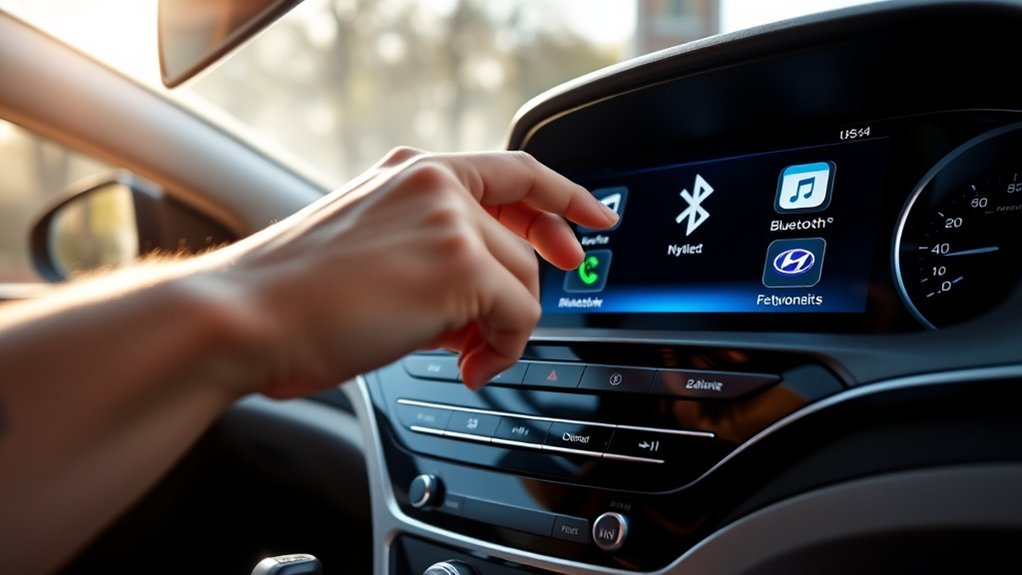
Auto connection lets your Sonata reconnect to your saved phone when you start the car. This works best when Bluetooth stays enabled on your phone and your preferred device is set as the priority phone in the vehicle settings.
| Step | Action |
|---|---|
| 1. Enable Bluetooth | Keep Bluetooth turned on in your phone settings. |
| 2. Pair with Sonata | Complete the pairing process and approve the passkey. |
| 3. Set priority | Open the Sonata Bluetooth device list and make your phone the priority device if that option appears. |
| 4. Confirm permissions | Allow contacts and call history if you want names and phonebook access on the vehicle screen. |
| 5. Test next startup | Turn the car off, restart it, and check whether your phone reconnects automatically. |
If your Sonata keeps connecting to another driver’s phone first, either change the priority device or ask the other driver to turn Bluetooth off before you start the car. You can also remove old phones from the saved device list if they are no longer used.
Get Bluetooth Support for Your Hyundai
If the basic steps do not match your screen, use your model-year owner’s manual as the final guide. Hyundai’s menu labels can change between older button-based systems, touchscreen systems, navigation-equipped models, and newer wide-screen infotainment layouts.
- Check Hyundai Owner Resources and manuals for your Sonata model year.
- Look under infotainment, phone projection, Bluetooth, multimedia, or connected-device sections.
- Update your phone software before troubleshooting repeated pairing failures.
- Ask a Hyundai dealer or Hyundai customer support for help if the vehicle will not save any Bluetooth device.
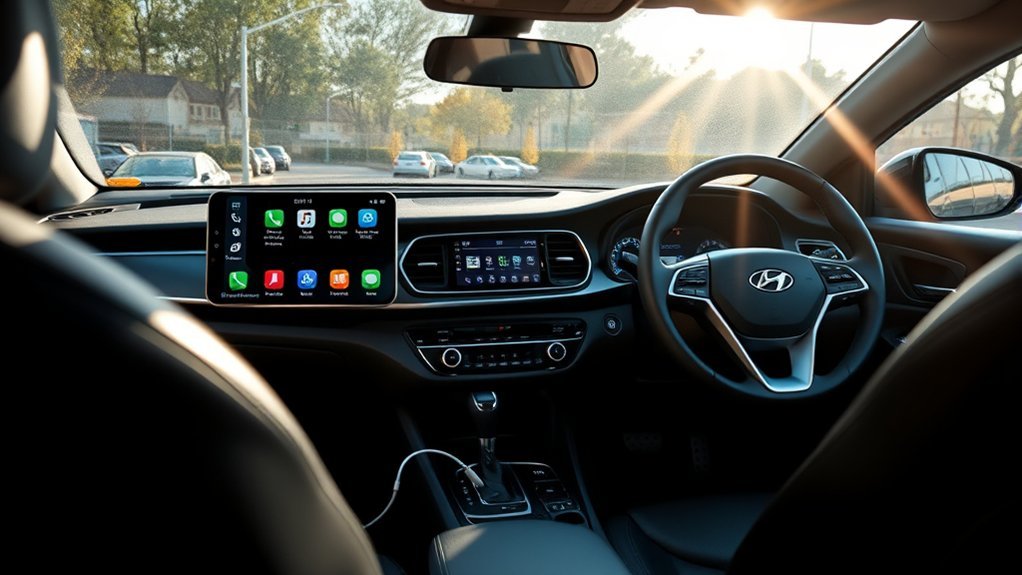
Note: Bluetooth pairing is separate from Apple CarPlay and Android Auto. Bluetooth handles calls and audio streaming, while CarPlay or Android Auto may use USB or wireless projection depending on your Sonata model and phone compatibility.
Frequently Asked Questions
How do I connect my Bluetooth to my Hyundai Sonata?
Park the Sonata, turn on the infotainment system, open Setup or Phone, choose Bluetooth or Device Connections, then select Add New or Pair New Device. On your phone, open Bluetooth settings, select your Sonata, confirm the passkey, and allow contacts if you want phonebook access.
How do I pair Hyundai Bluetooth to iPhone?
On your iPhone, go to Settings > Bluetooth and keep that screen open. Start pairing from the Sonata screen, then tap the Sonata name under available devices on your iPhone. Confirm the matching passkey and approve contact permissions if you want caller names and phonebook access.
How do I pair Hyundai Bluetooth to Android?
On Android, open Settings > Connected devices > Pair new device. Start Bluetooth pairing from the Sonata screen, then choose your Sonata when it appears on your phone. Confirm the passkey and allow calls, media audio, and contacts if those options appear.
Why won’t my Hyundai Sonata find my phone?
Your phone may not be discoverable, Bluetooth may be off, the Sonata may already be connected to another device, or an old pairing may be blocking the connection. Keep your phone’s Bluetooth screen open, delete old pairings from both devices, restart the phone, and try pairing again while parked.
Why can I make calls but not play music through Bluetooth?
The phone may be connected for calls only, or the Sonata may not be set to Bluetooth Audio as the media source. Open your phone’s Bluetooth settings for the Sonata and enable media audio if available. Then choose Bluetooth Audio or Media on the vehicle screen.
How do I delete an old phone from Hyundai Sonata Bluetooth?
Open the Sonata’s Bluetooth or Device Connections list, choose the old phone, and select Delete, Remove, or Unpair. Then open your phone’s Bluetooth settings and forget the Sonata connection there too. Pair again only after both old records are removed.
Conclusion
Pairing Bluetooth on your Hyundai Sonata is simple once you use the right order: park first, start pairing from the Sonata screen, choose the vehicle from your phone, confirm the passkey, and approve the permissions you need. If the connection fails, remove old pairings from both devices and try again. Once paired correctly, your Sonata can reconnect automatically for calls, audio, and contact access with less phone handling on future drives.
Sources
- Hyundai Owner Resources and Manuals — model-year-specific Sonata manual and infotainment guidance.
- Apple iPhone User Guide: Connect Bluetooth Devices — iPhone Bluetooth pairing steps.
- Google Android Help: Connect Through Bluetooth — Android Bluetooth pairing and troubleshooting steps.
- NHTSA Distracted Driving — safety reminder for avoiding phone setup while driving.
- Bluetooth SIG Specifications — Bluetooth profile and compatibility background.


[…] parked, open Setup or Settings on the infotainment screen, select Vehicle, and then choose Driver Assistance. If your Sonata places these controls in the […]