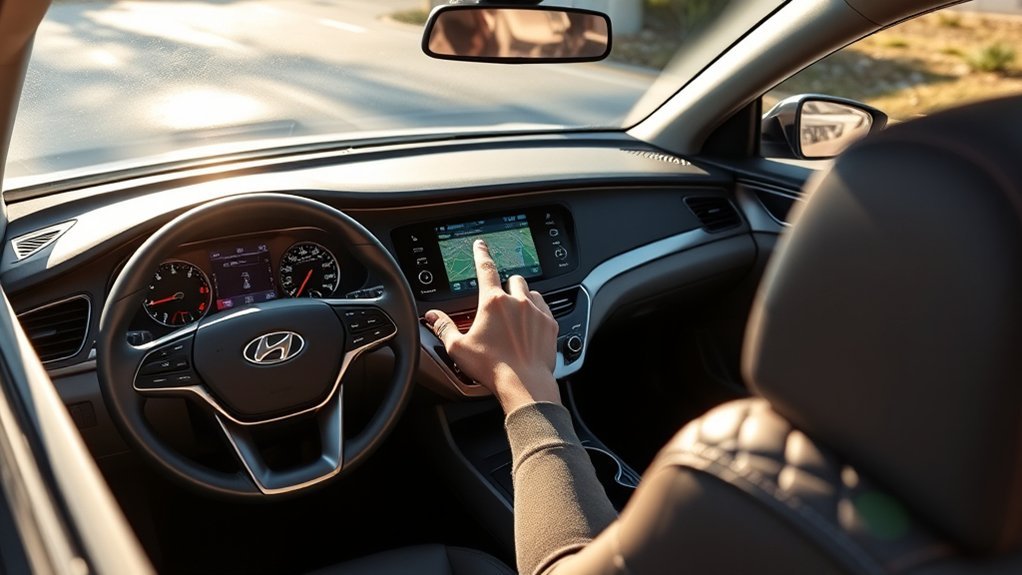
Updating your Hyundai Sonata navigation maps keeps the built-in navigation system supplied with newer road data, points of interest, and compatible infotainment software. For most U.S. Sonatas, a manual update starts on a Windows PC or Mac with Hyundai’s Navigation Updater, then moves to the car by USB drive or SD card. Some compatible Bluelink-equipped Sonatas can also receive updates over the air.
Quick Answer
To update a Hyundai Sonata with built-in navigation, identify the correct vehicle or VIN on Hyundai’s update site, download the update through Navigation Updater, copy it to the required USB drive or SD card, connect the media to the car, and select Update from the system-information menu. Eligible Bluelink vehicles may receive OTA updates instead.
Last checked: October 5, 2026. Dates and figures were verified against official sources.
At a Glance
| Time Required | Vehicle installation can take about 20 minutes to 3 hours, depending on the model and update. |
| Difficulty | Easy to moderate |
| Tools Needed | Windows PC or Mac, internet access, and the USB drive or SD card required by your navigation system |
| Cost | Free download for eligible vehicles; Hyundai lists shipped update media at $25 plus shipping. |
How to Check Your Current Software Version?
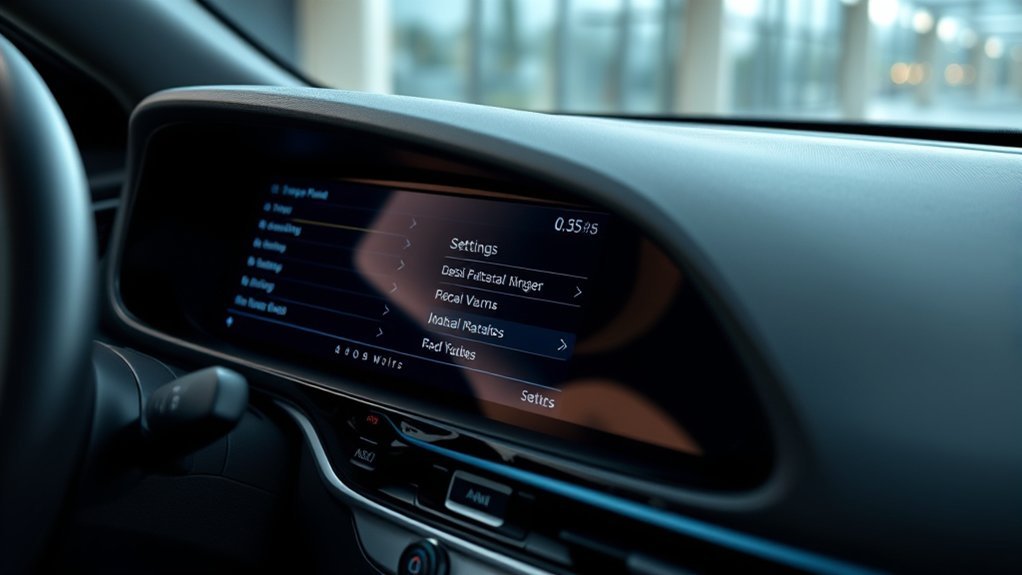
Check the software and map version before downloading anything. On many Hyundai navigation systems, the information appears under Setup or Settings > General > SW Info/Update, although wording can vary by infotainment generation.
Hyundai also explains that a vehicle with factory navigation normally shows a map-version number on its system-information screen. This helps distinguish built-in navigation from Android Auto or Apple CarPlay, which rely on a phone rather than the Sonata’s stored navigation maps.
The current U.S. Hyundai software-version list shows different releases by Sonata generation. As of October 5, 2026, navigation entries for 2015–2019 Sonata models are listed with a June 2026 update, while supported 2020–2026 Sonata navigation systems are listed with July 2026 updates.
How to Locate Your VIN for Software Updates
You can use your VIN to let Hyundai identify the appropriate software, but it is not your only option. Hyundai’s U.S. update portal allows you to search either by VIN or by vehicle type.
If you choose VIN search, the 17-character number can be found on the driver-side dashboard near the windshield or on the driver-side door jamb. It is also shown on documents such as your insurance card or vehicle title.
Enter it only on the official Hyundai Navigation Update Portal. If you prefer not to use the VIN, select the Sonata and appropriate model year manually.
Select Your Vehicle Model and Year
Select the exact Sonata version offered by Hyundai rather than choosing a trim name from a generic list. The update depends on the vehicle year and infotainment system, not simply whether your car is an SE, SEL, Limited, or N Line.
Hyundai currently lists several Sonata generations separately, including 2015, 2016–17, 2018, 2019, 2020–22, 2023, and 2024–26 vehicles. Hybrid and plug-in hybrid models can have their own entries.
| Sonata group | Current navigation update shown by Hyundai |
|---|---|
| 2015–2019 supported navigation models | June 2026 |
| 2020–2023 supported navigation models | July 2026 |
| 2024–2026 supported navigation models | July 2026 |
The July 2026 Hyundai software release specifically lists 2020–22 Sonata, 2023 Sonata, 2024–26 Sonata, and corresponding hybrid versions among applicable vehicles.
[Products Worth Considering]

This wireless CarPlay screen adds modern smartphone connectivity to almost any vehicle with easy plug-and-play installation. It supports Apple CarPlay and Android Auto, online maps, voice control, phone mirroring, and multiple audio output options for safer, more convenient driving. The included night vision backup camera and OTA updates help improve visibility, compatibility, and long-term performance.

This Toyota navigation SD card provides updated North America maps and points of interest for compatible factory navigation systems. It is preloaded with recent road and location data to help drivers find destinations, services, and routes more easily across the U.S. and Canada. Designed for select Toyota models, it offers a simple plug-and-play replacement for the original navigation card.

Keep your Toyota navigation system current with this SD card map update designed for select factory-installed GPS units. It provides updated coverage for the USA and Canada, including roads, points of interest, and key travel locations for smoother trip planning. Easy plug-and-play installation helps restore accurate guidance without complicated setup.
Download Latest Navigation Maps
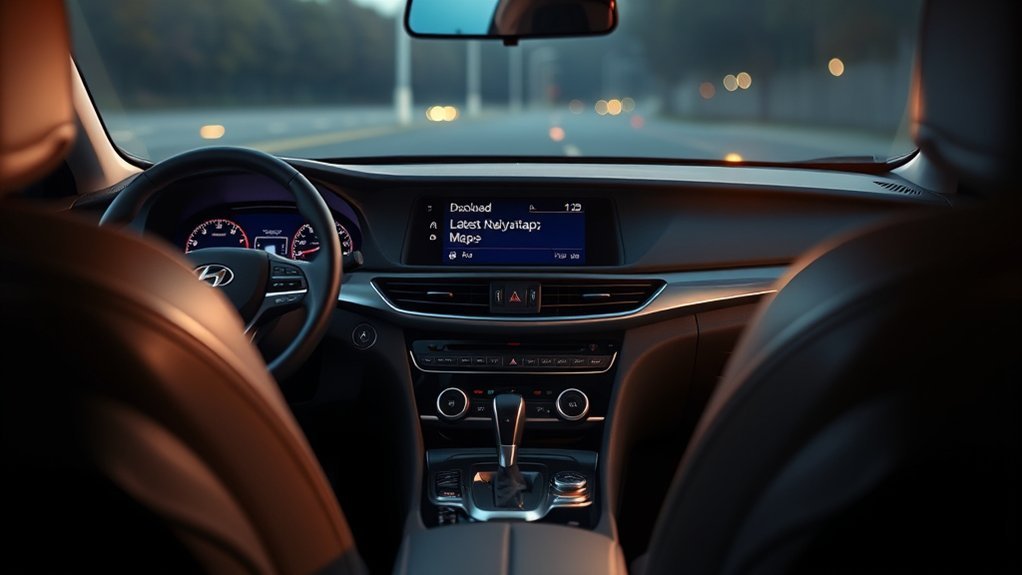
For a manual Hyundai Sonata navigation update, download the files on a computer rather than trying to download the map directly through the car’s Settings menu. Hyundai provides its Navigation Updater for supported Windows and Mac computers.
- Find the correct Sonata using the official update site.
- Install and open Navigation Updater on your computer.
- Select the software offered for your vehicle.
- Download the update to the computer or directly to the required removable storage device.
- Let Navigation Updater copy the files to the USB drive or SD card when prompted.
Follow Hyundai’s official infotainment update guide for the storage device required by your head unit. Hyundai recommends a 64 GB USB flash drive formatted as exFAT for systems that update by USB. Systems that use an SD card generally call for a 32 GB FAT32 SD card, not a microSD card with an adapter.
That distinction matters. Formatting a USB drive as FAT32 because an older guide recommends it may prevent some current systems from recognizing the update correctly.
[Products Worth Considering]

This compact adapter upgrades compatible factory wired CarPlay or Android Auto systems to wireless convenience for both iPhone and Android users. It uses WiFi 6 and Bluetooth 5.4 for fast, stable connections with quick auto-connect startup and reliable voice, navigation, and music performance. Its mini plug-in design helps keep the dashboard tidy while supporting easy setup and broad vehicle compatibility.

This activated carbon cabin air filter is designed as a replacement for select Hyundai Sonata gas models and Kia Cadenza vehicles, helping improve in-cabin air quality. It is engineered to capture odors, VOCs, and common pollutants for a fresher driving environment, while matching multiple OE and reference numbers for convenient fitment confirmation.
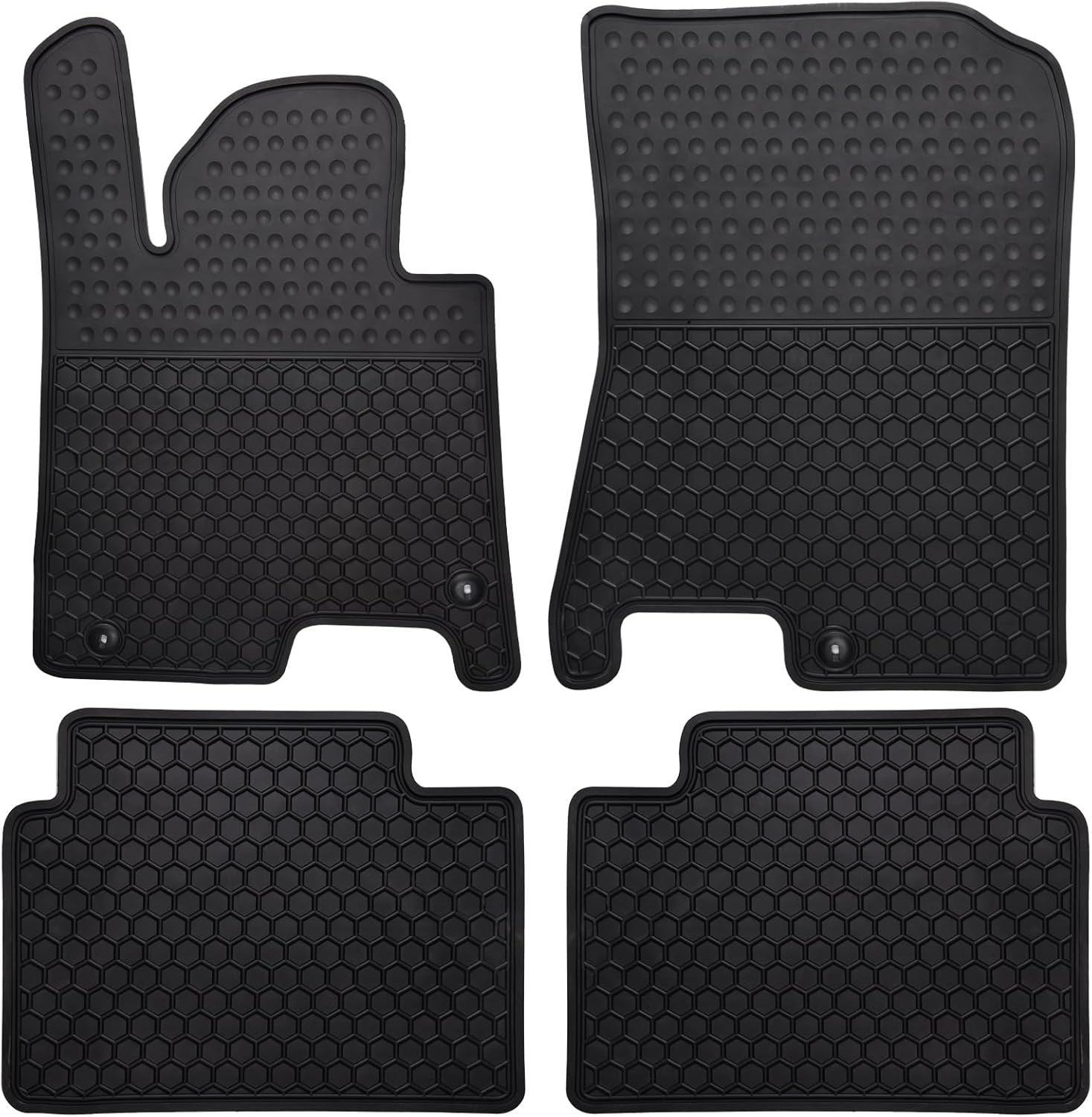
These custom-fit all-weather floor mats are designed for compatible Hyundai Sonata and Kia K5 models to help protect your vehicle's interior from mud, slush, dirt, and spills. Made from odorless, durable rubber with a deep hexagon pattern, they offer reliable anti-slip coverage and are easy to remove and clean with water or a damp towel. The set is built for long-lasting use in every season and helps keep your car looking clean while supporting resale value.
Install the Navigation Update on Your Hyundai Sonata
Once Navigation Updater has prepared the correct media, move the USB drive or SD card to the Sonata and start the update from the infotainment system. Keep the navigation system powered throughout the process.
Warning: Do not remove the USB drive or SD card or allow the navigation system to lose power during installation. Hyundai warns that interrupted power or removed media can cause the navigation system to malfunction.
- Start the vehicle so the battery remains supported during the update.
- Insert the prepared USB drive or SD card into the appropriate vehicle port or slot.
- Open the system-information screen. On many Sonata systems, the path is Settings or Setup > General > SW Info/Update.
- Select Update and follow the prompts on the screen.
- Leave the update media connected until the installation finishes.
- After the system restarts, return to the software-information screen and compare the new version with the version you recorded before starting.
Hyundai says installation time varies widely by vehicle. Its U.S. map FAQ gives a range from about 20 minutes to 3 hours, with newer vehicles generally taking less time.
[Products Worth Considering]

These custom-fit TPE floor mats are designed for Hyundai Sonata and Kia Optima models, delivering precise coverage with high-edge protection to help trap spills, dirt, and everyday messes. Built for all-weather durability, they offer anti-slip stability, odorless construction, and easy cleanup while helping preserve your vehicle's original carpet.

This portable car stereo adds wireless Apple CarPlay and Android Auto to nearly any vehicle without replacing the factory head unit. The 7-inch HD touchscreen supports voice control, GPS navigation, mirror link, Bluetooth calling, and multiple audio output options for a safer, more connected drive. It also includes backup camera support and flexible mounting for easy installation and removal.

This portable carplay screen brings wireless CarPlay and Android Auto to compatible vehicles, giving you easy access to navigation, calls, music, and messages without needing to plug in your phone every time. Its 7-inch HD touchscreen, mirror link support, and voice control make driving more convenient, while multiple audio output options and simple plug-and-play setup add everyday flexibility.
Resolve Common Update Issues
Most update failures come from incorrect media, the wrong vehicle package, interrupted power, or a system that uses a different update method. Work through the simple checks first instead of repeatedly restarting the installation.
Verify the Download and Storage Device
Your internet connection matters while the computer downloads the update, but a normal manual installation does not depend on the Sonata maintaining a Wi-Fi connection. Once the files are correctly stored on the USB drive or SD card, the vehicle installs them from that media.
- Make sure Navigation Updater finished downloading and copying the files before removing the storage device.
- For USB-based systems, use the format Hyundai specifies for that platform. Its current U.S. guide recommends 64 GB and exFAT.
- For SD-card systems, use the correct SD card rather than substituting a USB drive.
- If the vehicle does not recognize the media, confirm you selected the correct Sonata year and navigation system.
Check Software Compatibility
If you receive a compatibility error, compare the vehicle information with the package selected in Navigation Updater. Choosing the wrong model year or infotainment platform can prevent installation.
Also confirm that the Sonata actually has factory navigation. Hyundai says vehicles with built-in navigation display a map-version number. A car that only uses phone-based Apple CarPlay or Android Auto does not use Hyundai navigation map updates in the same way.
Hyundai’s map-update FAQ also notes that an update will not necessarily fix unrelated infotainment faults. If the head unit is freezing, restarting, losing audio, or showing other persistent faults, diagnosis may be needed rather than another map installation.
Does a Hyundai Sonata Update Maps Automatically?
Some Sonatas can receive map and multimedia software updates automatically, but only when the vehicle meets Hyundai’s OTA requirements. A compatible infotainment system, an active Bluelink subscription, sufficient cellular connectivity, and an available update are required.
With an eligible vehicle, the update downloads in the background and the infotainment system later prompts you to install it after the vehicle is parked and switched off. Hyundai says new eligible vehicles include three years of Map and Multimedia OTA updates with an active Bluelink account; a subscription is required afterward for continued map and multimedia OTA service.
See Hyundai’s OTA map update instructions for the current eligibility conditions and installation sequence.
Benefits of Regular Navigation Map Updates
A navigation update is most useful when roads, addresses, and points of interest have changed since your current map data was compiled. Updates can also include compatible infotainment-software improvements, depending on the Sonata and head unit.
- Newer road information: Updated map data can reflect road-network changes missing from older versions.
- Updated points of interest: Businesses, services, and destinations change over time.
- Software improvements: Some Hyundai releases include interface, connectivity, or stability changes in addition to map data.
- Better compatibility: Keeping the supported infotainment software current can reduce problems caused by outdated system software.
You do not have to install every map release for the navigation system to operate. However, Hyundai encourages periodic updates. Its U.S. FAQ says map releases are generally issued twice a year, while some older models may receive updates less often.
Frequently Asked Questions
How Much Does a Hyundai Navigation Update Cost?
The downloadable Hyundai map update is free for eligible vehicles. Hyundai currently lists mailed update media at $25 USD plus shipping, which is an alternative for owners who do not want to download and prepare the files themselves.
Does Hyundai Navigation Update Automatically?
It can update automatically on eligible vehicles that support Hyundai OTA updates. The vehicle needs a compatible infotainment system, active Bluelink service, cellular connectivity, and an available update; other vehicles use the manual USB or SD-card process.
Is a Hyundai Software Update Free?
Manual downloads from Hyundai’s update portal are free for eligible vehicles. Map and Multimedia OTA updates are included for three years on eligible new vehicles with an active Bluelink account, after which Hyundai says a paid subscription is required for continued OTA service.
How Long Does a Hyundai Sonata Navigation Update Take?
Hyundai says vehicle installation times can range from about 20 minutes to 3 hours depending on the model. Download time is separate and depends on your internet connection and the size of the update package.
Can I Update a Sonata That Does Not Have Built-In Navigation?
A navigation map update is intended for vehicles equipped with built-in navigation. If your Sonata only has Display Audio, Apple CarPlay, or Android Auto without factory navigation, use the software-update option intended for that infotainment system instead of installing a navigation map package.
Conclusion
For most Hyundai Sonata owners, the safest update path is simple: identify the exact navigation system, use Hyundai’s official Navigation Updater, let the program prepare the correct USB drive or SD card, and keep the vehicle powered until installation finishes. If your Sonata supports Bluelink OTA updates, the car may handle the download automatically and prompt you when the update is ready to install.
Sources
- Hyundai Navigation Update Portal: VIN and vehicle-type update search.
- Hyundai Infotainment User Guide: Navigation Updater procedure, USB and SD-card requirements, installation menus, and precautions.
- Hyundai Latest Software Versions: Current Sonata software and map versions by model year.
- Hyundai 2026 July Software Update: Sonata model applicability for the July 2026 release.
- MyHyundai Map Update FAQ: Download cost, shipped-media price, update time, map-release frequency, and troubleshooting information.
- MyHyundai OTA Map Update Guide: Bluelink OTA eligibility, download behavior, and installation process.