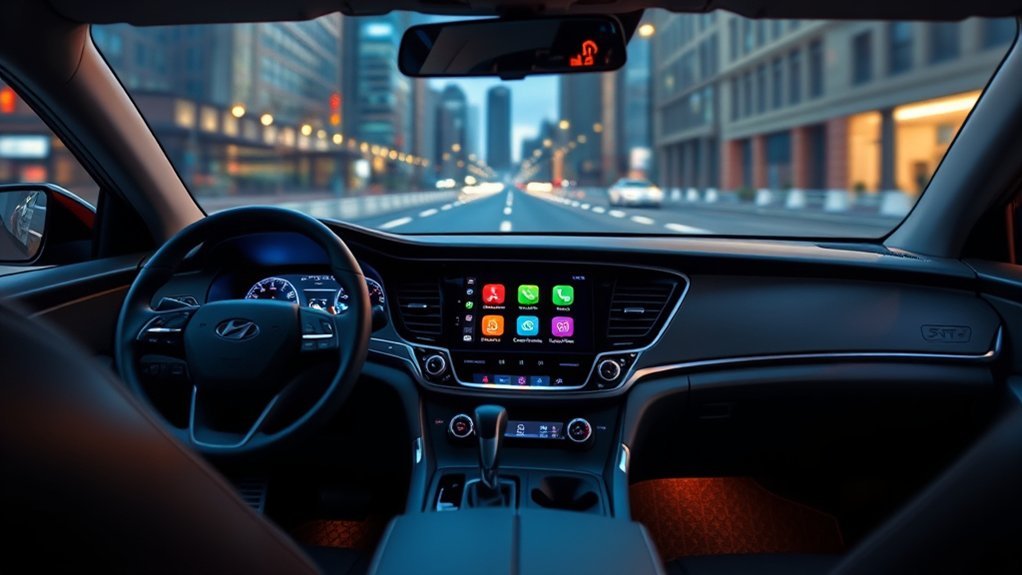
Updating your Hyundai Sonata infotainment system can improve maps, navigation behavior, audio features, phone connectivity, and system stability. The right update method depends on your Sonata’s model year, infotainment generation, region, installed software version, and whether your vehicle supports Bluelink over-the-air updates. Before you download anything, check your software version in the vehicle and use Hyundai’s official update site to confirm the correct file for your VIN or vehicle type.
Quick Answer
To update a Sonata infotainment system, first check Setup > General > SW Info/Update, then use Hyundai’s official update site to search by VIN or vehicle type. Eligible Bluelink vehicles may receive OTA updates. Other Sonatas usually update by USB or SD card using Hyundai Navigation Updater.
Key Takeaways
- Use Hyundai’s official update site, not third-party files, to avoid installing the wrong software.
- Most manual updates require a compatible USB flash drive or SD card prepared through Hyundai Navigation Updater.
- OTA updates are available only on supported vehicles with an active Bluelink or Hyundai Connected Services subscription.
- Keep the vehicle safely parked and powered during installation, and do not remove the storage device while the update is running.
- After updating, check navigation, Bluetooth, Apple CarPlay, Android Auto, audio settings, and saved preferences.
At a Glance
| Time Required | Varies by update size, system generation, storage speed, and connection. Plan for enough parked time so the process is not interrupted. |
| Difficulty | Easy to moderate. OTA is simplest when supported; USB/SD updates require a computer and correct storage format. |
| Tools Needed | Computer, Hyundai Navigation Updater, compatible USB flash drive or SD card, and your Sonata’s software/version information. |
| Cost | Hyundai software downloads are typically available through the official update site. You may need to buy a suitable USB drive or SD card, and subscription-based features may require an active service plan. |
Key Benefits of Updating Your Sonata Infotainment System
Keeping your Sonata infotainment system updated helps the system stay compatible with newer map data, phone features, app integrations, and software fixes. Depending on your model year and infotainment platform, an update may improve route guidance, refresh screen layouts, add supported media features, or fix known bugs.
Hyundai’s official update site lets owners check for infotainment software by VIN or vehicle type. That matters because not every Sonata uses the same head unit, software package, storage device, or update path. A 2016 Sonata with built-in navigation will not update the same way as a 2024–2026 Sonata with a newer ccNC infotainment system.
Note: Feature changes are not universal. Newer options such as online navigation, in-vehicle music streaming, or expanded connected features may require a supported infotainment platform, active Bluelink service, Wi-Fi or data service, and the right model year.
Check Your Sonata Before You Start
Before downloading an update, sit in the vehicle and check the installed software information. On many Hyundai systems, the path is:
- Select Setup.
- Select General.
- Select SW Info/Update.
- Write down or photograph the software version, map version, and platform information shown on the screen.
Then visit Hyundai’s official update site and search by VIN or vehicle type. This helps you avoid the most common mistake: downloading software for the wrong model year, region, or infotainment generation.
Pro Tip: Use your VIN when possible. Vehicle-type searches are helpful, but a VIN search is the safest way to match the update to your Sonata’s exact build and system.
How to Prepare Your Vehicle for Updates
Preparation is simple, but it matters. A failed or interrupted update can leave the system stuck, incomplete, or unable to read the update device. Before beginning, park in a safe location, make sure the vehicle can remain powered, and avoid starting the process when you are in a hurry.
- Check update eligibility: Use Hyundai’s official update website to confirm whether your Sonata has a current update.
- Use the correct update method: Choose OTA only if your Sonata supports it and has an active Bluelink or Hyundai Connected Services subscription.
- Prepare storage for manual updates: Use a compatible USB flash drive or SD card that matches Hyundai’s recommended capacity and file system.
- Back up preferences: Take photos of important settings, radio presets, audio settings, navigation favorites, and phone-pairing details.
- Keep power stable: Follow the on-screen instructions and do not shut the vehicle off mid-update unless the system tells you it is safe.
Warning: Do not disconnect the USB or SD card during a manual update. For OTA updates, follow Hyundai’s on-screen instructions, park safely, allow enough time, and avoid opening the hood, replacing the battery, or leaving diagnostic tools connected to the OBD port during the update process.
Understanding Sonata Infotainment OTA Updates
OTA stands for over-the-air. Instead of downloading update files to a USB drive or SD card, supported Hyundai vehicles can receive certain software updates wirelessly. Hyundai’s Bluelink OTA guide explains that wireless updates are available only for customers with a Hyundai vehicle that supports Bluelink and is subscribed to the service.
[Products Worth Considering]

This 2-in-1 wireless adapter converts factory-wired CarPlay into a cable-free experience for compatible vehicles, helping you enjoy seamless phone integration with less clutter. It supports automatic reconnection, stable Bluetooth and Wi-Fi pairing, and broad compatibility with many factory-installed CarPlay systems. Built with a durable metal and acrylic design, it also includes firmware updates and lifetime technical support for continued convenience.

This compact adapter upgrades compatible factory wired CarPlay or Android Auto systems to wireless convenience for both iPhone and Android users. It uses WiFi 6 and Bluetooth 5.4 for fast, stable connections with quick auto-connect startup and reliable voice, navigation, and music performance. Its mini plug-in design helps keep the dashboard tidy while supporting easy setup and broad vehicle compatibility.

Teeran’s 2-in-1 wireless adapter turns compatible factory wired CarPlay or Android Auto systems into a cable-free experience for both iPhone and Android users. It offers fast setup, automatic reconnection, and full support for your vehicle’s original controls so navigation, music, calls, and voice assistants work seamlessly. Its compact flush-fit design helps reduce clutter, while built-in protection and broad compatibility make it a practical everyday upgrade.
Benefits of OTA Updates
When your Sonata supports OTA updates, the main benefit is convenience. You do not have to prepare a storage device, copy files, or visit a dealership for every software package. The vehicle can receive eligible updates through its connected services system, and the infotainment screen will guide you through the process when an update is available.
OTA updates may improve infotainment performance, navigation behavior, connected features, or system reliability. However, the exact update content varies by model, installed software version, subscription status, and Hyundai’s current release notes.
OTA Update Requirements
OTA updates usually require three things:
- A Sonata with an infotainment system that supports OTA updates.
- An active Bluelink or Hyundai Connected Services subscription.
- A suitable network connection so the vehicle can download and prepare the update.
If your vehicle does not support OTA, you can still update many Sonata infotainment systems manually through Hyundai Navigation Updater and a compatible USB or SD card.
OTA Safety Notes
Do not assume an OTA update can be installed while driving. Depending on the update type, the vehicle may need to be parked and unavailable during the installation. Hyundai owner guidance also notes that some remote features may be unavailable during an update and that update details vary by installed software version.
Choosing the Right USB or SD Card for Updates
For manual updates, use Hyundai’s Navigation User Guide as the source of truth. Hyundai recommends a 64GB USB flash drive formatted as exFAT or a 32GB SD card formatted as FAT32. Some navigation systems require USB Type-C, and Hyundai warns against microSD cards with adapters for SD-card updates.
Here is the safest storage checklist:
- USB flash drive: 64GB recommended, exFAT file system.
- SD card: 32GB recommended, FAT32 file system.
- SD speed: UHS-I, 10MB/s or faster recommended.
- Avoid: microSD cards with adapters, worn connectors, unknown-brand storage, or devices that Navigation Updater cannot write to correctly.
- Format carefully: Back up anything on the drive first, because formatting will erase the storage device.
The correct storage format is not optional. If the file system is wrong, the Sonata may not recognize the update device.
[Products Worth Considering]

This wireless CarPlay screen adds modern smartphone connectivity to almost any vehicle with easy plug-and-play installation. It supports Apple CarPlay and Android Auto, online maps, voice control, phone mirroring, and multiple audio output options for safer, more convenient driving. The included night vision backup camera and OTA updates help improve visibility, compatibility, and long-term performance.

Keep your Toyota navigation system current with this SD card map update designed for select factory-installed GPS units. It provides updated coverage for the USA and Canada, including roads, points of interest, and key travel locations for smoother trip planning. Easy plug-and-play installation helps restore accurate guidance without complicated setup.

This compact adapter converts factory-wired CarPlay and Android Auto systems to wireless for a cleaner, more convenient driving experience. It offers fast auto-connect, stable performance, and plug-and-play setup so you can enjoy navigation, music, calls, and voice control without extra cables. The included USB-to-USB-C converter helps it fit a wide range of vehicle ports.
Step-by-Step Guide to Installing Updates
Use these steps for a manual Sonata infotainment or navigation update. Menu names can vary slightly by model year and infotainment generation, so follow the instructions shown by Hyundai Navigation Updater and your vehicle screen.
[Products Worth Considering]

This wireless adapter upgrades factory wired Apple CarPlay and compatible Android Auto systems into a seamless cordless experience without replacing your original infotainment system. After a quick one-time setup, it reconnects automatically for navigation, music, calls, messages, and voice control, while compact plug-and-play design helps keep your dashboard clean and your driving experience more convenient.

This activated carbon cabin air filter is designed as a replacement for select Hyundai Sonata gas models and Kia Cadenza vehicles, helping improve in-cabin air quality. It is engineered to capture odors, VOCs, and common pollutants for a fresher driving environment, while matching multiple OE and reference numbers for convenient fitment confirmation.

This Toyota navigation SD card provides updated North America maps and points of interest for compatible factory navigation systems. It is preloaded with recent road and location data to help drivers find destinations, services, and routes more easily across the U.S. and Canada. Designed for select Toyota models, it offers a simple plug-and-play replacement for the original navigation card.
1. Check Your Current Software Version
In the vehicle, go to Setup > General > SW Info/Update. Record the software version, map version, and platform information. This gives you a baseline and helps you confirm the update after installation.
2. Download Hyundai Navigation Updater
Go to the official Hyundai update site and download Navigation Updater for your computer. Install the program, choose your language, and accept the license agreement.
3. Search for the Correct Sonata Update
Inside Navigation Updater or on the official update site, search by VIN or vehicle type. Choose the exact Sonata model year, system type, and region. Do not use update files from forums, file-sharing sites, or another vehicle.
4. Prepare the USB Drive or SD Card
Insert your compatible storage device into the computer. Let Navigation Updater format or prepare the device if prompted. If you prepare the drive yourself, use the file system recommended for your storage type: exFAT for the recommended USB flash drive or FAT32 for the recommended SD card.
5. Copy the Update Files
Allow Navigation Updater to download and copy the files. Do not rename folders or move files into extra folders unless Hyundai’s tool specifically instructs you to do so. The update files must be placed where the vehicle expects to find them.
6. Install the Update in Your Sonata
Take the USB drive or SD card to the vehicle. Insert it into the correct port or slot, then go to Setup > General > SW Info/Update and select Update. Keep the vehicle powered and follow all on-screen instructions until the update is complete.
7. Confirm the Update
After the system restarts, return to SW Info/Update and compare the version information with your notes. Then test navigation, audio, Bluetooth, Apple CarPlay, Android Auto, voice recognition, and any connected services you normally use.
What Happens During a Sonata Infotainment Update?
During the update, the infotainment screen may show progress messages, restart one or more times, or temporarily disable some functions. This is normal. Do not remove the update device, shut off the vehicle, or press random controls unless the screen asks you to take action.
After the update, you may notice refreshed menus, map changes, route guidance improvements, new media options, or bug fixes. Hyundai’s 2026 June Software Update, for example, lists updated maps and newer online navigation features for supported ccNC systems with active Bluelink service. Older Sonata systems may receive different improvements or only map/software maintenance.
Some settings can change after an update. Check these items before your next long drive:
- Radio presets and favorite stations
- Navigation home/work addresses and saved places
- Bluetooth paired phones
- Apple CarPlay and Android Auto behavior
- Audio balance, fader, equalizer, and startup volume
- Display brightness, theme, and split-screen preferences
- Driver-assistance or connected-service settings shown through the infotainment screen
Common Update Issues and Their Solutions
If your Sonata update does not work the first time, do not panic. Most problems come from the wrong update file, an incompatible storage device, incorrect formatting, or an interrupted installation.
USB or SD Card Is Not Recognized
- Confirm the storage device matches Hyundai’s recommended size and file system.
- Use a full-size SD card instead of a microSD card with an adapter.
- Try a different quality USB flash drive if the connector is loose or worn.
- Reformat the device and let Navigation Updater copy the files again.
- Make sure the update files are not buried inside an extra folder.
“Not Compatible” or Hardware-Version Error
This usually means the update does not match your vehicle, region, or infotainment generation. Return to Hyundai’s official update site, search by VIN if available, and download the correct package. If the error continues, contact Hyundai support or a dealer before trying random files.
Update Seems Stuck
Large updates can appear slow, especially when the system is verifying files or restarting. Give the system time. Do not remove the storage device unless the screen instructs you to. If the update fails or recovery does not complete, follow Hyundai’s support instructions.
Bluetooth, CarPlay, or Android Auto Acts Weird Afterward
Delete the phone pairing from both the Sonata and your phone, restart the phone, and pair again. For Apple CarPlay or Android Auto, try a high-quality cable, clean the USB port, and confirm your phone operating system is current.
Settings Were Reset
Some updates can reset screen layouts, saved preferences, or audio settings. Use the photos you took before the update to restore your preferred setup quickly.
User Experiences With Updates: Benefits and Challenges
Most Sonata owners update for practical reasons: better map data, fewer glitches, smoother phone connections, or access to features their vehicle already supports. The biggest frustrations usually come from storage-device errors, uncertainty about OTA eligibility, or settings that need to be restored afterward.
Enhanced Navigation Features
Navigation updates can refresh map data and improve the way routes display or calculate. On supported newer systems, Hyundai has also introduced online navigation features that can use server-based road information when the vehicle and subscription support it.
Interface Design Changes
Some updates change menu layouts, icons, or screen behavior. That can make the system feel newer, but it can also take a few drives to relearn where everything is. If you rely on a specific layout, photograph your current screens before updating.
Risk of Configuration Loss
The main downside is the chance of losing customized settings. This does not mean you should avoid updates, but it does mean you should prepare. Save your important destinations, note audio settings, and check paired phones after the update finishes.
Staying Informed About Future Updates
Hyundai releases infotainment and navigation updates through its official update site. Check it periodically, especially before a road trip or after buying a used Sonata. The site also lists update notices, applicable vehicles, and customer support information.
If your Sonata supports Bluelink OTA updates, keep your subscription active and watch for update notifications on the vehicle screen or connected-services app. If your Sonata does not support OTA, manual USB or SD updates remain the standard path for many systems.
Frequently Asked Questions
Does Hyundai Sonata infotainment update automatically?
Only some Sonata models and infotainment systems support automatic or wireless OTA updates. OTA updates require supported hardware, network access, and an active Bluelink or Hyundai Connected Services subscription. If your Sonata is not eligible, use Hyundai Navigation Updater with a USB drive or SD card.
How do I update my Hyundai Sonata infotainment system?
Check your current version under Setup > General > SW Info/Update, then use Hyundai’s official update site to search by VIN or vehicle type. If OTA is supported, follow the vehicle prompt. If not, download Hyundai Navigation Updater, prepare a compatible USB or SD card, and install the update through the vehicle’s SW Info/Update menu.
What size USB do I need for a Sonata update?
Hyundai’s Navigation User Guide recommends a 64GB USB flash drive formatted as exFAT. Some systems may require USB Type-C. If your Sonata uses an SD card instead, Hyundai recommends a 32GB SD card formatted as FAT32, with no microSD adapter.
How long does a Hyundai infotainment update take?
The time varies by update size, infotainment generation, storage speed, and whether the update is OTA or manual. Plan for enough parked time and do not start the update right before you need to drive.
Can I turn off the car during a Sonata infotainment update?
Follow the instructions on the vehicle screen. In general, keep the vehicle powered during a manual update and do not interrupt the process. For OTA updates, Hyundai warns that the vehicle may not be usable during installation and that certain actions can cancel or disrupt the update.
Will an infotainment update add navigation to a Sonata that does not have built-in navigation?
No. A map or infotainment software update does not add built-in navigation hardware to a system that was not equipped with it. It can only update supported software and features already available for your vehicle’s infotainment platform.
Conclusion
Updating your Sonata infotainment system is worth doing when you use the correct method and official files. Start by checking your current software version, confirm the update by VIN or vehicle type, choose OTA only if your vehicle supports it, and use Hyundai’s recommended USB or SD card specs for manual updates. A careful update can give you fresher maps, smoother connectivity, and a more reliable infotainment experience without unnecessary guesswork.
Sources
- Official Hyundai Motors Navigation Update Website — VIN/vehicle-type lookup, software-version check path, and USB/SD install flow.
- Hyundai Navigation User Guide — Navigation Updater process and removable storage specifications.
- Hyundai Bluelink User Guide for OTA Updates — OTA eligibility and Bluelink subscription requirements.
- Hyundai 2026 June Software Update Notice — current update notice, feature examples, and applicable model information.
- Hyundai Owner Manual: Updating Software — OTA update restrictions, safety cautions, and recovery guidance.
- Hyundai Navigation Update FAQ — common update requirements, installation questions, and troubleshooting categories.