
Last updated: July 31, 2026 · Rechecked against current Toyota, Apple, and Google support guidance; added a seven-fix order, iPhone- and Android-specific checks, and clearer multimedia update guidance.
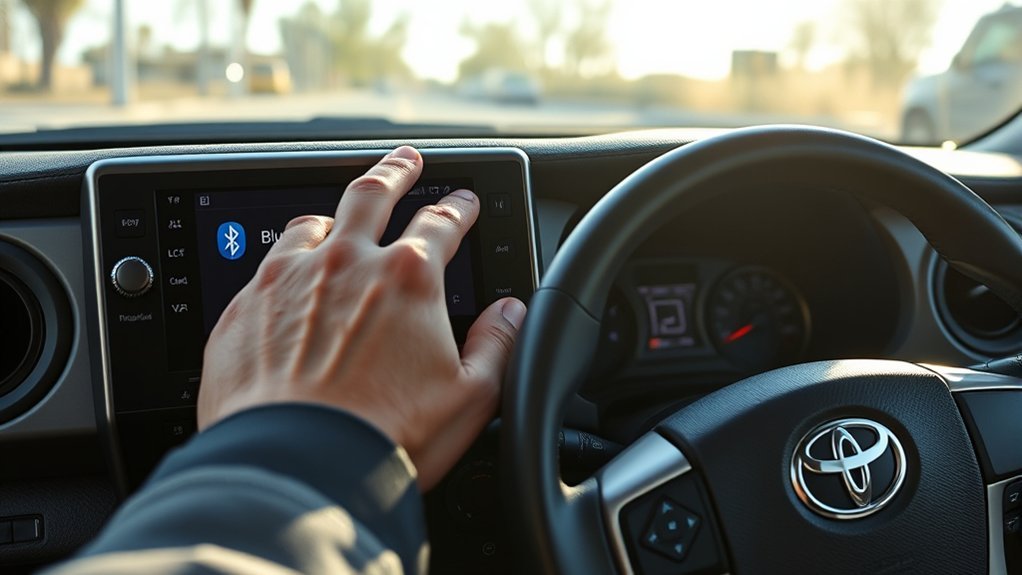
If your Toyota Tacoma Bluetooth is not connecting, park the truck, open the correct Add Device screen, remove the saved pairing from both the phone and Tacoma, restart both systems, and pair them again. On many 2024-or-newer systems, the path begins at Settings > Bluetooth & Devices. Many 2020–2023 and older Entune systems begin at Menu or Setup > Bluetooth. Use the multimedia manual for your exact model year when the labels differ.
First identify what failed. Basic Bluetooth handles calls and audio streaming. Apple CarPlay and Android Auto are separate phone-projection features that may also require Wi-Fi, phone permissions, a USB data cable, or the correct multimedia USB port. If Bluetooth calls and music work but projection does not, troubleshoot CarPlay or Android Auto separately.
Quick Answer: Try These 7 Fixes in Order
- Shift to Park and open the Tacoma’s Add Device screen.
- Confirm Bluetooth is on and decide whether calls, music, or phone projection has failed.
- Delete the saved connection from both devices, not only from the phone.
- Restart the phone and multimedia system.
- Pair again and confirm that the PIN matches on both screens.
- Check the failed function: volume and audio source, Android Media audio or Phone audio, and requested contact or call-history access.
- Test a second compatible phone, then check Toyota multimedia updates or arrange diagnosis if several phones fail identically.
Key Takeaways
- A grayed-out Bluetooth menu may be the normal driving lockout; test it again while fully parked.
- Android exposes separate Media audio and Phone audio controls. iPhone troubleshooting usually starts with restart, Bluetooth off and on, Forget This Device, and re-pairing.
- The wrong saved phone may be connected as the primary or preferred device.
- A second-phone test is the fastest way to separate a phone-side problem from a Tacoma-side problem.
- Do not begin with a full factory reset because it erases more than the Bluetooth registration.
Toyota Tacoma Bluetooth Troubleshooting at a Glance
Match the symptom to the first check below. Stop when the failed function works; do not reset unrelated settings.
| Symptom | Best First Check | What to Do Next |
|---|---|---|
| Bluetooth menu is grayed out | Shift to Park and stop the truck | Restart the multimedia system if the menu remains unavailable while parked |
| Phone cannot find the Tacoma | Open Add Device, Add Another Device, or Search for Devices | Keep the phone’s Bluetooth settings open and delete an unused saved device if the list is full |
| Tacoma is paired but music will not play | Raise phone and truck volume and select Bluetooth Audio | On Android, enable Media audio; disconnect another active audio device |
| Music works but calls do not | Check which device is handling calls | On Android, enable Phone audio; approve contacts and call history if requested, then re-pair |
| The wrong saved phone connects | Check the connected, primary, or preferred device | Disconnect the old phone or change device priority where supported |
| Connection repeatedly drops | Update the phone and remove the stale pairing | Move the phone into the open cabin, disable unused active connections, and test a second phone |
| Bluetooth works but CarPlay or Android Auto fails | Treat it as a phone-projection problem | Check Wi-Fi, Siri or Android Auto setup, the data cable, and the correct USB port |
| Screen freezes, reboots, or loses several functions | Restart the multimedia system | Check for an eligible update and arrange service if the fault returns with multiple phones |
Which Tacoma Bluetooth Problem Do You Have?
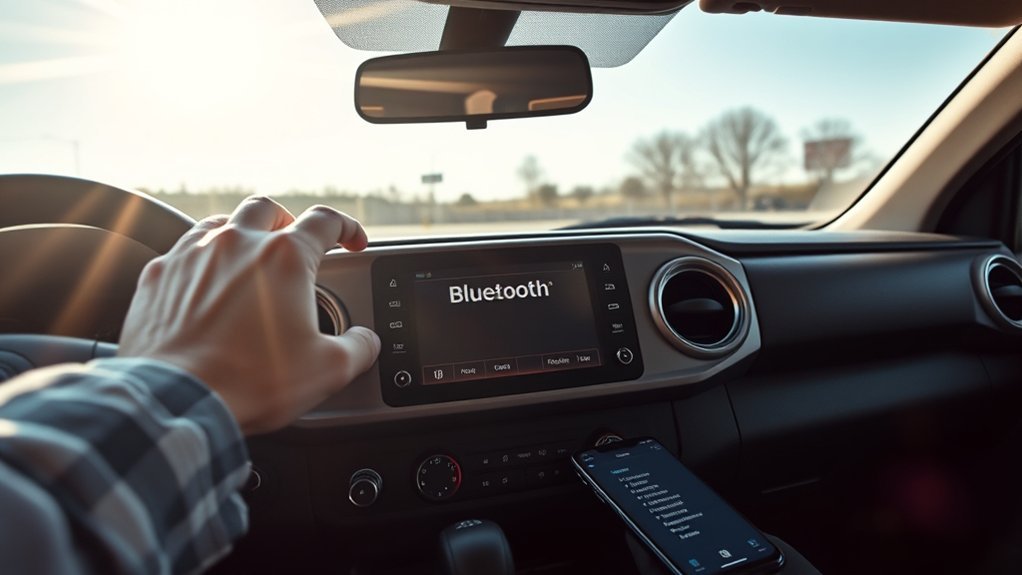
A Tacoma Bluetooth failure usually falls into one of four groups: the devices cannot pair, a saved connection will not reconnect, only calls or music work, or the multimedia system itself stops responding. Identify the group before changing settings.
Shift to Park before opening the pairing menu. Toyota multimedia manuals restrict some registration and connection operations while the vehicle is moving. If the controls become available in Park, the grayed-out menu was a safety lockout rather than a system failure.
Next, test whether the problem follows the phone or stays with the truck. Pair a second compatible phone after removing any old Toyota record from that phone. If it works, focus on the first phone’s software, saved connection, audio routing, or permissions. If several phones fail in the same way, the Tacoma’s multimedia system becomes the common factor.
Note: Do not start with a full factory reset. A clean Bluetooth re-pair removes the saved connection from both devices without erasing every multimedia profile and preference.
How this guide was checked: The steps below synthesize Toyota multimedia manuals and current Apple and Google support instructions. They do not claim hands-on testing of every Tacoma model year, screen, phone, or software version.
If the Tacoma has no sound from radio, Bluetooth, or other sources, treat that as a broader multimedia symptom and use the Toyota Tacoma radio-no-sound guide.
Is Your Phone Compatible With the Tacoma Multimedia System?
Bluetooth compatibility depends on the Tacoma’s multimedia generation, the phone model, its operating-system version, and the function you want to use. A phone may support calls but behave differently with contact syncing, Bluetooth audio, messages, wireless CarPlay, or Android Auto.
Check Toyota’s Tacoma phone-compatibility information, then install the latest stable phone update available for your device. Avoid beta phone software while diagnosing a connection because its Bluetooth behavior may change before vehicle compatibility is confirmed.
[Products Worth Considering]

This auxiliary jack adapter restores a broken or missing AUX connection so you can stream audio from your device through your Toyota stereo system. It is designed for compatible Toyota models and uses an 8-pin connector for a direct plug-and-play replacement. Built for reliable audio transmission, it helps bring back clear in-car sound without complicated installation.

This CANBUS wiring harness is designed to connect compatible Android head units to select Toyota models with mid-trim OEM JBL systems, helping simplify installation and reduce cutting or splicing. It supports retained factory features such as steering wheel controls, factory backup camera, original USB, and JBL amplifier functions when the vehicle and radio are compatible. Built for select Toyota fitments, it offers a plug-and-play upgrade path for a smoother stereo replacement.

This steering clock spring is designed to restore reliable steering wheel controls across a wide range of Toyota models. It supports audio, cruise control, and other multifunction commands while matching OEM part numbers for confident replacement fitment. Built for dependable signal transfer and straightforward installation, it is an effective solution for repairing steering column control issues.
What If an iPhone Will Not Connect to the Tacoma?
Restart the iPhone. Then open Settings > Bluetooth, turn Bluetooth off, wait about five seconds, and turn it on again. If the Tacoma is already listed, tap the information button beside it and choose Forget This Device. Delete the iPhone from the Tacoma’s saved-device list, reopen the Tacoma’s Add Device screen, and pair again.
If several household iPhones have similar names, rename the intended phone at Settings > General > About > Name. Also install the latest stable iOS update and check for eligible Toyota multimedia software updates.
Why Is Bluetooth Connected but Not Playing Music?
First raise the volume on both the phone and Tacoma, start audio on the phone, and select Bluetooth Audio as the Tacoma source. Confirm that another phone, earbud set, or speaker is not receiving the audio.
On Android, open the saved Tacoma device and turn on Media audio. On iPhone, choose the Tacoma as the audio output if another device is active. If the music profile still does not work, delete the connection from both devices and pair again.
Why Does Music Work but Calls Do Not?
Check whether another paired device is receiving calls. On Android, open the saved Tacoma connection and turn on Phone audio. Approve contact and call-history access if the pairing prompt requests it.
On iPhone, confirm that the Tacoma is selected as the call-audio destination, then forget and re-pair the vehicle if calls still route elsewhere. Also check the Tacoma’s connected-device settings to make sure the phone function is enabled for the intended device.
Note: Menu names vary by Tacoma model year, trim, region, and multimedia version. Use your multimedia owner’s manual when your screen labels differ.
How to Re-Pair Your Phone After a Tacoma Bluetooth Failure
The steps below are for a clean re-pair after a failed or unstable connection. For first-time setup and saved-device management, see the dedicated Toyota Tacoma Bluetooth pairing guide.
Park the Tacoma, unlock your phone, turn Bluetooth on, and keep the phone’s Bluetooth settings open. Remove the old connection from both devices before following the path that matches your multimedia system.
Re-Pair a Phone With a 2024 or Newer Tacoma Audio Multimedia System
- Open Settings from the Tacoma multimedia main menu.
- Select Bluetooth & Devices.
- Select Add another device.
- Select Search for devices if that option appears.
- Select the phone, or search for the Toyota multimedia system from the phone if instructed.
- Compare the displayed PIN on both screens and confirm the match.
- Approve the requested phone, audio, contacts, and message access.
- Choose whether to enable Apple CarPlay or Android Auto if the screen asks.
Some current Toyota systems can link a device to a driver profile and mark it as primary or secondary. If the wrong phone reconnects first, check connected-device and profile settings before deleting every saved phone.
Re-Pair a Phone With a 2020–2023 Tacoma
- Press Menu on the multimedia system.
- Select Setup.
- Select Bluetooth.
- Select Add New Device or the equivalent add-device option.
- Select the Tacoma from the phone’s available Bluetooth devices.
- Confirm that the PIN matches on the phone and Tacoma screens.
- Allow the requested phone, media, contact, and call-history access.
If Add New Device is unavailable, delete an unused saved phone and try again. If your 2020–2023 Tacoma uses a different screen layout, follow the Bluetooth registration section in its multimedia manual rather than forcing a path from another system.
Re-Pair a Phone With an Older Entune Tacoma
- Open Setup from the Entune home screen or faceplate.
- Select Bluetooth.
- Select Add or Add New Device.
- Choose the Toyota vehicle from your phone’s Bluetooth list.
- Enter or confirm the displayed PIN if requested.
- Approve contacts and audio access after the connection completes.
If pairing fails, remove the Tacoma from the phone and remove the phone from the Tacoma. Restart the phone, turn the truck off long enough for the multimedia system to shut down, then repeat the correct pairing path.
How Do You Restart a Tacoma Multimedia System?
On many 2020–2023 Tacoma systems, press and hold the Power/Volume control for at least three seconds to restart the multimedia unit. Newer and older systems may use a different control or shutdown behavior, so follow the multimedia manual for your exact screen if that method does not apply.
How Do You Update Tacoma Multimedia Software?
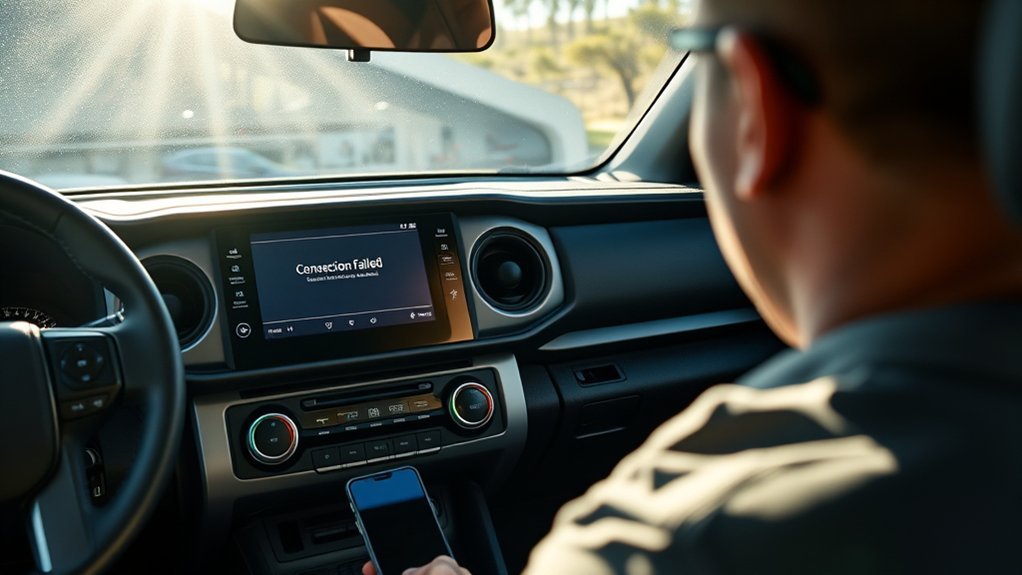
Update the phone before assuming the Tacoma has failed. Install the latest stable iOS or Android update available for the device, restart it, and test Bluetooth again.
Toyota lists three multimedia update routes. Vehicles with the latest Toyota Audio Multimedia system may support an over-the-air update through the display. Eligible older systems may use Toyota’s software portal and a compatible USB drive. A Toyota dealer can also check and install available software.
- Check the current software version in the Tacoma’s system or software-update settings.
- Look for an over-the-air update through the display if your system supports it.
- Check Toyota’s official portal at Toyota Audio Multimedia System Updates.
- Follow the instructions for the exact vehicle and head unit.
- Do not remove a USB drive or interrupt power while the system says an installation is in progress.
- Delete and recreate the Bluetooth pairing after the update if the old connection remains unstable.
Warning: Do not change Bluetooth, phone, or multimedia settings while driving. Park safely before using the phone or touchscreen.
[Products Worth Considering]

This USB panel mount car charger provides a clean flush-fit extension solution for compatible Toyota dashboards, delivering both charging and data transfer through a male to female USB connection. Designed for plug-and-play installation, it supports a wide range of Toyota models and helps replace broken or outdated USB ports while protecting devices from overcurrent, overheating, and overcharging. Its durable PVC and copper construction supports reliable use for phones, tablets, GPS units, and CarPlay or Android Auto accessories.

This universal stereo removal kit provides a complete set of keys and pry tools for safely removing factory radio and navigation units without damaging the dash or head unit. Built from durable steel, it is designed for long-lasting use and compatible with a wide range of car and truck models including many popular European and American vehicles. The assortment of tool shapes and sizes helps make radio installation and removal faster, easier, and more precise.

Replace a cracked or unresponsive navigation screen with this touch screen glass digitizer designed for compatible Toyota infotainment units. It restores touch functionality for supported RAV4, Prius C, Corolla, and Camry models with a precise 12-pin interface and the correct cable position requirements. Built with a slim 1.5mm profile, it is a practical repair solution for keeping your factory navigation system working properly.
How Can You Reduce Tacoma Bluetooth Dropouts?
Bluetooth and active Wi-Fi services share nearby radio space, but not every nearby device causes interference. Use the checks below as controlled tests. Change one item at a time and see whether the dropouts stop.
Disable Active Connections That May Conflict
- Turn off an unused vehicle or phone hotspot.
- Disconnect earbuds, headphones, or another active Bluetooth audio device.
- Disconnect a second saved phone if the Tacoma keeps switching devices.
- Move the phone into the open cabin. Do not bury it under metal objects or deep inside a closed console while testing.
- Restart wireless CarPlay or Android Auto separately if basic Bluetooth remains connected.
- Reconnect the intended phone manually and test calls and music one function at a time.
After the connection becomes stable, turn the other services back on one at a time. The service or device that makes the problem return is the strongest troubleshooting lead.
Check the Connection, Profile, and Device Priority
| Check | What It Tests | Useful Result |
|---|---|---|
| Disable an unused Wi-Fi hotspot | An active wireless-service conflict | A stable connection points to the hotspot or projection link as a contributor |
| Disconnect the second saved phone | Automatic connection or device priority | The intended phone stays connected without switching |
| Raise both volume controls and select Bluetooth Audio | Audio routing rather than pairing | Music plays without deleting the connection |
| Enable Phone audio on Android | Hands-free calling function | Calls route through the Tacoma |
| Enable Media audio on Android | Bluetooth music function | Music becomes available as a Tacoma audio source |
| Test a second compatible phone | Phone-side versus vehicle-side fault | The result shows which side needs more attention |
How Do You Reset a Tacoma Bluetooth Connection?
Use a clean re-pair before erasing all multimedia data. This removes only the saved Bluetooth registration and recreates it.
- Shift to Park and leave the multimedia system on.
- Delete the phone from the Tacoma’s saved-device list.
- Forget the Tacoma on the phone. On iPhone, use Settings > Bluetooth > information button > Forget This Device. On Android, open the saved vehicle and choose Forget or Unpair.
- Restart the phone.
- Restart the multimedia system or turn the Tacoma off and allow the unit to shut down.
- Start the Tacoma and pair the phone again using the correct model-year path.
- Approve the requested phone, media, contacts, and call-history access.
- Test one function at a time: a call, Bluetooth music, contacts, then phone projection if equipped.
For first-time setup, use the Tacoma Bluetooth pairing guide. If basic Bluetooth works but projection fails, follow the Tacoma Apple CarPlay guide or Tacoma Android Auto guide.
If a wired projection connection still fails, use the Toyota Tacoma USB port troubleshooting guide. A cable can charge a phone while failing to transfer multimedia data.
Pro tip: Give each household phone a distinct device name. This makes it easier to identify the correct primary or connected phone when several devices are saved.
When Does a Tacoma Bluetooth Problem Need Professional Diagnosis?
Do not judge the Tacoma from one failed phone. Test another compatible phone and record exactly which features fail. The result helps separate phone configuration from a multimedia-system problem.
[Products Worth Considering]

The XTOOL A30M V2.0 is a wireless OBD2 diagnostic scanner built for DIYers and home mechanics who want full-system coverage, active tests, and broad reset support in one portable tool. It offers lifetime free updates, bidirectional control, and up to 8 live data streams for faster troubleshooting, plus compatibility with many vehicles including newer FCA and GM models. With multilingual support and mobile app connectivity for Android and iOS, it helps simplify maintenance and diagnostics without subscription fees.

This plug-and-play AC button switch is designed to replace a faulty factory air conditioner switch in compatible Toyota vehicles. It installs easily without tools and is made to match the original part for a seamless fit and reliable operation. Built from durable ABS plastic, it offers a dependable replacement backed by warranty support and fitment guidance.

Restore responsive touch control to your Toyota navigation system with this 6.1-inch digitizer replacement designed for select Camry, Corolla, Prius C, and RAV4 models. It helps fix unresponsive, ghost-touch, and cracked-screen issues while matching OEM fitment for a straightforward repair and improved in-car usability.
When Does the Problem Point to the Tacoma?
Professional diagnosis makes sense when the same fault affects several compatible phones or the multimedia system shows a repeatable failure while the truck is parked.
| Test Result | Most Useful Interpretation | Next Step |
|---|---|---|
| Only one phone fails | Phone software, audio routing, permissions, or its saved connection is more likely | Update, forget, restart, and re-pair that phone |
| A second phone pairs normally | The Tacoma can establish a Bluetooth connection | Focus on the original phone |
| Several phones fail identically | The Tacoma system is the common factor | Check updates and arrange diagnosis |
| Menu remains unavailable while parked | The issue is not only the normal driving lockout | Document the failure and have the multimedia system checked |
| Screen freezes, reboots, or loses other functions | A wider multimedia fault may be present | Record the symptoms and contact Toyota service |
| Calls fail on every phone but music works | Calling configuration, software, microphone, or hands-free hardware needs testing | Confirm call routing and permissions, then request diagnosis if the fault remains |
What Should You Tell the Service Advisor?
- Your Tacoma’s model year, trim, and multimedia screen type.
- The phone models and operating-system versions you tested.
- Whether pairing, calls, music, contacts, CarPlay, or Android Auto fail.
- Whether the menu is unavailable only while moving or also while parked.
- Any error message shown on the phone or Tacoma screen.
- The multimedia software version and update history, if available.
- Every restart, deletion, update, audio-source check, and second-phone test you completed.
Clear details help the technician reproduce the fault and decide whether the next step is a software update, configuration correction, wiring check, microphone test, or multimedia-unit diagnosis.
Frequently Asked Questions
Why Is My Bluetooth Not Working in My Toyota Tacoma?
A stale pairing, disabled audio function, wrong device priority, outdated software, or a temporary multimedia fault can stop Tacoma Bluetooth. Shift to Park, delete the connection from both devices, restart them, pair again, and test calls and music separately.
Why Is My Toyota Bluetooth Not Pairing?
Make sure the Tacoma is in Park and its Add Device screen is open. Keep the phone’s Bluetooth settings visible, select the Toyota device, and confirm that the PIN matches on both screens. Delete any partial pairing before trying again.
Why Is My Tacoma Bluetooth Menu Grayed Out?
Some Bluetooth registration controls are unavailable while the truck is moving. Shift to Park and try again. If the menu remains grayed out while parked after a restart, check for an eligible multimedia update or arrange diagnosis.
Why Is My Tacoma Connected to Bluetooth but Not Playing Music?
Raise phone and truck volume, select Bluetooth Audio on the Tacoma, and make sure another device is not receiving the sound. On Android, turn on Media audio for the saved Tacoma connection.
Why Do Tacoma Calls Work but Bluetooth Music Does Not?
Calls and music use separate Bluetooth functions. Select Bluetooth Audio as the Tacoma source and, on Android, turn on Media audio. Delete and re-pair the phone if the music function still does not appear.
Why Does the Wrong Phone Connect to My Tacoma?
A saved phone may be marked as the primary or preferred device or may connect first automatically. Disconnect it, change device priority where supported, or remove the unused pairing.
Can a Phone Update Cause Tacoma Bluetooth Problems?
A phone update can change Bluetooth behavior or saved connection data. Install any later stable update, restart the phone, delete the Tacoma from the phone, and create a new pairing.
Does Wireless CarPlay Use Tacoma Bluetooth?
Wireless CarPlay uses Bluetooth during setup and Wi-Fi for the working projection connection. Basic Bluetooth calls may therefore work when wireless CarPlay does not. Check Bluetooth, Wi-Fi, Auto-Join, Siri, and the saved CarPlay vehicle separately.
How Do I Reset My Toyota Tacoma Bluetooth?
Delete the phone from the Tacoma, forget the Tacoma on the phone, restart both systems, and pair again. This clean re-pair resets the connection without erasing every multimedia profile and preference.
When Should I Take My Tacoma to a Dealer for Bluetooth Issues?
Arrange service when several compatible phones fail in the same way, the Bluetooth menu stays unavailable while parked, the multimedia system freezes or reboots, an update fails, or calls and audio remain unusable after a clean re-pair.
Conclusion
Most Toyota Tacoma Bluetooth problems can be isolated without replacing parts. Start in Park, identify whether pairing, calls, music, or phone projection failed, then remove and recreate the connection with the correct menu path.
Check volume, audio source, Android Phone audio or Media audio, iPhone Bluetooth settings, device priority, and software updates. If a second phone works, focus on the original phone. If several phones fail identically or the multimedia system freezes, take your test results and software details to Toyota service.
Sources
- Toyota 2025 Tacoma Multimedia Owner’s Manual — current Tacoma multimedia manual access and model-specific guidance.
- Toyota 2021 Tacoma Navigation and Multimedia System Owner’s Manual — Bluetooth registration, Setup menu paths, safety lockouts, and troubleshooting.
- Toyota Tacoma Phone Compatibility — vehicle multimedia and phone-compatibility support.
- Toyota Audio Multimedia System Updates — over-the-air, USB, and dealer update routes.
- Apple: Connect an iPhone to a Car — restart, Bluetooth toggle, device naming, iOS update, and vehicle-firmware guidance.
- Apple: If You Need Help With CarPlay — wireless CarPlay, Wi-Fi, Auto-Join, Siri, restart, and re-pair guidance.
- Google: Fix Bluetooth Problems on Android — saved-device deletion, pairing, volume, Media audio, Phone audio, contacts, and call-history guidance.
- Google: Set Up Android Auto — Bluetooth pairing, Wi-Fi, location, Park, USB, and wireless setup guidance.



[…] in-depth troubleshooting of individual connection protocols, consult our dedicated guides: Tacoma Bluetooth troubleshooting, Tacoma Apple CarPlay setup and fixes, Tacoma Android Auto setup, or Tacoma USB port […]