
By: Vance Ashford, automotive writer at AutoReviewNest · Published: April 12, 2026 · Last updated: July 31, 2026
To set up Toyota Tacoma Apple CarPlay, identify the truck’s model year first. U.S.-market 2020–2023 Tacomas use factory wired CarPlay through the front USB media port. The redesigned 2024–2026 Tacoma supports wireless CarPlay through Toyota Audio Multimedia. Turn on Siri, keep the truck parked, then follow the wired or wireless steps below. A 2019 or older Tacoma needs an aftermarket CarPlay-capable head unit or integration system.
Verification note: This July 31, 2026 revision rechecked Tacoma model-year compatibility, current Apple connection guidance, wireless pairing, Screen Time restrictions, Wi-Fi Auto-Join and direct-cable troubleshooting against Apple and Toyota sources. Menu names can still vary by iOS version, multimedia software, trim and region.
Quick Answer
For a 2020–2023 Toyota Tacoma, enable Siri and connect your unlocked iPhone directly to the front USB media port with a data-capable cable. For a 2024–2026 Tacoma, turn on Siri, Bluetooth and Wi-Fi, then add the iPhone through Settings > Bluetooth & Devices. Approve the CarPlay prompts on both screens.
Key Takeaways
- Factory Apple CarPlay is available on U.S.-market Toyota Tacoma models starting with the 2020 model year.
- The factory connection on 2020–2023 Tacoma models is normally wired through the front USB media port.
- The redesigned 2024–2026 Tacoma supports wireless Apple CarPlay through Toyota Audio Multimedia.
- A charging-only cable or USB port can power the iPhone without launching wired CarPlay.
- If CarPlay does not connect, check the required connection type, Siri, Screen Time, the data cable or media port, Bluetooth, Wi-Fi Auto-Join and multimedia software.
Tacoma Apple CarPlay Connection by Model Year
| Tacoma model year | Factory connection | What to do |
|---|---|---|
| 2019 and earlier | No factory Tacoma CarPlay | Install a compatible aftermarket CarPlay head unit or integration system. |
| 2020–2023 | Wired CarPlay | Connect directly to the front USB media port with a data-capable cable. |
| 2024–2026 with Toyota Audio Multimedia | Wireless CarPlay | Pair through Bluetooth & Devices with Bluetooth, Wi-Fi and Siri enabled. |
Choose Your Setup Path
- 2020–2023 Tacoma: Follow the wired USB steps. Factory CarPlay on these trucks does not launch through a normal Bluetooth audio connection.
- 2024–2026 Tacoma: Start with the wireless pairing steps through Toyota Audio Multimedia.
- 2019 or older Tacoma: Check whether the truck has an aftermarket CarPlay radio or integration system before attempting either factory procedure.
Which Toyota Tacoma Years Have Apple CarPlay?
Toyota added factory Apple CarPlay throughout the Tacoma lineup for the 2020 model year. Toyota’s 2020 announcement states that every Tacoma received Apple CarPlay compatibility, a USB media port and an upgraded multimedia display. Toyota’s 2020 Tacoma documentation provides the original model-year confirmation.
The 2020–2023 factory systems normally use a wired USB connection. Toyota introduced wireless Apple CarPlay with the redesigned 2024 Tacoma and its Toyota Audio Multimedia system. Toyota’s 2024 Tacoma technology overview confirms wireless support, and Toyota’s 2026 Tacoma documentation confirms that the feature continues for the 2026 model year.
Use a CarPlay-compatible iPhone and install the latest iOS version available for the device before setup. Equipment and menu wording can vary by market, trim and multimedia version, so consult the multimedia manual for your exact Tacoma if the screen does not show the menus described below.
Note: A wired-to-wireless CarPlay adapter does not add CarPlay to a factory radio that never supported it. The adapter requires an existing wired CarPlay system and only changes how the iPhone connects to that system.
What Should You Check Before Toyota Tacoma Apple CarPlay Setup?
A few iPhone and vehicle details can prevent CarPlay from launching. Complete these checks while the Tacoma is parked:
- Turn on Siri: Open Settings and make sure Siri is enabled. Use the Settings search field if your iOS version uses a different Siri menu label.
- Update iOS: Install the latest iOS version available for your iPhone.
- Unlock your iPhone: Keep the phone unlocked during the first connection so you can approve setup prompts.
- Allow the Tacoma in CarPlay: After the vehicle appears, open Settings > General > CarPlay and select the Tacoma.
- Check Screen Time: Open Settings > Screen Time > Content & Privacy Restrictions. Under Allowed Apps or Allowed Apps & Features, make sure CarPlay is enabled.
- Turn on Bluetooth and Wi-Fi: Both are required for wireless CarPlay pairing and automatic reconnection.
- Identify the media port: For wired CarPlay, use the USB data or media port rather than a charging-only port. Look for a media, smartphone or USB data symbol near the port.
How Do You Connect Apple CarPlay to a Tacoma With USB?
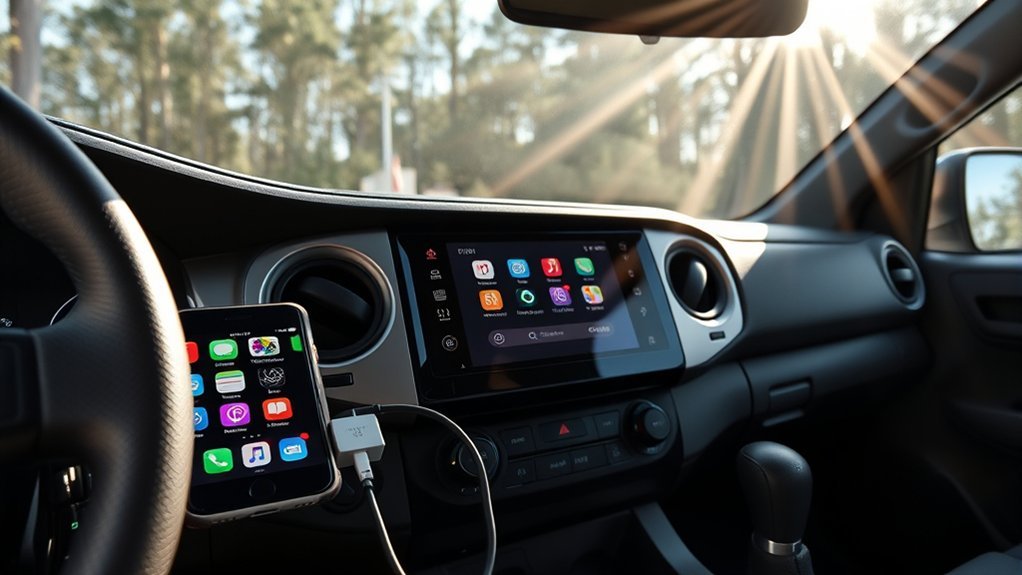
Wired Apple CarPlay is the normal factory connection method for 2020–2023 Toyota Tacoma models. Use a direct USB data cable that matches both the iPhone and the Tacoma media port. A charging-only cable may power the phone without starting CarPlay.
- Park the Tacoma safely and start the vehicle.
- Enable Siri on the iPhone.
- Unlock the iPhone for the first connection.
- Connect the iPhone directly to the Tacoma’s front USB media port. Do not use a charging-only port or USB hub.
- Wait for the Apple CarPlay prompt on the Tacoma multimedia screen.
- Select “Yes” when the screen asks whether you want to use Apple CarPlay.
- Approve the prompts on the iPhone, including permission to use CarPlay while the phone is locked.
- Tap the Apple CarPlay icon on the Tacoma screen if the CarPlay dashboard does not open automatically.
Use a reliable data-capable cable that directly connects the iPhone to the Tacoma media port. Avoid USB hubs and multi-adapter combinations during troubleshooting. Apple notes that some cable-and-adapter combinations can interrupt wired CarPlay, especially when a direct USB connection is available.
Pro Tip: If CarPlay connects and disconnects when the cable moves, test a different data cable before changing software settings. Inspect the iPhone connector and Tacoma media port for lint, looseness or visible damage.
[Products Worth Considering]

This 2-in-1 wireless adapter converts factory-wired CarPlay into a cable-free experience for compatible vehicles, helping you enjoy seamless phone integration with less clutter. It supports automatic reconnection, stable Bluetooth and Wi-Fi pairing, and broad compatibility with many factory-installed CarPlay systems. Built with a durable metal and acrylic design, it also includes firmware updates and lifetime technical support for continued convenience.

This wireless CarPlay adapter upgrades compatible factory wired CarPlay or Android Auto systems with wireless connectivity and built-in entertainment apps. Enjoy navigation, calls, music, and hands-free control through Apple CarPlay, plus streaming from popular video platforms when connected to a hotspot. It also supports USB media playback and an HD media port for rear-seat entertainment on road trips and daily drives.

This wireless adapter upgrades factory wired Apple CarPlay and compatible Android Auto systems into a seamless cordless experience without replacing your original infotainment system. After a quick one-time setup, it reconnects automatically for navigation, music, calls, messages, and voice control, while compact plug-and-play design helps keep your dashboard clean and your driving experience more convenient.
How Do You Set Up Wireless CarPlay in a Tacoma?
Wireless CarPlay is available on 2024–2026 Tacoma models with Toyota Audio Multimedia. Bluetooth handles device discovery and initial approval, while Wi-Fi carries the active CarPlay connection. For broader phone-pairing instructions, see how to pair Bluetooth to a Toyota Tacoma.
[Products Worth Considering]

Turn your factory wired CarPlay into a wireless experience with this compact plug-and-play adapter from Enhanlife. It delivers fast auto-connection, stable performance with Bluetooth 5.3 and 5GHz Wi-Fi, and smooth access to navigation, music, calls, and Siri without cable clutter. Designed for broad vehicle compatibility and easy setup, it helps keep your dashboard clean while preserving the convenience of CarPlay.

These rustproof license plate screws are designed to securely mount plates on vehicles that use plastic or nylon screw retainers, making them a reliable upgrade for many domestic makes and select compatible imports. Made from premium stainless steel with a black-plated finish, they resist corrosion, seizing, and unsightly rust streaks while delivering a clean, professional look. The self-tapping design helps keep plates and frames firmly in place for long-term reliability, and installation support is available through the package QR code.
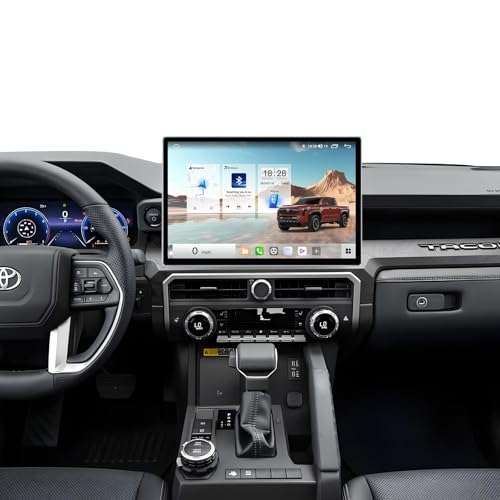
【Compatible car models:for Toyota Tacoma 2024 to present】This car radio is designed for Toyota Tacoma 2024 to present models from 2024 to present. It is a 100% standard size replacement. It can replace the original 8-inch screens
Wireless CarPlay Pairing Steps
- Park the Tacoma safely and start the vehicle.
- On the iPhone, turn on Siri, Bluetooth and Wi-Fi.
- On the Tacoma multimedia screen, open Settings.
- Select Bluetooth & Devices.
- If shown, select Manage Devices.
- Choose Add Another Device or Search for Devices.
- Select the iPhone when it appears on the Tacoma screen.
- Confirm that the pairing code shown on the Tacoma matches the code on the iPhone.
- Approve the pairing prompts on both screens.
- Choose “Yes” when the Tacoma asks whether to enable Apple CarPlay.
- Allow CarPlay for future connections if the iPhone displays that option.
After the first setup, the iPhone should reconnect when you start the Tacoma, provided Bluetooth and Wi-Fi remain enabled. If Bluetooth reconnects but CarPlay does not, open the iPhone’s Wi-Fi settings, select the information button for the CarPlay network and confirm that Auto-Join is enabled.
Warning: Do not complete pairing or change CarPlay settings while driving. Park safely before using the multimedia or iPhone setup menus.
Can You Add Apple CarPlay to a 2019 or Older Tacoma?
Factory Apple CarPlay was not included in U.S.-market Tacoma models before 2020. To add CarPlay to a 2019 or older Tacoma, you generally need an aftermarket CarPlay-capable head unit or a vehicle-specific integration system.
Before choosing an aftermarket system, confirm that the installation can retain the features your Tacoma already uses:
- Dashboard fit: Confirm the head unit and dash kit match the Tacoma’s model year.
- Steering-wheel controls: Check whether an interface module is required to retain audio and voice buttons.
- Factory backup camera: Confirm camera compatibility and whether an adapter harness is needed.
- JBL audio: Factory-amplified JBL systems may need a compatible integration interface.
- Microphone and USB port: Verify whether the factory microphone and console USB connection can be retained.
- Wired or wireless operation: Select a head unit that natively supports the connection method you prefer.
A small wired-to-wireless CarPlay adapter is not a replacement for a CarPlay head unit. It can convert an existing wired CarPlay connection, but it cannot create CarPlay support in an unsupported factory stereo.
[Products Worth Considering]

【Upgrade Radio for Toyota Tacoma】Upgrade your 2016 2017 2018 2019 2020 2021 2022 2023 Toyota Tacoma with this carplay android car stereo featuring a responsive touchscreen, wireless Apple CarPlay, and Android Auto. Includes plug-and-play wiring harness, installation tools, and instructions for an easy radio replacement.

🚨 [IMPORTANT] Advanced Installation Required – This is not a simple plug-and-play adapter. Installation requires removing the factory radio, opening the radio unit, and connecting internal ribbon cables. Professional installation is recommended if you are not comfortable working with car electronics. How to contact us: Product Page-->Sold by Car Sync Tech-->Ask a question (we will reply you in a few hours)
How Do You Use Apple CarPlay on the Tacoma Screen?
Once connected, Apple CarPlay displays supported iPhone apps on the Tacoma multimedia screen. You can use the touchscreen, supported steering-wheel controls or Siri voice commands to access navigation, calls, messages and audio.
| Feature | What It Does |
|---|---|
| Maps and navigation | Use Apple Maps, Google Maps or Waze for directions and traffic information. |
| Calls | Make and receive supported phone calls hands-free. |
| Messages | Ask Siri to read, send and reply to supported messages. |
| Music and podcasts | Play audio from Apple Music, Spotify, Pandora, Apple Podcasts, Audible and other supported apps. |
| Calendar | View upcoming appointments and request directions to saved event locations. |
To customize the app layout, open Settings > General > CarPlay on the iPhone, select the Tacoma, then choose Customize. Add, remove or drag supported apps into the order you prefer. Removing an app from the CarPlay display does not delete it from the iPhone.
Which Apps Work Best With Apple CarPlay?
CarPlay is easiest to use when you keep the screen simple and use Siri for tasks that would otherwise require touching the display.
- Navigation: Apple Maps, Google Maps and Waze provide turn-by-turn directions and traffic-aware routing.
- Music: Apple Music, Spotify, Pandora and YouTube Music can play supported playlists and stations.
- Messaging: iMessage and supported messaging apps can read and send messages through Siri.
- Audiobooks and podcasts: Apple Podcasts, Audible and other supported audio apps work well for longer drives.
- Calendar: CarPlay can display upcoming events and route you to saved locations.
Set up your preferred navigation, audio and messaging options before driving. Use Siri for changes after you are on the road.
Why Is Apple CarPlay Not Showing on the Tacoma Screen?
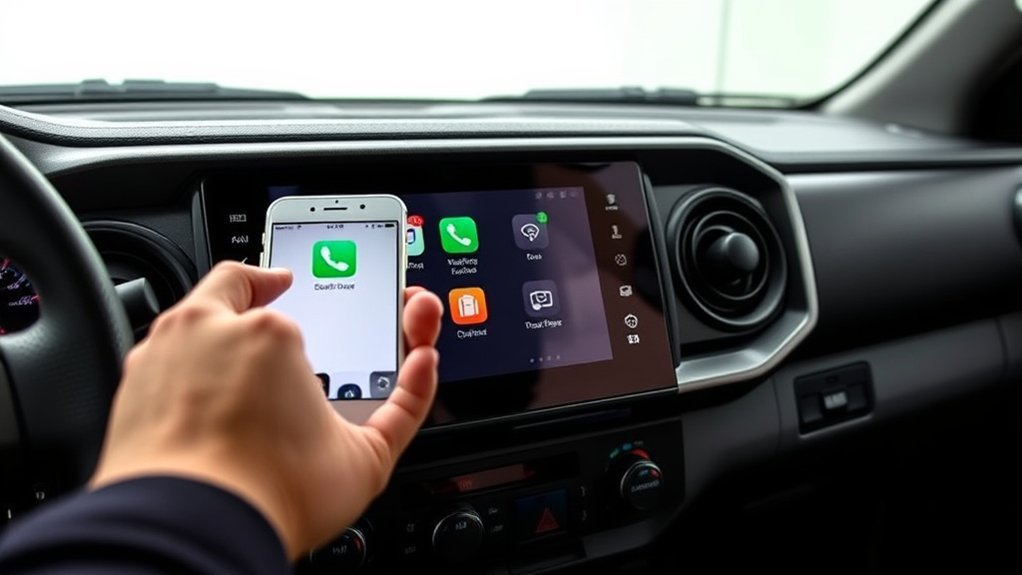
Use the following order so you do not reset every setting before checking the simplest cause.
Fastest Troubleshooting Order
- Confirm the Tacoma model year and whether factory CarPlay is wired or wireless.
- For wired CarPlay, use the front USB media port. For wireless CarPlay, confirm Bluetooth and Wi-Fi are on.
- Test a known working data cable or repeat the wireless device search.
- Confirm Siri is enabled and CarPlay is allowed in Screen Time.
- Restart the iPhone and the Tacoma multimedia system.
- Forget the vehicle, remove the phone from the Tacoma and complete setup again. Check multimedia software only after these steps fail.
After completing the basic sequence, find the symptom that most closely matches the problem. Test CarPlay after each change instead of changing several settings at once.
| Symptom | Likely cause | First fix to try |
|---|---|---|
| The iPhone charges, but CarPlay does not open | Charging-only cable or wrong USB port | Use a different data cable in the front USB media port. |
| A 2020–2023 Tacoma plays Bluetooth audio but has no CarPlay | Factory CarPlay requires USB, or the vehicle’s CarPlay setting is disabled | Connect through the media port and check the CarPlay or Projection option in the vehicle’s Setup menu if present. |
| The CarPlay icon is missing | Siri, CarPlay permission or Screen Time restriction | Enable Siri and confirm CarPlay is allowed in Screen Time settings. |
| Wireless Bluetooth connects, but CarPlay does not | Wi-Fi or Auto-Join is disabled | Enable Wi-Fi and Auto-Join for the CarPlay network. |
| CarPlay disconnects repeatedly | Cable, connector, pairing record or software problem | Test another cable or forget and pair the vehicle again. |
| CarPlay opens, but online apps do not load | Weak cellular service or app problem | Check cellular service, then update or restart the affected app. |
If Wired CarPlay Will Not Connect
- Try another data cable: Replace the existing cable with a known working USB data cable.
- Use the media port: Connect to the Tacoma’s front USB media port rather than a charging-only port.
- Connect directly: Remove USB hubs and unnecessary cable adapters.
- Unlock the iPhone: First-time approval prompts may not appear while the phone is locked.
- Check Siri: CarPlay setup may fail when Siri is disabled.
- Check Screen Time: Make sure CarPlay is allowed under Content & Privacy Restrictions.
- Check the vehicle setting: On systems that show the option, confirm Apple CarPlay or Projection is enabled in the Tacoma’s Setup or General menu.
- Restart both systems: Restart the iPhone, turn the Tacoma off, then start it again.
- Forget the vehicle: Open Settings > General > CarPlay, select the Tacoma and choose Forget This Car before reconnecting.
If the media port also fails to charge the phone or recognize USB audio, follow the Toyota Tacoma USB port troubleshooting guide before replacing multimedia components.
If Wireless CarPlay Will Not Connect
- Turn on Bluetooth and Wi-Fi: Wireless CarPlay needs both services.
- Check Wi-Fi Auto-Join: Open the CarPlay network’s information page in Wi-Fi settings and enable Auto-Join.
- Remove both pairing records: Remove the Tacoma from the iPhone’s Bluetooth and CarPlay settings. Remove the iPhone from the Tacoma’s Bluetooth & Devices menu, then pair again.
- Restart the connection: Restart the iPhone and the Tacoma multimedia system before pairing again.
- Update software: Install the latest available iOS version and check the owner’s manual or Toyota owner resources for multimedia software guidance.
If CarPlay Opens but an App Does Not Work
- Confirm that the app supports Apple CarPlay.
- Update the app through the App Store.
- Check the iPhone’s cellular signal for maps, streaming and messaging features.
- Ask Siri to open the app or select it from the CarPlay home screen.
- Restart the iPhone if the app freezes or disappears.
- Contact the app developer if only one third-party app continues to fail.
Note: CarPlay can remain connected while an online app fails because maps, streaming, messages and similar services depend on the iPhone’s cellular data connection.
Frequently Asked Questions
How do I get Apple CarPlay to work in a Toyota Tacoma?
Enable Siri and update the iPhone first. For a 2020–2023 Tacoma, connect the phone directly to the front USB media port with a data-capable cable. For a 2024–2026 Tacoma, pair through Settings > Bluetooth & Devices with Bluetooth and Wi-Fi enabled. Approve the CarPlay prompts on both screens.
Which Toyota Tacoma years have factory Apple CarPlay?
Factory Apple CarPlay starts with the 2020 U.S.-market Toyota Tacoma. The 2020–2023 factory systems normally use wired CarPlay through the USB media port. The redesigned 2024–2026 Tacoma supports wireless CarPlay through Toyota Audio Multimedia.
Does the Toyota Tacoma have wireless Apple CarPlay?
Toyota introduced factory wireless Apple CarPlay on the redesigned 2024 Tacoma. The feature continues on 2025 and 2026 models with Toyota Audio Multimedia, although menu wording can vary by model year, trim and region.
Can a 2020–2023 Tacoma use wireless CarPlay?
Not through the original factory connection. The 2020–2023 Tacoma normally uses wired CarPlay through the USB media port. A wired-to-wireless adapter may convert that existing connection, but it does not add CarPlay to a radio that lacks factory or aftermarket wired CarPlay.
Does Toyota Apple CarPlay require a subscription or Toyota app?
No. Apple CarPlay itself does not require a Toyota Connected Services subscription or Toyota app registration. Some CarPlay apps may require their own subscription or use the iPhone’s cellular data.
Why does my iPhone charge without opening CarPlay?
The cable may support charging without data, or the phone may be connected to a charging-only USB port. Use a known working USB data cable and connect it directly to the Tacoma’s front USB media port. Also unlock the iPhone and approve any first-time prompts.
Can I add Apple CarPlay to a 2019 or older Tacoma?
Yes, but you generally need a compatible aftermarket CarPlay head unit or vehicle-specific integration system. Check dashboard fit, steering-wheel controls, backup-camera retention, JBL audio integration, microphone support and USB compatibility before installation.
Will a wireless CarPlay adapter work in any Toyota Tacoma?
No. A wired-to-wireless CarPlay adapter requires a factory or aftermarket system that already supports wired CarPlay. It will not add CarPlay to an unsupported factory radio in a 2019 or older Tacoma.
Why is Apple CarPlay not showing on my Tacoma screen?
Common causes include using the wrong connection method, a charging-only cable, the wrong USB port, disabled Siri, a Screen Time restriction, outdated software or incomplete wireless pairing. Confirm the model year first, then test the cable or wireless connection before resetting the vehicle.
Conclusion
Start with the Tacoma’s model year. Use the front USB media port for a 2020–2023 factory system, or pair through Bluetooth & Devices on a 2024–2026 Tacoma with Toyota Audio Multimedia. If CarPlay does not appear, confirm the required connection method, test a direct data cable or wireless pairing, check Siri and Screen Time, then forget and reconnect the vehicle. A 2019 or older Tacoma needs a compatible aftermarket CarPlay system rather than a simple wireless adapter.
Sources
- Apple Support: Use CarPlay with your iPhone — CarPlay setup, Siri, wired and wireless connections, Wi-Fi Auto-Join and app customization
- Apple Support: If you need help with CarPlay — Cable, port, Screen Time, restart, reset and firmware troubleshooting
- Apple: CarPlay Available Models — Vehicle compatibility reference
- Toyota USA Newsroom: 2020 Toyota Tacoma upgrades — Confirms Apple CarPlay and a USB media port throughout the 2020 Tacoma lineup
- Toyota USA Newsroom: 2024 Toyota Tacoma technology — Confirms Toyota Audio Multimedia and wireless Apple CarPlay on the redesigned Tacoma
- Toyota USA Newsroom: 2026 Toyota Tacoma — Confirms continued wireless Apple CarPlay support for 2026
- Toyota Owners: Apple CarPlay and Audio Multimedia — Toyota setup guidance, media-port information and subscription details

[…] calls or music will not work through Bluetooth, continue with this guide. If Bluetooth connects but Apple CarPlay or Android Auto will not open, you may also need to check Wi-Fi, phone permissions, a USB data […]
[…] complete connection instructions, see the site’s Toyota Tacoma Apple CarPlay setup guide or Toyota Tacoma Android Auto setup guide. Use the checks below to isolate a failure rather than […]