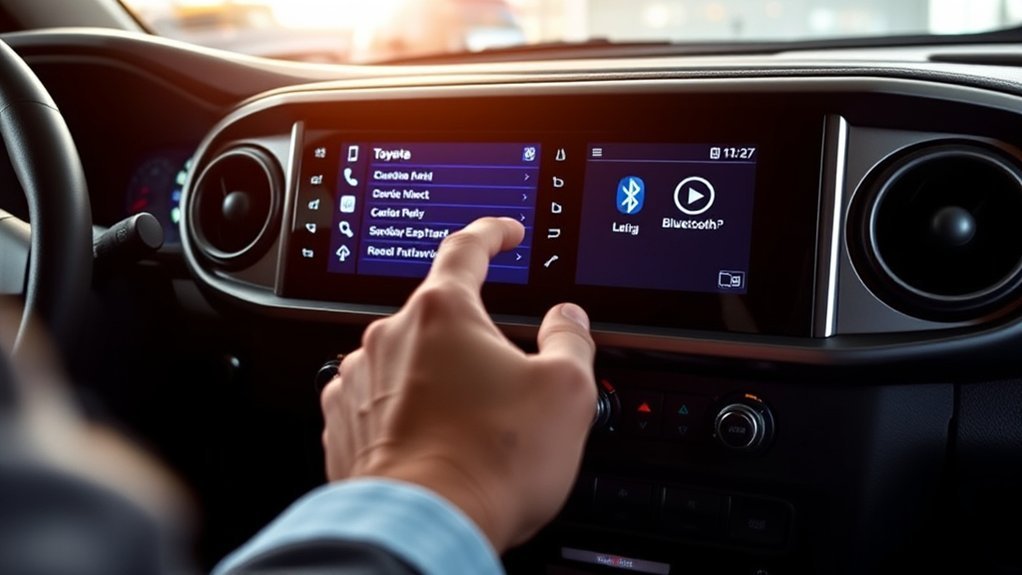
To pair Bluetooth on a Toyota Tacoma, park the truck, open Settings > Bluetooth & Devices on the touchscreen, tap Search for devices, choose your phone from the list on the truck’s screen, and confirm that the code matches on both displays. The exact menu path depends on which multimedia system your Tacoma has, so check the model-year table below first, then follow the steps for your system.
Last updated: July 31, 2026
Quick Answer
On a 2024–2026 Toyota Tacoma with Toyota Audio Multimedia: park the truck, select Settings (gear icon) > Bluetooth & Devices > Search for devices, pick your phone from the list on the truck’s screen, confirm the matching code, then select Yes when it asks about Apple CarPlay or Android Auto. On a 2016–2023 Tacoma with Entune, press MENU or SETUP > Setup > Bluetooth > Add New Device, then select your phone. Pairing is disabled while the truck is moving.
Key Takeaways
- Toyota blocks Bluetooth registration while the truck is moving, so pairing only works in Park — this is a system limit, not just a safety tip.
- On 2024–2026 Tacomas you select your phone from the truck’s screen, not the truck from your phone’s list. Keep the phone’s Bluetooth screen open so it stays discoverable while the truck searches.
- Toyota Audio Multimedia stores five devices and connects two at once. With five already saved, a new pairing will not complete until you forget one.
- Apple CarPlay and Android Auto turn on by answering Yes during pairing, or later under Settings > Bluetooth & Devices > your phone > Use for Apple CarPlay or Use for Android Auto.
- Wireless phone projection is standard on 2024–2026 Tacomas. 2020–2023 trucks are wired-only through the USB media port, and 2016–2019 Entune trucks have neither CarPlay nor Android Auto.
- If a passenger’s phone keeps connecting first, set yours as the primary device or forget the other phone from the truck.
At a Glance
| Time Required | 2–5 minutes |
| Difficulty | Easy |
| Applies To | 2005–2026 Toyota Tacoma with a factory Bluetooth-equipped head unit |
| Tools Needed | Your smartphone and the Tacoma touchscreen (plus a USB data cable on 2020–2023 trucks for CarPlay or Android Auto) |
| Cost | Free |
Warning: Do not try to pair, troubleshoot, text, or adjust phone settings while driving. Toyota disables device registration while the vehicle is in motion, and the National Highway Traffic Safety Administration warns that phone use and screen interaction pull drivers’ attention from the road.
Which Bluetooth System Does Your Toyota Tacoma Have?
Every step below changes depending on your truck’s head unit. Find your model year first — the menu names on a 2025 Tacoma do not exist on a 2018, and the 2018 menu does not exist on a 2010.
| Model Years | Multimedia System | Where Pairing Starts | Apple CarPlay / Android Auto |
|---|---|---|---|
| 2024–2026 (4th generation) |
Toyota Audio Multimedia — 8-inch standard, 14-inch available on higher trims | Settings (gear) > Bluetooth & Devices > Search for devices | Wireless, standard on all trims. Wired over USB also works. |
| 2020–2023 (3rd generation) |
Entune 3.0 | MENU or SETUP button > Setup > Bluetooth > Add New Device | Yes, but wired only — plug into the USB media port with a data cable. |
| 2016–2019 (3rd generation) |
Entune / Entune 3.0 | MENU or SETUP button > Setup > Bluetooth > Add New Device | No. Bluetooth calling and audio streaming only. |
| 2005–2015 (2nd generation) |
Factory Display Audio head units, where equipped | SETUP button > Bluetooth > register or connect a device | No. Factory Bluetooth itself varied by trim and head unit. |
Note: If your older Tacoma has no SETUP or phone button and no Bluetooth entry in the setup menu, the truck most likely never had factory Bluetooth. Hands-free calling reached some 2nd-generation Tacomas through specific head units and cab configurations rather than across the whole range, so a plug-in Bluetooth adapter or a replacement head unit is the only route on those trucks.
Getting Ready to Pair Your Toyota Tacoma With Bluetooth
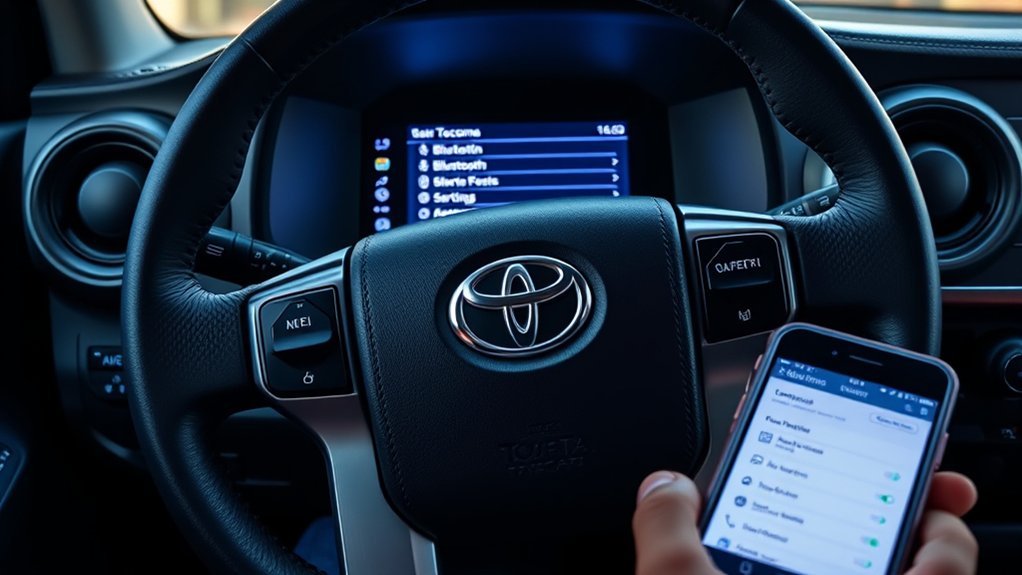
Put the Toyota Tacoma in Park before you touch anything. Toyota locks device registration while the vehicle is moving, so the menu will refuse to complete a pairing on the road — the Tacoma owner’s manual states the operation cannot be performed while driving.
Three things need to be true before you start:
- Bluetooth is on at the phone. The truck cannot complete a connection to a phone with Bluetooth switched off.
- The phone is unlocked and its Bluetooth screen is open. iPhones and most Android phones are only discoverable to other devices while that settings screen is showing, which is why a phone that looks “on” still never appears on the truck’s list.
- Wi-Fi is on if you want wireless CarPlay or Android Auto. Wireless projection hands off from Bluetooth to a Wi-Fi link, so leaving Wi-Fi off blocks it even when Bluetooth pairs fine.
Step-By-Step Guide to Pairing Your Smartphone With Toyota Tacoma
Follow the steps for your Tacoma’s system from the table above.
[Products Worth Considering]
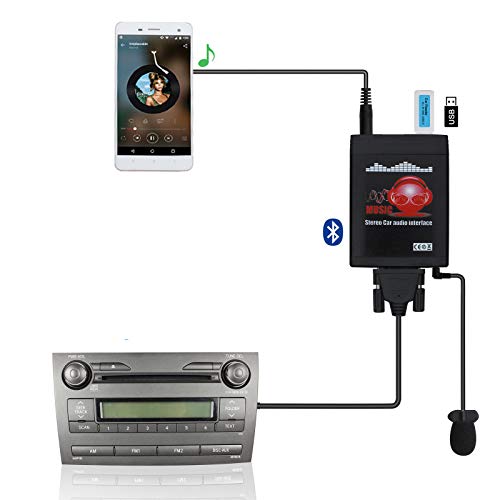
Turn your Toyota's factory radio into a Bluetooth-enabled system for hands-free calls and wireless music streaming — no need to replace the head unit. Built-in Bluetooth 5.0 chip and noise-suppressing microphone ensure crystal-clear conversations, keeping your focus on the road.

【Compatibility List】Note: Only suitable for cars manufactured before 2004. 1990-2001 4Runner/1992-2001 Camry/1998-2004 Tacoma/1999-2002 Tundra/1999-2002 Sequoia/2000-2003 Solara/1991-1997 Previa/1989-1995 Hilux/1991-2000 Land Cruiser/1988-1995 Toyota Truck/ 1998-2003 Sienna/ 1993-1998 T100 / 1995-1999 Avalon/ 1987-1998 MR2/1984-1997 Corolla

【Compatible Models】:Our Android car stereo is suitable for Toyota Tacoma 2005, 2006, 2007, 2008, 2009, 2010, 2011, 2012, and 2013. The model number and year are for reference only, please check the shape and size of the center console before placing an order. Note! If your original radio has a screen or amplifier, it is not supported!
Pair a Phone on a 2024–2026 Tacoma (Toyota Audio Multimedia)
This is the flow Toyota documents for its latest-generation Audio Multimedia system. Note that the truck searches for the phone, not the other way around.
- Park the truck and leave the multimedia screen on.
- Select Settings (the gear icon) on the touchscreen, then Bluetooth & Devices.
- Select Search for devices. If a phone is already saved, the option reads Add another device instead.
- Handle the Toyota app prompt. In guest mode the system offers to text you a download link for the Toyota app. Select Cancel to carry on pairing — you do not need the app for Bluetooth calls or audio.
- Select OK on the pop-up, then choose your phone from the list on the truck’s screen. Keep your phone’s Bluetooth settings screen open while it searches.
- Confirm the code. A code appears on both the truck display and the phone. Check that they match, then select OK on the truck and approve on the phone. Some phones complete pairing without displaying a code at all.
- Set as Primary Device if you are using a driver profile. If another phone was already primary, select Yes to replace it.
- Choose Yes or No for phone projection. Yes enables Apple CarPlay or Android Auto. No leaves the phone as a standard hands-free device, and the service has to be switched on later in Settings.
- Tap through the prompts on the phone to allow CarPlay or Android Auto, contact syncing, and message notifications.
Pair a Phone on a 2016–2023 Tacoma (Entune)
Entune systems start from a physical button rather than an on-screen gear icon, and exact wording varies between head units.
- Park the truck and turn on Bluetooth on your phone.
- Press MENU on the faceplate (some units use a SETUP button), then tap Setup.
- Select Bluetooth, then choose Add New Device, Register Phone, or Yes at the “add a device” prompt, depending on your head unit.
- Select your phone from the Entune list, or select the truck from your phone’s Bluetooth list if the screen instructs you to search from the phone.
- Confirm the PIN shown on both screens and approve the connection.
- Allow contacts and notifications when the phone asks.
Pair a Phone on a 2005–2015 Tacoma
On Bluetooth-equipped 2nd-generation trucks, press the SETUP button and select Bluetooth on the Setup screen. That menu holds four options: connect a device, register a new device, adjust detailed Bluetooth settings, and delete registered devices. Choose the register option and follow the prompts.
Older head units may ask you to type a passkey on the phone rather than confirming a code that appears on both screens. Common factory passkeys are 0000 and 1234 — check the Bluetooth section of your owner’s manual for the value on your truck.
Pro Tip: If your phone never appears on the truck’s list, the usual cause is discoverability rather than a fault. Leave the phone’s Bluetooth settings screen open, unlocked, and within arm’s reach of the screen, then restart the search from the truck. Backing out of that screen on the phone hides it from the truck within seconds.
How to Sync Contacts and Favorites After Pairing
After Bluetooth pairing, your phone asks whether to share contacts, favorites, call history, and message notifications with your Toyota Tacoma. Tap Allow if you want hands-free calling and voice dialing to work properly.
If you tapped Don’t Allow, turn sharing back on from the phone:
- iPhone: Go to Settings > Bluetooth, tap the information icon next to the Toyota connection, then enable Sync Contacts and Show Notifications.
- Android: Go to Settings > Connected devices, select the Toyota connection, then allow phone calls, media audio, contact sharing, and text message access.
On a 2024–2026 Tacoma, the same Settings > Bluetooth & Devices screen also controls how contacts behave once they arrive. Selecting your phone from that list lets you choose whether it is used for phone calls, media, or phone projection, sort contacts by first or last name, set Do Not Disturb to on, off, or silent, and clear the call history stored in the truck.
Contact syncing takes a minute the first time, and longer with a large address book. If names still do not appear, turn the truck off and back on, then reconnect from the Bluetooth device list.
How to Activate Apple CarPlay or Android Auto After Pairing
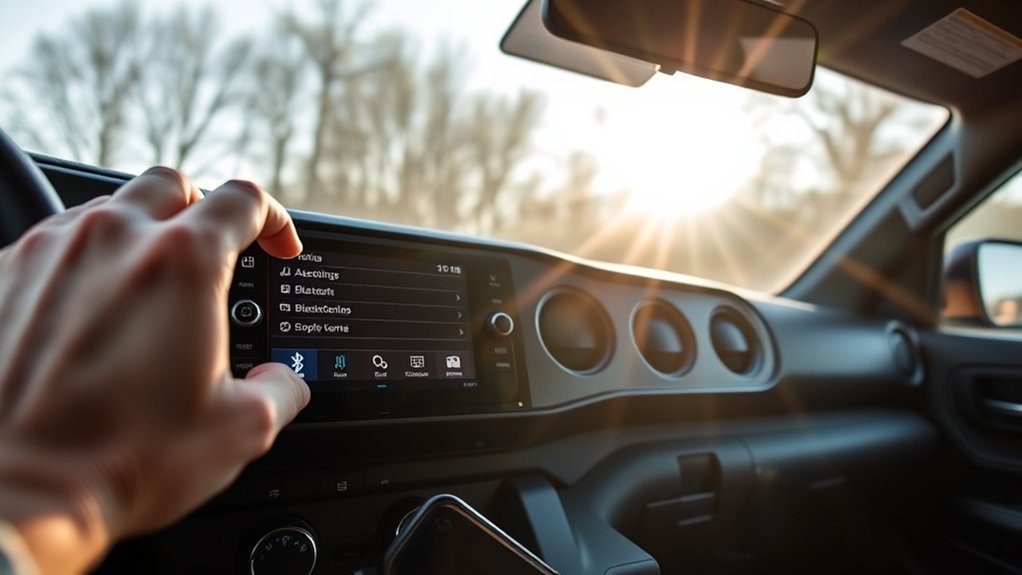
Bluetooth pairing and phone projection are two separate things. On a 2024–2026 Tacoma, Apple CarPlay and Android Auto switch on when you answer Yes to the projection prompt during pairing. Answer No and the phone works as a plain hands-free device until you enable the service manually.
To turn it on afterwards: Settings > Bluetooth & Devices > select your phone > toggle on Use for Apple CarPlay or Use for Android Auto. That toggle is also the fastest way to recover a projection session that has dropped.
Activate Apple CarPlay on Toyota Tacoma
On 2024–2026 trucks, wireless CarPlay is standard across every trim. Make sure Siri is enabled and both Bluetooth and Wi-Fi are on, then approve the CarPlay prompts on the touchscreen and the iPhone. If CarPlay still does not launch, check Settings > General > CarPlay on the iPhone, confirm CarPlay is not restricted under Screen Time, and confirm the iPhone is on current iOS.
On 2020–2023 trucks, CarPlay is wired only. Plug the iPhone into the USB media port with a data-capable cable, then select Always Enable at the prompt so the system launches CarPlay automatically on future connections.
Activate Android Auto on Toyota Tacoma
Wireless Android Auto has four requirements, and all four must be met. According to Google’s Android Auto help documentation, you need a compatible vehicle or stereo, a phone running Android 11.0 or later (Google and Samsung phones qualify from Android 10.0), 5 GHz Wi-Fi support on the phone, and an active data plan.
Leave Wi-Fi switched on even though you are not joining a network — the truck creates its own connection for the video link, and Android Auto will not complete with Wi-Fi disabled. If the phone lacks 5 GHz Wi-Fi, no software update will enable wireless projection on it.
On 2020–2023 Tacomas, connect with a high-quality USB data cable. Charge-only cables are a frequent cause of Android Auto never starting.
How to Switch Phones or Manage Saved Devices
Toyota’s latest-generation Audio Multimedia system stores up to five devices and connects two at the same time. That second slot is what lets one phone handle calls while another streams audio — and the five-device ceiling is why a new pairing sometimes refuses to complete on a truck that has changed hands.
To connect a saved phone: Settings > Bluetooth & Devices, choose the phone, then select Connect. If a different phone is connected, select OK to switch. Disconnect and Forget live on that same screen.
If a passenger’s phone keeps grabbing the connection first, the fix is the primary device setting. Open Settings > Bluetooth & Devices, select your phone, and set it as the primary device — or forget the other phone entirely if it is no longer a regular passenger. Delete the truck from that phone’s Bluetooth list as well, or the two devices will keep racing each other at every start-up.
[Products Worth Considering]

【Compatibility Model List】 Plug play for Toyota Tacoma 2005-2015 Basic, Note: If your car is high end version with JBL audio system/ factory camera /Large screen, need to buy JBL CANBUS decorder harness .You can search B0G5FZNX77 on Amazon . Then you can retain factory camera /SWC/JBL
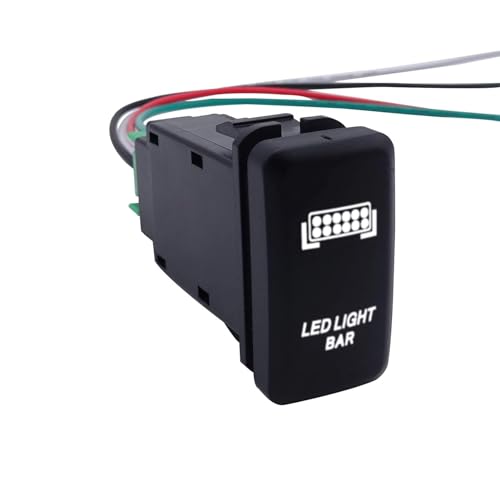

Push Button Switch: The ON-OFF rocker switch with SPST design (single pole single Throw) is manufactured to fit in the OEM switch blank for your cars. It come with a small pigtail that plugs into the back of the switch for better installation.
How to Update Your Tacoma’s Multimedia Software
When Bluetooth worked and then started dropping for no clear reason, a multimedia software update is the fix most owners skip. Toyota ships periodic updates that address stability and connectivity behavior on the Audio Multimedia system.
On an update-capable Tacoma, select Settings (gear icon) on the multimedia display, then Software update. The system checks immediately and either offers the update or reports that none is available. Toyota also distributes updates through a USB drive for vehicles that are not set up for over-the-air delivery, and a dealer can apply them during service.
Update the phone too. A major iOS or Android release changes Bluetooth behavior often enough that a truck-side fault is frequently a phone-side one.
Common Issues and Troubleshooting for Bluetooth Pairing
Most Toyota Tacoma Bluetooth problems trace back to discoverability, a full device list, denied permissions, outdated software, or an attempt to pair while the truck is moving. Work through this before booking a service appointment.
| Problem | What to Try |
|---|---|
| The phone never appears on the truck’s list | Leave the phone unlocked with its Bluetooth settings screen open, then restart Search for devices from the truck. Backing out of that screen makes the phone undiscoverable. |
| Pairing starts but never completes | Check how many devices are saved. With five already registered, the system will not add a sixth — forget an old phone from Settings > Bluetooth & Devices and try again. |
| The codes do not match | Cancel on both screens, delete any partial Toyota connection from the phone, and start over. Never approve a code that does not match. |
| Paired, but music still plays from the phone speaker | Switch the truck’s audio source to Bluetooth, then open Settings > Bluetooth & Devices > your phone and confirm the device is enabled for media as well as phone calls. |
| Contacts will not sync | Allow contact sharing in the phone’s Bluetooth settings for the Toyota connection, reconnect, and give a large address book time to load. |
| Wireless CarPlay or Android Auto drops mid-drive | Widely reported on 2024–2026 trucks. Re-enable it from Settings > Bluetooth & Devices > your phone > Use for Apple CarPlay or Use for Android Auto once parked, check for a multimedia software update, and use a wired connection on long drives where a dropout matters. |
| Android Auto will not connect wirelessly | Turn Wi-Fi on at the phone, confirm the phone supports 5 GHz Wi-Fi and runs Android 11.0 or later, and disable any active VPN before retrying. |
| The wrong phone connects first | Set your phone as the primary device, forget the other phone from the truck, or turn Bluetooth off on the passenger’s phone before starting the engine. |
| The screen is frozen or the connection is stuck | Many owners reboot the head unit by pressing and holding the volume or power knob for roughly ten seconds until the Toyota logo appears. For a deeper reset, shut the truck off, open the driver’s door to cut accessory power, and wait about 30 seconds. |
[Products Worth Considering]

1.【FITS 2005–2015 TOYOTA TACOMA 2ND GEN (N220-N270)】: This radio is compatible with both factory JBL and non-JBL audio systems, and retains all original vehicle functions including steering wheel controls, rearview camera with reverse trajectory, A/C display, parking radar, door-open alerts, and AUX/USB ports. Plug-and-play installation connects directly to your Tacoma's factory harness.

【IMPROVED ACCELERATION】 VVOKVV electronic throttle accelerator eliminates the delay and spongy feel from your gas pedal immediately feeling the difference. Eliminate the frustration of delayed throttle reaction and embrace immediate power delivery essential for navigating challenging terrains or seamlessly integrating into fast-moving traffic.
When to Delete and Re-Pair Your Phone
If Bluetooth used to work and now fails, a clean re-pair fixes it more often than anything else. Forget the Tacoma from the phone’s Bluetooth list, then forget the phone from the truck under Settings > Bluetooth & Devices. Restart the phone, cycle the truck off and back on, and pair from the beginning using the steps for your system above.
Do this after a major iOS or Android release, after switching phones, when the address book has gone stale, or when another driver’s phone keeps winning the connection. Re-pairing rebuilds the permissions handshake that a software update quietly broke.
Frequently Asked Questions
How do you put a Toyota Tacoma in Bluetooth pairing mode?
On a 2024–2026 Tacoma, park the truck and select Settings, then Bluetooth & Devices, then Search for devices. On a 2016–2023 Tacoma with Entune, press MENU or SETUP, then Setup, then Bluetooth, then Add New Device. Keep your phone unlocked with its Bluetooth screen open while the truck searches.
Why won’t my Toyota Tacoma show up on my phone’s Bluetooth list?
On newer Tacomas it usually will not, because the pairing runs the other way: the truck searches and you pick your phone from the truck’s screen. Start the search from the touchscreen instead, and keep the phone’s Bluetooth settings screen open so it stays discoverable.
How many phones can be paired to a Toyota Tacoma?
Toyota’s latest-generation Audio Multimedia system stores up to five devices and connects two at the same time. Once five are saved, a new pairing will not complete until you forget one from Settings, then Bluetooth & Devices. Availability varies by model year, trim, region, and software version.
Why does my passenger’s phone connect to the Tacoma before mine?
Because the truck reconnects to whichever saved device it finds first unless a primary device is set. Open Settings, then Bluetooth & Devices, select your phone, and set it as the primary device. Forgetting phones that no longer travel in the truck removes the conflict entirely.
Do I need the Toyota app to pair Bluetooth?
No. During pairing in guest mode the system offers to text you a link to download the Toyota app — select Cancel and pairing continues normally. The app matters for connected services and driver profiles, not for Bluetooth calling or audio.
Why are my contacts not showing after Bluetooth pairing?
Contact sharing was almost certainly denied on the phone. Open the Toyota connection in your phone’s Bluetooth settings and allow contacts, call history, and notifications, then reconnect and wait for syncing to finish. Large address books take longer on the first load.
Does Bluetooth pairing automatically turn on Apple CarPlay or Android Auto?
Only if you answer Yes to the projection prompt during pairing. Answering No leaves the phone as a standard hands-free device. To enable it later, go to Settings, then Bluetooth & Devices, select your phone, and toggle on Use for Apple CarPlay or Use for Android Auto.
Does the Toyota Tacoma have wireless Apple CarPlay?
On 2024–2026 Tacomas, wireless Apple CarPlay and Android Auto are standard on every trim. 2020–2023 Tacomas support both, but only over a USB data cable. 2016–2019 Entune trucks have neither and are limited to Bluetooth calling and audio streaming.
Conclusion
Pairing a phone to a Toyota Tacoma comes down to one thing: knowing which multimedia system is in your truck. On a 2024–2026 Tacoma the path is Settings, then Bluetooth & Devices, then Search for devices, with the phone selected from the truck’s screen. On a 2016–2023 Entune truck it starts from the MENU or SETUP button. Park first, confirm the code on both displays, and approve only the permissions you actually want. When a connection that used to work starts failing, forget the device on both ends, update the phone and the multimedia software, and pair again from scratch.
Related guides: how to reset the maintenance required light on a Toyota · what the electronic stability control light means
Sources
- Toyota Bluetooth How-To Guide — Toyota Audio Multimedia pairing sequence, primary device setting, saved-device limits, and device management
- Toyota 2025 Tacoma Owner’s Manual: Connecting with a Bluetooth Device — Tacoma-specific registration steps and the restriction on pairing while driving
- Toyota Apple CarPlay and Android Auto How-To Guide — enabling phone projection during pairing and the Use for Apple CarPlay / Use for Android Auto toggles
- Toyota Owners: Over-the-Air Audio Multimedia System Updates — over-the-air and USB update paths for the multimedia system
- Apple Support: Use CarPlay with your iPhone — CarPlay setup, Siri requirement, and troubleshooting
- Google Android Auto Help: Get Started with Android Auto — wireless compatibility requirements including Android version and 5 GHz Wi-Fi
- NHTSA Distracted Driving — safety guidance on phone use and driver distraction