
Last updated: July 15, 2026
To set up Android Auto™ on a Toyota Tacoma, park the truck, turn on the multimedia system, and connect a compatible Android phone. Factory-equipped 2020–2023 Tacomas generally use a USB data cable, while 2024 and newer Tacomas support wireless Android Auto through Toyota Audio Multimedia. Accept the prompts on both screens, approve the requested permissions, and tap the Android Auto icon if it does not launch automatically.
Quick Answer
Put the Tacoma in Park and turn on its multimedia system. For a 2020–2023 Tacoma, connect an Android 9.0 or newer phone to the USB data port with a high-quality cable. For a compatible 2024 or newer Tacoma, pair an Android 11.0 or newer phone through Bluetooth, keep Wi-Fi and Location Services on during setup, and follow the prompts on both screens.
Key Takeaways
- Toyota introduced factory Android Auto compatibility on the Tacoma for the 2020 model year.
- Factory-equipped 2020–2023 Tacomas generally use wired Android Auto, while 2024 and newer Tacomas support wireless Android Auto through Toyota Audio Multimedia.
- Wired Android Auto requires Android 9.0 or newer. Standard wireless projection requires a compatible Android 11.0 or newer phone with active data and 5 GHz Wi-Fi support.
- If a wired connection fails, use the correct data port and try a cable under 3 feet or 1 meter without a hub or extension.
At a Glance
| Time Required | Usually a few minutes; allow longer for software updates or troubleshooting |
| Difficulty | Easy |
| Phone Requirement | Android 9.0 or newer for wired use; compatible Android 11.0 or newer phone for standard wireless projection |
| Tools Needed | Compatible Android phone, active data connection, and a high-quality USB data cable for wired setup |
| Cost | No separate Android Auto fee; normal mobile-data charges may apply |
What Is Android Auto™ and Why Use It?
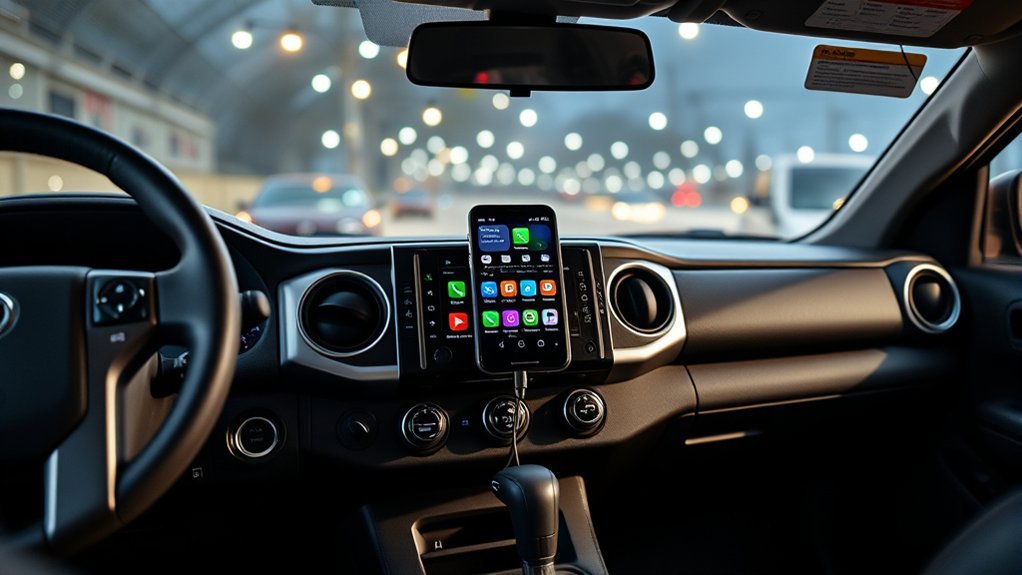
Android Auto™ displays supported phone features on your Tacoma’s multimedia screen. You can use navigation, calls, messages, media, and voice controls without handling your phone for each task.
In a Tacoma, that can mean using Google Maps or Waze, placing hands-free calls, listening to music or podcasts, and hearing supported message notifications through the truck’s audio system. Available apps and voice features depend on your phone, region, installed apps, and multimedia system.
Google’s current Android Auto requirements list Android 9.0 or newer with an active data plan for wired use. Standard wireless projection requires a compatible Android 11.0 or newer phone with an active data plan and 5 GHz Wi-Fi support.
Which Toyota Tacoma Years Have Android Auto™?
Toyota introduced Android Auto compatibility with the 2020 Tacoma multimedia system. The fourth-generation Tacoma, introduced for 2024, uses Toyota Audio Multimedia and supports wireless Android Auto. Features can still vary by market, installed equipment, and software version.
| Tacoma Model Year | Factory Android Auto | Typical Connection |
|---|---|---|
| 2019 and older | Not included in the original factory multimedia system | Compatible aftermarket receiver required |
| 2020–2023 | Yes, on the factory multimedia system | Wired USB connection |
| 2024 and newer | Yes, through Toyota Audio Multimedia | Wireless Android Auto or a compatible USB data connection |
Toyota’s 2020 Tacoma announcement confirms the introduction of Android Auto. Its 2024 Tacoma announcement confirms wireless Android Auto through Toyota Audio Multimedia. Google also maintains an official Android Auto vehicle compatibility resource.
Note: Trim, market, software version, aftermarket equipment, and production changes can affect availability. Check your owner’s manual or Toyota’s multimedia information for your exact vehicle if the Android Auto option does not appear.
What Do You Need Before Android Auto™ Setup?
Park your Tacoma, turn on the multimedia system, unlock your phone, and confirm that the phone has an active mobile-data connection. Completing these checks first prevents many failed setup attempts.
[Products Worth Considering]

The HEYINCAR+ H-Air adapter upgrades compatible factory wired CarPlay and Android Auto systems to wireless convenience with a compact plug-and-play design. It connects automatically after setup, delivering fast startup, stable performance, and support for your car’s original touchscreen, steering wheel controls, and voice commands. Built for broad vehicle compatibility and ongoing firmware updates, it offers a simple way to enjoy cable-free driving with minimal clutter.

This custom-fit rear cargo liner is designed to protect the trunk area of compatible Toyota Camry models from mud, snow, spills, pet messes, and everyday wear. Its deep grooves, raised ridges, and non-slip surface help contain debris and keep cargo stable, while the easy-install design and simple wipe-clean care make it a practical interior upgrade.

This tire repair rubber nail kit offers a fast, simple way to seal punctures in tubeless tires without removing the wheel. Designed for reliable grip and effective sealing, it helps reduce air loss and keep vehicles moving across a wide range of everyday repair needs. The assorted sizes provide versatility for minor and larger punctures on cars, trucks, motorcycles, tractors, and more.
Vehicle Requirements Checklist
- Place the Tacoma in Park (P) and keep the multimedia system on.
- Confirm that your Tacoma model year and multimedia system support Android Auto.
- Use the designated USB data port for wired setup. Some ports may provide charging only.
- Use a high-quality data cable under 3 feet or 1 meter when possible.
- Do not connect through a USB hub, extension, or adapter chain during troubleshooting.
- For wireless setup, turn on Bluetooth, Wi-Fi, and Location Services.
- Update the phone’s operating system, Android Auto components, navigation apps, and media apps.
- Make sure the Tacoma’s date and time are correct.
Warning: Complete first-time Android Auto setup while parked. Do not accept setup prompts, enter passwords, or troubleshoot the multimedia screen while driving.
Phone Compatibility Confirmation
Google lists different minimum requirements for wired and wireless Android Auto. Wired use requires Android 9.0 or newer. Standard wireless projection requires a compatible Android 11.0 or newer phone with an active data plan and 5 GHz Wi-Fi support.
| Requirement | What to Check |
|---|---|
| Wired Android version | Android 9.0 or newer |
| Wireless Android version | Compatible Android 11.0 or newer phone |
| Wireless hardware | 5 GHz Wi-Fi support and a compatible Tacoma multimedia system |
| Mobile data | Active data connection for traffic, messages, voice features, streaming, and updates |
| Cable | High-quality USB data cable for wired setup |
How Do You Connect Android Auto™ to a Tacoma with USB?
Use the wired method for a factory-equipped 2020–2023 Tacoma or when you need to test whether a wireless problem is caused by pairing rather than Android Auto itself.
- Park the Tacoma. Put the truck in Park (P) and turn on the multimedia system.
- Unlock your Android phone. Keep it on the home screen so you can see each permission request.
- Connect the USB cable. Plug a high-quality data cable directly into the Tacoma’s USB data port, then connect the other end to your phone.
- Follow the phone prompts. Allow requested permissions, accept the terms, and install any required updates.
- Follow the Tacoma prompts. Select “Yes,” “Enable,” or the equivalent option when the multimedia system asks to start Android Auto.
- Launch Android Auto. If it does not open automatically, tap the Android Auto icon or connected-phone tile on the Tacoma display.
Supported navigation, calling, messaging, and media apps should appear after setup. If the phone charges but Android Auto does not open, confirm that you used a data-capable port and cable.
Pro Tip: If a wired connection worked before and suddenly stopped, test a different cable first. Google recommends a cable under 3 feet or 1 meter and advises against USB hubs or extensions.
[Products Worth Considering]

Camco Trailer Aid Plus provides a 5 1/2-inch lift to make tandem tire changes on trailers and RVs easier and faster. Its strong polymer construction is lightweight, waterproof, rustproof, and built for dependable outdoor use, while the high weight capacity supports a wide range of trailer maintenance needs. Designed for convenient portability, it helps you change a flat without unloading cargo or horses.

This wireless CarPlay adapter upgrades compatible factory wired CarPlay or Android Auto systems with wireless connectivity and built-in entertainment apps. Enjoy navigation, calls, music, and hands-free control through Apple CarPlay, plus streaming from popular video platforms when connected to a hotspot. It also supports USB media playback and an HD media port for rear-seat entertainment on road trips and daily drives.

[10Gbps Fast Data Transfer]: LDLrui usbc data transfer cable supports 10Gbps SuperSpeed data transmission, which is 2x faster than USB 3.0 (5Gbps). Sync the 4K movies, entire of photo library, or over 100 music albums from your phone to your PC in just seconds. High-quality multi-strand tinned copper, and the three-layer signal shielding makes data transmission more stable.
How Do You Set Up Wireless Android Auto™ in a Tacoma?
Wireless Android Auto requires both a compatible phone and a compatible Tacoma multimedia system. Toyota’s fourth-generation Tacoma, introduced for 2024, supports wireless Android Auto through Toyota Audio Multimedia.
- Turn on phone connections. Enable Bluetooth, Wi-Fi, and Location Services on your Android phone.
- Open Tacoma settings. Tap the Settings gear on the multimedia display.
- Open the device menu. Select “Bluetooth® & Devices” or the similarly named connection menu shown on your system.
- Add the phone. Choose “Add another device,” “Add device,” or the available phone-pairing option.
- Select your phone. Choose its name from the available-device list.
- Confirm the PIN. Verify that the code on the phone matches the code on the Tacoma screen, then approve pairing.
- Allow Android Auto. Accept the Android Auto permissions and projection request on both screens.
- Wait for Android Auto to open. If it does not launch within a few seconds, tap the Android Auto icon on the display.
| Step | Action | Why It Matters |
|---|---|---|
| 1 | Turn on Bluetooth, Wi-Fi, and Location | Wireless Android Auto needs more than Bluetooth alone |
| 2 | Pair through the Tacoma device menu | Registers the phone with Toyota Audio Multimedia |
| 3 | Accept permissions on the phone | Allows supported calls, messages, maps, and media |
| 4 | Tap Android Auto if it does not launch | Starts projection manually |
Note: Bluetooth begins the pairing process, but wireless Android Auto also uses a direct Wi-Fi connection. Keep Wi-Fi on even when the Tacoma is not connected to a home or public Wi-Fi network.
[Products Worth Considering]

Upgrade to Wireless CarPlay & Android Auto The 2 in 1 Wireless CarPlay and Android Auto Adapter converts your factory wired system into a wireless experience. It’s perfect for families using both iPhone and Android phones, allowing effortless switching without unplugging or swapping cables. This adapter is compatible with over 1,000 vehicle models—supporting 800+ with wired CarPlay and 500+ with wired Android Auto. Works with iPhone 6 or later and Android 11 or above devices.

This wireless adapter is specifically engineered for the Tacoma models launched between 2020-2024—the ones equipped with wired CarPlay and wired Android Auto. Specifically designed for Entune 3.0 Infotainment System, it delivers a far more seamless connection and faster response speeds.

【2026 Upgraded 2-in-1 Wireless CarPlay & Android Auto】 As a professional 2-in-1 wireless carplay adapter, it integrates both for Apple Car Play and Android Auto core functions. Replaces a single bluetooth car adapter to realize wired-to-wireless conversion for iOS & Android. The upgraded chip optimizes stability, solving disconnection issues of old carplay wireless adapter models for a smoother car play experience.
Which Android Auto™ Permissions Should You Allow?
Your phone may request several permissions during first-time setup. Android Auto can open with limited access, but some features will not work until you approve the related permission.
- Contacts and phone: Supports hands-free calls and caller identification.
- SMS and notifications: Supports compatible message alerts and voice replies.
- Location: Supports navigation, traffic, and nearby searches.
- Microphone: Supports Gemini, Google Assistant, and other available voice features.
- Nearby devices or Bluetooth: Supports pairing and wireless connection.
You can review these permissions later in the phone’s Settings menu. The exact path varies by phone manufacturer and Android version.
Why Won’t Android Auto™ Connect in a Toyota Tacoma?
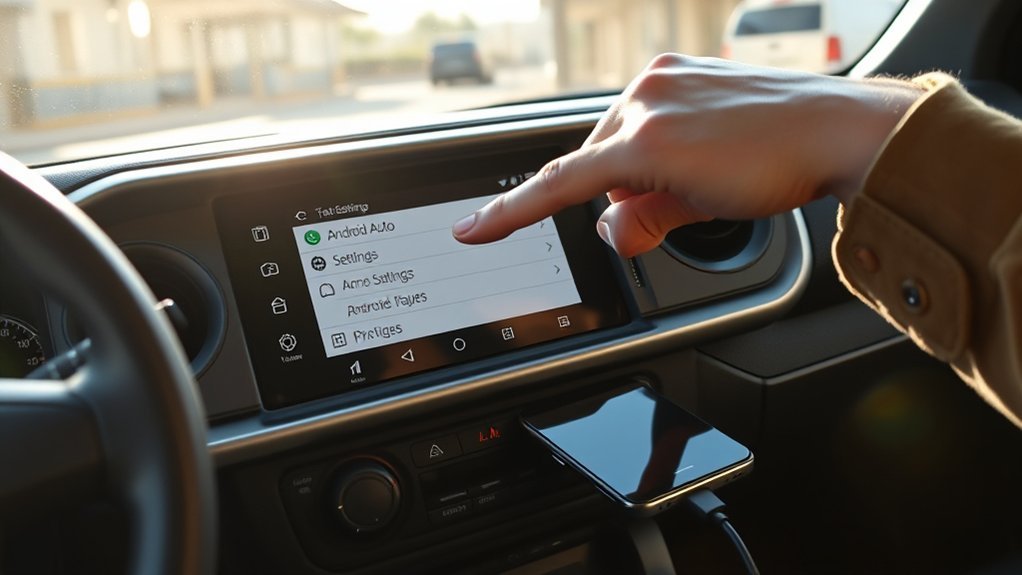
Check problems in this order: vehicle compatibility, the correct USB data port, the cable, phone restart, multimedia-system restart, software updates, and then a complete pairing reset. This sequence tests the simplest causes before deleting saved settings.
Android Auto Does Not Appear on the Screen
- Confirm that the Tacoma model year and multimedia system support Android Auto.
- Make sure Android Auto or smartphone projection is enabled in the multimedia settings.
- Unlock the phone during first-time setup.
- Use the Tacoma’s USB data port rather than a charge-only port.
- Tap the Android Auto icon or connected-phone tile manually.
- Restart the phone and the Tacoma multimedia system.
Phone Charges but Android Auto Does Not Start
- Replace the cable with a high-quality data cable under 3 feet or 1 meter.
- Remove USB hubs, extensions, and unnecessary adapters.
- Try the cable supplied by the phone manufacturer when available.
- Clean lint or debris from the phone’s charging port carefully.
- Confirm that the cable transfers data and does not provide charging only.
- Try another compatible Android phone to isolate the phone or vehicle side of the problem.
Wireless Android Auto Keeps Disconnecting
- Keep Bluetooth, Wi-Fi, and Location Services turned on.
- Restart both the phone and the Tacoma multimedia system.
- Turn off battery saver or aggressive app-sleep settings for Android Auto, navigation, and media apps.
- Delete the Tacoma from the phone’s Bluetooth list and delete the phone from the Tacoma, then pair them again.
- Move the phone away from metal objects or enclosed storage areas that may weaken the signal.
Apps Are Missing or Not Working
- Update the affected app through Google Play.
- Open Android Auto settings on the phone and review the launcher layout.
- Confirm that the app supports Android Auto. Standard phone apps do not automatically appear on the vehicle display.
- Check the app’s location, notification, microphone, and phone permissions.
Voice Commands Do Not Work
- Check that microphone permission is enabled.
- Confirm that the phone has a working mobile-data connection.
- Use the Tacoma’s steering-wheel voice button or the on-screen microphone.
- Restart the phone if Gemini or Google Assistant does not respond.
How Do You Reset a Saved Android Auto Connection?
Remove the phone from the Tacoma’s saved-device list and remove the Tacoma from the phone’s Bluetooth list. On many Android phones, you can also open Android Auto settings, select previously connected cars, and choose the option to forget saved vehicles. Restart both systems before pairing again.
How Can You Make Android Auto™ More Reliable?
After Android Auto is connected, a few simple habits can prevent repeat connection problems and reduce screen interaction while driving.
| Tip | Purpose | Benefit |
|---|---|---|
| Keep phone software updated | Maintain compatibility | Reduces bugs and connection failures |
| Use a short data cable | Improve wired stability | Reduces random disconnects |
| Customize the launcher | Place frequently used apps higher | Reduces searching through menus |
| Use voice commands | Reduce screen interaction | Simplifies calls, messages, and navigation |
| Download offline maps before trips | Prepare for weak mobile coverage | Keeps basic navigation available in low-signal areas |
Android Auto works best when the truck, phone, cable, apps, wireless settings, and permissions are treated as one connected system.
What Can You Use After Android Auto™ Is Connected?
Android Auto focuses on the phone functions that are most useful during a drive: navigation, calls, supported messages, voice commands, and audio.
Voice Commands
Depending on your phone, account, language, and region, Android Auto may use Gemini or Google Assistant. Voice commands can start navigation, place calls, reply to supported messages, and control media.
- Ask for directions to a destination.
- Call a saved contact hands-free.
- Send or listen to supported messages.
- Play a playlist, podcast, or audiobook.
Navigation Apps
Supported apps such as Google Maps and Waze can provide turn-by-turn directions, traffic information, estimated arrival times, lane guidance, and nearby searches when the phone has a working data connection.
Music, Podcasts, and Audiobooks
Supported audio apps can appear in the Android Auto launcher. You can control many playback functions through the touchscreen, steering-wheel controls, or voice commands.
Frequently Asked Questions
How do I get Android Auto to show on my Toyota Tacoma screen?
Put the Tacoma in Park, unlock the phone, and connect it to the USB data port or pair it wirelessly on a compatible system. Accept the prompts on both screens. If Android Auto does not launch, tap its icon or the connected-phone tile on the Tacoma display.
Why won’t Android Auto connect to my Toyota Tacoma?
Common causes include an unsupported model year, the wrong USB port, a damaged or charge-only cable, disabled wireless settings, old software, missing permissions, or a stale Bluetooth pairing. Check compatibility and the cable before resetting saved devices.
Which Toyota Tacoma years have Android Auto?
Toyota introduced factory Android Auto compatibility for the 2020 Tacoma. Factory-equipped 2020–2023 models generally use a wired USB connection. The redesigned 2024 and newer Tacoma supports wireless Android Auto through Toyota Audio Multimedia.
Why does my phone charge but Android Auto not start?
The USB port or cable may provide power without carrying data. Use the Tacoma’s designated USB data port and try a high-quality data cable under 3 feet or 1 meter. Remove hubs, extensions, and unnecessary adapters while testing.
Do I need to download the Android Auto app?
Android Auto is integrated into current compatible Android phones, so you normally do not need a separate download. Your phone may still ask you to update Android Auto components or related Google services during setup.
Can I add Android Auto to a 2019 or older Tacoma?
Toyota introduced factory Android Auto on the Tacoma for 2020. A 2019 or older Tacoma generally needs a compatible aftermarket multimedia receiver to display Android Auto. Confirm dash fit, wiring, steering-wheel controls, microphone support, and camera compatibility before installation.
Can I use Android Auto without mobile data?
Some limited functions and downloaded content may work, but live traffic, online searches, messages, streaming, and many voice features need a data connection. Download offline maps and media before traveling through low-signal areas.
Conclusion
Start by identifying your Tacoma’s model year. Factory-equipped 2020–2023 models generally use wired Android Auto, while 2024 and newer models support wireless projection through Toyota Audio Multimedia. Use the correct data port, a short high-quality cable, and a compatible updated phone. If the connection fails, test the port and cable before deleting pairings or resetting settings.
Sources
- Google Android Auto Help: Get started with Android Auto — Current phone, wired, wireless, and regional requirements.
- Google Android Auto Help: Set up Android Auto — Official wired and wireless setup instructions.
- Google Android Auto Help: My Android Auto app isn’t working — Official cable and connection troubleshooting guidance.
- Toyota USA Newsroom: 2020 Toyota Tacoma — Confirms Android Auto introduction on the 2020 Tacoma multimedia system.
- Toyota USA Newsroom: 2024 Toyota Tacoma — Confirms Toyota Audio Multimedia, wireless Android Auto, and the USB-C data port.
- Android Auto Vehicle Compatibility — Google’s official vehicle compatibility resource.
- Toyota USA Newsroom: 2026 Toyota Tacoma — Confirms continued wireless Android Auto support in the latest Tacoma multimedia system.

[…] truck-wide diagnostics: Tacoma Bluetooth troubleshooting, Tacoma Apple CarPlay setup and fixes, Tacoma Android Auto setup, or Tacoma USB port […]
[…] Toyota Android Auto guides: Toyota Tacoma Android Auto setup, Toyota RAV4 Android Auto setup, and Toyota 4Runner Android Auto […]