If your Toyota Supra’s Apple CarPlay keeps disconnecting, remember that the GR Supra uses wireless CarPlay, so it depends on both Bluetooth (for the handshake) and Wi-Fi (for the data link). Start by making sure your iPhone is updated, Bluetooth and Wi-Fi are both on, and CarPlay isn’t blocked by Screen Time. Then forget and re-pair the car, and reboot both the iPhone and the infotainment system. If the drops continue, the steps below will help you narrow down the cause.
Understanding Why CarPlay Disconnects Occur
Unexpected CarPlay drops in a Toyota Supra usually come from one of a few sources: a glitch after an iOS update, a corrupted pairing record in the car or phone, the phone overheating (common when it sits on the wireless charging pad while running navigation), or interference from other connections such as a personal hotspot, VPN or another paired Bluetooth device. Outdated infotainment software can also cause instability. Restarting the phone or toggling Airplane Mode may restore the link temporarily, but a clean re-pair and up-to-date software are the longer-term fixes.
Ensure iPhone Compatibility With Carplay
Apple CarPlay is supported on iPhone 5 and newer, and wireless CarPlay like the Supra’s needs a reasonably current iOS version. Confirm CarPlay is enabled in the Supra’s infotainment settings, keep your iPhone on the latest iOS release (updates often fix connectivity bugs), and check that Screen Time or Content & Privacy Restrictions aren’t blocking CarPlay. Once these basics are confirmed you can rule out compatibility as the cause.
Enabling Bluetooth and Wi-Fi for CarPlay
After confirming your iPhone is compatible with CarPlay, it’s time to focus on enabling Bluetooth and Wi-Fi for a seamless connection. Both are essential for an ideal experience in your Toyota Supra.
- Check Bluetooth Setup: Verify Bluetooth is activated in your iPhone’s settings.
- Wi-Fi Settings: Make certain Wi-Fi is enabled and Auto-Join is turned on for CarPlay.
- Airplane Mode: Disable Airplane Mode to allow proper connectivity.
| Step | Action | Notes |
|---|---|---|
| Enable Bluetooth | Go to Settings > Bluetooth | Confirm it’s set to “On” |
| Enable Wi-Fi | Go to Settings > Wi-Fi | Turn on and Auto-Join CarPlay |
| Check Connections | Verify other devices aren’t connected | This prevents interference |
With these steps, you’re ready to enjoy your CarPlay experience!
How to Check and Remove CarPlay Restrictions on Your iPhone
To guarantee CarPlay works smoothly, you need to check for any restrictions on your iPhone. Start by accessing your Screen Time settings and confirming that CarPlay is enabled under Content & Privacy Restrictions. If it’s blocked, you’ll need to adjust those settings to restore the connection.
Accessing Screen Time Settings
Accessing the Screen Time settings on your iPhone can be essential for resolving CarPlay connection issues. Here’s how to check and remove any restrictions that might be affecting your experience:
- Go to Settings and select Screen Time.
- Tap on Content & Privacy Restrictions to view your current restrictions.
- Confirm that Allowed Apps is enabled, allowing CarPlay to function freely.
- If CarPlay is restricted, find it in the Allowed Apps list and toggle the setting to enable it.
After making these changes, restart your iPhone and reconnect to CarPlay. This should help eliminate any barriers posed by App Restrictions, guaranteeing a smoother connection in your Toyota Supra.
Enabling CarPlay Access
If you’re struggling with CarPlay connection issues in your Toyota Supra, checking and removing any restrictions on your iPhone is an essential step. Start by moving through your iPhone settings. Go to Screen Time and confirm that Content & Privacy Restrictions are turned off for CarPlay. Next, check the Allowed Apps section to confirm that CarPlay is enabled. Then, tap General in your iPhone settings, followed by CarPlay, to verify your vehicle is listed and accessible. Don’t forget to verify your iPhone isn’t in Airplane Mode, as that can block necessary Bluetooth and Wi-Fi connections. If problems persist, restart your iPhone and check for software updates to enhance your CarPlay setup.
Checking Content Restrictions
After confirming that CarPlay access is enabled on your iPhone, it’s important to check for any content restrictions that might be affecting its functionality. Here’s how to do it:
- Navigate to Settings > Screen Time.
- Tap on Content & Privacy Restrictions.
- Under Allowed Apps, confirm CarPlay is toggled on.
- If prompted, enter your Screen Time passcode to modify or remove restrictions.
Rebooting and Updating Your Devices: Quick Tips
Restarting both devices clears most temporary glitches. Restart your iPhone first, then confirm it’s on the latest iOS version. Next, reboot the Supra’s infotainment system: with the car parked, press and hold the volume/power knob for about 30 seconds until the screen goes dark and the system reboots. Ask your Toyota dealer whether newer infotainment software is available for your Supra, as updates can improve stability. See our guide on how to reset the Toyota Supra infotainment system for more detail.
What to Do When CarPlay Issues Persist: Contacting Support
When CarPlay issues continue to disrupt your driving experience, reaching out for expert support can be the next best step. Here’s how you can get the help you need:
- Contact Apple Support: They can guide you on device compatibility and necessary software updates.
- Visit Your Toyota Dealership: Local dealers often provide vehicle-specific software updates that may resolve ongoing connectivity issues.
- Explore User Forums: Communities like Apple Support Communities can offer valuable advice and solutions from others facing similar problems.
- Document Issues: Keep track of any error messages or recurring problems to share when seeking assistance.
Regularly checking for software updates from both Apple and Toyota can also help guarantee smoother performance.
User Experiences and Common Solutions for CarPlay Connectivity
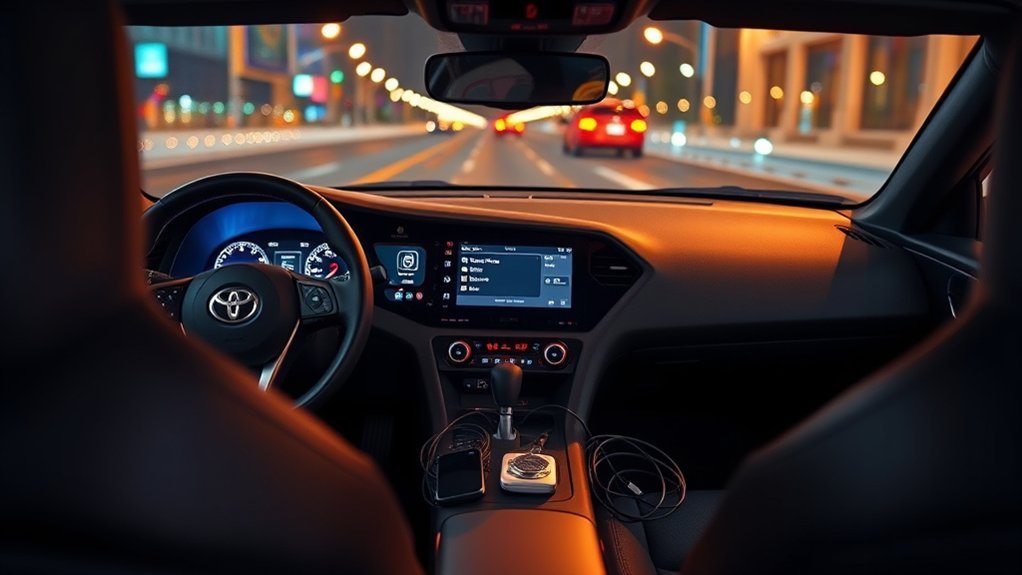
Supra owners commonly report CarPlay dropping after iOS updates, when the phone gets hot, or when the car and phone have stale pairing data. Because the Supra’s CarPlay is wireless only, a USB cable won’t switch it to wired CarPlay; the USB port is for charging and media. The fixes owners find most reliable are: forgetting the car under Settings > General > CarPlay and deleting the phone from the car before re-pairing, turning off Personal Hotspot and VPN apps while driving, keeping the phone cool (remove thick cases or move it off the charging pad on hot days), and keeping both iOS and the car’s software up to date.
Related Guides
- Apple CarPlay in 2021 Toyota Supra: Setup and Fixes
- Supra Infotainment Reset: 2026 GR Reboot & Fix Guide
- Toyota Supra Bluetooth Issues: Troubleshooting Fix
- Supra Infotainment Screen Freezing: Fix It Now
- Supra Infotainment Update Guide for 2020–2024
Frequently Asked Questions
Why Does My Toyota Apple Carplay Keep Disconnecting?
In most Toyotas, including the Supra with wireless CarPlay, disconnects come from software glitches, stale pairing data, phone overheating or interference from hotspots and VPNs. Update iOS, forget and re-pair the car, and reboot the infotainment system. In models with wired CarPlay, a damaged or low-quality USB cable is another common cause.
Conclusion
Most CarPlay disconnections in the Toyota Supra can be fixed at home: confirm Bluetooth and Wi-Fi are on, remove Screen Time restrictions, re-pair the phone, reboot both systems and keep software updated. If the problem continues after all of that, have a Toyota dealer check for infotainment software updates.