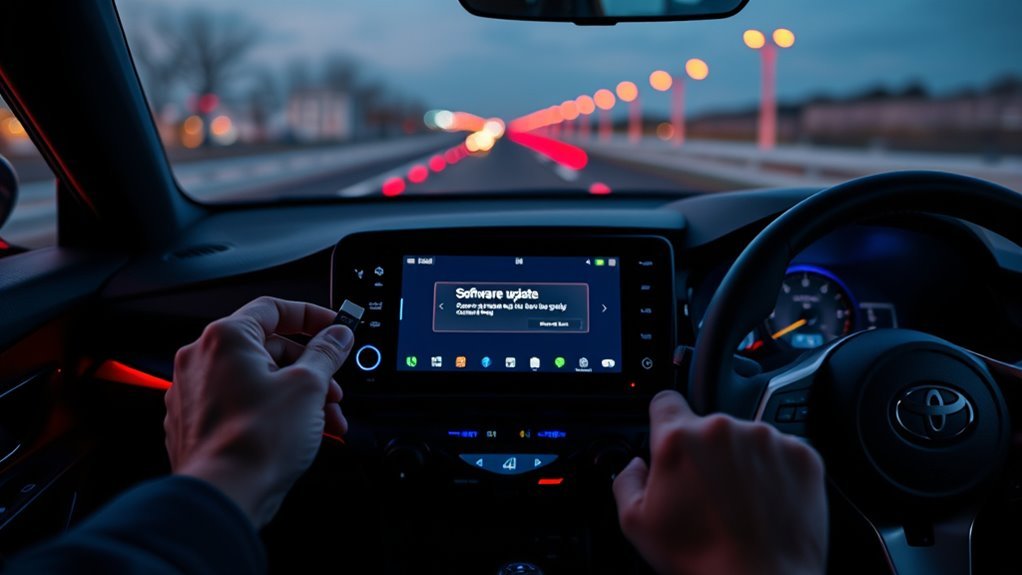
Updating a Toyota GR Supra infotainment system is easiest when you separate the job into the right category: Supra Connect services, navigation maps, eligible Toyota Audio Multimedia software, or a dealer-installed module update. The wrong path can waste time, so start by checking your vehicle, active services, current version information, and any open Toyota campaigns before you download files or visit a dealer.
Quick Answer
For a GR Supra, first check Supra Connect and Toyota’s recall/service-campaign lookup by VIN. Map updates may arrive automatically over the vehicle’s cellular connection or by a Supra-specific USB process. Eligible Audio Multimedia updates use Toyota’s software portal, while module reflashes and failed updates should be handled by a Toyota dealer.
Key Takeaways
- Do not assume every Supra update is a Wi-Fi OTA update; maps, connected services, audio software, and dealer module updates use different paths.
- For 2020–2024 GR Supra navigation-map USB updates, Toyota’s service bulletin calls for a 64 GB or larger USB drive formatted as NTFS, not a small FAT32 drive.
- Toyota’s U.S. software portal is for eligible Audio Multimedia updates; it does not provide navigation/map updates.
- If your Supra has connected-service problems, check for open campaigns by VIN and ask the dealer about Data Communication Module or head-unit software updates.
At a Glance
| Time Required | 5–10 minutes for checks; 30 minutes to several hours for large map updates; 1–3 hours for many dealer software visits |
| Difficulty | Easy for checks; moderate for USB map preparation; dealer-level for module reflashes |
| Tools Needed | Supra Connect/Toyota account, VIN, stable cellular signal, computer, compatible USB drive for USB updates |
| Cost | Often free during active update periods or campaigns; dealer diagnostic or out-of-period work may cost extra |
Warning: Do not operate the infotainment system while driving. Park safely before checking software, inserting a USB drive, reading messages, or accepting update prompts. During an update, do not remove the USB drive, shut the vehicle down, or interrupt power unless the screen or dealer instructions tell you to.
Start With the Right Toyota Supra Update Path
The GR Supra can receive several kinds of updates, and each one has a different source. Before you download anything, identify what you are trying to update:
| What You Want to Update | Where to Check | Typical Method | When to Use a Dealer |
|---|---|---|---|
| Supra Connect services | Supra Connect portal, Toyota app, in-vehicle Connected Services menu | Refresh services through the vehicle menu with cellular reception | If services fail, show “Connection not possible,” or an open campaign applies |
| Navigation map data | Supra Connect, Toyota dealer, map update message in vehicle | Automatic cellular update or Supra-specific USB map update | If the update period expired, the file is unavailable, or the install fails |
| Audio Multimedia software | Toyota Software Updates portal | USB update if the portal lists an eligible file for your vehicle | If no file appears, the update is dealer-only, or the update fails |
| DCM, telematics, head unit, or campaign software | Toyota recall and service-campaign lookup | Dealer reflash or inspection | Always, because these updates require Toyota service tools |
Check Supra Connect and Vehicle Connectivity
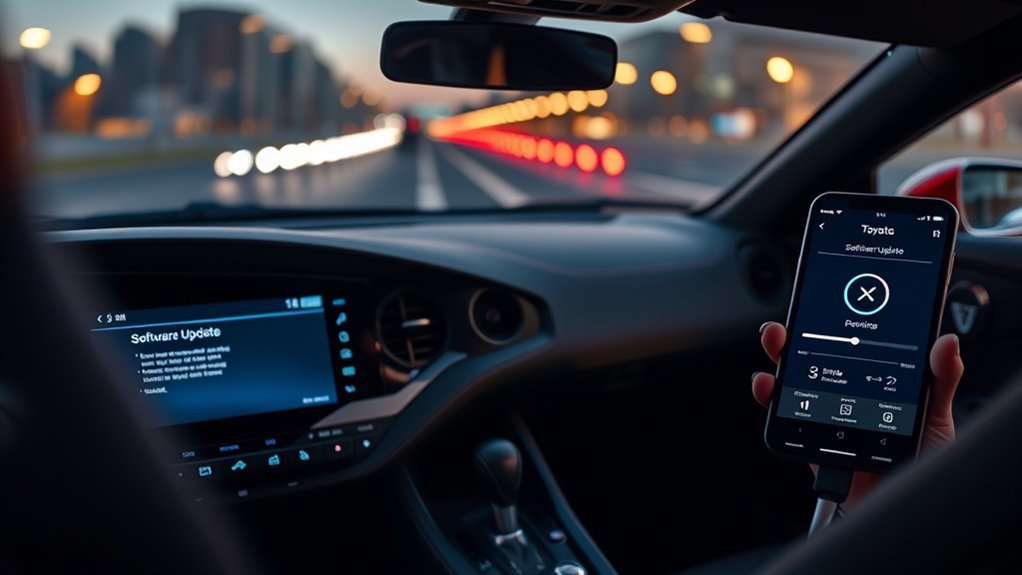
Log in to your Toyota Supra Connect account and confirm that your vehicle appears with active services. Supra Connect is powered by BMW ConnectedDrive, and the portal lets owners manage the services tied to the car.
Next, check the car itself. You want strong cellular reception, the correct date and time, and an active connected-services contract if you are using Supra Connect features. If the vehicle repeatedly shows a connection error, Toyota’s Supra Connect FAQ recommends contacting a Toyota dealer or Toyota Supra Connect support.
Refresh Toyota Supra Services From the Vehicle
Use this step when connected services, app features, traffic information, messages, or remote functions seem stale.
- Park the vehicle safely.
- Open Connected Serv. from the infotainment menu.
- Press the vehicle’s options/menu button.
- Select Update Toyota Supra Services.
- Wait for the update to complete, then recheck messages, connected apps, traffic, and remote-service behavior.
Note: Updating Toyota Supra Services is not the same thing as installing a new head-unit software version. It refreshes connected services available to the vehicle. If you need a module reflash, software campaign, or diagnostic update, use a Toyota dealer.
Find Your Current Software and Map Information
Before you ask for support, record the exact version information shown in the vehicle. This helps the dealer, Toyota support, or Supra Connect support understand whether your car is current.
Record Your Navigation and Map Version
Open the navigation software or map information screen and write down the displayed map version, region, and any update status message. Toyota’s Supra navigation manual states that navigation data is stored in the vehicle and can be updated from a USB device, while some automatic map updates can also be transmitted online depending on equipment and market.
Record Your iDrive or Head-Unit Build String
Some GR Supra screens show BMW-style software strings or iSTEP-style build information. Record the exact text, but do not rely on forum posts that claim one universal “latest” version. Version numbers can vary by model year, market, update history, and service campaign status.
Check Your VIN for Open Campaigns
Before paying for a diagnostic appointment, search your VIN or license plate on Toyota’s official recall and service-campaign page. Some software-related issues are handled through Toyota campaigns, which can change the cost and required repair path.
Pro Tip: Save a quick note with your VIN, odometer, current map version, head-unit version, error message, update date, and the exact symptom. That single note makes dealer and support conversations much faster.
How to Tell If Your Supra Needs an Update
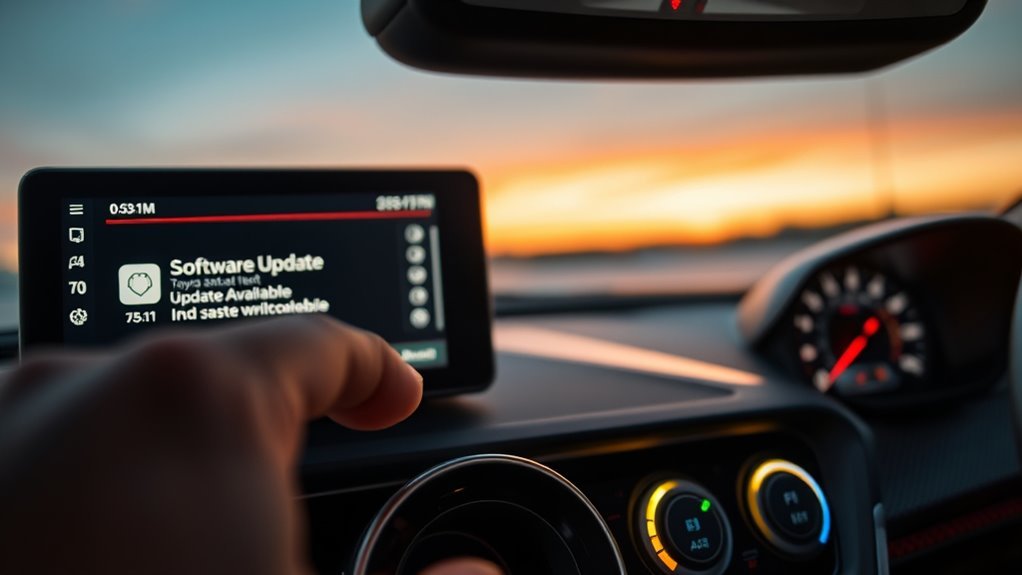
Your Supra may need an update if the vehicle displays an available update message, navigation maps are clearly outdated, Supra Connect services fail repeatedly, Bluetooth or CarPlay behavior changes after phone updates, or Toyota’s VIN lookup shows an open campaign.
Use this checklist before you change anything:
- Check the vehicle screen: Look for update prompts, map update notices, or connected-services messages.
- Check Supra Connect: Confirm the vehicle is listed and services are active.
- Check Toyota’s VIN lookup: Look for safety recalls, service campaigns, or limited service campaigns.
- Check Toyota’s software portal: Enter your vehicle information to see whether an Audio Multimedia update is offered.
- Call the dealer if symptoms persist: Ask whether your VIN has any head-unit, DCM, telematics, or map-update bulletins.
Update Navigation Maps Automatically or by USB
Navigation maps are not the same as the general infotainment software. Toyota’s Supra Connect FAQ states that map updates can be pushed automatically by cellular network, with a message shown in the vehicle when an update is available. Toyota’s Supra navigation manual also states that current navigation data may be available from a Toyota dealer or the Toyota Supra Connect user site.
[Products Worth Considering]

This 2-in-1 wireless adapter converts factory-wired CarPlay into a cable-free experience for compatible vehicles, helping you enjoy seamless phone integration with less clutter. It supports automatic reconnection, stable Bluetooth and Wi-Fi pairing, and broad compatibility with many factory-installed CarPlay systems. Built with a durable metal and acrylic design, it also includes firmware updates and lifetime technical support for continued convenience.

This tire repair rubber nail kit offers a fast, simple way to seal punctures in tubeless tires without removing the wheel. Designed for reliable grip and effective sealing, it helps reduce air loss and keep vehicles moving across a wide range of everyday repair needs. The assorted sizes provide versatility for minor and larger punctures on cars, trucks, motorcycles, tractors, and more.

This Toyota navigation SD card provides updated North America maps and points of interest for compatible factory navigation systems. It is preloaded with recent road and location data to help drivers find destinations, services, and routes more easily across the U.S. and Canada. Designed for select Toyota models, it offers a simple plug-and-play replacement for the original navigation card.
Automatic Map Updates
If your Supra is equipped and subscribed for automatic map updates, keep Supra Connect active and watch for an in-vehicle prompt. Follow the on-screen instructions and let the vehicle complete the process. Depending on equipment and region, automatic map updates generally focus on the home region.
USB Map Update for 2020–2024 GR Supra With Navigation
Toyota’s Supra-specific navigation map bulletin for 2020–2024 GR Supra vehicles with navigation uses a larger USB process than many generic Toyota guides describe. For this Supra map workflow, use a 64 GB USB flash drive or larger, format it as NTFS, and expect the map file to be larger than 30 GB.
Warning: Formatting a USB drive erases everything on it. Copy any files you want to keep before formatting the drive for a map update.
Step-By-Step USB Map Installation
- Confirm your Supra is eligible and still inside its valid map update period.
- Use a 64 GB or larger USB drive.
- Format the USB drive as NTFS.
- Download the correct Supra map file from the Toyota/Supra map source provided for your vehicle or by your dealer.
- Extract the map update file to the USB drive as instructed.
- Eject the USB drive safely from your computer.
- Park the Supra and keep vehicle power stable. A dealer may use battery support equipment for this step.
- Insert the USB drive into the front USB port in the center console area.
- Accept the available map update prompt on the Control Display.
- Let the progress bar reach 100%, allow the navigation system to restart, then confirm the completion message.
- Remove the USB drive and verify that navigation, routing, and map display work normally.
Use Toyota’s Software Portal for Eligible Audio Multimedia Updates
For eligible Toyota Audio Multimedia updates, use Toyota’s official software update portal. Enter your vehicle information and follow the portal’s instructions if an update is available.
Do not use this portal for Supra navigation maps. Toyota’s U.S. software portal states that navigation and map updates are not available on that site and that owners should see a local Toyota dealer for map-update details.
[Products Worth Considering]
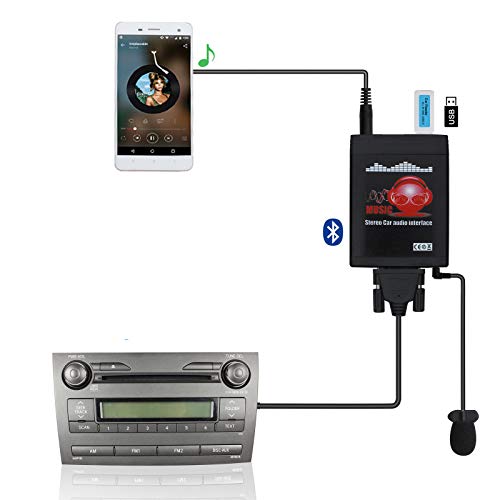
Turn your Toyota's factory radio into a Bluetooth-enabled system for hands-free calls and wireless music streaming — no need to replace the head unit. Built-in Bluetooth 5.0 chip and noise-suppressing microphone ensure crystal-clear conversations, keeping your focus on the road.

Advanced Integration: For Toyota Tacoma 2016-2023 (Note: If any question about the product installation, please feel free to tell us promptly, we will provide specialized guidance).

Product Name: Car USB Cable; Color: Black
USB Basics for Audio Multimedia Updates
If Toyota’s portal offers an Audio Multimedia update for your vehicle, follow the portal’s file and USB instructions exactly. Do not reuse the Supra navigation-map requirements unless the instructions specifically say to do so. Different Toyota systems can use different file structures, capacities, and formatting rules.
When to Take It to a Dealer for Manual Updates
Use a Toyota dealer when the update involves a control module, a failed install, an expired map update period, a VIN-specific campaign, or symptoms that may require diagnostics. Dealers have Toyota service tools, campaign access, battery support equipment, and repair procedures that owners cannot safely duplicate at home.
A dealer visit is especially important if you have any of these symptoms:
- Supra Connect repeatedly fails even with cellular reception.
- Emergency call, Roadside Assistance, Concierge, or connected voice services do not work.
- The vehicle has an open campaign in Toyota’s recall/service-campaign lookup.
- The navigation update fails, loops, or never reaches completion.
- The head unit freezes, reboots repeatedly, or shows a persistent software error.
- Your map update period has expired or you cannot access the correct map file.
Costs, Warranty Coverage, and What to Ask Your Dealer
Software cost depends on why the update is being performed. Safety recalls, Special Service Campaigns, and Limited Service Campaigns are usually performed at no charge while they apply. Routine diagnostics, out-of-period map updates, or non-warranty software requests may cost extra.
Ask the service advisor these questions before authorizing work:
- Is my VIN covered by a safety recall, Special Service Campaign, or Limited Service Campaign?
- Is this update for the head unit, navigation map data, DCM, Supra Connect, or another module?
- Will the update be free, warranty-covered, campaign-covered, or customer-pay?
- How much diagnostic time is included in the quote?
- Will my saved destinations, Bluetooth pairings, audio settings, and driver profiles be preserved?
- What version or campaign number will appear on the repair order after the update?
- What should I do if the same issue returns?
[Products Worth Considering]

Compatibility: Compatible with 2020-2026 Toyota GR Supra MK5 A90 A91 Coupe

√ CUT PRECISELY Exclusive design for 2020 2021 2022 2023 2024 2025 2026 Toyota GR Supra A90 8.8 Inch navigation screen, No need to trim the edges,100% compatible with the 2020 2021 2022 2023 2024 2025 2026 GR Supra center control touch screen.

Precision Computer Pre-Cut Vinyl Film
Which Problems an Update Can Fix—and Which May Persist
A software update can fix problems that Toyota has identified in a bulletin, campaign, or newer software release. It cannot guarantee a cure for every Bluetooth, phone, cable, app, hardware, or signal-related problem.
| Issue Type | Can an Update Help? | What to Do |
|---|---|---|
| Known campaign or bulletin issue | Often yes | Check VIN, then schedule dealer service. |
| Outdated navigation roads or points of interest | Yes, if newer map data is available | Use automatic map update, USB map update, or dealer map support. |
| Supra Connect service errors | Sometimes | Refresh Toyota Supra Services, check cellular signal, then contact dealer/support. |
| Phone pairing, CarPlay, or music glitches | Maybe | Update the phone, try a different cable, re-pair the device, then check for vehicle updates. |
| Hardware failure, damaged USB port, weak battery, or bad cable | No | Diagnose the hardware or power issue first. |
Troubleshooting Stalled, Failed, or Repeated Updates
If an update stalls, slow down and isolate the failure. Repeating the same failed install can waste time and may make diagnosis harder.
Check Connection Quality
For Supra Connect and automatic map updates, confirm that the vehicle has cellular reception and an active service connection. Move the car to an open area if it is inside a garage or low-signal location. Recheck Supra Connect service status before trying again.
Check the USB Drive and Files
For USB map updates, confirm the drive capacity, file system, extracted file structure, and map-file eligibility. For Audio Multimedia updates from Toyota’s portal, follow the portal’s own USB instructions rather than generic advice.
Restart Safely and Record the Error
If the screen freezes or repeats an error, note the exact message and time. Restart only when the vehicle screen or official instructions allow it. If the same failure returns, stop retrying and call a Toyota dealer with your VIN, version numbers, and error details.
Visit Dealer Support
A Toyota dealer can connect diagnostic tools, maintain battery voltage, check service bulletins, and reflash modules when needed. Bring the USB drive you used, screenshots of the error, the exact version numbers, and a short list of symptoms.
Best Practices Before Updating and How to Track Releases
- Park in a safe, well-ventilated location before using update menus.
- Check your VIN for open campaigns before paying for software work.
- Record current map and software versions before the update.
- Use a reliable USB drive from a reputable brand.
- Do not change file names, folders, or archive structure unless Toyota’s instructions say to.
- Keep a simple update log with date, version, mileage, and symptoms before and after.
- After the update, test navigation, Bluetooth, CarPlay, audio, remote services, and connected messages.
The safest update path is the one tied to your exact VIN, model year, active services, and current software version—not a generic Toyota update guide.
Frequently Asked Questions
How do I know if my Toyota Supra needs a software update?
Check the vehicle screen for update messages, log in to Supra Connect, search your VIN on Toyota’s recall and service-campaign lookup, and record your current map and software versions. If connected services, maps, or the head unit behave abnormally, ask a Toyota dealer to check for bulletins or campaigns.
Does Toyota charge for Supra software updates?
It depends on the update. Active recalls, Special Service Campaigns, and Limited Service Campaigns are generally performed at no charge while applicable. Routine diagnostic time, out-of-period map updates, or non-warranty software requests may be customer-pay, so ask for a written quote first.
Can I update GR Supra navigation maps myself?
Often, yes, if your vehicle is eligible and the map update period is valid. Some map updates arrive automatically over cellular. For 2020–2024 GR Supra vehicles with navigation, Toyota’s Supra map bulletin describes a USB process using a 64 GB or larger NTFS-formatted drive.
Is the Toyota software portal used for Supra map updates?
No. Toyota’s U.S. software portal is for eligible Audio Multimedia updates. Toyota states that navigation and map updates are not available on that portal, so use Supra Connect, the Supra map process, or your Toyota dealer for map data.
What USB format should I use for a Supra map update?
For the Toyota 2020–2024 GR Supra navigation-map USB bulletin, use a 64 GB or larger USB drive formatted as NTFS. Do not use generic FAT32/8 GB advice for this Supra map workflow.
Should I update iDrive or iSTEP based on forum version numbers?
No. Forum version numbers can be useful for comparison, but they are not an official update target. Record your exact build string, check your VIN, and ask a Toyota dealer whether your vehicle has an applicable campaign, bulletin, or newer approved software.
Sources
- Toyota GR Supra Audio Multimedia and Connected Services Support — Supra Connect features, navigation support, and GR Supra multimedia overview.
- Toyota Supra Connect FAQ — active services, connected-services errors, app features, and automatic cellular map-update information.
- Toyota Software Updates Portal — official Audio Multimedia software update portal and note that navigation/map updates are not hosted there.
- Toyota T-SB-0002-20 Rev1 Navigation Map Data Update — Supra-specific 2020–2024 navigation map update procedure and USB requirements.
- Toyota GR Supra Navigation System Owner’s Manual — navigation data, USB update, automatic map update, and Toyota Supra Services information.
- Toyota Safety Recall and Service Campaign Lookup — VIN lookup for recalls, Special Service Campaigns, and Limited Service Campaigns.
Conclusion
Keep your Supra’s infotainment current, but do it through the right channel. Refresh Supra Connect services from the vehicle menu, let eligible maps update over cellular, use the Supra-specific USB map procedure when it applies, and reserve dealer visits for module reflashes, failed installs, expired map periods, and open campaigns. The best first move is simple: record your current versions, check your VIN, and match the update method to the exact problem you are trying to fix.