A frozen Hyundai Sonata touchscreen usually points to a temporary infotainment software glitch, a phone-projection conflict, an outdated update, or a deeper hardware/electrical issue. Start with the safest reset first, then move step by step. Do not troubleshoot the screen while driving, and do not disconnect the battery unless the vehicle is parked, turned off, and you are comfortable working around a 12-volt battery.
Quick Answer
To fix a frozen Hyundai Sonata touchscreen, park safely, put the vehicle in ACC or ON, and restart the infotainment system. Depending on your Sonata’s system, use the power/volume button reset or the small reset pinhole. If the screen still freezes, update the software, remove and re-pair your phone, or schedule dealer diagnostics.
Key Takeaways
- Try a soft infotainment reset before disconnecting the battery or doing a factory reset.
- If the freeze happens only with Bluetooth, Apple CarPlay, or Android Auto, delete the phone from the vehicle and phone, then pair it again.
- Use the official Hyundai Navigation Update Portal for navigation and infotainment updates.
- A factory reset can erase paired phones, user profiles, navigation favorites, and custom settings.
- Repeated freezing, flickering, black screens, or backup-camera display problems should be checked by a Hyundai dealer.
At a Glance
| Time Required | 2 minutes for a soft reset; 30–60+ minutes for a software update |
| Difficulty | Easy for reset steps; moderate for battery disconnect |
| Tools Needed | Paper clip or pin for reset-hole systems; USB drive for updates; wrench only for battery disconnect |
| Cost | Usually free if solved by reset or update; dealer diagnosis may cost money if out of warranty |
Why Is My Hyundai Sonata Touchscreen Frozen?
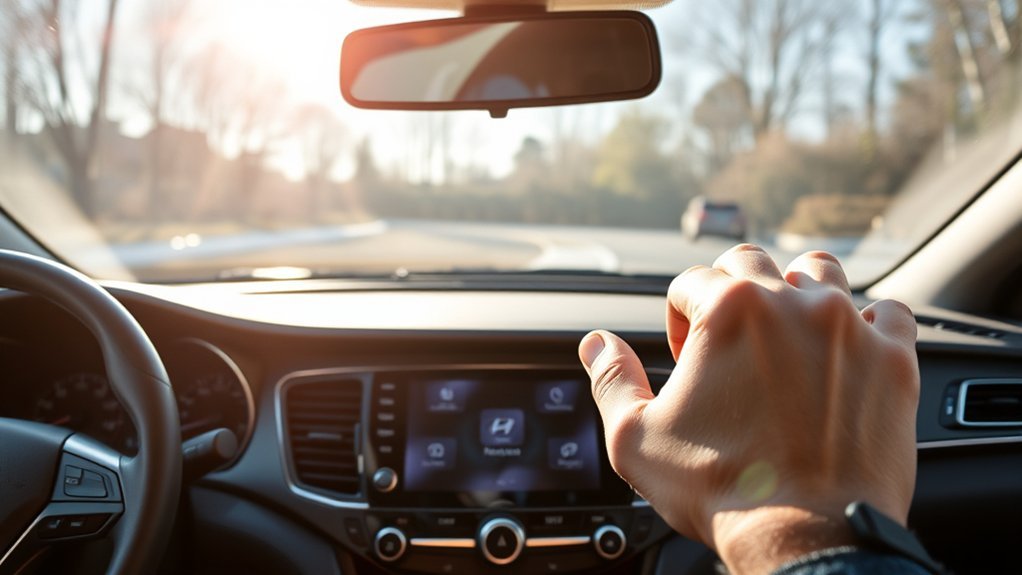
Your Hyundai Sonata touchscreen can freeze for several reasons. The most common cause is a temporary software hang inside the infotainment unit. This can happen after startup, during phone projection, while loading navigation, or when the system is processing multiple tasks at once.
Connectivity is another common trigger. If the screen freezes when you plug in your phone or start wireless projection, the issue may be tied to Bluetooth, Apple CarPlay, Android Auto, a bad USB cable, or a phone setting. Hyundai’s online manual notes that deleting and registering a device again can resolve phone-projection connection errors, and deleting a device may remove related contacts, call logs, and messages from the vehicle system.
Outdated infotainment software can also cause slow response, pairing problems, or app compatibility issues. Hyundai’s official update site lets owners search by VIN or vehicle type and download available navigation or infotainment updates. In colder or hotter conditions, a slow screen can also be made worse by temperature, low 12-volt battery voltage, or an infotainment unit that is starting to fail.
| Possible Cause | What You May Notice | Best First Fix |
|---|---|---|
| Temporary software glitch | Frozen screen, delayed taps, black screen after startup | Soft reset the infotainment system |
| Bluetooth or phone-projection conflict | Freezing starts when CarPlay, Android Auto, or Bluetooth connects | Delete and re-pair the phone |
| Outdated system software | Repeated freezes, lag, navigation or projection bugs | Install the latest official Hyundai update |
| Low 12-volt battery or electrical interruption | Slow booting, random restarts, settings disappearing | Test the battery and charging system |
| Hardware fault | Flickering, dead touch zones, repeated black screen, no response after reset | Dealer diagnosis |
Quick Reboot: Steps to Resolve a Frozen Screen
A reboot is the safest first step because it restarts the infotainment system without erasing your saved settings. Use these steps while parked.
[Products Worth Considering]

This portable car stereo brings wireless Apple CarPlay and Android Auto to your vehicle for easier access to navigation, music, calls, and messages. The large HD touch screen supports mirror link and multiple audio output options, while voice control adds safer hands-free use on the road. An included backup camera and simple dashboard mount make installation quick and convenient without replacing your original radio.

Teeran’s 2-in-1 wireless adapter turns compatible factory wired CarPlay or Android Auto systems into a cable-free experience for both iPhone and Android users. It offers fast setup, automatic reconnection, and full support for your vehicle’s original controls so navigation, music, calls, and voice assistants work seamlessly. Its compact flush-fit design helps reduce clutter, while built-in protection and broad compatibility make it a practical everyday upgrade.

This wireless CarPlay screen adds modern smartphone connectivity to almost any vehicle with easy plug-and-play installation. It supports Apple CarPlay and Android Auto, online maps, voice control, phone mirroring, and multiple audio output options for safer, more convenient driving. The included night vision backup camera and OTA updates help improve visibility, compatibility, and long-term performance.
Step 1: Park Safely and Power the System
Shift to Park, set the parking brake, and make sure the vehicle is in ACC, ON, or running. Do not try to reset the touchscreen while driving. Hyundai manuals explain that infotainment operation can vary by model and system generation, so your exact button layout may not match every Sonata.
Step 2: Try the Power/Volume Button Reset
On many Hyundai systems, the power button is built into the volume knob. Press and hold the power/volume button for about 10–15 seconds. If the display goes black, release the button and wait for the Hyundai logo or home screen to return. This is a soft reboot, not a factory reset.
Step 3: Use the Reset Pinhole If Your System Has One
Some Hyundai navigation units have a small reset pinhole near the display or controls. Hyundai’s official navigation update FAQ describes a soft reset as pressing the pinhole reset button with a paper clip or bobby pin. Press gently; do not force the pin, and do not insert anything into a microphone, USB port, or speaker grille.
Warning: If the frozen screen affects the backup camera, vehicle warnings, or any driving-related display, stop using the workaround approach and schedule service. A display problem can become a safety concern if it blocks information you need while driving.
Step 4: Test the Touchscreen After Restart
After the system restarts, tap several areas of the screen, open audio, open navigation if equipped, and connect your phone only after the screen is fully loaded. If the screen works normally until your phone connects, troubleshoot Bluetooth, Apple CarPlay, or Android Auto next.
Common Causes of Freezing
If the touchscreen keeps freezing after a reboot, look for a pattern. The pattern usually tells you whether the problem is software, phone-related, update-related, or hardware-related.
- Freezes only at startup: The system may be loading slowly, especially after an update, a weak 12-volt battery, or an interrupted shutdown.
- Freezes when a phone connects: Delete the phone from the Sonata and delete the Sonata from the phone, then pair again.
- Freezes when using a USB cable: Try a different high-quality data cable and use the correct USB data port, not a charge-only port.
- Freezes during navigation: Check for a Hyundai navigation update and make sure the update completed fully.
- Freezes with flickering or dead touch zones: This may be a display, digitizer, wiring, or control-unit problem that needs diagnosis.
Pro Tip: Before visiting the dealer, record a short video showing the frozen screen, the date, the outside temperature, whether a phone was connected, and what you were doing when the freeze happened. This helps the technician reproduce the issue.
Soft Reset Procedure Steps
Use this quick checklist when your Hyundai Sonata touchscreen is frozen but the vehicle still starts normally.
- Pull over safely. Do not reset the screen while driving.
- Put the vehicle in Park. Keep the vehicle in ACC, ON, or running so the infotainment system has power.
- Disconnect your phone temporarily. Unplug USB and turn off Bluetooth on the phone if the freeze began during phone projection.
- Hold the power/volume button for 10–15 seconds. Release it when the screen turns off or restarts.
- Use the reset pinhole if equipped. Press gently with a paper clip or similar tool.
- Wait for a full reboot. Do not tap repeatedly while the system is loading.
- Reconnect your phone last. If the screen freezes again only after the phone connects, focus on the phone-projection steps below.
[Products Worth Considering]

This portable car stereo adds wireless Apple CarPlay and Android Auto to nearly any vehicle without replacing the factory head unit. The 7-inch HD touchscreen supports voice control, GPS navigation, mirror link, Bluetooth calling, and multiple audio output options for a safer, more connected drive. It also includes backup camera support and flexible mounting for easy installation and removal.

This 2-in-1 wireless adapter converts factory-wired CarPlay into a cable-free experience for compatible vehicles, helping you enjoy seamless phone integration with less clutter. It supports automatic reconnection, stable Bluetooth and Wi-Fi pairing, and broad compatibility with many factory-installed CarPlay systems. Built with a durable metal and acrylic design, it also includes firmware updates and lifetime technical support for continued convenience.
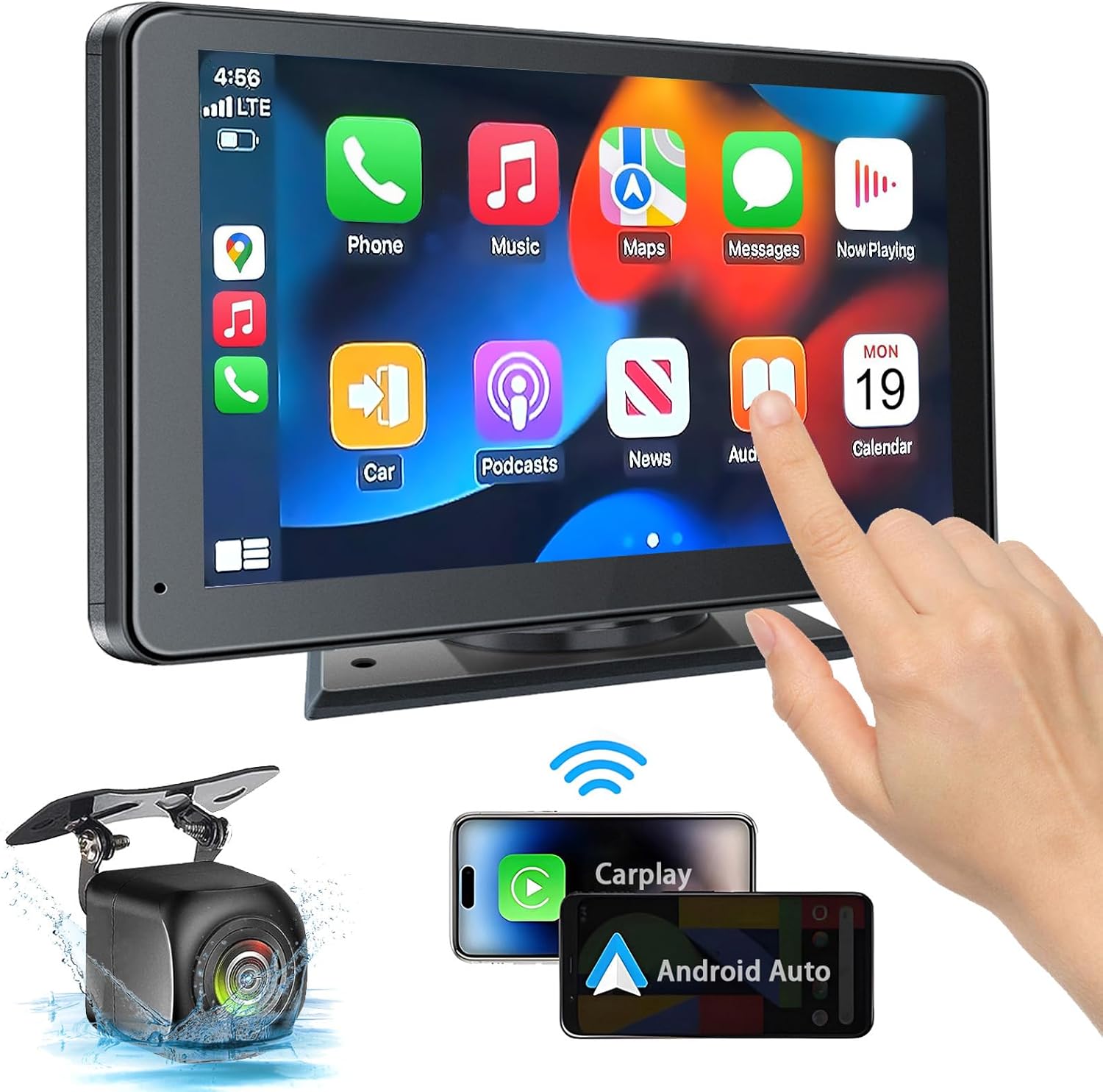
This portable car stereo adds wireless and wired Apple CarPlay and Android Auto to almost any vehicle, giving you easy access to navigation, calls, messages, and music with hands-free voice control. Its 7-inch HD touchscreen, Bluetooth 5.2, mirror link support, and multiple audio output options help create a flexible and safer in-car entertainment setup. The included backup camera and simple dashboard mounting make installation convenient for cars, trucks, RVs, and more.
When to Factory Reset
A factory reset should not be your first move. It can help when the touchscreen works enough to access settings but keeps freezing, lagging, or failing to connect to phones after softer fixes. It can also clear corrupted user settings or old paired-device data.
The exact menu path varies by Sonata model year and infotainment generation, but it is usually under a settings menu such as Setup, General, System Info, or Reset. Follow the prompts on the screen and keep the vehicle powered until the reset finishes.
Note: A factory reset can erase paired phones, Bluetooth data, saved radio presets, navigation favorites, user profiles, and custom display or sound settings. Take photos of important settings before you reset.
Consider a factory reset when:
- The screen responds but freezes repeatedly after normal use.
- Bluetooth, Apple CarPlay, or Android Auto will not reconnect after deleting and re-pairing the device.
- An update completed, but the system still behaves strangely.
- You bought a used Sonata and want to clear the previous owner’s paired devices and personal settings.
Do not factory reset if the screen is completely dead, flickering badly, or showing a backup-camera problem. In those cases, a dealer inspection is safer.
[Products Worth Considering]

Restore responsive touch control to your Toyota navigation system with this 6.1-inch digitizer replacement designed for select Camry, Corolla, Prius C, and RAV4 models. It helps fix unresponsive, ghost-touch, and cracked-screen issues while matching OEM fitment for a straightforward repair and improved in-car usability.
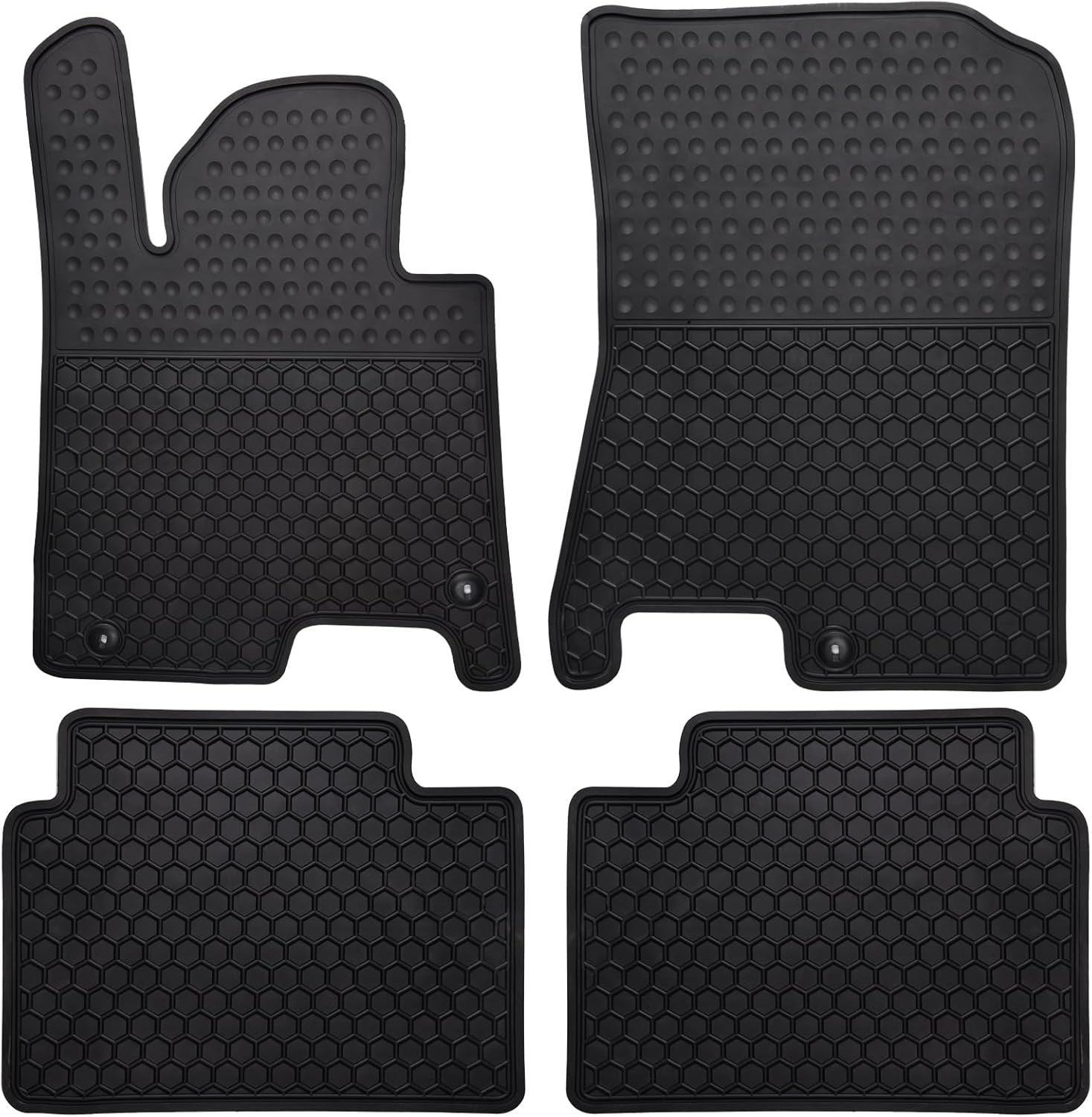
These custom-fit all-weather floor mats are designed for compatible Hyundai Sonata and Kia K5 models to help protect your vehicle's interior from mud, slush, dirt, and spills. Made from odorless, durable rubber with a deep hexagon pattern, they offer reliable anti-slip coverage and are easy to remove and clean with water or a damp towel. The set is built for long-lasting use in every season and helps keep your car looking clean while supporting resale value.

The IIWEY iK11 adds a large wireless Apple CarPlay and Android Auto display to almost any vehicle, making it easy to upgrade older cars with modern smart connectivity. It combines voice control, Bluetooth, wireless mirroring, and built-in navigation support with a front dash cam and rear camera for added driving confidence. Designed for quick installation and everyday convenience, it delivers a portable all-in-one infotainment and safety solution.
Disconnecting the Battery: Step-by-Step Guide
A 12-volt battery disconnect is a harder reset than a button reboot. Hyundai’s navigation update FAQ describes a hard reset as disconnecting the vehicle battery for 30 minutes, but this can erase saved settings and may require some vehicle systems to relearn or be reset afterward. Use this only after soft resets and phone troubleshooting fail.
Safety Precautions First
Before touching the battery, check your owner’s manual for your exact Sonata model, especially if you drive a Sonata Hybrid. Do not touch orange high-voltage cables or hybrid battery components. Work only around the 12-volt battery, and stop if you are unsure.
- Park on a level surface and turn the vehicle off.
- Remove the key or keep the smart key away from the car.
- Wear safety glasses and gloves.
- Do not allow metal tools to bridge the positive and negative terminals.
- Disconnect the negative terminal first and reconnect it last.
Steps to Disconnect Battery
- Turn off the vehicle and wait a few minutes for systems to shut down.
- Open the hood and locate the 12-volt battery or 12-volt jump terminal location listed in your owner’s manual.
- Use the correct wrench to loosen the negative terminal clamp, marked with a minus sign.
- Move the negative cable aside so it cannot spring back onto the battery post.
- Wait 15–30 minutes. If following Hyundai’s hard-reset FAQ guidance, wait 30 minutes.
- Reconnect the negative terminal securely.
- Start the vehicle and let the infotainment system boot fully.
- Reset any affected items, such as clock, windows, climate settings, or infotainment preferences, if required by your owner’s manual.
Warning: Do not disconnect the 12-volt battery if you are not comfortable doing it safely. A mistake can create sparks, damage electronics, or trigger warning lights. A Hyundai service department can perform a controlled reset and check for stored fault codes.
How to Use a USB Keyboard for a Quick Fix
A USB keyboard is not an official Hyundai touchscreen reset method, and you should not rely on computer shortcuts such as Ctrl + Alt + Delete. Hyundai’s supported reset methods are the infotainment reset button/pinhole, the system menus, software updates, and service diagnostics.
That said, if the screen image is visible but touch input is not responding, a wired USB keyboard may work on some systems as a temporary input device. This is not guaranteed, and many Sonata systems will ignore the keyboard completely.
If you want to try it, use these limits:
- Park the vehicle and keep it in ACC, ON, or running.
- Plug in a simple wired USB keyboard, not a wireless dongle or gaming keyboard.
- Try arrow keys, Enter, Escape, or Tab only to see whether the system responds.
- Do not press random key combinations or hold keys down.
- If the keyboard does not respond immediately, unplug it and move to supported reset steps.
If a keyboard works, use it only to exit a stuck menu or reach a reset option. If the touchscreen itself has dead zones or no touch response after rebooting, the display digitizer or infotainment unit may need service.
When Should You Consider a Factory Reset?
Use a factory reset when the system is still usable but unreliable. It is a good middle step between a soft reboot and dealer repair, especially if the problem started after pairing a new phone, changing projection settings, or importing old device data.
A factory reset is most useful for these symptoms:
- Repeated freezing after the home screen loads.
- Bluetooth devices that will not delete or reconnect correctly.
- Apple CarPlay or Android Auto icons that disappear or fail to launch.
- Navigation or audio settings that seem stuck after an update.
- A used Sonata that still has old phones and profiles saved.
Skip the factory reset and get professional help if the screen stays black, the display flickers, the touch layer does not respond anywhere, or the system keeps rebooting in a loop. Those symptoms are less likely to be solved by clearing user settings.
Troubleshooting Persistent Connectivity Issues
If your Hyundai Sonata touchscreen freezes mostly when your phone connects, troubleshoot the phone connection before assuming the display is bad. Apple recommends restarting both the iPhone and car, confirming Siri is enabled, checking CarPlay restrictions, and making sure wireless CarPlay settings such as Wi-Fi and Auto-Join are correct. Google recommends using the latest Android version and checking Android Auto compatibility, app updates, cables, and vehicle settings.
Fix Apple CarPlay Freezing
- Restart your iPhone and restart the Sonata infotainment system.
- Update iOS to the latest available version.
- Go to iPhone settings and make sure Siri is enabled.
- Check Screen Time restrictions to make sure CarPlay is allowed.
- Forget the Sonata in iPhone CarPlay settings.
- Delete the iPhone from the Sonata’s device list.
- Pair the phone again from the vehicle screen.
- If wired, try a different Apple-certified or high-quality data cable.
Fix Android Auto Freezing
- Restart the phone and restart the infotainment system.
- Update Android and Android Auto.
- Check that Android Auto is enabled in the vehicle’s phone-projection settings.
- Delete the phone from the Sonata and delete the Sonata from the phone’s Bluetooth list.
- Pair again while parked and allow all required permissions.
- If wired, use a short, high-quality data cable and connect to the correct USB data port.
- If wireless, turn Bluetooth and Wi-Fi off and back on, then reconnect.
Reset the Bluetooth Device List
Hyundai manuals for some systems include a Bluetooth reset option that deletes paired Bluetooth devices and restores Bluetooth settings to default values. If your Sonata has this option, use it when deleting a single phone does not work. Remember that removing a device can also delete related contacts, call logs, and messages stored in the vehicle system.
Note: If the touchscreen freezes only with one phone, test a second phone. If one phone works and one phone does not, the issue is likely phone settings, software, cable, or app compatibility rather than the Sonata screen itself.
Update Your Infotainment System Easily
Software updates can fix bugs, improve phone compatibility, and refresh navigation data on eligible Hyundai systems. Use only the official Hyundai Navigation Update Portal. Hyundai’s update site lets you search by VIN or vehicle type, review available updates, and download the Navigation Updater tool.
Before updating:
- Use the official Hyundai update file only.
- Check your Sonata model year, trim, and infotainment system type.
- Use a clean USB drive that meets Hyundai’s update instructions.
- Keep the vehicle powered during installation.
- Do not remove the USB drive or shut off the vehicle while the update is installing.
Hyundai’s update notices sometimes include specific improvements for Display Audio, wireless phone projection, Bluelink, or navigation functions. If your freezing began after a phone update, a Hyundai infotainment update may restore compatibility.
Use official Hyundai update files only. Unofficial files, interrupted installations, or the wrong update for your system can create bigger infotainment problems than the freeze you started with.
Seeking Professional Help: When to Visit a Dealership
Visit a Hyundai dealership or qualified repair shop if the touchscreen keeps freezing after a soft reset, phone re-pairing, and software update. A technician can check for service campaigns, scan for stored communication codes, test the 12-volt battery, inspect wiring, and determine whether the infotainment head unit or display needs repair.
Schedule service if you notice any of these signs:
- The screen stays black even though the vehicle starts normally.
- The display flickers, changes colors, or shows lines.
- The touchscreen has dead areas that never respond.
- The system reboots repeatedly while driving.
- The backup camera image is missing, delayed, or frozen.
- Audio controls, steering-wheel controls, or voice commands fail at the same time.
- A reset works only for a few minutes before the screen freezes again.
You can also check for open safety recalls or service campaigns by VIN through the official Hyundai recall and campaign lookup or the NHTSA recall lookup. Not every frozen-screen issue is a recall, but checking your VIN is a smart step before paying for repairs.
Common Causes of a Hyundai Sonata Touchscreen Freeze
The table below summarizes the most likely causes and the fix that usually makes sense first.
| Cause | Why It Happens | What to Do |
|---|---|---|
| Software glitch | The infotainment computer temporarily stops responding. | Soft reset with the power/volume button or reset pinhole. |
| Old paired devices | Saved Bluetooth or phone-projection data conflicts with a phone update. | Delete devices and pair again. |
| Bad USB cable | Charge-only or damaged cables can interrupt CarPlay or Android Auto. | Use a short, high-quality data cable. |
| Outdated software | Older infotainment software may not work well with newer phone software. | Install an official Hyundai update. |
| Weak 12-volt battery | Low voltage can cause slow booting, restarts, or module errors. | Have the battery and charging system tested. |
| Faulty display or head unit | Hardware failure can cause flickering, dead touch areas, or black screens. | Get dealer diagnostics. |
Frequently Asked Questions
Can I use a wireless keyboard instead of a USB keyboard?
A wireless keyboard is unlikely to help. Hyundai does not list a keyboard as a supported reset method, and wireless keyboard dongles may not be recognized by the infotainment system. Use the power/volume reset, reset pinhole, system reset menu, or dealer service instead.
Will a frozen touchscreen drain my car battery?
It can contribute to battery drain if the infotainment system stays awake after the vehicle is turned off, but a single freeze while driving usually does not mean the battery will immediately die. If the screen stays on after shutdown or the car is slow to start, have the 12-volt battery tested.
How often should I update my Sonata’s infotainment system?
Check Hyundai’s official update portal a few times per year, especially if you use navigation, Apple CarPlay, Android Auto, or Bluetooth daily. You should also check for updates after repeated freezing or after a major phone operating-system update.
Is there a warranty for Hyundai Sonata touchscreen issues?
Touchscreen coverage depends on your Sonata’s model year, mileage, warranty status, and whether the issue is caused by a covered defect, damage, software, or accessories. Check your warranty booklet or ask a Hyundai dealer to confirm coverage before authorizing paid repairs.
Can I fix a frozen screen without disconnecting the battery?
Yes. In most cases, you should try a soft infotainment reset, phone re-pairing, and software update before disconnecting the battery. Battery disconnect is a harder reset and can erase settings or require other vehicle systems to be reset afterward.
Why does my Sonata screen freeze only when Apple CarPlay or Android Auto starts?
That usually points to a phone-projection issue rather than a bad screen. Restart the phone and car, update the phone software, use a better USB cable if wired, delete the phone from both systems, and pair it again. Also check Hyundai for infotainment updates.
What if the touchscreen is black but the radio still plays?
Try a soft reset first. If the screen stays black while audio still works, the issue may involve the display, backlight, wiring, or infotainment unit. Schedule service if the screen does not return after a reset.
Can a weak 12-volt battery cause touchscreen problems?
Yes. Low voltage can cause electronic modules to boot slowly, restart, or store errors. If your Sonata has slow starts, dim lights, warning lights, or random infotainment restarts, test the battery and charging system.
Conclusion
A frozen Hyundai Sonata touchscreen is usually fixable with a simple reset, phone re-pairing, or official software update. Start with the safest steps: park, reboot the infotainment system, disconnect the phone, and check for updates. Save factory reset and battery disconnect for persistent issues, and visit a Hyundai dealer if the display stays black, flickers, loses touch response, or affects the backup camera. A quick reset may get you moving again, but repeated freezes deserve proper diagnosis.
Sources
- Official Hyundai Navigation Update Portal — official source for Hyundai navigation and infotainment update downloads.
- Hyundai Navigation Update FAQ: Reset — supports the reset-hole soft reset and battery-disconnect hard reset guidance.
- Hyundai Online Manual: Phone Projection Connection Error — supports deleting and registering phones again for Apple CarPlay and Android Auto issues.
- Apple Support: If You Need Help With CarPlay — supports iPhone restart, Siri, Wi-Fi, Auto-Join, and CarPlay restriction troubleshooting.
- Google Android Auto Help — supports Android Auto update, compatibility, and troubleshooting guidance.
- NHTSA Recalls Lookup — official VIN recall lookup for open safety recalls.