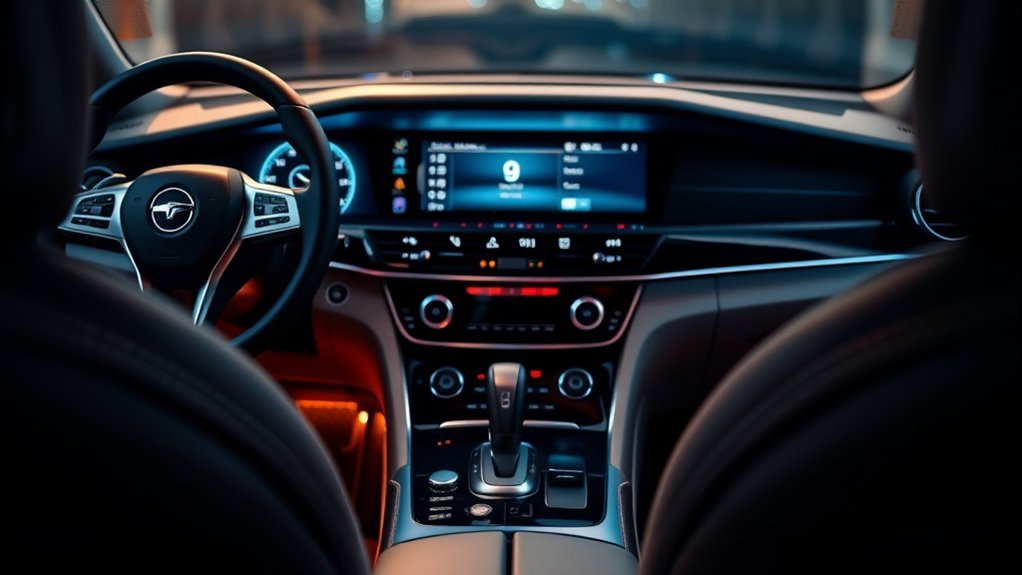
Checking your Hyundai Sonata infotainment software version only takes a minute, and it is the first step before installing a navigation, display audio, Bluetooth, or system update. The exact labels can vary by Sonata model year and screen type, but most recent Hyundai systems show the version under the General settings menu.
Quick Answer
To find your Sonata infotainment software version, park safely, turn the vehicle on, open Setup, choose General, then tap SW Info/Update or Software Info/Update. Write down the platform, software version, firmware version, and map version if shown.
Key Takeaways
- The usual path is Setup > General > SW Info/Update.
- Use your VIN or vehicle type on Hyundai’s official update site to confirm the correct update for your Sonata.
- Do not install update files from random third-party sites; use Hyundai’s official update tools and instructions.
- For USB updates, keep the vehicle powered as Hyundai instructs and never remove the USB drive during installation.
At a Glance
| Time Required | 1–3 minutes to check the version; 10–60+ minutes for some updates |
| Difficulty | Easy |
| Tools Needed | Vehicle screen; VIN; USB drive or SD card only if updating |
| Cost | Usually free when using Hyundai’s official update site, excluding storage media or dealer labor if needed |
Why Keeping Your Sonata Infotainment Software Updated Matters
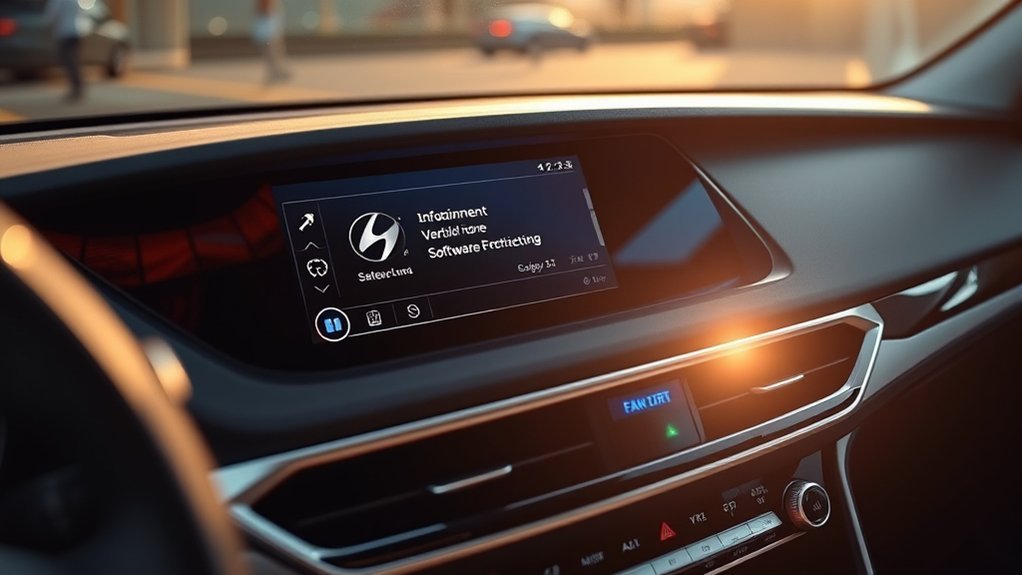
Keeping your Sonata infotainment software updated can improve navigation data, display behavior, Bluetooth performance, voice recognition, phone projection, and system stability. Some updates also add, remove, or change features, so it is worth reading the release notes before installing anything.
Hyundai’s official navigation update site lets you search for compatible software by VIN or vehicle type. That matters because infotainment updates are not one-size-fits-all. A 2013 Sonata, a 2020–2025 Sonata with Gen5W navigation, and a newer ccNC-equipped Sonata may use different update files and installation steps.
Note: A software update can change the look of your menus or remove older features. Hyundai service information for recent navigation updates also notes that some updates cannot be reverted after installation.
How to Access Sonata Infotainment Settings
Start from the home screen of your infotainment display. On many Sonata systems, you can reach the software details through this path:
- Park the vehicle safely.
- Turn the ignition or Start button to the proper powered state for the infotainment system.
- Tap Setup on the home screen or in All Menus.
- Select General.
- Choose SW Info/Update, SW Info, or Software Info/Update.
Hyundai’s official update guide lists the same basic path: Setup > General > SW Info/Update. The wording may differ slightly depending on your screen generation, region, and whether your Sonata has built-in navigation or display audio without navigation.
Accessing the Setup Menu
Press the physical Setup button if your Sonata has one, or tap the Setup touchscreen icon. If you do not see it on the first screen, open All Menus and look for Setup there.
Once inside Setup, choose General. This section usually contains system language, keyboard, date and time, display information, and software information.
Viewing Software Information
Inside SW Info/Update, look for labels such as:
- Software Version or SW Ver.
- Firmware Version
- Navigation App Version
- Map Version
- Platform
- System Version
Take a clear photo of the screen before updating. That gives you a record of the original version if you need help from Hyundai Customer Care or a dealer later.
Where to Locate the Software Version Information
The software version information is normally stored in the infotainment system’s General menu, not in the instrument cluster. Use this quick path first:
Setup → General → SW Info/Update is the most common Sonata infotainment software version path.
If your Sonata screen uses different wording, look for a menu labeled System Info, Version Info, Software Information, or Update. Older systems may show only a software version and firmware version. Navigation-equipped systems may also show a map version.
Pro Tip: If you are checking because Apple CarPlay, Android Auto, Bluetooth, or navigation is acting up, photograph the version screen and the error message before resetting or updating the system.
How to Easily Check for Sonata Infotainment Software Updates
After you find the installed version, compare it with Hyundai’s official update information. The safest route is to use Hyundai’s official navigation and infotainment update website, then search by VIN or vehicle type.
[Products Worth Considering]

This glove box damper support helps restore smooth, controlled opening and closing for compatible vehicle glove compartments. Designed as a replacement for the original damper, it offers an easy installation process and comes tested for reliable performance. It is a practical fix for improving glove box function on select Toyota and Subaru models.

This Toyota navigation SD card provides updated North America maps and points of interest for compatible factory navigation systems. It is preloaded with recent road and location data to help drivers find destinations, services, and routes more easily across the U.S. and Canada. Designed for select Toyota models, it offers a simple plug-and-play replacement for the original navigation card.

Keep your Toyota navigation system current with this SD card map update designed for select factory-installed GPS units. It provides updated coverage for the USA and Canada, including roads, points of interest, and key travel locations for smoother trip planning. Easy plug-and-play installation helps restore accurate guidance without complicated setup.
Checking the Installed Software Version
Use these steps when you only want to check the current version:
- Go to Setup.
- Open General.
- Tap SW Info/Update or Software Info/Update.
- Write down the platform and software version exactly as displayed.
- Use Hyundai’s update site to see whether a newer compatible version is available.
If the system shows only SW Ver. or VER, that may still be enough for Hyundai’s update tool or customer support to identify your current system.
Using Your VIN for Updates
Your Vehicle Identification Number helps Hyundai match your Sonata to the correct update. You can usually find the VIN in these places:
| VIN Location | Why It Helps |
|---|---|
| Bottom of the driver-side windshield | Fastest place to check from outside the car |
| Inside the driver-side door jamb | Useful if windshield glare makes the VIN hard to read |
| Vehicle registration or insurance card | Convenient when using a computer at home |
| Owner portal or dealer paperwork | Helps confirm the exact vehicle tied to your account |
What Issues Might Arise When Checking Software Versions?
Checking the software version is usually simple, but a few issues can get in the way:
- The screen is frozen: Wait a few moments, then restart the vehicle system if needed. Check your owner’s manual for the correct reset method for your model year.
- The menu labels are different: Look for Software Info, Version Info, System Info, or Update.
- The update button is grayed out: The vehicle may not detect a compatible USB drive or may not be in the correct power state.
- The USB drive is not recognized: Hyundai notes that some USB devices may not work properly, even if they appear to meet the basic format requirements.
- The battery is weak: Updates need stable power. Do not begin a software update if the vehicle has battery or charging problems.
Warning: Do not remove the USB drive, switch to ACC mode, turn the vehicle off, or interrupt power during an update. Hyundai service information warns that disconnecting the USB during the process can corrupt files and cause update failure.
How to Update Your Sonata’s Infotainment Software
Updating your Sonata depends on the system type. Some models use Hyundai’s Navigation Updater and a USB drive or SD card. Certain newer vehicles with compatible Bluelink-connected systems may support over-the-air updates. Older Sonata systems may require a dealer or may no longer have the same update support as newer models.
[Products Worth Considering]

This car document holder keeps registration, insurance cards, and other essential paperwork neatly organized and easy to access when needed. Its clear inner sleeves help you quickly identify documents, while the hidden magnetic closure keeps everything secure and protected in a compact, glove-box-friendly design.
Protect your Toyota RAV4 infotainment display with this tempered glass screen protector designed for 2023-2025 LE, XLE, Adventure, XLE Premium, SE, and Woodland Edition models. It helps guard against scratches and fingerprints while preserving touch sensitivity and delivering a clear, low-glare viewing experience. Installation is quick and convenient with the included tools and guidance.

This anti-glare matte tempered glass screen protector is designed for compatible 2026 Toyota RAV4 and RAV4 Hybrid models with a 12.9-inch touchscreen. It helps reduce glare, resists scratches and fingerprints, and maintains responsive touch performance for a clearer, cleaner driving experience.
Update by USB or SD Card
For manual updates, use the official Hyundai process:
- Go to Hyundai’s official update website.
- Search by VIN or vehicle type.
- Read the release notes and storage requirements for your exact Sonata system.
- Download the update using Hyundai’s instructions or the Navigation Updater tool.
- Prepare the USB drive or SD card exactly as instructed.
- Insert the storage device into the vehicle’s correct USB or SD slot.
- Open Setup > General > SW Info/Update, then select Update if prompted.
- Keep the vehicle powered as instructed until the update fully finishes.
Storage requirements vary. Hyundai’s display-audio guide says supported file systems can include FAT16, FAT32, NTFS, and exFAT, while recent navigation service information often calls for a 64 GB or larger USB flash drive formatted as exFAT. Always follow the requirement shown for your specific update.
Update Over the Air, If Equipped
Some newer Hyundai systems support OTA updates. When available, the system may download update files and show progress under Setup > General > Software Info/Update. OTA availability depends on vehicle equipment, software level, region, and connected-service status, so do not assume every Sonata updates wirelessly.
Tips for Maintaining Your Infotainment System
A few habits can keep your Sonata infotainment system more reliable:
- Check updates periodically: Look up your vehicle on Hyundai’s update site a few times per year, especially before a long trip.
- Use clean storage media: If updating by USB or SD card, use a reliable device and format it as Hyundai instructs for your update.
- Keep your phone updated: Many Apple CarPlay, Android Auto, and Bluetooth issues involve the phone as much as the vehicle.
- Restart before troubleshooting: If the screen is slow or a phone will not connect, restart the phone and the vehicle system before assuming the software is outdated.
- Avoid unofficial files: Incorrect files can fail to install or create system problems.
When to Contact Hyundai Customer Support for Assistance
Contact Hyundai Customer Care or a Hyundai dealer if:
- Your VIN does not return the correct vehicle.
- The update tool says your system is incompatible.
- The update freezes, fails, or repeats the same step.
- The screen will not boot after an update.
- Bluetooth, navigation, camera display, or phone projection problems begin after the update.
- You are unsure whether your Sonata should use a USB, SD card, dealer update, or OTA update.
Hyundai’s official update site lists HyundaiAutoEver Customer Center support at 1-800-633-5151 for software-related help. Before calling, have your VIN, model year, current software version, and a photo of any error message ready.
Alternative Methods to Identify Your Vehicle’s Software Version
If you cannot reach the software screen, try these alternatives:
- Check the digital owner’s manual: Hyundai’s official owner’s manual site can help you find the correct menu path for your model year.
- Use the VIN on Hyundai’s update site: The update page can identify compatible update information even if you are unsure of the current version.
- Ask a Hyundai dealer: A dealer can often identify the system generation and available software options from the VIN.
- Review old service records: If a dealer previously updated the vehicle, the repair order may list the campaign, bulletin, or software update performed.
[Products Worth Considering]

This central dashboard cover strip trim is designed as a replacement for the instrument cluster panel area on compatible Toyota RAV4 models. It helps restore the look of your interior with a precise fit, durable construction, and reliable long-term performance. Ideal for replacing worn or damaged trim while maintaining a clean factory-style appearance.

Replace a cracked or unresponsive navigation screen with this touch screen glass digitizer designed for compatible Toyota infotainment units. It restores touch functionality for supported RAV4, Prius C, Corolla, and Camry models with a precise 12-pin interface and the correct cable position requirements. Built with a slim 1.5mm profile, it is a practical repair solution for keeping your factory navigation system working properly.
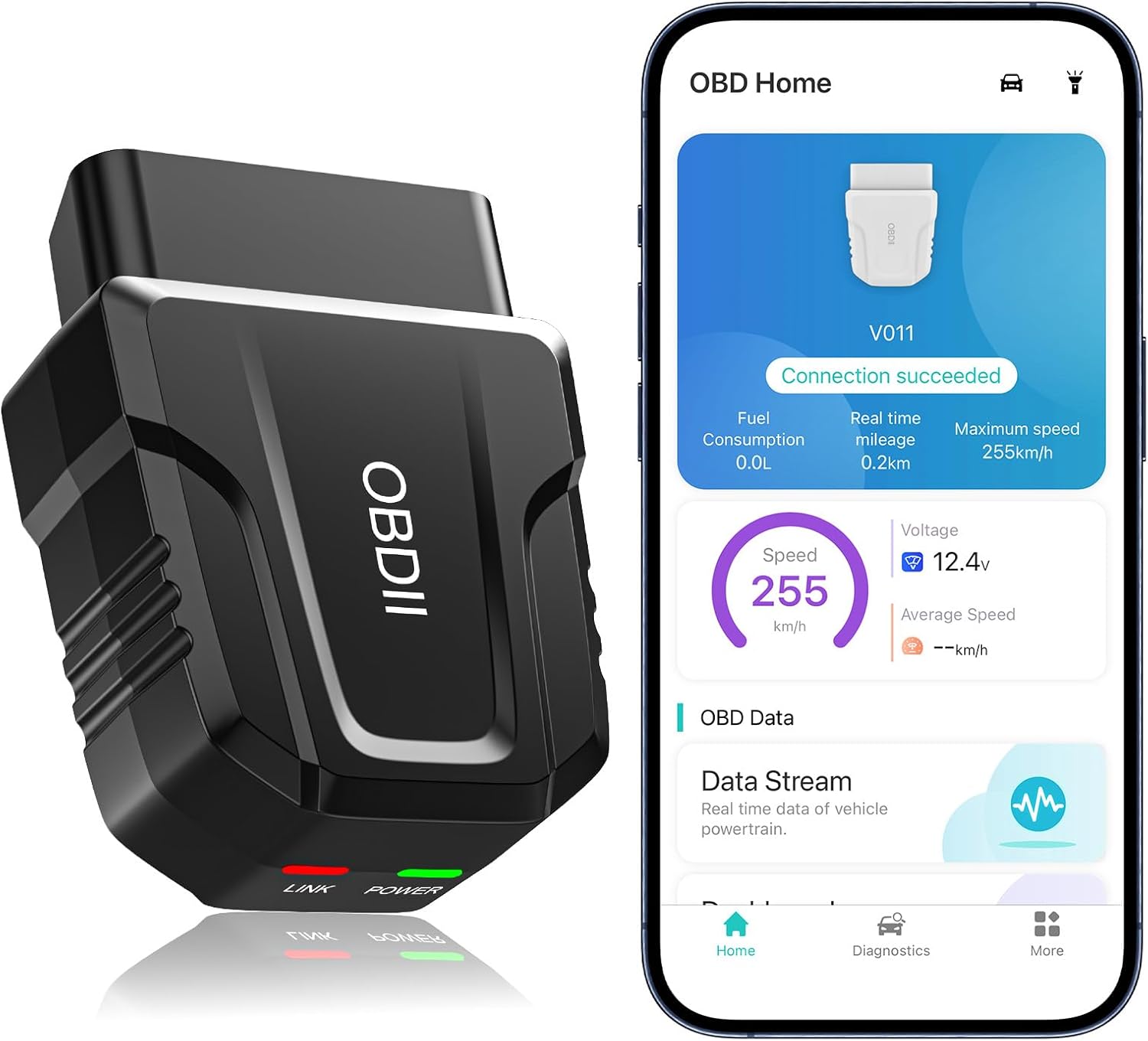
The UMEIJA V011 OBD2 scanner delivers comprehensive vehicle diagnostics with Bluetooth connectivity and a dedicated app for iOS and Android. It supports live data, fault code reading and clearing, readiness checks, freeze frame, sensor data, and performance testing to help drivers understand and monitor vehicle health. With broad compatibility across many car and truck models and easy-to-read data visualization, it is a practical tool for both beginners and experienced users.
Frequently Asked Questions
How do I check my Hyundai Sonata infotainment software version?
Open Setup, select General, then tap SW Info/Update or Software Info/Update. The screen should show the current software version, firmware version, platform, and map version if your Sonata has navigation.
How do I check for a Hyundai software update?
Use Hyundai’s official update site and search by VIN or vehicle type. Compare the available update with the version shown in your vehicle under Setup > General > SW Info/Update.
Can I update Hyundai Sonata software by USB?
Yes, many Sonata infotainment and navigation updates can be installed by USB or SD card, depending on model year and system type. Download the update only from Hyundai’s official update site and follow the storage size, file system, and installation instructions shown for your vehicle.
Does Hyundai infotainment update automatically?
Not always. Some newer Hyundai systems support over-the-air updates when equipped and connected, while many systems still require a USB or SD card update. Check your Sonata’s Software Info/Update menu and Hyundai’s update site for the method that applies to your vehicle.
Can a map update add Apple CarPlay or Android Auto?
Usually no. A navigation or map update does not automatically add hardware-dependent features. If your Sonata did not come with Apple CarPlay or Android Auto, ask Hyundai Customer Care or a dealer whether any official upgrade exists for your exact model and system.
What should I do if the update fails?
Do not keep retrying with random files or a different vehicle’s update. Recheck the VIN, storage format, and file placement. If the system still fails, contact Hyundai Customer Care or a Hyundai dealer with your VIN, current software version, and the exact error message.
Conclusion
Finding your Sonata’s infotainment software version is simple once you know where to look: Setup > General > SW Info/Update. From there, use your VIN or vehicle type on Hyundai’s official update site to confirm whether a newer version is available. The most important rule is to match the update to your exact vehicle and follow Hyundai’s power and storage instructions carefully.
Sources
- Official Hyundai Motors Navigation Update Website — VIN search, vehicle-type search, update availability, and software version path.
- Hyundai Display Audio User Guide — USB update steps, Setup > General > SW Info/Update path, and removable storage guidance.
- Hyundai ccNC Web Manual: OTA Update — over-the-air update behavior and Software Info/Update menu path for compatible systems.
- Hyundai Technical Service Bulletin 25-BE-020H via NHTSA — recent navigation map/software update cautions, USB requirements for affected models, OTA notes, and installation warnings.
- Hyundai Digital Owner’s Manual — model-specific owner manual reference for menu paths and vehicle operation guidance.