Getting Apple CarPlay working in a Toyota GR Supra is mostly about one thing: confirming that your car actually has the factory Apple CarPlay hardware and package. On equipped 2021 GR Supra models, CarPlay is a wireless feature, so you normally pair your iPhone through Toyota Supra Command instead of simply plugging in a USB cable and waiting for CarPlay to appear.
Quick Answer
The 2021 Toyota GR Supra supports wireless Apple CarPlay on equipped trims: 3.0 Premium, A91 Edition, and 2.0 or 3.0 models with the Safety and Technology Package. To connect, enable Siri, Bluetooth, and Wi-Fi on your iPhone, pair it through Toyota Supra Command, then select Apple CarPlay as the active connection.
Key Takeaways
- Apple CarPlay is not guaranteed on every 2021 GR Supra; check your trim, package, window sticker, or VIN build sheet first.
- Equipped 2021 GR Supra models use wireless Apple CarPlay, not a simple wired-only USB setup.
- Base 2.0 and 3.0 models without the required technology package usually need Bluetooth, a phone mount, or a professional aftermarket retrofit.
- Most connection issues come from disabled Siri, Bluetooth/Wi-Fi pairing problems, Screen Time restrictions, outdated iOS, or the car not being equipped with CarPlay.
At a Glance
| Time Required | 5–10 minutes if your Supra is equipped |
| Difficulty | Easy for factory CarPlay; moderate to advanced for retrofits |
| Tools Needed | Compatible iPhone, active Bluetooth and Wi-Fi, Toyota Supra Command access |
| Cost | $0 if equipped; low-cost Bluetooth/phone-mount workarounds; aftermarket retrofits vary widely |
Who This Guide Is For and What It Covers
This guide is for 2021 Toyota GR Supra owners who want to confirm whether their car supports Apple CarPlay, connect an iPhone correctly, troubleshoot pairing problems, or choose a practical workaround if the car was not built with CarPlay.
The most important correction is that the 2021 GR Supra’s factory CarPlay support is trim- and package-dependent. Toyota’s 2021 GR Supra brochure says the 3.0 Premium and A91 Edition include wireless Apple CarPlay, and Toyota’s GR Supra multimedia support page shows Apple CarPlay requires the Safety and Technology Package on some 2.0 and 3.0 models. You can verify this on the official 2021 GR Supra brochure and Toyota GR Supra Audio Multimedia support page.
Does the Toyota Supra Support Apple CarPlay on My Trim?
Before you try to pair your phone, confirm whether your exact Supra has Apple CarPlay. A USB cable, iPhone update, or wireless adapter will not activate factory CarPlay on a car that was not built with the required multimedia package.
| 2021 GR Supra Trim or Package | Factory Apple CarPlay Status | What to Do |
|---|---|---|
| 3.0 Premium | Standard wireless Apple CarPlay | Pair your iPhone through Toyota Supra Command. |
| A91 Edition | Standard wireless Apple CarPlay | Pair your iPhone through Toyota Supra Command. |
| 2.0 or 3.0 with Safety and Technology Package | Included with the package | Confirm the package on the window sticker or VIN build sheet, then pair wirelessly. |
| Base 2.0 or 3.0 without the required package | Usually not equipped | Use Bluetooth, a legal phone mount, or a professional retrofit after checking warranty impact. |
Note: Used-car listings can be wrong. The safest way to confirm CarPlay is to check the original window sticker, Toyota owner account, dealer build sheet, or the multimedia menu in the car.
What You Need First: iPhone, Settings, and Software
For the cleanest setup, prepare the iPhone before pairing it with the car. Apple recommends making sure your iPhone is updated, Siri is turned on, and your vehicle supports CarPlay before setup. You can review Apple’s official setup steps in Use CarPlay with your iPhone.
- A CarPlay-compatible iPhone: Keep it updated to the latest iOS version available for your device.
- Siri enabled: Go to Settings > Siri or Settings > Siri & Search and turn on Siri features.
- Bluetooth and Wi-Fi enabled: Wireless CarPlay needs both during setup and reconnection.
- CarPlay allowed in Screen Time: Go to Settings > Screen Time > Content & Privacy Restrictions > Allowed Apps and confirm CarPlay is allowed if restrictions are active.
- Your Supra parked safely: Do the first pairing while stopped, not while driving.
Warning: Set up CarPlay only while parked. NHTSA says distracted driving includes adjusting navigation or entertainment systems, and taking your eyes off the road for a few seconds can create serious crash risk.
Quick Steps to Connect Apple CarPlay
On an equipped 2021 GR Supra, use the wireless pairing process through Toyota Supra Command. Menu wording can vary slightly by software version, but the flow is usually similar.
- Start the Supra and stay parked. Keep the iPhone unlocked and close to the infotainment screen.
- Turn on iPhone Bluetooth, Wi-Fi, and Siri. These are required for wireless CarPlay setup.
- Open the mobile-device menu in Toyota Supra Command. Press Menu, then look for My Vehicle, System Settings, or Mobile Devices.
- Enable Bluetooth and Apple CarPlay in the vehicle settings. If the car shows an Apple CarPlay option, turn it on.
- Add or connect a new device. Select your iPhone from the vehicle screen, confirm the pairing code, and approve the prompts on your iPhone.
- Choose Apple CarPlay as the active function. If the system asks whether to use CarPlay, select Yes or Use CarPlay.
- Open the CarPlay tile. Once paired, select the Apple CarPlay icon from the Supra’s multimedia menu.
Pro Tip: Name your iPhone clearly under Settings > General > About > Name. This makes it easier to identify the right phone if several devices have been paired to the Supra.
Wired vs. Wireless Apple CarPlay: Which Works for Your Supra?
The 2021 GR Supra’s factory CarPlay feature is listed by Toyota as wireless Apple CarPlay on equipped models. That means a USB cable is useful for charging or media playback, but it may not add CarPlay by itself on a Supra that does not already have the correct factory feature.
Wireless CarPlay on Equipped Supras
Wireless CarPlay gives you cable-free access to Maps, calls, messages, music, podcasts, and Siri. After the first pairing, the system should reconnect automatically when the car starts, as long as Bluetooth and Wi-Fi are enabled on your iPhone.
The trade-off is battery use. Wireless CarPlay can drain your iPhone faster because the phone is not charging through a data cable. For longer drives, use the Supra’s wireless charger if equipped, or plug the iPhone into a charging port while CarPlay stays connected wirelessly.
What a USB Cable Can and Can’t Do
A USB cable can charge your iPhone and may support USB audio or media functions, but it should not be treated as a guaranteed CarPlay retrofit. If your Supra is missing the required multimedia package, plugging in an iPhone will not magically unlock factory CarPlay.
| Connection Type | Best For | Limitations |
|---|---|---|
| Factory wireless CarPlay | Equipped 2021 GR Supra models | Uses more phone battery; depends on Bluetooth/Wi-Fi pairing. |
| USB charging or media cable | Charging, USB audio, and general phone connection | Does not add CarPlay to a non-equipped car by itself. |
| Aftermarket interface or retrofit | Cars without factory CarPlay | Cost, installation quality, compatibility, and warranty impact vary. |
Accessing Apple CarPlay in the Supra: Navigation and Controls
Once CarPlay is active, you can use the Supra’s display, Toyota Supra Command controller, steering-wheel voice button, and Siri to control supported iPhone apps. Apple says CarPlay can provide turn-by-turn directions, phone calls, messages, music, and more while keeping key functions on the vehicle display.
- Navigation: Use Apple Maps, Google Maps, or Waze if installed and supported in CarPlay.
- Calls and messages: Use Siri for hands-free calling, dictation, and message reading.
- Music and podcasts: Use Apple Music, Spotify, Podcasts, and other CarPlay-compatible apps.
- App layout: Rearrange CarPlay apps on your iPhone under Settings > General > CarPlay, then select your Supra.
The best CarPlay setup is the one you barely touch while driving: pair it once, put your main apps on the first screen, and use Siri for anything that would otherwise take your eyes off the road.
Troubleshooting Apple CarPlay Connection Issues
If CarPlay will not connect, work through the checks below in order. Apple’s official troubleshooting page also recommends checking your connection, restarting the iPhone and car, confirming Siri is on, and making sure CarPlay is not restricted. See Apple’s CarPlay help guide for the full official checklist.
1. Confirm the Car Is Equipped
If the Apple CarPlay option does not appear anywhere in Toyota Supra Command, the car may not have the correct trim or package. Check the window sticker, VIN build sheet, or Toyota owner account before spending time on cable swaps or phone settings.
2. Check iPhone Settings
- Update the iPhone to the latest available iOS version.
- Turn on Bluetooth and Wi-Fi.
- Turn on Siri.
- Make sure CarPlay is allowed under Screen Time restrictions.
- Disable Low Power Mode temporarily during setup if pairing is inconsistent.
3. Forget and Re-Pair the Connection
- On the iPhone, go to Settings > General > CarPlay.
- Select your Supra, then tap Forget This Car.
- In Toyota Supra Command, delete the iPhone from the mobile-device list.
- Restart the iPhone and the vehicle system.
- Pair again from the beginning.
4. Fix Common Audio or Display Problems
- No sound: Raise the volume while audio is playing or while Siri is speaking. Some systems store different volume levels for media and voice prompts.
- CarPlay tile missing: Confirm Apple CarPlay is enabled in the vehicle’s mobile-device settings.
- Phone pairs for calls only: Change the active device function from Bluetooth phone/audio to Apple CarPlay.
- Random disconnects: Remove old paired phones, update iOS, and re-pair the iPhone.
- Still not working: Ask a Toyota dealer to check for multimedia software updates and confirm your VIN’s factory equipment.
Affordable Alternatives If CarPlay Isn’t Available
If your GR Supra does not have factory CarPlay, you still have practical options. The right choice depends on your budget, how original you want the cabin to stay, and whether you are comfortable with aftermarket electronics.
[Products Worth Considering]
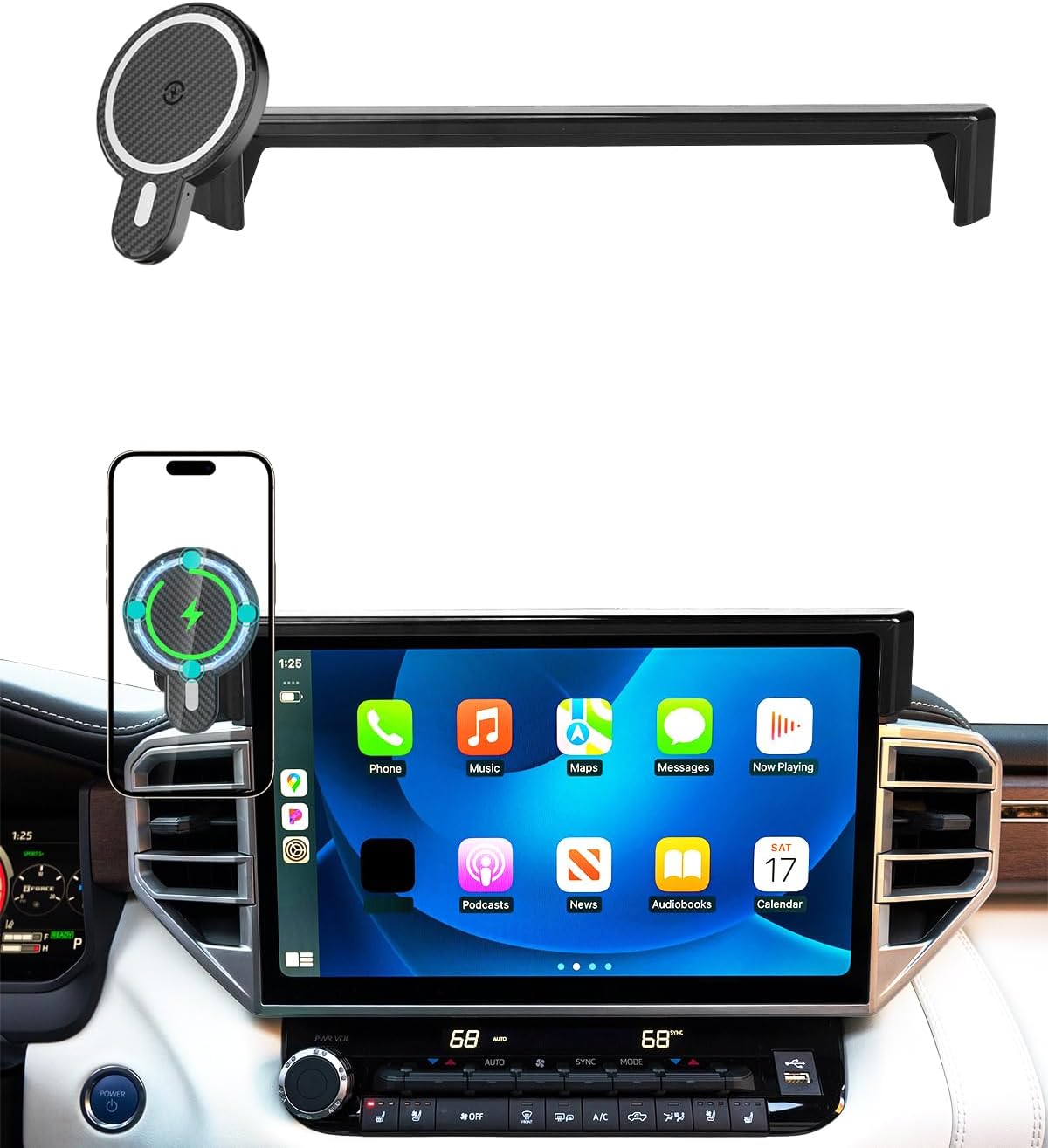
Designed specifically for compatible Toyota Tundra and Sequoia models, this magnetic car phone mount provides a secure, custom fit on the dashboard screen area without blocking vents or sightlines. It supports fast wireless charging with MagSafe-style alignment, one-hand placement, and 360-degree rotation for clear navigation and hands-free driving. Built from durable ABS material, it installs easily without tools and keeps your phone stable on the road.

This USB panel mount car charger provides a clean flush-fit extension solution for compatible Toyota dashboards, delivering both charging and data transfer through a male to female USB connection. Designed for plug-and-play installation, it supports a wide range of Toyota models and helps replace broken or outdated USB ports while protecting devices from overcurrent, overheating, and overcharging. Its durable PVC and copper construction supports reliable use for phones, tablets, GPS units, and CarPlay or Android Auto accessories.

BFXM car interior LED light strips add vibrant ambient lighting to your vehicle’s footwell, floor, and dashboard for a colorful custom look. With app and remote control, music sync, and millions of color options, you can easily personalize the atmosphere to match your mood or driving style. Installation is quick and simple with adhesive backing and USB power, making it a versatile upgrade for cars, SUVs, trucks, and vans.
Bluetooth and Phone Mount Setup
The cheapest workaround is a legal, stable phone mount plus Bluetooth audio. This will not give you the CarPlay interface on the Supra display, but it can handle navigation audio, music, and hands-free calls with minimal cost.
- Use a mount that does not block your forward view, airbags, gauges, or vents needed for safe driving.
- Pair the iPhone through Bluetooth for calls and audio streaming.
- Start navigation before driving, then rely on voice guidance.
- Use Siri instead of typing or scrolling while moving.
Aftermarket CarPlay Interfaces
Some owners use aftermarket multimedia interfaces or professional retrofit kits to add CarPlay-style functionality. Before buying one, verify compatibility with your exact model year, screen size, audio system, and region. Also ask whether the installation requires coding, wire splicing, software changes, or trim removal.
Note: A small wireless CarPlay USB dongle usually works only in vehicles that already support wired CarPlay. It is not a reliable fix for a Supra that never had factory CarPlay enabled.
Updates, Dealer Support, and Retrofit Options
If CarPlay is missing or unreliable, start with official support before paying for aftermarket parts. Toyota’s general CarPlay instructions explain the basic setup flow for compatible vehicles, including accepting the CarPlay prompt on the vehicle screen and iPhone. You can review Toyota’s official guide here: How do I setup Apple CarPlay?
When you contact a dealer or installer, ask these questions:
- Does my VIN show Apple CarPlay, the Safety and Technology Package, or the required multimedia equipment?
- Are there any multimedia software updates available for my car?
- Can the dealer document whether factory CarPlay can or cannot be enabled on this VIN?
- Will an aftermarket interface affect the vehicle warranty, factory microphone, steering-wheel controls, backup camera, or JBL audio system?
- Is the installation reversible if I sell the car later?
[Products Worth Considering]

This CANBUS wiring harness is designed to connect compatible Android head units to select Toyota models with mid-trim OEM JBL systems, helping simplify installation and reduce cutting or splicing. It supports retained factory features such as steering wheel controls, factory backup camera, original USB, and JBL amplifier functions when the vehicle and radio are compatible. Built for select Toyota fitments, it offers a plug-and-play upgrade path for a smoother stereo replacement.
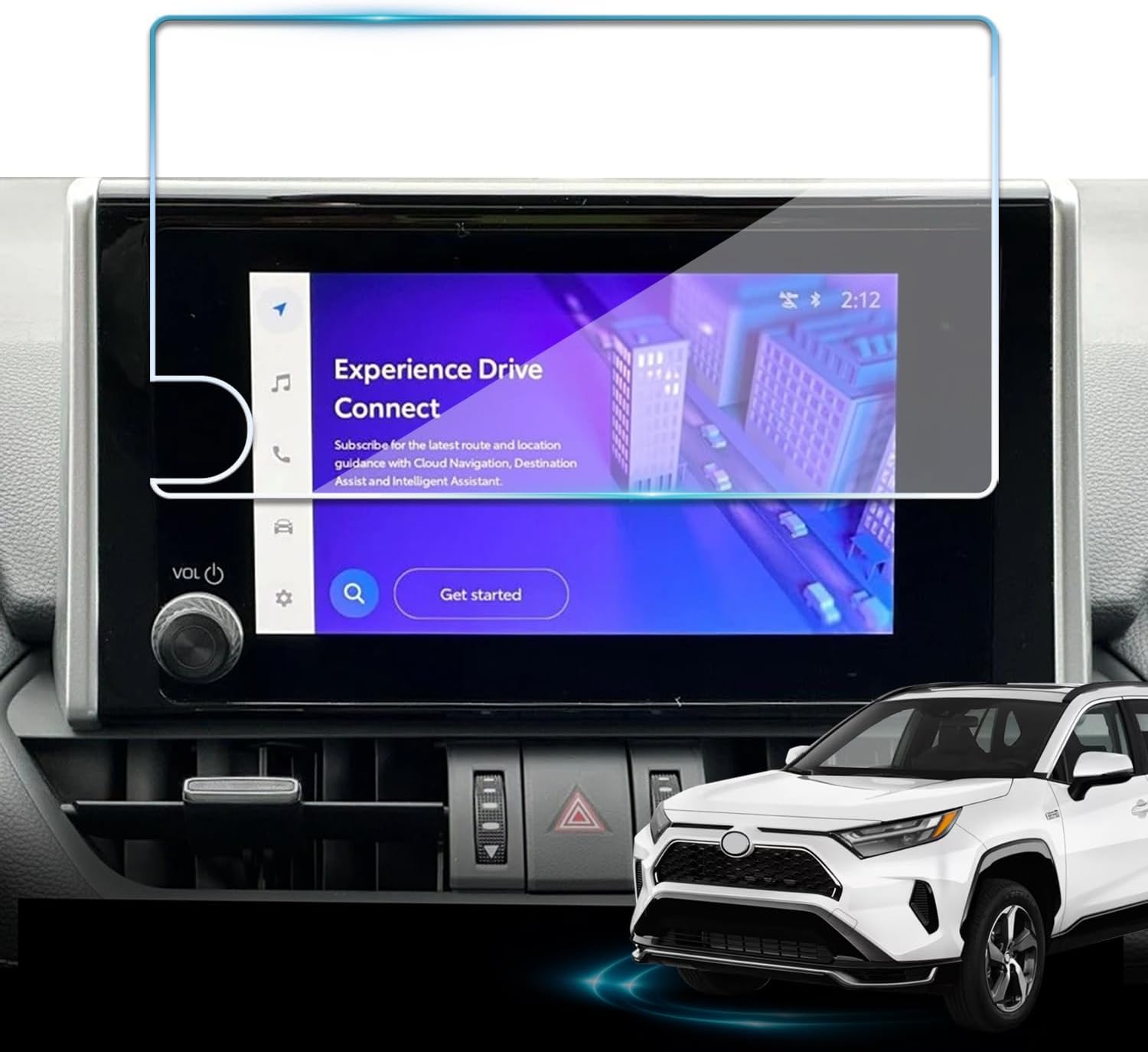
Protect your Toyota RAV4 infotainment display with this tempered glass screen protector designed for 2023-2025 LE, XLE, Adventure, XLE Premium, SE, and Woodland Edition models. It helps guard against scratches and fingerprints while preserving touch sensitivity and delivering a clear, low-glare viewing experience. Installation is quick and convenient with the included tools and guidance.

This custom-fit car phone holder is designed for Toyota RAV4 models with a 7/8-inch screen, providing a secure and convenient mounting solution without blocking vents or sightlines. It combines magnetic alignment with fast wireless charging to keep your phone powered while offering 360-degree rotation for optimal viewing in portrait or landscape mode. Built from durable ABS material and easy to install without tools, it supports safer hands-free navigation and calling on every drive.
Cost vs. Benefit: DIY, Paid Install, or Wait?
There is no single best answer for every Supra. Use the table below to choose the path that matches your budget and risk tolerance.
| Option | Typical Cost | Best For | Main Risk |
|---|---|---|---|
| Factory wireless pairing | $0 | Equipped cars | Requires correct trim/package and clean phone pairing. |
| Bluetooth plus phone mount | Low | Budget workaround | No CarPlay interface on the Supra screen. |
| Aftermarket interface | Moderate to high | Owners who want screen integration | Compatibility, installation quality, and warranty concerns. |
| Wait or keep stock | $0 | Owners who value originality | You continue without CarPlay. |
[Products Worth Considering]

This auxiliary jack adapter restores a broken or missing AUX connection so you can stream audio from your device through your Toyota stereo system. It is designed for compatible Toyota models and uses an 8-pin connector for a direct plug-and-play replacement. Built for reliable audio transmission, it helps bring back clear in-car sound without complicated installation.

This Toyota navigation SD card provides updated North America maps and points of interest for compatible factory navigation systems. It is preloaded with recent road and location data to help drivers find destinations, services, and routes more easily across the U.S. and Canada. Designed for select Toyota models, it offers a simple plug-and-play replacement for the original navigation card.

The LISEN Retractable Car Charger is a versatile in-vehicle charging solution designed to power multiple devices while reducing cable clutter. With retractable USB-C and legacy iPhone cables, dual USB ports, and support for standard 12V cigarette lighter sockets, it is ideal for daily commuting, road trips, and family travel. Its adjustable, shockproof design and fast charging capabilities make it a practical accessory for drivers who want organized, reliable power on the go.
Frequently Asked Questions
Does the 2021 Toyota GR Supra have wireless Apple CarPlay?
Yes, but only on equipped models. Toyota lists wireless Apple CarPlay for the 2021 GR Supra 3.0 Premium and A91 Edition, and for 2.0 or 3.0 models with the Safety and Technology Package. Base cars without the required package usually do not have factory CarPlay.
How do I activate Apple CarPlay on my Toyota Supra?
Enable Siri, Bluetooth, and Wi-Fi on your iPhone. Then open the Supra’s mobile-device settings through Toyota Supra Command, add your iPhone, approve the pairing prompts, and choose Apple CarPlay as the active connection. After setup, select the Apple CarPlay tile on the multimedia screen.
Why isn’t my Supra connecting to CarPlay?
The most common causes are an unequipped trim, disabled Siri, Bluetooth or Wi-Fi being off, old pairing data, Screen Time restrictions, outdated iOS, or a multimedia software issue. Forget the car on your iPhone, delete the phone from the Supra, restart both systems, and pair again.
Can I add CarPlay to a base 2021 Supra with a USB adapter?
Usually no. A USB wireless CarPlay adapter normally requires a car that already has wired CarPlay. If your Supra lacks factory CarPlay, you will generally need Bluetooth workarounds or a compatible aftermarket interface installed by someone familiar with the GR Supra multimedia system.
Does Apple CarPlay require a subscription in the Supra?
Apple CarPlay itself does not require a separate Apple subscription. However, apps and services used through CarPlay may require their own subscriptions or cellular data, and Toyota connected services may have separate trial periods or paid plans.
Conclusion
If your 2021 Toyota GR Supra has the right trim or package, Apple CarPlay setup should be quick: turn on Siri, Bluetooth, and Wi-Fi, pair the iPhone through Toyota Supra Command, and select CarPlay on the display. If your Supra was not built with factory CarPlay, do not waste time expecting a USB cable to unlock it. Confirm the VIN equipment first, then choose between Bluetooth, a safe phone mount, dealer guidance, or a carefully vetted aftermarket retrofit.
Sources
- Toyota 2021 GR Supra eBrochure — confirms trim and package availability for wireless Apple CarPlay, navigation, JBL audio, and multimedia features.
- Toyota GR Supra Audio Multimedia Support — supports GR Supra multimedia feature availability by model and package.
- Toyota Customer Support: How do I setup Apple CarPlay? — backs the official Toyota CarPlay setup flow for compatible Toyota vehicles.
- Apple Support: Use CarPlay with your iPhone — backs iPhone setup, Siri, USB/wireless CarPlay requirements, and CarPlay functions.
- Apple Support: If you need help with CarPlay — backs troubleshooting steps for connection, settings, restrictions, and firmware checks.
- NHTSA: Distracted Driving — backs the safety warning about phone, navigation, and infotainment distraction while driving.