Supra’s Dynamic Radar Cruise Control (DRCC), when equipped, is an adaptive cruise feature that helps hold your chosen speed and following distance on highways. The exact button labels vary slightly by model year, but the core process is the same: turn DRCC on from the steering wheel, set your speed, choose a distance, and stay ready to brake or steer at any time.
Quick Answer
To use Supra DRCC, make sure your car is equipped, press the Dynamic Radar Cruise Control button on the steering wheel, drive to the speed you want, and use the SET/rocker switch to store it. Use the distance buttons to choose the gap, pause with the brake or pause button, and switch off to clear memory.
Key Takeaways
- DRCC is available only on properly equipped Supra models, most commonly automatic-transmission cars with the applicable Driver Assist package.
- Set speed with the steering-wheel cruise controls, then adjust following distance with the distance-control buttons shown in the instrument display.
- Braking or pressing the pause/cancel control interrupts DRCC while keeping the last set speed available for resume.
- Turning the cruise system fully off deletes the stored speed, so use full off only when you are done with cruise control.
- DRCC is a driver-assistance feature, not hands-free driving. Keep your hands on the wheel and watch traffic constantly.
At a Glance
| Time Required | 1–2 minutes after you know the controls |
| Difficulty | Easy |
| Tools Needed | None; use the steering-wheel controls and instrument display |
| Cost | $0 if your Supra is equipped with DRCC |
Confirm Your Supra Has DRCC Before You Start
Before trying to activate adaptive cruise control, confirm that your Supra actually has Dynamic Radar Cruise Control. Toyota lists DRCC as part of available driver-assistance equipment on GR Supra, and the 2026 GR Supra brochure notes that DRCC settings are shown on automatic-transmission models with the feature equipped. You can verify your car by checking the steering-wheel button cluster, the window sticker, the Driver Assist package listing, or the Toyota Supra Owner’s Manual.
Note: Some Supra models have standard cruise control but not DRCC. Standard cruise holds a set speed only; DRCC adds vehicle-to-vehicle distance control when the system can detect a vehicle ahead.
[Products Worth Considering]

This anti-glare matte tempered glass screen protector is designed for compatible 2026 Toyota RAV4 and RAV4 Hybrid models with a 12.9-inch touchscreen. It helps reduce glare, resists scratches and fingerprints, and maintains responsive touch performance for a clearer, cleaner driving experience.
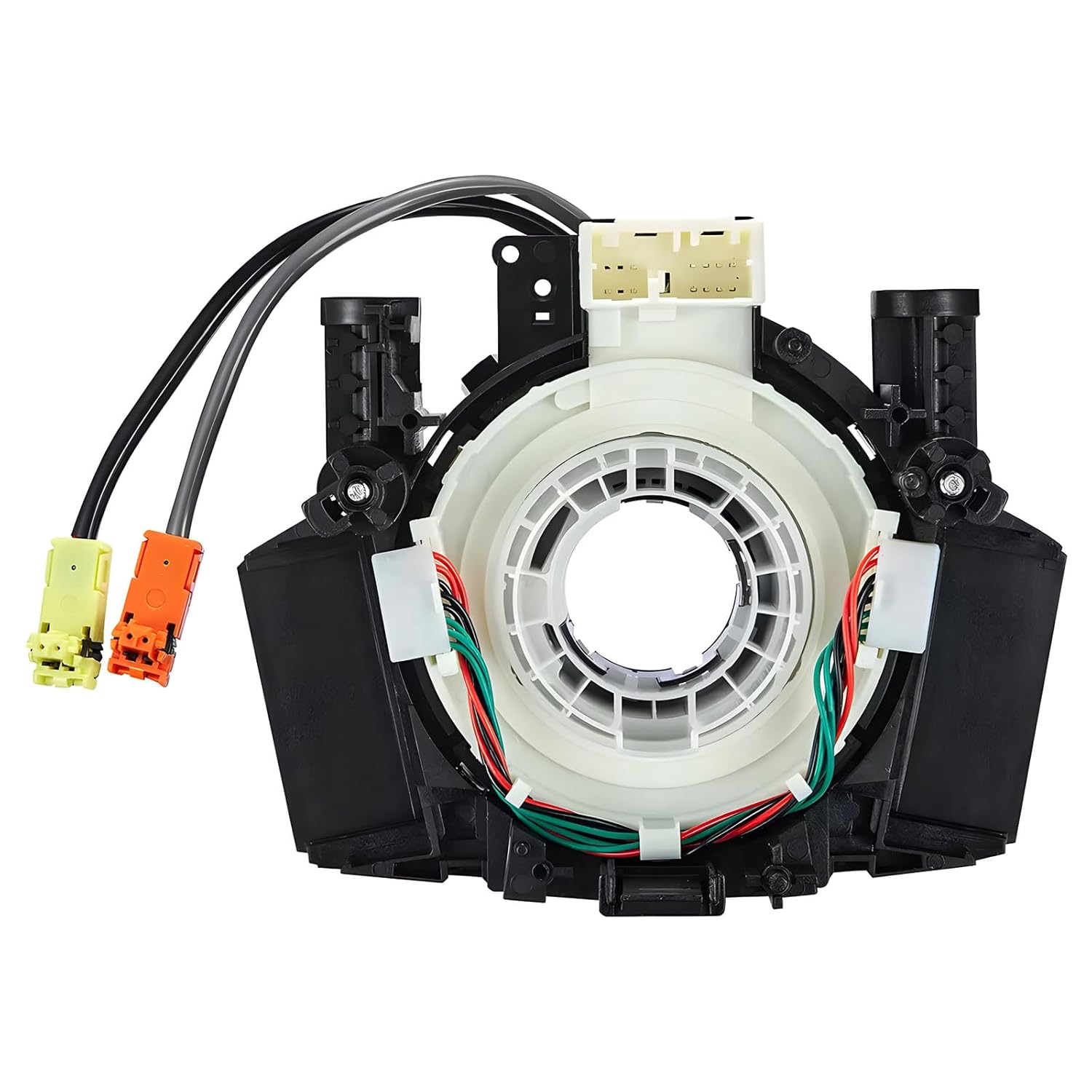
This steering clock spring assembly is an OEM-style replacement designed to restore steering wheel controls and related electronic functions in compatible Nissan vehicles. It supports audio, cruise control, and multi-function button operation while matching multiple factory part numbers for a reliable fit. Built for direct installation with vehicle-specific connectors, it helps return steering column electronics to proper working order.

This steering clock spring is designed to restore reliable steering wheel controls across a wide range of Toyota models. It supports audio, cruise control, and other multifunction commands while matching OEM part numbers for confident replacement fitment. Built for dependable signal transfer and straightforward installation, it is an effective solution for repairing steering column control issues.
Activate Adaptive Cruise Control (DRCC) in a Supra
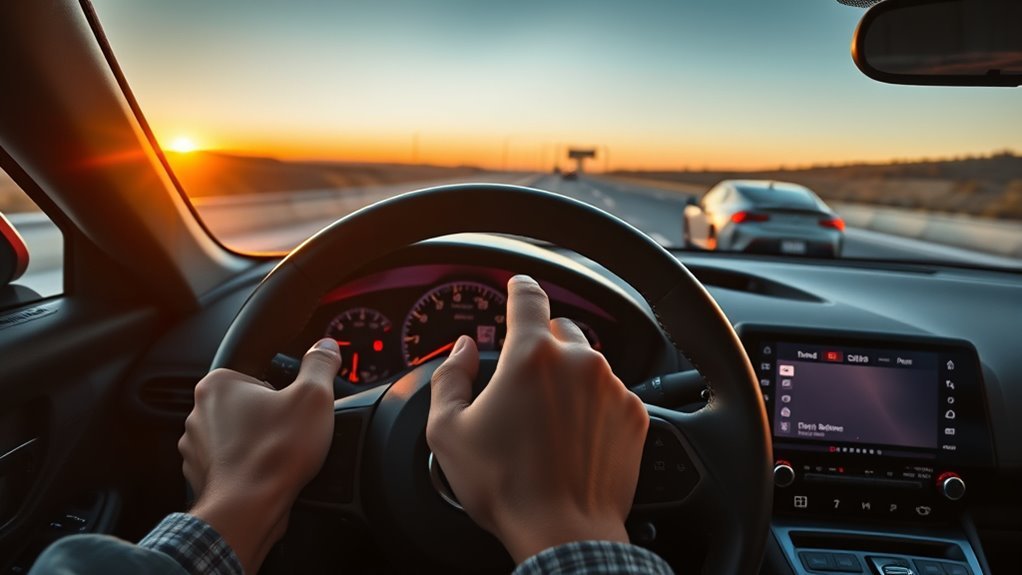
Use DRCC only on suitable roads, such as open highways or steady-flow traffic, and only after you understand the steering-wheel controls. Toyota’s driver-assistance guidance and the NHTSA driver-assistance overview both make the same point: these systems can assist with speed and distance, but the driver remains responsible for control.
- Get into a suitable driving situation. DRCC is designed mainly for highway use. Do not use it in heavy rain, snow, fog, sharp curves, construction zones, or areas with pedestrians and cyclists.
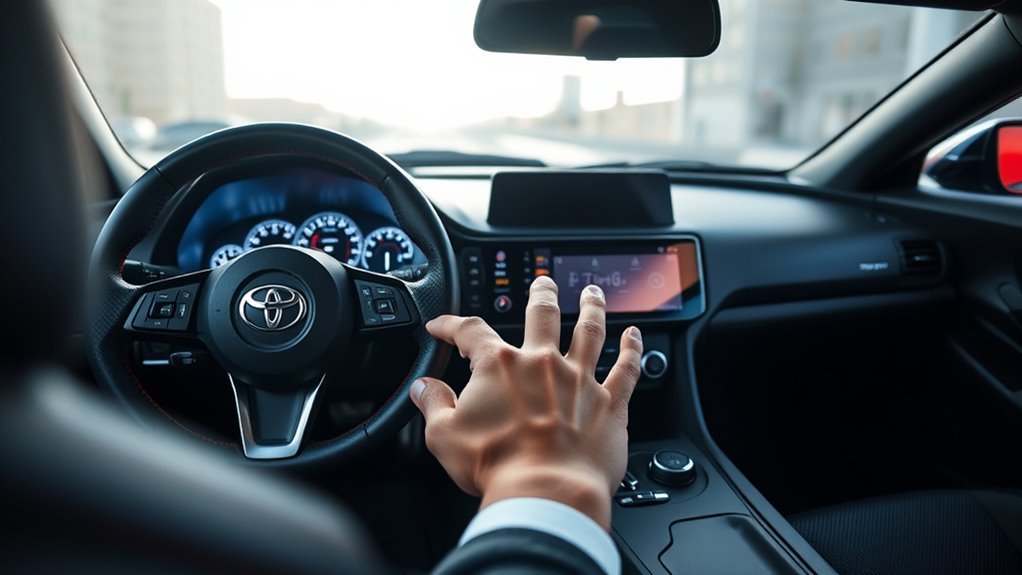
- Press the DRCC/cruise control on button. On equipped Supra models, the steering-wheel cruise controls include a DRCC on/off button, a pause/resume control, a speed-setting rocker, and distance buttons.
- Drive to the speed you want. The desired set speed is normally selected while the car is moving at about 20 mph (30 km/h) or higher, depending on model year and conditions.
- Store the current speed. Move the SET/rocker control to store your current speed. The set speed appears in the instrument cluster and, on equipped models, may also appear in the Head-Up Display.
- Choose a following distance. Use the distance controls to select a longer or shorter gap. Start with a longer gap until you are comfortable with how the car responds.
Warning: DRCC does not make the Supra autonomous. It may not react to pedestrians, red lights, stopped objects, sharp curves, cross traffic, poor weather, or vehicles that cut in abruptly. Keep your foot ready to brake.
Set Target Speed and Following Distance
Once DRCC is on, the two settings that matter most are target speed and following distance. Target speed tells the Supra the maximum cruising speed you want. Following distance tells the system how much space to leave behind a detected vehicle ahead.
[Products Worth Considering]

This dash clock spring replacement is designed for a wide range of Toyota vehicles and helps restore reliable steering wheel control functions. It supports audio controls, cruise control, and other multi-function commands while using vehicle-specific connectors for easier installation. Built with durable materials and OEM-referenced part compatibility, it is a practical solution for repairing steering wheel signal issues.

These round blind spot mirrors add a wider viewing angle to help improve lane changes, passing, and everyday driving safety. The frameless convex HD glass design offers a slim, clear rear view while the adjustable swivel mount makes positioning quick and easy. Compatible with cars, SUVs, vans, and trucks, this two-pack is a simple upgrade for reducing blind spots.

This frameless convex blind spot mirror helps expand your field of view for safer lane changes, passing, and merging. The HD glass design offers a clear, wide-angle rear view, while the swivel mount supports flexible positioning for cars, SUVs, trucks, vans, and RVs. Easy to install and built for all-weather use, it is a practical upgrade for everyday driving confidence.
Setting Target Speed
To set the target speed, accelerate smoothly to the speed you want and use the SET/rocker switch on the steering wheel. The stored speed should appear on the instrument display. If the road is clear, the Supra will try to maintain that set speed. If it detects a slower vehicle ahead, DRCC can reduce speed to help maintain the selected distance.
Make small changes deliberately. A quick tap of the speed control changes the set speed in small steps, while holding or pushing beyond the resistance point may change it faster, depending on your model year. Avoid large speed changes when traffic is close because DRCC may accelerate or brake more strongly than you expect.
Adjusting Following Distance
Use the distance increase/decrease buttons to adjust how closely DRCC follows the vehicle ahead. The instrument display shows the selected distance level, commonly with distance bars or a vehicle icon. A longer distance is better for wet pavement, poor visibility, heavy traffic, or any time you want a smoother ride.
Do not treat the shortest setting as a safe choice for every road. The safe gap depends on speed, weather, traffic, tire condition, and visibility. DRCC can help manage distance, but it cannot judge every hazard the way an attentive driver can.
Pro Tip: Start with the longest following-distance setting when learning DRCC. After you understand how the Supra brakes and resumes speed, choose a shorter setting only when traffic and weather allow.
Fine-Tune Speed With the +, −, and Hold Controls
After you store a set speed, use the steering-wheel speed control to fine-tune it without turning DRCC off. A short tap raises or lowers the set speed in small increments. Holding the control, or moving it past its resistance point on some model years, changes speed faster.
Use these controls with care. Increasing the set speed tells the Supra it may accelerate when the lane ahead clears. Reducing the set speed can make the car slow down even if traffic has not changed. Always check the display after making a change so you know what speed is stored.
| Control input | What it does | Best use |
|---|---|---|
| Tap up / plus | Raises the stored speed slightly | Small speed corrections |
| Tap down / minus | Lowers the stored speed slightly | Matching slower traffic |
| Hold or push past resistance | Changes speed faster | Open-road adjustments only |
Cancel and Pause DRCC: Brake vs. Pause/Cancel Switch
You can interrupt DRCC in two common ways: press the brake pedal or use the steering-wheel pause/cancel control. Both methods stop active cruise control so you can take over. In normal use, the last set speed remains available for resume unless you switch the system fully off.
Brake Pedal Cancellation
Pressing the brake is the fastest way to interrupt DRCC. Use it when traffic changes suddenly, a vehicle cuts in, the road becomes slippery, or you simply want full manual control. After braking, check the display before resuming. The system may remember the last set speed, but you should resume only when that speed still makes sense for traffic.
Pause/Cancel Switch
The pause/cancel control is useful when you want a brief interruption without touching the brake, such as during a lane change or when traffic flow becomes unpredictable. It pauses active speed and distance control while keeping the stored speed ready for resume. Use the brake instead when you need immediate deceleration.
| Action | Result |
|---|---|
| Press brake pedal | Interrupts DRCC immediately; stored speed is usually retained |
| Press pause/cancel | Pauses DRCC; stored speed remains available |
| Press cruise/DRCC off | Turns the system off and deletes the stored desired speed |
Resume Previous Speed and When Memory Clears
If you interrupt DRCC with the brake or pause/cancel button, the Supra can usually keep the previous set speed in memory. To resume, press the resume/continue control only after checking that the lane ahead is clear and the stored speed is still safe.
Be careful when there is a big difference between your current speed and the stored speed. Resuming a much higher speed can cause stronger acceleration; resuming a much lower speed can cause unexpected slowing. Toyota’s manual warns drivers to make sure the difference between current and stored speed is not too large before calling up the stored speed.
| Action | Result |
|---|---|
| Brake or Pause/Cancel | Interrupts DRCC and usually retains set speed |
| Resume/Continue | Restores the previous set speed when conditions allow |
| Cruise/DRCC Off | Clears the stored speed |
Note: If DRCC is switched fully off, the stored desired speed is deleted. If you want to pause only briefly, use the brake or pause/cancel control instead of the full on/off button.
Switch Between DRCC and Standard Cruise Control
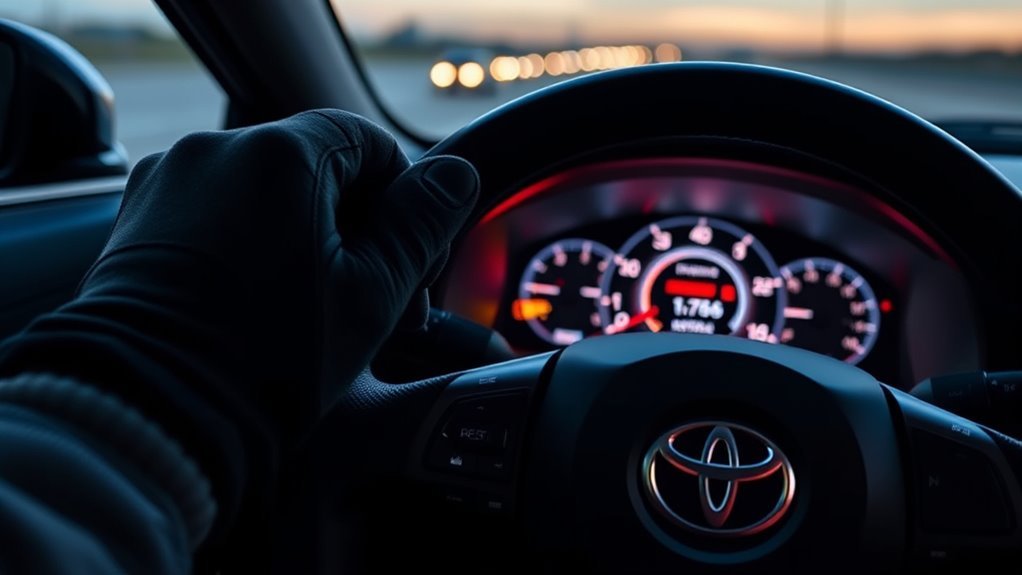
Supra models with DRCC can also include standard cruise control operation. DRCC helps maintain a preset distance from a detected vehicle ahead. Standard cruise control holds a set speed but does not control following distance.
Choose DRCC for steady highway driving where the sensors can see traffic clearly. Choose standard cruise only when you want simple speed holding and you understand that the car will not slow automatically for a vehicle ahead. Watch the instrument display after switching modes so you know which cruise function is active.
| Mode | What it controls | Use it when |
|---|---|---|
| DRCC | Speed and following distance to a detected vehicle | Highway traffic is steady and sensors are clear |
| Standard cruise | Speed only | You want direct speed holding without distance control |
How DRCC Behaves in Traffic, Hills, and Cut-Ins
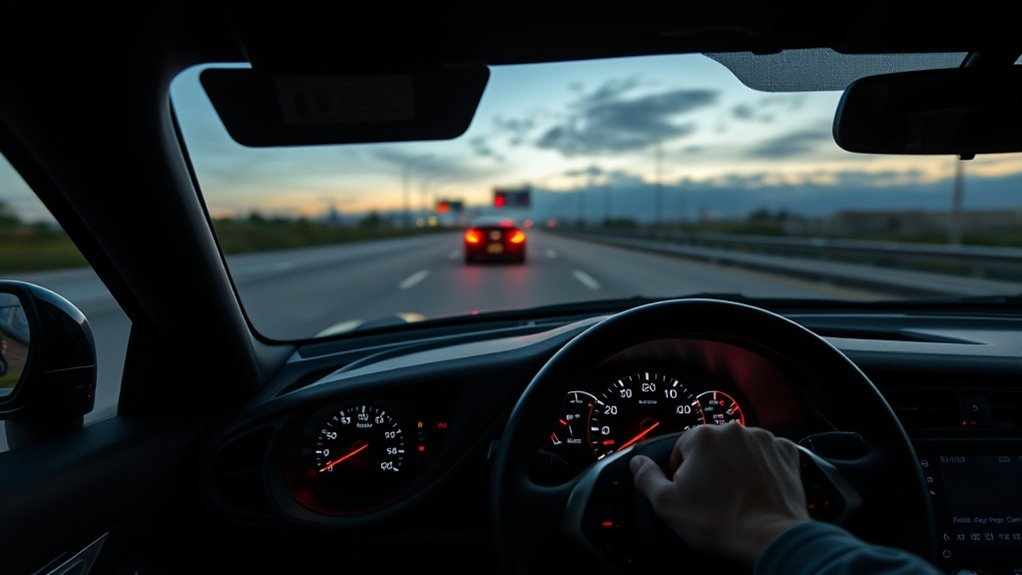
DRCC adjusts throttle and braking to help maintain your set speed and selected gap. If a slower vehicle is detected ahead, the Supra can reduce speed. When the lane clears, it can accelerate back toward the stored set speed.
In stop-and-go traffic, full-speed range DRCC may brake the vehicle to a stop and may move again if the stop is brief and the system conditions are met. If the stop lasts longer, the driver may need to press resume or accelerate manually, depending on model year, traffic, and display prompts.
On hills, the system may add throttle or braking to stay near the chosen speed, but it still has limits. On steep grades, wet roads, or tight curves, take over early. When another car cuts in, DRCC may brake to rebuild the selected gap, but it cannot guarantee a smooth or immediate response in every situation.
Adaptive cruise control helps manage speed and distance, but it is still a driver-assistance feature. The safest habit is to supervise it as if it could miss the next hazard.
Troubleshoot DRCC Warnings and Sensor Limits
If DRCC will not activate, drops out, or shows a warning message, start with the basics: speed, seat belt, door status, VSC status, sensor cleanliness, and weather. Toyota’s Supra manual identifies the front radar sensor, cameras behind the windshield, rear/side radar sensors, and bumper ultrasound sensors as part of the driver-assistance sensor network.
The front radar sensor is located in the front bumper area, and the camera is near the interior mirror. Keep the windshield area in front of the camera clean, and keep the front bumper/radar area free of mud, snow, ice, stickers, covers, or damage. If the warning remains after cleaning and restarting the system, have the car inspected by a Toyota dealer.
| Front bumper/radar | Windshield camera area | Driving environment |
|---|---|---|
| Mud, snow, ice, covers | Fogged glass, dirt, stickers | Heavy rain, fog, glare |
| Collision damage | Camera overheating or blockage | Tight curves, hills, construction |
[Products Worth Considering]
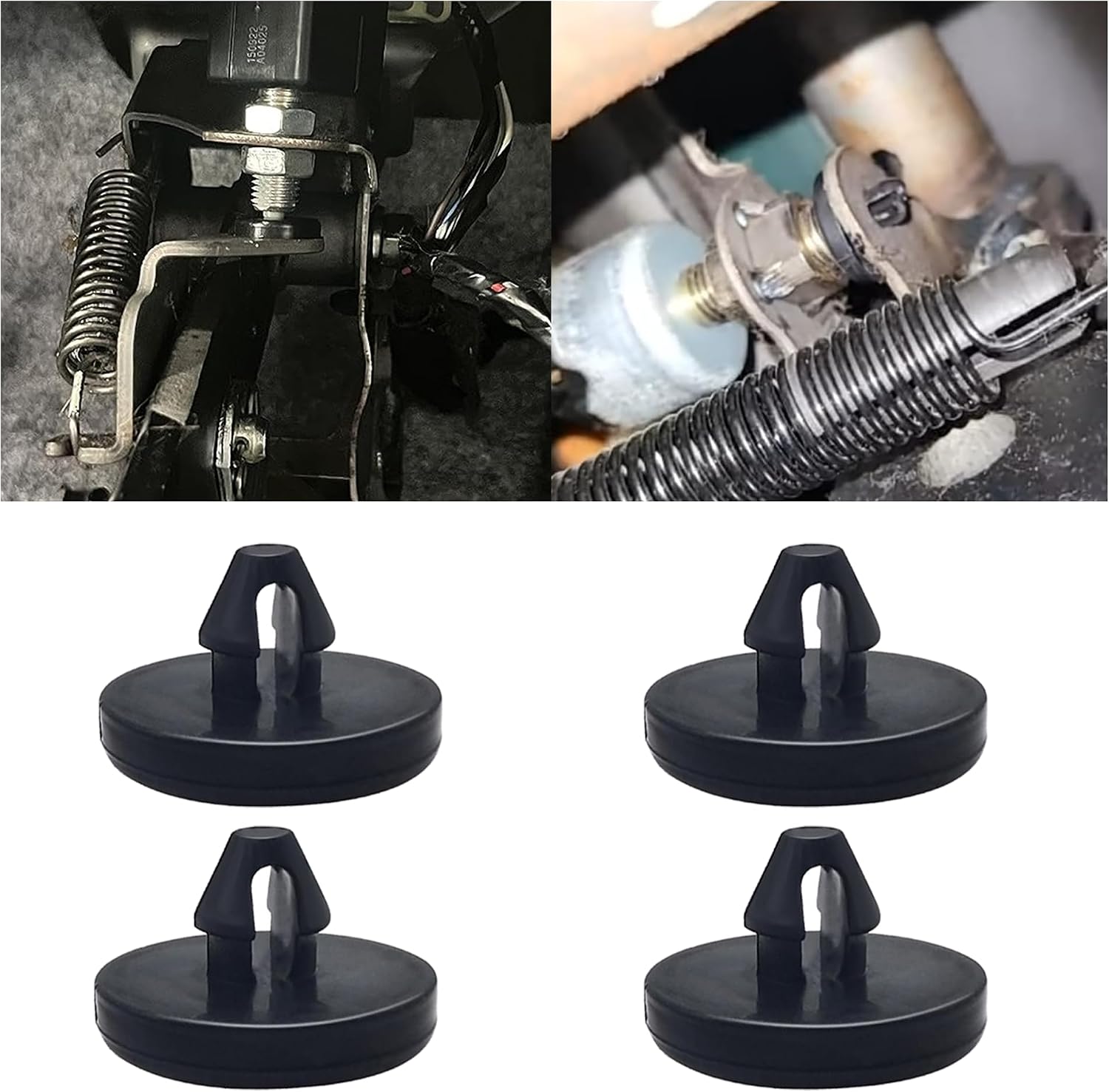
This brake pedal stop pad set is designed as an OEM replacement for compatible Toyota, Lexus, and Scion models, helping restore proper brake light switch function when the brake light stays on. Made from durable nylon, these compact stoppers are built for reliable long-term use and quick, tool-free installation. The set includes multiple pieces for convenient replacement and sharing.

This auto emergency escape tool is designed specifically for vehicle rescue situations, helping drivers and passengers respond quickly during collisions, rollovers, or flooding. It combines a concealed seat belt cutter with a high-strength glass-breaking tip for fast escape support, while the compact protective design makes it easy to store in multiple vehicles for everyday preparedness.

This brake switch stopper helps restore proper brake light operation by providing a precise pedal stopping point, reducing issues where brake lights stay on. Made from durable nylon, it is designed for easy installation and dependable fitment across many Toyota, Lexus, and Scion models. The multi-pack supply makes it convenient to replace worn stoppers and keep spares on hand for future maintenance.
Common Reasons DRCC Will Not Set
- The vehicle is below the required speed for setting a new desired speed.
- The system is not equipped or the car is in standard cruise mode instead of DRCC mode.
- The front radar sensor or windshield camera area is blocked.
- The driver’s seat belt is unbuckled or the driver’s door has been opened.
- VSC or another stability/safety system is intervening or switched off.
- Weather, glare, road spray, or a tight curve is limiting sensor recognition.
Warning: Do not attach stickers, license-plate accessories, covers, or aftermarket parts in front of the radar/camera detection areas. Sensor blockage or misalignment can reduce DRCC and pre-collision performance.
Safe, Legal Use of DRCC and Further Resources
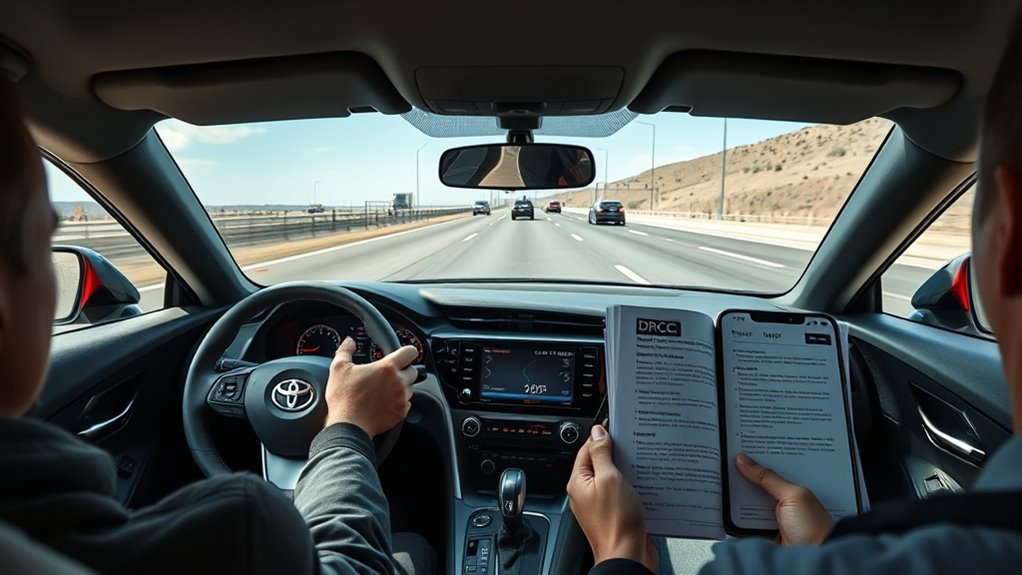
Use DRCC as a comfort and safety-support feature, not as a substitute for judgment. The NTSB explains that driver-assistance systems require constant supervision, and Toyota’s own manuals warn that these systems cannot independently react to every traffic situation.
Before each trip, check that the windshield and front bumper are clean, the tires are in good condition, and the road is appropriate for adaptive cruise. Avoid DRCC in city streets, poor weather, construction zones, sharp curves, entrance ramps, exits, and any place where traffic can stop or cross unexpectedly.
For model-specific details, use the Toyota Owners Manuals & Warranties page, the Toyota Safety Hub, and your vehicle’s printed owner’s manual.
Frequently Asked Questions
How do you use Supra adaptive cruise control?
Press the DRCC/cruise button on the steering wheel, drive to your desired speed, use the SET/rocker switch to store that speed, and choose a following distance with the distance buttons. Brake or press pause/cancel to interrupt it, and press resume only when the stored speed is still safe.
Does the Toyota Supra have ACC or DRCC?
Some Supra models have Dynamic Radar Cruise Control, Toyota’s name for adaptive cruise control. It is not guaranteed on every Supra, so check your steering-wheel controls, package equipment, window sticker, or owner’s manual.
Is Supra DRCC the same as Super Cruise?
No. Super Cruise is General Motors’ hands-free driver-assistance system for compatible roads. Supra DRCC is Toyota’s adaptive cruise feature. It helps with speed and following distance, but you must keep your hands on the wheel and supervise the road.
Why will my Supra DRCC not turn on?
Common causes include a blocked radar sensor, dirty windshield camera area, low vehicle speed, bad weather, VSC intervention, the wrong cruise mode, an unbuckled seat belt, or a system warning. Clean the sensor areas and check the display messages. If the warning remains, schedule service.
Does braking erase the stored DRCC speed?
Normally, braking interrupts DRCC but keeps the previous set speed available for resume. Turning the cruise system fully off deletes the stored speed. Always confirm the displayed speed before pressing resume.
Conclusion
Supra DRCC is simple once you learn the steering-wheel controls: turn it on, set the speed, choose the following distance, pause or brake when needed, and resume only when traffic allows. The biggest improvement over the original cruise experience is distance control, but the biggest safety rule has not changed: you are still driving. Keep your hands on the wheel, eyes on the road, and treat every warning or sensor limit seriously.
Sources
- Toyota Supra Owner’s Manual — steering-wheel cruise controls, DRCC operation, resume behavior, system limits, and sensor locations.
- Toyota 2026 GR Supra — current model and equipment context.
- 2026 Toyota GR Supra Brochure — DRCC availability and driver-assist equipment notes.
- Toyota Safety Hub — Toyota driver-assistance feature overview and owner guidance.
- NHTSA Driver Assistance Technologies — general adaptive cruise and driver-assistance safety context.
- NTSB Advanced Driver Assistance Systems and Automated Driving Systems — supervision and driver-responsibility guidance.