How to Update Toyota Camry Infotainment Software
What’s in This Article
- Before You Begin: What You Need
- Determine Your Toyota Camry Model Year
- Check Compatibility for Over-the-Air Updates
- How to Establish a Reliable Wi-Fi Connection
- How to Update Toyota Camry Software Over the Air
- How to Download Toyota Camry Update Files to USB
- Preparing a USB Drive for Software Updates
- Installing Software Updates Using USB
- Dealer Services for Toyota Camry Software Updates
- Common Issues and Troubleshooting Tips
- What to Check After the Update
- Frequently Asked Questions
A Toyota Camry software update can fail if you use the wrong update method, the wrong USB drive, or a weak Wi-Fi connection. That can waste your time and leave the same infotainment glitches you wanted to fix. This guide shows you how to check compatibility, update through Wi-Fi or USB, and know when a Toyota dealer should handle it.
Quick Answer
To update your Toyota Camry infotainment software, first check your model year, multimedia system, and current software version. Compatible Toyota Audio Multimedia systems may support over-the-air updates through the display. Other systems may need a USB update from Toyota’s software update portal or help from a Toyota dealer.
Key Takeaways
- Check your Camry model year, VIN, and multimedia system before you start.
- Use over-the-air updates only if your vehicle’s Toyota Audio Multimedia system supports them.
- Use Toyota’s official update portal or your dealer for USB firmware updates.
- Match the USB drive format and size to Toyota’s instructions for your vehicle.
- Contact a Toyota dealer if the update fails, freezes, or does not appear for your system.
Before You Begin: What You Need
Set aside about 15 to 60 minutes for the full process. Your internet speed, file size, and update method can change the total time.
Gather these items before you start:
- Your Camry’s Vehicle Identification Number (VIN)
- Your owner’s manual or Toyota account details
- A stable Wi-Fi connection for over-the-air updates
- A blank USB flash drive if Toyota’s portal offers a USB update
- A desktop or laptop computer if you need to download USB files
Toyota’s instructions can vary by country, model year, trim, and multimedia unit. Always follow the update page or owner’s manual that matches your exact Camry.
Determine Your Toyota Camry Model Year
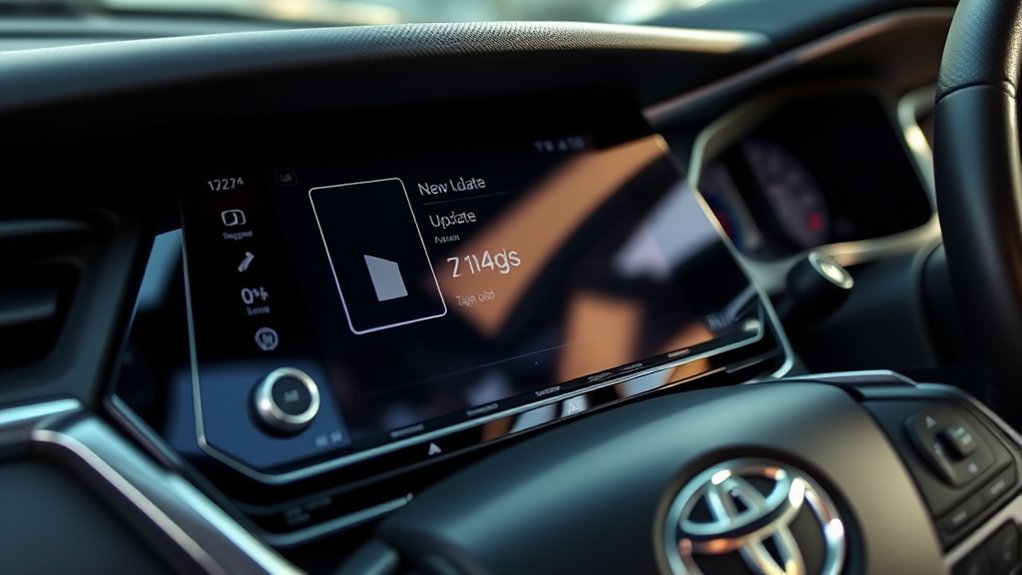
Start by locating your Toyota Camry’s Vehicle Identification Number (VIN). You can find it on the driver-side dashboard, near the windshield, or on the driver’s door pillar. You can also check your registration, insurance card, or owner’s manual.
The VIN helps Toyota match the correct software or firmware to your vehicle. That step matters because different Camry model years and multimedia systems can use different update paths.
Do not rely on model year alone. A newer Camry may support over-the-air updates, while another vehicle may need a USB update or dealer service based on its multimedia unit and region.
Check Compatibility for Over-the-Air Updates
Check your infotainment settings before you try an over-the-air update. Toyota says vehicles with a compatible Toyota Audio Multimedia system can download and install software updates through the display.
Use your display to look for a software update option. If you do not see one, your system may need a USB update or dealer support instead.
Vehicle Model Year
Your model year gives you a starting point, but it does not prove update compatibility by itself. Toyota changed multimedia systems across different years, trims, and markets.
- Check your VIN on Toyota’s software update portal.
- Check your owner’s manual for update methods.
- Open the infotainment settings and look for a software update menu.
- Contact a Toyota dealer if the menu or update file does not appear.
Wi-Fi Connection Required
You need a stable Wi-Fi connection for an over-the-air update. Park your Camry close enough to your home router or use a trusted mobile hotspot with a strong signal.
A weak signal can slow the download or cause the update to pause. Keep the vehicle parked and avoid turning off the system while the update runs.
Software Version Check
Check your current software version before you update. This helps you confirm whether your system needs a newer version.
- Tap the settings icon on the infotainment display.
- Open the software update or system information menu.
- Write down the current software version.
- Compare it with the update shown by Toyota’s portal or your display.
- Skip the update if Toyota says no newer version applies to your vehicle.
How to Establish a Reliable Wi-Fi Connection
Park your Camry within range of your Wi-Fi router before you start. Confirm that your network works on another device, such as your phone.
Open the settings menu on your infotainment screen and choose the Wi-Fi option. Select your network, then enter the password exactly as shown.
Watch the signal strength after the vehicle connects. If the signal looks weak, move the vehicle closer to the router or use a stronger hotspot.
Use a private network when you can. A trusted network helps protect your data and gives the update a better chance to finish without errors.
How to Update Toyota Camry Software Over the Air
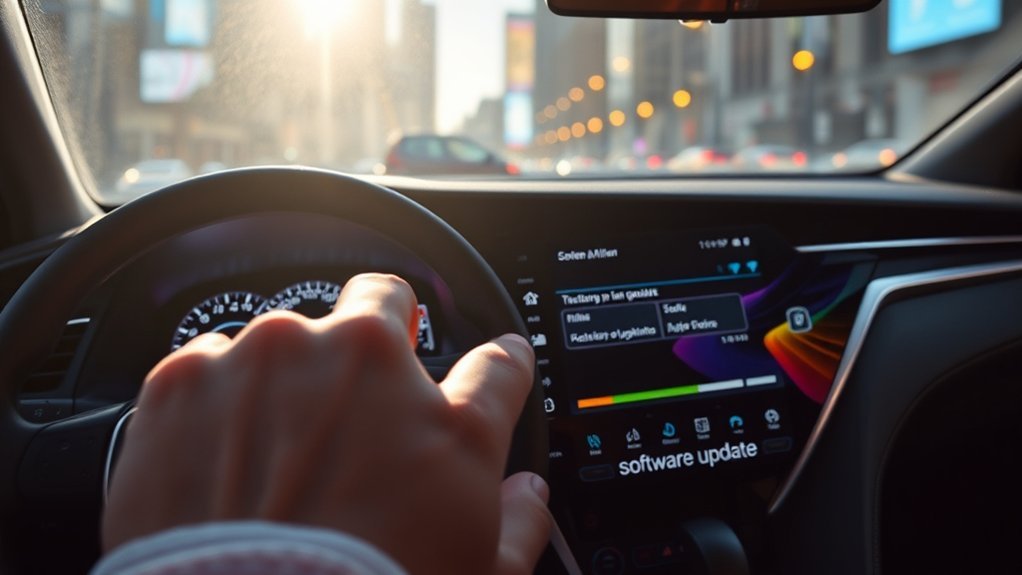
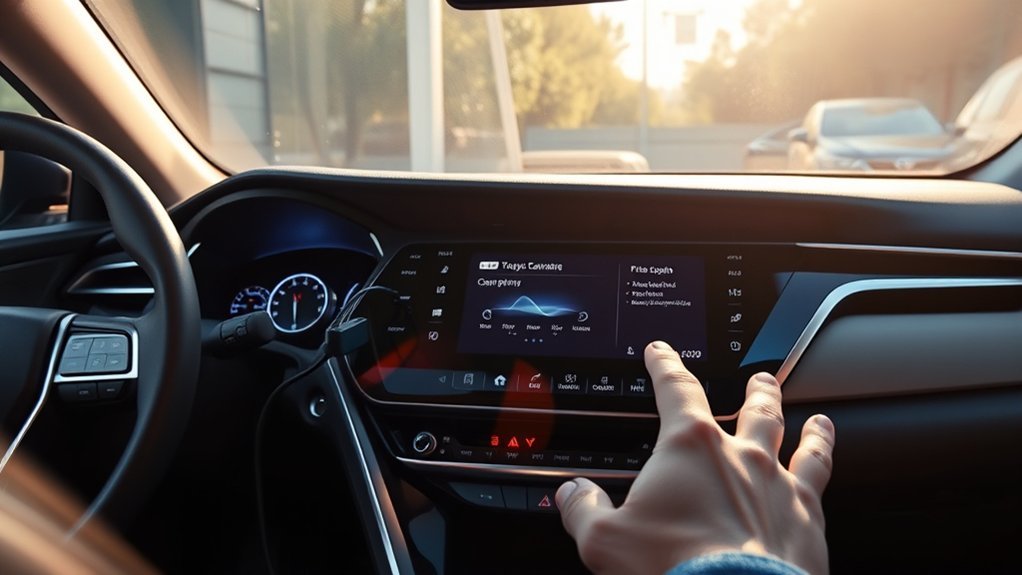
Once your Camry connects to Wi-Fi, you can check for an over-the-air update through the display. Use this method only if your vehicle shows a software update option.
- Park your Camry in a safe place with a strong Wi-Fi signal.
- Tap the settings icon on the infotainment display.
- Open the software update menu.
- Check for available updates.
- Review the on-screen details before you start the download.
- Follow the prompts until the system completes the update.
- Restart the infotainment system if the display asks you to do so.
Installation time can vary. Toyota Canada says most firmware updates take about 10 minutes, but some can take up to 45 minutes.
Note: A firmware update may fix multimedia concerns, but it may not update maps or add new features.
How to Download Toyota Camry Update Files to USB
If your Camry needs a USB update, use Toyota’s official software update portal for your region. The portal helps match the correct file to your vehicle or multimedia unit.
You may need your VIN, part number, or face plate number. Toyota Canada says these details help provide the correct firmware and instructions for your vehicle.
Verify USB Drive Compatibility
Check Toyota’s instructions before you format your USB drive. Do not assume every Camry needs the same USB size.
- Use a blank USB drive.
- Format it as FAT16 or FAT32 when Toyota’s instructions require that format.
- Use the USB size listed for your exact update file.
- Do not place unrelated files on the drive.
- Do not use firmware meant for another Toyota model or multimedia unit.
Warning: Installing firmware meant for another Toyota system can damage the multimedia unit.
Enter Vehicle Identification Number
Open Toyota’s software update site and enter your VIN if the page asks for it. Type each character carefully because one wrong letter or number can point you to the wrong result.
If the portal asks for a part number or face plate number, follow Toyota’s on-screen guide. Your owner’s manual or dealer can help if you cannot find it.
Download Update Files Safely
Download update files only from Toyota’s official portal for your region. Save the file to your computer first if Toyota’s instructions tell you to do that.
- Open Toyota’s software update page.
- Enter your VIN or multimedia unit details.
- Review the update notes and vehicle installation instructions.
- Download the update file.
- Copy the file to the USB drive exactly as Toyota instructs.
- Eject the USB drive safely from your computer.
Note: Toyota’s U.S. software portal applies to vehicles built for the continental United States, Alaska, and Hawaii.
Preparing a USB Drive for Software Updates
Prepare the USB drive before you insert it into your Camry. A clean, correctly formatted drive helps your infotainment system recognize the file.
Use the format and size shown by Toyota’s portal or your owner’s manual. Toyota Canada lists a blank USB 2.0 flash drive with 2 GB to 8 GB storage, formatted as FAT16 or FAT32, for selected Canadian firmware downloads.
Keep the update files in the location Toyota’s instructions specify. Some updates require the files in the root directory, while others may use a folder structure from the downloaded package.
Installing Software Updates Using USB
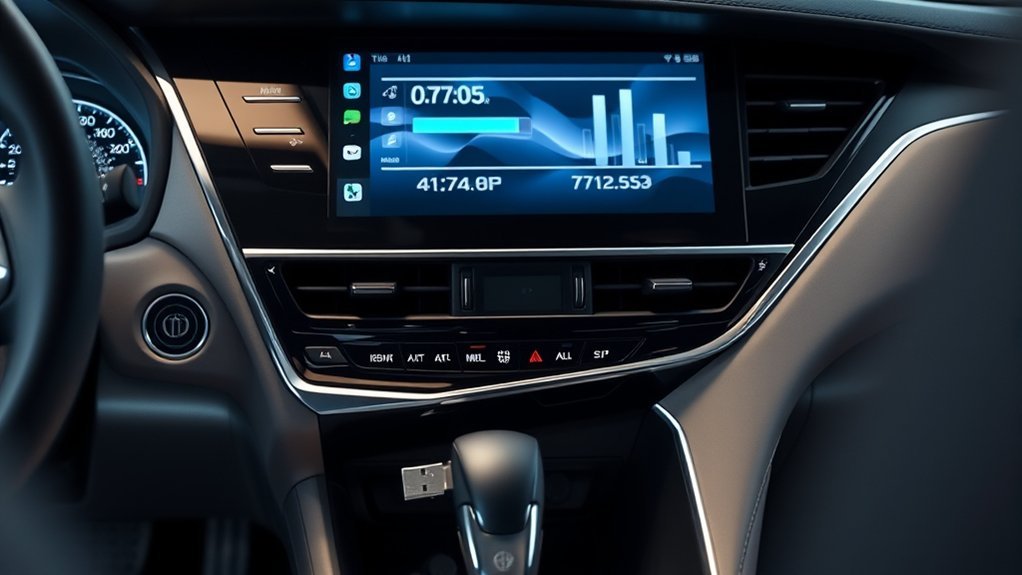
After you prepare the USB drive, you can install the update through your Camry’s USB port. Park in a safe place before you start.
USB Drive Requirements
Your USB drive must match the requirements shown in Toyota’s instructions. A wrong format, wrong file location, or wrong firmware file can stop the update.
- Use a blank USB drive with the required storage size.
- Format the drive as Toyota instructs.
- Copy only the update files needed for your Camry.
- Use a reliable USB port on your computer when copying files.
- Safely eject the drive before you remove it.
Update Installation Steps
Follow Toyota’s vehicle installation instructions for your exact update. The menu names may differ slightly between multimedia systems.
- Park your Camry in a safe, well-ventilated location.
- Start the vehicle or keep it in the power mode Toyota recommends.
- Insert the prepared USB drive into the media USB port.
- Wait for the infotainment system to detect the update.
- Follow each on-screen prompt carefully.
- Do not remove the USB drive during installation.
- Wait until the display confirms that the update has finished.
- Remove the USB drive only after the system tells you to do so.
If the update does not start, turn the system off and check the USB format, file location, and update compatibility. Then try again.
Dealer Services for Toyota Camry Software Updates
Contact a Toyota dealer if the update fails, the portal does not show a file, or your infotainment screen freezes. A dealer can check your vehicle, multimedia unit, and any available service updates.
Dealer service can help when the update involves more than a basic infotainment file. Toyota Canada says dealers can provide assistance, and charges may apply outside basic coverage.
Ask the service advisor what the update covers before they start. That helps you know whether the work targets multimedia performance, firmware, a recall, or another vehicle system.
Common Issues and Troubleshooting Tips
Most update problems come from weak Wi-Fi, the wrong USB format, incorrect files, or a system that does not support that update method. Start with the simple checks first.
- Wi-Fi update does not appear: Confirm that your system supports over-the-air updates and check again through settings.
- Download fails: Move closer to the router or use a stronger hotspot.
- USB update does not start: Recheck the USB format, storage size, and file location.
- System freezes: Restart the infotainment system and try again only if Toyota’s instructions allow it.
- No update shows on Toyota’s portal: Your vehicle may not need an update, or it may require dealer service.
If the same problem returns, schedule a dealer appointment. Do not keep forcing the same failed update.
What to Check After the Update
Test your main infotainment features after the update finishes. This helps you catch problems before your next long drive.
- Check Bluetooth phone pairing.
- Test Apple CarPlay or Android Auto if your Camry supports them.
- Confirm that audio, radio, and volume controls work.
- Check navigation or map functions if your vehicle includes them.
- Review your saved settings and user profile.
If something no longer works as expected, check the owner’s manual first. Then contact your Toyota dealer if the issue remains.
Frequently Asked Questions
How do I update my Toyota Camry software?
Check your current software version through the infotainment settings. If your system supports over-the-air updates, follow the display prompts. If it needs a USB update, use Toyota’s official portal or ask a dealer for help.
How do you update a 2019 Toyota Camry infotainment system?
A 2019 Camry may need a USB firmware update or dealer service, depending on the multimedia unit and region. Enter your vehicle details on Toyota’s software update portal, then follow the matching download and installation instructions.
Does a Toyota Camry software update add new features?
Not always. Toyota Canada says firmware updates can correct multimedia operation concerns, but they do not add all new features and do not update maps.
Why does my Camry not show a software update?
Your Camry may already have the latest available version, or your multimedia system may not support over-the-air updates. Some updates also require a USB drive or Toyota dealer service.
Can I use any USB drive for a Toyota Camry update?
No. Use the USB size, format, and file placement listed in Toyota’s instructions for your exact vehicle. Do not use update files from another Toyota model or multimedia unit.
Conclusion
The safest way to update your Toyota Camry infotainment software starts with checking your exact vehicle and multimedia system. Use over-the-air updates only when your display supports them, and use Toyota’s official portal for USB files.
If the update fails or the instructions feel unclear, stop and contact a Toyota dealer. A careful update helps your Camry’s multimedia system stay stable, useful, and ready for your next drive.
References
- Toyota Software Updates — Toyota, accessed 2026
- Over the Air: Audio Multimedia System Updates — Toyota, accessed 2026
- Over-the-Air Software Updates — Toyota Support, accessed 2026
- Multimedia & Audio System Update — Toyota Canada, accessed 2026