
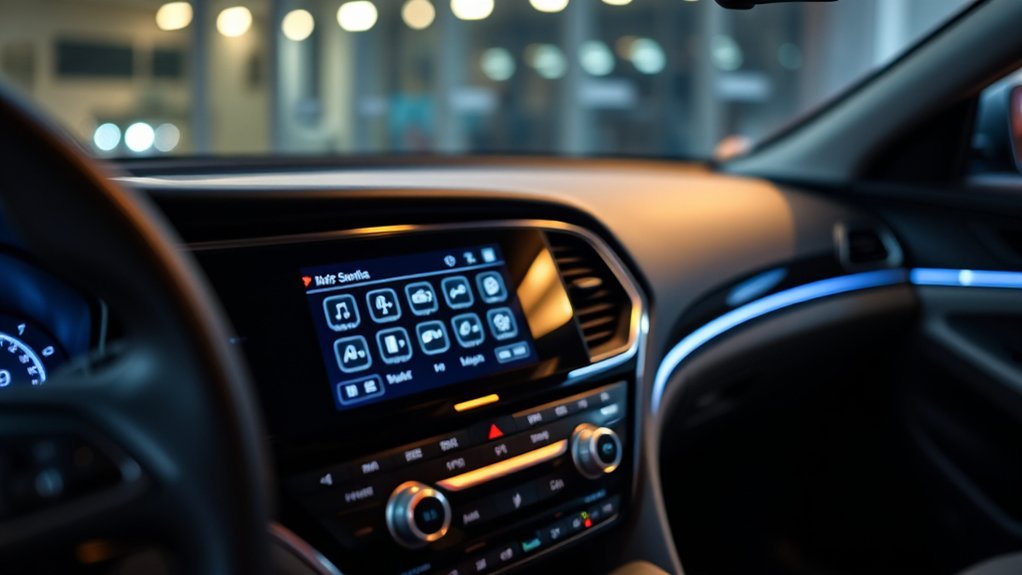
If your Hyundai Sonata infotainment screen is frozen, slow, stuck on the Hyundai logo, or refusing to connect to Bluetooth, Apple CarPlay, or Android Auto, a reset can often bring it back. The key is choosing the right kind of reset: a quick reboot for small glitches, or a factory/default reset when you want to erase user settings and start fresh. This guide covers both 2020–2023 Sonata models and the redesigned 2024–2026 Sonata, since the reset controls differ between them.
Last updated: June 16, 2026
Quick Answer
For a frozen Hyundai Sonata infotainment system, park safely and try a soft reset first by holding the audio power/volume button for about 10–15 seconds, or by pressing the small recessed reset button with a pen tip if your model has one. For a full factory reset, use the Settings/Setup menu and choose the system reset/default option. Steps and button locations vary somewhat between 2020–2023 and 2024–2026 Sonata models — see the section below to confirm which applies to your car.
Key Takeaways
- A soft reset restarts the infotainment system and usually does not erase saved data.
- A factory/default reset can delete user profiles, paired phones, saved navigation data, audio preferences, and other personal settings.
- Menu wording varies by Sonata model year and infotainment generation, so check your owner’s manual if the steps do not match your screen.
- The 2024+ Sonata’s redesigned panoramic display and steering-column gear selector mean its reset path can look different from a 2020–2023 model — confirm your generation first.
- If the same problem returns after a reset, check for software/map updates before assuming the screen needs repair.
- Do not reset or scan QR/manual screens while driving; park first and keep the vehicle safely stopped.
At a Glance
| Time Required | 1–2 minutes for a soft reset; 5–10 minutes for a factory/default reset, plus setup time |
| Difficulty | Easy |
| Tools Needed | None for most resets; a pen tip or paper clip if your Sonata has a recessed reset button |
| Cost | Free, unless dealer diagnosis or repair is needed |
Understanding the Need for a Reset
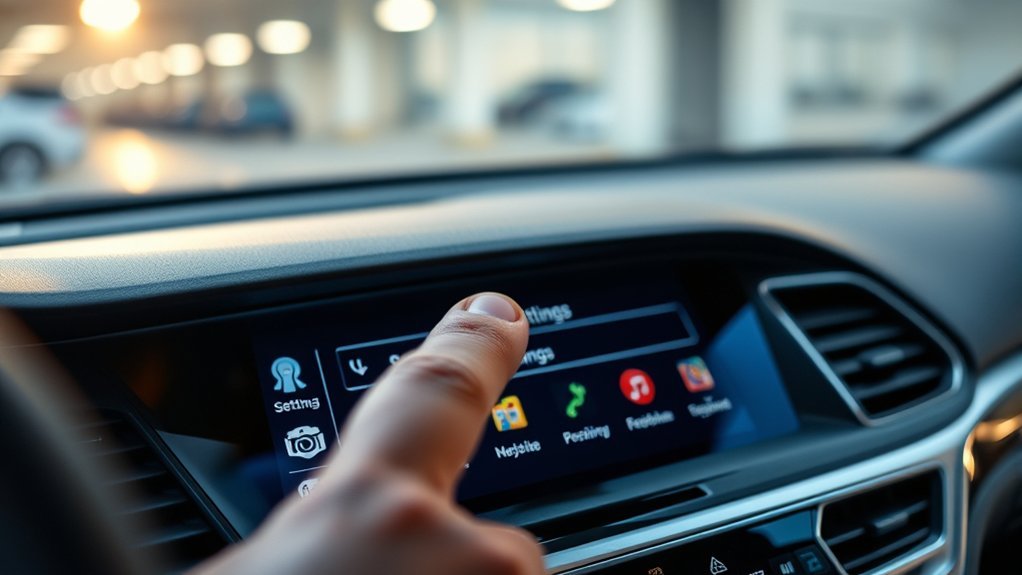
Before you reset your Hyundai Sonata infotainment system, it helps to know the difference between a soft reset and a factory reset.
- Soft reset or reboot: Restarts the system, similar to restarting a phone. This is the best first step for a touchscreen that’s specifically frozen or unresponsive, lag, temporary audio problems, or Bluetooth glitches.
- Factory reset or default reset: Restores user settings to default values and may delete saved data, depending on your system. This is better for persistent problems, selling the vehicle, removing old profiles, or clearing repeated pairing issues.
Hyundai’s official infotainment troubleshooting guidance recommends restarting the system with the reset button, updating the system software, and contacting an authorized Hyundai dealer if symptoms continue. Menu names and reset options vary by infotainment generation, so your Sonata may show “Reset,” “Default,” “Initialize,” “System Info,” or similar wording.
Which Reset Steps Apply to Your Sonata’s Model Year
The Sonata’s infotainment hardware isn’t the same across every model year, so the exact reset button and menu path can differ:
- 2020–2023 Sonata (DN8): Uses a standalone 8-inch or 10.25-inch touchscreen separate from the instrument cluster, typically with a small recessed reset pinhole near the screen or volume control. The soft-reset and factory-reset steps in this guide were written primarily around this generation.
- 2024–2026 Sonata (redesigned): Replaced the dash with a panoramic curved display that combines a 12.3-inch digital instrument cluster and a 12.3-inch infotainment touchscreen into one unit, and moved the gear selector to the steering column. USB ports also switched to USB-C starting with this generation. The general soft-reset (hold the power/volume control) and Setup-menu factory-reset path should still apply, but the exact button placement and menu wording may differ slightly from what’s described below. [VERIFY: confirm exact reset button location and menu wording on the 2024+ panoramic display against a current owner’s manual before relying on this for that generation.]
Warning: Only use the infotainment screen while parked. Do not perform a reset, scan a QR manual code, or troubleshoot phone pairing while driving.
Get Your Hyundai Sonata Ready for Reset
Taking a minute to prepare can prevent lost settings and repeat setup work. Before a factory/default reset, do the following:
- Park safely: Put the Sonata in Park and keep the vehicle safely stopped.
- Use stable vehicle power: Set the ignition to ON or ACC, or keep the vehicle running in a safe, ventilated area.
- Save important information: Write down favorite radio stations, navigation addresses, sound settings, and profile details you care about.
- Know your logins: Have your MyHyundai, Bluelink, Apple ID, Google account, or app passwords ready if you use connected services.
- Disconnect phone projection: Unplug USB cables and disconnect active Apple CarPlay or Android Auto sessions before a full reset.
- Check your manual: Use the Hyundai Manuals & Warranties resource to confirm the reset path for your Sonata model year.
Note: A factory/default reset does not cancel your Hyundai warranty or Bluelink subscription, but it may remove local user settings, profiles, paired phones, and saved preferences from the infotainment system. [VERIFY: cite Bluelink terms or warranty booklet confirming reset doesn’t affect subscription/coverage]
[Products Worth Considering]
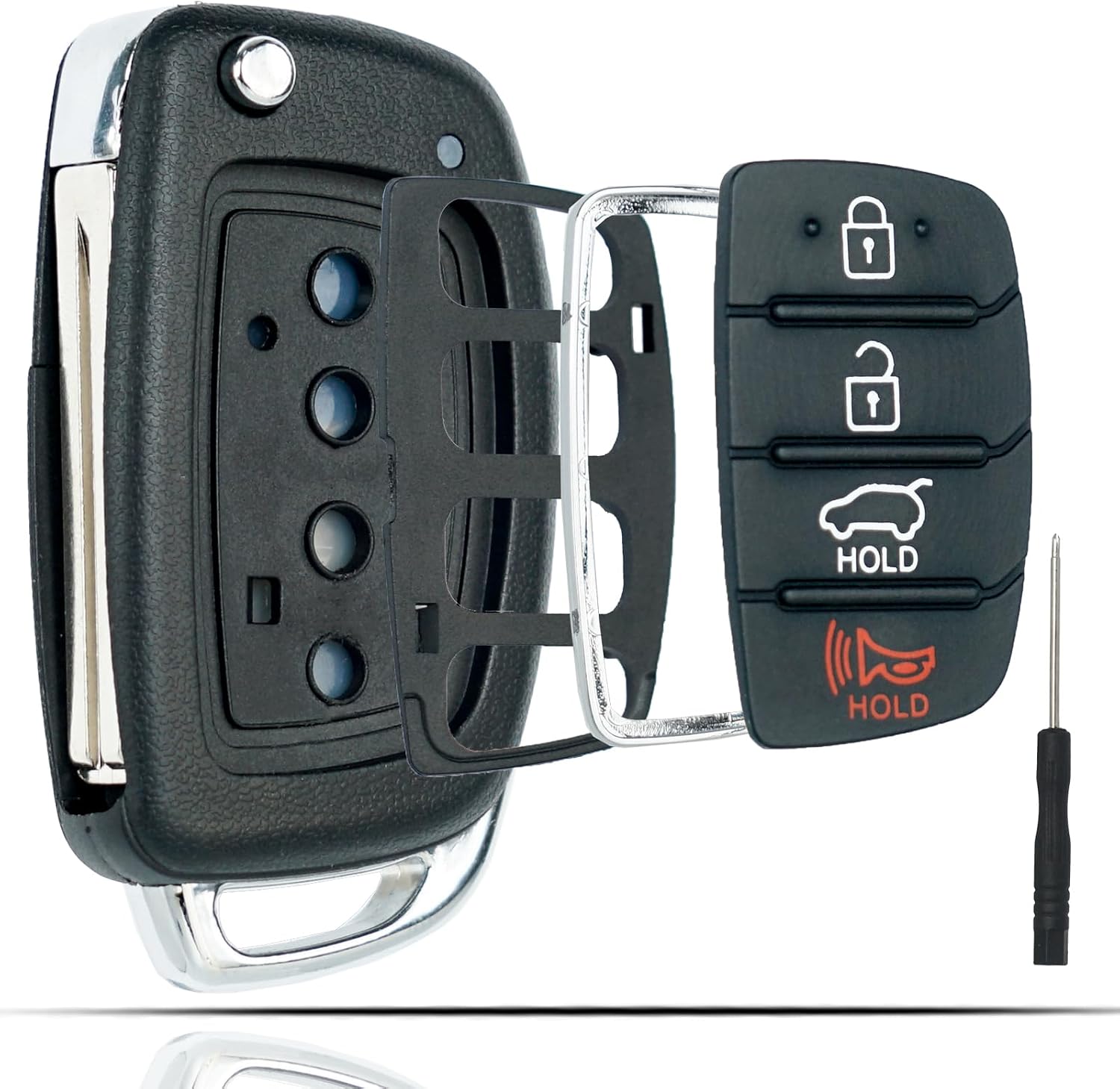
This flip key fob shell is a replacement case designed for compatible Hyundai Sonata and Santa Fe models, helping restore a worn or broken remote housing without replacing the electronics. It includes a 4-button layout and is made for easy transfer of your original internal components, with no reprogramming required. The durable metal and plastic construction makes it a practical fix for damaged key fobs, and the replacement blade must be cut by a locksmith or hardware store.

Replace worn or damaged key fob buttons with this rubber keypad insert designed for compatible Hyundai remote key cases. It restores the look and feel of your car key, offering a simple installation and a snug fit for supported Santa Fe and Sonata models. The set includes two replacement pads and a mini screwdriver for convenience.

This key fob case is a practical replacement for damaged or worn Hyundai flip key shells, helping restore your remote’s appearance and usability. It fits select Hyundai Sonata and Santa Fe models and includes an uncut blade, replacement button pad, and basic tools for easy shell transfer. No electronics are included, so you can reuse your existing internals and have the blade cut to match your vehicle.
Step-by-Step Guide to Resetting Your Hyundai Sonata Infotainment System
Start with the least aggressive fix. A soft reset solves many temporary issues without wiping your information. Move to a factory/default reset only when the problem keeps coming back or when you intentionally want to clear saved data.
[Products Worth Considering]

This replacement flip folding key fob case is designed for compatible Hyundai models, giving your worn or broken remote a fresh outer shell without needing reprogramming. Made for easy transfer of your existing circuit board and chip, it includes a mini screwdriver and sticker for convenient assembly. It is an ideal solution for restoring the look and function of your key fob while keeping your original electronics intact.

This soft TPU key fob cover is designed to fit select Hyundai smart keys and helps protect against scratches, dust, and everyday wear while preserving signal performance. Its full-coverage design, stylish gold-rimmed look, and included leather keychain make it a practical and attractive upgrade for compatible Hyundai models.

1.This Yuirote universal car motor diagnostic tool is designed to deliver accurate system detection for most vehicle models, working perfectly as an EPB emergency release tool to quickly read engine fault codes and locate car system problems, ideal for daily vehicle inspection and routine maintenance.
Method 1: Try a Soft Reset First
- Park the Sonata safely and keep the ignition in ON or ACC.
- Press and hold the audio power/volume button for about 10–15 seconds.
- Wait for the screen to turn off, restart, or show the Hyundai logo.
- Let the system fully boot before touching the screen again.
- Test the feature that was not working, such as Bluetooth, audio, navigation, Apple CarPlay, or Android Auto.
This reboot is best for a frozen display, lagging menus, no sound, temporary phone connection errors, or a screen that responds slowly. If the single-button hold doesn’t respond, some owners report success holding the power/volume control and the volume-down control together for about 10 seconds instead. [VERIFY: confirm this alternate combo applies to Sonata specifically, not just other Hyundai models]
Method 2: Use the Recessed Reset Button If Equipped
Some Hyundai infotainment systems include a tiny recessed reset button, often labeled “RESET” or “RST.” The location varies by model year and screen layout.
- Look near the infotainment screen or control panel for a small reset hole.
- Use a pen tip or straightened paper clip to press the button gently.
- Hold it briefly until the system restarts.
- Wait for the screen to reboot fully.
Hyundai’s online infotainment troubleshooting guide says a system that slows down or does not operate may be restarted by pressing the reset button with a sharp object such as a pen or clip. If the symptom continues, Hyundai recommends updating the system software or contacting an authorized Hyundai dealer.
Method 3: Perform a Factory or Default Reset
Use this method when you want to erase saved user settings or when soft resets do not fix repeated problems. The exact path can differ, but many Hyundai systems use a menu path similar to this:
- Park the vehicle safely.
- Open Setup or Settings on the infotainment screen.
- Select General.
- Choose System Info, Reset, Default, or a similar option.
- Read the warning message carefully.
- Confirm the reset only if you are ready to delete saved user data.
- Wait until the infotainment system restarts and completes its first setup screen.
Hyundai system manuals note that default or initialization options can reset user-specified settings and delete stored user data. Some systems also prevent a reset while phone projection is active, so unplug USB devices and disconnect your phone first.
Pro Tip: Do the soft reset first. It is faster, safer, and usually keeps your settings. Save the factory/default reset for repeated glitches, ownership changes, or stubborn Bluetooth/profile problems.
What to Expect After the Reset
After a soft reset, the system should restart and continue working with most of your settings intact. After a factory/default reset, expect more setup work.
Potential Changes in Functionality
A factory/default reset may cause these changes:
- Saved radio presets may be cleared.
- Bluetooth pairings may be deleted.
- Navigation history, saved destinations, and recent routes may be removed.
- Driver profiles may return to default settings.
- Display brightness, sound balance, and notification preferences may reset.
- Some connected services or app permissions may need to be set up again.
The upside is that a clean reset can remove corrupted settings, stuck profiles, or repeated connection conflicts that keep the infotainment system from working normally.
Reconnection of Devices
Once the reset is complete, reconnect your phone from scratch:
- Delete the old Sonata connection from your phone’s Bluetooth list.
- Restart your phone.
- On the Sonata screen, open the Phone or Bluetooth menu.
- Start pairing and select your vehicle from the phone’s available device list.
- Confirm that the PIN shown on both screens matches.
- Allow contacts, messages, or audio access only if you want those features enabled.
Hyundai’s official Bluetooth pairing resource can help if your phone does not appear or pairing fails after the reset.
Signs That Indicate a Reset Is Needed
A reset is worth trying when your Sonata’s infotainment system shows clear software-like symptoms. Common signs include:
- The touchscreen freezes or stops responding.
- The screen stays black or gets stuck on the Hyundai logo.
- Bluetooth connects and disconnects repeatedly.
- Apple CarPlay or Android Auto will not launch.
- Audio cuts out even though the system appears to be on.
- The navigation system lags, crashes, or will not load correctly.
- Menus open slowly or button presses are delayed.
- Software updates fail or the system behaves oddly after an update.
If the same symptom returns quickly after a reset, the issue may be software, a phone compatibility problem, a weak 12-volt battery, damaged USB cable, or a hardware fault rather than a simple temporary glitch.
Post-Reset Troubleshooting Tips
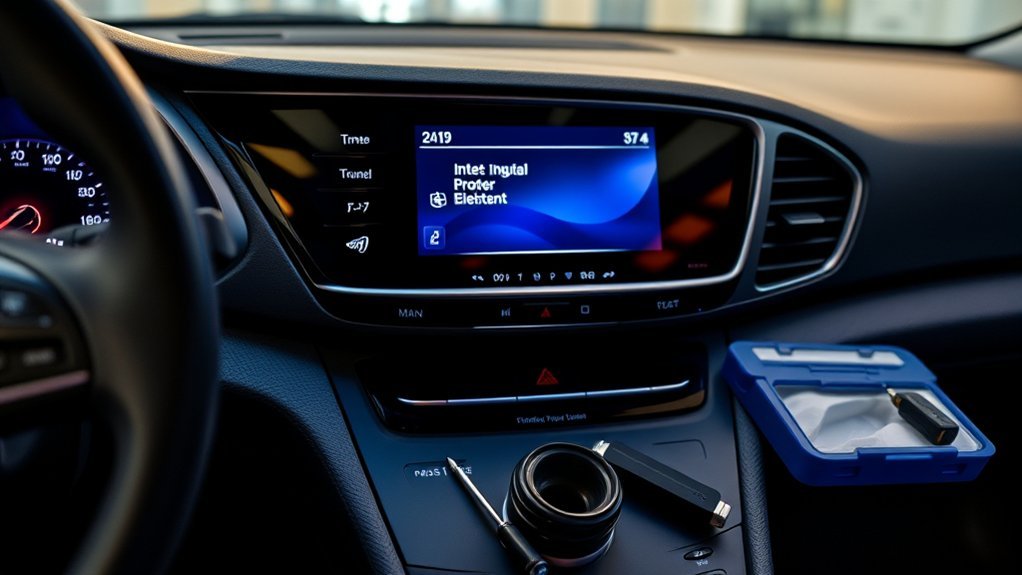
If the reset finishes but the infotainment system still does not work correctly, use this quick troubleshooting table.
| Issue | What to Try | Why It Helps |
|---|---|---|
| Bluetooth will not pair | Delete the Sonata from your phone, restart the phone, and pair again | Clears old pairing data that may conflict with the reset system |
| Apple CarPlay or Android Auto fails | Try a known-good cable, clean the USB port, and update your phone. On 2024+ Sonata models, confirm you’re using a USB-C-to-Lightning or USB-C-to-USB-C cable that supports data (not charge-only) | Bad cables and outdated phone software are common causes; the 2024+ Sonata’s switch to USB-C is a frequent source of cable-mismatch issues |
| Screen freezes again | Do one more soft reset, then check for software updates | A current update may fix repeated system bugs |
| Navigation is wrong or slow | Check for map and software updates through Hyundai’s update site | Map data and infotainment software can become outdated |
| No sound after reset | Check volume, mute, source, fade/balance, and Bluetooth audio permissions | Reset settings can change the audio source or speaker preferences |
| Problem returns every drive | Record a short video and schedule dealer diagnosis | Intermittent issues are easier to diagnose with proof |
For software and map updates, use the official Hyundai Navigation Update website. Hyundai’s updater allows owners to search for available updates by VIN or vehicle type, then follow the download and installation instructions. For a full walkthrough of the update process itself, see our Sonata infotainment software update guide.
A reset may fix the symptom, but a software update may fix the cause. If the same glitch keeps coming back, check Hyundai’s update site before booking a repair.
[Products Worth Considering]

Simple Use and Storage: Tuck the cable away smoothly and use it effortlessly thanks to the tangle-resistant design.
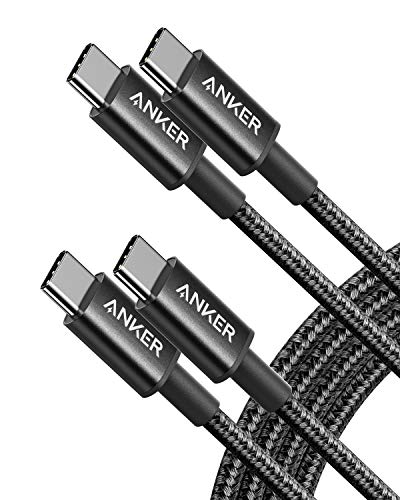
Durable Design: Reinforced nylon exterior and a robust core ensure this cable withstands up to 5,000 bends, outlasting other brands

Seamless CarPlay Connection: Supports full CarPlay functionality so you can charge your phone, navigate, take calls, and stream music without lag.
Tips for Preventing Future Infotainment System Problems
Good habits can reduce future freezes, pairing failures, and screen glitches.
- Keep your phone updated: Install iOS or Android updates when available.
- Update Hyundai software and maps: Use Hyundai’s official update tools instead of third-party downloads.
- Use quality USB cables: Cheap or damaged cables can cause CarPlay, Android Auto, and charging problems — this matters even more on 2024+ Sonata models with USB-C ports, since not every USB-C cable supports data.
- Avoid too many active phone connections: Remove old devices you no longer use.
- Restart your phone occasionally: Phone-side bugs can look like vehicle infotainment problems.
- Do not overload the system during startup: Give the screen time to boot before opening navigation, phone projection, and media at once.
- Watch for battery issues: Low vehicle voltage can cause strange electronic behavior across multiple systems.
When to Get Professional Help
Get help from a Hyundai dealer or qualified technician if the reset does not solve the problem or if the system shows signs of hardware trouble.
| Signs You Need Help | Recommended Action |
|---|---|
| The screen stays black after multiple restarts | Schedule dealer diagnosis |
| The system reboots over and over | Record a video and request service |
| Audio, screen, and USB ports all fail together | Have the electrical system checked |
| A software update fails repeatedly | Ask the dealer to inspect or update the unit |
| The issue started after water damage, impact, or aftermarket wiring | Stop resetting and get professional inspection |
If your Sonata is still under warranty, check your warranty booklet or vehicle coverage through Hyundai’s official manuals and warranty resource. Coverage can vary by model year, mileage, cause of failure, and whether the issue is a defect or damage.
Additional Resources for Hyundai Sonata Infotainment Issues
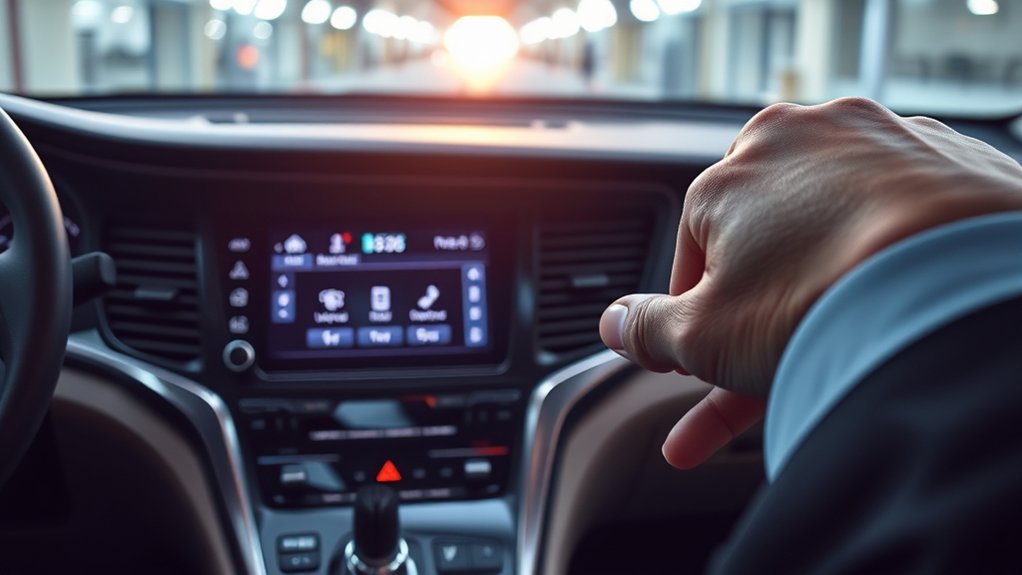
If your Hyundai Sonata infotainment issue continues, these resources can help you narrow down the cause:
- Hyundai owner’s manual: Best for model-year-specific reset steps and button locations.
- Hyundai web manual: Best for infotainment menu wording, settings, and troubleshooting.
- Hyundai Navigation Update: Best for map and infotainment software updates — see also our Sonata software update guide.
- Hyundai Bluetooth Assistance: Best for phone pairing and connection issues.
- Dealer service department: Best for repeat failures, black screens, failed updates, and possible hardware faults.
When contacting a dealer, bring the vehicle’s VIN, infotainment software version if you can access it, your phone model, your phone software version, and a short video of the problem. That information can save time and prevent a “could not duplicate” result.
Frequently Asked Questions
Will a factory reset delete my navigation settings?
Yes, a factory/default reset may delete saved destinations, recent routes, navigation preferences, and other stored user data. Save any important addresses before you reset the system.
How long does the reset process take?
A soft reset usually takes about 1–2 minutes. A factory/default reset often takes 5–10 minutes, but reconnecting phones, setting preferences, and restoring apps can take longer.
Can I undo a factory reset?
No. Once the reset deletes user settings, you generally cannot undo it from the infotainment screen. You will need to set up profiles, phones, radio presets, and navigation preferences again.
Will my Bluetooth connections be erased?
A soft reset usually keeps Bluetooth pairings. A factory/default reset may erase paired phones, so you should expect to pair your phone again afterward.
Is there a warranty on the infotainment system?
Hyundai warranty coverage depends on the vehicle model year, mileage, warranty terms, and cause of the failure. Infotainment defects may be covered during the applicable warranty period, but damage, modifications, or outside causes may not be. Check your warranty booklet or ask a Hyundai dealer to verify coverage by VIN.
Should I disconnect the battery to reset the infotainment system?
Do not disconnect the battery unless your owner’s manual or a Hyundai technician tells you to. Battery disconnection can affect other vehicle systems and may create extra setup work. Try the infotainment soft reset and factory/default reset first.
Why did the problem come back after resetting?
If the issue returns, the cause may be outdated software, a phone compatibility issue, a damaged USB cable, weak vehicle battery voltage, or a hardware fault. Check for updates, try a different cable, restart your phone, and contact a dealer if the symptom continues.
Conclusion
Resetting your Hyundai Sonata infotainment system is often the fastest way to clear a frozen screen, lagging menu, audio glitch, or phone connection problem. Start with a soft reset because it is quick and usually keeps your saved data. Use a factory/default reset only when you are ready to erase personal settings or when smaller fixes do not work. Confirm which generation of Sonata you own before following the reset steps, since the 2024+ redesign changed the dash layout. If the issue keeps returning, update the software and document the problem before visiting a Hyundai dealer.
Sources
- Hyundai Web Manual — Troubleshooting Guide — Supports reset-button troubleshooting, software update guidance, and dealer follow-up advice.
- Hyundai Web Manual — General Settings — Supports default reset menu behavior and the deletion of user-specified settings.
- Official Hyundai Navigation Update Website — Supports map and infotainment software update guidance.
- Hyundai Navigation Updater User Guide — Supports update download and installation process guidance.
- Hyundai Bluetooth Pairing Resource — Supports phone pairing and Bluetooth reconnection steps.
- Hyundai Manuals & Warranties — Supports model-specific manual and warranty verification.


[…] a weak data cable, a stale pairing record, or a software mismatch between your phone and the RAV4 infotainment […]