Last updated: July 31, 2026
To update Toyota Camry infotainment software, first identify the update type and confirm that it applies to your exact vehicle, multimedia unit, and region. An equipped Toyota Audio Multimedia system may install an update through the display. Other Camry systems require an official Toyota USB file, while navigation-map updates, recalls, service campaigns, and other vehicle software may require a separate process or dealer support.
Quick Answer
Record your VIN and current multimedia software version, then check the Toyota update source for your country. Use the on-screen update only when your Camry offers it. Use a USB file only when Toyota matches that file to your vehicle or head unit. Stop and contact a dealer if the file does not match, the installation repeats or freezes, or the issue involves a recall, service campaign, navigation maps, or software outside the multimedia system.
Key Takeaways
- Match the update to the VIN, market, multimedia unit, and current software version, not model year alone.
- Do not assume every over-the-air update requires home Wi-Fi; follow the connection method shown by your display and owner’s manual.
- Use only Toyota’s official regional portal or dealer-provided file for a USB update.
- Treat multimedia firmware, navigation-map data, and recall or campaign software as separate update categories.
- Do not interrupt an installation or repeatedly retry a rejected file.
At a Glance
| First Check | VIN, market, multimedia model information, and current software version |
| Possible Methods | On-screen update, official USB update, or Toyota dealer service |
| USB Tools | Computer and a blank USB drive that meets the exact portal instructions |
| Installation Time | Toyota Canada says selected in-vehicle firmware installations commonly take about 10 minutes, with some taking up to 45 minutes; download time is separate |
| Stop and Get Help | Wrong or rejected file, frozen or looping screen, missing official instructions, or a possible recall or service campaign |
How this guide was checked: The update paths, USB cautions, regional limits, installation timing, and map-update distinction were checked against current Toyota U.S. and Toyota Canada owner resources on July 31, 2026.
What’s in This Article
- Identify the Update You Need
- Before You Begin: What You Need
- Choose the Right Update Method
- Determine Your Toyota Camry Model Year and System
- Check Compatibility for an On-Screen Update
- Prepare the Connection for an On-Screen Update
- Update Toyota Camry Software Through the Display
- Download a Toyota Camry USB Update
- Prepare the USB Drive
- Install the Update by USB
- What About 2018 and 2019 Camry Models?
- Firmware Versus Navigation-Map Updates
- When to Use Dealer Service
- Common Problems and Fixes
- What to Check After the Update
- Related Toyota Camry Guides
- Frequently Asked Questions
Which Toyota Camry Update Do You Need?
The phrase “software update” can refer to different systems. Identify the category before downloading anything because one update source does not cover every type of vehicle software.
| Update Type | What It Usually Covers | Where to Start |
| Multimedia firmware | Audio, Bluetooth, phone projection, screen behavior, and other head-unit operation concerns listed in the release notes | Infotainment display, Toyota’s regional software portal, or a dealer |
| Navigation-map data | Road, address, and point-of-interest database information for supported built-in navigation systems | Owner’s manual or Toyota dealer; the U.S. multimedia firmware portal does not provide map updates |
| Recall, service campaign, or other vehicle software | A safety, drivability, emissions, control-module, or campaign-specific correction | Toyota VIN lookup and dealer service department |
If your problem is limited to CarPlay, Android Auto, Bluetooth, or a USB port, basic connection troubleshooting may solve it without a firmware installation. Use the related guides near the end of this article before assuming the head unit needs an update.
Before You Begin: What You Need
Gather the identifying information first. Toyota’s process can differ by model year, trim, multimedia unit, country, and available file.
- Your Camry’s Vehicle Identification Number (VIN)
- Your owner’s manual or Toyota account details
- Your current software version, part number, model information, or face plate number if displayed
- A computer and blank USB drive if Toyota offers a USB update
- A stable connection only when the display or vehicle-specific instructions require one
- A photo of the software-version screen and any error message
Use the Toyota Manuals and Warranties page or the Toyota Camry owner’s manual guide to find system-specific menu names. A Camry built for one market may not use the same update portal or instructions as a Camry built for another market.
Warning: Do not install firmware meant for another Toyota model, model year, region, or multimedia unit. Toyota Canada warns that incorrect firmware can damage the multimedia unit.
[Products Worth Considering]

This wireless CarPlay screen adds modern smartphone connectivity to almost any vehicle with easy plug-and-play installation. It supports Apple CarPlay and Android Auto, online maps, voice control, phone mirroring, and multiple audio output options for safer, more convenient driving. The included night vision backup camera and OTA updates help improve visibility, compatibility, and long-term performance.

This steering clock spring is designed to restore reliable steering wheel controls across a wide range of Toyota models. It supports audio, cruise control, and other multifunction commands while matching OEM part numbers for confident replacement fitment. Built for dependable signal transfer and straightforward installation, it is an effective solution for repairing steering column control issues.

This Toyota navigation SD card provides updated North America maps and points of interest for compatible factory navigation systems. It is preloaded with recent road and location data to help drivers find destinations, services, and routes more easily across the U.S. and Canada. Designed for select Toyota models, it offers a simple plug-and-play replacement for the original navigation card.
Which Update Method Should You Use?
Toyota identifies three main multimedia update paths: an update through the display for equipped systems, a USB update for eligible systems, or dealer assistance. Start with the method supported by your exact Camry.
| Update Method | Use It When | Important Limit |
| Through the display | Your Camry’s settings or notification screen offers a software update and provides installation prompts | Use the connection and power instructions shown by the vehicle; do not assume one menu path or network method applies to every system |
| USB update | Toyota’s official regional portal provides a file and instructions that match your vehicle or multimedia unit | USB capacity, format, folder structure, and identification steps can vary by portal and file |
| Dealer update | No supported file appears, the update fails or loops, the head unit is unresponsive, or a recall, campaign, or service bulletin may apply | Ask whether the work is covered before authorizing paid diagnosis or installation |
[Products Worth Considering]

Keep your Toyota navigation system current with this SD card map update designed for select factory-installed GPS units. It provides updated coverage for the USA and Canada, including roads, points of interest, and key travel locations for smoother trip planning. Easy plug-and-play installation helps restore accurate guidance without complicated setup.

This USB panel mount car charger provides a clean flush-fit extension solution for compatible Toyota dashboards, delivering both charging and data transfer through a male to female USB connection. Designed for plug-and-play installation, it supports a wide range of Toyota models and helps replace broken or outdated USB ports while protecting devices from overcurrent, overheating, and overcharging. Its durable PVC and copper construction supports reliable use for phones, tablets, GPS units, and CarPlay or Android Auto accessories.

This compact adapter upgrades compatible factory wired CarPlay or Android Auto systems to wireless convenience for both iPhone and Android users. It uses WiFi 6 and Bluetooth 5.4 for fast, stable connections with quick auto-connect startup and reliable voice, navigation, and music performance. Its mini plug-in design helps keep the dashboard tidy while supporting easy setup and broad vehicle compatibility.
Use the Correct Regional Source
| Vehicle Market | Official Starting Point | Scope |
| United States | Toyota Software Updates | Toyota states that this portal applies to vehicles manufactured for the continental United States, Alaska, and Hawaii |
| Canada | Toyota Canada Multimedia & Audio System Update | Selected Canadian vehicles and multimedia systems; the page provides identification, download, USB, and dealer-support guidance |
| Another market | Your regional Toyota owner site or local Toyota dealer | Do not use the U.S. or Canadian file unless Toyota confirms it applies to your vehicle |
Note: Routine multimedia firmware is intended to correct listed operation concerns. Do not assume it will add a feature, enable phone projection on an unsupported unit, or update navigation maps. Read the vehicle-specific release notes first.
How Do You Identify Your Camry and Multimedia System?
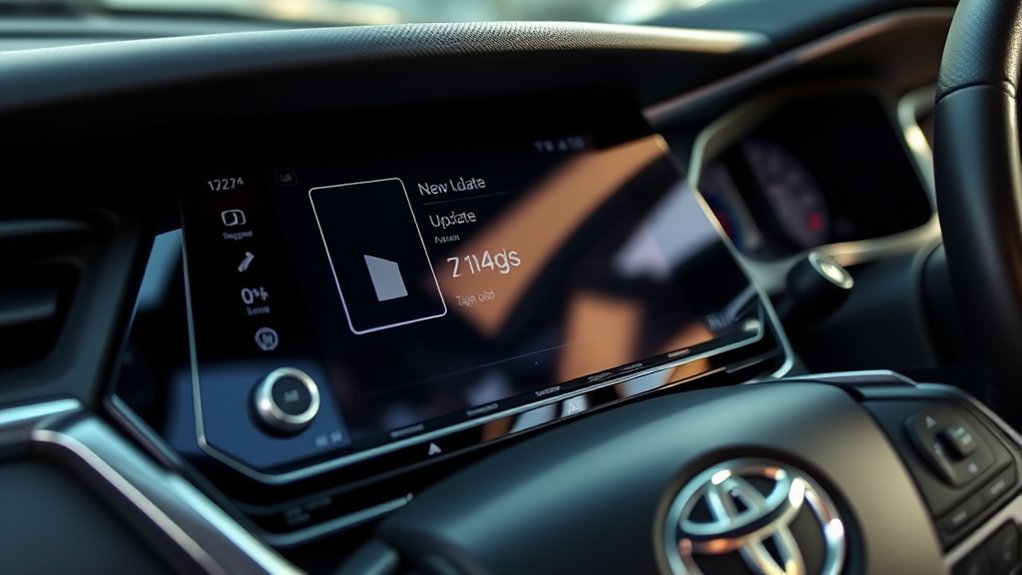
Find the VIN on the driver-side dashboard near the windshield, the driver’s door pillar, or your registration and insurance documents. Use it to confirm the vehicle market and model information.
Next, open the infotainment system-information screen and record every identifier shown. Depending on the system, Toyota may ask for the current software version, model information, part number, or face plate number. A photo is safer than copying a long identifier by hand.
Model year is only a starting point. Two Camry vehicles from the same year can use different multimedia hardware, software, or regional update paths.
How Do You Know Whether Your Camry Can Update Through the Display?
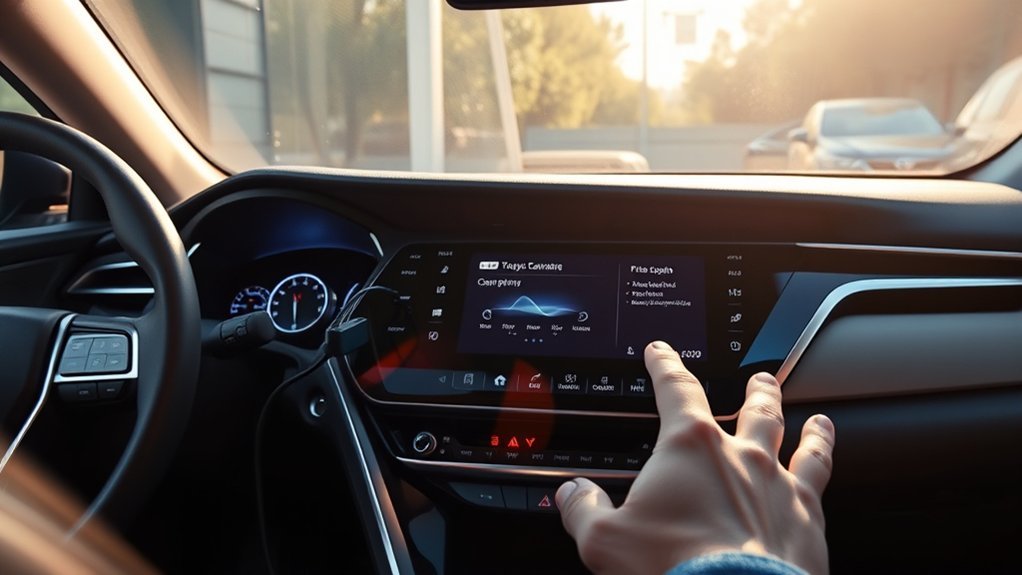
Check the infotainment settings, notifications, and owner’s manual. Toyota says vehicles equipped with the latest Toyota Audio Multimedia System can download and install eligible software updates through the display. The presence of a software-update menu or update notification is more useful than model year alone.
Model Year Is Not Enough
- Confirm the VIN and country where the vehicle was manufactured for use.
- Check the multimedia-system name and model information.
- Look for a software-update option or update notification on the display.
- Check the official regional portal if no on-screen option appears.
- Contact a dealer when the display and portal do not clearly identify a supported method.
Follow the Connection Method Shown by the Vehicle
Do not assume every Camry update requires a home Wi-Fi network. Use the connection method described by the display and the owner’s manual for your exact multimedia system. If the system specifically asks you to join Wi-Fi or use a hotspot, choose a private, stable connection and remain within range until the download finishes.
Record the Current Software Version
- Open the infotainment settings.
- Find the software update, system information, or model information screen.
- Photograph the software version and any part, model, or face plate number shown.
- Compare those details with Toyota’s portal or the on-screen update description.
- Do not install a file when the identifiers do not match.
Pro Tip: Keep the before-update photo until you have tested Bluetooth, audio, phone projection, and the USB port. It gives a dealer a clear starting point if the new version causes a problem.
How Do You Prepare the Connection for an On-Screen Update?
Read the update prompt before changing network settings. Some equipped systems handle eligible updates through Toyota Audio Multimedia without the same setup used by older Wi-Fi-based systems.
If your display instructs you to connect to Wi-Fi, park where the private network or trusted hotspot has a stable signal. Confirm the network works on another device, select it on the infotainment screen, and enter the password carefully.
Keep the vehicle parked and follow the displayed power-mode instructions. Do not begin when you may need to leave, shut the vehicle down, or move out of network range.
How Do You Update Toyota Camry Software Through the Display?
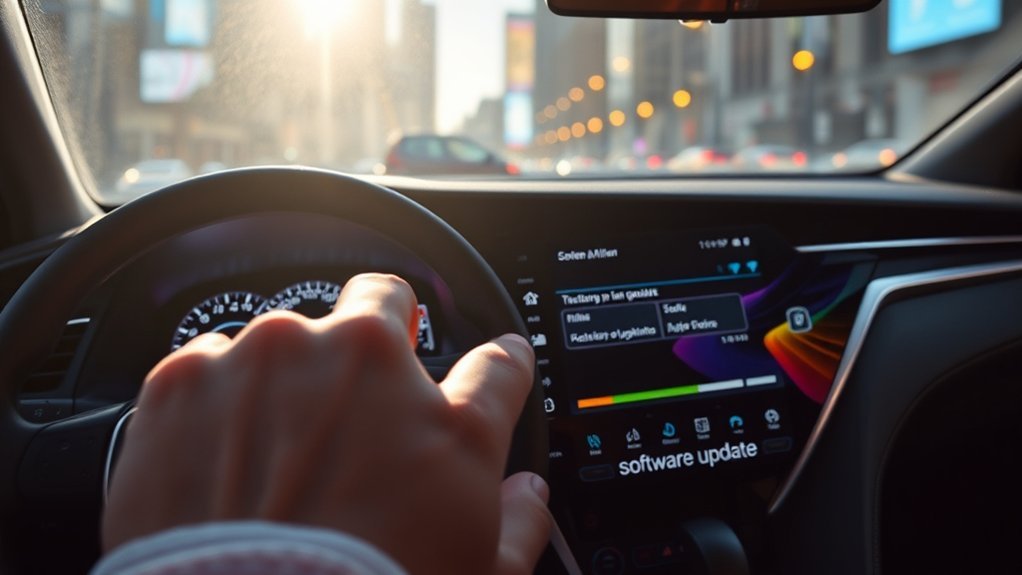
Use these general steps only when your Camry displays an eligible update. The exact menu names, connection method, and power instructions can differ by multimedia system.
- Park in a safe, well-ventilated location.
- Read the full update notice and release information.
- Place the vehicle in the power mode required by the display or owner’s manual.
- Open the software-update screen or select the update notification.
- Confirm the vehicle has the requested connection.
- Start the download or installation.
- Leave the controls, connection, and power mode unchanged unless the display instructs otherwise.
- Wait for the completion message and restart only when prompted.
- Return to the software-information screen and confirm the result.
Toyota Canada says most selected in-vehicle firmware installations take about 10 minutes, while some can take up to 45 minutes. That estimate does not include download time and should not be treated as a guarantee for every Camry or market.
Warning: Do not drive, switch the required power mode off, disconnect a requested network, or press unrelated controls during installation unless the vehicle tells you to do so.
[Products Worth Considering]

This auxiliary jack adapter restores a broken or missing AUX connection so you can stream audio from your device through your Toyota stereo system. It is designed for compatible Toyota models and uses an 8-pin connector for a direct plug-and-play replacement. Built for reliable audio transmission, it helps bring back clear in-car sound without complicated installation.

This portable car stereo adds wireless Apple CarPlay and Android Auto to nearly any vehicle without replacing the factory head unit. The 7-inch HD touchscreen supports voice control, GPS navigation, mirror link, Bluetooth calling, and multiple audio output options for a safer, more connected drive. It also includes backup camera support and flexible mounting for easy installation and removal.

This wireless adapter upgrades factory wired Apple CarPlay and compatible Android Auto systems into a seamless cordless experience without replacing your original infotainment system. After a quick one-time setup, it reconnects automatically for navigation, music, calls, messages, and voice control, while compact plug-and-play design helps keep your dashboard clean and your driving experience more convenient.
How Do You Download a Toyota Camry Update to USB?
Use only Toyota’s official update source for your vehicle market. Do not download firmware from a forum, video description, file-sharing site, or another owner’s USB drive.
Check the USB Requirements Before Formatting
The U.S. portal requires a compatible USB drive for eligible downloads but directs owners to the instructions for the specific file. Toyota Canada lists a blank USB 2.0 drive with 2 GB to 8 GB of storage, formatted as FAT16 or FAT32, for selected downloads. Follow the exact regional instructions rather than applying the Canadian specification to every vehicle.
- Use a blank, reliable USB drive.
- Use the required capacity and file-system format.
- Keep unrelated files off the drive.
- Preserve the downloaded folder structure unless Toyota tells you to extract or move files.
- Use only a file matched to your vehicle or multimedia unit.
Provide the Vehicle or Multimedia Information Toyota Requests
The U.S. and Canadian workflows are not identical. Enter the VIN when the portal asks for it. Toyota Canada may also use the multimedia part number, face plate number, or vehicle information exported from the head unit to a USB drive and uploaded as a JSON file.
Follow the on-screen identification guide. Stop if you cannot confidently match the vehicle and head-unit details.
Download and Copy the File Safely
- Open the official Toyota update page for your vehicle market.
- Enter or upload the requested vehicle and multimedia information.
- Read the release notes and vehicle-installation instructions.
- Download the file to the computer when directed.
- Prepare the USB drive exactly as the instructions specify.
- Copy or extract the files without renaming them.
- Safely eject the USB drive after copying finishes.
Regional limit: Toyota’s U.S. software portal applies to vehicles manufactured for the continental United States, Alaska, and Hawaii. Use the Toyota source for another market or ask a local dealer to identify the correct process.
How Do You Prepare the USB Drive?
Start with a blank drive and the instructions bundled with the exact update. The system may reject a drive because of its capacity, file system, hidden computer-generated files, incorrect folder structure, or an incomplete download.
For selected Canadian firmware downloads, Toyota specifies a USB 2.0 flash drive with 2 GB to 8 GB of storage and FAT16 or FAT32 formatting. For a U.S. or other-market update, use the specification shown for that file.
Do not automatically place files in the root directory or rearrange folders. Keep the package structure Toyota provides unless the instructions expressly tell you to move or extract particular files.
How Do You Install a Toyota Camry Update by USB?
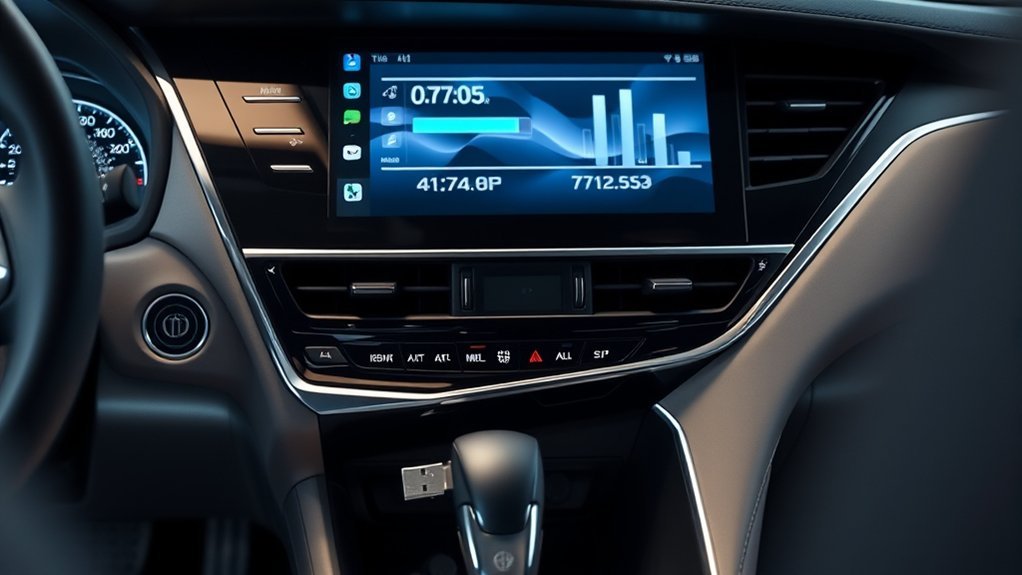
Park in a safe, well-ventilated place and keep the vehicle in the exact power mode required by Toyota’s file-specific instructions.
Final USB Check
- The update file matches the vehicle market and multimedia identifiers.
- The drive capacity and file system match the instructions.
- The download completed without an error.
- The file names and folder structure were not changed.
- The drive was safely ejected from the computer.
USB Installation Steps
- Read the vehicle-installation document from beginning to end.
- Park the Camry and select the required power mode.
- Insert the prepared drive into the media USB port identified by Toyota.
- Wait for the infotainment system to inspect the drive.
- Confirm that the displayed update information matches the expected file.
- Follow every on-screen prompt.
- Do not remove the drive or change the required power mode during installation.
- Wait for the completion message.
- Remove the drive only when the instructions or display say it is safe.
- Confirm the installed software version and test the system.
If the update does not start, do not keep inserting the same rejected drive. Recheck the identification data, download integrity, USB format, capacity, and file structure once. Contact a dealer if the same file is rejected again.
What About 2018 and 2019 Toyota Camry Infotainment Updates?
Do not use a generic “2018–2019 Camry update” file. Head-unit compatibility and vehicle market still control the correct process.
For U.S.-market vehicles, Toyota announced Apple CarPlay compatibility as standard on all 2019 Camry models. A 2019 Camry with a CarPlay connection problem therefore may need cable, USB-port, phone-setting, or pairing checks rather than a feature-enabling firmware file.
For a 2018 Camry, an imported vehicle, or a head unit with uncertain history, check the exact unit through Toyota’s portal or a dealer. Do not install a modified or copied file from an owner forum, even when another vehicle appears to have the same screen.
See the Toyota Camry Apple CarPlay troubleshooting guide for connection checks before scheduling service.
Does a Camry Firmware Update Also Update the Navigation Maps?
No, not through Toyota’s U.S. multimedia software-download portal. Toyota states that navigation and map updates are not available on that site. Firmware and map data should be treated as separate products and processes.
If your Camry has built-in navigation, check the owner’s manual for the system name and map-update method, then ask a Toyota dealer when the instructions are unclear. Do not assume a multimedia firmware file will refresh roads, addresses, or points of interest.
When Should a Toyota Dealer Handle the Update?
Use dealer support when Toyota does not provide a clear owner-installable path or when the multimedia unit no longer operates normally. A dealer can identify the head unit, check applicable service information, and determine whether a recall or service campaign applies.
Bring or send the service advisor:
- The VIN and vehicle market
- A photo of the current software and model-information screens
- The exact symptom and when it occurs
- Photos of any update or error message
- The official file name or portal result, if you attempted a USB update
- The phone model and operating-system version when the issue involves CarPlay, Android Auto, or Bluetooth
Ask whether the proposed work is multimedia firmware, a map update, a technical service procedure, a recall, or a service campaign. Also ask whether diagnosis and installation are covered before authorizing paid work. Toyota Canada notes that dealer charges may apply outside basic coverage.
U.S. owners can also check Toyota’s recall and service campaign lookup with the VIN.
Why Is the Toyota Camry Update Not Working?
Use the symptom to narrow the cause. Do one careful recheck, not a series of repeated attempts.
| Symptom | Check | Next Step |
| No on-screen update appears | System compatibility, current version, notifications, owner’s manual, and regional portal | The system may already be current or may use USB or dealer service |
| Download pauses or fails | The connection method requested by the vehicle, signal stability, and available time | Retry once under the conditions specified by the display |
| USB is not detected | Correct media USB port, drive capacity, file system, files, and folder structure | Recreate the drive once from the official download; test the port separately if needed |
| File is rejected | VIN, market, part or model information, face plate number, and download integrity | Stop after one recheck and contact Toyota |
| Screen freezes, loops, or stays blank | Do not improvise a reset during installation | Follow only Toyota’s recovery instruction or arrange dealer service |
| Phone features fail after updating | Saved pairing, profile permissions, cable, USB port, and phone software | Delete and recreate the connection, then escalate if the symptom remains |
Stop rule: Do not force the same failed update repeatedly. Get dealer help when the system freezes, loops, remains blank, or rejects a correctly prepared official file a second time.
What Should You Check After the Update?
Test the functions most likely to reveal a problem before your next trip:
- Confirm that the software version changed when the release instructions say it should.
- Test radio, audio sources, volume, steering-wheel controls, and the touchscreen.
- Delete and re-pair Bluetooth if calls or audio no longer connect correctly.
- Test Apple CarPlay or Android Auto with a known-good cable when wired connection is supported.
- Check the media USB port and any other port used during the update.
- Review saved profiles, presets, permissions, clock, and display settings.
- Check built-in navigation separately; a firmware update does not necessarily update map data.
If a new symptom appears, record it before resetting profiles or disconnecting the battery. That record helps a dealer distinguish an update problem from a phone, cable, or settings issue.
Related Toyota Camry Guides
- Find the correct Toyota Camry owner’s manual online
- Fix Toyota Camry Apple CarPlay connection problems
- Fix Toyota Camry Android Auto connection problems
- Troubleshoot a Toyota Camry USB port that is not working
Frequently Asked Questions
How do I update my Toyota Camry infotainment software?
Record the VIN and current multimedia software information. Use the update through the display when your Camry offers it. Otherwise, check Toyota’s official regional portal for a matching USB file or contact a dealer. Never install a file that does not match the vehicle and head unit.
How do I know whether my Camry uses an on-screen or USB update?
Check for a software-update menu or notification, then check the owner’s manual and Toyota’s portal for your vehicle market. If the display offers an eligible update, follow its prompts. If the portal supplies a matched file, follow the USB instructions. Use dealer service when neither source identifies a supported owner-installable method.
Does a 2019 Toyota Camry need an update for Apple CarPlay?
U.S.-market 2019 Camry models were sold with Apple CarPlay compatibility. If CarPlay is not connecting, first check the phone, cable, media USB port, permissions, and pairing. Then check Toyota’s portal or a dealer for any firmware that matches the exact multimedia unit.
Why does my Camry not show a software update?
The system may already be current, may not support updates through the display, or may use a USB or dealer-only process. Confirm the software version, multimedia identifiers, regional portal, and owner’s manual before deciding that an update is missing.
Can I use any USB drive for a Toyota Camry update?
No. Use the capacity, file system, and file structure required by the exact Toyota download. Toyota Canada lists a blank USB 2.0 drive with 2 GB to 8 GB of storage and FAT16 or FAT32 formatting for selected Canadian downloads, but another portal or file may specify different requirements.
Will a Toyota Camry firmware update update the navigation maps?
No, not through Toyota’s U.S. multimedia software-download portal. Toyota says navigation and map updates are not available there. Check the manual or dealer for the map-update process used by your Camry’s navigation system.
Will a firmware update add Android Auto, CarPlay, or another new feature?
Do not assume it will. Routine firmware normally addresses the operation concerns listed in Toyota’s release information, and Toyota Canada states that firmware updates do not provide new features. A model-specific service action can differ, so rely only on the release notes or dealer information for your VIN and multimedia unit.
Conclusion
The safest Toyota Camry infotainment software update is the one Toyota identifies for your exact vehicle, multimedia unit, and market. Start with the system-information screen, then use the on-screen method or official USB portal only when it clearly applies.
Stop after one careful recheck if the file is rejected or the update fails. Save the version photo and error message, then ask a Toyota dealer whether the vehicle needs multimedia firmware, a map update, a recall or campaign procedure, or a different repair.
Sources
- Toyota Audio Multimedia System Updates — update-through-display, USB, and dealer pathways for eligible Toyota systems.
- Toyota Software Updates — U.S. portal scope, eligible USB downloads, and the navigation-map exclusion.
- Toyota Canada Multimedia & Audio System Update — firmware cautions, USB specifications for selected downloads, installation timing, feature limits, and dealer help.
- Toyota Canada USB Update Steps — vehicle-information export, JSON upload, and USB workflow for supported systems.
- Toyota Manuals and Warranties — vehicle-specific manuals and system instructions.
- Toyota USA Newsroom: 2019 Toyota Camry — U.S.-market 2019 Camry Apple CarPlay compatibility.
- Toyota Recall and Service Campaign Lookup — VIN-based recall and campaign checks for U.S. vehicles.