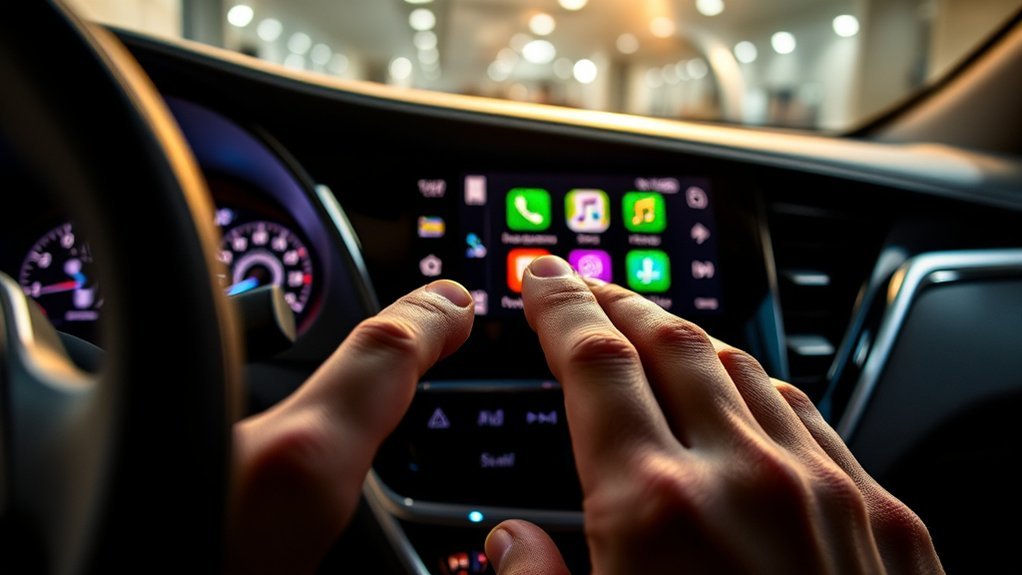
The Toyota Camry infotainment system brings phone pairing, music, maps, vehicle settings, voice control, and driver-assistance information into one easy-to-use screen. The exact menus and features vary by model year, trim, region, subscription status, and phone compatibility, but the core setup process is simple: pair your phone, customize your shortcuts, adjust audio and display settings, and learn where the safety and vehicle controls live.
Quick Answer
The Toyota Camry infotainment system lets you connect a phone by Bluetooth, use wireless Apple CarPlay or Android Auto on supported models, stream music, access maps, adjust vehicle settings, and view useful driving information. Start in Settings or the Phone tab, pair your device, then customize shortcuts, audio, display, and safety preferences.
Key Takeaways
- Pair your phone first so calling, music streaming, Apple CarPlay, Android Auto, and voice features work correctly.
- Use the shortcut bar to move quickly between navigation, music, phone, and vehicle settings.
- Screen size, navigation, Head-Up Display, JBL audio, and some connected services depend on trim, package, model year, and subscriptions.
- Customize the digital gauge cluster, audio presets, climate settings, and safety alerts to match how you drive.
- If pairing or audio fails, restarting the phone, removing old devices, and re-pairing usually fixes the issue.
At a Glance
| Time Required | 5 to 15 minutes for basic setup |
| Difficulty | Easy |
| Tools Needed | Your smartphone, the vehicle touchscreen, and your phone’s Bluetooth settings |
| Cost | Basic Bluetooth pairing is free; some connected navigation and voice features may require a trial or paid subscription |
How the Toyota Camry Infotainment System Works
The Camry’s infotainment setup is centered around Toyota Audio Multimedia. On recent U.S. Camry models, the system uses either a standard 8-inch touchscreen or an available 12.3-inch touchscreen, depending on trim and package. Toyota also offers wireless Apple CarPlay and Android Auto compatibility on current Camry models, along with Bluetooth phone and audio support, USB media access, and connected service features on equipped vehicles.
The main screen is designed around common driving tasks: phone, music, navigation or maps, vehicle settings, and connected services. Once your phone is paired, the system can handle hands-free calls, music streaming, compatible app projection, voice prompts, and saved driver preferences.
Note: Menu names can vary slightly by model year and software version. If your Camry screen does not match these steps exactly, use the closest matching option, such as Settings, Bluetooth & Devices, Phone, Audio, or Vehicle Settings.
How to Connect Your Phone via Bluetooth
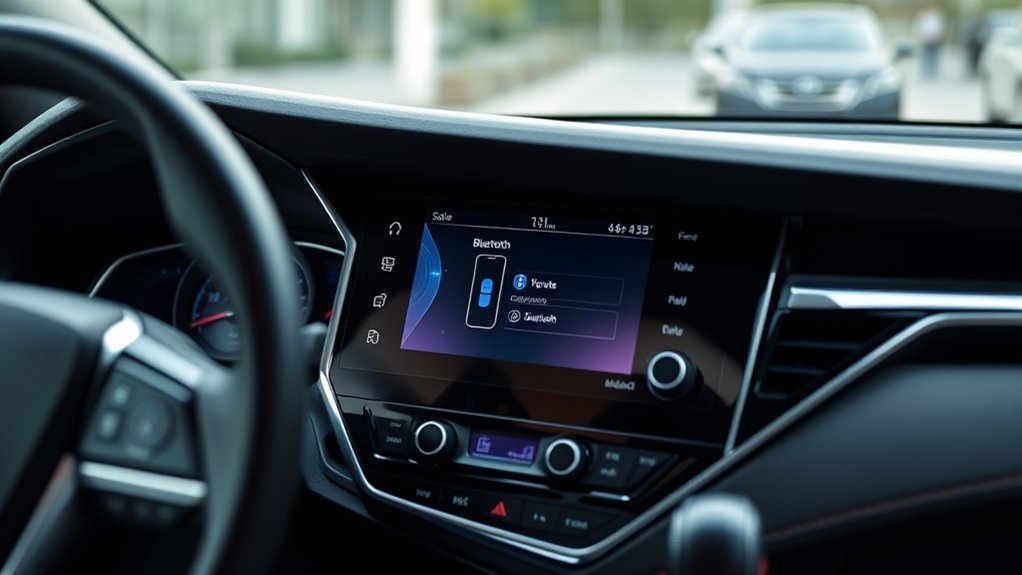
Connecting your phone by Bluetooth is the first step for hands-free calling, music streaming, and many smartphone features. Toyota’s latest-generation Audio Multimedia system can store multiple devices, and supported systems can connect two phones at the same time, which is helpful when one phone is used for calls and another for media.
- Park the vehicle safely and keep the engine or power mode on.
- On the Camry touchscreen, open Settings.
- Select Bluetooth & Devices or the closest matching device menu.
- Choose Add another device, Search for devices, or Pair new device.
- On your phone, turn on Bluetooth and make the phone discoverable.
- Select your phone from the Camry screen, then confirm that the pairing code matches on both the phone and vehicle display.
- Approve contacts, messages, and notification permissions if you want hands-free calling and text alerts.
- Test the connection by making a call or playing audio through the Camry speakers.
Warning: Do not pair, troubleshoot, or change phone settings while driving. Complete setup while parked so your attention stays on the road when the vehicle is moving.
Pro Tip: Give your phone a clear device name before pairing, especially if several drivers use the Camry. This makes it easier to pick the right phone from the device list later.
Setting Up Infotainment Navigation: A Step-by-Step Guide
Once your phone is connected, you can use navigation in two main ways: through smartphone projection such as Apple CarPlay or Android Auto, or through Toyota’s available connected navigation features on equipped vehicles. Built-in navigation and voice destination search may require an active trial or subscription, while phone-based maps depend on your smartphone, apps, data connection, and compatibility.
- Connect your phone by Bluetooth and approve Apple CarPlay or Android Auto if prompted.
- Open the Maps, Navigation, or smartphone projection icon on the touchscreen.
- Enter a destination using the touchscreen keyboard, recent destinations, saved favorites, or voice command.
- If equipped with Toyota voice services, try a natural command such as “Hey Toyota, find the nearest gas station.”
- Before driving, review the route, estimated travel time, and next turn.
- Save frequent destinations such as home, work, school, or a favorite charging or fuel stop for quicker access later.
You may also see turn-by-turn directions in the digital gauge cluster or available Head-Up Display on select trims. This helps keep important navigation prompts closer to your line of sight, but you should still check mirrors, road signs, and traffic conditions instead of relying only on the screen.
[Products Worth Considering]

This front bumper license plate bracket is designed for Toyota Camry and Camry Hybrid models from 2018 to 2026, offering a secure and street-legal way to mount your plate. Built from durable, rust-proof plastic with included screw bolts and a wrench, it helps protect your bumper paint while making installation straightforward. The bracket fits US and Canada plates and is made to keep your license plate and registration sticker visible.

This steering clock spring is designed to restore reliable steering wheel controls across a wide range of Toyota models. It supports audio, cruise control, and other multifunction commands while matching OEM part numbers for confident replacement fitment. Built for dependable signal transfer and straightforward installation, it is an effective solution for repairing steering column control issues.
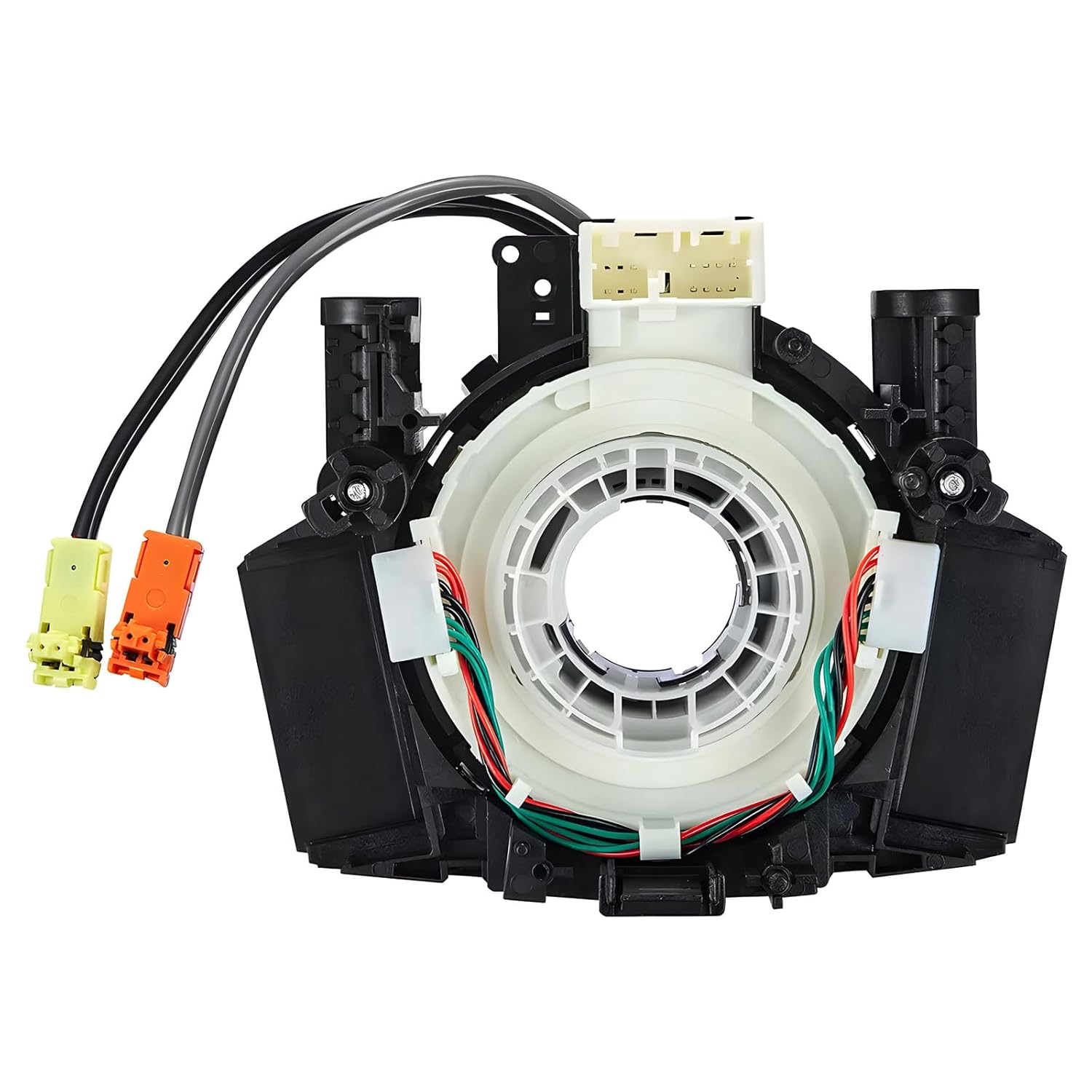
This steering clock spring assembly is an OEM-style replacement designed to restore steering wheel controls and related electronic functions in compatible Nissan vehicles. It supports audio, cruise control, and multi-function button operation while matching multiple factory part numbers for a reliable fit. Built for direct installation with vehicle-specific connectors, it helps return steering column electronics to proper working order.
Customizing Your Audio Experience With the Music Tab
The Music or Audio tab gives you quick control over radio, Bluetooth streaming, USB media, SiriusXM on equipped vehicles, and smartphone audio through Apple CarPlay or Android Auto. Start by choosing your preferred source, then save favorites or presets so you do not have to search while driving.
| Feature | Functionality | Benefit |
|---|---|---|
| Audio Presets | Save favorite AM, FM, or satellite stations where supported | Quick access to preferred channels |
| Sound Tuning | Adjust bass, midrange, treble, balance, and fade where available | Improves the listening experience for your cabin layout |
| Bluetooth Streaming | Play music, podcasts, or audiobooks from your phone | Convenient wireless listening |
| Source Switching | Move between radio, Bluetooth, USB, and phone projection | Makes it easier to change audio without digging through menus |
| Shortcut Bar | Keep common tabs close at hand | Reduces taps and improves everyday usability |
If your Camry has the available JBL Premium Audio system, spend a few minutes tuning the sound after pairing your phone. A small balance or tone adjustment can make music and calls clearer, especially if passengers often sit in the rear seats.
Understanding the Toyota Camry Infotainment System Features
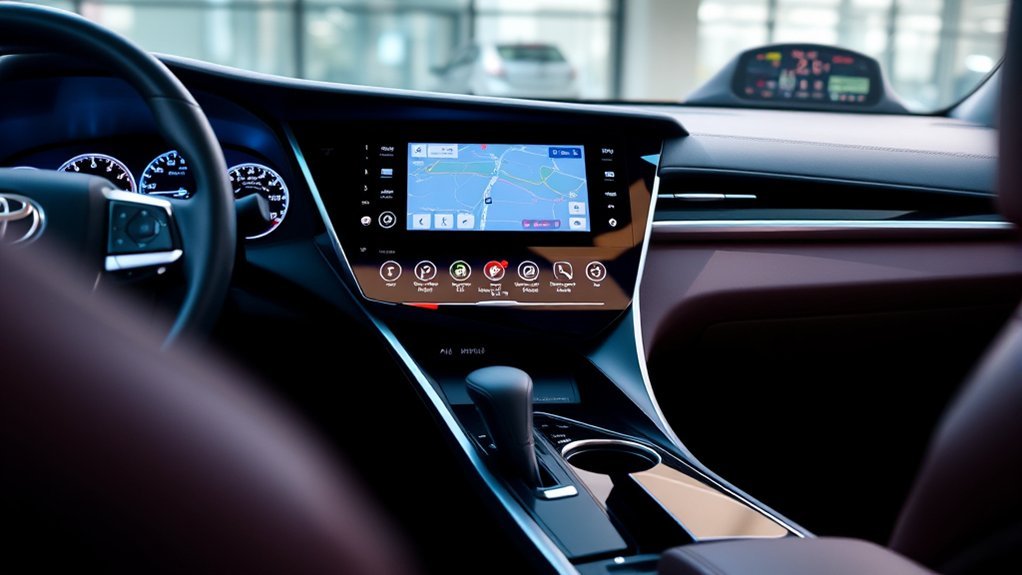
The Toyota Camry infotainment system is built for convenience, but it becomes much better once you personalize it. Instead of leaving every setting at default, set up your phone, preferred audio source, display brightness, driver profile, climate shortcuts, and safety alerts during the first week of ownership.
Key Infotainment Features
- Touchscreen controls: Use the main display for phone, audio, maps, settings, and connected services.
- Bluetooth connectivity: Pair compatible phones for calls and music streaming.
- Wireless smartphone projection: Use compatible Apple CarPlay or Android Auto on supported Camry models.
- Voice control: Use supported voice commands for calling, audio, temperature, and navigation features on equipped vehicles.
- USB media and charging: Current Camry models include multiple USB ports, with availability and type varying by model year and trim.
- Driver profiles: Save preferences so different drivers can access their preferred setup more quickly.
Customization Options Available
Customization starts with the shortcut bar. Keep your most-used features visible, such as Phone, Audio, Maps, and Vehicle Settings. Then review device management so your main phone connects automatically when you start the car.
You can also personalize display settings, camera display preferences where equipped, audio tone, notification behavior, climate preferences, and maintenance reminders. On vehicles with a driver profile, signing in through the Toyota app may allow supported preferences to follow your profile on compatible systems.
Getting to Know Your Digital Gauge Cluster
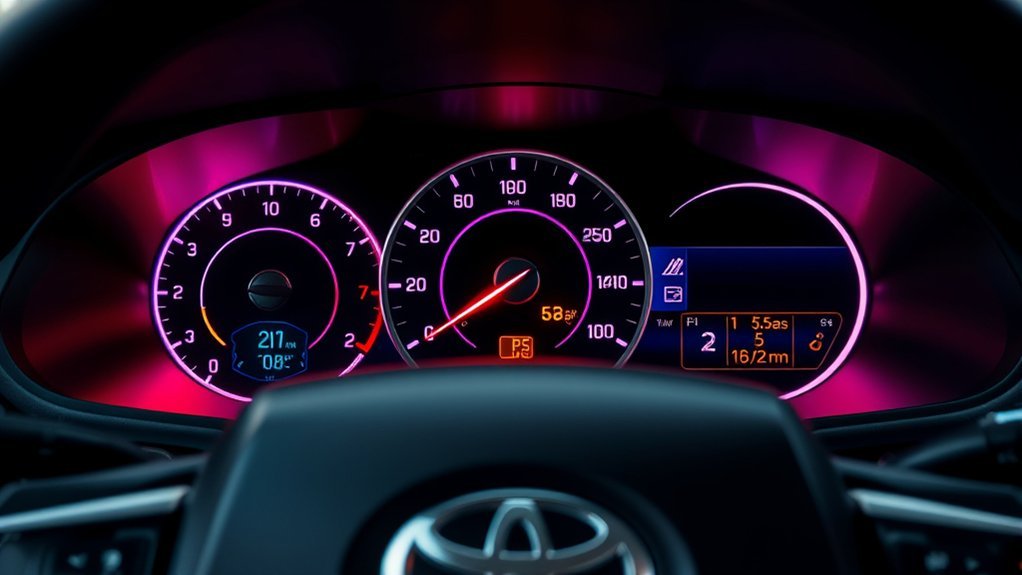
The digital gauge cluster gives you key driving information without requiring you to look across the cabin at the center screen. On the 2026 U.S. Camry, Toyota lists a 7-inch digital gauge cluster as standard on LE, SE, and Nightshade Edition, while XLE and XSE grades include a 12.3-inch digital gauge cluster. The available 10-inch Head-Up Display on XLE and XSE can show information such as speed, warnings, and turn-by-turn navigation when equipped.
A well-customized gauge cluster reduces screen hunting by placing speed, trip data, driver-assist information, and navigation prompts closer to your normal field of view.
- Speed and gear information: Keep the most important driving data visible.
- Drive modes: View modes such as Eco, Normal, or Sport where equipped.
- Fuel economy insights: Track trip performance and driving efficiency.
- Navigation prompts: Display turn information on equipped vehicles and compatible routes.
- Brightness controls: Adjust the display for daytime, nighttime, and low-glare driving.
Adjust Your Vehicle Settings for Comfort
The infotainment system also helps manage comfort features. Depending on trim and equipment, you can adjust climate behavior, lock settings, lighting, maintenance alerts, driver-assist preferences, and display options. These settings are worth reviewing because small changes can make the Camry feel more natural every day.
Climate Control Customization
Many Camry models include automatic climate control, and some trims add more comfort features such as rear vents, heated seats, ventilated seats, or a heated steering wheel. Use the dedicated climate buttons for quick changes and the screen menu for deeper preferences when available.
- Set a comfortable cabin temperature before driving.
- Use automatic mode if you want the system to manage fan speed and airflow.
- Sync or separate temperature zones where dual-zone controls are equipped.
- Review rear-passenger airflow if people often ride in the back seat.
- Check maintenance alerts if airflow becomes weak or the cabin filter needs attention.
Eco Mode Activation
Eco Mode adjusts vehicle response to support smoother, more efficient driving. It can also influence climate behavior in some vehicles to help reduce energy use. Use Eco Mode when you want calm acceleration and better efficiency in commuting or city traffic, then switch to Normal or Sport when you prefer a more responsive feel.
Note: Eco Mode does not replace good driving habits. Smooth acceleration, steady speeds, proper tire pressure, and reduced idling all help fuel economy.
How Safety Tech Enhances Your Driving Experience
The Camry’s safety and driver-assistance technology can make daily driving feel more controlled, especially in traffic and on highways. Current Camry models include Toyota Safety Sense 3.0, with features such as Pre-Collision System with Pedestrian Detection, Dynamic Radar Cruise Control, Lane Departure Alert with Steering Assist, Lane Tracing Assist, Road Sign Assist, Automatic High Beams, and Proactive Driving Assist.
- Dynamic Radar Cruise Control: Helps maintain a preset following distance from a vehicle ahead when system conditions are met.
- Lane Departure Alert with Steering Assist: Can warn you if the vehicle may be leaving its lane unintentionally and may provide gentle steering support.
- Lane Tracing Assist: Helps support lane centering when compatible cruise control and lane markings are detected.
- Road Sign Assist: Displays certain recognized road signs in the driver display.
- Automatic High Beams: Helps switch between high and low beams when conditions allow.
- Proactive Driving Assist: Can provide gentle braking or steering support in certain driving situations.
Warning: Driver-assistance systems have limits and do not make the Camry self-driving. Keep your hands on the wheel, watch the road, and read the owner’s manual for feature limits, warnings, and operating conditions.
[Products Worth Considering]
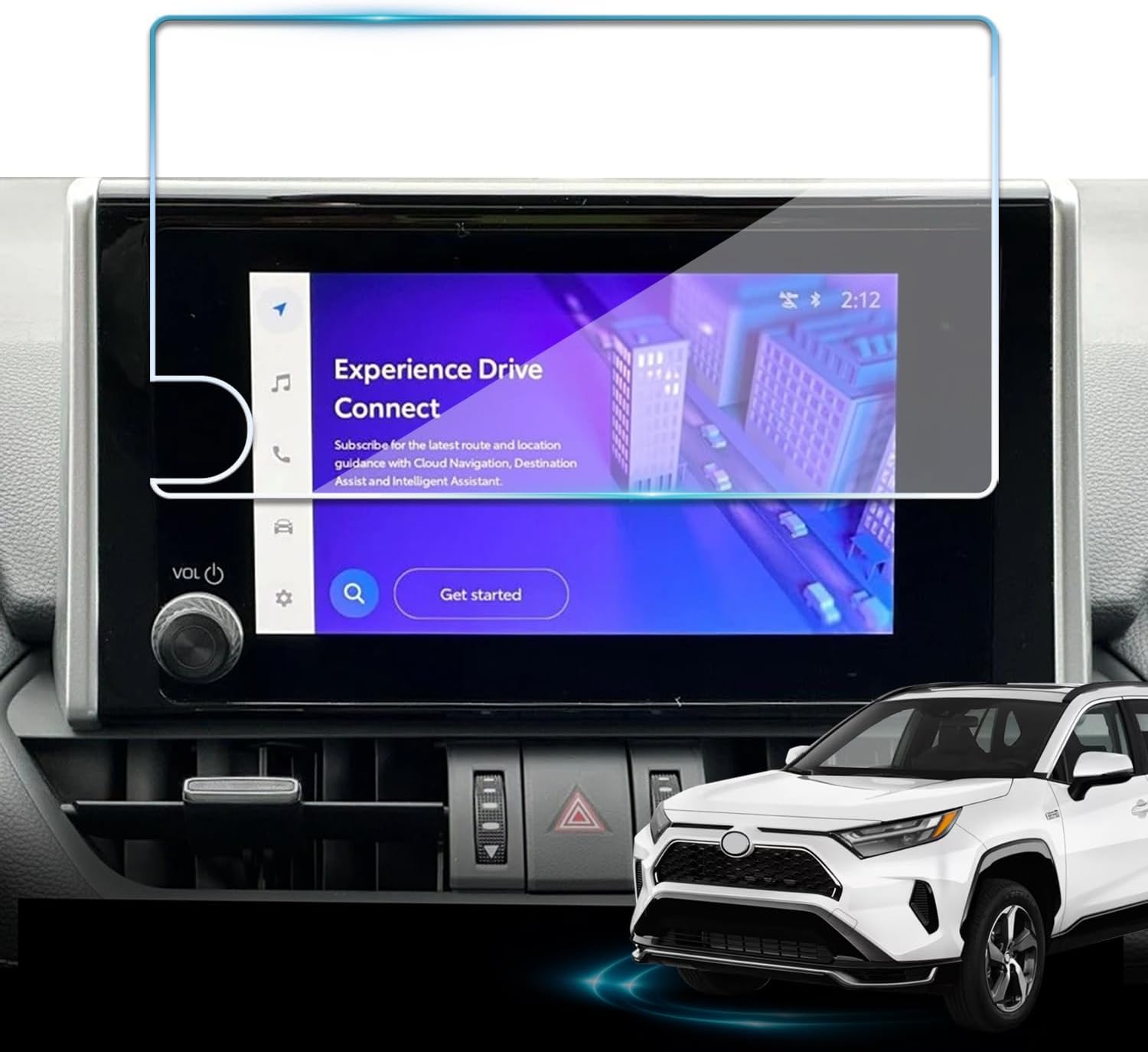
Protect your Toyota RAV4 infotainment display with this tempered glass screen protector designed for 2023-2025 LE, XLE, Adventure, XLE Premium, SE, and Woodland Edition models. It helps guard against scratches and fingerprints while preserving touch sensitivity and delivering a clear, low-glare viewing experience. Installation is quick and convenient with the included tools and guidance.

This dash clock spring replacement is designed for a wide range of Toyota vehicles and helps restore reliable steering wheel control functions. It supports audio controls, cruise control, and other multi-function commands while using vehicle-specific connectors for easier installation. Built with durable materials and OEM-referenced part compatibility, it is a practical solution for repairing steering wheel signal issues.

This Yangday steering wheel cover is designed for a custom fit on select Toyota models, helping improve grip, comfort, and control during everyday driving. Its breathable leather construction and non-slip inner lining offer a secure feel, while the sport-inspired design adds a stylish upgrade to the car interior. The cover is easy to install and helps protect the original steering wheel from heat, wear, and seasonal discomfort.
Troubleshooting Common Infotainment Problems
Most infotainment issues come from pairing conflicts, outdated phone software, app permissions, weak data service, or too many saved devices. Try these fixes before assuming the system is faulty.
| Problem | Likely Cause | Fix |
|---|---|---|
| Phone will not pair | Bluetooth is off, phone is not discoverable, or an old pairing is stuck | Restart the phone, delete the Camry from the phone’s Bluetooth list, remove the phone from the car’s device list, then pair again |
| Music plays but calls do not work | Phone or contact permissions were denied | Open the phone’s Bluetooth settings for the Camry and allow calls, contacts, and notifications |
| Apple CarPlay or Android Auto does not launch | Projection is disabled, the phone is locked, or the service was declined during setup | Enable CarPlay or Android Auto in the vehicle device settings and confirm permissions on the phone |
| Navigation or voice search is missing | Feature depends on trim, phone projection, data, or a connected services trial/subscription | Use phone-based maps or check your Toyota account and connected service status |
| Audio sounds weak or uneven | Tone, balance, fade, or source volume is not set well | Adjust bass, treble, balance, fade, and phone media volume while parked |
[Products Worth Considering]

This JADODE combo includes engine and cabin air filters designed to help keep passenger air cleaner while supporting efficient HVAC performance. The activated carbon layer helps absorb odors, exhaust fumes, and pollution, while filtration captures dirt, dust, and pollen for OE-comparable protection. It is compatible with a wide range of Toyota, Scion, Lexus, and Pontiac applications for convenient replacement maintenance.

Upgrade your Toyota interior with this custom-fit steering wheel cover designed for a wide range of compatible models. Made from soft microfiber leather with an anti-slip lining, it enhances grip, adds comfort, and helps protect your steering wheel from everyday wear, dirt, fading, and scratches. The easy-to-install design makes it a practical way to refresh a worn steering wheel and improve your cabin’s look.

This CANBUS wiring harness is designed to connect compatible Android head units to select Toyota models with mid-trim OEM JBL systems, helping simplify installation and reduce cutting or splicing. It supports retained factory features such as steering wheel controls, factory backup camera, original USB, and JBL amplifier functions when the vehicle and radio are compatible. Built for select Toyota fitments, it offers a plug-and-play upgrade path for a smoother stereo replacement.
Tips for Personalizing Your Infotainment Settings
Personalizing your Toyota Camry’s infotainment settings can greatly enhance your driving experience. Start by customizing the shortcut bar. Add or remove tabs for navigation, music, phone, and vehicle settings based on what you use most.
Next, go into device management. Make your primary phone the preferred device, remove old phones you no longer use, and confirm whether your phone is enabled for calls, media, Apple CarPlay, or Android Auto. This prevents connection conflicts when several drivers have paired devices.
Then review display and sound settings. Adjust brightness for visibility, fine-tune audio for your preferred listening style, and set the digital gauge cluster to show the information you check most often, such as fuel economy, route guidance, or driver-assistance status.
Maximizing Your Toyota Camry’s Features for a Better Drive
To get the most from your Camry, think of the infotainment system as part of your driving routine rather than just a screen. A few minutes of setup can reduce distraction and make common tasks faster.
- Place your most-used apps and vehicle controls on the easiest-to-reach screen areas.
- Save favorite audio stations, playlists, or media sources before long drives.
- Use voice commands when they reduce tapping, but check the route before moving.
- Keep phone software and Toyota app access up to date for the best compatibility.
- Review safety settings with the owner’s manual nearby so you understand what each alert means.
- Remove devices you no longer use so the correct phone connects first.
Frequently Asked Questions
What are the key features of the Toyota Camry infotainment system?
Key features include touchscreen controls, Bluetooth calling and audio streaming, wireless Apple CarPlay and Android Auto compatibility on supported models, audio presets, voice control, vehicle settings, available connected navigation, and digital driver-display integration.
Does the Toyota Camry have wireless Apple CarPlay and Android Auto?
Current U.S. Camry models list standard wireless Apple CarPlay and Android Auto compatibility. Availability can vary by model year, region, phone, software version, and trim, so check your vehicle’s window sticker, owner’s manual, or Toyota multimedia feature listing.
Why will my phone not connect to my Camry?
Common causes include Bluetooth being turned off, old pairings, denied permissions, phone software issues, or too many saved devices. Delete the old pairing from both the car and phone, restart the phone, then pair again while parked.
Is built-in navigation standard on every Toyota Camry?
Not always. Some navigation and voice destination-search features depend on connected services, trials, subscriptions, trim, and region. If built-in navigation is not active, you can usually use compatible phone maps through Apple CarPlay or Android Auto.
Can two phones connect to the Toyota Camry at the same time?
Toyota’s latest Audio Multimedia Bluetooth guide says supported systems can store up to five devices and connect two devices at the same time. Actual behavior can vary by system version and settings.
How do I make the Camry infotainment system easier to use?
Customize the shortcut bar, save audio presets, make your main phone the preferred device, adjust display brightness, tune the sound, and set the digital gauge cluster to show the information you use most.
Conclusion
Mastering your Toyota Camry’s infotainment system is less about memorizing every menu and more about setting it up around the way you drive. Pair your phone, enable the smartphone features you use, save your favorite audio sources, adjust the digital displays, and review the safety settings before you need them on the road. Once everything is personalized, the Camry’s technology feels simpler, safer, and more useful every time you get behind the wheel.
Sources
- Toyota Bluetooth Pairing on Toyota Audio Multimedia — Bluetooth pairing steps, stored devices, and dual phone connectivity.
- Toyota Apple CarPlay and Android Auto Guide — wireless smartphone projection setup and device connection guidance.
- Toyota Newsroom: 2026 Camry Technology Details — screen sizes, digital gauge cluster availability, Head-Up Display, wireless smartphone compatibility, USB ports, and connected services.
- Toyota Safety Sense — Toyota Safety Sense feature descriptions and driver-assistance system limits.
- Toyota Camry Owner’s Manuals and Warranties — official owner’s manual access for model-specific controls, warnings, and feature details.