
Last updated: July 16, 2026
What’s in This Article
- Match the Symptom to the Likely Fix
- Why Is Apple CarPlay Not Working in Your Toyota Camry?
- Common Symptoms of Toyota Camry CarPlay Problems
- Before You Start: Confirm CarPlay Compatibility
- How to Update Your iPhone and Camry Multimedia System
- Wired vs. Wireless CarPlay: What Should You Check?
- How to Fix a Blank CarPlay Screen
- How to Restart Your iPhone and Camry Safely
- What Should You Do if CarPlay Still Does Not Work?
- When Should You Contact Apple or a Toyota Dealer?
- Official Apple CarPlay and Toyota Support Resources
- Frequently Asked Questions
- Conclusion
If your Toyota Camry Apple CarPlay is not working, park safely and identify whether you use a wired or wireless connection. Wired CarPlay commonly fails when the cable or selected USB port supplies power but does not carry data. Wireless CarPlay commonly fails when Bluetooth, Wi-Fi, Auto-Join, or the saved pairing stops working. Update your iPhone, enable Siri and CarPlay permissions, restart both systems, and reconnect the phone. If several compatible iPhones fail in the same Camry, the problem is more likely on the vehicle side.
Quick Answer
To fix Toyota Camry Apple CarPlay, first confirm that the Camry supports your wired or wireless connection type. Update your iPhone, turn on Siri, allow CarPlay in Screen Time, and make sure CarPlay is enabled for the phone on the Camry display. For wired CarPlay, use the USB port marked for smartphone projection and a direct, data-capable cable. For wireless CarPlay, turn on Bluetooth and Wi-Fi, check Auto-Join, then forget the Camry and pair it again.
Key Takeaways
- A charging connection does not prove that the cable and USB port can carry CarPlay data.
- Use the Camry USB port marked with a smartphone or CarPlay symbol for wired projection.
- Wireless CarPlay needs Bluetooth, Wi-Fi, and the CarPlay network’s Auto-Join setting.
- Test a second compatible iPhone to separate a phone-side fault from a Camry multimedia fault.
- Update eligible Toyota multimedia systems through the display, Toyota’s regional update tools, or a dealer.
Estimated troubleshooting time: 10 to 25 minutes for most connection problems.
Warning: Park safely before changing iPhone, Bluetooth, Wi-Fi, or multimedia settings. Do not troubleshoot the display while driving.
Match the Symptom to the Likely Fix
Start with the row that best matches what you see. Test CarPlay after each change and stop when the connection works.
| Symptom | Likely Area | Best First Test |
|---|---|---|
| No CarPlay icon | Compatibility or disabled projection setting | Confirm support and enable CarPlay for the phone on the Camry display. |
| iPhone charges but CarPlay does not open | Cable, adapter, or charging-only USB port | Use a direct data cable and the port marked for smartphone projection. |
| CarPlay opens to a blank screen | Temporary software, display, or connection fault | Restart both systems, then forget and reconnect the Camry. |
| Wireless CarPlay disconnects | Bluetooth, Wi-Fi, Auto-Join, or saved pairing | Check both wireless settings and create a clean pairing. |
| Only one iPhone fails | iPhone settings, software, cable, or connector | Update and restart that iPhone, then inspect its connection. |
| Several iPhones fail | Camry USB port, multimedia software, or head unit | Check Toyota updates and arrange vehicle diagnosis if needed. |
Why Is Apple CarPlay Not Working in Your Toyota Camry?
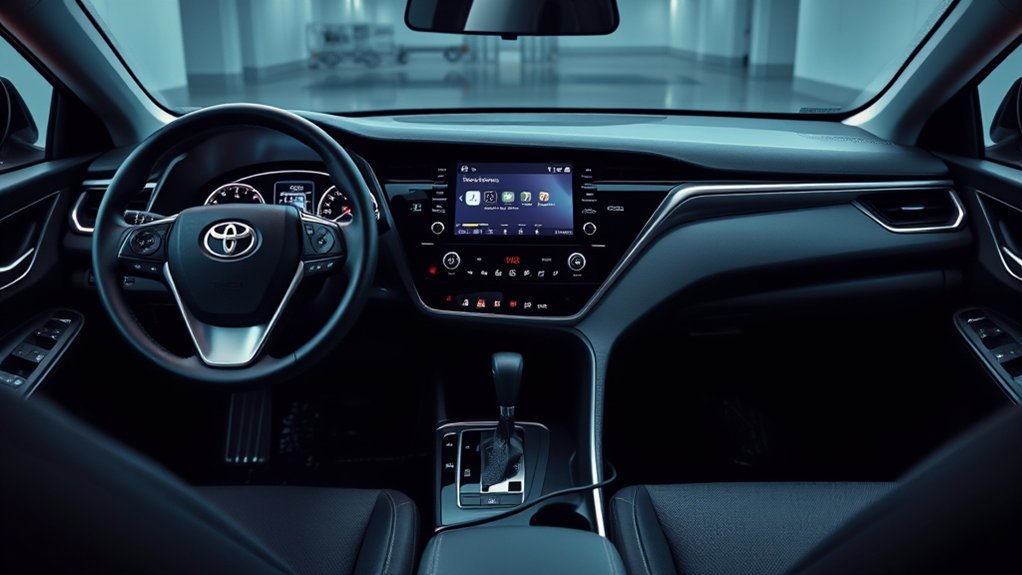
Apple CarPlay shows supported iPhone apps on your Camry’s multimedia display. It can provide maps, calls, messages, music, and Siri controls without requiring you to handle the phone for each task.
CarPlay needs a compatible iPhone, a compatible vehicle multimedia system, and a working data connection. Apple’s CarPlay troubleshooting guidance recommends confirming compatibility, installing the current iOS version, checking the wired or wireless connection, enabling Siri, reviewing Screen Time restrictions, restarting both systems, and setting up the vehicle again.
For wired CarPlay, the USB cable and selected port must carry data, not only power. For wireless CarPlay, the Camry must support that connection type, and the iPhone needs Bluetooth, Wi-Fi, and Auto-Join enabled for the CarPlay network.
Common Symptoms of Toyota Camry CarPlay Problems
CarPlay faults usually appear as a missing icon, a blank screen, a charging-only connection, missing sound, delayed wireless pairing, or repeated disconnections. The exact symptom helps you choose the right test.
- Blank screen: The Camry opens CarPlay but does not show a usable interface.
- No CarPlay icon: The multimedia system does not offer CarPlay for the connected phone.
- Apps fail to load: CarPlay opens, but maps, calls, messages, or music do not respond.
- No sound: The interface works, but audio does not play through the vehicle speakers.
- Wireless drops: CarPlay connects and then disconnects during the drive.
- Phone charges only: The USB connection supplies power without launching CarPlay.
A charging-only symptom usually points first to the cable, adapter, or selected USB port. A failure that affects several compatible iPhones points more strongly toward the Camry’s port, multimedia software, saved device records, or head unit.
Before You Start: Confirm CarPlay Compatibility
Confirm that your Camry’s model year, market, trim, and installed multimedia unit support the CarPlay connection type you want to use. A Camry may support wired CarPlay without supporting a native wireless connection.
Check the owner’s manual, multimedia manual, vehicle specification information, or Toyota dealer records. If the vehicle has an aftermarket stereo, use the stereo manufacturer’s compatibility and setup instructions instead of assuming that Toyota’s menus apply.
Start the Camry and look for the CarPlay logo or a smartphone-projection option on the display. If CarPlay does not start automatically, select the CarPlay option and confirm that the iPhone is approved for projection. Menu wording varies among Toyota multimedia generations.
Make sure Siri is enabled on the iPhone. Apple includes Siri as part of CarPlay setup and troubleshooting. Unlock the iPhone during the first connection and accept any permission prompts that appear.
Note: A multimedia software update may fix connection bugs, but it may not add wireless CarPlay to hardware that supports wired CarPlay only.
How to Update Your iPhone and Camry Multimedia System
Update your iPhone through Settings > General > Software Update. Restart the phone after the update before testing CarPlay again.
For the Camry, check the multimedia system’s update menu, Toyota’s regional software resources, or your dealer. Toyota’s multimedia update guidance says equipped vehicles can receive updates through the display. Eligible vehicles may also use a compatible USB drive, while a dealer can assist with system updates.
Toyota’s public U.S. download portal is intended for eligible vehicles manufactured for use in the continental United States, Alaska, and Hawaii. If your Camry comes from another market, use your regional Toyota owner site or contact a local dealer.
Review your iPhone’s CarPlay permission under Settings > Screen Time > Content & Privacy Restrictions. If restrictions are active, open the allowed-app settings and make sure CarPlay is enabled. Menu wording may differ slightly by iOS version.
[Products Worth Considering]

Turn your factory wired CarPlay into a wireless experience with this compact plug-and-play adapter from Enhanlife. It delivers fast auto-connection, stable performance with Bluetooth 5.3 and 5GHz Wi-Fi, and smooth access to navigation, music, calls, and Siri without cable clutter. Designed for broad vehicle compatibility and easy setup, it helps keep your dashboard clean while preserving the convenience of CarPlay.

This 2-in-1 wireless adapter converts factory-wired CarPlay into a cable-free experience for compatible vehicles, helping you enjoy seamless phone integration with less clutter. It supports automatic reconnection, stable Bluetooth and Wi-Fi pairing, and broad compatibility with many factory-installed CarPlay systems. Built with a durable metal and acrylic design, it also includes firmware updates and lifetime technical support for continued convenience.

The HEYINCAR+ H-Air adapter upgrades compatible factory wired CarPlay and Android Auto systems to wireless convenience with a compact plug-and-play design. It connects automatically after setup, delivering fast startup, stable performance, and support for your car’s original touchscreen, steering wheel controls, and voice commands. Built for broad vehicle compatibility and ongoing firmware updates, it offers a simple way to enjoy cable-free driving with minimal clutter.
Wired vs. Wireless CarPlay: What Should You Check?
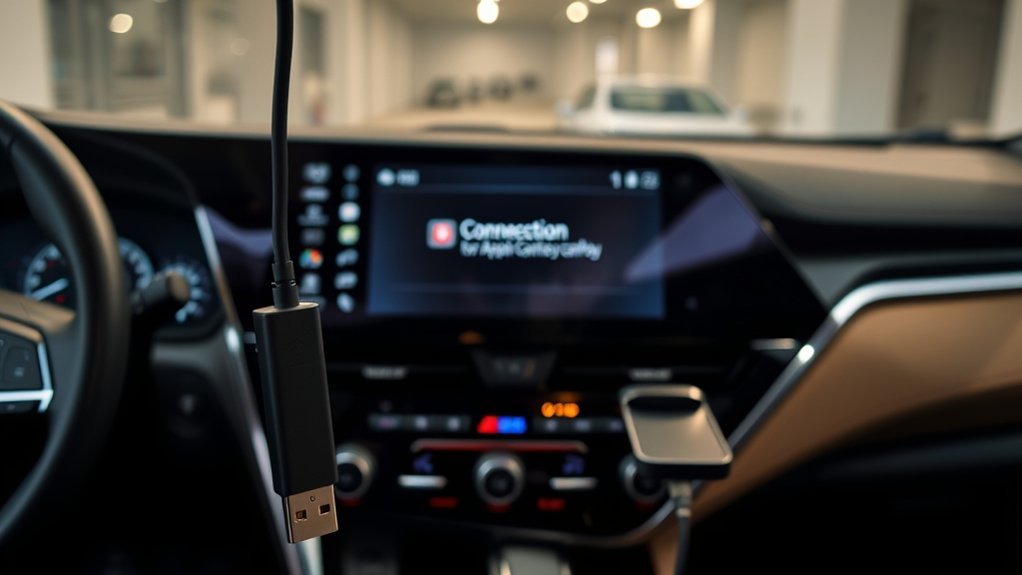
Wired and wireless CarPlay can show the same supported apps, but they fail for different reasons. Identify the connection type before changing settings.
| Feature | Wired CarPlay | Wireless CarPlay |
|---|---|---|
| Connection | Data-capable USB cable and projection port | Bluetooth and Wi-Fi |
| Charging | Charges while connected | Does not charge unless you use a separate charger |
| Common failure | Wrong port, damaged cable, adapter, or blocked data connection | Pairing, Wi-Fi, Bluetooth, or Auto-Join problem |
| Best first test | Direct known-good cable in the marked projection port | Forget the saved pairing and connect again |
| Useful control test | Try the cable with another compatible iPhone | Check whether wired CarPlay still works |
For wired CarPlay, remove USB hubs, extension cables, and unnecessary adapters during testing. Use a short, direct, data-capable cable that matches the iPhone connector and the Camry’s projection port. Apple notes that certain adapter and cable combinations can interrupt wired CarPlay.
For wireless CarPlay, turn on Bluetooth and Wi-Fi in the iPhone Settings app. Open the CarPlay Wi-Fi network and make sure Auto-Join is active. Wireless pairing will not appear on a Camry that does not support native wireless CarPlay.
[Products Worth Considering]

This ignition coil and spark plug set is designed to restore reliable starting, smooth acceleration, and consistent engine performance for a wide range of Kia and Hyundai vehicles. Built with quality materials and compatible with multiple OE reference numbers, it helps address common symptoms like shaking, sluggish response, and hard starts. It is a practical replacement solution for drivers looking to refresh worn ignition components and improve drivability.

This 3-port car charger delivers high-speed power for USB-C and USB-A devices, making it a versatile charging solution for everyday driving and travel. It supports fast charging for smartphones, tablets, and even select laptops, while built-in protections help keep your devices safe during use. A USB-C to USB-C cable is included for added convenience.

【MIni CarPlay Wireless Adapter】Easily transform wired OEM CarPlay to wireless! Supports navigation, music playing, Siri assistant, phone calls, text messaging, etc. Enjoy full Carplay App and keep original car operation. No more tangled cables, leaving your car cleaner and embracing the convenience of wireless Car Play
How to Fix a Blank CarPlay Screen
A blank CarPlay screen can result from a temporary connection fault, an incomplete launch, outdated software, a damaged data connection, or a saved pairing problem. Follow these steps in order and test the display after each one.
- Park and reopen CarPlay: Return to the Camry’s multimedia home screen, then select the CarPlay or smartphone-projection icon again.
- Update the iPhone: Open Settings > General > Software Update and install the current update available for the device.
- Check the wired data path: Use a direct, data-capable cable and the USB port marked with a smartphone or CarPlay symbol.
- Remove adapters: Temporarily remove hubs, extensions, and multi-part adapter combinations.
- Enable Siri: Confirm that Siri is active and available while the iPhone is locked.
- Allow CarPlay: Check Screen Time’s allowed-app settings and make sure CarPlay is not restricted.
- Restart both systems: Restart the iPhone and power-cycle the Camry multimedia system safely.
- Forget the Camry: Open Settings > General > CarPlay, select the Camry, tap Forget This Car, and complete setup again.
- Test another iPhone: Connect a second compatible iPhone with a known-good cable or clean wireless pairing.
If the screen remains blank with more than one compatible iPhone, check Toyota’s multimedia update options. A repeated multi-phone failure is more likely to involve the Camry’s USB data connection, multimedia software, or head unit than one phone’s settings.
Pro tip: If the iPhone charges but CarPlay never appears, test the marked projection port with a direct known-good data cable before changing deeper settings.
[Products Worth Considering]

Seamless CarPlay Connection: Supports full CarPlay functionality so you can charge your phone, navigate, take calls, and stream music without lag.

Main Specifications: USB 2.0 fast data transmission and device charge power, 12V-30V input, 1.2 A 5V output, 9.84 inches / 25 cm car extension cable; USB socket extender replacement fits the hole of (1.34 " x 0.91 " ) 34 x 23 mm
How to Restart Your iPhone and Camry Safely
A restart clears temporary connection states without deleting your saved content or performing a factory reset. Restart both systems before erasing network settings or resetting the Camry multimedia system.
- Restart the iPhone: Use the normal restart procedure for your iPhone model, wait until it turns off, and then power it on again.
- Restart the Camry: Park, turn off the vehicle, and wait until the multimedia display has fully shut down. Restart the Camry and allow the display to load before reconnecting the phone.
Some Toyota multimedia units have a model-specific button reboot procedure. Because the required controls can vary, check the multimedia owner’s manual before holding buttons or attempting a forced reset.
| Device | Safe Restart | Avoid at First |
|---|---|---|
| iPhone | Power off normally, then turn it on again. | Do not erase all content or reset every setting. |
| Toyota Camry | Power off and wait for the display to shut down before restarting. | Do not perform a factory reset before basic connection tests. |
What Should You Do if CarPlay Still Does Not Work?
If restarting does not restore CarPlay, isolate the fault instead of repeating the same reset. Check the physical connection, remove old pairings, compare wired and wireless behavior, and test another compatible iPhone.
Check the Physical and Wireless Connections
- Use the projection port: Connect through the USB port marked with a smartphone or CarPlay symbol.
- Use a direct data cable: Replace loose, damaged, charge-only, extended, or multi-adapter cable arrangements.
- Inspect the connectors: Look for obvious damage or compacted debris. Do not insert a metal object into the iPhone or vehicle port.
- Check iPhone restrictions: Confirm that Screen Time has not blocked CarPlay.
- Check wireless settings: Turn on Bluetooth and Wi-Fi, then confirm Auto-Join for the CarPlay network.
- Remove saved pairings: Delete the Camry from the iPhone and delete the iPhone from the Camry before pairing again.
- Approve projection: Accept the CarPlay prompts on both the iPhone and Camry display.
Use a Second iPhone to Isolate the Problem
A second compatible iPhone gives you a useful control test. Use the same Camry, projection port, and known-good cable when testing wired CarPlay.
- Only the original iPhone fails: Focus on its iOS version, Siri, Screen Time permissions, connector, saved CarPlay record, or phone-specific support.
- Both iPhones fail with one cable: Replace the cable before assuming the Camry has failed.
- Both iPhones fail with multiple known-good cables: Check the projection port and Camry multimedia system.
- Wired CarPlay works but wireless fails: Focus on wireless compatibility, Bluetooth, Wi-Fi, Auto-Join, and saved pairings.
- Wireless works but wired fails: Focus on the cable, adapters, USB port, and physical connectors.
Update the Software Versions
Check the iPhone under Settings > General > Software Update. Then check the Camry display, Toyota’s regional multimedia software portal, or a dealer for applicable vehicle updates.
Toyota says vehicles equipped with its latest Audio Multimedia System may receive over-the-air updates through the display. Other eligible U.S. vehicles may use a compatible USB drive. Dealers can assist when an update cannot be completed at home.
After updating either system, restart the iPhone and Camry. Test the CarPlay home screen, maps, calls, audio, and Siri before moving to another reset.
| Test | What It Checks | What the Result Suggests |
|---|---|---|
| Update and restart one iPhone | iOS and temporary phone faults | A successful fix points to the phone side. |
| Try another compatible iPhone | Phone-specific versus vehicle-wide failure | A multi-phone failure points more strongly to the Camry side. |
| Try a known-good direct cable | USB data path | A successful fix identifies the original cable or adapter. |
| Compare wired and wireless CarPlay | Connection-type-specific fault | The working method narrows the failed connection path. |
When Should You Contact Apple or a Toyota Dealer?
Contact Apple Support when CarPlay fails with one iPhone but works with another compatible iPhone in the same Camry. This pattern points more strongly toward the original phone, its connector, its software, or its saved settings.
Contact a Toyota dealer when the failure affects several compatible iPhones after you have tested a known-good data cable, the marked projection port, clean pairing records, current iOS, and available multimedia updates.
Arrange vehicle-side diagnosis if you notice these signs:
- The Camry does not detect any compatible iPhone through a known-good projection cable.
- The multimedia system freezes, restarts, or produces a blank screen outside CarPlay too.
- Wireless CarPlay repeatedly fails with more than one compatible iPhone.
- The projection USB port supplies power but never passes data with multiple known-good cables.
- Toyota’s update process reports an error that you cannot complete safely.
Your dealer can run diagnostics, inspect the multimedia system, and check applicable vehicle information. If only one iPhone fails, contact Apple Support before scheduling vehicle service.
Official Apple CarPlay and Toyota Support Resources
Use official support sources before relying on model-year advice from forums or videos. Apple provides the current connection, Siri, Screen Time, restart, and Forget This Car steps. Toyota provides multimedia update options and dealer support.
Your owner’s manual remains important because USB-port layout, multimedia menus, supported connection types, and reboot procedures can differ by model year, market, trim, and installed head unit.
Community posts can reveal patterns, but an owner’s solution may not apply to your Camry. Confirm any procedure against the manual or official support information before changing system settings.
Note: Toyota software tools, CarPlay compatibility, USB-port functions, and update availability can vary by country, model year, and multimedia equipment.
Frequently Asked Questions
How do you reset CarPlay in a Toyota Camry?
Restart the iPhone and Camry, then reconnect with a known-good data cable or create a new wireless pairing. For a deeper connection reset, open Settings > General > CarPlay on the iPhone, select the Camry, tap Forget This Car, remove the iPhone from the Camry’s saved devices, and complete setup again.
Why does my Camry charge my iPhone but not connect to CarPlay?
The cable or selected USB port may supply power without carrying CarPlay data. Use a direct, data-capable cable and the USB port marked with a smartphone or CarPlay symbol. Remove hubs, extensions, and unnecessary adapters while testing.
Why is the CarPlay icon missing from my Camry?
The Camry may not support that CarPlay connection type, CarPlay may be disabled for the phone, or the iPhone may be connected to a charging-only port. Confirm compatibility, select the CarPlay or projection option on the display, enable Siri, and approve the connection prompts.
Why does wireless CarPlay keep disconnecting in a Toyota Camry?
Repeated wireless disconnections often involve Bluetooth, Wi-Fi, Auto-Join, outdated software, or a damaged saved pairing. Turn on Bluetooth and Wi-Fi, check Auto-Join for the CarPlay network, restart both systems, forget the Camry, and pair the phone again.
Can you update Apple CarPlay separately?
CarPlay updates normally arrive as part of iOS rather than as a separate iPhone app update. The Camry multimedia system has its own software, so check Toyota’s update options or ask a dealer to confirm whether an update applies to your vehicle.
Does every Toyota Camry support wireless CarPlay?
No. Wireless CarPlay depends on the Camry’s model year, market, trim, and multimedia hardware. Check the owner’s manual, vehicle specifications, regional Toyota owner resources, or a dealer before treating a missing wireless option as a malfunction.
Conclusion
Most Toyota Camry Apple CarPlay problems can be narrowed down by checking the connection type, projection port, data cable, iPhone permissions, wireless settings, saved pairings, and software. Test a second compatible iPhone before assuming the multimedia system has failed. If several phones fail after these checks, contact Toyota for vehicle-side diagnosis. If only one phone fails, continue with Apple Support.
References
- If you need help with CarPlay — Apple Support, published March 13, 2025; accessed July 16, 2026
- Use CarPlay with your iPhone — Apple Support, published March 6, 2025; accessed July 16, 2026
- Toyota Audio Multimedia System Updates — Toyota Motor Sales, U.S.A.; accessed July 16, 2026
- Toyota Audio Multimedia System Updates: Over-the-Air, USB, and Dealer Updates — Toyota Owners; accessed July 16, 2026
- How do I set up Apple CarPlay? — Toyota Support; accessed July 16, 2026

[…] more feature-specific checks, see the guides for Toyota Camry Apple CarPlay problems and Toyota Camry Android Auto problems. If the multimedia screen is frozen or ignores input, follow […]
[…] flashing the Camry, test whether the problem follows one phone, one cable, or one app. Use the Camry Apple CarPlay troubleshooting guide, the Camry Bluetooth troubleshooting guide, or the Camry USB port troubleshooting guide when the […]