
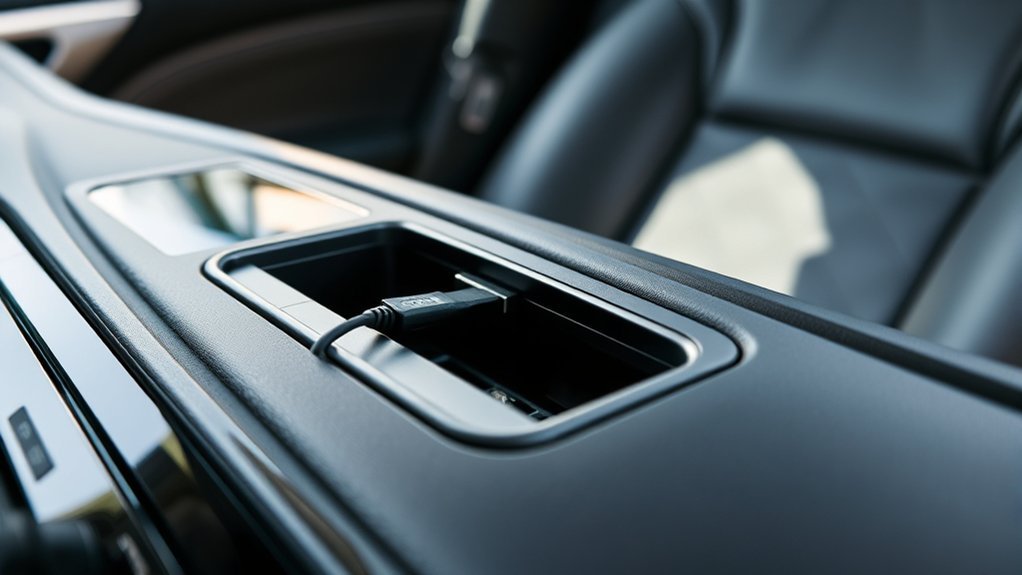
Last updated: July 31, 2026
Affiliate disclosure: This informational guide may display product links. AutoReviewNest may earn from qualifying purchases at no extra cost to you.
What’s in This Article
- Common Toyota Camry USB Port Symptoms and Causes
- Before You Start: Separate Charging Problems From Data Problems
- Step-by-Step Troubleshooting for Non-Functional USB Ports
- Quick Fixes for Common USB Issues
- How to Check Your Car’s Fuse Box for USB Issues
- How to Clean and Maintain USB Ports for Better Performance
- When to Call a Mechanic for USB Issues
- Owner-Reported Patterns With Camry USB Issues
- Preventive Measures to Avoid Future USB Connectivity Issues
- Frequently Asked Questions
If your Toyota Camry USB port is not working, first identify whether the port is a media/data port or a charging-only port. Then test a known-good data cable and a second phone, restart the phone and multimedia system, inspect the port for debris, and check the model-year-specific fuse only if the port has no power. Port layouts and Apple CarPlay or Android Auto support vary by Camry model year, trim, market, and multimedia system.
For example, Toyota lists one front USB-A media port and four charging ports on the 2025 and 2026 U.S.-market Camry, while those models also support wireless Apple CarPlay and Android Auto. Earlier Camry layouts differ, so use the owner’s manual for your exact vehicle before choosing a port or fuse. Toyota’s 2026 Camry specifications confirm the newer five-port layout.
Quick Answer
Park the Camry, turn the multimedia system on, and test the correct media/data port with a short, known-good data cable. If the phone charges but CarPlay, Android Auto, or media does not start, check compatibility, phone permissions, saved pairings, and multimedia settings before checking a fuse. If the port has no power with two cables and two devices, use the owner’s manual to identify the exact fuse. Stop and seek professional help if a replacement fuse blows again or the port becomes hot, loose, discolored, or smells burned.
Key Takeaways
- Confirm the port’s job first: some Camry USB ports charge only, while the media port handles data.
- Use a short, data-capable cable and test a second cable and device before blaming the vehicle.
- If charging works but projection fails, troubleshoot compatibility, permissions, pairings, and multimedia settings.
- Check a fuse only when the port has no power, and replace it only with the same type and amperage.
- Stop DIY work if a fuse blows again or the port shows heat, odor, discoloration, looseness, or physical damage.
Common Toyota Camry USB Port Symptoms and Causes
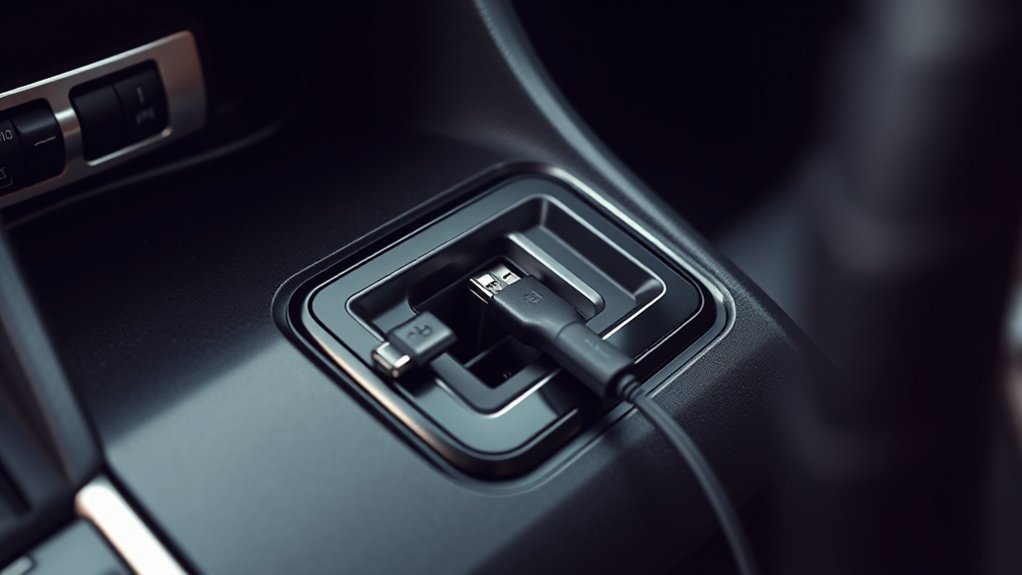
A Camry USB fault usually appears in one of four ways: the device does not charge, charging is slow or intermittent, the multimedia screen does not recognize the device, or Apple CarPlay or Android Auto disconnects. These symptoms do not all point to the same part.
| Symptom | Most useful first checks | Likely fault area |
|---|---|---|
| No charging on one port | Second cable, second device, inspect that port | Cable, debris, loose port, or individual port circuit |
| No charging on every USB port | Confirm ACC/ON mode, then check the owner’s manual fuse diagram | Power supply, fuse, wiring, or multimedia power issue |
| Phone charges but projection does not start | Use the media port and a data cable; check compatibility and permissions | Charge-only port or cable, settings, pairing, or software |
| Connection drops when the cable moves | Inspect both connector ends and test a short replacement cable | Worn cable, packed lint, bent contact, or loose port |
| Wireless projection fails but USB charging works | Restart, delete the saved pairing, and pair again | Bluetooth/Wi-Fi pairing, phone settings, or multimedia software |
Start with the row that matches your symptom. Toyota and phone-maker guidance consistently places compatibility, the correct USB media port, cable quality, direct connection, and phone settings ahead of hardware replacement.
Before You Start: Separate Charging Problems From Data Problems
A USB connector can supply power without carrying data. A charging icon therefore does not prove that the cable, port, phone, and Camry multimedia system can exchange data.
Park safely before changing phone or multimedia settings. Put the vehicle in ACC/ON mode or start it, then connect one known-good data cable directly to the USB media port. Check two results separately: does the phone charge, and does the Camry screen detect it?
Estimated troubleshooting time: Cable, device, setting, restart, and cleaning checks usually take about 10 to 20 minutes. Fuse identification can take longer because names and locations vary by model year.
- Use a short data-capable cable with no hub, splitter, or extension.
- Test a second cable and, when available, a second compatible phone.
- Confirm whether your exact Camry supports wired, wireless, or no phone projection.
- Keep a small light and soft brush ready for a visual port inspection.
- Use the owner’s manual or Toyota owner portal for the exact fuse diagram.
Note: A cable that charges may still be charge-only or unstable for data. A working USB port also does not prove that the Camry’s multimedia unit supports Apple CarPlay or Android Auto.
Toyota Camry USB Port Not Working: Step-by-Step Checks
Use the checks below in order. Each step separates a phone or cable problem from a port, power, or multimedia fault, so you do not replace parts too soon.
1. Confirm Power, Port Type, and Compatibility
Put the Camry in Park and turn the vehicle or accessory mode on. Identify the USB media/data port from the port symbol or owner’s manual. Do not assume every USB-A or USB-C connector carries data.
Confirm that your exact Camry, phone, and connection method are compatible. Newer Camry models may support wireless projection, while older model years and market versions vary. A USB port by itself does not prove CarPlay or Android Auto support.
2. Test the Cable and Device
Plug the phone directly into the media port with a short data cable. Do not use a hub, splitter, extension, or wireless adapter during diagnosis. Test the same port with a second known-good cable, then test another compatible phone when possible.
If one cable works and another does not, replace the cable. Google recommends a high-quality cable and says a new cable can solve many Android Auto connection problems. Apple directs wired CarPlay users to the vehicle’s CarPlay-capable USB port and an Apple USB cable.
3. Restart and Reconnect the Phone
Restart the phone and the Camry multimedia system. If projection worked before but now fails, delete or forget the Camry connection on the phone and remove the phone from the vehicle’s saved devices. Pair it again while parked and approve every requested permission.
For more feature-specific checks, see the guides for Toyota Camry Apple CarPlay problems and Toyota Camry Android Auto problems. If the multimedia screen is frozen or ignores input, follow the verified Camry touchscreen restart checks before touching a fuse.
4. Inspect and Clean the USB Port
Turn the vehicle off, then shine a light into the USB port. Look for lint, dirt, moisture, corrosion, a bent contact, or a connector that sits crooked.
Remove loose debris with a soft, dry brush or a hand air blower. A brief burst of electronics-safe compressed air can help, but keep the can upright and do not push debris deeper into the connector. Use a non-metal pick only with very light pressure. Do not add liquid cleaner or insert a metal tool.
Test again with the known-good cable. If the plug does not seat firmly, the port moves in the trim, or the connection changes when the plug is touched, stop forcing it and arrange a hardware inspection.
5. Check the Exact Fuse Only if the Port Has No Power
Move to the fuse box only after two cables and two devices fail to receive power. Locate the fuse box and circuit name in the owner’s manual for your exact model year, trim, and market. Do not guess from another Camry year because fuse labels and layouts can change.
Turn the vehicle off before removing a fuse. Use the supplied fuse puller if the manual permits removal, then inspect the element for a break or burn mark. Replace a blown fuse only with the same fuse type and amperage shown in the manual or on the fuse-box label.
Warning: Never use a higher-amp fuse or a wire in place of a fuse because it can damage the electrical system.
Quick Fixes for Common USB Issues
Use these fixes when the phone receives power but the Camry does not recognize it, projection will not start, or the connection drops. In that situation, a fuse is less likely than a charge-only port or cable, a compatibility problem, a saved pairing fault, or a multimedia setting.
[Products Worth Considering]
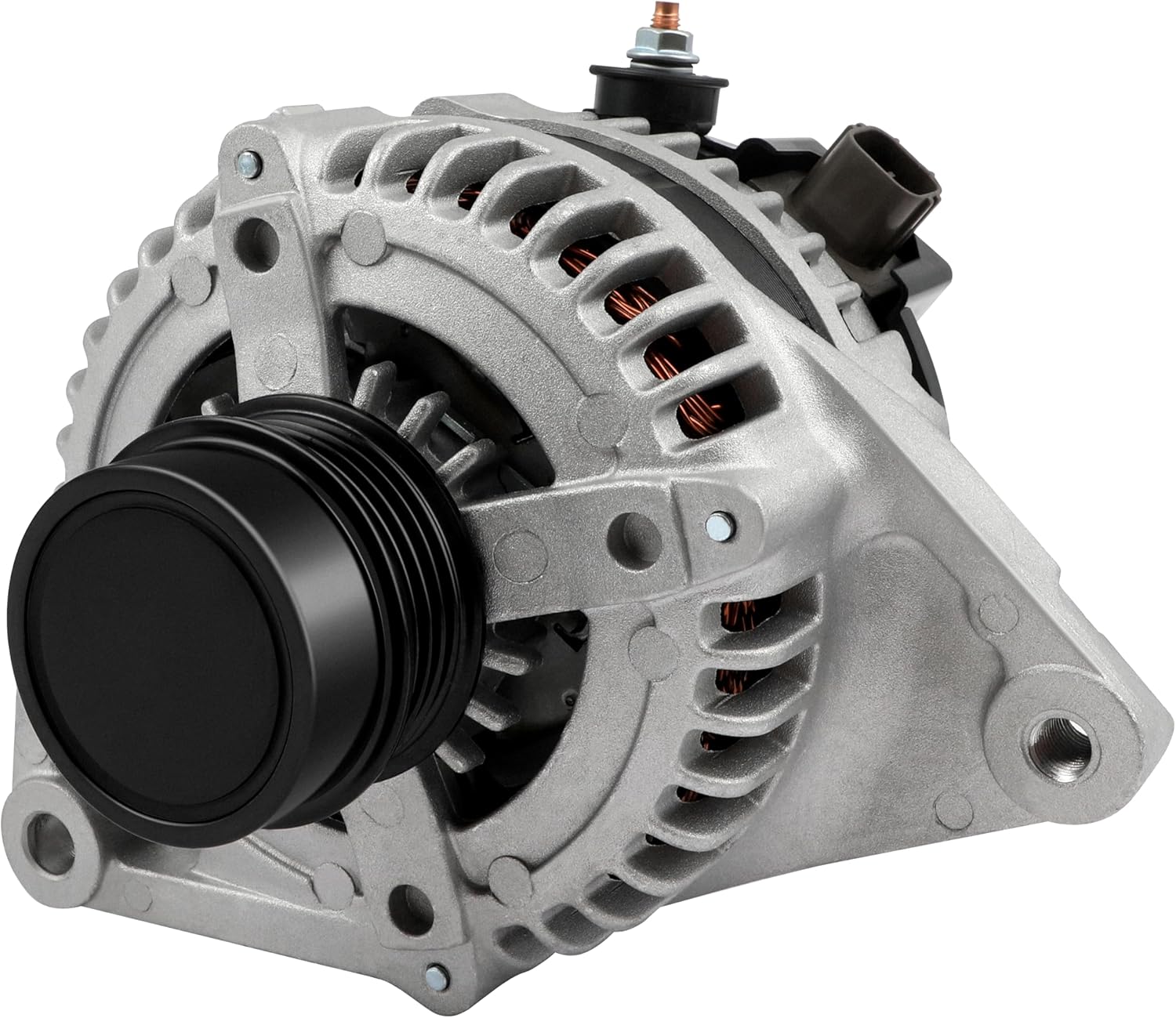
This high output alternator is designed to fit select Toyota, Scion, and RAV4 2.5L applications, delivering reliable charging performance for everyday driving. Built with a 12-volt, 100-amp design and precision-engineered components, it helps support battery recharge, stable electrical output, and consistent operation when your vehicle shows signs of charging issues.

This USB panel mount car charger provides a clean flush-fit extension solution for compatible Toyota dashboards, delivering both charging and data transfer through a male to female USB connection. Designed for plug-and-play installation, it supports a wide range of Toyota models and helps replace broken or outdated USB ports while protecting devices from overcurrent, overheating, and overcharging. Its durable PVC and copper construction supports reliable use for phones, tablets, GPS units, and CarPlay or Android Auto accessories.

This metal replacement center console latch is designed to restore secure closing performance for a wide range of Toyota and Scion vehicles. Built as an upgraded metal part, it helps solve broken latch issues and provides a more durable alternative to the original component. It is compatible with many popular models and includes the needed screws and screwdriver for installation.
Check Cable Compatibility
Google says not all USB cables work with every vehicle and recommends trying a new cable when Android Auto stops connecting. Its cable guidance favors a cable under 6 feet with no extension. Apple tells wired CarPlay users to use the vehicle’s CarPlay-capable USB port and an Apple USB cable.
Use the original phone cable or a reputable data-capable replacement when practical. Connect it directly to the Camry media port. If projection worked before and suddenly stopped, a cable swap is a faster and safer test than removing trim or replacing the port.
Use this quick reference table to guide you:
| USB Cable Type | Description | Compatibility |
|---|---|---|
| OEM Cables | Made or supplied by the phone brand | Best first test option |
| Certified Data Cables | Built for charging and data transfer | Good for phone projection |
| Short USB Cables | Under 6 feet for Android Auto testing | More stable for wired connections |
| Frayed Cables | Show bends, cuts, or loose ends | Often unreliable |
| Charging-Only Cables | Carry power but not data | Not suitable for CarPlay or Android Auto |
Inspect your cables for bent tips, fraying, and loose ends. Replace damaged cables before you replace the USB port.
Inspect for Debris
Dust and debris can keep the plug from seating fully, which may cause weak charging or connection drops. Power the vehicle off, inspect the opening with a light, and remove loose debris with a soft dry brush or hand air blower.
Do not scrape the port with metal tools or apply liquid cleaner. After cleaning, reconnect the known-good cable and test charging and data separately.
How to Check Your Car’s Fuse Box for USB Issues
Check a fuse when the affected port has no power with multiple known-good devices and cables. Use the owner’s manual to locate the exact circuit. Depending on model year, the relevant label may refer to USB, accessory power, radio, audio, multimedia, or another shared circuit, so do not rely on a generic online diagram.
- Park, switch the vehicle off, and remove the key or move the smart key away.
- Find the correct fuse box and circuit in the model-year-specific manual.
- Remove only the identified fuse with the proper puller.
- Replace a blown fuse with the same fuse type and amperage.
- Turn the vehicle on and test the USB port once.
If the replacement fuse blows again, stop. Repeated fuse failure suggests an electrical fault that needs circuit diagnosis rather than another fuse.
[Products Worth Considering]

The HI-TECH Vortex II Air Cleaning Gun delivers powerful deep-cleaning action for automotive interiors, exteriors, and hard-to-reach areas. Driven by compressed air, it uses a pulsating vortex motion to lift dust, dirt, grease, and grime from carpets, upholstery, dashboards, and engine bays, while its wet and dry cleaning modes help speed up detailing workflows. Built for demanding use, it is a versatile tool for professional shops and home garage cleaning projects.

This auxiliary jack adapter restores a broken or missing AUX connection so you can stream audio from your device through your Toyota stereo system. It is designed for compatible Toyota models and uses an 8-pin connector for a direct plug-and-play replacement. Built for reliable audio transmission, it helps bring back clear in-car sound without complicated installation.

This front bumper license plate bracket is designed for Toyota Camry and Camry Hybrid models from 2018 to 2026, offering a secure and street-legal way to mount your plate. Built from durable, rust-proof plastic with included screw bolts and a wrench, it helps protect your bumper paint while making installation straightforward. The bracket fits US and Canada plates and is made to keep your license plate and registration sticker visible.
How to Clean and Maintain USB Ports for Better Performance
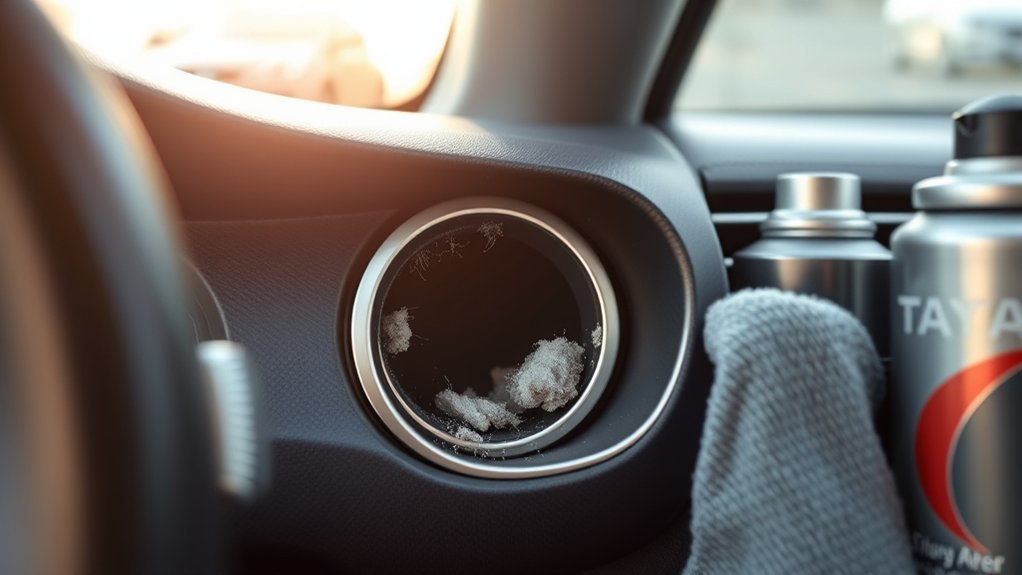
Keep the USB opening covered by the console lid when your Camry has one. Check for lint, crumbs, moisture, and corrosion before inserting a cable.
Use a soft dry brush or hand air blower for routine cleaning. If you use electronics-safe compressed air, hold the can upright and use only a brief burst. Never spray cleaner into the connector.
Insert and remove the plug straight, pull from the connector rather than the cord, and avoid leaving a cable under sideways tension. Replace a frayed, sharply bent, or loose cable before it damages the connection.
[Products Worth Considering]

This steering clock spring is designed to restore reliable steering wheel controls across a wide range of Toyota models. It supports audio, cruise control, and other multifunction commands while matching OEM part numbers for confident replacement fitment. Built for dependable signal transfer and straightforward installation, it is an effective solution for repairing steering column control issues.

This car fuse assortment kit provides a handy mix of micro, mini, and standard blade fuses to help replace blown fuses across a wide range of vehicles and equipment. With multiple current ratings, color-coded identification, and an included puller, it is designed to make emergency repairs and routine maintenance faster and easier. It is a practical backup solution for cars, RVs, trucks, boats, motorcycles, and more.

This door handle cover protector is designed to fit select Toyota models, helping guard exterior handles against scratches, dings, and daily wear. Made from durable ABS material, it offers a sleek glossy black look that blends with the vehicle’s original styling while maintaining smart key functionality. Installation is quick and simple, making it an easy upgrade for added protection and a cleaner appearance.
When to Call a Mechanic for USB Issues
Call a mechanic or Toyota dealer if the port remains dead after cable, device, compatibility, restart, cleaning, and model-specific fuse checks. Hardware inspection is also appropriate when the connector moves in the trim, a plug will not stay seated, or only one of several ports remains dead.
Stop using the port immediately if you notice heat, a burning odor, buzzing, melted or discolored plastic, moisture, or repeated fuse failure. These signs call for electrical diagnosis, not continued cable swapping.
Before the appointment, record the Camry model year and trim, phone model, cable tested, exact USB port used, whether charging worked, whether the screen detected the phone, the fuse checked, and any displayed error. That symptom record helps separate a port fault from a multimedia or phone-projection problem.
Owner-Reported Patterns With Camry USB Issues
Owner reports are most useful when they describe a repeatable pattern, not when they name a cause. A phone that charges but never appears on the screen points toward the wrong port, a charge-only or damaged cable, compatibility, permissions, or saved pairing data. A connection that fails whenever the plug moves points more strongly toward cable or connector wear.
Treat these patterns as clues, not proof. Model year, trim, market, phone, operating system, cable, and multimedia software can change the result. Repeat the same controlled test with one known-good cable and a second device before drawing a conclusion.
If the Camry has several USB ports, compare them by function rather than shape. Toyota lists one front USB-A media port plus separate charging ports on the 2025 and 2026 U.S. Camry. Other years may use a different layout, so the owner’s manual remains the deciding source.
Preventive Measures to Avoid Future USB Connectivity Issues
Small habits can reduce future USB connection problems in your Toyota Camry. Keep ports clean, use a proper data cable, and avoid pulling cables at sharp angles. These habits protect both the cable and the port.
| Action | Benefit |
|---|---|
| Clean USB ports gently | Reduces dust-related connection problems |
| Use quality data cables | Improves CarPlay and Android Auto stability |
| Avoid USB hubs | Keeps testing and daily use more reliable |
| Check phone permissions | Helps phone projection launch correctly |
| Replace damaged cables | Prevents weak charging and dropouts |
Check the multimedia update menu or Toyota owner resources if phone projection problems continue. Update methods vary by vehicle and system; some use an on-screen update, some use a USB file, and others need dealer support. The Camry infotainment software update guide explains how to match the method to the vehicle before installing anything.
Frequently Asked Questions
How do you fix a Toyota Camry USB port that suddenly stopped working?
Park the car and test the correct media/data port with a short known-good data cable and a second compatible device. Restart the phone and multimedia system, inspect the port, and check the exact fuse only if the port has no power. Seek professional help if the fuse blows again or the port is loose, hot, discolored, or damaged.
Why does my Camry USB port charge but not connect to CarPlay or Android Auto?
The cable or USB port may supply power without carrying data. Use the Camry’s media/data port and a short data-capable cable, then confirm vehicle and phone compatibility, enable the required permissions, restart both systems, and delete and recreate the saved pairing if the feature previously worked.
Can a blown fuse stop a Toyota Camry USB port from working?
Yes. A blown fuse can remove power from a USB or shared accessory circuit. Use the fuse diagram for the exact Camry model year, trim, and market, and replace the fuse only with the same type and amperage. If it blows again, stop and have the circuit inspected.
Is it safe to clean a car USB port with a toothpick?
A non-metal pick can be used with very light pressure only when visible lint remains after a soft brush or hand air blower. Do not scrape contacts, use a metal tool, add liquid cleaner, or force the pick. Stop if the port is bent, corroded, wet, or loose.
How much does it cost to fix a car USB port?
There is no reliable single price because the repair may be only a cable or fuse, or it may involve a USB module, connector, wiring, trim assembly, or multimedia unit. Ask for a diagnosis tied to the exact model year and failed part before approving replacement.
Which Camry USB port works with CarPlay or Android Auto?
Use the port identified as the USB media or smartphone port in the owner’s manual. Charging-only ports cannot carry projection data. On the 2025 and 2026 U.S.-market Camry, Toyota lists one front USB-A media port and separate USB charging ports, but other years and markets can differ.
Does a 2025 or 2026 Camry need a USB cable for CarPlay or Android Auto?
Toyota lists wireless Apple CarPlay and Android Auto compatibility for the 2025 and 2026 U.S.-market Camry. A cable is still useful for testing the USB media port or using a supported wired connection, but wireless pairing problems should also be checked through Bluetooth, Wi-Fi, permissions, and saved device settings.
Conclusion
When a Toyota Camry USB port stops working, identify the symptom before replacing anything. No charging points toward power, cable, port, or fuse checks. Charging without data points toward the wrong port, a charge-only or damaged cable, compatibility, permissions, pairing, or multimedia software.
Start with the correct port, two cables, and a second device. Then restart and reconnect, inspect the port, and check the exact model-year fuse only when power is absent. Stop DIY troubleshooting if the fuse blows again or the connector is hot, loose, discolored, wet, or physically damaged.
References
- 2026 Toyota Camry technology and USB-port specifications — Toyota USA Newsroom, 2025
- 2025 Toyota Camry technology and USB-port specifications — Toyota USA Newsroom, 2023
- Camry Apple CarPlay and Android Auto setup guidance — Toyota Owners, accessed 2026
- 2025 Camry manuals and warranties — Toyota Owners, accessed 2026
- Set up Android Auto — Google Android Auto Help, accessed 2026
- My Android Auto app isn’t working — Google Android Auto Help, accessed 2026
- Tips for choosing a compatible USB cable for Android Auto — Google Android Auto Community, last edited 2020
- Connect iPhone to CarPlay — Apple Support, accessed 2026
- Toyota owner’s manual: checking and replacing fuses — Toyota, accessed 2026


[…] cable failure, or corrupted pairing record. Check that your iOS is current, confirm the cable and USB port work, verify CarPlay has permission, and reset the Bluetooth […]
[…] 2025 Toyota Camry seats five people and gives you a roomy midsize sedan cabin. You get 42.1 inches of front legroom, […]
[…] detect the drive: Confirm that you are using the vehicle’s data-capable media port. See the Toyota Camry USB port troubleshooting guide if other USB devices also […]