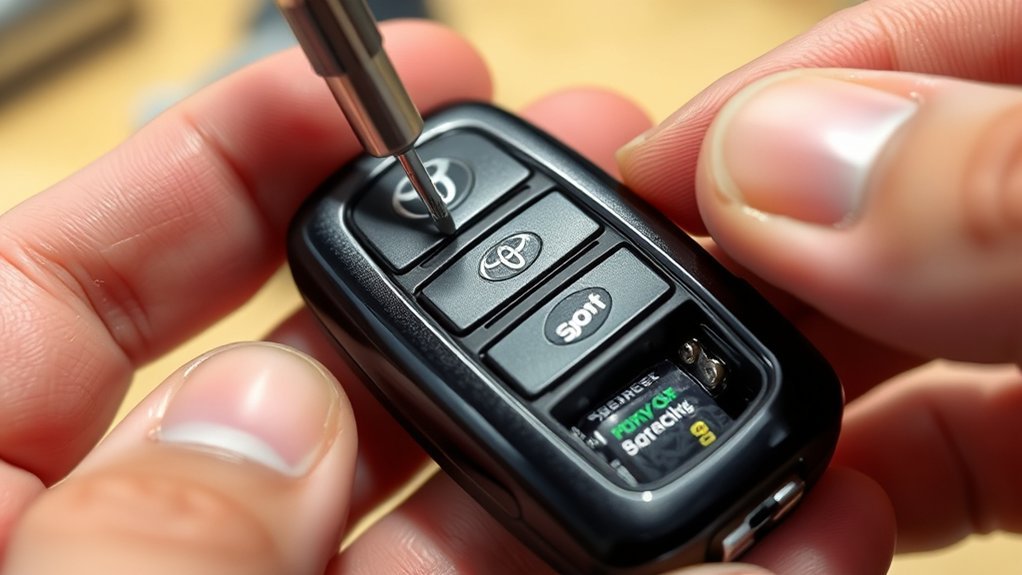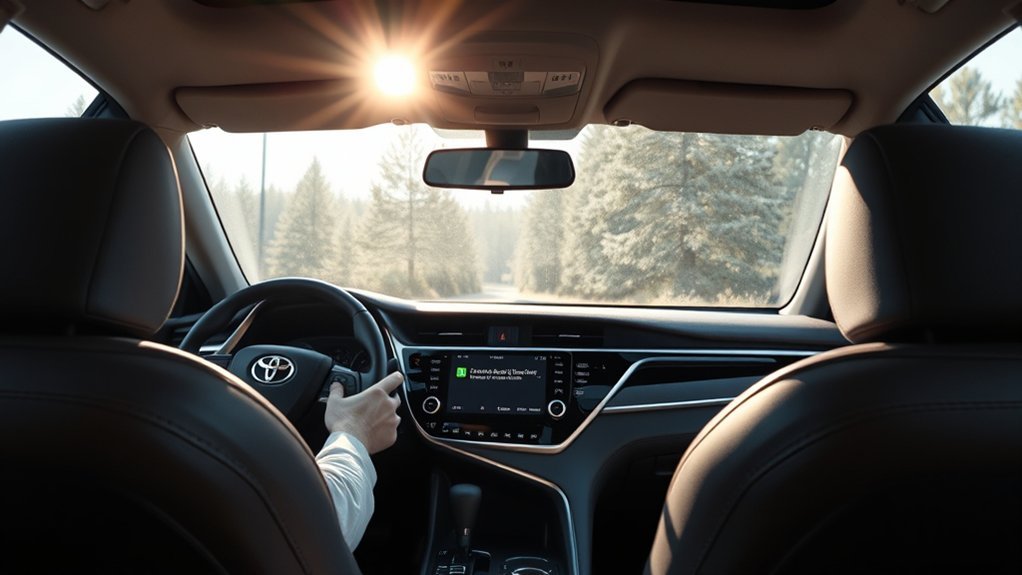
Your Toyota Camry’s Android Auto can fail for a simple reason, like a weak USB cable, or a deeper issue, like a blocked permission or software glitch. Start with the easy checks first: use a quality data-capable USB cord, update your phone and Android Auto, clear the app cache, and restart both your phone and the car’s infotainment system. If those steps don’t work, remove old Bluetooth pairings, check Android Auto permissions, and try a fresh connection.
What’s in This Article
- Common Reasons Your Toyota Camry’s Android Auto Isn’t Connecting
- Symptoms That Point to an Android Auto Connection Problem
- Check Your USB Cord for Compatibility
- How to Clear the App Cache
- How to Update Your Phone’s Software and Apps
- Essential Permissions for Android Auto Functionality
- Troubleshooting Bluetooth Connections in Your Camry
- Frequent Android Auto Issues and Their Solutions
- The Impact of Phone Settings on Android Auto Performance
- Still Can’t Connect? Here’s What to Try
- When to Seek Professional Help for Android Auto Issues
- Frequently Asked Questions
- Conclusion
Quick Answer
If Android Auto won’t work in your Toyota Camry, check the USB cable first. Use a data-capable cable, update your phone and apps, clear Android Auto’s cache, approve permissions, and restart both systems. If the problem continues, delete old Bluetooth pairings and connect your phone again.
Key Takeaways
- Use a high-quality USB cable that supports data transfer, not just charging.
- Update your phone, Android Auto, Google Play Services, and related apps before deeper troubleshooting.
- Clear the Android Auto cache when the app freezes, crashes, or fails to launch.
- Grant Android Auto access to key permissions, including microphone, contacts, notifications, and SMS.
- Re-pair your phone with your Camry if old Bluetooth connections cause conflicts.
Common Reasons Your Toyota Camry’s Android Auto Isn’t Connecting
When your Toyota Camry’s Android Auto won’t connect, the cause usually falls into one of a few groups. Your USB cable may not support data transfer, your phone may need updates, or Android Auto may lack the permissions it needs.
Start with the simplest fixes before you reset settings. Clear the app cache, restart your phone, and check that Android Auto can access contacts, calls, notifications, microphone, and text messages.
If your Camry still won’t connect, remove older phones from your car’s Bluetooth settings. Then delete the Camry from your phone’s saved Bluetooth devices and pair both systems again.
Symptoms That Point to an Android Auto Connection Problem
Android Auto problems don’t always look the same. One driver may see nothing happen after plugging in a phone, while another may see Android Auto start and then disconnect.
Common symptoms include:
- Android Auto does not appear on the Camry screen.
- The phone charges, but the car does not detect Android Auto.
- The connection drops after a few seconds or minutes.
- Maps, calls, or music apps freeze while driving.
- Voice commands fail because microphone access is blocked.
These symptoms help you choose the right fix. A phone that only charges often points to a cable issue, while app freezes may point to cache, updates, or permissions.
Check Your USB Cord for Compatibility
A reliable connection matters for Android Auto in your Toyota Camry, and the USB cord plays a major role. Use a cable that supports both charging and data transfer.
Avoid cheap or damaged cords, especially cords that only charge your phone. These cables may power the device but fail to send enough data for Android Auto.
Use the original cable that came with your phone when you can. If that cable doesn’t work, test another short, high-quality USB cable with a data-transfer symbol or clear data support.
Pro tip: Try the same cable with a computer to see if it transfers files, not just power.
Cable length can also affect performance. A very long or worn cable may create signal issues, so choose a short cable that fits your console without strain.
[Products Worth Considering]

Main Specifications: USB 2.0 fast data transmission and device charge power, 12V-30V input, 1.2 A 5V output, 9.84 inches / 25 cm car extension cable; USB socket extender replacement fits the hole of (1.34 " x 0.91 " ) 34 x 23 mm
![CONMDEX Android Auto USB Cable [3ft, 2-Pack] 10Gbps, 3A Fast Charging | USB 3.1 Gen 2 | Stable Android Auto & CarPlay | Flexible & Durable | for iPhone 18 Pro Max Duo/17/16, iPad Pro, Galaxy S26](https://m.media-amazon.com/images/I/41vy0X7qsdL._SL500_.jpg)
[Reliable Car Connectivity & Android Auto] Engineered specifically to solve "falling short" connection issues in vehicles. This cable provides a stable, high-speed link for Android Auto and Apple CarPlay, ensuring consistent navigation and music streaming in models like the Ford Raptor and other modern consoles

10Gbps Data Transfer: SUNGUY USB 3.1 Gen 2 cable supports super speed data transmission up to 10Gbps, transfer HD movies, songs, file or photos in seconds. Backwards compatible to USB 3.0 and 2.0; DOES NOT support video output.
How to Clear the App Cache
Clearing the Android Auto cache can fix temporary app data that blocks a clean connection. This step won’t remove your phone’s files, photos, or contacts.
Access App Settings
Open your phone’s Settings app and go to Apps or Applications. Find Android Auto in the list of installed apps.
Tap Android Auto, then open Storage. This screen lets you clear temporary files and manage app data.
Clear Cache Steps
Tap Clear Cache to remove temporary Android Auto files. Then restart your phone and connect it to your Camry again.
If the problem continues, check for app updates before you clear all app data. Updates often fix bugs that cache clearing cannot solve.
Reset App Data
If Android Auto still fails, use Clear Data or Clear Storage as a deeper reset. This can remove saved app settings, so you may need to set up Android Auto again.
Here’s a quick guide:
| Step | Action | Purpose |
|---|---|---|
| Open Settings | Navigate to “Apps” | Access app information |
| Select Android Auto | Tap “Storage” | Manage app storage |
| Clear Cache/Data | Confirm action | Resolve connectivity issues |
Reconnect your phone to your car after the reset. Then follow any setup prompts that appear on your phone or the Camry screen.
How to Update Your Phone’s Software and Apps
Outdated phone software can cause Android Auto problems, especially after a system update or app change. Check both your Android system and your apps before you reset car settings.
Check System Updates
Open your phone’s Settings, then look for System, Software update, or About phone. The exact path can vary by phone brand.
Install any available updates, then restart your phone. A restart helps the system apply the update before you connect to your Camry.
Update Android Auto App
Open the Google Play Store and search for Android Auto. Tap Update if the store shows an available update.
Update related apps too, including Google Maps, Google app, Google Play Services, messaging apps, and music apps. These apps often work inside Android Auto, so outdated versions can create errors.
Clear App Cache
After updates, clear the Android Auto cache if the app still freezes or refuses to launch. This removes old temporary files that may conflict with the updated app.
Then restart your phone and connect it again with a good USB cable. Test Android Auto while the car remains parked.
Essential Permissions for Android Auto Functionality
Android Auto needs several phone permissions to handle calls, messages, voice commands, and alerts. If you deny one of these permissions, part of Android Auto may stop working.
You can check these permissions in your phone’s app settings under Android Auto. Turn on access only for features you want to use.
| Permission | Function |
|---|---|
| Calendar | Accesses event scheduling |
| Contacts | Syncs contact information |
| Microphone | Supports voice commands and calls |
| Notifications | Shows alerts from messaging and other apps |
| SMS | Supports text message reading and replies |
After you change permissions, unplug your phone and restart Android Auto. This gives the app a clean chance to request and use the permissions.
Troubleshooting Bluetooth Connections in Your Camry
Android Auto often uses a USB cable for setup and data, while Bluetooth supports calls and some connection features. A crowded Bluetooth list can block a clean pairing.
Open your Camry’s Bluetooth settings and remove phones you no longer use. Then open your phone’s Bluetooth settings and forget your Toyota Camry.
Turn Bluetooth off and back on, then pair your phone with the car again. Keep your phone unlocked during setup and accept every prompt on both screens.
After pairing, check whether Android Auto launches when you connect the USB cable. If it does not, open Android Auto settings on your phone and review connection preferences.
[Products Worth Considering]

【Applicable Models】: The Car Stereo is for Toyota Camry 2018 2019 2020, Please show me a picture of the center console if you are Not sure, thanks.

【2026 Upgraded 2-in-1 Wireless CarPlay & Android Auto】 As a professional 2-in-1 wireless carplay adapter, it integrates both for Apple Car Play and Android Auto core functions. Replaces a single bluetooth car adapter to realize wired-to-wireless conversion for iOS & Android. The upgraded chip optimizes stability, solving disconnection issues of old carplay wireless adapter models for a smoother car play experience.

Perfect Vehicle Compatibility: 9-Inch touch screen Android car radio for Toyota Camry 2006 2007 2008 2009 2010 2011. ONLY compatible with the original car with JBL amplifier and navigation system
Frequent Android Auto Issues and Their Solutions
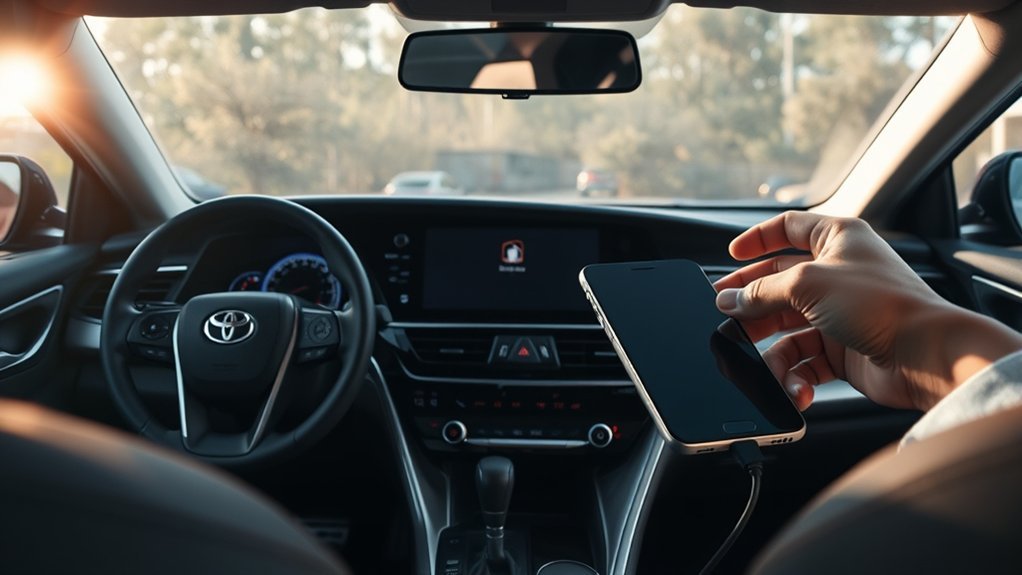
Most Android Auto issues in a Toyota Camry have a practical fix. Work through the most likely causes before you reset your whole infotainment system.
Cord Compatibility Issues
If your phone charges but Android Auto does not start, suspect the cable first. Charging-only cables cannot pass the data Android Auto needs.
Use a high-quality USB cord that supports file transfer. Replace frayed, loose, or overly long cables before you troubleshoot deeper settings.
Software Update Importance
Software updates keep Android Auto compatible with your phone, apps, and car display. An outdated Android Auto app may crash, freeze, or fail during setup.
Follow these steps:
- Check for updates: Update Android Auto and related Google apps through the Play Store.
- Clear app cache: Remove temporary files when Android Auto acts slowly or fails to launch.
- Update Android: Install available system updates from your phone’s settings.
Permissions Verification Process
Missing permissions can break calls, messages, notifications, and voice commands. Review Android Auto permissions if only some features work.
Open your phone’s app settings, choose Android Auto, and grant access to the permissions you need. Then reconnect your phone and approve any new prompts.
The Impact of Phone Settings on Android Auto Performance
Your phone settings can decide whether Android Auto starts smoothly or fails without a clear warning. Focus on settings that affect apps, Bluetooth, battery use, and notifications.
- Permissions: Grant Android Auto access to contacts, microphone, notifications, calls, and messages when needed.
- Software updates: Keep your phone, Android Auto, and related apps current.
- Bluetooth and USB: Remove old pairings and use a quality USB data cable.
- Battery settings: Turn off strict battery limits for Android Auto and key apps.
Some phones restrict background activity to save power. If Android Auto disconnects often, check battery optimization settings for Android Auto, Google Maps, and music apps.
Still Can’t Connect? Here’s What to Try
If Android Auto still won’t connect in your Toyota Camry, try a clean setup from both ends. This helps remove old pairing data and failed setup attempts.
- Restart both systems: Turn your phone off and back on, then restart the Camry’s infotainment system.
- Forget old connections: Remove your Camry from your phone and remove your phone from the car.
- Use a new USB cable: Choose a short cable that supports data transfer.
- Open Android Auto settings: Check that your Camry appears as an allowed car.
- Test another phone: Connect a different Android phone to see whether the issue follows the phone or the car.
Note: Test these steps while parked, since Android Auto setup prompts can distract you while driving.
If another phone works, your original phone likely needs more troubleshooting. If no phone works, the car’s USB port or infotainment system may need service.
When to Seek Professional Help for Android Auto Issues
You may need professional help when basic troubleshooting does not restore Android Auto. A Toyota dealer or qualified technician can check software, ports, and hardware faults.
- Persistent connection failures: You updated apps, checked permissions, and tried multiple USB data cables without success.
- Frequent app crashes: Android Auto crashes after cache clearing, software updates, and a clean setup.
- Possible hardware damage: The USB port feels loose, the screen freezes, or other phones fail to connect.
Warning: Do not disassemble your Camry’s infotainment system unless you have the right training and tools.
Bring your phone, USB cable, and vehicle information to the appointment. This helps the technician recreate the issue and avoid repeat visits.
Frequently Asked Questions
Why Did Android Auto Suddenly Stop Working?
Android Auto may stop working because of a bad USB cable, outdated phone software, blocked permissions, or a failed Bluetooth pairing. Start by replacing the cable, updating apps, clearing the cache, and restarting your phone.
How to Get Android Auto on Toyota Camry?
To use Android Auto on a compatible Toyota Camry, connect your Android phone with a data-capable USB cable and follow the prompts on your phone and car screen. Grant the needed permissions so calls, maps, messages, and voice commands work correctly.
Why Is My Phone Suddenly Not Connecting to My Car?
Your phone may fail to connect because it lost pairing data, installed a software update, or switched permissions. Forget the car on your phone, remove the phone from the Camry, then pair both again.
Can a USB Cable Charge My Phone but Not Run Android Auto?
Yes. Some USB cables support charging only and do not transfer data. Android Auto needs data transfer, so use a high-quality cable made for syncing or file transfer.
Should I Reset My Camry Infotainment System?
Reset the infotainment system only after you try simpler fixes, such as a new cable, app updates, cache clearing, and Bluetooth re-pairing. Check your owner’s manual first, since reset steps can vary by model year and trim.
Conclusion
Your Toyota Camry’s Android Auto usually starts working again after you fix the cable, update software, clear cache, or refresh permissions. Work from the simplest fixes to the deeper resets so you don’t waste time. If every phone and cable fails, schedule a professional inspection of the USB port and infotainment system. Once the connection works again, you’ll have safer access to maps, calls, messages, and music on the road.