
Last updated: July 31, 2026
Technical review: CarPlay troubleshooting steps and RAV4 model-year support checked against current Apple Support and Toyota sources.
Quick Answer
To fix Toyota RAV4 Apple CarPlay, update the iPhone, turn on Siri, allow CarPlay in Screen Time, and restart the phone and vehicle. On a 2019–2022 U.S. RAV4, use a direct data-capable cable in the USB media port. On a 2023–2026 U.S. RAV4, keep Bluetooth and Wi-Fi on, confirm Auto-Join for the CarPlay network, then forget and rebuild the pairing if needed.
If you are connecting a phone for the first time rather than fixing a failure, use the separate Toyota RAV4 Apple CarPlay setup guide.
Key Takeaways
- U.S.-market 2019–2022 RAV4 models use factory wired CarPlay; 2023–2026 models have standard wireless CarPlay.
- A charging symbol proves only that power is reaching the iPhone. CarPlay also needs a working data path.
- For wired CarPlay, use a direct Apple or reliable data-capable cable in the USB media port, not a charging-only port or USB hub.
- For wireless CarPlay, keep Bluetooth and Wi-Fi on and confirm that Auto-Join is enabled for the CarPlay network.
- Check Siri, Screen Time, old pairing records, and Toyota multimedia software before assuming the USB port or head unit has failed.
- Collect your Vehicle Identification Number (VIN), iPhone software version, multimedia version, and test results before contacting Toyota or Apple.
At a Glance
| Time Required | 10 to 30 minutes for basic checks; longer if Toyota must inspect software, the USB port, or the multimedia unit. |
| Difficulty | Easy for cable, iPhone, and pairing checks; moderate if a Toyota software update or hardware diagnosis is needed. |
| Tools Needed | Your iPhone, a data-capable USB cable, your RAV4 owner’s manual, and access to iPhone Settings. |
| Cost | Usually free, unless you need a replacement cable, dealer diagnosis, or hardware repair. |
What’s in This Article
- Common RAV4 CarPlay Symptoms and Likely Causes
- Confirm RAV4 CarPlay Compatibility First
- Quick Checklist: Get RAV4 Apple CarPlay Working
- Wired CarPlay Fixes for RAV4
- Fix Wireless CarPlay
- What to Do After an iPhone Update
- Diagnose Firmware, Screen Time and Paired-Device Conflicts
- Fix RAV4 CarPlay Audio, App, and Map Problems
- Contact Toyota or Apple
- Frequently Asked Questions
- Conclusion
Common RAV4 CarPlay Symptoms and Likely Causes
RAV4 CarPlay problems usually fall into connection, permission, pairing, software, or app-display categories. Start with the symptom you see, then use the first check before moving to a broader reset.
| Symptom | Likely Cause | First Check |
| iPhone charges, but CarPlay does not launch | Charge-only cable, wrong USB port, or missing permission prompt | Try a data cable and the main front USB media port |
| CarPlay icon is missing | Vehicle setting, Siri setting, or Screen Time restriction | Check Siri and Allowed Apps in Screen Time |
| Wireless CarPlay keeps dropping | Bluetooth, Wi-Fi, Auto-Join, or stale pairing conflict | Forget the RAV4 and pair again |
| CarPlay opens, but audio or maps fail | Muted audio source, app issue, or poor data connection | Switch audio source, reopen the app, and test Apple Maps |
| Problem starts after an update | iOS, vehicle firmware, or pairing record mismatch | Restart both systems and check for newer updates |
| CarPlay works, but an app or message notification is missing | App removed from the CarPlay layout, app locked on the iPhone, or Driving Focus limiting notifications | Check CarPlay Customize, app lock, and Driving Focus |
If the whole Toyota display is black, frozen, or does not respond to touch, treat that as a broader multimedia-screen problem and use the RAV4 touchscreen troubleshooting guide.
Which RAV4 Model Years Support Apple CarPlay?
Before troubleshooting, confirm the factory connection method for your RAV4. Apple’s current model list includes the Toyota RAV4 from 2019 through 2026. Toyota states that every U.S.-market 2019 RAV4 included Apple CarPlay compatibility, and Toyota made wireless Apple CarPlay standard on all U.S. RAV4 grades for 2023.
The practical split is simple: U.S.-market 2019–2022 RAV4 models use wired factory CarPlay through the USB media port. U.S.-market 2023–2026 models use Toyota Audio Multimedia with standard wireless CarPlay. Market, imported-vehicle, and retrofit equipment can differ, so verify the multimedia section of the owner’s manual when the vehicle was not originally sold in the United States.
| U.S. RAV4 Model Year | Factory Apple CarPlay | Normal Connection Method |
| 2018 and older | Not listed by Apple as factory CarPlay RAV4 model years | Aftermarket hardware is normally required |
| 2019–2022 | Standard Apple CarPlay | Wired through the USB media/data port |
| 2023–2025 | Standard wireless Apple CarPlay on all grades | Wireless through Bluetooth and Wi-Fi; USB can still be used for supported media functions and charging |
| 2026 | Standard wireless Apple CarPlay | Wireless through the newest Toyota Audio Multimedia system |
Connection shortcut: If you have a U.S. 2019–2022 RAV4, start in the wired section. If you have a U.S. 2023–2026 RAV4, start in the wireless section. Imported, retrofitted, and aftermarket systems may use different menus or connection methods.
Quick Checklist: Get RAV4 Apple CarPlay Working
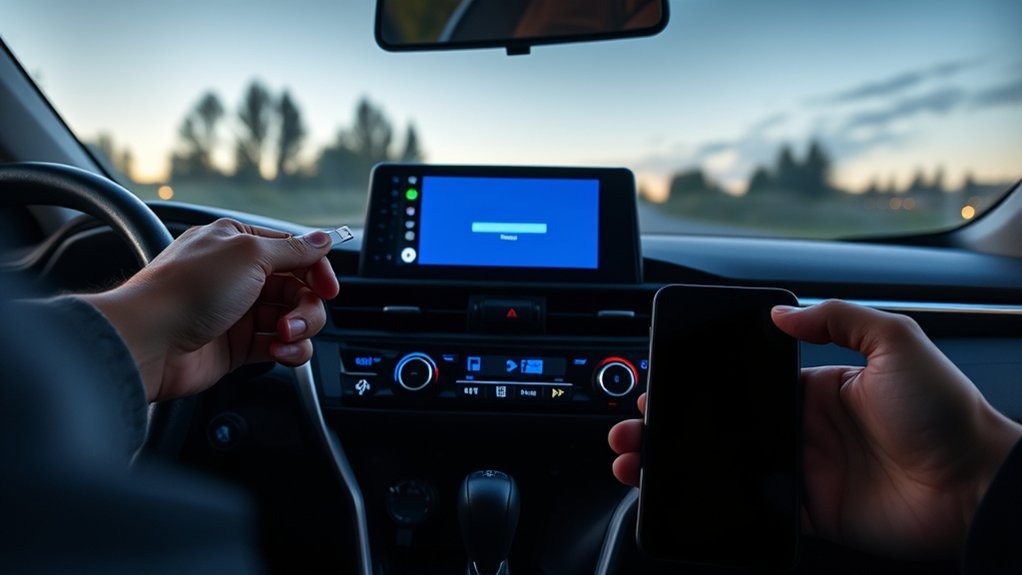
Start with the least disruptive checks. Apple recommends confirming compatibility, updating the iPhone, checking the wired or wireless connection, restarting both systems, enabling Siri, checking Screen Time restrictions, forgetting the car, and confirming vehicle firmware.
- Park safely. Do not change iPhone or vehicle settings while driving.
- Choose the correct path. Use wired troubleshooting for a U.S. 2019–2022 RAV4 and wireless troubleshooting for a U.S. 2023–2026 RAV4.
- Update the iPhone. Go to Settings > General > Software Update and install the latest available iOS version.
- Turn on Siri. Open iPhone Settings, search for Siri if the menu name differs, and make sure Siri is enabled.
- Allow CarPlay in Screen Time. Go to Settings > Screen Time > Content & Privacy Restrictions > Allowed Apps and make sure CarPlay is enabled.
- Restart both systems. Restart the iPhone, switch the RAV4 off, allow the multimedia system to shut down, then restart the vehicle.
- Unlock the iPhone. Approve any CarPlay permission prompt that appears on the phone or Toyota screen.
- Select CarPlay manually. If it does not open automatically, select the CarPlay, Projection, or smartphone icon on the RAV4 display.
- Retest after each change. Do not change the cable, port, pairing, and software settings all at once.
Warning: CarPlay setup requires attention to your phone and infotainment screen. Finish these steps before you drive, or have a passenger handle the phone settings.
[Products Worth Considering]

This 2-in-1 wireless adapter converts factory-wired CarPlay into a cable-free experience for compatible vehicles, helping you enjoy seamless phone integration with less clutter. It supports automatic reconnection, stable Bluetooth and Wi-Fi pairing, and broad compatibility with many factory-installed CarPlay systems. Built with a durable metal and acrylic design, it also includes firmware updates and lifetime technical support for continued convenience.

This wireless CarPlay adapter upgrades compatible factory wired CarPlay or Android Auto systems with wireless connectivity and built-in entertainment apps. Enjoy navigation, calls, music, and hands-free control through Apple CarPlay, plus streaming from popular video platforms when connected to a hotspot. It also supports USB media playback and an HD media port for rear-seat entertainment on road trips and daily drives.

The HEYINCAR+ H-Air adapter upgrades compatible factory wired CarPlay and Android Auto systems to wireless convenience with a compact plug-and-play design. It connects automatically after setup, delivering fast startup, stable performance, and support for your car’s original touchscreen, steering wheel controls, and voice commands. Built for broad vehicle compatibility and ongoing firmware updates, it offers a simple way to enjoy cable-free driving with minimal clutter.
How Do You Fix Wired CarPlay on a 2019–2022 RAV4?
Start with the physical data path. A cable can charge an iPhone while its data connection is damaged or unsupported. A charging symbol therefore does not prove that the cable and Toyota USB port can carry CarPlay data.
[Products Worth Considering]

Turn your factory wired CarPlay into a wireless experience with this compact plug-and-play adapter from Enhanlife. It delivers fast auto-connection, stable performance with Bluetooth 5.3 and 5GHz Wi-Fi, and smooth access to navigation, music, calls, and Siri without cable clutter. Designed for broad vehicle compatibility and easy setup, it helps keep your dashboard clean while preserving the convenience of CarPlay.

This versatile car phone holder offers windshield, dashboard, and air vent mounting options to keep your phone secure and accessible on the road. Its strong suction cup, adjustable telescopic arm, and 360-degree ball joint help you find the ideal viewing angle while maintaining a stable hold. Designed for easy one-handed use and broad compatibility, it supports most smartphones and cases for safer hands-free driving.
![USB Type C Charger Cable Fast Charging, [2Pack, 3ft] Coiled USB A to Type C | Charger Cord for Car USB-C Cable Compatible with iPhone 18/17/16/15/Plus/Pro/Pro Max/Samsung Galaxy A10e A20 A50 S20 S10E](https://m.media-amazon.com/images/I/41iUOnhtV5L._SL500_.jpg)
USB C Cable Fast Charging for Car: Coiled type c car charger with spring shape design, portable and not tangled. It can well save the use of space in the car and say goodbye to the hassle of data cable clutter and tangles.
Use a Direct Data-Capable Cable
For an iPhone with a Lightning connector, use an Apple Lightning-to-USB cable or another reliable cable that supports data. For a USB-C iPhone, use a direct data-capable cable that matches the RAV4 media port. Apple warns that some adapter, cable, and vehicle combinations can interrupt wired CarPlay, so remove hubs and adapters during testing.
Use the USB Media Port
Connect the iPhone to the USB media/data port identified in the RAV4 owner’s manual. Toyota says the media port is typically at the front or in the center console and may carry a media symbol. Other USB ports can be intended mainly for charging and may not start CarPlay.
Pro Tip: Test one direct cable with no hub, extension, or adapter. If CarPlay starts, add accessories back only after the basic connection is stable.
Use a Four-Test Isolation Check
This test matrix helps identify which part of the connection deserves attention. The result is a clue, not a final hardware diagnosis.
| Test | Result | What the Result Suggests |
| Same iPhone, second known-good cable, same media port | CarPlay starts | The first cable or adapter was the likely fault |
| Second compatible iPhone, same cable and media port | Second iPhone works | Focus on the first iPhone’s permissions, pairing record, connector, or software |
| Two compatible iPhones and two data cables | Neither works in the media port | Check Projection settings and Toyota software; the media port or multimedia unit may need diagnosis |
| The same iPhone and cable in another CarPlay vehicle | They work in the other vehicle | The RAV4’s settings, media port, or multimedia software becomes the stronger suspect |
Turn Projection Off and Back On
On RAV4 systems that show a Projection or Apple CarPlay setting, confirm that Apple CarPlay is enabled. Toyota owner guidance for wired systems notes that choosing “Do Not Enable” can leave CarPlay off until it is turned back on in Projection Settings. Menu names vary by model year, so use the multimedia manual for your exact RAV4.
Approve the Permission Prompt
Restart the iPhone and RAV4, reconnect the unlocked phone, and approve the prompts on both screens. If the RAV4 appears under Settings > General > CarPlay, select it and confirm the connection is allowed.
How Do You Fix Wireless CarPlay on a 2023–2026 RAV4?
U.S.-market 2023–2026 RAV4 models have standard wireless Apple CarPlay. Wireless CarPlay uses Bluetooth for discovery and Wi-Fi for the active connection, so both radios must be on.
On the iPhone, open Settings > Bluetooth and Settings > Wi-Fi. Then tap the information button for the CarPlay network, if shown, and confirm Auto-Join is on. Restart the iPhone and RAV4 before deleting the pairing.
If CarPlay still does not connect, rebuild the pairing from both sides:
- On the iPhone, go to Settings > General > CarPlay.
- Select the RAV4, then tap Forget This Car.
- Go to Settings > Bluetooth and forget the RAV4 if it still appears.
- On the Toyota screen, remove the iPhone from the paired-device list.
- Temporarily disconnect other nearby phones that are saved to the RAV4 so they cannot take connection priority during the test.
- Restart the iPhone and vehicle.
- Add the iPhone again from the Toyota device menu and approve CarPlay on both screens.
Diagnostic clue: If wired CarPlay works on a system that also supports wireless CarPlay, but wireless does not, focus on Bluetooth, Wi-Fi, Auto-Join, saved-device priority, and pairing records rather than the iPhone cable.
[Products Worth Considering]

Compatibility Requirements: This Wireless CarPlay Adapter works exclusively with factory-installed wired CarPlay vehicles - please verify your car's compatibility before buying. It supports iPhone 6 or iOS 10 and above devices. For stable connection, enable both Wi-Fi and Bluetooth on your phone and disconnect from other paired devices during use. Compatible with 98% of original CarPlay-equipped car models
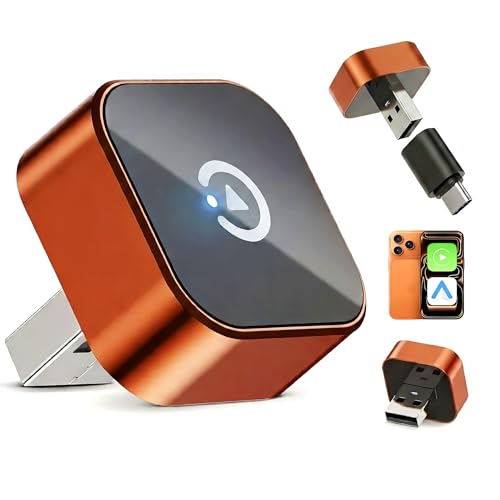
【Upgrade to a Wireless CarPlay Adapter】 – Easily convert your factory wired CarPlay or Android Auto into a true wireless experience. This wireless carplay adapter eliminates the need for cables, letting you enjoy hands‑free navigation, music streaming, calls, and voice commands without plugging in your phone. Perfect for daily commuting, road trips, and shared vehicles.

Unique Ventilated Design for Heat Dissipation: This adapter features a specialized casing with ventilation holes that significantly improve airflow and heat dissipation. Unlike solid models, this design keeps the device cool even during long drives or in hot weather, ensuring stable performance and extending the device's lifespan.(This product only supports cars that have factory wired CarPlay and car audio system. This adapter is only a signal relay. Connection stability can be affected by the vehicle head unit, mobile phone, surrounding signal interference, and operating temperature. Overheating of any component may lead to lag or crash.)
What Should You Do if RAV4 CarPlay Stopped After an iPhone Update?
A failure that begins immediately after an iPhone update can come from a stale connection record, changed permission, cable or adapter incompatibility, or a vehicle-software mismatch. Do not assume a model-wide defect from one failed connection.
Use this order:
- Check Settings > General > Software Update again and install the latest available point update.
- Restart the iPhone and allow the RAV4 multimedia system to shut down before restarting the vehicle.
- Confirm Siri and Screen Time permission for CarPlay.
- For wired CarPlay, remove adapters and test a second direct data cable in the media port.
- For wireless CarPlay, confirm Bluetooth, Wi-Fi, and Auto-Join, then forget and pair the RAV4 again.
- Test a second compatible iPhone. If the second phone works, the first iPhone is the stronger suspect. If neither works, check Toyota multimedia software and vehicle hardware.
Note: Avoid generic button-hold or factory-reset instructions copied from another RAV4 year. Reset methods and menu names differ by multimedia system. Use the exact procedure in your RAV4 multimedia manual.
Diagnose Firmware, Screen Time, and Paired-Device Conflicts
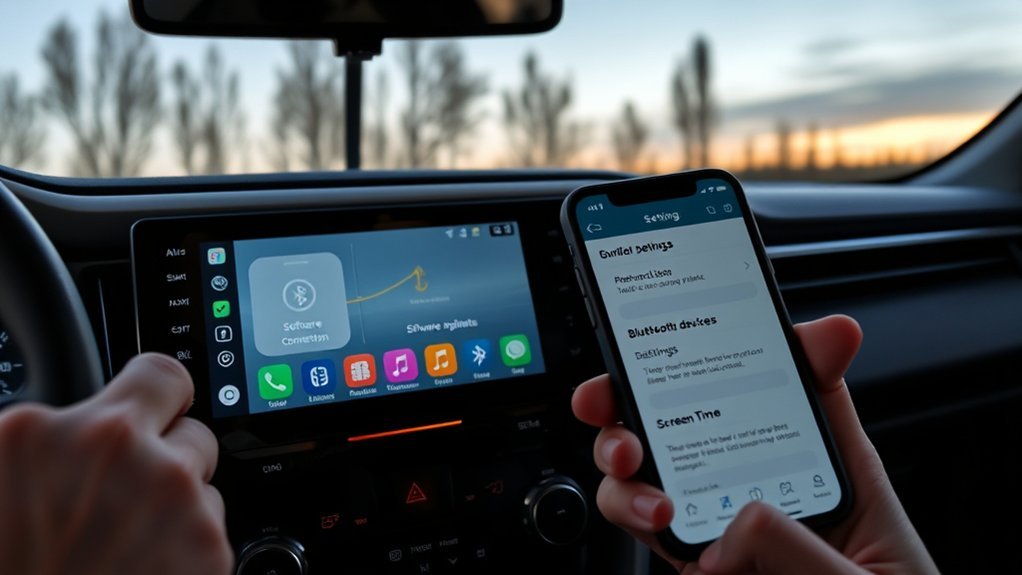
Restrictions, locked apps, old device records, and outdated Toyota multimedia software can imitate a connection failure. Check them in this order.
Check Screen Time Restrictions
Go to Settings > Screen Time > Content & Privacy Restrictions > Allowed Apps and confirm that CarPlay is enabled. A work, school, or parental-management profile can also restrict CarPlay.
Warning: Screen Time can block CarPlay even when charging, Bluetooth, Wi-Fi, and the Toyota USB port appear normal.
Check Siri
CarPlay requires Siri for setup and voice control. Open iPhone Settings and confirm Siri is enabled. Apple’s menu label can change between iOS versions, so use the Settings search field if you do not see the same path shown in an older guide.
Check for Locked or Hidden Apps
If CarPlay opens but Messages or another app is missing, check whether that app is locked or hidden on the iPhone. Apple states that information inside a locked app does not appear in CarPlay. Unlock the app, then reconnect and check the CarPlay layout again.
Check Toyota Multimedia Software
Open the RAV4 multimedia settings and record the system software version. Toyota says eligible vehicles can receive updates over the air, through its official Audio Multimedia System Updates page and USB process, or through a Toyota dealer. Use only the update method listed for your exact vehicle and market.
Clear Old Device Records
Remove phones you no longer use from the Toyota paired-device list. Then forget the RAV4 from both iPhone CarPlay settings and Bluetooth settings before pairing again. During testing, keep other saved phones away from the vehicle or turn off their Bluetooth temporarily.
How Do You Fix RAV4 CarPlay Audio, App, and Map Problems?
If the CarPlay home screen appears, the main connection is working. Troubleshoot the affected function instead of repeating every pairing step.
- No sound: Start audio in CarPlay, select the CarPlay audio source on the Toyota screen, then adjust volume while that audio is playing.
- Map app freezes: Test Apple Maps. If only one third-party navigation app fails, update or reopen that app.
- One app is missing: Go to Settings > General > CarPlay, choose the RAV4, and tap Customize. Only CarPlay-compatible apps can appear.
- Messages or another app disappears: Check whether the app is locked or hidden on the iPhone. Locked-app information is not shown in CarPlay.
- Notifications are silent: Check Driving Focus. Apple notes that Driving Focus can silence or limit notifications while CarPlay is connected.
- Calls fail but music works: Remove duplicate Toyota Bluetooth records, confirm microphone and Bluetooth permissions, then pair again.
- CarPlay freezes: Restart the iPhone and vehicle. On a wireless-capable model, test a wired connection if your system supports it so you can separate a wireless-network problem from a broader CarPlay problem.
The fastest diagnosis changes one variable at a time. If another compatible iPhone works with the same RAV4 connection, focus on the original iPhone’s settings, connector, apps, and pairing records.
Contact Toyota or Apple: What Info to Collect First
Contact Toyota or Apple after testing the correct year-specific connection method, cables or wireless pairing, Screen Time, Siri, a second phone, and multimedia software status. Bring exact details so the support rep can move past the basic script quickly. Include your RAV4 model year, trim, VIN, iPhone model, iOS version, and infotainment build number.
Write down the exact symptom before you call. Use clear notes such as “CarPlay icon missing,” “phone charges but CarPlay does not launch,” “wireless connection drops after 30 seconds,” or “CarPlay opens with no audio.” Also list the cable type or wireless steps, USB port used, pairing resets, whether a second iPhone worked, and any recent iPhone or Toyota software update.
- RAV4 model year, trim, market, and VIN
- Infotainment build and software version number
- iPhone model and iOS version
- Exact symptoms and when they started
- USB cable type, USB port used, and adapter details
- Screen Time, Siri, Bluetooth, Wi-Fi, and pairing steps already tested
- Whether another iPhone works in the same RAV4
Frequently Asked Questions
Why is my RAV4 Apple CarPlay not working?
The usual causes are the wrong connection method for the model year, a cable or USB data-path problem, disabled Siri, a Screen Time restriction, stale pairing records, or outdated phone or Toyota multimedia software. Start with the year split: U.S. 2019–2022 RAV4 models use wired CarPlay, while 2023–2026 models have standard wireless CarPlay.
Why does my iPhone charge but CarPlay will not start?
Charging confirms power, not data transfer. Use a direct data-capable cable in the RAV4 USB media port, remove hubs or adapters, unlock the iPhone, and approve the CarPlay prompt. Rear or secondary USB ports may be intended mainly for charging.
Which RAV4 years have wireless Apple CarPlay?
In the United States, standard wireless Apple CarPlay starts with the 2023 Toyota RAV4 and continues through 2026. U.S. 2019–2022 RAV4 models have factory CarPlay through the USB media port. Equipment can differ in other markets or on retrofitted vehicles.
Does a 2022 RAV4 have wireless CarPlay?
A U.S.-market 2022 RAV4 has factory Apple CarPlay, but the normal factory connection is wired through the USB media port. Standard wireless CarPlay arrived on all U.S. RAV4 grades for 2023.
How do I reset CarPlay in my RAV4?
On the iPhone, go to Settings > General > CarPlay, select the RAV4, and tap Forget This Car. Remove the iPhone from the Toyota paired-device list, restart both systems, then connect or pair again. Use the owner’s manual before performing a full multimedia reset.
Why does my RAV4 CarPlay keep disconnecting?
For wired CarPlay, test a second direct data cable and inspect whether the connection changes when the plug moves. For wireless CarPlay, confirm Bluetooth, Wi-Fi, Auto-Join, and saved-device priority. Then update both systems and rebuild the pairing.
Can an iPhone update stop CarPlay from connecting?
A connection can fail after an update because permissions, pairing records, adapters, or software compatibility changed. Install the latest available point update, restart both systems, check Siri and Screen Time, then forget and rebuild the CarPlay connection. Test a second iPhone before assuming the Toyota hardware failed.
Why are Messages or other apps missing from CarPlay?
Check Settings > General > CarPlay > RAV4 > Customize. Also check whether the app is locked or hidden on the iPhone, because Apple says locked-app information does not appear in CarPlay. Driving Focus can also silence or limit notifications.
Which USB port works for CarPlay in a RAV4?
Use the USB media/data port identified in the multimedia owner’s manual. Toyota says it is typically at the front or in the center console and may have a media symbol. Other ports can charge the phone without supporting wired CarPlay data.
Conclusion
When RAV4 Apple CarPlay is not working, begin with the model-year connection method. U.S. 2019–2022 RAV4 models use wired factory CarPlay, while U.S. 2023–2026 models have standard wireless CarPlay.
For wired problems, test the USB media port with a direct data cable and a second iPhone. For wireless problems, confirm Bluetooth, Wi-Fi, Auto-Join, and saved-device priority, then rebuild the pairing. In every model year, check Siri, Screen Time, current iPhone software, and Toyota multimedia software before replacing hardware.
If two compatible iPhones fail after the same tests, document the exact symptom, model year, VIN, multimedia version, and completed steps. That evidence gives Toyota or Apple a reproducible problem instead of a general “CarPlay does not work” report.
Sources
- Apple Support: If you need help with CarPlay — supports the troubleshooting order for updates, wired and wireless connections, Siri, Screen Time, pairing, and vehicle firmware.
- Apple Support: Use CarPlay with your iPhone — supports wired and wireless setup, Wi-Fi Auto-Join, app customization, and CarPlay controls.
- Apple iPhone User Guide: Lock or hide an app — supports the note that information inside a locked app does not appear in CarPlay.
- Apple: CarPlay Available Models — lists Toyota RAV4 CarPlay compatibility beginning with the 2019 model year.
- Toyota USA Newsroom: 2019 RAV4 announcement — confirms Apple CarPlay compatibility on every 2019 RAV4 model.
- Toyota USA Newsroom: What’s New for 2023 — confirms standard wireless Apple CarPlay on all 2023 RAV4 grades.
- Toyota USA Newsroom: 2024 RAV4 — confirms standard wireless Apple CarPlay support in the 2024 Toyota Audio Multimedia system.
- Toyota USA Newsroom: 2025 RAV4 — confirms standard wireless Apple CarPlay compatibility for the 2025 RAV4 lineup.
- Toyota USA Newsroom: 2026 RAV4 debut — confirms standard wireless Apple CarPlay in the newest Toyota Audio Multimedia system.
- Toyota Owners: Audio Multimedia System Updates — explains over-the-air, USB, and dealer software-update methods for eligible Toyota vehicles.
- Toyota Owners: How to Set Up Apple CarPlay — supports use of the Toyota USB media port and year-specific owner guidance.


[…] audio. If Bluetooth connects but Apple CarPlay or Android Auto does not launch, use the dedicated RAV4 Apple CarPlay troubleshooting guide or RAV4 Android Auto troubleshooting guide. Wireless phone projection may require both Bluetooth […]
[…] restart but one phone still fails, follow the separate RAV4 phone and multimedia setup guide or the RAV4 Apple CarPlay troubleshooting guide instead of disconnecting the vehicle […]
[…] iPhone-specific failures, use the RAV4 Apple CarPlay troubleshooting guide. For deeper Android fixes, use the RAV4 Android Auto troubleshooting […]