
·
Published: February 2026
·
Last updated: August 16, 2026
Before you reset the RAV4 screen
Park first: Stop in a safe place, shift to Park, and keep your attention off the screen while driving.
Most factory systems: Owner and dealer guides commonly direct owners to press and hold the POWER/VOLUME or PWR/VOL control for about 10 seconds when the system response is extremely slow. Reported figures range from about 5 to 20 seconds depending on model year and multimedia generation, so the label, control position, and exact hold time can vary — confirm against your exact manual.
2026 RAV4: The 2026 RAV4 debuts a new Toyota Audio Multimedia system (10.5-in. standard, 12.9-in. available) on a different software platform than prior generations. Button layout, menu wording, and reset timing may not match older RAV4 model years — use the 2026 Multimedia System Owner’s Manual or dealer instructions rather than assuming an older RAV4 button layout applies.
Which generation do you have? Reset steps, fuse locations, and button layouts vary across RAV4 model years and multimedia generations — a 2015 RAV4, a 2022 RAV4, and the all-new 2026 RAV4 described above don’t share the same head unit. If the controls in your vehicle don’t match what’s described here, check the multimedia system name and generation listed in your specific owner’s manual before proceeding.
If your RAV4 touchscreen is frozen or ignoring taps, start by unplugging phones and USB devices, then restart the multimedia unit by holding its POWER/VOLUME control for about 10 seconds. If the display is black, check whether audio, the backup camera, and other electrical items still work before inspecting the year-specific fuse. A screen that repeatedly fails in the same area is more likely to have a touch-panel or internal hardware fault than a temporary software freeze.
Quick Answer
Park safely, remove USB devices and active Apple CarPlay or Android Auto connections, then press and hold the multimedia POWER/VOLUME control for about 10 seconds. Wait for the unit to restart and test it again. If the screen remains black, use the fuse-box diagram and your model-year manual to identify the correct audio or multimedia circuit. If the same dead zone remains after a restart, or the fuse blows again, stop DIY work and arrange professional diagnosis.
Key Takeaways
- Use a restart before a factory reset, fuse pull, battery disconnect, or dashboard disassembly.
- Most guides call for holding the POWER/VOLUME control for about 10 seconds; the exact duration varies by model year and multimedia generation, so confirm against your exact manual rather than assuming a fixed number.
- A dirty or wet screen, gloves, fingernails, attached phone accessories, or a stalled USB/Bluetooth session can make the system appear unresponsive.
- A black display, a frozen image, ghost touches, and a repeatable dead zone are different symptoms and should not be diagnosed as the same failure.
- Fuse names, locations, and amperages vary. Use the diagram for the exact model year and never install a higher-rated fuse.
- Toyota offers eligible multimedia updates over the air, by USB, or through a dealer; availability depends on the vehicle and multimedia unit.
- Battery disconnection and head-unit removal are last-resort procedures because they can erase settings or require model-specific initialization.
Quick Test for a Frozen RAV4 Touchscreen
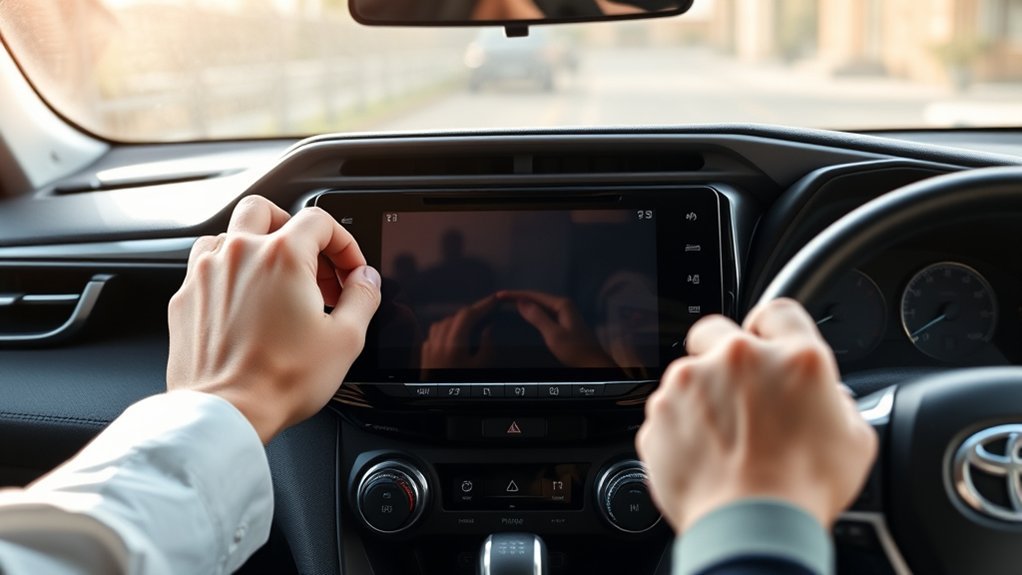
Use the symptom, not a guess, to choose the next step. A responsive display with one failed phone connection needs different troubleshooting from a completely black screen. If you already know your symptom and just want a fast checklist, our condensed 7-step RAV4 touchscreen fix guide covers the same core steps in a shorter format.
| What you see | Try first | Likely next step |
|---|---|---|
| Screen image is visible but menus are frozen | Remove phone/USB connections and restart the unit | Check for an eligible software update if the freeze returns |
| Only one area ignores taps | Clean and dry the screen, then test the same controls again | Persistent, repeatable dead zones need touch-panel diagnosis |
| Screen is black but audio still works | Restart the unit and test the backup-camera display while parked | Display, software, or internal head-unit diagnosis |
| Screen and audio are both dead | Confirm vehicle power mode and inspect the correct fuse using the manual | Power, ground, fuse, or head-unit diagnosis |
| Problem started with CarPlay, Android Auto, or Bluetooth | Unplug or forget the affected device and restart both systems | Re-pair using the correct data port and current phone software |
What You’ll Need
- Clean, dry microfiber or glass-cleaning cloth
- Your exact RAV4 Owner’s Manual and Multimedia System Owner’s Manual
- Fuse puller, only if the manual directs you to the relevant fuse
- A replacement fuse with the exact same rating, only if the original is confirmed blown
- A known-good phone data cable for wired CarPlay or Android Auto testing
- Park and remove accessories: Shift to Park. Unplug USB drives, wireless CarPlay adapters, and phone cables.
- Restart the multimedia unit: Press and hold its POWER/VOLUME or PWR/VOL control for about 10 seconds, then wait for the system to reload.
- Test the symptom: Check touch response, audio, the phone connection, and the backup-camera image while the vehicle remains stationary.
- Power-cycle the vehicle: Turn the vehicle fully off, allow the display to shut down, then restart.
- Check model-specific information: If the screen is still black or the unit has no audio, use Toyota’s official manuals and warranty page to find the correct fuse and instructions for your year.
Temperature note: Display visibility and response can change with cabin temperature, direct sunlight, moisture, or gloves. Let the cabin reach a normal temperature, dry the screen, and retest before assuming the hardware has failed.
How to Clean and Test the RAV4 Touchscreen
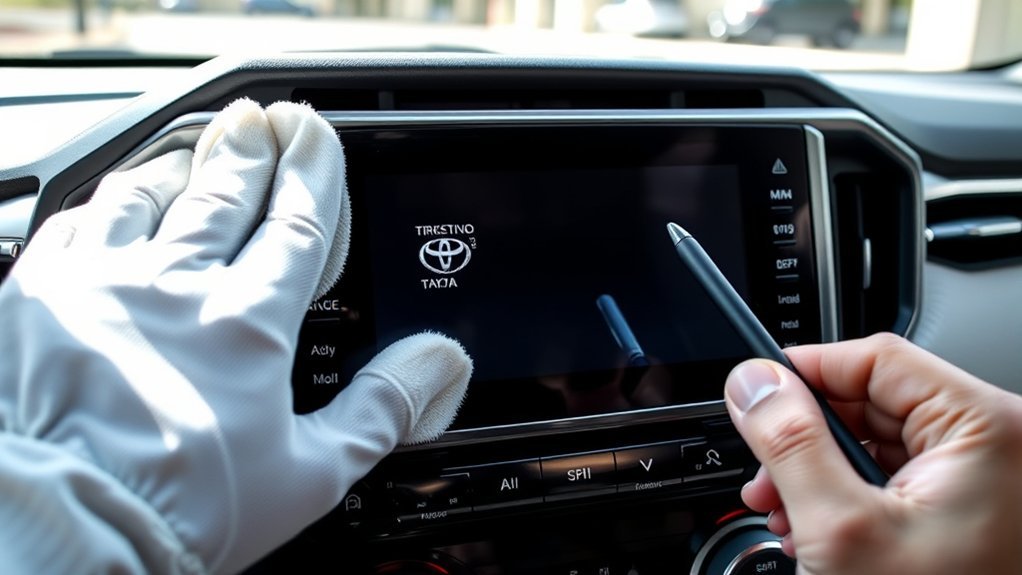
Turn the multimedia display off before cleaning it. Toyota’s touchscreen guidance says to touch the screen lightly with a finger, wipe fingerprints with a glass-cleaning cloth, and avoid chemical cleaners that can damage the surface.
Power Off Before You Touch the Screen
- Turn the display or vehicle off so cleaning does not trigger unintended inputs.
- Use a clean, dry microfiber or glass-cleaning cloth.
- Wipe gently without pressing hard on the panel.
- Do not use ammonia, household glass cleaner, abrasive pads, sharp tools, or an unapproved stylus.
- Power the unit back on and test the same on-screen controls with a clean, dry finger.
Map Dead Zones With On-Screen Controls
Do not use a stylus to diagnose the screen unless your exact multimedia manual permits it. Instead, open menus that place buttons in different parts of the display and tap them lightly with a finger. Record whether the same physical area fails across several screens.
A fault that follows one app or one connected phone is more likely to be software or connection-related. A fault that stays in the same physical area across audio, settings, navigation, and phone screens is more consistent with a touch-panel or internal connection problem.
Remove Moisture and Edge Debris Carefully
Dry the panel and the bezel edge with a soft cloth. Do not spray liquid directly onto the screen or push compressed air deep into the dashboard. If liquid has entered the unit, the screen shows ghost touches, or the glass is cracked, stop using the touch panel and arrange professional inspection.
How to Soft Reset Your RAV4 Touchscreen
With the vehicle parked and the multimedia unit powered, press and hold the POWER/VOLUME or PWR/VOL control for about 10 seconds. Release it when the display begins to restart, then wait for the home screen to finish loading before testing.
[Products Worth Considering]

The KONNWEI KW208 is a versatile 12V battery tester designed to quickly analyze battery health, cranking performance, and charging system status for cars, trucks, boats, motorcycles, and more. It supports multiple battery types and provides clear guidance on whether a battery should be recharged or replaced, helping you diagnose issues before they become failures. With plug-and-play use, high accuracy, and multilingual support, it offers a convenient way to test batteries in-vehicle or out-of-vehicle.
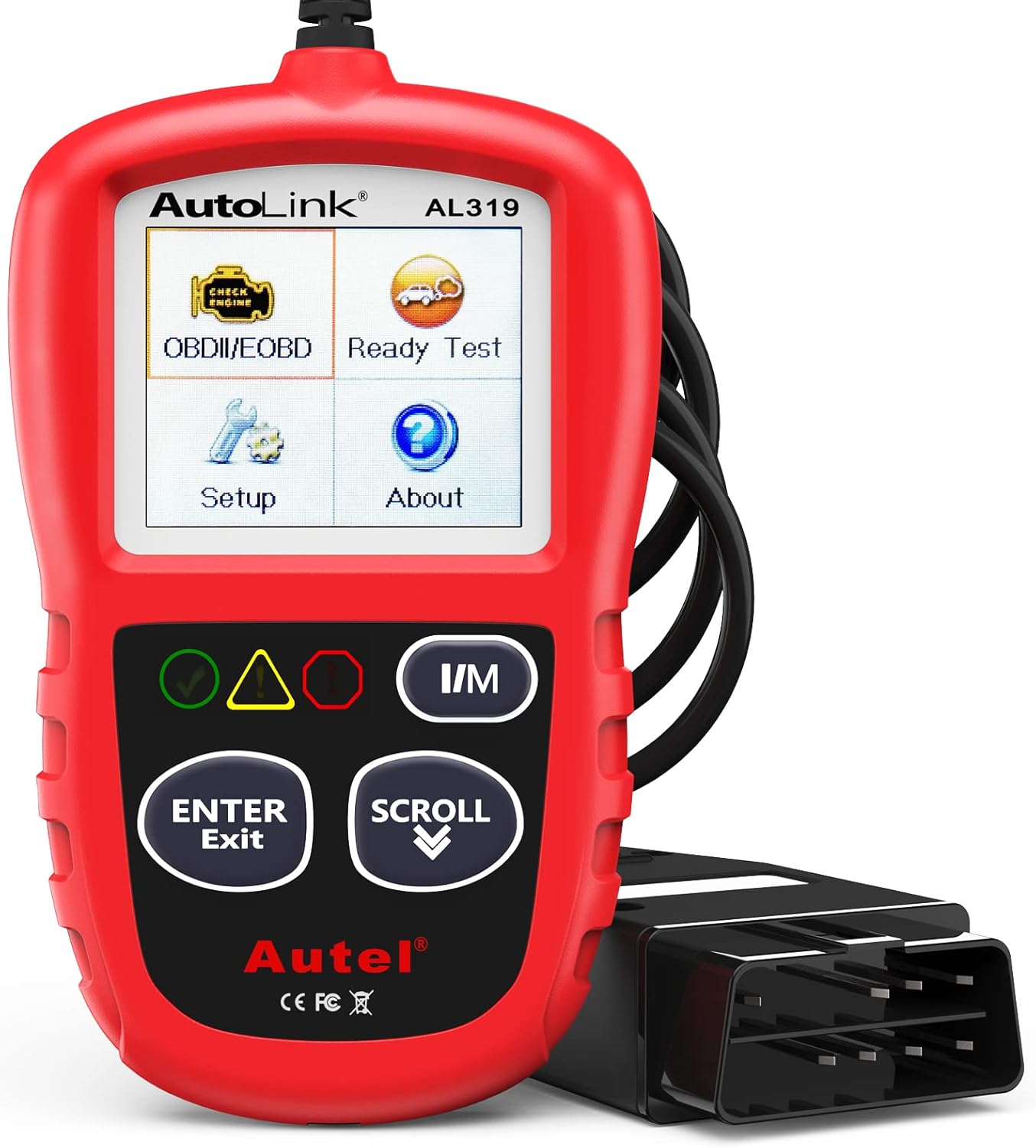
The Autel AL319 is a user-friendly OBD2 scan tool designed to help drivers quickly diagnose check engine light issues and understand vehicle fault codes. It supports reading and clearing DTCs, live data, freeze frame, I/M readiness, and vehicle information, making it a practical choice for DIYers and everyday car owners. With plug-and-play operation, a color display, built-in speaker, and broad vehicle compatibility, it delivers fast, reliable diagnostics without complicated setup.

Turn your iPhone, Android device, or Windows PC into a professional-grade diagnostic scan tool with this Bluetooth OBD2 adapter. It is designed for broad vehicle compatibility and supports popular apps for deeper diagnostics, live data, and code clearing. Built-in protections and firmware updates help keep your vehicle and scanner safe while delivering reliable performance.
How to Perform a Soft Reset
- Park safely and shift to Park.
- Unplug phones, USB drives, and aftermarket wireless adapters.
- Press and hold the multimedia POWER/VOLUME or PWR/VOL control for about 10 seconds.
- Wait for the screen to go dark or reload.
- Test touch response, audio, Bluetooth, CarPlay or Android Auto, and the backup-camera image while stationary.
A normal restart is not the same as a factory or system reset. It should not intentionally delete your saved devices or preferences, although behavior can vary by multimedia generation.
Use the correct phone guide: If the touchscreen works after the restart but one phone still fails, follow the separate RAV4 phone and multimedia setup guide or the RAV4 Apple CarPlay troubleshooting guide instead of disconnecting the vehicle battery.
Power-Cycle the Vehicle if the Restart Does Not Work
Turn the vehicle fully off and wait until the multimedia display shuts down. Restart the vehicle and test again before moving to fuse or hardware checks. If the screen immediately freezes on the same menu, note the exact action that triggers it. That detail helps separate a repeatable software problem from a dead touch zone.
Check Vehicle Power and the Correct Multimedia Fuse
Do not assume every RAV4 uses the same fuse name, fuse-box location, or amperage. Toyota changes circuit labels and layouts by model year, trim, powertrain, and market. Use the diagram inside the fuse-box cover and the exact owner’s manual for your VIN or model year.
| Step | Purpose |
|---|---|
| Confirm vehicle power mode | Verify the multimedia unit should be receiving power |
| Check the exact manual and fuse-box diagram | Identify the correct audio or multimedia circuit |
| Inspect the removed fuse | Look for a broken element or visible heat damage |
| Replace only with the same rating | Avoid wiring damage and fire risk |
Stop if the fuse fails again: A replacement fuse that blows immediately indicates an electrical fault. Do not install a larger fuse or keep replacing it. Arrange diagnosis by a qualified technician.
[Products Worth Considering]

This 2-in-1 wireless adapter converts factory-wired CarPlay into a cable-free experience for compatible vehicles, helping you enjoy seamless phone integration with less clutter. It supports automatic reconnection, stable Bluetooth and Wi-Fi pairing, and broad compatibility with many factory-installed CarPlay systems. Built with a durable metal and acrylic design, it also includes firmware updates and lifetime technical support for continued convenience.

Protect your Toyota Tundra CrewMax with custom-fit floor mats designed for precise coverage and everyday durability. Built from flexible TPE with a high-wall design, these liners help contain rain, snow, mud, and spills while offering a secure, non-slip fit. They are easy to remove and clean, making them a practical upgrade for keeping your truck’s interior neat and protected.
When Should You Inspect Infotainment Connections?
Dashboard disassembly is not a first-line fix. Modern RAV4 head units can connect to the backup camera, microphones, steering-wheel controls, vehicle data networks, antennas, and USB modules. Pulling the unit without the correct repair information can damage trim, connectors, or communication circuits.
Professional connector inspection is reasonable when the screen or audio cuts in and out over bumps, the unit has been removed before, liquid entered the dashboard, or the problem began after other electrical work. A technician can check power, ground, connector locks, pin tension, corrosion, and network faults using the correct wiring diagram and Toyota service information.
How to Tell Software From Hardware Touchscreen Faults
| Symptom | More consistent with software or connection | More consistent with hardware |
|---|---|---|
| Whole screen freezes once, then works after a restart | Yes | Possible, but less likely from one event |
| Freeze begins only when one phone or USB device connects | Yes | Less likely |
| The same physical strip or corner never registers taps | Less likely | Yes, especially if it persists across menus |
| Ghost touches occur without contact | Possible software fault | Possible touch-panel, contamination, or internal fault |
| Display image is distorted or flickers | Possible software or power fault | Possible display, cable, or head-unit fault |
| Screen and audio lose power together | Possible system crash | Power, ground, fuse, or head-unit fault |
Do not label a persistent dead zone as a calibration problem without testing it across several menus. If the same physical area fails after cleaning, restarting, removing connected devices, and checking for software updates, the touch panel or head unit needs diagnosis.
The touch-sensing layer behind the glass — often called the digitizer — is the component that actually fails in these cases, not the display panel itself. That’s why the picture can still look completely normal while touch input in that one area does nothing.
Should You Disconnect the Battery to Reset the RAV4 Screen?
A 12-volt battery disconnect should not be the default touchscreen fix. It can erase saved settings and may trigger model-specific initialization procedures. On RAV4 Hybrid and Plug-in Hybrid models, the 12-volt system is separate from the high-voltage traction system, but that does not make battery work risk-free.
Warning: Do not access orange high-voltage cables or traction-battery components. Disconnect the 12-volt battery only when the exact owner’s manual, Toyota repair information, or a qualified technician directs you to do so. Follow the specified shutdown, terminal, reconnection, and initialization procedure for your vehicle.
Before disconnecting power, try the multimedia restart, remove external devices, power-cycle the vehicle, verify the fuse, and check for software updates. If the screen is still dead, professional diagnosis usually provides more useful information than an unsupervised battery reset.
Common Electrical Causes and Wiring Checks
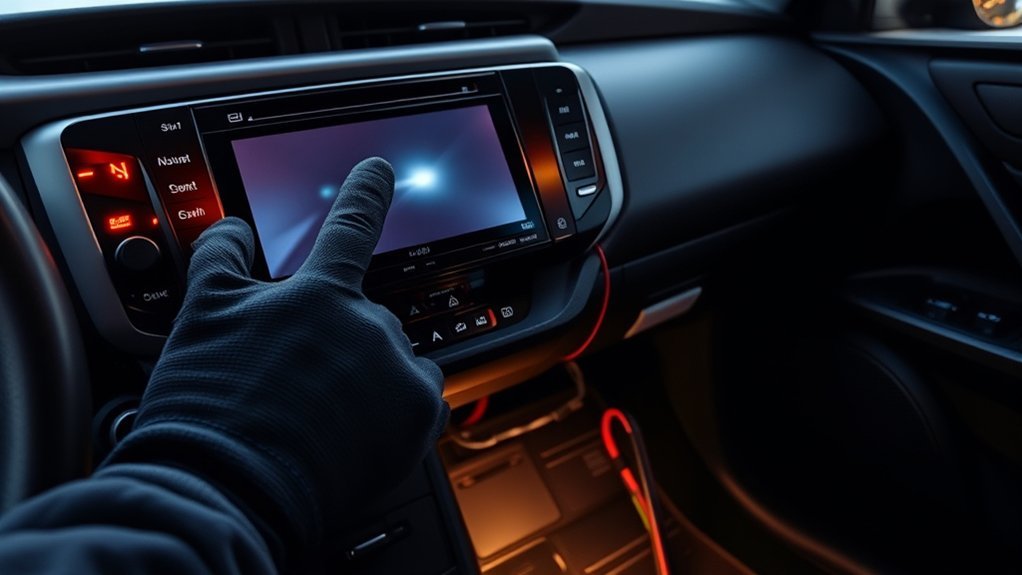
Electrical faults are more likely when the screen and audio lose power together, the unit restarts over bumps, a replacement fuse fails, or other dashboard electronics misbehave at the same time. Possible causes include low 12-volt system voltage, a poor power or ground connection, damaged wiring, a failed USB module, or an internal head-unit fault.
Do not probe connector pins or apply dielectric grease without the correct wiring diagram and service procedure. The safe owner-level checks are limited to confirming vehicle power mode, inspecting the specified fuse, removing external devices, and noting which functions still work. A technician can then test voltage drop, grounds, communication codes, and connector integrity without guessing.
How to Update RAV4 Infotainment Software
Toyota provides three update paths: over-the-air updates on equipped vehicles, USB updates for eligible systems, and dealer-installed updates. Availability depends on the model year, market, multimedia unit, and software package.
Check Whether an Update Is Available
- Park the vehicle and keep the multimedia system powered.
- Open the system settings and look for a software, update, or system-information menu. Menu wording varies.
- For U.S.-market vehicles, check Toyota’s official multimedia update options and software download portal.
- If no update appears, the update fails, or the screen cannot stay on long enough to install it, contact a Toyota dealer with the VIN and current symptoms.
Install an Eligible USB or Over-the-Air Update
- Use only the update package and instructions matched by Toyota to the vehicle or multimedia unit.
- Prepare the exact USB type, capacity, and file format specified by Toyota’s portal. Do not rely on a universal drive-size rule.
- Keep the vehicle in the power state required by the official instructions.
- Do not remove the USB drive or switch the vehicle off while the update is installing.
- After the system confirms completion and restarts, test the original problem before reconnecting every phone and accessory.
OTA availability: Toyota says over-the-air updates are available on vehicles equipped with the latest Toyota Audio Multimedia System. Check the multimedia manual for the exact vehicle instead of assuming all RAV4 Hybrid or Prime model years support the same update path.
Technical Service Bulletins are not recalls and do not automatically guarantee free repair. Ask the dealer to check the VIN for open recalls, service campaigns, applicable bulletins, warranty coverage, and available multimedia updates.
Protect Your Data and Brief the Shop
Before a factory reset, module replacement, or dealer service, record the paired phones, favorite destinations, radio presets, audio settings, and any driver-profile details you want to restore. Menu names for deleting personal data vary by multimedia generation, so use the exact manual rather than a universal menu path.
Give the shop a symptom log:
- Model year, trim, market, and whether the unit is factory or aftermarket
- Whether the image, touch input, audio, backup camera, physical controls, Bluetooth, CarPlay, and Android Auto still work
- The exact screen area that fails and whether it fails across different menus
- What happened immediately before the problem started
- Every restart, fuse, phone, cable, and software check already completed
Repair Options for a RAV4 Touchscreen
The correct repair depends on whether the failed part is the touch panel, display, internal head unit, power circuit, USB module, or software. Do not authorize a complete head-unit replacement until the shop explains what failed and why a smaller repair is not appropriate.
| Repair path | Best fit | Questions to ask |
|---|---|---|
| Warranty or dealer repair | Newer vehicles, open campaigns, VIN-specific software issues, or factory-system integration | Is the diagnosis covered by Toyota Basic Coverage, a recall, a service campaign, or my service contract? |
| Touch-panel or display repair | Image and audio work, but touch fails in a repeatable area | Are you replacing only the failed panel, and what warranty covers the repair? |
| OEM head-unit replacement | Confirmed internal controller, display, or communication failure | Is the unit new or remanufactured, does it need programming, and which factory functions are retained? |
| Aftermarket head unit | Older out-of-warranty vehicles where added features matter more than full factory integration | Will the backup camera, steering-wheel controls, microphone, USB ports, factory amplifier, vehicle settings, and safety alerts still work? |
Cost: Published prices vary too much by model year, screen size, navigation hardware, region, labor rate, and whether the shop replaces a panel or the complete unit. Get an itemized VIN-specific quote.
When to Seek Professional Help
Stop DIY troubleshooting and contact a Toyota dealer or qualified automotive-electronics technician when any of these apply:
- A replacement fuse blows again.
- The screen is needed for the backup-camera image and that image is unavailable or unreliable.
- Dead zones, ghost touches, flicker, distortion, or reboot loops persist after a restart and device removal.
- You find liquid intrusion, heat damage, melted wiring, corrosion, or a cracked display.
- The issue began after battery, stereo, alarm, dash-camera, or other electrical work.
- The vehicle may still have Toyota Basic Coverage, an applicable campaign, or a Vehicle Service Agreement.
Toyota’s U.S. Basic Coverage is generally 36 months or 36,000 miles, whichever occurs first, subject to the warranty booklet’s terms and exclusions. ToyotaCare is a maintenance and roadside-assistance program, not an extended repair warranty. Separate Toyota Vehicle Service Agreements or other service contracts may provide additional coverage.
Frequently Asked Questions
Why is my Toyota RAV4 screen not working?
The cause depends on the symptom. A frozen image may be a temporary software or phone-connection problem. A black screen with no audio may involve power, a fuse, wiring, or the head unit. A repeatable dead zone is more consistent with a touch-panel fault. Start by parking, removing USB and phone connections, restarting the unit, and checking the model-specific manual.
Will a soft reset erase my saved settings?
A normal multimedia restart should not intentionally erase saved devices or preferences. A factory or system reset is different and may remove personal data. Check the exact multimedia manual before selecting any reset option.
How long do you hold the reset button on a RAV4 touchscreen?
Most owner and dealer guides describe holding the multimedia POWER/VOLUME or PWR/VOL control for about 10 seconds to trigger a soft reset, though reported figures range from 5 to 20 seconds depending on model year and multimedia generation. There is no single universal number for every RAV4 — check your exact owner’s manual if the screen doesn’t respond after roughly 10 seconds.
Should I disconnect the battery to hard reset the screen?
Not as a first step. Battery disconnection can erase settings and may require model-specific initialization. Use it only when the vehicle manual, Toyota repair information, or a qualified technician provides the correct procedure.
Can a bad ground cause RAV4 touchscreen problems?
Yes. A poor power or ground connection can cause the multimedia unit to reboot, go dark, or lose audio. Because the head unit connects to multiple vehicle circuits, voltage and ground testing should use the correct wiring diagram.
Is an aftermarket head unit worth installing in a RAV4?
It can be worthwhile on an older, out-of-warranty RAV4 when you want newer phone integration or audio features. Confirm retention of the backup camera, steering-wheel controls, microphone, factory amplifier, USB ports, vehicle settings, and safety-related alerts before buying.
What fuse controls the RAV4 touchscreen?
There is no safe universal fuse label or amperage for every RAV4. Use the fuse-box diagram and owner’s manual for the exact model year, trim, powertrain, and market. Replace a blown fuse only with the same rating.
How much does RAV4 touchscreen replacement cost?
The price depends on whether the failed part is the touch panel, display, complete OEM head unit, or an aftermarket system. Screen size, navigation hardware, programming, trim removal, and labor also change the quote. Ask for an itemized diagnosis and compare the price of panel repair, OEM replacement, and a compatible aftermarket unit.
Does Toyota’s warranty cover touchscreen issues?
A defect may be covered under Toyota Basic Coverage if the vehicle remains within the applicable time and mileage limits and the warranty terms apply. Physical damage, modifications, and other exclusions may not be covered. Ask a dealer to check the VIN, in-service date, warranty history, recalls, campaigns, and any Vehicle Service Agreement.
Why does my RAV4 screen keep freezing after a reset?
Repeated freezes can come from a connected phone or USB device, outdated multimedia software, low 12-volt voltage, an internal head-unit fault, or a failing touch panel. Remove accessories, test without the phone, check Toyota’s update options, and record the exact trigger. If the freeze returns immediately, arrange diagnosis rather than repeating battery or fuse resets.
Why is only part of my RAV4 touchscreen not responding?
A dead area that stays in the same physical location across several menus is more consistent with a touch-panel, display-assembly, or internal connection fault than a one-time software freeze. Clean and dry the screen, restart the unit, and test several menus. Persistent dead zones need professional diagnosis.
Conclusion
Start with the least destructive fix: park, remove connected devices, and hold the multimedia POWER/VOLUME control for about 10 seconds. Then identify whether the problem is a frozen image, black display, lost audio, phone-only failure, or repeatable dead zone. Use the exact manual for fuse and software instructions. Avoid stylus testing, universal fuse advice, and routine battery disconnection. If a fuse blows again, the backup-camera image is unreliable, or the same screen area remains dead, get a VIN-specific diagnosis and check warranty or service-contract coverage before approving replacement.

[…] RAV4 door lock problem can feel minor until one door stays open, stuck, or unsecured. Start with the […]
[…] If lane assist does not respond, review the menu settings, camera visibility, DRCC status, and warning messages. When a problem remains, let a Toyota service center inspect the system before you rely on it […]
[…] the multimedia screen itself does not respond, follow the RAV4 touchscreen troubleshooting guide. Do not enter an undocumented diagnostics menu merely to create a charging […]
[…] RAV4 electronics at the same time, the same patient, step-by-step approach applies — see our RAV4 touchscreen troubleshooting guide for a similar […]