
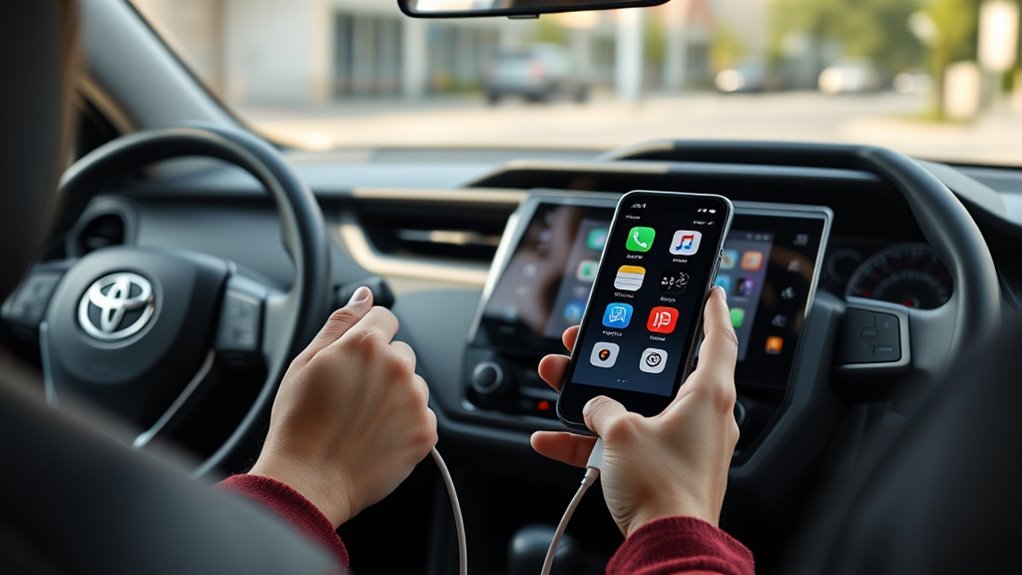
Apple CarPlay can fail from one small setting, a weak cable, or a missed pairing prompt. You can avoid most problems by preparing your iPhone and RAV4 before you connect. This guide shows you how to set up wired and wireless CarPlay, arrange your apps, and fix common connection issues.
Quick Answer
To connect Apple CarPlay in a Toyota RAV4, start the vehicle, turn on Siri, and check that CarPlay can run on your iPhone. For wired CarPlay, plug your iPhone into the vehicle’s USB port with an Apple-certified cable and accept the prompts. For wireless CarPlay, turn on Bluetooth and Wi-Fi, pair your iPhone through the RAV4 multimedia screen, and choose CarPlay when it appears.
Key Takeaways
- Use an Apple-certified cable for wired CarPlay to avoid weak data connections.
- Turn on both Bluetooth and Wi-Fi for wireless CarPlay setup.
- Keep the RAV4 parked while you pair your iPhone or change settings.
- Check Siri, Screen Time, CarPlay permissions, and vehicle firmware when CarPlay will not connect.
- Arrange your apps before driving so you touch the screen less on the road.
Before You Begin
Set aside about five to ten minutes for the first setup. Park your RAV4, keep the engine or accessory power on, and unlock your iPhone before you start.
- Use a compatible iPhone with the available iOS update installed.
- Turn on Siri from Settings > Siri & Search.
- Check CarPlay from Settings > General > CarPlay.
- Use an Apple-certified USB cable for wired setup.
- Turn on Bluetooth and Wi-Fi for wireless setup.
Apple lists Toyota RAV4 support for model years 2019 through 2026 on its CarPlay model list. Your exact features can still vary by market, trim, multimedia system, and software version.
Get Your iPhone & RAV4 Ready (CarPlay Settings)
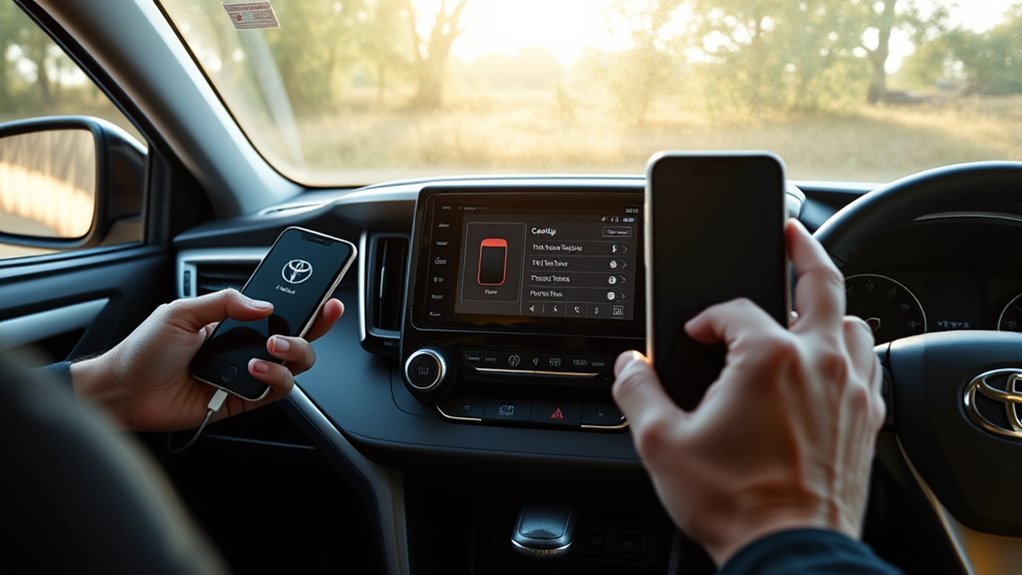
Before you connect, prepare your iPhone and RAV4. Install any available iOS update, enable Siri from Settings > Siri & Search, and allow CarPlay from Settings > General > CarPlay.
Keep the vehicle in Park while you set up the connection. Choose wired CarPlay if you want the most stable link and phone charging. Choose wireless CarPlay if your RAV4 multimedia system supports it and you want fewer cables.
Verify RAV4 compatibility before you spend time troubleshooting. Apple’s CarPlay model list includes the Toyota RAV4 for 2019 through 2026, but your local model, trim, or software may affect the setup. Check your owner’s manual or ask a Toyota dealer if your screen menus look different.
Quick Connect Steps: Wired CarPlay via USB
Start your RAV4, keep it in Park, and unlock your iPhone. Plug an Apple-certified USB cable into the vehicle’s USB port, then connect your iPhone.
The multimedia screen may ask if you want to use Apple CarPlay. Select “Yes,” then tap “Allow” on your iPhone if the phone asks for permission. If CarPlay does not open on its own, select the CarPlay icon on the vehicle display.
- Park the RAV4 and keep the multimedia screen on.
- Plug an Apple-certified USB cable into the correct USB port.
- Connect your unlocked iPhone to the cable.
- Accept the CarPlay prompt on the RAV4 screen.
- Tap Allow on your iPhone when the permission prompt appears.
- Select the CarPlay icon if the screen does not open automatically.
| Step | Action | Checkpoint |
|---|---|---|
| 1 | Park vehicle | Gear in P |
| 2 | Plug cable | Apple-certified |
| 3 | Accept prompt | Multimedia: Yes |
| 4 | Confirm iPhone | Tap Allow |
| 5 | Troubleshoot | Cable quality / Settings |
Pro tip: Use a direct USB cable instead of an adapter when wired CarPlay drops or fails to start.
Wired CarPlay gives you a steady data link and charges your phone while you drive. If the screen stays on the Toyota menu, switch cables, try another USB port if your model has one, and check Settings > General > CarPlay on your iPhone.
[Products Worth Considering]

This 2-in-1 wireless adapter converts factory-wired CarPlay into a cable-free experience for compatible vehicles, helping you enjoy seamless phone integration with less clutter. It supports automatic reconnection, stable Bluetooth and Wi-Fi pairing, and broad compatibility with many factory-installed CarPlay systems. Built with a durable metal and acrylic design, it also includes firmware updates and lifetime technical support for continued convenience.
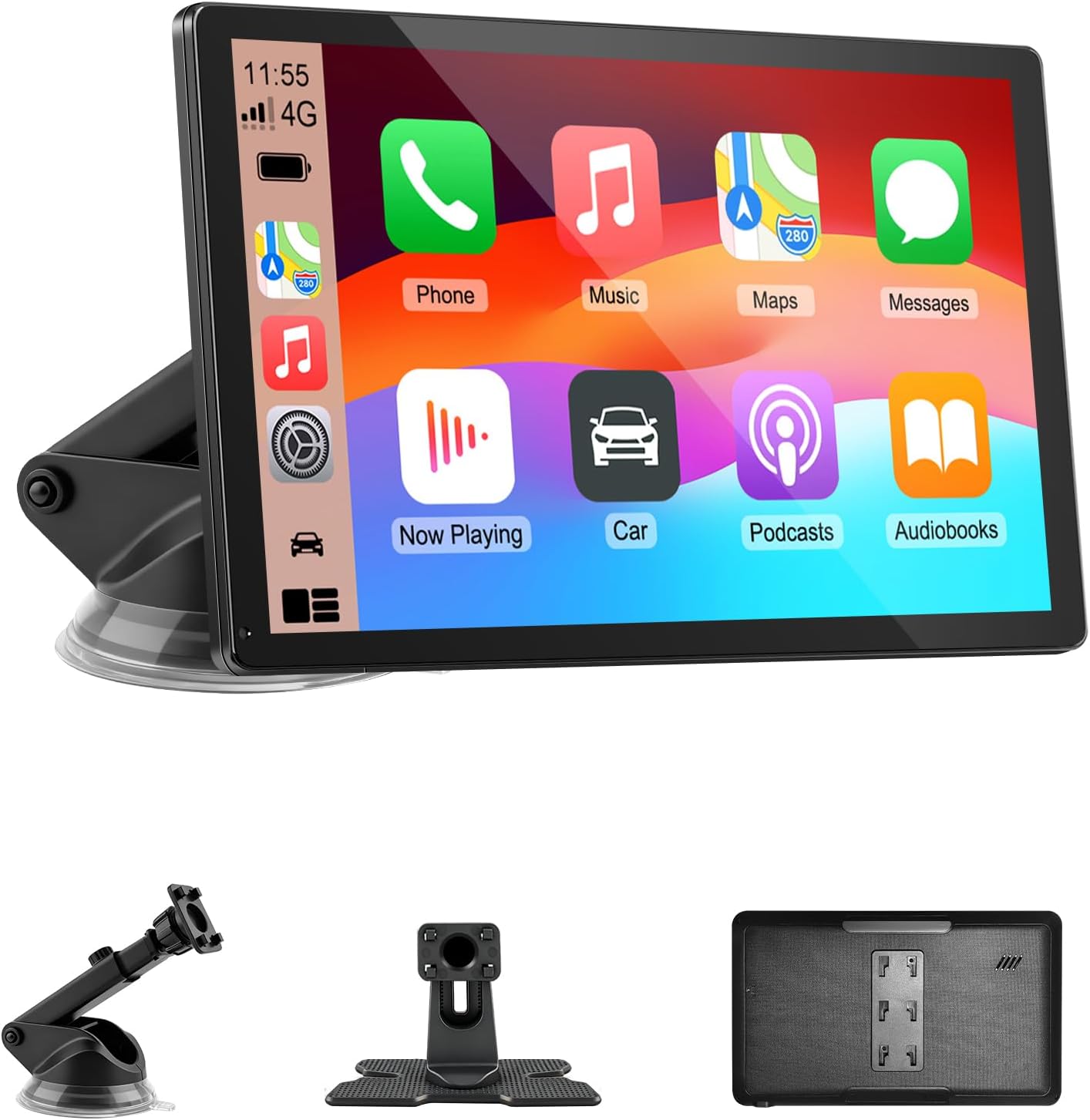
Upgrade your vehicle with this portable 9-inch touchscreen that brings wireless CarPlay and Android Auto to almost any car. It supports GPS navigation, voice control, hands-free calling, and multiple audio output options, making everyday driving safer and more convenient. With plug-and-play installation, mirror link support, and a bright HD display, it delivers a smart, flexible in-car entertainment and navigation solution.

This universal trailer coupler lock helps secure trailers, vehicles, and RVs by fitting a wide range of common hitch couplers. Its advanced locking mechanism is designed to resist picking and prying, while the zinc construction helps protect against rust and corrosion for dependable outdoor use.
Quick Connect Steps: Wireless CarPlay via Bluetooth and Wi-Fi
Wireless CarPlay uses Bluetooth for pairing and Wi-Fi for the CarPlay connection. Turn on both from your iPhone settings before you open the RAV4 pairing menu.
On the RAV4 multimedia screen, open the phone or Bluetooth device menu. Choose the option to add or connect a device, then select your iPhone when it appears. Confirm the same PIN on both screens and allow CarPlay permissions on your iPhone.
[Products Worth Considering]

The HEYINCAR+ H-Air adapter upgrades compatible factory wired CarPlay and Android Auto systems to wireless convenience with a compact plug-and-play design. It connects automatically after setup, delivering fast startup, stable performance, and support for your car’s original touchscreen, steering wheel controls, and voice commands. Built for broad vehicle compatibility and ongoing firmware updates, it offers a simple way to enjoy cable-free driving with minimal clutter.

This versatile car phone holder offers windshield, dashboard, and air vent mounting options to keep your phone secure and accessible on the road. Its strong suction cup, adjustable telescopic arm, and 360-degree ball joint help you find the ideal viewing angle while maintaining a stable hold. Designed for easy one-handed use and broad compatibility, it supports most smartphones and cases for safer hands-free driving.

Plug and Play: Easily convert your factory wired CarPlay to wireless with a one-time pairing setup. No app download required—it automatically connects at every subsequent startup, maintaining a seamless connection(Not compatible with Android)
Enable Bluetooth and Wi-Fi on iPhone
Open Settings on your iPhone, tap Bluetooth, and turn it on. Keep that screen open while the RAV4 searches for your phone. Then check Settings > Wi-Fi and make sure Wi-Fi also stays on.
Do not close the pairing screen until the RAV4 finds your iPhone. When your phone appears, select it and watch both screens for a matching PIN. Confirm the PIN quickly, then approve the requested permissions.
Pair RAV4 and iPhone
Start your RAV4 and open the phone or Bluetooth menu on the multimedia screen. Choose “connect a device” or a similar add-device option, then pick your iPhone from the list.
- Confirm the same pairing PIN on your iPhone and RAV4 screen.
- Allow contacts and notifications only if you want those features in the vehicle.
- Choose CarPlay when the screen offers phone projection.
- Restart Bluetooth and repeat pairing if the RAV4 cannot find your iPhone.
This setup removes cable dependence when your RAV4 supports wireless CarPlay. If the connection keeps failing, install available updates on your iPhone and check your Toyota multimedia software.
Confirm CarPlay Wireless Connection
After pairing, keep Bluetooth and Wi-Fi on. Open the RAV4 multimedia settings, review connected devices, and select your iPhone as the active phone if the system lists more than one device.
CarPlay should open automatically after the first successful setup. If it does not, select the CarPlay logo on the vehicle display. Test maps, audio, and Siri while parked before you start driving.
Customize CarPlay on Your RAV4 (Apps & Layout)
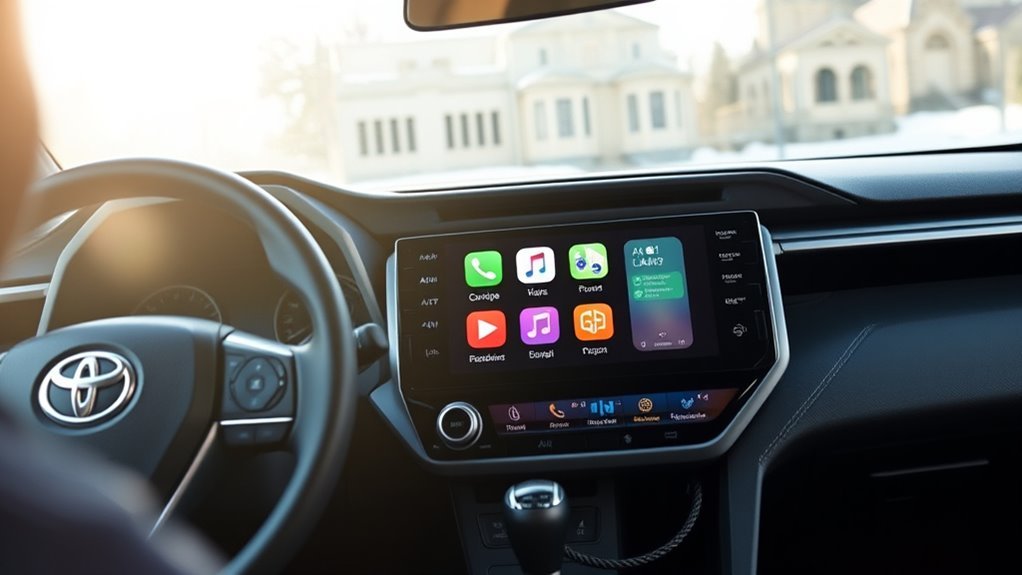
You can arrange your CarPlay apps from your iPhone. Go to Settings > General > CarPlay, choose your RAV4, and tap Customize. Add, remove, or drag supported apps into the order you prefer.
Place maps, music, calls, and messages near the front if you use them often. Remove apps you do not need while driving. A cleaner layout helps you find the right control with fewer taps.
Arrange Your Most-Used Apps First
Open the CarPlay customize menu on your iPhone when you want quicker access to key apps. Drag the apps you use most to the top of the list. Your new order should appear the next time you connect your iPhone to CarPlay.
- Move navigation apps near the front for fast route changes.
- Keep audio apps close together so you can switch sources faster.
- Remove seldom-used apps to reduce screen clutter.
- Review the layout while parked before your next drive.
This setup gives you a cleaner driving screen and reduces needless menu searching.
Show or Hide App Icons
If you want a cleaner CarPlay screen in your RAV4, manage app icons from Settings > General > CarPlay on your iPhone. Select your vehicle, tap Customize, and use the add, delete, or drag controls.
Some apps also include their own notification settings. Adjust those settings in the iPhone Settings app if alerts distract you. Reconnect your iPhone after changes so the RAV4 display can show the updated layout.
| Action | Result |
|---|---|
| Select vehicle | Access app list |
| Tap app | Hide app |
| Press & hold | Rearrange |
| App settings | Further tweaks |
| Reconnect | Sync changes |
Troubleshoot: CarPlay Won’t Connect (Common Fixes)
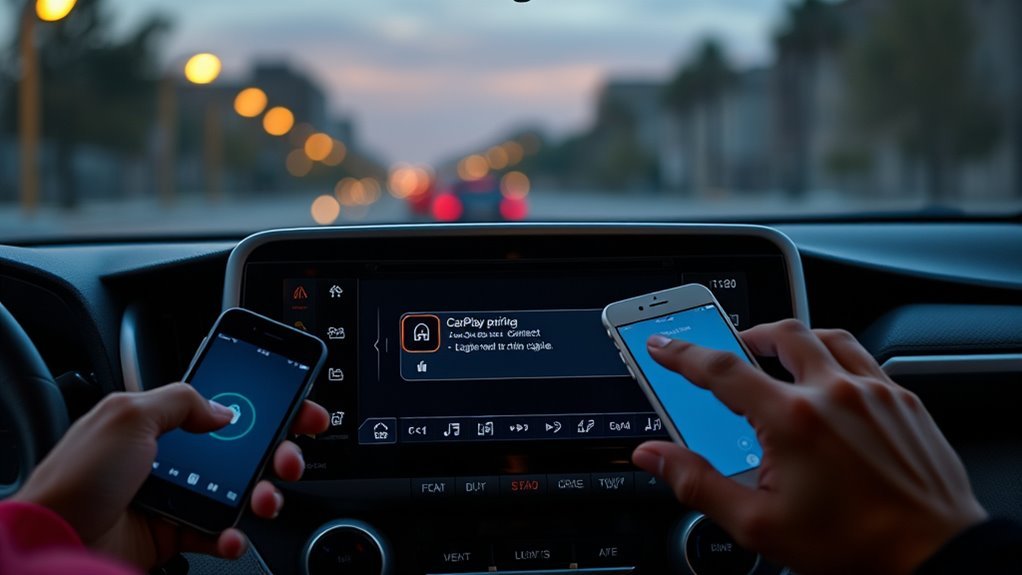
Most CarPlay failures come from settings, cable problems, pairing errors, or outdated software. Start with the easiest checks first. Apple recommends checking vehicle support, iOS updates, connection type, Siri, Screen Time permissions, and vehicle firmware.
- Check that your RAV4 supports CarPlay and that the vehicle stays in Park during setup.
- Install any available iOS update on your iPhone.
- Turn on Siri from Settings > Siri & Search.
- For wired CarPlay, try a different Apple-certified cable and a different USB port if available.
- For wireless CarPlay, keep Bluetooth and Wi-Fi turned on.
- Check Settings > Screen Time > Content & Privacy Restrictions > Allowed Apps and allow CarPlay.
- Go to Settings > General > CarPlay, choose your RAV4, tap Forget This Car, and set it up again.
- Restart your iPhone and restart the vehicle multimedia system if the screen freezes.
Warning: Do not troubleshoot CarPlay menus while driving, because screen taps can pull your focus from the road.
If CarPlay still will not connect, check your owner’s manual for the correct reset steps. A dealer can also check for Toyota multimedia updates if your RAV4 menu keeps dropping the phone.
[Products Worth Considering]

The Ultimate Smarter Copilot: Stay on Top of Your Driving- The 3A magic link CarPlay box control everything with a word, Or a touch, Or a twist. Save your 40% of time by quick auto conn and seamless operation, such as navigation, music playing, Siri assistant, phone calls, radio etc(Our Carplay Only Compatible with wired Apple CarPlay Car systems)

Upgrade to Wireless CarPlay & Android Auto The 2 in 1 Wireless CarPlay and Android Auto Adapter converts your factory wired system into a wireless experience. It’s perfect for families using both iPhone and Android phones, allowing effortless switching without unplugging or swapping cables. This adapter is compatible with over 1,000 vehicle models—supporting 800+ with wired CarPlay and 500+ with wired Android Auto. Works with iPhone 6 or later and Android 11 or above devices.

【MIni CarPlay Wireless Adapter】Easily transform wired OEM CarPlay to wireless! Supports navigation, music playing, Siri assistant, phone calls, text messaging, etc. Enjoy full Carplay App and keep original car operation. No more tangled cables, leaving your car cleaner and embracing the convenience of wireless Car Play
Tips & Best Practices for Safe CarPlay Use
After you fix connection issues, set up CarPlay in a way that keeps your attention on driving. Use Siri for calls, messages, navigation, and audio when possible. Apple says you can start Siri with the steering-wheel voice button, the CarPlay Home button, or “Hey Siri” if your vehicle and iPhone settings support it.
Build your app layout before you drive. Put your main navigation and audio apps on the first screen. Turn on driving focus features or reduce nonessential notifications from your iPhone settings.
Practice common tasks while parked so you know where controls sit. Treat CarPlay as a driving aid, not a second phone screen. The less you touch the display, the safer your drive feels.
Common Mistakes to Avoid
Many CarPlay problems come from small setup mistakes. Avoid cheap charging-only cables, because they may not carry data well enough for wired CarPlay. Do not pair the same phone again and again without deleting the old connection first.
Wireless users should keep both Bluetooth and Wi-Fi on. If you turn off Wi-Fi after pairing, wireless CarPlay may stop working. Also check that another saved phone has not taken priority in the RAV4 device list.
Frequently Asked Questions
Why is my Apple CarPlay not connecting in my RAV4?
Your Apple CarPlay may not connect because of a weak USB cable, disabled Siri, blocked CarPlay permissions, wireless pairing trouble, or outdated software. Start with the cable and settings first, then forget the vehicle from Settings > General > CarPlay and pair it again.
Does Toyota RAV4 support Apple CarPlay?
Apple’s available models list includes the Toyota RAV4 for model years 2019 through 2026. Your region, trim, and multimedia software can affect the exact setup, so check your owner’s manual or Toyota dealer if your menus differ.
Do I need Wi-Fi for wireless CarPlay?
Yes. Wireless CarPlay uses Bluetooth for discovery and pairing, but it also needs Wi-Fi for the CarPlay link. Keep both Bluetooth and Wi-Fi turned on during setup and regular use.
Why does wired CarPlay work but wireless CarPlay does not?
Your RAV4 may support wired CarPlay but not wireless CarPlay, or the wireless connection may need a reset. Check your vehicle’s multimedia features, delete the old phone pairing, turn on Bluetooth and Wi-Fi, then pair again while parked.
Can I change the CarPlay apps on my RAV4 screen?
Yes. On your iPhone, go to Settings > General > CarPlay, choose your RAV4, and tap Customize. You can add, remove, and reorder supported apps from that menu.
Conclusion
A reliable CarPlay setup starts with the right settings, a good cable, and a clean phone pairing. Set up your iPhone while parked, test maps and Siri, then arrange your apps before you drive. If CarPlay fails later, check permissions, cable quality, Bluetooth, Wi-Fi, and saved vehicle connections first. Once you fix those basics, your RAV4 screen should feel easier to use on every trip.
References
- Connect iPhone to CarPlay — Apple Support, 2026
- If you need help with CarPlay — Apple Support, 2025
- Use CarPlay with your iPhone — Apple Support, 2025
- CarPlay Available Models — Apple, 2026
- How do I setup Apple CarPlay? — Toyota Support


[…] If you are connecting a phone for the first time rather than fixing a failure, use the separate Toyota RAV4 Apple CarPlay setup guide. […]