
Setting up Toyota Remote Connect on a Camry is easiest when you confirm eligibility first, then activate the service through the Toyota app and your vehicle’s multimedia system. The exact steps can vary by model year, trim, region, multimedia system, and subscription status, so use the Toyota app as the final source for what your Camry supports.
Quick Answer
To set up Toyota Remote Connect on a Camry, download the Toyota app, create or sign in to your My Toyota account, add your vehicle by VIN, enroll in an active trial or paid subscription, then authorize the vehicle using the QR code or 6-digit authorization code shown during setup.
Key Takeaways
- Remote Connect availability depends on your Camry’s model year, trim, equipment, location, and active trial or paid subscription.
- Newer Toyota models may use a QR-code authorization flow, while other vehicles may require a 6-digit code sent by email.
- Remote features may include engine start, lock/unlock, vehicle status, last parked location, horn, lights, or alerts, but not every Camry has every feature.
- Do not use remote start in an enclosed garage, and check local idling or remote-start laws before using the feature.
At a Glance
| Time Required | 10–20 minutes if your account, VIN, email, phone signal, and vehicle are ready |
| Difficulty | Easy |
| Tools Needed | Smartphone, Toyota app, email access, VIN, and your Camry parked safely |
| Cost | Toyota app is free; Remote Connect requires an eligible active trial or paid Connected Services subscription |
Check Remote Connect Compatibility First
Before you start, confirm that your Camry is Remote Connect capable. Many late-model Camry vehicles with Toyota Connected Services can use Remote Connect, but availability is not universal. It depends on the model year, trim, multimedia system, market, subscription status, and whether the vehicle has the required connected-services hardware.
The fastest way to check is to sign in to the Toyota app, add your Camry, and review the Connected Services shown for your vehicle. You can also check your window sticker, purchase or lease documents, Toyota owner’s manual, or Toyota’s official Connected Services support resources.
Note: If the Toyota app does not show Remote Connect buttons after setup, your Camry may not support the feature, the service may not be active yet, or the vehicle may still be pending authorization.
How to Download the Toyota App for Your Camry
Start by downloading the Toyota app from the App Store or Google Play Store. Open the app after installation and sign in with your My Toyota account. If you do not have an account yet, select the registration option and follow the prompts.
Use an email address you can access immediately because Toyota may send a verification email or authorization code during setup. A stable cellular or Wi-Fi connection on your phone also helps prevent the setup from timing out.
Steps to Create Your Toyota Account
Your Toyota account connects the app, your vehicle, and your Connected Services subscription. Take a few minutes to complete each account step carefully so the app can verify ownership and show the correct Remote Connect features for your Camry.
Download Toyota App First
Open the Toyota app and choose the option to register or sign in. You may be able to use existing My Toyota, Lexus Drivers, or SmartPath account credentials if you already have them. Keep your phone nearby and allow any required app permissions that are needed for account setup, notifications, and vehicle status features.
Enter Account Information
Enter your name, email address, phone number if requested, and a secure password. Review the account prompts carefully because Toyota uses this information to connect your profile with your vehicle and Connected Services. If the app asks you to verify your email, complete that step before adding or authorizing the Camry.
Verify Your Email Address
Check your inbox for Toyota’s verification message. If it does not arrive within a few minutes, check your spam or junk folder and confirm that the email address in the app is correct. Email access is important because some Remote Connect setup flows use a 6-digit authorization code sent to your account email.
How to Add Your Vehicle Using VIN or Camera
After signing in, select the option to add a vehicle. The app may ask for your Camry’s VIN. You can usually type the VIN manually or scan it with your phone’s camera.
The VIN is commonly found on the driver-side dashboard near the windshield, inside the driver-side door frame, on insurance documents, or on registration paperwork. After entering the VIN, review the vehicle details in the Toyota app and confirm that the model, year, and trim look correct.
| Step | Action | What to Check |
|---|---|---|
| Add Vehicle | Open the Toyota app and select the add-vehicle option | Make sure you are signed in to the right account |
| Enter or Scan VIN | Use the camera or type the VIN manually | Check every letter and number before submitting |
| Confirm Vehicle | Review the app’s vehicle details | Confirm the correct Camry appears before continuing |
Pro Tip: Add a nickname such as “Camry XSE” or “Hasan’s Camry” if you manage more than one Toyota in the app.
What to Know About Your Toyota Connected Services Trial
Remote Connect requires an eligible active trial or paid subscription. Trial length and included services vary by vehicle, model year, trim, package, and purchase or lease details. Do not assume every Camry has the same trial length or the same Remote Connect features.
To review your status, open the Toyota app and check the Connected Services or subscription section for your Camry. You can also review Toyota’s Connected Services plans for current package information. Pricing and included features can change, so the Toyota app and Toyota’s official plan page are the best places to confirm your current options.
[Products Worth Considering]

This replacement key fob shell is designed for select Toyota models and helps restore a broken, worn, or damaged remote case without replacing the electronics. It offers easy installation with no reprogramming required, making it a convenient option for a spare or refresh. Compatible with 4-button keyless entry remotes, it is a practical fit for multiple Toyota vehicles.

This keyless entry remote replacement is designed for a wide range of Toyota, Scion, and Lexus-compatible vehicles, offering a convenient way to restore remote locking and unlocking functions. Each fob is pre-tested, comes with the battery and electronics already installed, and is ready to be programmed for supported standard-key vehicles. It is a practical replacement choice for drivers who need a reliable, compatible remote for everyday use.

This key fob shell is a replacement case and button pad designed to refresh worn or damaged Toyota remote housings. It fits select Camry, Corolla, RAV4, and Highlander models and installs without programming when you transfer your existing electronics and battery. It is a simple way to restore the look and function of your keyless entry remote.
Accepting the Terms for Remote Services
During enrollment, the Toyota app may ask you to accept Connected Services terms and data-sharing notices. Read these prompts before accepting because Remote Connect, Service Connect, Safety Connect, and other connected features can involve vehicle data, account information, device data, and location-related information.
Understanding Service Terms
The service terms explain what features are available, what subscription or trial is required, and what limitations apply. Remote Connect also depends on factors outside the app, including cellular coverage, GPS signal, Toyota server availability, and the vehicle’s hardware and software.
Data Sharing Consent
Toyota’s Connected Services Privacy Notice explains how Connected Services Data and Account Information may be collected, used, stored, shared, and secured. If you are not comfortable with a data-sharing setting, review the privacy options in the Toyota app before continuing.
Note: Turning off or declining certain Connected Services settings may limit or disable Remote Connect features.
How to Receive and Enter the Authorization Code
After your Camry is added and the Remote Connect trial or subscription is selected, Toyota may require vehicle authorization. Depending on the model year and multimedia system, you may see one of two common authorization paths: a QR code on the vehicle screen or a 6-digit authorization code sent to your email.
- For some newer Toyota models, the multimedia system may display a QR code that you scan with the Toyota app.
- For other vehicles, Toyota may email a 6-digit authorization code that you enter through the vehicle’s multimedia Remote Authorization screen.
- Older Camry vehicles with Entune-era systems may show slightly different menu names.
- If you do not receive the code, check your spam folder and confirm that your Toyota account email is correct.
For Toyota’s official instructions, review the support pages for enabling Remote Connect and using an authorization code.
Verifying Your Vehicle’s Connected Services Setup
After authorization, refresh the Toyota app. The app should show your Camry and display the available Remote Connect buttons, such as start, lock, unlock, or vehicle status if your vehicle supports those features.
Vehicle Setup Confirmation
Look for a status message in the app. If the vehicle shows as active and Remote Connect buttons are visible, setup is complete. If the vehicle shows as pending, the app may still be trying to complete the connection. If it shows as failed, repeat the authorization steps or contact Toyota support through the app.
Service Functionality Check
Test one simple command first, such as refreshing vehicle status or locking the doors. Make sure your Camry is parked in a safe, open area with adequate cellular and GPS signal. If the command works, try the other features available for your vehicle.
Accessing Remote Features in the Toyota App
Once Remote Connect is active, open your Camry’s dashboard in the Toyota app. Depending on your vehicle, subscription, and equipment, available features may include remote engine start or stop, lock and unlock, vehicle status, last parked location, horn, hazard lights, headlights, climate-related controls, guest driver alerts, or Digital Key.
Feature names may differ by model year, and some functions may be unavailable on certain trims. If a button is missing, check whether your trial or paid subscription is active and whether your Camry supports that feature.
Warning: Never use remote start in an enclosed garage or any area without proper ventilation. Also check your state and local rules because some communities restrict idling or remote-start use.
Managing Your Vehicle’s Health Reports
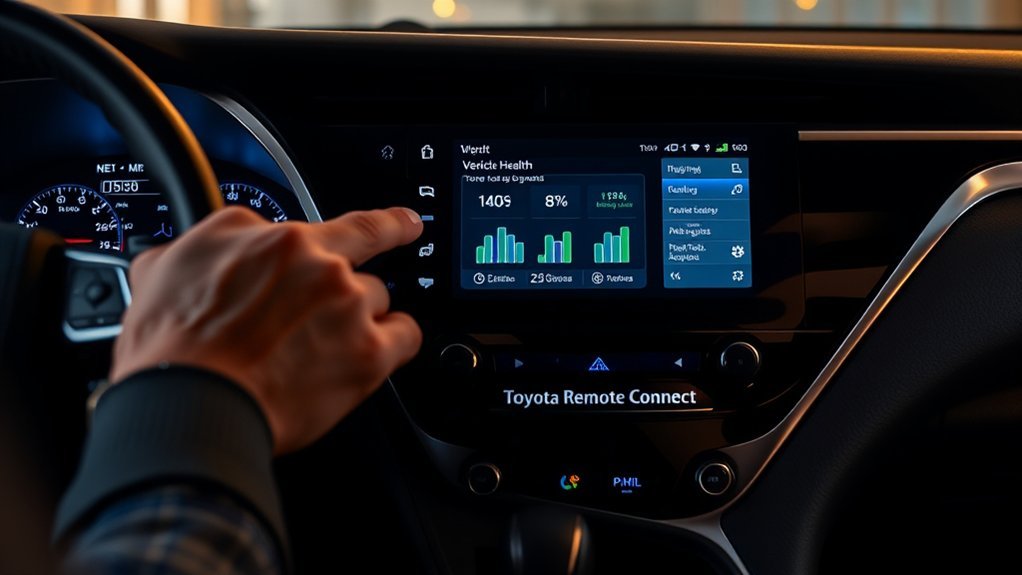
Vehicle health information is generally part of Toyota Service Connect, not just Remote Connect. If your Camry is eligible and the service is active, the Toyota app may show health reports, vehicle alerts, maintenance reminders, recall alerts, odometer-related information, and other service details.
Use these reports as a helpful maintenance tool, but do not ignore warning lights or drivability problems just because the app looks normal. If the vehicle reports a warning, schedule service with a Toyota dealer or qualified technician.
[Products Worth Considering]

This leather key fob cover helps protect your Toyota remote from scratches, wear, dust, and everyday damage while keeping the buttons easy to use. Its snug fit preserves sensor access and gives your key a distinctive look that is easy to identify in a bag or on a keychain. Designed for compatible Toyota smart key models, it is a practical accessory for added protection and style.

This replacement key fob shell is designed to refresh worn or broken Toyota remote cases without changing the electronics inside. It fits select Toyota models and provides a simple, no-reprogramming solution for restoring your key’s appearance and function. The durable mixed metal and plastic construction helps protect your original internal components while the blank key can be cut by a locksmith or hardware store.
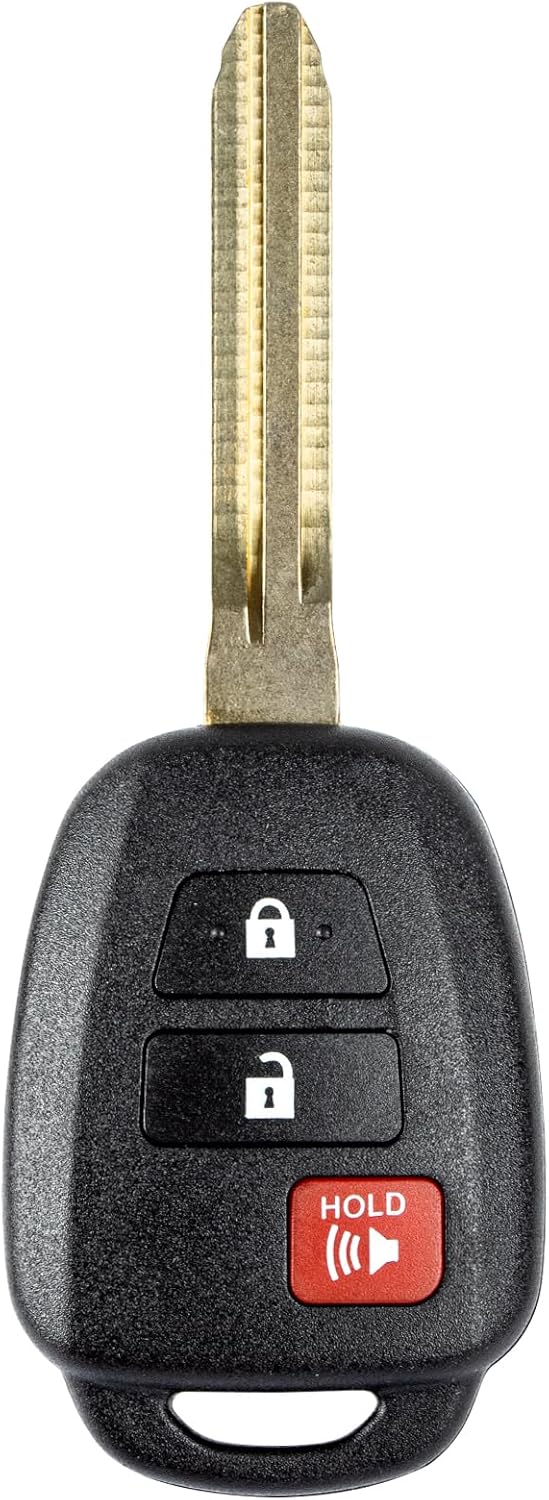
This replacement key fob is designed for select Toyota models and provides reliable keyless entry functionality with a factory-like fit and operation. It comes pre-tested with electronics and battery installed, making it a convenient solution when your original remote is lost, damaged, or worn out. Professional programming and cutting are required, and compatibility should be confirmed against the original remote and vehicle fitment details.
Tips for Troubleshooting Common Setup Issues
If Toyota Remote Connect does not work after setup, start with the basics before deleting the vehicle or creating a new account.
- No authorization code: Check spam, confirm your Toyota account email, and request the code again if the app allows it.
- No Remote Connect buttons: Confirm your Camry supports Remote Connect and has an active trial or paid subscription.
- Vehicle shows “Pending”: Refresh the app, move the vehicle to an area with better signal, and wait for the connection to complete.
- Vehicle shows “Failed”: Repeat the authorization process or contact Toyota support through the app.
- Remote start fails: Make sure the vehicle is off, in Park, locked, not in an enclosed space, and has no open doors, hood, trunk, or active warning condition.
- Commands are slow: Check phone signal, vehicle cellular coverage, GPS availability, and whether the Toyota app needs an update.
- Wrong vehicle appears: Remove the incorrect vehicle from the app and add the correct Camry VIN again.
Pro Tip: If setup worked before and suddenly stopped, first update the Toyota app, sign out and back in, restart your phone, and move the Camry to an area with stronger cellular coverage.
[Products Worth Considering]

This soft TPU key fob cover provides full 360-degree protection for compatible Toyota smart keys while keeping buttons easy to press and signals unaffected. Designed for a precise fit, it helps guard against drops, scratches, dust, and water, and includes a convenient keychain for everyday use. The stylish silver-pink finish adds a custom look without compromising the original key functionality.
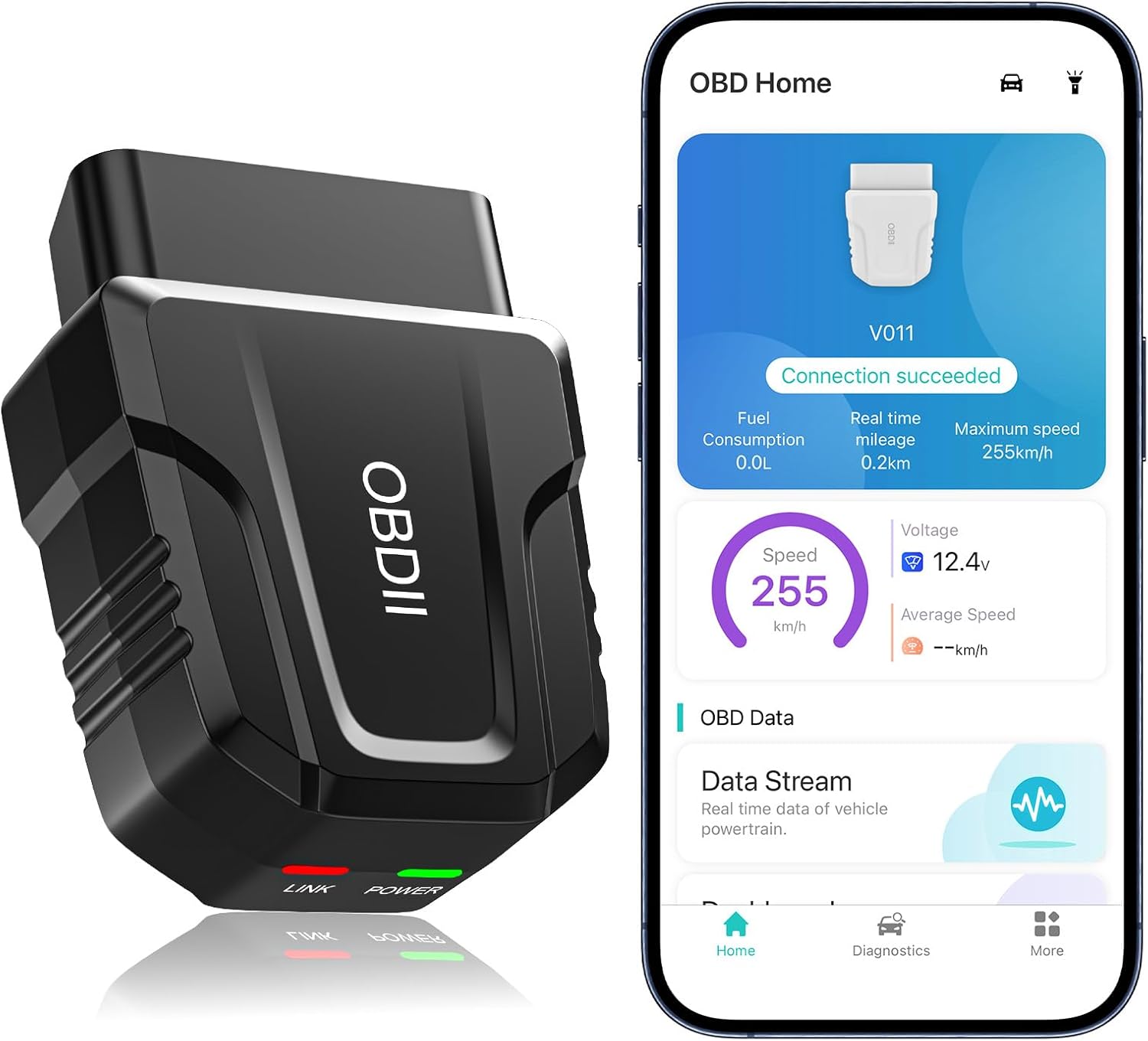
The UMEIJA V011 OBD2 scanner delivers comprehensive vehicle diagnostics with Bluetooth connectivity and a dedicated app for iOS and Android. It supports live data, fault code reading and clearing, readiness checks, freeze frame, sensor data, and performance testing to help drivers understand and monitor vehicle health. With broad compatibility across many car and truck models and easy-to-read data visualization, it is a practical tool for both beginners and experienced users.

KAX CA12377 engine air filter is designed as a replacement for select Toyota and Lexus vehicles, helping deliver cleaner airflow to the engine for smoother operation and maintained performance. Its resin-impregnated fiber paper media and 3-layer composite construction are engineered to meet or exceed OE air filter requirements with low resistance and high efficiency. Built for dependable fit and recommended periodic replacement, it supports long-term engine protection across a wide range of compatible models.
Frequently Asked Questions
How much is Toyota Remote Connect per month?
Toyota Remote Connect pricing can vary because Toyota may include it within broader Connected Services packages, and package availability can depend on model year, vehicle equipment, and region. Check the Toyota app or Toyota’s official Connected Services plans page for current pricing instead of relying on a fixed old monthly price.
Does the Toyota Camry have Remote Connect?
Many late-model Toyota Camry vehicles can use Remote Connect when properly equipped and enrolled in an active trial or paid subscription. Availability is not the same for every Camry, so confirm your vehicle’s services in the Toyota app after adding the VIN.
Do I need the authorization code for every Camry?
Not always. Some Toyota models can authorize Remote Connect by scanning a QR code on the multimedia screen, while others use a 6-digit authorization code sent by email. Follow the instructions shown in your Toyota app and vehicle multimedia system.
Why does the Toyota app not show remote start?
Remote start may be missing if your Camry does not support it, the Remote Connect trial or subscription is inactive, the vehicle is still pending authorization, the app needs an update, or the feature is unavailable for your trim or market.
Can I use Remote Connect without a cellular signal?
No. Remote Connect depends on communication between your phone, Toyota’s connected-services system, and the vehicle. Poor cellular coverage, weak GPS signal, service outages, or vehicle hardware issues can delay or block commands.
Conclusion
To set up Toyota Remote Connect on your Camry, start with the Toyota app, add your vehicle by VIN, confirm your Connected Services trial or subscription, then complete the QR-code or authorization-code step shown by your app and multimedia system. Once the app shows your Camry as active and displays supported Remote Connect buttons, you can begin using the available remote features safely and responsibly.
Sources
- Toyota App — app setup, vehicle health, remote-control features, and app availability
- Toyota Connected Services Plans — current Connected Services package information
- Toyota Support: How do I enable Remote Connect? — official Remote Connect activation guidance
- Toyota Support: How do I use my Authorization Code? — authorization-code setup details
- Toyota Connected Services Privacy Notice — Connected Services data and privacy practices

[…] will find compatibility on select 2022 and later RAV4 models, so check your model year and trim. Toyota designed Remote Connect to give you remote control over core functions through the Toyota app. A 6-digit PIN protects every […]