
Toyota Tundra CarPlay Not Working? Start Here
Reviewed against Apple Support, Toyota owner documentation, and Toyota/NHTSA service information. Last technical review: July 15, 2026.
To fix Apple CarPlay not working in a Toyota Tundra, first match the troubleshooting path to your truck’s model year. U.S.-market 2020–2021 Tundras use factory wired CarPlay. The redesigned 2022–2026 Tundra supports wireless CarPlay and a wired USB connection. A 2019-or-older Tundra needs an aftermarket CarPlay unit.
Park the truck before changing settings. Restart the iPhone and Toyota multimedia system, confirm Siri and CarPlay permissions, then test the correct connection method. Use a direct data cable for wired CarPlay. For wireless CarPlay, check both Bluetooth and Wi-Fi before deleting and rebuilding the pairing.
Quick Answer
For a 2020–2021 Tundra, connect the iPhone to the USB media or data port with one direct data cable. For a 2022–2026 Tundra, restart both systems, turn on Siri, Bluetooth, and Wi-Fi, then check the saved CarPlay network and Auto-Join. If CarPlay still fails, forget the Tundra on the iPhone, remove the phone from the truck, update both systems, and pair them again. A black or frozen backup-camera image is a separate safety or recall issue.
Affiliate disclosure: As an Amazon Associate, Auto Review Nest earns from qualifying purchases. This does not affect the price you pay.
Key Takeaways
- Factory CarPlay is wired on U.S.-market 2020–2021 Tundras and wireless-capable on 2022–2026 models.
- A charging iPhone does not prove that the cable or USB port can transfer CarPlay data.
- Wireless CarPlay needs both Bluetooth and Wi-Fi, including Auto-Join for the CarPlay network.
- Toyota software version 2050 applies only to certain 2022–2024 factory multimedia systems.
- A failed rearview-camera image should trigger a VIN recall check, not another CarPlay reset.
What’s in This Article
- Which CarPlay Connection Does Your Tundra Use?
- Common Symptoms and Likely Causes
- How to Restart the iPhone and Tundra
- How to Enable Siri and CarPlay Permissions
- Why Wireless CarPlay Will Not Connect
- Why Wired CarPlay Charges but Does Not Connect
- How to Remove Pairing Conflicts
- When to Reset Tundra Infotainment
- How to Update iOS and CarPlay Apps
- Does Toyota Software 2050 Apply?
- How to Prevent Future Drops
- Frequently Asked Questions
Which CarPlay Connection Does Your Tundra Use?
Identify the factory system before you change any settings. The table below applies to U.S.-market Tundras with their original multimedia system. Features can differ in other markets, and an aftermarket head unit follows its manufacturer’s instructions.
| Tundra setup | Normal CarPlay connection | First test |
|---|---|---|
| 2019 or older factory system | No factory Apple CarPlay | Identify the aftermarket unit’s brand and model, if one is installed. |
| 2020–2021 factory system | Wired CarPlay | Use the USB media or data port and one direct data-capable cable. |
| 2022–2026 factory system | Wireless CarPlay, with wired USB also available | Check Bluetooth, Wi-Fi, Auto-Join, and the USB data connection. |
| Aftermarket head unit or adapter | Varies by product | Check the unit’s firmware, companion app, cable, and compatibility list. |
If you are unsure which system your truck has, check the multimedia manual, the model-information screen, or the head unit’s brand label before continuing.
Common Symptoms and Likely Causes
Tundra CarPlay failures usually fall into a few patterns. Start with the symptom you see instead of resetting every setting at once.
- The iPhone charges but CarPlay does not open: The cable, adapter, or USB port may provide power without a working data path.
- Bluetooth audio works but CarPlay does not: Bluetooth pairing alone does not enable CarPlay. Check CarPlay permissions and the truck’s device settings.
- Wireless CarPlay will not pair: Check Bluetooth, Wi-Fi, the saved CarPlay network, and Auto-Join.
- CarPlay worked before but now fails: Restart both systems, then delete and rebuild the connection.
- CarPlay connects and then drops: Remove competing phones, test a direct cable, and check for software updates.
- Only one app fails: Update or restart that app and test Apple Maps, Phone, or Music before resetting the truck.
- No compatible iPhone works: Focus on the truck’s USB port, multimedia software, device profile, or head unit.
When possible, test another compatible iPhone with the same connection method. If the second phone works, focus on the first iPhone’s settings, software, or connector. If neither phone works, focus on the cable, USB port, multimedia software, or head unit.
If CarPlay connects normally but disconnects during calls, navigation, or music, use the dedicated Tundra CarPlay disconnect guide after completing the basic checks below.
How Do You Restart the iPhone and Tundra to Restore CarPlay?
Restart the iPhone first, then let the Tundra multimedia system shut down fully. This clears temporary connection and projection errors without erasing saved devices.
Turn off the iPhone, wait briefly, and turn it back on. Switch off the truck, open the driver door, and wait for the multimedia display to power down before restarting the vehicle.
For wired CarPlay, reconnect with one direct data cable. For wireless CarPlay, keep Bluetooth and Wi-Fi enabled, then select the Tundra from Settings > General > CarPlay if it does not reconnect automatically.
Pro tip: Change one item at a time and test CarPlay after each step. This helps you identify the actual cause.
How Do You Enable Siri and CarPlay Permissions?
CarPlay needs Siri and permission to connect to the truck. On current iPhones, open Settings, then tap Siri or Apple Intelligence & Siri. Open Talk to Siri or Talk & Type to Siri and confirm that Siri is enabled.
Next, open Settings > General > CarPlay. Select your Tundra if it appears. Turn on Allow CarPlay While Locked when that option is available.
If Screen Time blocks CarPlay, open Settings > Screen Time > Content & Privacy Restrictions > Allowed Apps. Confirm that CarPlay is allowed. The exact menu label may vary slightly by iOS version.
If you denied a permission prompt during the first connection, use Forget This Car and pair the truck again so the prompts return.
Why Won’t Wireless CarPlay Connect?
Factory wireless CarPlay applies to the redesigned 2022-and-newer Tundra. A 2020 or 2021 factory system needs a USB connection unless you installed a compatible aftermarket wireless adapter.
Wireless CarPlay uses Bluetooth to begin pairing and Wi-Fi for the active connection. Keep both enabled. On the iPhone, open Settings > Bluetooth and forget the Tundra if the saved pairing no longer works.
Remove the same iPhone from the Toyota multimedia device list. Then pair the phone again and approve CarPlay on both screens.
Open the iPhone’s Wi-Fi settings and select the CarPlay network when it appears. Confirm that Auto-Join is on. Do not leave Wi-Fi disabled after pairing because wireless CarPlay needs it during normal use.
For a clean first-time connection procedure, see the Toyota Tundra CarPlay setup guide.
[Products Worth Considering]

This auxiliary jack adapter restores a broken or missing AUX connection so you can stream audio from your device through your Toyota stereo system. It is designed for compatible Toyota models and uses an 8-pin connector for a direct plug-and-play replacement. Built for reliable audio transmission, it helps bring back clear in-car sound without complicated installation.

This windshield sun shade umbrella is designed for Toyota Tundra models from 2007 to 2026, helping block harsh sunlight and reduce interior heat buildup. Its reflective cooling coating and high-density fabric work together to protect dashboards, seats, and trim while keeping the cabin more comfortable. The umbrella-style design installs quickly, folds down easily, and stores neatly for everyday convenience.

This USB panel mount car charger provides a clean flush-fit extension solution for compatible Toyota dashboards, delivering both charging and data transfer through a male to female USB connection. Designed for plug-and-play installation, it supports a wide range of Toyota models and helps replace broken or outdated USB ports while protecting devices from overcurrent, overheating, and overcharging. Its durable PVC and copper construction supports reliable use for phones, tablets, GPS units, and CarPlay or Android Auto accessories.
Why Does Wired CarPlay Charge but Not Connect?
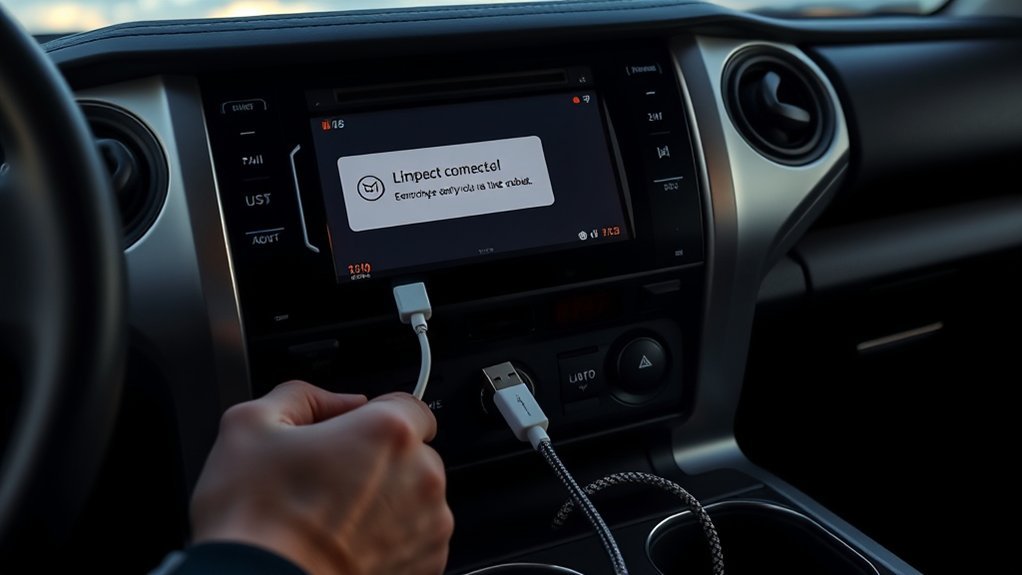
A charging symbol proves that power reaches the iPhone. It does not prove that the cable, adapter, or USB port can carry CarPlay data.
Connect the iPhone to the Tundra’s USB media or data port, not a charge-only port. Check the owner’s manual if several USB ports are available because some ports provide charging only.
Use one direct cable that matches both ends of the connection. For a USB-C iPhone and a USB-A truck port, use a USB-A-to-USB-C cable that supports data. Avoid USB hubs and stacked adapters during diagnosis.
For a Lightning iPhone, use an undamaged Apple or MFi-certified data cable. Replace any cable with loose connectors, bent ends, or an intermittent fit.
Inspect the iPhone connector and truck USB port for visible lint, damage, or looseness. Do not insert a metal object into either port. Unlock the iPhone and accept every CarPlay or accessory prompt that appears.
[Products Worth Considering]

This mech-style heavy metal key fob cover is designed to protect compatible Toyota E-style smart keys with a precise 1:1 fit. Built with a durable zinc alloy frame and soft silicone buttons, it helps guard against daily wear while keeping full access to key functions. The set includes a metal keychain and screwdriver for easy installation, making it a practical upgrade for select Toyota models.

This CANBUS wiring harness is designed to connect compatible Android head units to select Toyota models with mid-trim OEM JBL systems, helping simplify installation and reduce cutting or splicing. It supports retained factory features such as steering wheel controls, factory backup camera, original USB, and JBL amplifier functions when the vehicle and radio are compatible. Built for select Toyota fitments, it offers a plug-and-play upgrade path for a smoother stereo replacement.

Replace a cracked or unresponsive navigation screen with this touch screen glass digitizer designed for compatible Toyota infotainment units. It restores touch functionality for supported RAV4, Prius C, Corolla, and Camry models with a precise 12-pin interface and the correct cable position requirements. Built with a slim 1.5mm profile, it is a practical repair solution for keeping your factory navigation system working properly.
How Do You Remove Pairing Conflicts?
Several saved phones can compete for the same multimedia connection at startup. Remove phones that you no longer use from the Tundra’s Bluetooth and device menu.
On the iPhone, open Bluetooth settings and forget old vehicle profiles. Then open Settings > General > CarPlay, select the Tundra, and tap Forget This Car.
During the next test, keep only the primary iPhone active. Ask passengers to disable Bluetooth briefly so the truck cannot select another phone.
For wireless CarPlay, leave Auto-Join enabled for the CarPlay network. You can disable Auto-Join for unrelated hotspots if the iPhone repeatedly leaves the vehicle connection.
When Should You Factory-Reset Tundra Infotainment?
Use a Tundra infotainment reset only after you try a normal restart, permission checks, cable tests, device removal, and software updates. A factory or personal-data reset can erase phones, profiles, presets, and other saved settings.
Warning: Record your saved settings before you reset the Tundra multimedia system.
Open the Toyota multimedia settings menu and look for System Reset, Personal Data Reset, or Factory Reset. The exact wording depends on the model year and multimedia version.
After the reset, remove the Tundra from the iPhone’s Bluetooth and CarPlay lists. Restart the iPhone, pair it again, and approve every prompt on both screens.
If wireless setup still fails on a compatible truck, use a direct USB data cable for the first reconnection. This helps confirm whether the phone and multimedia system can establish CarPlay without the wireless link.
[Products Worth Considering]

This universal stereo removal kit provides a complete set of keys and pry tools for safely removing factory radio and navigation units without damaging the dash or head unit. Built from durable steel, it is designed for long-lasting use and compatible with a wide range of car and truck models including many popular European and American vehicles. The assortment of tool shapes and sizes helps make radio installation and removal faster, easier, and more precise.

This Toyota navigation SD card provides updated North America maps and points of interest for compatible factory navigation systems. It is preloaded with recent road and location data to help drivers find destinations, services, and routes more easily across the U.S. and Canada. Designed for select Toyota models, it offers a simple plug-and-play replacement for the original navigation card.
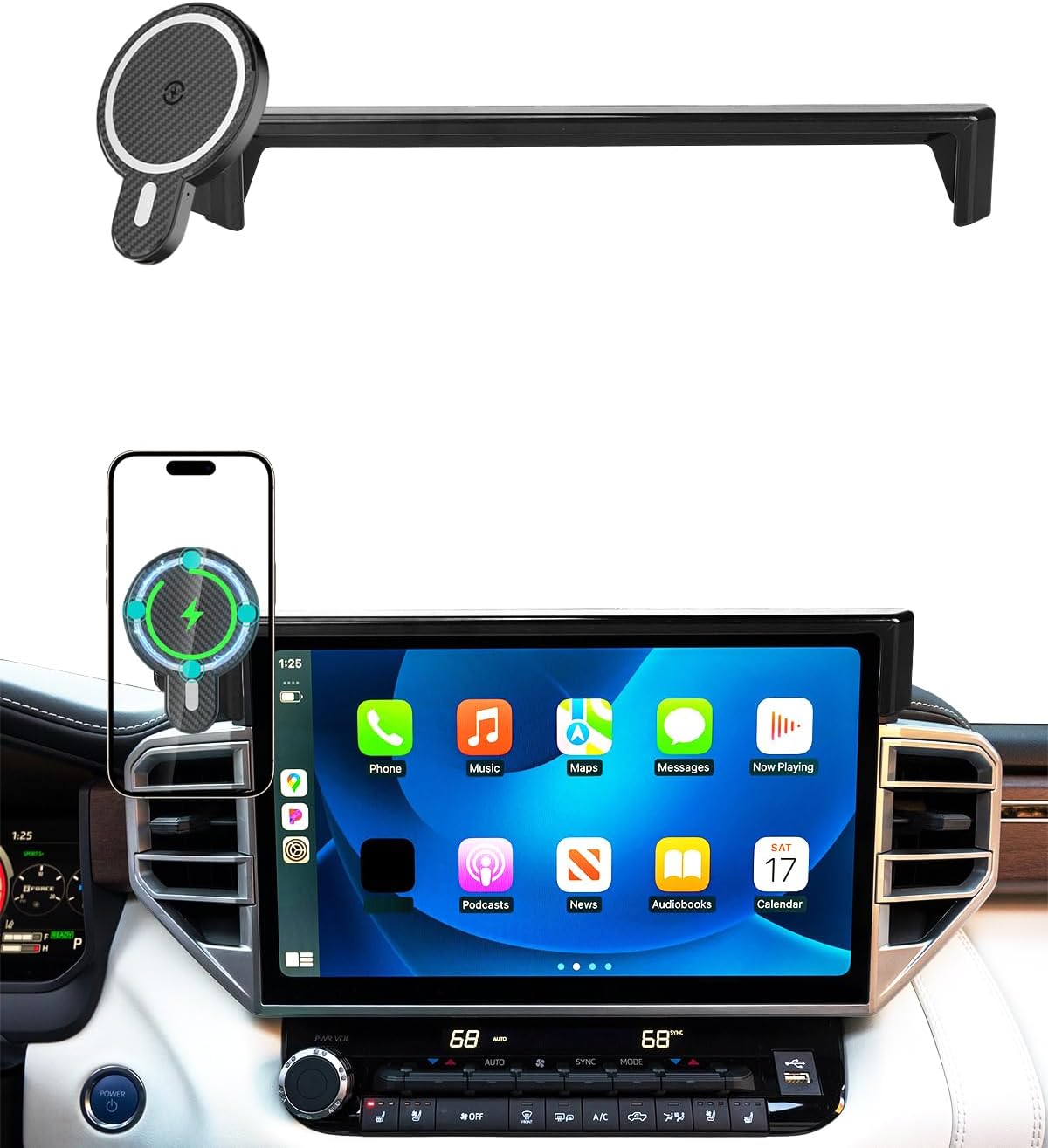
Designed specifically for compatible Toyota Tundra and Sequoia models, this magnetic car phone mount provides a secure, custom fit on the dashboard screen area without blocking vents or sightlines. It supports fast wireless charging with MagSafe-style alignment, one-hand placement, and 360-degree rotation for clear navigation and hands-free driving. Built from durable ABS material, it installs easily without tools and keeps your phone stable on the road.
How Do You Update iOS and Refresh CarPlay Apps?
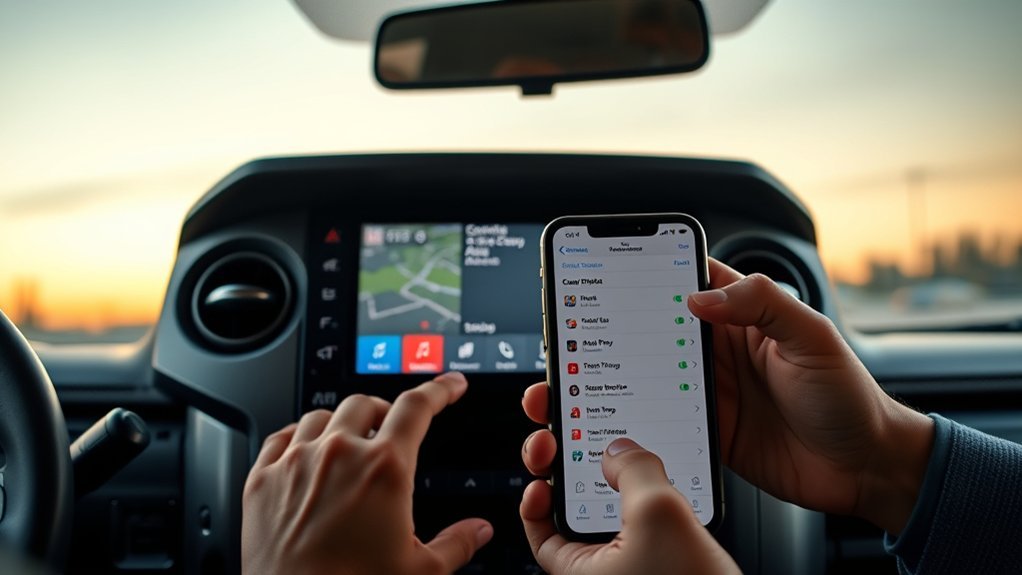
Install the latest public iOS release available for your iPhone. Apple includes current iOS software and vehicle firmware among its main CarPlay troubleshooting checks.
Open Settings > General > Software Update. Install the available update, then restart the iPhone before testing CarPlay again.
Update the navigation and audio apps you use through CarPlay, including Waze, Apple Music, Amazon Music, Spotify, and Google Maps. If only one app fails, close that app and test a built-in app such as Apple Maps, Phone, or Music.
If every CarPlay app fails together, focus on the connection, permissions, or multimedia software instead of reinstalling each app.
Does Toyota Multimedia Software 2050 Apply to Your Tundra?
Toyota service bulletin T-SB-0012-24 applies to certain 2022–2024 Tundra and Tundra Hybrid vehicles with Panasonic Toyota Multimedia. For applicable systems earlier than version 2050, the update addresses CarPlay freezes, reboots, projection failures, connectivity performance, and related multimedia faults.
Do not treat version 2050 as the target for every Tundra. Owners of 2025 or newer trucks should ask for the latest software that applies to the VIN and head-unit version. If an over-the-air update appears on the Toyota screen, follow the on-screen instructions while the vehicle is safely parked.
If your Tundra has an aftermarket head unit or wireless adapter, Toyota bulletin 2050 does not update that product. Record its brand, model, and firmware version, then contact the manufacturer.
Before a dealer visit, record:
- Tundra model year and VIN
- Head-unit or multimedia software version
- iPhone model and iOS version
- Wired or wireless connection
- Cable type and USB port used
- Exact symptom and when it occurs
- Whether another compatible iPhone works
Safety warning: A black, green, frozen, or missing rearview-camera image is not a normal CarPlay fault. Certain Tundras are covered by camera-related recalls 25TA10/25TB10 and 26TA02/26TB02. Check your VIN through Toyota’s recall lookup or the NHTSA recall tool and schedule the applicable repair.
Note: A CarPlay reset cannot repair a multimedia hardware fault, failed USB port, camera recall, or incompatible aftermarket unit.
How Can You Prevent Future CarPlay Drops?
Keep one primary phone selected in the Toyota multimedia system. Remove old devices that you no longer connect.
For wireless CarPlay, leave Bluetooth, Wi-Fi, Siri, CarPlay permission, and Auto-Join enabled. For wired CarPlay, keep one known-good data cable in the truck and avoid putting tension on the connector.
Install iOS, app, and Toyota multimedia updates while parked. After an update, restart the phone and test CarPlay before a long trip.
If the failure returns, record the date, connection type, app, cable, route, and activity in progress. A repeatable description helps a dealer reproduce the problem and identify whether it needs software, USB-port, or head-unit service.
Frequently Asked Questions
How do you fix CarPlay if it is not working in a Toyota Tundra?
Park the truck, identify the model year, restart both systems, then check Siri and CarPlay permissions. Use a direct data cable on 2020–2021 models. On 2022 and newer models, also check Bluetooth, Wi-Fi, and the CarPlay network before forgetting and re-pairing the truck.
Does every Toyota Tundra have wireless CarPlay?
No. U.S.-market 2020–2021 Tundras use factory wired CarPlay. The redesigned 2022–2026 Tundra supports factory wireless CarPlay. A 2019-or-older factory system does not include CarPlay.
Why does my iPhone charge but not open CarPlay?
The cable, adapter, or USB port may provide charging power without a working data connection. Use the Tundra’s USB media or data port and connect the iPhone with one direct data-capable cable.
Why does Bluetooth work but Apple CarPlay does not?
Bluetooth audio and CarPlay are separate functions. CarPlay also needs Siri, CarPlay permission, and the correct wired or wireless connection. On a wireless-capable Tundra, Wi-Fi must remain enabled after Bluetooth starts the pairing process.
Should Wi-Fi stay on for wireless CarPlay?
Yes. Wireless CarPlay uses Wi-Fi for the active connection after Bluetooth helps begin pairing. Keep Wi-Fi enabled and turn on Auto-Join for the CarPlay network.
Does Toyota software version 2050 apply to a 2025 or 2026 Tundra?
Do not assume that it does. Toyota bulletin T-SB-0012-24 identifies version 2050 for certain 2022–2024 systems. Ask Toyota or a dealer for the latest software that applies to your VIN and current head-unit version.
When should a Toyota dealer check a Tundra CarPlay problem?
Contact a dealer when no compatible iPhone works, the USB port feels loose, the screen freezes or reboots, or CarPlay still fails after updates and a clean re-pair. Check for a recall immediately if the rearview-camera image is black, green, frozen, or missing.
Conclusion
Start with the connection your Tundra actually supports. For a 2020–2021 truck, test the USB media port and a direct data cable. For a 2022–2026 truck, check Siri, Bluetooth, Wi-Fi, Auto-Join, and the saved vehicle profile before resetting the system.
If another compatible iPhone also fails, record the symptoms and ask Toyota service to check the USB port, head-unit software, applicable bulletins, and recall status. Treat any failed rearview-camera image as a separate safety issue.
References
- If you need help with CarPlay — Apple Support
- Connect iPhone to CarPlay — Apple iPhone User Guide
- How do I set up Apple CarPlay? — Toyota Support
- 2020 Toyota Tundra Multimedia Upgrades — Toyota USA Newsroom
- 2022 Toyota Tundra Wireless Apple CarPlay — Toyota USA Newsroom
- Head Unit Software Update, T-SB-0012-24 — Toyota Motor Sales USA via NHTSA, 2024
- Safety Recall 25TA10 Remedy Notice — Toyota via NHTSA, 2025
- Safety Recall Report 26V038, 26TA02/26TB02 — Toyota via NHTSA, 2026


[…] loses the microphone, or repeatedly reconnects. If CarPlay has never appeared, use the separate Toyota Tundra CarPlay not working guide. Perform all phone, pairing, update, and reset steps while […]