
Last updated: July 23, 2026 — Toyota update paths, warranty terms, and Camry service-bulletin references rechecked.
If your Toyota Camry touchscreen is not responding, park safely, unplug any connected phone or USB device, and restart the multimedia system before checking fuses or disconnecting the battery. Press and hold the PWR/VOL knob or the system power control until the unit restarts. Some Toyota systems specify a hold of at least three seconds, but the exact control and timing vary by model year and multimedia system, so confirm the procedure in your Camry’s manual.
Quick Answer
To fix a Toyota Camry touchscreen that is not responding, shift to Park, disconnect phones and USB accessories, power-cycle the vehicle, and hold the multimedia PWR/VOL knob or power control until the system restarts. If the problem returns, isolate phone connections, check for an eligible Toyota software update, and ask a dealer to verify VIN-, head-unit-, and software-specific service information.
Key Takeaways
- Try a soft multimedia restart before performing fuse or battery work.
- A factory or system reset is different from a soft restart and may erase paired phones, profiles, presets, and other personal data.
- Toyota multimedia updates may be available over the air, by USB, or through a dealer, depending on the installed system.
- A technical service bulletin is not the same as a recall, and bulletin or warranty applicability depends on the vehicle, head unit, software version, mileage, and diagnosis.
At a Glance
| Time Required | 2 to 15 minutes for basic checks; longer if a dealer diagnosis is needed |
| Difficulty | Easy for a restart and device checks; moderate for fuse or 12-volt battery work |
| Tools Needed | Owner’s and multimedia manuals; fuse puller only if checking the specified fuse; basic wrench only if the manual supports 12-volt battery disconnection |
| Cost | Usually $0 for restart and connection checks; repair cost depends on the diagnosis, warranty status, and parts needed |
Warning: Do not troubleshoot the touchscreen while driving. Park safely first. If you are not comfortable working around fuses or a 12-volt battery, skip those steps. On a Camry Hybrid, never touch orange high-voltage cables, connectors, or traction-battery components.
Match the Symptom to the Next Check
| Screen frozen on one menu; audio still works | Unplug connected devices and perform a soft restart. |
| Black screen; audio still works | Suspect a display, software, connector, or internal head-unit issue. |
| No screen and no audio | Check vehicle power symptoms, the manual-specified fuse, the 12-volt system, or the head unit. |
| Only one part of the screen ignores taps | A failing touch layer or digitizer is more likely than a phone-pairing problem. |
| Toyota logo or loading screen repeats | Check software eligibility and arrange diagnosis if the reboot loop continues. |
| Failure occurs only with CarPlay, Android Auto, Bluetooth, or USB | Test without the phone, cable, adapter, or USB drive before blaming the screen hardware. |
Why Is My Toyota Camry Touchscreen Not Responding?
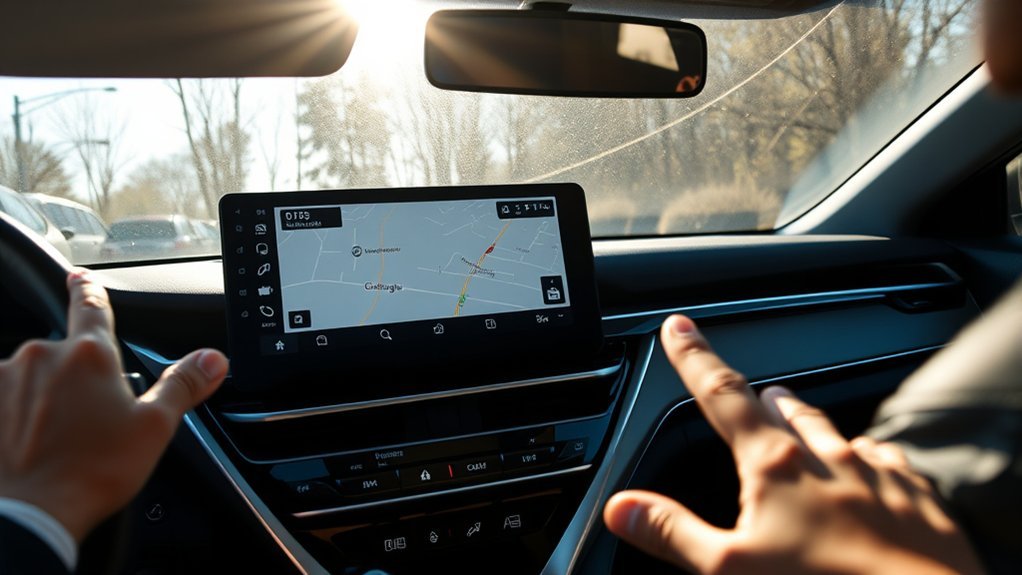
A Camry touchscreen can stop responding because of a temporary software fault, a stalled phone connection, a bad cable or USB device, interrupted 12-volt power, outdated multimedia software, a failed touch layer, or an internal head-unit problem.
The symptom helps narrow the cause. If the whole interface freezes but audio continues, start with a restart and device isolation. If only one area ignores taps, the touch layer may be failing. If the screen and audio both shut down, look for other electrical symptoms and check only the fuse identified by the manual. A repeated Toyota-logo or loading-screen loop points beyond a simple phone-pairing issue.
Note: Camry restart controls, menu names, fuse assignments, and software paths vary by model year, trim, market, and multimedia system. Use the manuals for your exact vehicle rather than a fuse number or menu sequence taken from another Camry.
How Do You Restart a Frozen Camry Touchscreen?
A soft restart is the safest first reset because it reboots the multimedia unit without intentionally deleting paired phones, radio presets, profiles, or navigation settings.
- Park the Camry safely, shift to Park, and apply the parking brake.
- Unplug USB drives, phone cables, wireless projection adapters, and other accessories connected to the multimedia system.
- Turn the vehicle on, or use the accessory mode permitted by your vehicle’s manual.
- Press and hold the PWR/VOL knob or the multimedia power control until the system restarts. Some Toyota systems specify at least three seconds, but use the control and timing listed in your Camry’s multimedia manual.
- Wait for the system to finish loading before tapping through menus or reconnecting a device.
After the restart, test audio, touch input, Bluetooth, phone projection, navigation, and the backup-camera display. If the screen works normally until a phone or cable is reconnected, troubleshoot that connection instead of replacing the display.
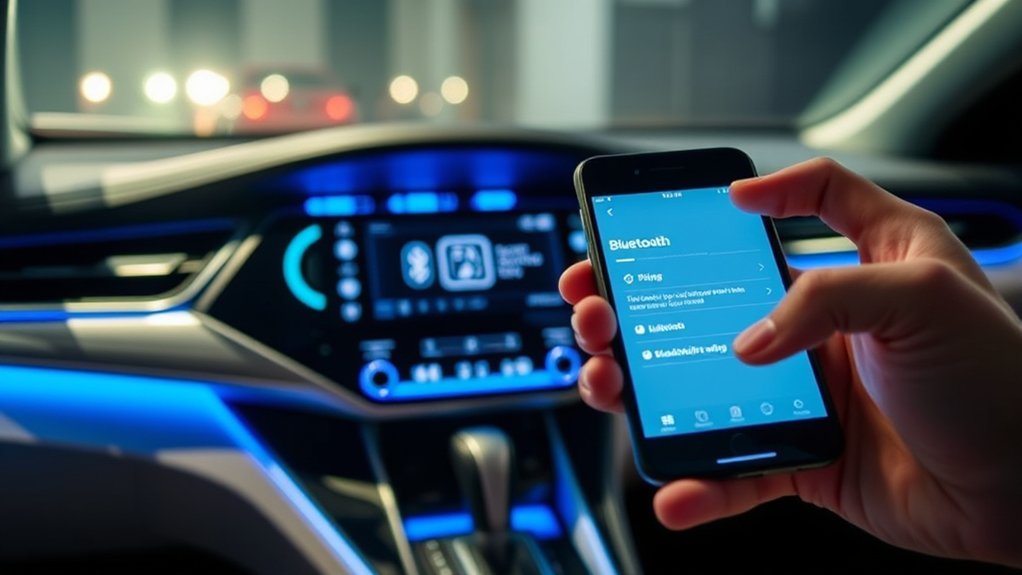
If only phone connectivity is failing, use the dedicated Toyota Camry Bluetooth troubleshooting guide. For a dead or unstable port, see the Camry USB-port guide. For projection setup and re-pairing, see Apple CarPlay in a Toyota Camry.
Pro Tip: Reconnect one device at a time after the restart. If the freeze returns immediately after one cable, adapter, phone, or USB drive is connected, leave that item disconnected while you continue testing.
What Is the Difference Between a Soft Reset and a Factory Reset?
A soft restart and a factory reset are not interchangeable. Use the least destructive option first.
| Soft restart | Reboots the multimedia software and normally keeps saved profiles, paired phones, presets, and settings. |
| Factory or system reset | Returns multimedia settings to their defaults and may remove personal data, profiles, pairings, presets, and preferences. |
Consider a factory or system reset only when the screen remains usable, device isolation has not solved the problem, and you are prepared to set up the system again. Menu names vary, so follow the instructions for your exact multimedia system rather than using a menu path from another model year.
[Products Worth Considering]

The ANCEL AD410 PRO combines engine diagnostics and 12V battery testing in one easy-to-use tool, helping you read and clear check engine codes while checking battery health, cranking, and charging performance. It also provides live data, freeze frame details, and I/M readiness checks to help you diagnose issues faster and prepare for emissions testing. With plug-and-play operation, a clear screen, and broad vehicle compatibility, it is a practical solution for home mechanics and everyday drivers.

The ANCEL AD410 helps drivers quickly read and clear engine-related fault codes, view live data, and understand why the check engine light is on before heading to a repair shop. With built-in code definitions, readiness checks, and support for common OBD2 functions, it makes basic diagnostics straightforward for beginners and DIY users. Powered directly from the vehicle and easy to use with no app required, it offers practical value for everyday vehicle troubleshooting.

Turn your factory wired CarPlay into a wireless experience with this compact plug-and-play adapter from Enhanlife. It delivers fast auto-connection, stable performance with Bluetooth 5.3 and 5GHz Wi-Fi, and smooth access to navigation, music, calls, and Siri without cable clutter. Designed for broad vehicle compatibility and easy setup, it helps keep your dashboard clean while preserving the convenience of CarPlay.
What Should You Try If the Soft Reset Does Not Work?
Move through the following checks from least invasive to most invasive. Stop when the symptom changes or the screen begins working normally.
[Products Worth Considering]

This plug-and-play OBD2 scanner helps drivers quickly read and clear engine error codes while providing live data, freeze frame information, I/M readiness, and MIL status for more confident troubleshooting. It adds a built-in voltage test and clear status indicators to support electrical checks and faster diagnostics, making it a practical choice for home users, car enthusiasts, and repair professionals. Compatible with most OBDII vehicles since 1996 and designed with an easy-to-use interface, it offers broad coverage and simple operation in one compact tool.

This heavy duty recovery kit is built for safer vehicle extraction with a high-elasticity nylon snatch strap and reinforced loops for dependable performance. It includes two heavy duty D-ring shackles and a storage bag, giving you a complete setup for off-road, towing, and emergency recovery situations. Designed for strength and durability, it offers a high breaking strength and a generous working load limit for rugged use.
1. Will a Full Vehicle Power-Cycle Help?
Turn the Camry off, open the driver’s door, wait several minutes, close the door, and restart the vehicle. This allows retained-accessory circuits and modules that remain awake briefly after shutdown to power down.
2. Could a Phone, Cable, or USB Device Be Causing the Freeze?
Leave all phones, USB drives, charging cables, aftermarket adapters, and projection dongles disconnected. Restart the multimedia system and use it without accessories. If the screen remains stable, reconnect one item at a time until the problem returns.
3. Should You Delete and Re-Pair Your Phone?
If the display works but Bluetooth, Apple CarPlay, or Android Auto is unstable, remove the vehicle from the phone’s saved connection list and remove the phone from the Toyota system if the menus remain usable. Restart both devices, then pair them again and grant the required call, contact, message, and media permissions.
4. Should You Use a Factory or System Reset?
Use a factory reset only if the screen still responds well enough to complete the process. Record any settings you want to restore and expect to re-pair phones and rebuild personal preferences. Do not confuse this menu reset with disconnecting the vehicle battery.
5. Is a Toyota Software Update Available?
Toyota provides several update paths. Vehicles with a supported Toyota Audio Multimedia system may receive updates over the air. Eligible systems may also have a downloadable USB update, while other updates require dealer equipment. Check Toyota Audio Multimedia System Updates and the Toyota Software Updates portal using the vehicle information requested by Toyota.
Do not install a file intended for another model, year, region, or head unit. Follow all Toyota installation instructions and keep the vehicle in the required operating state until the update finishes.
6. Should You Check an Infotainment Fuse?
If the display is completely dead and the associated audio functions are also unavailable, a fuse or power-supply fault is possible. Use the owner’s manual, multimedia manual, or fuse-box label for your exact Camry. Replace a blown fuse only with the same type and amperage rating specified by Toyota.
Warning: Do not pull random fuses, substitute metal objects for a fuse, or install a higher-amperage fuse. If the correct replacement fuse blows again, stop troubleshooting and have the circuit diagnosed.
7. Should You Disconnect the 12-Volt Battery?
Use 12-volt battery disconnection only as a last DIY reset and only when the procedure is clear in the vehicle manual. Disconnecting power can erase memory settings and may require vehicle systems to complete initialization or relearning afterward.
Turn the vehicle and accessories off before working at the battery. The negative terminal is normally disconnected first and reconnected last, but follow the exact Toyota procedure for your vehicle. On a Camry Hybrid, do not touch orange high-voltage cables, connectors, service plugs, or traction-battery components. If you cannot positively identify the ordinary 12-volt system, stop and use a qualified technician.
Backup-Camera Safety: If the multimedia fault prevents the rear camera image from appearing, continue using mirrors and direct over-the-shoulder vision. Do not depend on a frozen, delayed, or stuck image. Arrange prompt service if the camera display does not return.
How Can You Prevent Repeat Camry Touchscreen Freezes?
You cannot prevent every hardware failure, but you can reduce connection-related freezes and avoid making a software problem worse.
- Check Toyota’s official update tools when a repeat symptom appears.
- Disconnect a phone, adapter, or USB drive that repeatedly causes a freeze during startup.
- Use a reliable data-capable cable for wired phone projection.
- Allow the multimedia system to finish loading before rapidly switching apps or reconnecting several devices.
- Clean the display with a dry, soft microfiber cloth and never spray liquid directly onto the screen.
- Do not press hard or use sharp tools on an unresponsive touch panel.
Can Heat or Cold Make a Camry Touchscreen Unresponsive?
Extreme cabin temperatures can make a display respond slowly until the interior returns to a normal range. A screen that consistently fails only after sitting in direct sun or only during a cold start may have a temperature-sensitive display, connector, power, or internal component fault.
Use a windshield shade in strong sun and allow the cabin to stabilize before judging the screen. Do not apply concentrated heat or cold directly to the display. Record the outside temperature and how long the vehicle had been parked if the pattern repeats, because that information can help during diagnosis.
How Do You Know the Camry Touchscreen Has a Hardware Problem?
Hardware becomes more likely when restarts, device isolation, re-pairing, and applicable software updates do not change the symptom. Possible faults include a failed touch layer or digitizer, internal head-unit failure, loose connector, power or ground problem, weak 12-volt battery, or damaged wiring.
Strong hardware warning signs include:
- Touch input works in one area but not another.
- The display has visible cracks, liquid intrusion, discoloration, or flickering.
- The system enters the same reboot loop during every drive.
- The screen and audio fail together even with all devices disconnected.
- The fault changes when the dashboard is hot, cold, or disturbed by vibration.
- A correctly rated replacement fuse blows again.
A dealer or qualified automotive-electronics technician can check stored faults, software level, battery voltage, fuses, power and ground circuits, connectors, and head-unit operation before recommending an expensive replacement.
What Should You Record Before a Service Appointment?
Intermittent faults may disappear before the technician sees them. Record the following details when the problem occurs:
- Vehicle model year, trim, VIN, and approximate mileage.
- A photo or short video showing the freeze, black screen, dead zone, or reboot loop.
- Whether audio, steering-wheel controls, climate displays, or the backup camera still worked.
- The connected phone, cable, USB drive, or aftermarket adapter.
- The displayed multimedia software version, if the menus remain usable.
- Cabin temperature, recent battery work, jump-starting, or other electrical symptoms.
Is a Camry Touchscreen Repair Covered by Warranty or a TSB?

Toyota lists Basic Coverage as 36 months or 36,000 miles, whichever occurs first, measured from the vehicle’s in-service date and subject to the terms and exclusions in the applicable Warranty and Maintenance Guide. Actual touchscreen coverage depends on the vehicle, mileage, diagnosis, prior repairs, service contract, and any applicable campaign or bulletin.
Before paying for a head-unit replacement, check:
- Your model-year warranty documents through Toyota Manuals and Warranties.
- Open safety recalls or service campaigns through the Toyota VIN recall and campaign lookup.
- Technical service bulletins that match the model year, head-unit type, software version, and symptoms.
A technical service bulletin is not the same as a safety recall. A bulletin gives technicians diagnosis or repair guidance for specified conditions. It does not mean every Camry is affected, and it does not automatically guarantee a free repair outside the bulletin’s stated warranty conditions.
For example, Toyota bulletin T-SB-0053-21 covers certain 2018–2019 Camry and Camry Hybrid vehicles with specified Audio Plus or Premium Audio software versions. Listed symptoms include screen freezing and intermittent rebooting. Applicability depends on the installed head unit and software version, so ask the dealer to check the vehicle and current Toyota service information rather than assuming the bulletin applies from model year alone.
[Products Worth Considering]

【Excellent compatibility】: Compatible with 6.1 inch Toyota Prius Camry Corolla Sienna, Compatible with GPS repair or Toyota navigation 【OEM Equivalent Part...
How Do Camry Multimedia Systems Differ by Model Year?
Camry multimedia controls and update methods are not identical across generations. Older vehicles may use an Entune-branded audio or navigation unit, while newer vehicles may use Toyota Audio Multimedia. Screen size alone does not identify the software platform, so check the multimedia manual or the system-information menu.
Which Camry Systems Support Over-the-Air Updates?
Toyota states that vehicles equipped with a supported version of its latest Toyota Audio Multimedia system may download and install available software through the display. The vehicle must meet the conditions shown by the on-screen instructions. Do not interrupt an update or begin one when you cannot keep the vehicle in the required state.
When Is a USB or Dealer Update Needed?
Eligible older or non-OTA systems may use an update downloaded from Toyota’s software portal and copied to a compatible USB drive. Other vehicles require dealer-installed software. Use only files returned for the vehicle information entered into Toyota’s portal, and follow the corresponding installation instructions exactly.
Why Does Identifying the System Matter?
The system type determines the correct restart control, menu names, update path, software version, and applicable bulletin. Giving the dealer the VIN, head-unit information, software version, and a video of the fault is more useful than reporting only that “the screen stopped working.”
Frequently Asked Questions
Can an unresponsive Toyota Camry touchscreen be fixed?
Yes. A temporary freeze may clear after a soft restart, vehicle power-cycle, device isolation, phone re-pairing, or an applicable software update. Persistent dead zones, black screens, or reboot loops may require electrical or head-unit diagnosis.
Will a soft reset erase my saved phones or radio presets?
A soft restart is intended to reboot the multimedia system and normally keeps saved phones, profiles, presets, and settings. It is different from a factory or system reset.
Will a factory reset delete my Camry multimedia data?
It may. A factory or system reset can remove personal profiles, paired phones, presets, and other multimedia settings. Use it only when simpler checks have failed and you are ready to set up the system again.
Why does only part of my Camry touchscreen respond?
A consistent dead area is more likely to involve the touch layer or digitizer than a Bluetooth or USB connection. Record which areas fail and have the display diagnosed if a restart does not change the pattern.
Is it safe to disconnect the battery to reset the touchscreen?
Battery disconnection is not the first step. It can erase settings and require system initialization afterward. Follow the owner’s manual, and do not touch any orange high-voltage components on a Camry Hybrid. Use a qualified technician if you cannot identify the ordinary 12-volt procedure.
How do I know if my Camry has a multimedia software update?
Check Toyota’s official over-the-air page and software-update portal using your vehicle information, or ask a Toyota dealer to check the VIN, head-unit type, and installed software version.
Is a Toyota touchscreen service bulletin the same as a recall?
No. A technical service bulletin gives repair or diagnosis guidance for specified conditions. Use Toyota’s VIN lookup to check open recalls and service campaigns, then ask the dealer separately whether a bulletin applies and whether the repair is covered.
When should I stop troubleshooting and go to a dealer?
Arrange professional diagnosis if the screen repeatedly reboots, remains black, has a consistent dead area, shows physical damage, prevents the backup-camera image from appearing, fails with all devices disconnected, or blows the correct replacement fuse again.
Conclusion
Start a Toyota Camry touchscreen diagnosis with the least invasive checks: park safely, unplug devices, power-cycle the vehicle, and restart the multimedia system using the control specified in the correct manual. Then isolate phone and USB connections, distinguish a soft restart from a data-erasing factory reset, and check Toyota’s official update tools.
If the screen has a fixed dead zone, remains black, enters a reboot loop, affects the backup-camera display, or fails with other electrical equipment, record the symptom and arrange a proper diagnosis. Before approving a head-unit replacement, verify the warranty, open VIN campaigns, installed software version, and any applicable current Toyota service bulletin.
Sources
- Toyota Audio Multimedia System Updates — official over-the-air update guidance for supported systems.
- Toyota Software Updates Portal — official vehicle lookup for eligible multimedia USB updates.
- Toyota Manuals and Warranties — model-year owner manuals, multimedia manuals, and warranty information.
- Toyota Safety Recall and Service Campaign Lookup — VIN or license-plate lookup for open campaigns.
- Toyota T-SB-0053-21, hosted by NHTSA — current superseding bulletin covering specified Camry audio-unit software symptoms, including freezing and intermittent rebooting.
- Toyota Support: Over-the-Air Software Updates — update checks and system-reset data-loss guidance.
- AAA: How to Remove a Car Battery — battery-terminal sequence, tool, and memory-loss safety considerations.


[…] Warning: Park in a safe place before using the touchscreen, changing phone settings, or attempting to restart the Camry multimedia system. […]