
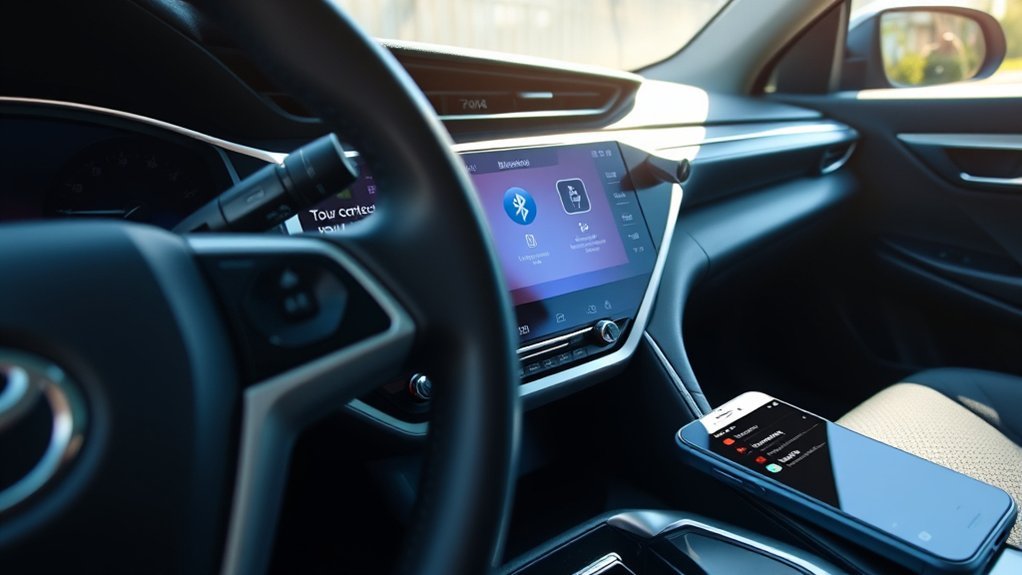
If your Toyota Camry’s Bluetooth is not working, park the car, restart your phone and multimedia screen, delete the old pairing from both the Camry and the phone, then pair them again and approve the requested phone and audio permissions. If calls work but music does not, select Bluetooth Audio and enable media audio on the phone. If only one phone fails, focus on that phone; if no phone can connect, focus on the Camry’s multimedia system.
Last updated: July 23, 2026 — checked against current Toyota, Apple, Android, and NHTSA guidance.
Quick Answer
To fix Toyota Camry Bluetooth problems, restart the phone and multimedia screen, remove the saved pairing from both devices, then pair again. On newer Toyota Audio Multimedia screens, use Settings → Bluetooth & devices → device name → Forget. On legacy Entune-style screens, try Menu → Setup → Bluetooth → Remove Device. Approve contacts, calls, notifications, messages, and media audio when prompted.
Key Takeaways
- Toyota Camry Bluetooth menus differ by model year, trim, and software version, so look for labels like Phone, Setup, Bluetooth, Devices, or Bluetooth & devices.
- The most reliable fix is to remove the old pairing from both sides: delete the phone from the Camry and forget the Toyota connection on your phone.
- If calls work but music does not, check the phone’s Bluetooth audio settings and make sure media audio is enabled.
- If the screen freezes or Bluetooth will not reconnect, restart the multimedia system by holding the POWER/VOLUME or volume knob until the screen reboots.
- Bluetooth calling and audio are not the same as Apple CarPlay or Android Auto. If Bluetooth works but phone projection does not, troubleshoot the projection feature separately.
At a Glance
| Time Required | 5–15 minutes |
| Difficulty | Easy |
| Tools Needed | Your phone, the Camry multimedia screen, and the exact model-year multimedia manual if menus differ |
| Cost | Free unless a dealer update or hardware repair is needed |
Warning: Do these steps while parked. Changing phone, Bluetooth, audio, or navigation settings while driving can distract you from the road.
Common Bluetooth Problems and How to Fix Them
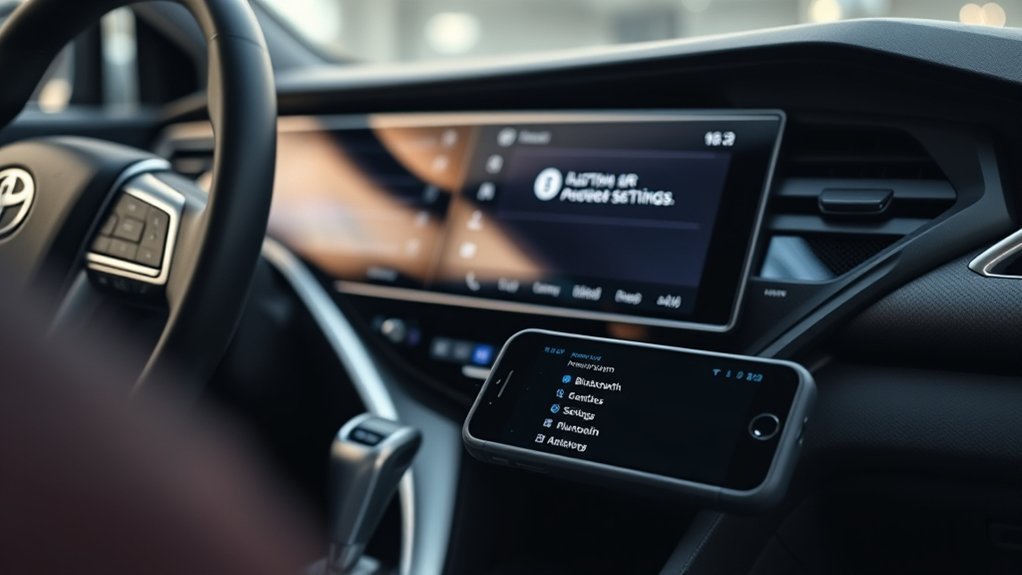
Start with the simple checks before deleting anything. Turn Bluetooth off and back on, restart the phone, keep it close to the multimedia screen, and temporarily disconnect other Bluetooth audio devices or vehicles. Bluetooth operates in the 2.4 GHz band, so nearby wireless activity and competing connections can contribute to delayed pairing or audio dropouts.
| Problem | Likely Cause | Best Fix |
|---|---|---|
| Phone will not pair | Old pairing data, phone not discoverable, or device list is full | Forget the car on the phone, delete old phones from the Camry, then pair again |
| Calls connect but music will not play | Media audio is disabled or the wrong audio source is selected | Enable media audio on the phone and select Bluetooth audio on the Toyota screen |
| Contacts or texts will not sync | Contacts, call history, SMS, or notification access was denied | Allow permissions on the phone, then reconnect or re-pair |
| Bluetooth drops after an update | Phone OS or vehicle software changed | Restart both devices, remove the old pairing, check for Toyota multimedia updates |
| Screen freezes or lags | Temporary multimedia system glitch | Restart the Toyota multimedia system with the POWER/VOLUME or volume knob |
Note: Toyota has used different infotainment names over the years. Older Camrys may show Entune or Entune 3.0 menus, while newer models may show Toyota Audio Multimedia. The fix is the same idea, but the button names can vary.
[Products Worth Considering]

This key fob shell is a replacement case and button pad designed to refresh worn or damaged Toyota remote housings. It fits select Camry, Corolla, RAV4, and Highlander models and installs without programming when you transfer your existing electronics and battery. It is a simple way to restore the look and function of your keyless entry remote.

This steering clock spring is designed to restore reliable steering wheel controls across a wide range of Toyota models. It supports audio, cruise control, and other multifunction commands while matching OEM part numbers for confident replacement fitment. Built for dependable signal transfer and straightforward installation, it is an effective solution for repairing steering column control issues.
This high output alternator is designed to fit select Toyota, Scion, and RAV4 2.5L applications, delivering reliable charging performance for everyday driving. Built with a 12-volt, 100-amp design and precision-engineered components, it helps support battery recharge, stable electrical output, and consistent operation when your vehicle shows signs of charging issues.
Is the Bluetooth Problem in Your Phone or Your Camry?
Use a second compatible phone to narrow the fault before you reset anything. If the second phone pairs and works, the problem is probably limited to the first phone’s saved pairing, permissions, operating system, or audio settings. If no phone can pair, or the Bluetooth menu is missing, frozen, or unavailable, the problem is more likely in the Camry’s multimedia system.
- Only one phone fails: restart that phone, remove the Toyota pairing, check permissions, and install available phone updates.
- Every phone fails: restart the multimedia screen, remove unused devices, check for Toyota software updates, and use the exact model-year manual.
- Calls work but music fails: the connection is active; check the media source and media-audio setting instead of replacing hardware.
- Bluetooth works but CarPlay or Android Auto fails: troubleshoot phone projection separately because it has different connection and permission requirements.
What Should You Check Before Deleting the Pairing?
Use this quick checklist before you remove the Bluetooth pairing. It can save time if the issue is only a setting or temporary glitch.
- Park the Camry and keep the vehicle in Park.
- Turn Bluetooth off on your phone, wait 10 seconds, then turn it back on.
- Restart your phone.
- Make sure your phone is not connected to another Bluetooth device.
- Turn the Camry off, open the driver’s door, wait until the multimedia screen powers down, then restart the vehicle.
- Check that the Toyota screen is on the correct source: Bluetooth Audio, Phone, or the connected device name.
- If several phones are saved in the car, disconnect or delete phones you no longer use.
Menu labels vary by model year, trim, market, and software version. If the paths below do not match your screen, select your vehicle by year or VIN in Toyota Manuals and Warranties and open the multimedia manual.
For current pairing and phone-compatibility guidance, use Toyota Bluetooth Support. If Bluetooth calls and music work but Apple CarPlay or Android Auto does not, use Toyota’s phone-projection guidance instead of repeatedly deleting the Bluetooth pairing.
[Products Worth Considering]

KAX CA12377 engine air filter is designed as a replacement for select Toyota and Lexus vehicles, helping deliver cleaner airflow to the engine for smoother operation and maintained performance. Its resin-impregnated fiber paper media and 3-layer composite construction are engineered to meet or exceed OE air filter requirements with low resistance and high efficiency. Built for dependable fit and recommended periodic replacement, it supports long-term engine protection across a wide range of compatible models.

This coolant electric water pump is designed as a replacement for select Toyota vehicles, helping maintain proper engine cooling performance and reliable temperature control. Built to OE specifications, it offers fitment support for compatible Avalon, Camry, and RAV4 models with 2.5L L4 engines. It also includes cross-reference part numbers for easier matching and comes with after-sales support for covered defects.

This auxiliary jack adapter restores a broken or missing AUX connection so you can stream audio from your device through your Toyota stereo system. It is designed for compatible Toyota models and uses an 8-pin connector for a direct plug-and-play replacement. Built for reliable audio transmission, it helps bring back clear in-car sound without complicated installation.
How Do You Delete a Phone From a Toyota Camry?
Deleting the phone from the Camry clears the connection record stored in the vehicle. Use the path that matches your screen. Toyota’s current support path is Settings → Bluetooth & devices → device name → Forget; legacy systems commonly use Menu → Setup → Bluetooth → Remove Device.
| System Type | Menu Path to Try | Result |
|---|---|---|
| Toyota Audio Multimedia | Settings → Bluetooth & devices → select phone → Forget | Removes the phone from the vehicle |
| Legacy Toyota multimedia / Entune-style layout | Menu → Setup → Bluetooth → Remove Device → select phone | Clears the saved pairing |
After deletion, do not pair again yet. First, remove the Camry from the phone’s Bluetooth list. Deleting both records creates a clean pairing instead of allowing either device to reuse the old connection. For a screen-by-screen walkthrough, see how to delete a Bluetooth device from a Camry.
Pro Tip: If the phone does not disappear after you select Forget, tap Forget again. If the control is unavailable, confirm the Camry is parked, end any active call, disconnect the phone, and retry.
How Do You Forget the Camry on Your Phone?
Now clear the old Toyota connection from the phone. This step matters because the phone may keep trying to reuse a damaged or outdated pairing record.
Remove the Camry From an iPhone
- Open Settings on the iPhone.
- Tap Bluetooth.
- Find the Toyota, Camry, or vehicle name in the device list.
- Tap the More Info button next to it.
- Tap Forget This Device.
- Restart the iPhone before pairing again.
Apple’s Bluetooth instructions also confirm that forgetting a device removes it from the Bluetooth list and allows it to be added again later: Apple Support: Connect a Bluetooth accessory to your iPhone or iPad.
Remove the Camry From an Android Phone
- Open the phone’s Settings app.
- Tap Connected devices, Connections, or Bluetooth.
- Open Saved devices or the paired-device list.
- Tap the gear icon next to the Toyota, Camry, or vehicle name.
- Tap Forget, Unpair, or Forget device.
- Restart the phone before pairing again.
Google’s Android Bluetooth troubleshooting guide recommends clearing old car pairings from both the phone and the car, then refreshing the device list before pairing again: Android Help: Fix Bluetooth problems.
How Do You Restart the Camry Multimedia System?
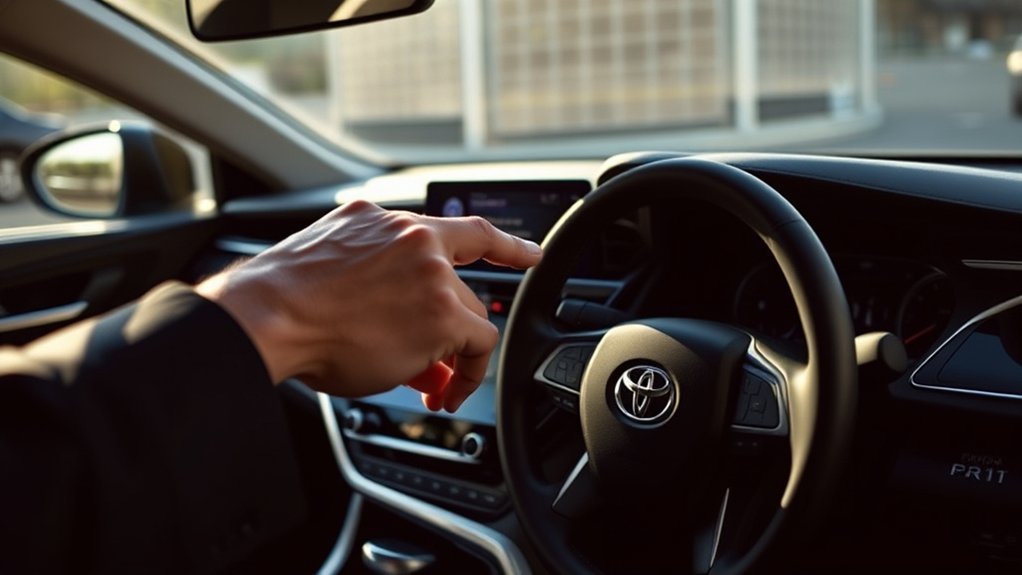
A multimedia restart can clear a frozen screen, delayed Bluetooth connection, missing contacts, or temporary audio-routing problem. A normal restart is different from a factory reset and should not erase saved phones or preferences. It will not repair a failed speaker, microphone, wiring fault, or multimedia module.
- Park the vehicle.
- Turn the vehicle to ACC or ON, or start the engine/hybrid system.
- Press and hold the POWER/VOLUME, PWR/VOL, or volume knob.
- Keep holding until the multimedia screen turns off and restarts.
- Wait for the system to fully load before trying Bluetooth again.
Toyota support recommends holding the multimedia volume knob until the system reboots for certain synchronization problems. If your Camry uses different controls or does not restart this way, stop and check the multimedia manual for the exact model year. Do not disconnect the 12-volt battery as a first troubleshooting step because that can erase settings and create other reset procedures.
[Products Worth Considering]

This EPAuto GP377 engine air filter replacement is designed for select Toyota and Lexus gas models, offering a direct-fit solution that helps maintain engine performance and protection. It meets or exceeds original equipment standards for fit, form, and function while trapping dirt and debris to support cleaner airflow. Compatible with multiple popular vehicles, it provides an easy, tool-free replacement for routine maintenance.

This oxygen O2 sensor set is designed for select Toyota Camry and RAV4 models with 2.4L engines, providing upstream and downstream replacement coverage in one package. Built to OEM specifications for plug-and-play installation, it helps improve fuel efficiency, support accurate air-fuel monitoring, and restore reliable engine performance. The stainless steel and heat-resistant construction is made for long-lasting durability and stable operation.

This JADODE combo includes engine and cabin air filters designed to help keep passenger air cleaner while supporting efficient HVAC performance. The activated carbon layer helps absorb odors, exhaust fumes, and pollution, while filtration captures dirt, dust, and pollen for OE-comparable protection. It is compatible with a wide range of Toyota, Scion, Lexus, and Pontiac applications for convenient replacement maintenance.
How Do You Pair the Phone Again?
Once the old pairing is deleted from both the car and the phone, pair the devices again from a clean start.
- On the Camry screen, open Phone, Bluetooth, Setup, Devices, or Bluetooth & devices.
- Select Add New Device, Pair New Device, or Search for Device.
- On your phone, open Bluetooth settings and keep the screen open.
- Select the Toyota, Camry, or multimedia system name when it appears.
- Confirm that the PIN shown on the phone matches the PIN shown on the Toyota screen.
- Tap Pair, Accept, or Confirm on both screens.
- When prompted, allow access to contacts, call history, notifications, messages, and media audio.
- Test a phone call and a music track before driving.
For a dedicated setup walkthrough, see how to pair a phone with Toyota Camry Bluetooth.
A clean re-pair works best when the old Bluetooth record is removed from both sides: the Camry and the phone.
Why Do Calls, Music, Contacts, or Messages Still Fail?
If Bluetooth connects but one feature still fails, the pairing itself may not be the problem. Use the specific fix below.
If Calls Work but Music Does Not Play
- On the Toyota screen, select Audio or Sources, then choose Bluetooth or your phone name.
- On Android, open the Bluetooth settings for the Toyota device and turn on Media audio.
- Turn up the volume on both the phone and the car.
- Close other audio apps or disconnect other Bluetooth speakers/headphones.
If Music Plays From the Phone Instead of the Car
- Open your phone’s audio output selector and choose the Toyota connection.
- Make sure the Camry is not connected as Phone Only.
- Delete the pairing and re-pair with both phone and audio permissions enabled.
If Contacts or Texts Will Not Sync
- On iPhone, check Bluetooth permissions and notification settings for the Toyota connection.
- On Android, allow contacts, call history, SMS, and notification access when prompted.
- If you denied permissions during pairing, forget the Toyota device and pair again.
If the Camry Connects to the Wrong Phone
- Temporarily turn off Bluetooth on the phone you do not want the Camry to use.
- On newer Toyota Audio Multimedia systems, open Settings → Bluetooth & devices, select the preferred phone, and confirm Use for phone is enabled.
- Select the preferred device as the current media source for music.
- Remove unused phones if the saved-device list is crowded or the wrong device keeps reconnecting.
Should You Update the Toyota Multimedia Software?
If Bluetooth stopped working after a phone update, or if the same problem returns after re-pairing, check whether your Toyota multimedia software is current. Toyota says multimedia software updates may be available over the air on vehicles with the latest Toyota Audio Multimedia system. Some vehicles may use USB updates, and a Toyota dealer can also assist with software updates.
- Open the Toyota screen’s Settings menu.
- Look for System, Software Update, System Info, or Software Information.
- If your vehicle supports over-the-air updates, follow the on-screen prompts.
- For USB updates, use Toyota’s official software update portal and your exact vehicle information.
- If you are unsure, contact a Toyota dealer with your VIN and current multimedia software version.
You can start with Toyota’s official update page here: Toyota Audio Multimedia System Updates.
When Should You Contact Toyota or a Dealer?
Most Toyota Camry Bluetooth issues are fixed by restarting, forgetting, and re-pairing. Contact Toyota support or a dealer if:
- Bluetooth is missing from the Toyota screen entirely.
- The screen is frozen and will not restart.
- No phone can pair with the car.
- The microphone does not work during calls even after re-pairing.
- Audio fails from every source, not just Bluetooth.
- The problem began after a 12-volt battery replacement, head-unit repair, or software update.
Before booking service, test a second compatible phone and note whether calling, music, contacts, and other audio sources work. Those results help separate a phone-specific issue from a microphone, speaker, software, or multimedia-module fault.
Frequently Asked Questions
Why won’t my Toyota connect to my phone?
Your Toyota may not connect because an old pairing record is being reused, Bluetooth is off, another device is taking the connection, the saved-device list is full, permissions were denied, or the phone or multimedia software needs a restart or update.
Why does my Camry connect for calls but not music?
This usually means Bluetooth calling is connected but media audio is not. Select Bluetooth as the audio source on the Toyota screen, then check your phone’s Bluetooth settings and make sure media audio is enabled for the Toyota connection.
Will a soft reset delete my saved phones?
A normal multimedia restart should not delete saved phones, radio presets, or personal settings. A factory reset is different and may erase saved devices and preferences, so use a factory reset only after simpler fixes fail.
Why did Bluetooth stop working after my phone updated?
Phone updates can change Bluetooth behavior, permissions, or saved connection data. Restart the phone, forget the Toyota device, delete the phone from the Camry, then pair again. If the issue continues, check for a Toyota multimedia software update.
Can Bluetooth interference cause my Camry to disconnect?
Yes. Bluetooth uses the 2.4 GHz band, and nearby wireless activity or competing audio connections can reduce stability. Keep the phone close to the screen and temporarily disconnect unused Bluetooth audio devices while testing.
Conclusion
Start with the least disruptive fix: restart the phone and Camry multimedia screen. If Bluetooth still fails, delete the pairing from both sides and pair again with the needed phone, contact, notification, message, and media permissions enabled. When one phone works and another does not, troubleshoot the failing phone. When no phone works, the Bluetooth menu is missing, or the screen will not restart, check for Toyota software updates and arrange service if the problem continues.
Sources
- Toyota Bluetooth Support — Toyota phone compatibility, current Audio Multimedia guidance, and legacy Entune 3.0 pairing guidance
- Toyota Support: Delete a Paired Bluetooth Device — official Toyota path for forgetting a device on current systems
- Toyota Manuals and Warranties — model-year and VIN-based owner and multimedia manual access
- Toyota Audio Multimedia System Updates — official over-the-air, USB, and dealer update options
- Apple Support: Connect a Bluetooth Accessory to iPhone or iPad — iPhone pairing and Forget This Device instructions
- Google Android Help: Fix Bluetooth Problems — Android car Bluetooth troubleshooting and forget-device steps
- Bluetooth SIG: Bluetooth Technology Overview — authoritative background on Bluetooth wireless technology
- NHTSA: Distracted Driving — safety guidance on avoiding phone and infotainment distractions while driving

[…] only phone connectivity is failing, use the dedicated Toyota Camry Bluetooth troubleshooting guide. For a dead or unstable port, see the Camry USB-port guide. For projection setup and re-pairing, […]