
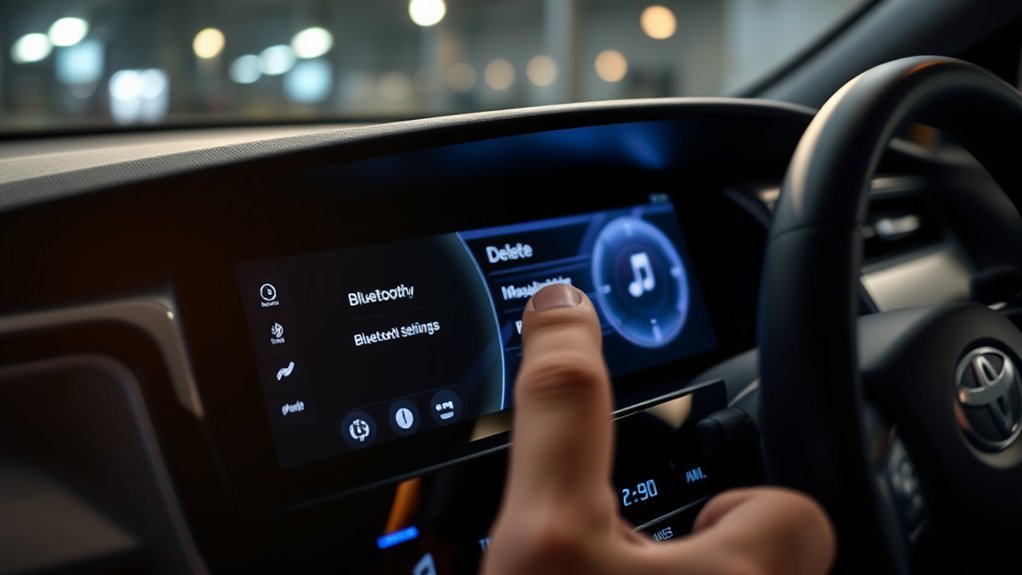
How to Delete a Bluetooth Device From a Toyota Camry
Last updated: July 31, 2026 — reviewed against Toyota guidance for legacy and current multimedia interfaces.
Quick Answer
To delete a Bluetooth device from a Toyota Camry, park the car and open the Bluetooth device list. On newer Toyota Audio Multimedia systems, use Settings > Bluetooth & Devices > select the device > Forget. On many systems with a MENU button, use Menu > Setup > Bluetooth > Remove Device. Some older navigation systems use APPS > Setup > Bluetooth > Remove. Select the correct phone or audio device and confirm the deletion. If the phone continues trying to reconnect, forget or unpair the Camry from the phone’s Bluetooth settings too.
Key Takeaways
- Use Disconnect when you want to keep a phone registered for later.
- Use Remove, Remove Device, Unpair, or Forget when you want a new pairing to be required.
- Match the instructions to the buttons and labels visible on your Camry’s screen.
- Deleting the phone removes its downloaded contact data from the Camry, not the original contacts stored on the phone.
- Use a factory-data reset only after checking the exact multimedia manual for your Camry.
What’s in This Article
- Should You Disconnect or Delete the Device?
- Which Bluetooth Menu Does Your Camry Have?
- How Do You Remove a Bluetooth Device?
- What Happens After You Delete It?
- Why Won’t the Device Delete?
- Is Bluetooth Different From CarPlay or Android Auto?
- When Should You Reset the Multimedia System?
- Frequently Asked Questions
Should You Disconnect or Delete the Device?
Before removing a phone, decide whether you want to disconnect it temporarily or erase its saved registration. The two actions are not the same.
| What You Want to Do | Action to Choose | What Happens |
|---|---|---|
| Use another saved phone for now | Disconnect | The phone stays registered and can reconnect later |
| Remove an old or unwanted phone | Remove, Remove Device, Unpair, or Forget | A new pairing will be required before that phone can connect again |
| Fix a corrupted pairing record | Delete the pairing from both the Camry and the phone | Both devices start with a clean Bluetooth record |
| Prepare the Camry for sale or return | Remove all personal devices and follow the manual’s personal-data reset procedure | Clears more saved user information than deleting one phone |
Warning: Park in a safe place before using the touchscreen, changing phone settings, or attempting to restart the Camry multimedia system.
Keep the phone or device name in view so you do not remove another driver’s connection by mistake. Menu labels vary by model year, trim, market, and multimedia software, so match the instructions to what appears on your screen rather than relying only on the vehicle year.
[Products Worth Considering]

This compact adapter upgrades compatible factory wired CarPlay or Android Auto systems to wireless convenience for both iPhone and Android users. It uses WiFi 6 and Bluetooth 5.4 for fast, stable connections with quick auto-connect startup and reliable voice, navigation, and music performance. Its mini plug-in design helps keep the dashboard tidy while supporting easy setup and broad vehicle compatibility.

This wireless CarPlay screen adds modern smartphone connectivity to almost any vehicle with easy plug-and-play installation. It supports Apple CarPlay and Android Auto, online maps, voice control, phone mirroring, and multiple audio output options for safer, more convenient driving. The included night vision backup camera and OTA updates help improve visibility, compatibility, and long-term performance.

Teeran’s 2-in-1 wireless adapter turns compatible factory wired CarPlay or Android Auto systems into a cable-free experience for both iPhone and Android users. It offers fast setup, automatic reconnection, and full support for your vehicle’s original controls so navigation, music, calls, and voice assistants work seamlessly. Its compact flush-fit design helps reduce clutter, while built-in protection and broad compatibility make it a practical everyday upgrade.
Which Bluetooth Menu Does Your Camry Have?
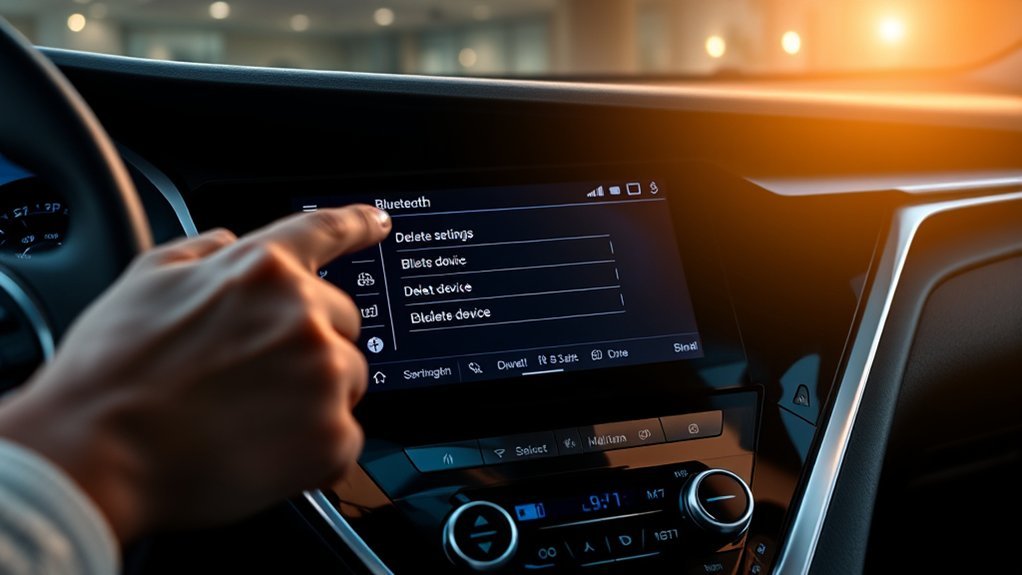
Start from the Camry’s main multimedia screen. Look for a settings icon or a physical button labeled SETTINGS, MENU, or APPS. Those visible controls are more useful than guessing which interface the car has from its model year alone.
| What You See | Common Menu Path | Deletion Button |
|---|---|---|
| Settings icon and Bluetooth & Devices | Settings > Bluetooth & Devices > select device | Forget |
| MENU button and Setup | Menu > Setup > Bluetooth | Remove Device |
| APPS button and Setup | APPS > Setup > Bluetooth | Remove |
| Settings, Devices, and Bluetooth | Settings > Devices > Bluetooth > select device | Unpair This Device |
If none of these paths matches your display, look for labels such as Registered Device, Device List, Phone, or Connections. Do not choose Reset or Delete Personal Data merely because the individual device menu is difficult to find.
Source note: Toyota’s menu wording changes across multimedia generations. Use the Toyota Manuals and Warranties portal to select your exact Camry year or VIN when the screen does not match these common paths.
How Do You Remove a Bluetooth Device?
Use the set of steps that matches the controls on your screen. Complete the process while the Camry is parked.
Newer Toyota Audio Multimedia Systems
- Open Settings from the main multimedia menu.
- Select Bluetooth & Devices.
- Select the phone or audio device you want to remove.
- Choose Forget.
- Choose Forget again when the confirmation message appears.
Systems With a MENU Button
- Press Menu on the multimedia system.
- Select Setup.
- Choose Bluetooth.
- Select Remove Device.
- Select the phone or Bluetooth audio device you want to delete.
- Confirm the removal on the screen.
Older Systems With an APPS Button
- Press APPS.
- Select Setup.
- Select Bluetooth.
- Choose Remove.
- Select the desired device.
- Select Yes when the confirmation screen appears.
After confirming, return to the registered-device list. The phone should no longer appear. If it remains listed, disconnect active calls or phone-projection sessions, turn the phone’s Bluetooth off temporarily, and try the deletion again.
Check the device name carefully before confirming. Two phones of the same brand may have similar default names.
If you are deleting the device to solve pairing problems, open the Bluetooth settings on the phone afterward. Select the Toyota or Camry entry and choose the phone’s Forget, Unpair, or Remove option. Deleting the record from both sides prevents either device from reusing an outdated pairing.
What Happens After You Delete It?
Deleting a Bluetooth device removes its saved registration from the Camry. The vehicle should stop connecting to that phone automatically, and the phone must complete a new pairing process before Bluetooth calls or audio can work again.
How Can You Confirm the Device Is Gone?
Check the Camry’s registered-device list. The deleted phone should no longer appear. Other saved phones should remain available unless you removed them separately.
The deleted phone may still appear as an available nearby device during a new Bluetooth search. That does not mean the old pairing remains. An available device can be detected without being registered or trusted.
What Data Does the Camry Remove?
When a Bluetooth phone is deleted, the Camry removes the saved pairing and the contact data it downloaded for that phone. It does not erase the original contacts, call history, photos, apps, or other files stored on the phone itself.
Deleting one Bluetooth device is not the same as clearing all personal data from the vehicle. Driver profiles, saved destinations, app sign-ins, connected-service settings, and other information may remain, depending on the multimedia system.
| Action Taken | Result |
|---|---|
| Disconnect the device | Stops the current connection but keeps the pairing |
| Delete or forget the device | Removes the Camry’s saved pairing and downloaded phone data |
| Forget the Camry on the phone | Removes the phone’s saved record for the vehicle |
| Pair the device again | Creates a new trusted connection and permission request |
| Complete a personal-data or factory reset | May clear broader profiles and preferences, depending on the system |
What Should You Clear Before Selling the Camry?
Remove every registered phone or audio device, not only the one you used most recently. Then review the exact multimedia manual for its personal-data or factory-reset procedure. Also check driver profiles, saved navigation destinations, garage-door settings, Toyota app access, and connected-service accounts where equipped.
Why Won’t the Bluetooth Device Delete?
A deletion option may be unavailable or may fail for a few specific reasons. Work through the checks below before resetting the entire multimedia system.
[Products Worth Considering]

This portable car stereo adds wireless Apple CarPlay and Android Auto to nearly any vehicle without replacing the factory head unit. The 7-inch HD touchscreen supports voice control, GPS navigation, mirror link, Bluetooth calling, and multiple audio output options for a safer, more connected drive. It also includes backup camera support and flexible mounting for easy installation and removal.

This portable carplay screen brings wireless CarPlay and Android Auto to compatible vehicles, giving you easy access to navigation, calls, music, and messages without needing to plug in your phone every time. Its 7-inch HD touchscreen, mirror link support, and voice control make driving more convenient, while multiple audio output options and simple plug-and-play setup add everyday flexibility.

This portable car stereo brings wireless Apple CarPlay and Android Auto to your vehicle for easier access to navigation, music, calls, and messages. The large HD touch screen supports mirror link and multiple audio output options, while voice control adds safer hands-free use on the road. An included backup camera and simple dashboard mount make installation quick and convenient without replacing your original radio.
Deletion Problems
| What You See | Likely Reason | What to Do |
|---|---|---|
| Remove or Forget is unavailable while moving | The system blocks device changes while driving | Park the Camry and try again |
| A phone cannot be deleted during a call | An active or emergency call is using the connection | End the call safely, then retry |
| The device belongs to another user profile | It may be set as that user’s primary device | Open the correct user profile or remove the primary-device assignment first |
| The first deletion attempt fails | The device is still connected or its status has not refreshed | Disconnect it, turn phone Bluetooth off briefly, and retry |
| The device disappears but reconnects later | The phone still has a saved Toyota pairing | Forget or unpair the Camry from the phone too |
| No phone can be managed | The multimedia screen or software may be unresponsive | Restart the multimedia system and use the exact model-year manual |
Do not repeatedly factory-reset the system for a problem limited to one phone. If one phone fails but another can be added and removed normally, the problem is more likely related to the first phone’s pairing record or permissions.
What If Deleting and Re-Pairing Does Not Fix Bluetooth?
Pair the phone again and test calls and Bluetooth audio separately. Approve contact, call, media, message, and notification permissions only when you want those supported features to work.
For connection drops, missing contacts, call problems, or audio that still cuts out, use the dedicated Toyota Camry Bluetooth troubleshooting guide. Keeping broad troubleshooting on that page prevents this deletion guide from becoming repetitive.
Pro tip: Give each driver’s phone a recognizable device name before pairing it with a shared Camry.
Is Bluetooth Different From CarPlay or Android Auto?
Yes. Standard Bluetooth pairing supports features such as hands-free calls and wireless audio. Apple CarPlay and Android Auto are phone-projection systems with separate compatibility, connection, and permission requirements.
Deleting a Bluetooth device may also interrupt a wireless CarPlay or Android Auto connection because those systems can use Bluetooth during setup. However, fixing phone projection may require additional steps on the phone, including removing the saved car from the CarPlay or Android Auto settings.
Use the dedicated guides for Apple CarPlay in a Toyota Camry or Android Auto in a Toyota Camry when Bluetooth calls work but phone projection does not.
Note: Bluetooth, CarPlay, Android Auto, Digital Key, and Connected Services availability varies by model year, trim, region, phone, multimedia hardware, and account status.
When Should You Reset the Multimedia System?
Use a reset only after normal device removal, phone-side unpairing, and re-pairing have failed. Start with a soft restart of the multimedia screen when your Camry supports one. A soft restart reboots the display without intentionally clearing all saved user information.
A factory-data or personal-data reset is more disruptive. Depending on the multimedia system, it may remove paired devices, driver profiles, saved preferences, destinations, and other user information. The exact path and the data erased vary, so do not rely on a generic Setup or Settings path.
- Park the Camry and end active calls or phone-projection sessions.
- Try deleting the Bluetooth record from both the Camry and the phone.
- Restart the phone.
- Use the supported soft-restart procedure for the multimedia system.
- If the problem remains, open the Toyota Manuals and Warranties portal and select the exact Camry year or VIN.
- Use a factory or personal-data reset only after reviewing the on-screen warning and the exact manual instructions.
After any reset, pair the phone again and verify hands-free calls, Bluetooth audio, contact access, and any supported CarPlay or Android Auto connection before your next trip.
[Products Worth Considering]
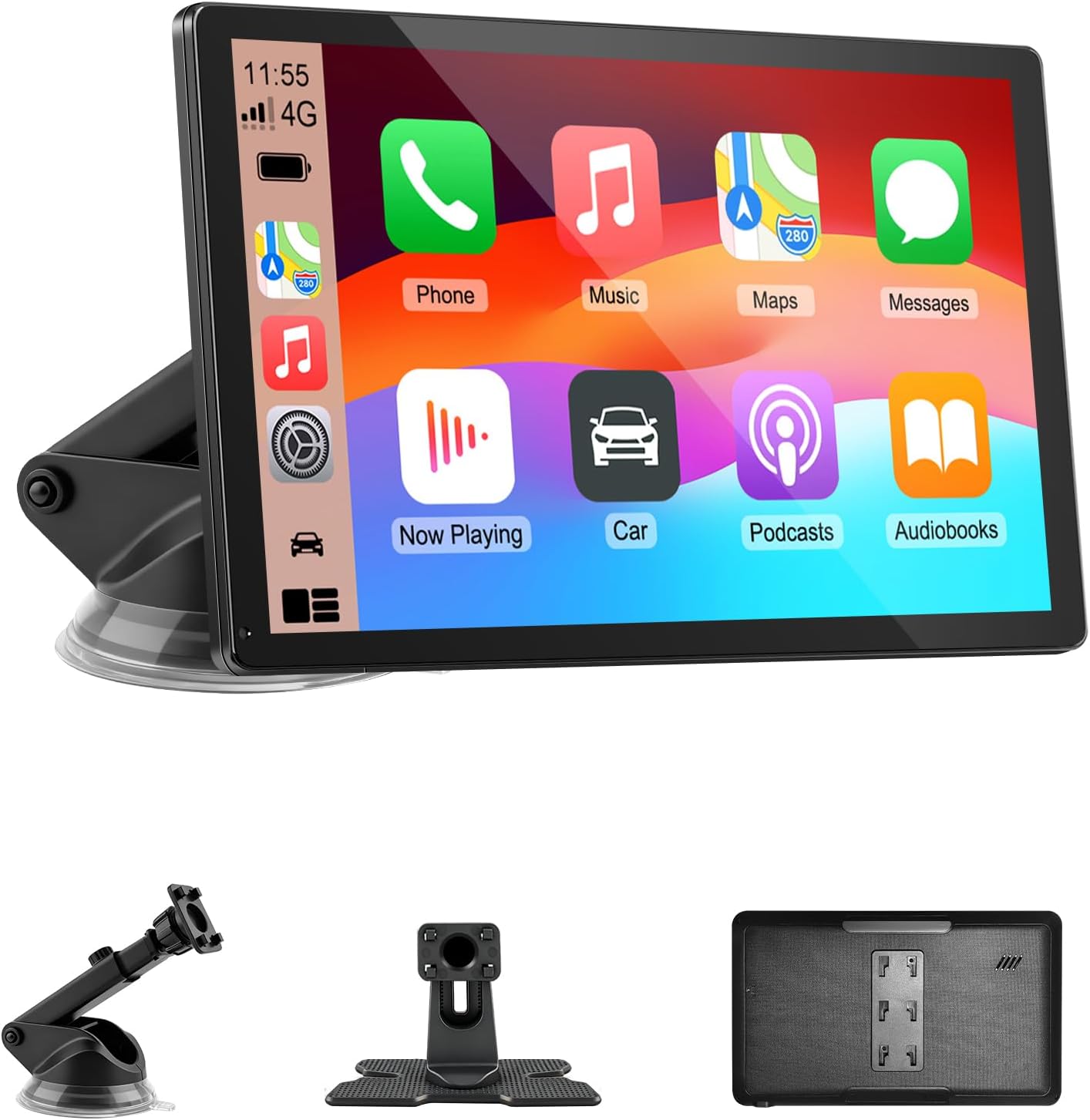
Upgrade your vehicle with this portable 9-inch touchscreen that brings wireless CarPlay and Android Auto to almost any car. It supports GPS navigation, voice control, hands-free calling, and multiple audio output options, making everyday driving safer and more convenient. With plug-and-play installation, mirror link support, and a bright HD display, it delivers a smart, flexible in-car entertainment and navigation solution.
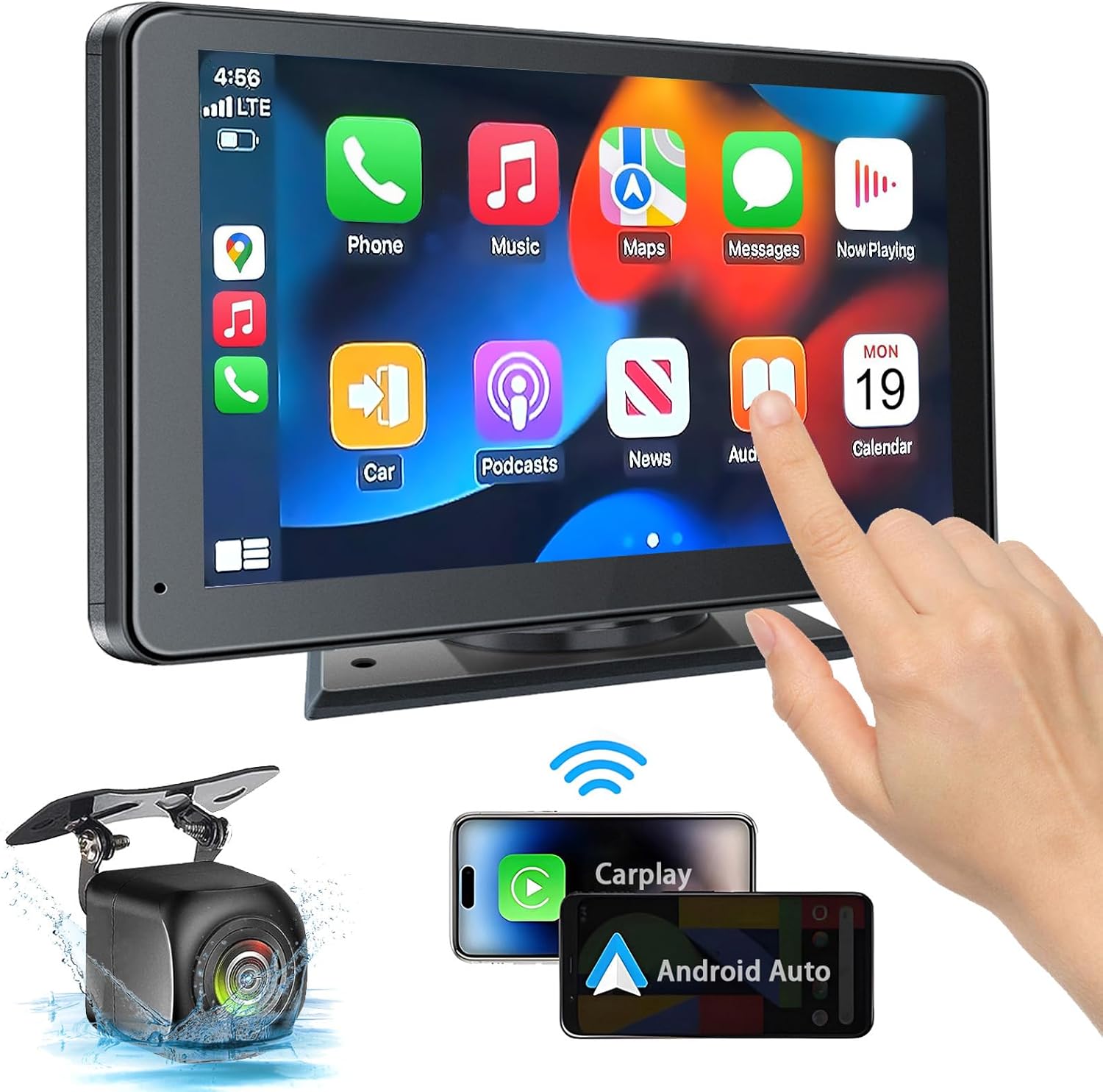
This portable car stereo adds wireless and wired Apple CarPlay and Android Auto to almost any vehicle, giving you easy access to navigation, calls, messages, and music with hands-free voice control. Its 7-inch HD touchscreen, Bluetooth 5.2, mirror link support, and multiple audio output options help create a flexible and safer in-car entertainment setup. The included backup camera and simple dashboard mounting make installation convenient for cars, trucks, RVs, and more.

This compact adapter converts factory-wired CarPlay and Android Auto systems to wireless for a cleaner, more convenient driving experience. It offers fast auto-connect, stable performance, and plug-and-play setup so you can enjoy navigation, music, calls, and voice control without extra cables. The included USB-to-USB-C converter helps it fit a wide range of vehicle ports.
Frequently Asked Questions
How do I delete Bluetooth devices on my Toyota Camry?
Park the Camry, open its Bluetooth device list, select the phone or audio device, and confirm Remove, Remove Device, Unpair, or Forget. Newer systems commonly use Settings > Bluetooth & Devices > device > Forget. Many older systems use Menu or APPS > Setup > Bluetooth > Remove.
Why does my Camry show Forget instead of Remove Device?
Newer Toyota Audio Multimedia systems commonly use Forget to delete a registered device. Other Toyota interfaces may use Remove, Remove Device, or Unpair This Device. These labels perform the same basic task: they remove the saved registration from the vehicle.
Do I need to delete the Camry from my phone too?
Delete the Camry from the phone when you are fixing a pairing problem or when the phone continues trying to reconnect. Open the phone’s Bluetooth settings, select the saved Toyota or Camry entry, and choose Forget, Unpair, or Remove.
Will deleting a Bluetooth device remove my contacts?
The Camry removes the contact data it downloaded for that paired phone. It does not erase the original contacts stored on the phone itself. Pairing the phone again may download the contacts again after you approve access.
Why can’t I delete a Bluetooth device from my Camry?
The Camry may block deletion while the vehicle is moving, while a call is active, or when the device is assigned as another user’s primary device. Deletion may also fail on the first attempt if the phone is still connected. Park safely, end active calls, disconnect the phone, check the correct user profile, and try again.
Should I disconnect or forget a phone in my Camry?
Choose Disconnect when you want to stop the current connection but keep the phone saved. Choose Remove, Unpair, or Forget when you want the Camry to erase the registration and require a new pairing later.
How do I remove every phone before selling my Camry?
Delete every registered phone and Bluetooth audio device, then follow the exact multimedia manual’s personal-data or factory-reset instructions. Review driver profiles, navigation history, connected-service accounts, and other saved personal information separately.
Safety Disclaimer: This article gives general information only. Park safely before using the multimedia screen, and follow your exact owner’s manual and local traffic laws.
Final Check After Removing the Device
Confirm that the phone no longer appears in the Camry’s registered-device list, that it does not reconnect automatically, and that the vehicle requires a new pairing before the phone can be used again.
If the phone still reconnects, forget the Camry from the phone’s Bluetooth settings. If the deletion button is unavailable, check for an active call, another user’s primary-device setting, or a multimedia screen that needs a soft restart before considering a factory-data reset.
References
- How do I disconnect my phone from Bluetooth?, Toyota Customer Service
- How do I delete a paired Bluetooth device from my vehicle?, Toyota Customer Service
- Toyota Multimedia Owner’s Manual, Toyota, 2022
- Toyota Manuals and Warranties, Toyota
- Toyota App and Connected Services, Toyota
- What is Digital Key?, Toyota Customer Service
- CarPlay Available Models, Apple
- Android Auto Vehicle Compatibility, Google


[…] After deletion, do not pair again yet. First, remove the Camry from the phone’s Bluetooth list. Deleting both records creates a clean pairing instead of allowing either device to reuse the old connection. For a screen-by-screen walkthrough, see how to delete a Bluetooth device from a Camry. […]