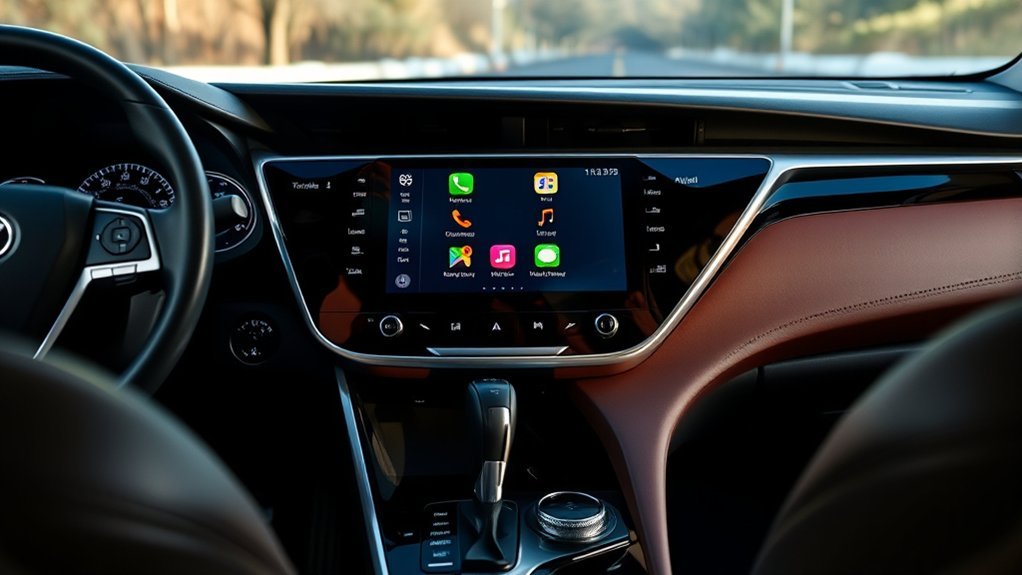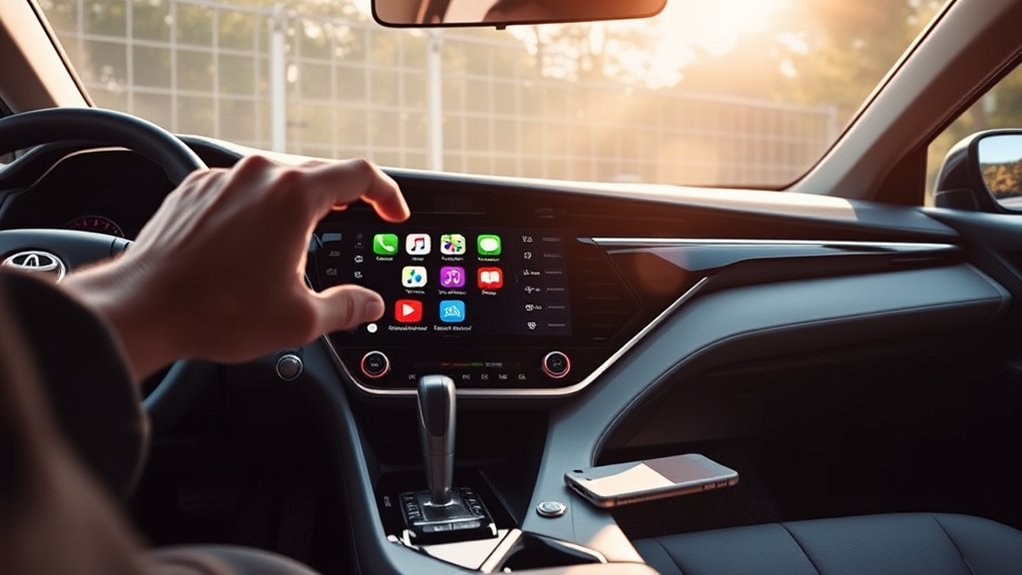
Setting up Apple CarPlay in a Toyota Camry is usually quick, but the smoothest method depends on your Camry model year, your iPhone settings, and whether you want a wired or wireless connection. Wireless Apple CarPlay is standard across the 2026 Toyota Camry lineup, the 2025 Camry supports wireless CarPlay with a compatible iPhone too, and many earlier Camry model years use wired CarPlay or vary by trim and market. [VERIFY: confirm wireless CarPlay availability across every 2026 Camry trim against Toyota’s official 2026 brochure, not just dealer marketing pages]
Last updated: August 17, 2026 — added 2026 Toyota Camry wireless CarPlay coverage.
Quick Answer
To set up Apple CarPlay in a Toyota Camry, turn on Siri, Bluetooth, and Wi-Fi on your iPhone, put the Camry in Park, then connect with a data-capable USB cable or pair wirelessly through the multimedia screen. Approve the prompts on both screens, then select the CarPlay icon if it does not open automatically.
Key Takeaways
- For wired CarPlay, use a reliable Apple USB cable and the Camry USB port marked for smartphone or CarPlay use.
- For wireless CarPlay, Bluetooth and Wi-Fi should both be on, and your iPhone may need to be selected under Settings > General > CarPlay.
- If CarPlay fails, check Siri, Screen Time restrictions, cables, Wi-Fi Auto-Join, and the “Forget This Car” reset option.
- Use CarPlay while parked whenever possible. It can reduce phone handling, but it does not remove driving distraction.
At a Glance
| Time Required | 5–10 minutes |
| Difficulty | Easy |
| Tools Needed | Compatible iPhone, Toyota Camry multimedia system, and an Apple USB cable for wired setup |
| Cost | Free, unless you need a replacement USB cable |
Before You Start: Check Compatibility and Settings
Before connecting your iPhone, confirm that your Camry supports Apple CarPlay. Apple lists Toyota Camry models from 2019 through 2025 as CarPlay-compatible, but availability can still depend on trim, region, and the vehicle’s multimedia system. Toyota also confirms wireless Apple CarPlay compatibility for the 2025 Camry, and dealer specification pages for the 2026 Camry describe wireless Apple CarPlay as standard across the lineup. [VERIFY: confirm the 2026 detail once Apple’s own compatibility list and Toyota’s official 2026 brochure are cross-checked]
Next, prepare your iPhone. Apple recommends starting the vehicle and making sure Siri is on before connecting to CarPlay. On current iOS versions, open Settings and look for Siri or Apple Intelligence & Siri, then enable Siri. Also update your iPhone to the latest iOS version and keep Bluetooth and Wi-Fi turned on for wireless CarPlay.
Note: Menu names can vary slightly by iOS version. If you do not see “Siri & Search,” look for “Siri” or “Apple Intelligence & Siri” in the Settings app.
[Products Worth Considering]

This 2-in-1 wireless adapter converts factory-wired CarPlay into a cable-free experience for compatible vehicles, helping you enjoy seamless phone integration with less clutter. It supports automatic reconnection, stable Bluetooth and Wi-Fi pairing, and broad compatibility with many factory-installed CarPlay systems. Built with a durable metal and acrylic design, it also includes firmware updates and lifetime technical support for continued convenience.

This wireless CarPlay screen adds modern smartphone connectivity to almost any vehicle with easy plug-and-play installation. It supports Apple CarPlay and Android Auto, online maps, voice control, phone mirroring, and multiple audio output options for safer, more convenient driving. The included night vision backup camera and OTA updates help improve visibility, compatibility, and long-term performance.

Teeran’s 2-in-1 wireless adapter turns compatible factory wired CarPlay or Android Auto systems into a cable-free experience for both iPhone and Android users. It offers fast setup, automatic reconnection, and full support for your vehicle’s original controls so navigation, music, calls, and voice assistants work seamlessly. Its compact flush-fit design helps reduce clutter, while built-in protection and broad compatibility make it a practical everyday upgrade.
How to Prepare Your iPhone for Apple CarPlay
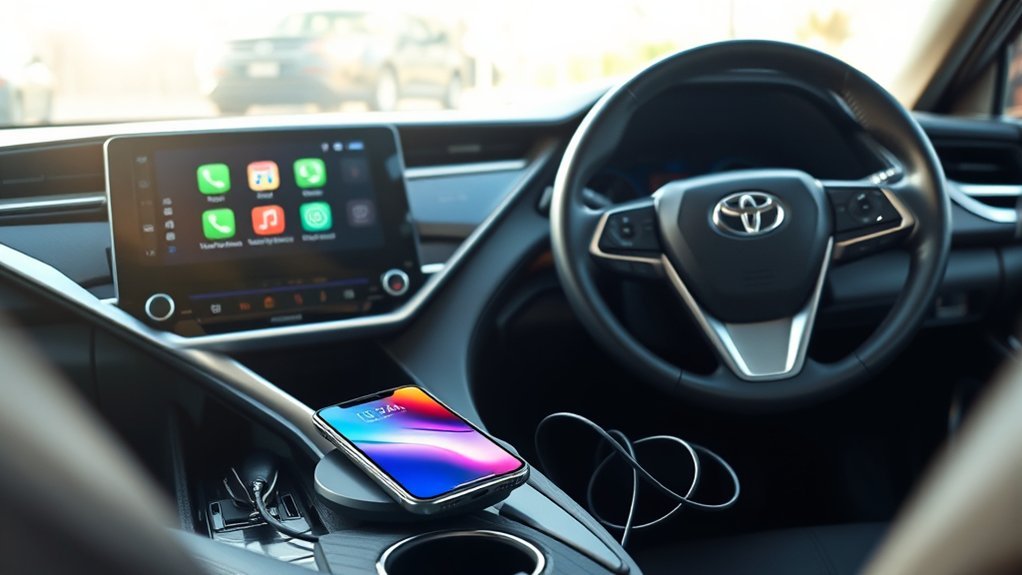
Use these steps before you try to connect:
- Update your iPhone: Go to Settings > General > Software Update and install any available update.
- Turn on Siri: Open Settings, tap Siri or Apple Intelligence & Siri, then enable voice activation or side-button activation.
- Enable Bluetooth: Go to Settings > Bluetooth and turn it on.
- Enable Wi-Fi: Go to Settings > Wi-Fi and turn it on. Wireless CarPlay uses Wi-Fi after pairing.
- Check CarPlay restrictions: If CarPlay has been blocked, go to Settings > Screen Time > Content & Privacy Restrictions > Allowed Apps and make sure CarPlay is allowed.
- Keep the vehicle parked: Put the Camry in Park before pairing or changing CarPlay settings.
Connecting Your iPhone to the 2025 or 2026 Toyota Camry
You can connect your iPhone to a 2025 or 2026 Toyota Camry with a USB cable or wirelessly. Apple says CarPlay can be set up through the vehicle’s USB port or wireless capability, Toyota’s 2025 Camry materials confirm wireless Apple CarPlay compatibility for compatible iPhones, and Toyota’s 2026 Camry specification pages describe wireless Apple CarPlay as standard across the lineup. [VERIFY: confirm 2026 standard-vs-trim wording against Toyota’s own 2026 Camry brochure before publishing]
[Products Worth Considering]

Turn your wired Apple CarPlay system into a seamless wireless experience with this compact adapter for iPhone. It supports fast auto-connection, smooth navigation, music, calls, Siri, and app access with low-latency performance designed to help you stay focused on the road. Built for factory wired CarPlay vehicles, it offers easy plug-and-play setup, online updates, and durable construction for everyday driving.

This portable 9-inch CarPlay screen brings wireless Apple CarPlay and Android Auto to almost any vehicle, making navigation, calls, music, and messaging easier on the road. It features a crisp HD touchscreen, voice control, multiple audio output options, and a backup camera to improve convenience and safety. With plug-and-play installation and OTA firmware updates, it is designed for simple setup and long-term compatibility.

This USB panel mount car charger provides a clean flush-fit extension solution for compatible Toyota dashboards, delivering both charging and data transfer through a male to female USB connection. Designed for plug-and-play installation, it supports a wide range of Toyota models and helps replace broken or outdated USB ports while protecting devices from overcurrent, overheating, and overcharging. Its durable PVC and copper construction supports reliable use for phones, tablets, GPS units, and CarPlay or Android Auto accessories.
Wired Connection Process
A wired connection is the best first option if wireless pairing fails or if you want the most stable setup.
- Start the Camry and keep it in Park.
- Unlock your iPhone.
- Connect your iPhone to the Camry’s smartphone or CarPlay USB port using an Apple USB cable — on most model years this is the port marked with a smartphone or CarPlay icon in the front center console; other nearby USB ports are usually charge-only and won’t launch CarPlay. [VERIFY: exact port location and icon can vary by Camry model year and trim]
- Watch the Camry multimedia screen for a CarPlay prompt and choose the option to enable Apple CarPlay.
- On your iPhone, approve the CarPlay prompt if one appears.
- If CarPlay does not open automatically, select the CarPlay icon on the Camry display.
Pro Tip: If your iPhone charges but CarPlay does not start, the cable may be charge-only or damaged. Try a different Apple USB cable and a different USB port if your Camry has more than one.
Wireless Connection Steps
Wireless CarPlay removes the cable after pairing, but it needs both Bluetooth and Wi-Fi enabled on your iPhone.
- Turn on Bluetooth and Wi-Fi on your iPhone.
- On the Camry multimedia screen, open Settings.
- Go to Bluetooth & devices, then choose the option to add another device.
- Select your iPhone from the list of available devices.
- Confirm that the pairing code matches on the Camry screen and your iPhone, then approve the connection.
- On the Camry screen, set “Use for Apple CarPlay” to ON for your iPhone if it isn’t already enabled. [VERIFY: exact toggle wording can vary by Toyota Audio Multimedia software version]
- Allow contacts, notifications, and CarPlay permissions if you want calls, messages, and Siri to work smoothly.
- If your iPhone asks whether to use CarPlay with the vehicle, tap Allow or Use CarPlay.
If the Camry does not appear during pairing, open your iPhone and go to Settings > General > CarPlay. Under available cars, select your Toyota Camry when it appears.
Setting Up Wireless Apple CarPlay After the First Pairing
After the first successful wireless setup, Apple CarPlay should connect automatically on future drives when your iPhone is nearby, unlocked or recently used, and Bluetooth and Wi-Fi are enabled. If it does not launch, select the Apple CarPlay icon on the Camry display.
For a cleaner automatic connection, keep your iPhone listed as a trusted CarPlay device and avoid pairing too many phones as primary devices in the multimedia system. If multiple drivers use the Camry, the vehicle may connect to the phone it sees first or the phone set as the primary device.
Warning: Set up, pair, or rearrange CarPlay only while parked. NHTSA warns that any activity taking attention away from driving can increase crash risk.
[Products Worth Considering]
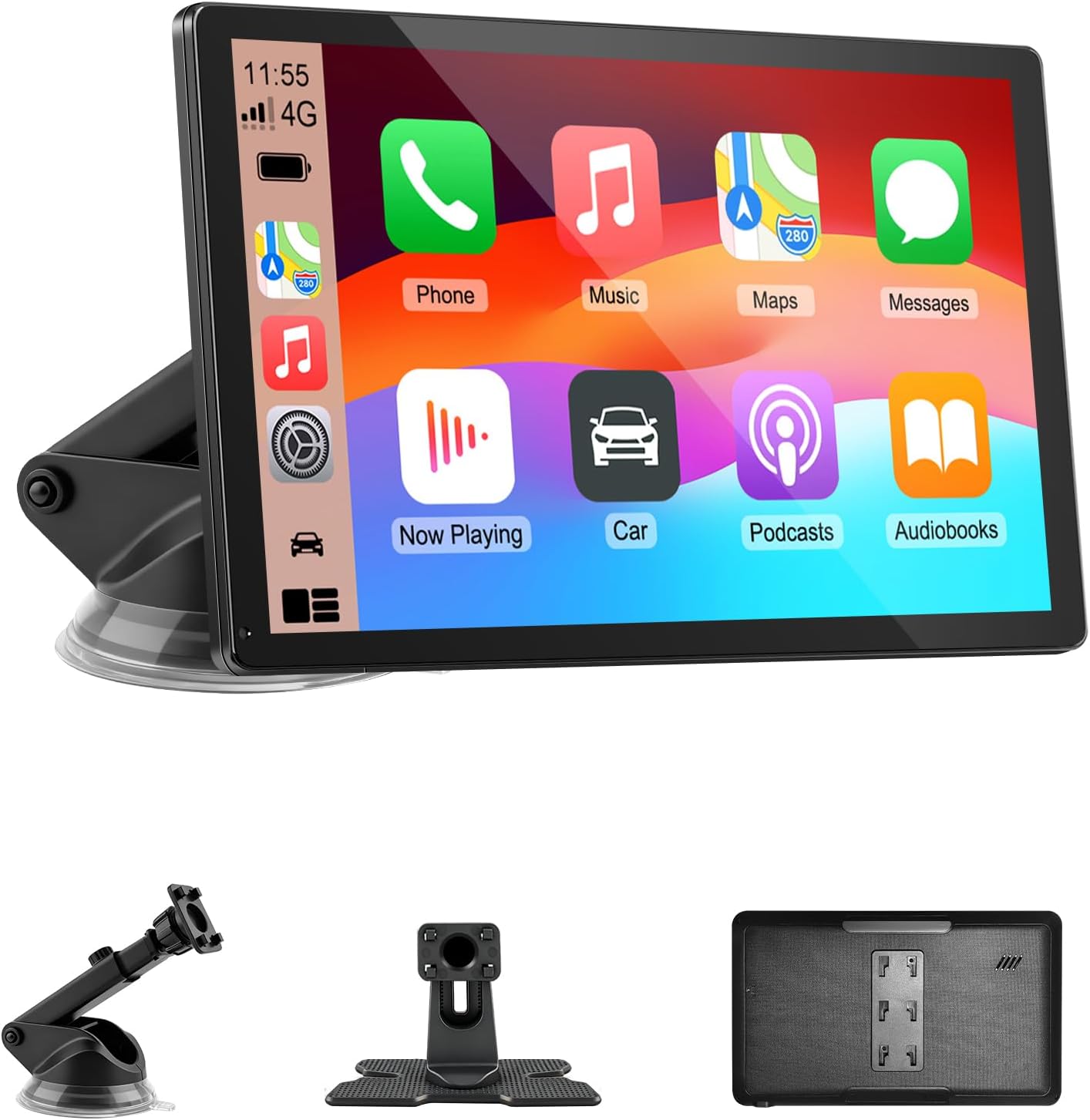
Upgrade your vehicle with this portable 9-inch touchscreen that brings wireless CarPlay and Android Auto to almost any car. It supports GPS navigation, voice control, hands-free calling, and multiple audio output options, making everyday driving safer and more convenient. With plug-and-play installation, mirror link support, and a bright HD display, it delivers a smart, flexible in-car entertainment and navigation solution.

This portable carplay screen brings wireless CarPlay and Android Auto to compatible vehicles, giving you easy access to navigation, calls, music, and messages without needing to plug in your phone every time. Its 7-inch HD touchscreen, mirror link support, and voice control make driving more convenient, while multiple audio output options and simple plug-and-play setup add everyday flexibility.

This 2-in-1 wireless adapter converts factory wired CarPlay into a convenient wireless connection for compatible vehicles, making every drive simpler and more flexible. It supports quick auto-connect, easy phone switching, and stable audio and navigation performance for iPhone and Android Auto users. Designed for plug-and-play use, it helps reduce cable clutter while keeping calls, maps, and music running smoothly.
Troubleshooting Common Connection Issues
If Apple CarPlay will not connect to your Toyota Camry, work through the basics first. Apple’s CarPlay troubleshooting guidance recommends checking the connection, restarting the iPhone and vehicle, confirming Siri is on, checking restrictions, forgetting the car, and making sure the vehicle system is up to date.
The table below covers the fastest fixes. For deeper Camry-specific failures — Wi-Fi Auto-Join glitches, multimedia software updates, or a system that won’t hold a pairing — see our full Toyota Camry Apple CarPlay Not Working guide.
| Problem | Likely Cause | Fix |
|---|---|---|
| CarPlay does not appear with USB | Wrong port, weak cable, or charge-only cable | Use an Apple USB cable and try the USB port marked with a smartphone or CarPlay icon. |
| Wireless CarPlay will not pair | Bluetooth or Wi-Fi is off | Turn on both Bluetooth and Wi-Fi, then restart pairing from the Camry screen. |
| CarPlay worked before but stopped | Saved pairing glitch | On iPhone, go to Settings > General > CarPlay, select your Camry, tap Forget This Car, then pair again. |
| Siri commands do not work | Siri is off or microphone access is limited | Turn on Siri in iPhone Settings and test the steering-wheel voice button while parked. |
| CarPlay is missing from iPhone settings | Screen Time restriction | Check Settings > Screen Time > Content & Privacy Restrictions > Allowed Apps and allow CarPlay. |
| Wireless CarPlay connects once, then fails later | Wi-Fi Auto-Join or saved network issue | Check the CarPlay Wi-Fi network on your iPhone and make sure Auto-Join is enabled. |
How to Navigate Apple CarPlay’s Interface Effectively
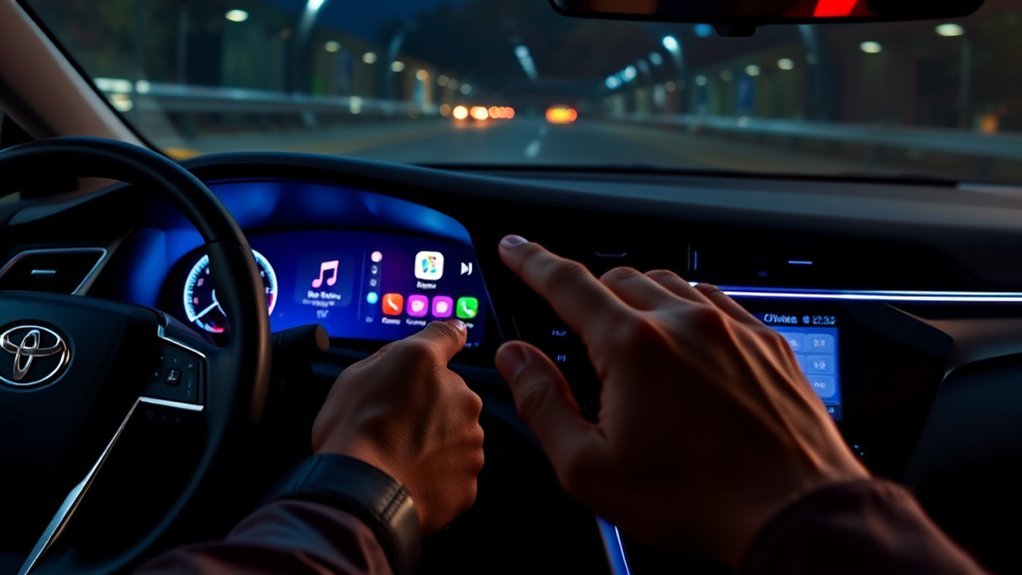
Apple CarPlay places common iPhone functions on your Camry’s display, including maps, calls, messages, music, podcasts, and supported third-party apps. Use the touchscreen, steering-wheel controls, or Siri depending on what is safest for the situation.
For navigation, open Apple Maps, Google Maps, or another CarPlay-compatible navigation app. For calls and messages, use Siri voice commands instead of typing or scrolling. For audio, use the Now Playing screen or steering-wheel controls to limit screen taps.
CarPlay can reduce the need to handle your phone, but it can still demand visual and mental attention. The AAA Foundation for Traffic Safety found that CarPlay and Android Auto were generally less demanding than built-in infotainment systems in its tested tasks, but they still produced measurable driver demand.
Make the Most of Your Apple CarPlay Experience
Once CarPlay is connected, spend a few minutes customizing it while parked. A clean app layout makes it easier to reach navigation, calls, and audio without searching through extra icons.
Customize App Layout
Apple’s current method for changing CarPlay app order is done on your iPhone, not by pressing and holding icons on the Camry screen.
- When you are not driving, open Settings on your iPhone.
- Go to General > CarPlay.
- Select your Toyota Camry.
- Tap Customize.
- Drag apps up or down to change their order.
- Tap the remove button beside eligible apps you do not want shown in CarPlay.
- Add removed apps back from the More Apps section if needed.
Your changes should appear the next time your iPhone connects to CarPlay. Apple explains this process in its guide to rearranging icons on CarPlay Home.
Voice Command Navigation
To use Siri with Apple CarPlay, press and hold the voice command button on the steering wheel or use the Siri button on the CarPlay screen. You can ask for directions, call a contact, send a message, play music, or find nearby stops such as gas stations and restaurants.
Useful examples include:
- “Siri, get directions home.”
- “Siri, call Alex.”
- “Siri, send a message to Mom.”
- “Siri, find a gas station nearby.”
- “Siri, play my driving playlist.”
Hands-Free Calling Features
Hands-free calling through CarPlay lets you place and answer calls through the Camry’s speakers and microphone. To get the best results:
- Use Siri: Say “Call” followed by the contact name.
- Keep contacts updated: Clean contact names make voice dialing easier.
- Allow contacts during setup: Approve contact access if you want names to appear on the Camry display.
- Test the microphone: If callers cannot hear you, check whether the phone is connected to CarPlay or another Bluetooth device.
Safe Use and Privacy Tips
CarPlay is designed to bring familiar iPhone functions to the vehicle display, but it should not become another distraction. Set your route, playlist, and app layout before driving. If you need to troubleshoot, read a long message, or change settings, pull over safely first.
During setup, your iPhone may ask for permission to share contacts, notifications, or vehicle-related connection data. Approve only the permissions you want to use. For example, contacts are helpful for calling by name, while notifications are useful if you want message alerts to appear through CarPlay.
CarPlay can make common phone tasks easier to access, but your full attention should stay on driving. Use voice commands sparingly and adjust settings only while parked.
Frequently Asked Questions
Why won’t my Toyota Camry connect to Apple CarPlay?
The most common causes are a bad USB cable, the wrong USB port, Bluetooth or Wi-Fi being turned off, Siri being disabled, CarPlay being restricted in Screen Time, or a saved pairing glitch. Try restarting the iPhone and Camry, then forget the Camry under Settings > General > CarPlay and pair again.
Does the 2025 Toyota Camry have wireless Apple CarPlay?
Yes. Toyota’s 2025 Camry brochure lists wireless Apple CarPlay compatibility for compatible iPhones. You still need Bluetooth and Wi-Fi enabled on your iPhone for wireless setup.
Does the 2026 Toyota Camry have wireless Apple CarPlay?
Yes, based on current dealer specification pages, which list wireless Apple CarPlay as standard across the 2026 Camry lineup. [VERIFY: confirm exact trim-by-trim standard-vs-available wording against Toyota’s official 2026 Camry brochure before publishing.]
Where is the CarPlay USB port in a Toyota Camry?
On most model years it’s in the front center console, marked with a smartphone or CarPlay icon. Other nearby USB ports are usually charge-only and won’t launch CarPlay. [VERIFY: exact port position and icon can vary by model year and trim — check your owner’s manual if you don’t see a marked port.]
Can I use Apple CarPlay with a USB cable in a Toyota Camry?
Yes, if your Camry’s multimedia system supports wired CarPlay. Use an Apple USB cable and connect to the USB port intended for smartphone projection. If the phone only charges, try a different cable or port.
How do I reset Apple CarPlay in my Camry?
On your iPhone, go to Settings > General > CarPlay, select your Toyota Camry, and tap Forget This Car. Then remove the iPhone from the Camry’s Bluetooth device list if needed, restart both systems, and pair again.
Why does wireless CarPlay need Wi-Fi if it pairs with Bluetooth?
Bluetooth helps start the pairing process, but wireless CarPlay uses Wi-Fi for the main connection. That is why Apple recommends making sure both Bluetooth and Wi-Fi are turned on.
Conclusion
Setting up Apple CarPlay in your Toyota Camry is simple once your iPhone is updated, Siri is on, and the right connection method is chosen. Use USB for the most reliable first setup, or pair wirelessly in a 2025 or 2026 Camry for cable-free convenience. If CarPlay does not connect, check Bluetooth, Wi-Fi, Screen Time restrictions, the USB cable, and the “Forget This Car” reset option before assuming something is wrong with the vehicle.
Most importantly, treat CarPlay as a safer way to access essential features, not as a reason to interact with the screen more often. Set it up while parked, use Siri when practical, and keep your focus on the road.
Sources
- Apple Support — Connect iPhone to CarPlay — backs up wired and wireless CarPlay setup requirements.
- Apple Support — If you need help with CarPlay — backs up troubleshooting steps, Wi-Fi, Bluetooth, Siri, restrictions, and reset guidance.
- Apple Support — Rearrange icons on CarPlay Home — backs up the current app customization process.
- Apple — CarPlay Available Models — backs up Toyota Camry CarPlay model-year compatibility.
- Toyota — 2025 Camry eBrochure — backs up 2025 Camry wireless Apple CarPlay compatibility.
- NHTSA — Distracted Driving — backs up safe-use warnings about in-vehicle distractions.