To set the clock on a Toyota 4Runner, match the steps to your model year and multimedia system. On a 2025–2026 4Runner, open Settings > General > Date & Time; leave Set date & time by GPS on for automatic updates, or turn it off to set the time, time zone, and daylight-saving options manually. Many 2020–2024 touchscreen systems use MENU > Setup > General > Clock. Older 4Runners may use physical H and M buttons instead.
Last updated: September 1, 2026 — menu paths checked against Toyota 4Runner multimedia documentation and Toyota/NHTSA service information.
Quick Answer
For a 2025–2026 4Runner, use Settings > General > Date & Time. Turn Set date & time by GPS on for automatic time updates. If you need manual control, turn that setting off, then adjust the time, time zone, daylight-saving setting, or 12/24-hour format shown by your system. On older models with physical clock controls, use the H and M buttons.
Key Takeaways
- The menu name and button layout vary by model year and installed head unit.
- A clock that is exactly one hour wrong usually needs a daylight saving time or time-zone correction.
- On 2025–2026 models, Toyota documents a GPS time setting under Settings > General > Date & Time; older systems use different clock menus.
- A battery disconnect can erase or disturb clock settings on some models; repeated resets with other electrical symptoms warrant diagnosis.
At a Glance
| Time Required | 2 to 5 minutes |
| Difficulty | Easy |
| Tools Needed | None; the model-year owner’s manual is helpful |
| Cost | $0 for normal adjustment |
Warning: Park the vehicle before changing clock or infotainment settings. The National Highway Traffic Safety Administration lists using or adjusting a stereo, entertainment, or navigation system as a driving distraction.
Identify Your 4Runner Clock System First

Do not assume every 4Runner uses the same path. Toyota has used several dashboard and multimedia designs, and an aftermarket radio can have completely different controls. Match your vehicle to the closest description:
- 2025–2026 Toyota Audio Multimedia: Look for the settings gear, then General and Date & Time. Toyota documents Set date & time by GPS on these systems.
- 2020–2024 factory touchscreen: Many systems use MENU > Setup > General > Clock, with controls for time zone, daylight saving time, GPS adjustment, and 12/24-hour format depending on equipment.
- Older factory clock: Some 4Runners use physical H and M buttons. Certain earlier models also have a :00 button that rounds to the nearest hour.
- Aftermarket stereo: Use the stereo maker’s instructions because Toyota menu paths may no longer apply.
| 4Runner setup | Where to start | Key detail |
|---|---|---|
| 2025–2026 | Settings > General > Date & Time | GPS on = automatic; GPS off = manual controls |
| Many 2020–2024 touchscreens | MENU > Setup > General > Clock | Auto Adjust by GPS can be turned off for manual setting |
| Older physical clock | H / M buttons near the clock | :00 exists only on some earlier clocks |
Verification note: Toyota’s 2025 4Runner documentation and a Toyota service bulletin filed with NHTSA confirm the Settings > General > Date & Time > Set date & time by GPS path. Toyota’s earlier 4Runner multimedia manual documents the MENU > Setup > General > Clock path for older touchscreen systems.
Pro Tip: Confirm the model year and compare your screen or buttons with the matching owner’s or multimedia manual before changing settings. Toyota provides separate 2024 4Runner and 2025 4Runner manual pages.
Prepare the Vehicle
Park safely and turn the ignition or power switch on so the display is active. Toyota’s 2025 multimedia manual warns against operating the display more than necessary while driving and against leaving the multimedia system on for long periods with the engine or hybrid system off because it can deplete the 12-volt battery.
You do not need a phone, USB cable, pen, or special tool. Keep the owner’s manual available only if your menu labels do not match the steps below.
How Do You Set the Clock on a 2025–2026 4Runner?
The sixth-generation 2025–2026 4Runner uses Toyota Audio Multimedia with an 8-inch or available 14-inch touchscreen. Toyota documents the clock controls under Settings > General > Date & Time.
- Tap the Settings gear on the touchscreen.
- Open General.
- Select Date & Time.
- For automatic time, turn Set date & time by GPS on.
- For manual control, turn Set date & time by GPS off. Toyota then allows the time and time zone to be set manually.
- Choose the time zone and daylight savings setting shown by the system. Toyota documents daylight-saving choices of Auto, On, or Off on compatible configurations.
- Choose 24-hour time on or off if you want to change the display format.
- Exit the menu and verify the displayed local time.
[Products Worth Considering]

Applicable Vehicles: Designed specifically for 2003 2004 2005 2006 2007 2008 2009 4Runner, this head unit comes with the required harness for easy plug-and-play installation—no cutting factory wires. Retains key functions including steering wheel controls, backup camera, etc. Please confirm your vehicle’s year and dashboard layout before purchase.

Precision Fit, Factory Quality: 4Runner screen protector 14 inch fits with laser-cut precision, tailor-made for the 2025 2026 Toyota 4Runner 14-inch screen. Enjoy precision fitment that aligns perfectly with your 4Runner display, delivering a factory finish
How Do You Set the Clock on a 2020–2024 4Runner Touchscreen?
Toyota’s 2020 4Runner multimedia manual documents the path MENU > Setup > General > Clock. Later fifth-generation systems use the same general clock-settings pattern, although available options depend on the installed audio or navigation system.
- Press MENU.
- Select Setup. If General is not already open, select General.
- Select Clock.
- Set the time zone and daylight-saving option available on your system.
- Turn Auto Adjust by GPS on if you want GPS-based adjustment.
- To set the clock manually, turn Auto Adjust by GPS off, then use the hour and minute controls.
- Set 24-hour format on or off if that option is available, then return to the home screen and verify the time.
[Products Worth Considering]

Touch screen digitizer fit for 14-19 Toyota 4Runner touch screen radio, for Toyota Entune radio repair

[Custom Precision Crafted] KUST Car Dashboard Cover Mat – Tailored for Toyota 4Runner 2010 2011 2012 2013 2014 2015 2016 2017 2018 2019 2020 2021 2022 2023 2024. Kindly double-check your vehicle's exact year and model to secure a spot-on, premium fitment.
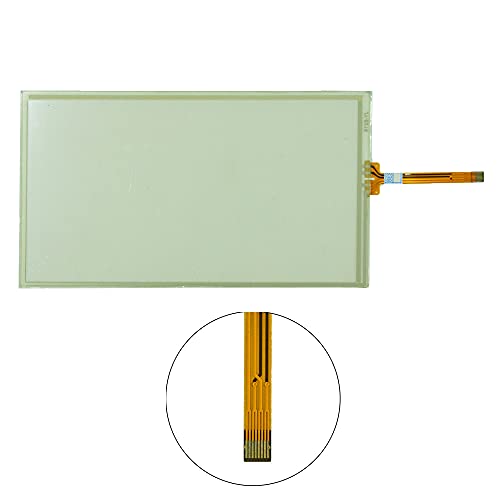
Touch Screen Compatible with 2014-2019 Toyota 4Runner
How Does Automatic GPS Time Work on a 4Runner?

Compatible factory systems use GPS information to maintain the clock. On 2025–2026 models, Toyota says Set date & time by GPS uses GPS information and map data to set the time automatically; turning it off enables manual time and time-zone controls. On older touchscreen systems, Auto Adjust by GPS can be switched on or off, while time-zone and daylight-saving options vary by equipment.
If the clock is exactly one hour fast or slow, first check whether GPS time is enabled and whether the available time-zone or daylight-saving setting matches your location.
Note: Apple CarPlay and Android Auto can show phone-based information inside the projected interface, but Toyota provides separate Clock or Date & Time controls for the vehicle multimedia system. Use the Toyota clock menu to correct the vehicle display.
How Do You Use H, M, and :00 Buttons on Older 4Runners?

If your 4Runner has physical clock buttons, turn the key to ACC or ON as directed by the owner’s manual, then use the buttons beside the clock display:
- Press H to advance the hour.
- Press M to advance the minute.
- On some models, press and hold H or M to advance more quickly.
- If your clock has a :00 button, press it to round to the nearest hour. Toyota documents 1:01–1:29 rounding to 1:00 and 1:30–1:59 rounding to 2:00 on earlier 4Runners.
These buttons do not select a time zone. You must change the displayed hour manually after traveling or when daylight saving time changes.
Choose a 12-Hour or 24-Hour Display
Toyota documents a 12-hour/24-hour display choice on both the 2025–2026 system and many earlier touchscreen systems. Open the Clock or Date & Time menu and look for Time Format, 24-Hour Time, or similar wording. If no format option appears, that head unit may use a fixed format.
| Display | Example | What to Select |
|---|---|---|
| 12-hour | 3:30 PM | 12-hour or AM/PM |
| 24-hour | 15:30 | 24-hour, if available |
Set the Time Zone for Travel
When you cross a time-zone boundary, first identify whether your system is using GPS time. On 2025–2026 models, GPS time is designed to use location information automatically. On older systems, time-zone behavior depends on equipment and whether an automatic zone option is available.
- Open Settings or MENU > Setup, depending on the system.
- Open General, then Date & Time or Clock.
- If GPS time is enabled on a 2025–2026 model, give the system a chance to update after the vehicle changes location.
- If you are using manual mode, select the new time zone and daylight-saving setting offered by the system.
- If your system has no time-zone menu, adjust the displayed hour manually.
After changing the zone, compare the vehicle clock with a reliable local time source. Do not change the minutes unless they are also incorrect.
Troubleshoot Toyota 4Runner Clock Problems
[Products Worth Considering]

Resets your speedometer to accurate readings for larger tires. Easy Plug and Play connection with Option to return to stock settings Updates OE ECM Shift Points to...
The Clock Is Exactly One Hour Wrong
First check whether GPS time is enabled. If you are using manual time, verify the selected time zone and daylight-saving setting. A clean one-hour error is more consistent with a zone or daylight-saving mismatch than with minute-by-minute clock drift.
Automatic Time Is Still Wrong
Confirm that the GPS-time option is actually enabled. If the time remains wrong, turn GPS adjustment off and set the time manually, then re-enable GPS and recheck. If the problem continues, compare the behavior with the model-year multimedia manual because software and equipment can change the available controls.
The Clock Resets After the Vehicle Starts
Earlier Toyota manuals state that disconnecting electrical power can reset the clock, so needing to set it again after battery work can be normal. If the clock resets repeatedly and other electrical symptoms appear, have the 12-volt system checked. If only the multimedia clock is affected, the head unit or software may need diagnosis.
The Screen Is Frozen or Dark
Turn the vehicle off and restart the system normally. Toyota’s 2025 multimedia manual includes a documented restart procedure for a system that responds extremely slowly; use only the procedure in the correct manual. Do not disconnect the battery or use an undocumented button reset just to fix the clock. If the screen remains blank, arrange diagnosis.
The Clock Menu Is Missing or Different
Your 4Runner may have a different factory head unit, an aftermarket stereo, or updated software. Search the correct model-year manual for “clock,” “date and time,” or “time zone.” Toyota’s manuals portal is the safest starting point because menu paths differ across systems.
The Phone and Vehicle Show Different Times
Correct the time zone on both devices. Then set the Toyota clock through the vehicle menu. CarPlay or Android Auto may show the phone’s time while the Toyota home screen continues to show the vehicle clock.
When to Check the Manual or Visit a Dealer
Use the model-year owner’s or multimedia manual when your controls do not match this guide, the automatic-time option is unavailable, or a software update changes the menu. Toyota’s official manuals portal lets you choose the relevant vehicle year and multimedia documentation.
Schedule service when the clock will not retain settings, the multimedia screen repeatedly freezes or goes black, the unit restarts on its own, or other electrical symptoms appear. A technician can check the 12-volt power supply, software status, and factory multimedia unit.
Tips to Keep the 4Runner Clock Accurate
- Check the clock after a battery disconnect, battery replacement, or multimedia reset.
- Confirm the time zone after long-distance travel.
- Review the daylight saving setting when the clock is one hour wrong.
- Use automatic GPS time only when the feature is present and the selected zone is correct.
- Recheck the clock after a multimedia software update.
Related Toyota clock guides: See the Toyota RAV4 clock settings guide or the Toyota Supra clock guide if you are working on another Toyota model.
Frequently Asked Questions
How do I set the clock and time zone on a Toyota 4Runner?
On a 2025–2026 model, open Settings > General > Date & Time. Turn Set date & time by GPS on for automatic updates, or turn it off for manual time and time-zone controls. Many 2020–2024 touchscreens use MENU > Setup > General > Clock. Older models may use H and M buttons.
Why is my 4Runner clock one hour off?
Check whether GPS time is enabled. In manual mode, verify the selected time zone and daylight-saving setting before changing the minutes.
Does a Toyota 4Runner clock sync with my phone?
Do not rely on phone projection to correct the Toyota clock. CarPlay and Android Auto use the phone inside their projected interfaces, while Toyota provides separate Clock or Date & Time controls for the vehicle multimedia system.
What does the :00 clock button do?
On a clock fitted with that button, :00 rounds to the nearest hour. Toyota documents 1:01–1:29 rounding down to 1:00 and 1:30–1:59 rounding up to 2:00 on earlier 4Runners.
Why did the clock reset after a battery change?
A power disconnect can reset clock settings on some Toyota systems. Set the time again. If the clock keeps resetting, especially with other electrical symptoms, have the 12-volt system and multimedia unit checked.
Can I change the clock while driving?
Do not adjust the clock while driving. Park first so the setting task does not take your eyes or attention away from the road.
Conclusion
To set a Toyota 4Runner clock correctly, start with the system your vehicle actually has. On a 2025–2026 model, use Settings > General > Date & Time and choose GPS or manual control. On many 2020–2024 touchscreens, use MENU > Setup > General > Clock. Older dashboards may use H and M buttons. If the time is still wrong, check GPS mode, time zone, and daylight-saving settings before moving to electrical or multimedia diagnosis.
Sources
- Toyota 2025 4Runner Manuals and Warranties — official model-year documentation portal.
- Toyota 2024 4Runner Manuals and Warranties — official previous-generation documentation portal.
- Toyota USA Newsroom: 2025 Toyota 4Runner — confirms the sixth-generation redesign and 8-inch or available 14-inch Toyota Audio Multimedia display.
- Toyota T-SB-0026-25 via NHTSA — confirms the 2025 4Runner Settings > General > Date & Time > Set date & time by GPS path.
- Toyota Audio Multimedia and Connected Services — official overview of Toyota multimedia and phone-projection features.
- NHTSA: Distracted Driving — supports the warning to adjust infotainment settings only while parked.