
Changing the clock in a Toyota RAV4 usually takes less than a minute once you know where Toyota hides the setting. The exact menu name can vary by model year and audio system, but most touchscreen-equipped RAV4 models use Setup or Settings > General > Clock. From there, you can use GPS auto adjustment or turn it off and set the time manually.
Quick Answer
To change the clock in a Toyota RAV4, open Apps/Menu > Setup or Settings > General > Clock. Turn off Auto Adjust by GPS if you want manual control, then set the hour, minutes, time zone, daylight saving option, and 12/24-hour format. Exit the menu and verify both displays match.
Key Takeaways
- Use the RAV4’s Clock menu, usually under Setup, Settings, or General.
- Leave Auto Adjust by GPS on for automatic time updates, or turn it off to set the clock manually.
- Check time zone, Daylight Saving Time, and 12/24-hour format if the displayed time is still wrong.
- After a battery disconnect or software update, recheck the clock and restart the infotainment system if the dash and screen do not match.
At a Glance
| Time Required | 1–3 minutes |
| Difficulty | Easy |
| Tools Needed | None |
| Cost | Free |
Warning: Do not change clock settings while driving. Park safely first, then use the touchscreen or steering-wheel controls so you are not distracted.
Change the Clock Quickly in a Toyota RAV4
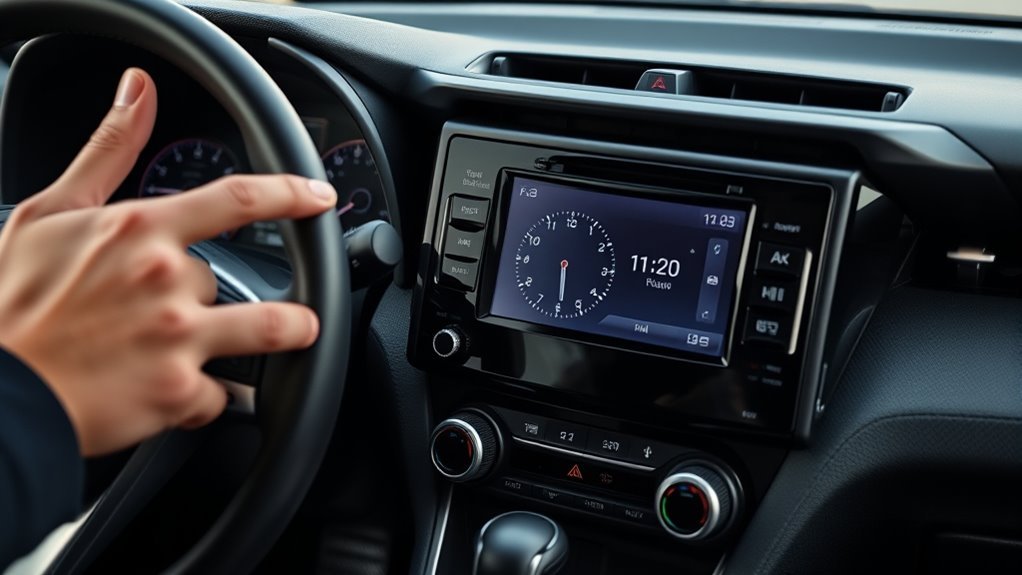
For most recent Toyota RAV4 models with a touchscreen, press Apps, Menu, or the gear-shaped Settings icon, then open Setup or Settings. Choose General if that menu appears, then select Clock. Toyota’s owner information for touchscreen-equipped RAV4 models lists clock controls for time zone, daylight saving time, GPS auto adjustment, and manual adjustment when GPS auto adjust is turned off.
- Park the RAV4 and turn the vehicle on or place it in accessory mode.
- Open Apps/Menu > Setup or Settings > General.
- Select Clock.
- Choose Auto Adjust by GPS for automatic time, or turn it off for manual entry.
- If manual mode is available, adjust the hour and minutes. Confirm AM/PM if your display uses 12-hour time.
- Exit back to the Home screen and check that the infotainment and instrument-panel clock show the correct time.
Pro Tip: If you do not see manual hour and minute controls, turn Auto Adjust by GPS off first. On many Toyota systems, manual clock editing is only available after automatic GPS adjustment is disabled.
Before You Start: Check Your RAV4 Model Year and Audio System
The RAV4 clock process is not identical across every year, trim, and market. A 2019–2022 style Toyota multimedia system may show Apps, Menu, Setup, and General. Newer Toyota Audio Multimedia systems may use a cleaner Settings layout. Older RAV4 models without the same touchscreen menus may use physical clock buttons, steering-wheel controls, or the multi-information display.
| RAV4 Type | Where to Look First | Best Fix |
|---|---|---|
| Touchscreen with Apps/Menu | Apps or Menu > Setup > General > Clock | Use GPS auto adjust or turn it off and set time manually. |
| Newer Toyota Audio Multimedia | Settings > General > Clock or Date/Time | Check automatic time, time zone, and software update options. |
| Older non-touchscreen setup | Clock, H, M, DISP, or steering-wheel menu controls | Use the owner’s manual for your exact year because button layouts vary. |
If your menu labels do not match this guide, use the same logic: find the system settings area, open the clock or date/time menu, then choose automatic or manual time.
Choose Auto GPS or Manual Time for Your RAV4 Clock
Once you are in the Clock menu, decide whether the RAV4 should set the time automatically or let you control it manually. Toyota owner information for supported RAV4 systems describes an automatic adjustment of the clock by GPS setting. When that setting is off, the clock can be manually adjusted.
Use Auto Adjust by GPS if you want the easiest setup. It is useful for normal driving, road trips, and time-zone changes because the vehicle can use GPS-based location data to keep the clock aligned with the correct local time when the feature is supported.
Use manual time if you want the clock fixed to a specific time, if the vehicle is near a time-zone border, or if GPS auto adjustment is showing the wrong hour. Turn off Auto Adjust by GPS, then enter the hour and minutes directly.
Note: GPS clock adjustment may not be available in every country, region, model year, or audio package. If the option is missing, use the manual clock controls or check the owner’s manual for your specific RAV4.
[Products Worth Considering]

Replace a cracked or unresponsive navigation screen with this touch screen glass digitizer designed for compatible Toyota infotainment units. It restores touch functionality for supported RAV4, Prius C, Corolla, and Camry models with a precise 12-pin interface and the correct cable position requirements. Built with a slim 1.5mm profile, it is a practical repair solution for keeping your factory navigation system working properly.

This CANBUS wiring harness is designed to connect compatible Android head units to select Toyota models with mid-trim OEM JBL systems, helping simplify installation and reduce cutting or splicing. It supports retained factory features such as steering wheel controls, factory backup camera, original USB, and JBL amplifier functions when the vehicle and radio are compatible. Built for select Toyota fitments, it offers a plug-and-play upgrade path for a smoother stereo replacement.
Set Daylight Saving, Time Zone, and 12/24-Hour Format
If the clock is off by exactly one hour, the problem is usually the time zone or Daylight Saving Time setting, not the minutes. In the Clock menu, check these three options before assuming the system is broken:
- Time Zone: Select your current region so the system uses the right offset.
- Daylight Saving Time: Set it to on, off, or auto if your RAV4 provides those choices.
- 12/24-Hour Format: Choose 12-hour time for AM/PM or 24-hour time for a military-style display.
In the United States, the U.S. Department of Transportation oversees time zones and uniform daylight saving time rules. The National Institute of Standards and Technology also explains that daylight saving time advances clocks by one hour during the DST period. That is why a one-hour error often points to DST or time-zone settings.
If your RAV4 clock is off by one hour, check Daylight Saving Time and time zone first. If it is off by several minutes, check GPS auto adjust or set the minutes manually.
Sync Dashboard and Infotainment Clocks Together
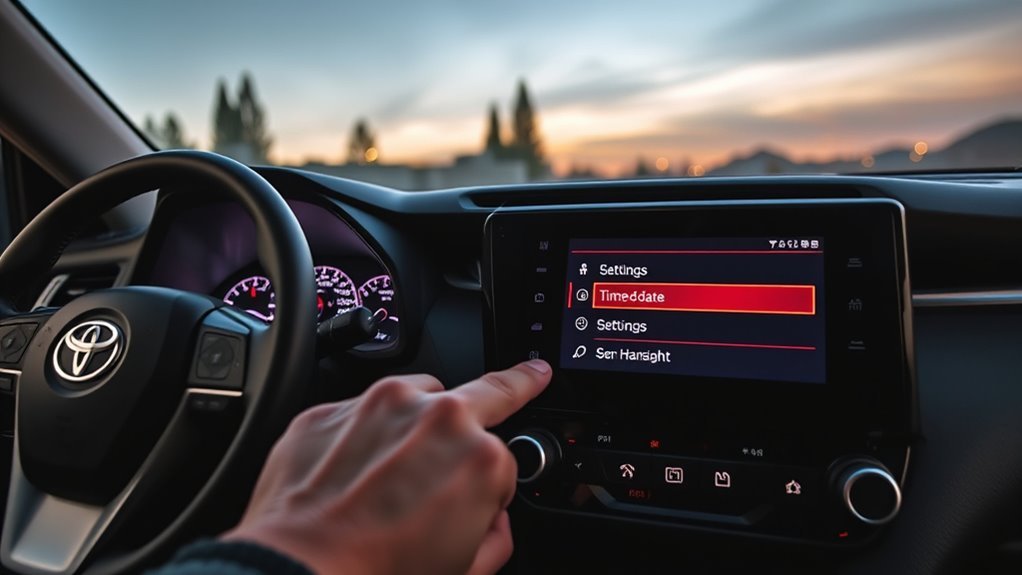
On many touchscreen-equipped RAV4 models, the infotainment clock setting controls the time shown on the main screen and the instrument-panel display. Make your adjustment from the central clock menu, then verify both locations instead of changing one display and assuming the other followed.
- Set the clock from the infotainment Clock menu.
- Return to the Home screen.
- Look at the infotainment clock.
- Look at the instrument cluster or multi-information display.
- If they do not match, turn the vehicle off, wait 30–60 seconds, restart it, and check again.
If the two clocks keep disagreeing, the system may need a software update or dealer diagnosis. Toyota’s official software portal allows owners to check available Toyota Audio Multimedia System updates by vehicle information. Toyota Support also notes that available multimedia updates may require a USB drive, while navigation and map updates may be handled online or through a Toyota dealer.
When to Turn Off GPS Auto-Adjust Near Time-Zone Borders
If you live or drive near a time-zone boundary, the RAV4 may occasionally choose a time zone you do not want, especially if your route moves close to the border. In that case, turn off Auto Adjust by GPS and set the clock manually until you are clearly in the correct zone.
GPS Misreadings at Borders
GPS-based time adjustment depends on location. Near a time-zone line, the clock may change when you do not expect it. This can be annoying if you are commuting near a border, following an appointment schedule, or driving through an area where phones, navigation, and vehicle systems do not agree.
To correct it, open Clock, turn off Auto Adjust by GPS, manually enter the local time you want, and verify the dashboard after exiting the menu.
Manual Control Benefits
Manual control is best when predictability matters more than automation. Use it when you want the RAV4 clock to stay fixed to your home time, match a travel itinerary, or avoid unwanted changes at a time-zone border.
- Disable GPS auto adjustment before crossing a known time-zone boundary.
- Set the clock to the time zone you want to follow.
- Confirm both the dashboard and infotainment display show the same time.
- Turn GPS auto adjustment back on later if you want the vehicle to resume automatic timekeeping.
Prevent Clock Jumping
To prevent clock jumping, treat manual time as a temporary lock. Turn off GPS adjustment, set the hour and minutes, and leave it that way until your route is no longer near the border. Once you are comfortably inside one time zone, you can re-enable GPS auto adjustment and let the RAV4 manage time again.
Troubleshoot Clock Errors After a Reset, Battery Change, or System Restart
A RAV4 clock can lose or change time after a battery disconnect, system reset, software update, or infotainment restart. Start with the simplest fix and work upward.
- Confirm the vehicle is fully on: Some settings may not save properly if the vehicle is only partly powered.
- Recheck Clock settings: Open the Clock menu and confirm GPS auto adjust, time zone, DST, and 12/24-hour format.
- Restart the infotainment system: Turn the vehicle off, wait 30–60 seconds, then restart and check the time again.
- Check for multimedia software updates: Use Toyota’s software update portal or Toyota Support instructions for your model.
- Check the owner’s manual: Button sequences and menu names vary by year, trim, and market.
- Visit a Toyota dealer if the clock will not save: Persistent failures may need diagnostic equipment or firmware-level service.
Note: A clock reset after a dead or disconnected battery is usually not a sign of a major problem. Set the clock again, then watch whether it keeps time over the next few drives.
Save Changes and Confirm Time Across Systems
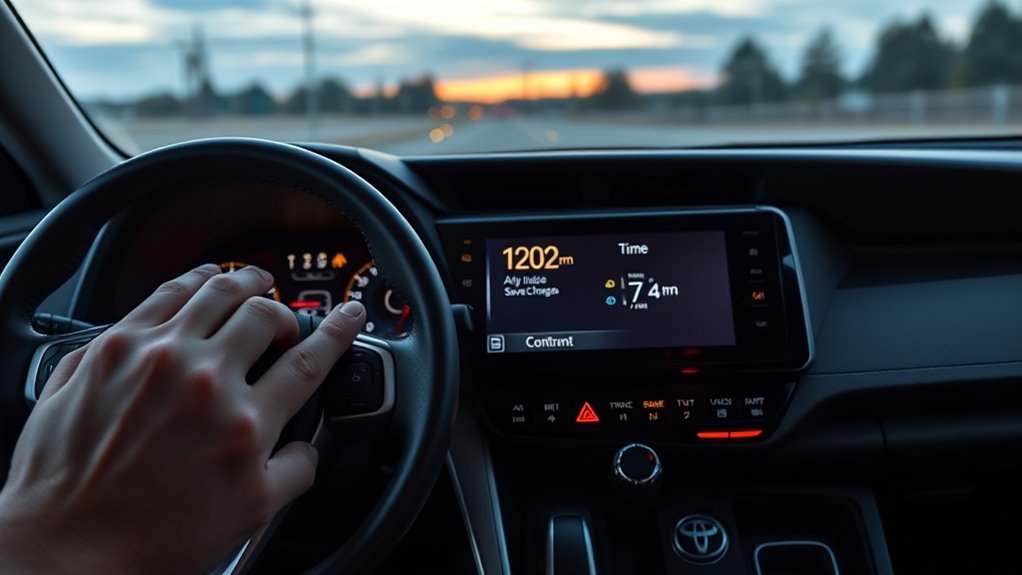
After changing the time, exit the Clock menu and return to the Home screen. Some systems save changes immediately; others appear to finalize the setting after you leave the menu. Either way, the important step is verification.
| Action | Target | Expected Result |
|---|---|---|
| Exit to Home | Infotainment system | New clock setting remains visible |
| Verify clock | Dashboard | Matches infotainment time |
| Check DST/time zone | Clock menu | Correct local time |
| Restart if needed | Vehicle and screen | Clock remains correct after reboot |
If the clock changes back after you set it, the most likely cause is automatic time adjustment, time-zone selection, daylight saving settings, or a software issue. Recheck those items before replacing parts or booking service.
Frequently Asked Questions
Will changing the clock affect my scheduled maintenance reminders?
No. Changing the visible clock should not erase maintenance reminders. Maintenance reminders are generally based on mileage, time intervals, or service-reset settings, not the hour shown on the infotainment clock.
Why is my RAV4 clock off by exactly one hour?
A one-hour error usually points to the time zone or Daylight Saving Time setting. Open the Clock menu and check the selected time zone, DST setting, and GPS auto-adjust option.
Does updating the infotainment clock change recorded trip timestamps?
Changing the display clock should not rewrite past trip data. However, some displayed timestamps may appear differently if the vehicle changes time zone or daylight saving settings. For precise records, compare the vehicle display with your phone, service records, or official time.
Can Apple CarPlay or Android Auto change the RAV4 clock?
Phone projection can show phone-based time inside CarPlay or Android Auto, but the RAV4’s vehicle clock is normally controlled through the Toyota clock settings. If the time changes unexpectedly, check GPS auto adjust, time zone, daylight saving settings, and your phone projection settings.
Is there any impact on towing or telemetry systems when adjusting time?
For normal owners, adjusting the display clock should not affect towing ability. If your vehicle uses connected services, navigation history, fleet telematics, or accessory logging, use the correct time zone and GPS settings so displayed timestamps stay easy to interpret.
Will dealership software updates revert my manual clock settings?
Usually, a routine update should not be a problem, but some updates, resets, battery work, or module restarts can return settings to automatic defaults. After dealer service, quickly check the clock, time zone, DST setting, and GPS auto-adjust setting before leaving.
Conclusion
Changing the clock in a Toyota RAV4 is simple once you know the path: open the Clock menu, choose GPS auto adjustment or manual time, then confirm the time zone, daylight saving setting, and 12/24-hour format. If the time keeps drifting, restart the infotainment system, check for Toyota multimedia updates, and verify the setting again after any battery or service work.
Sources
- Toyota Owners — 2022 RAV4 General Settings — Clock settings, time zone, daylight saving, GPS auto adjustment, and manual adjustment behavior.
- Toyota Owners — 2021 RAV4 General Settings — Clock settings and manual clock adjustment when GPS auto adjustment is turned off.
- Toyota Owners — 2025 RAV4 Manuals and Warranties — Official owner manual access for model-specific procedures.
- Toyota Audio Multimedia System Updates — Official Toyota portal for checking available multimedia software updates.
- Toyota Support — Multimedia System Updates — Toyota support guidance for checking and performing audio multimedia updates.
- U.S. Department of Transportation — Uniform Time — Official U.S. time-zone and daylight saving oversight reference.