
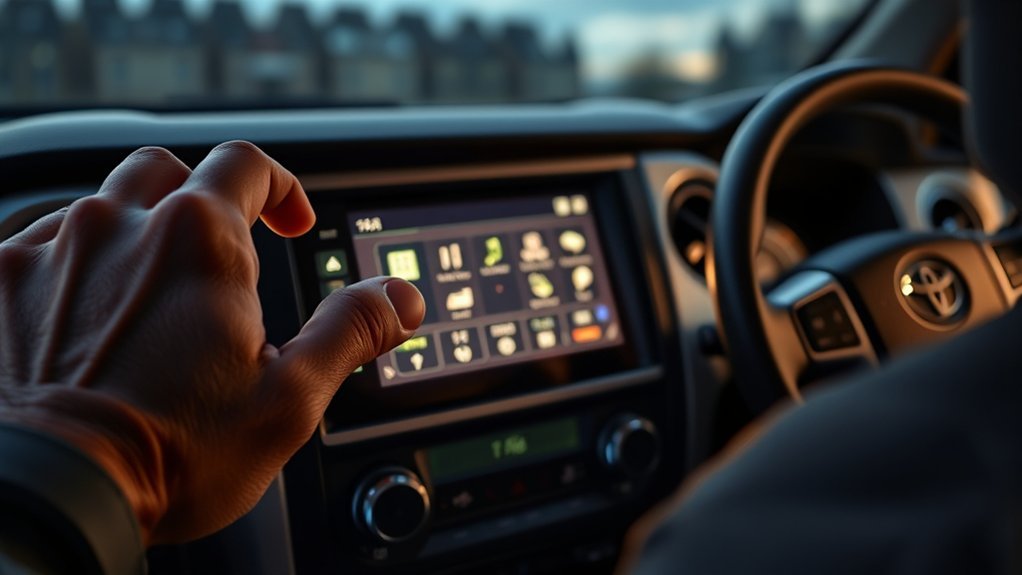
If your Toyota Tundra infotainment screen is frozen, slow, dropping Bluetooth, or stuck on a profile prompt, start with the least destructive fix first. A quick restart usually keeps your settings intact. A full system reset should be your last step because it restores factory defaults and removes saved multimedia data.
Quick Answer
To reset a newer Toyota Tundra infotainment system, park safely, turn the vehicle on, then press and hold the PWR/VOL knob for at least 3 seconds to restart the screen. For a full factory reset, use Settings > Info & Security > System reset, then re-pair phones and restore preferences.
Key Takeaways
- Use a quick restart before deleting phones, profiles, or personal settings.
- On current Toyota Audio Multimedia systems, the official restart method is holding the PWR/VOL knob for at least 3 seconds.
- A full system reset is under Settings > Info & Security > System reset on current Tundra multimedia manuals.
- Factory reset removes multimedia data and cannot restore the system to its previous state.
- Check software updates through the vehicle display, Toyota software portal, or a dealer; reset your user-profile PIN in the Toyota app.
At a Glance
| Time Required | 1 minute for a restart; 10–20 minutes for reset and re-pairing |
| Difficulty | Easy |
| Tools Needed | Your vehicle, phone, Toyota app for PIN reset, and optional USB drive for software updates |
| Cost | Free unless a dealer diagnosis or map update is needed |
Warning: Do not operate the infotainment screen while driving. Park in a safe place before restarting, deleting devices, updating software, or using System reset.
Restart the Tundra Infotainment in 30 Seconds
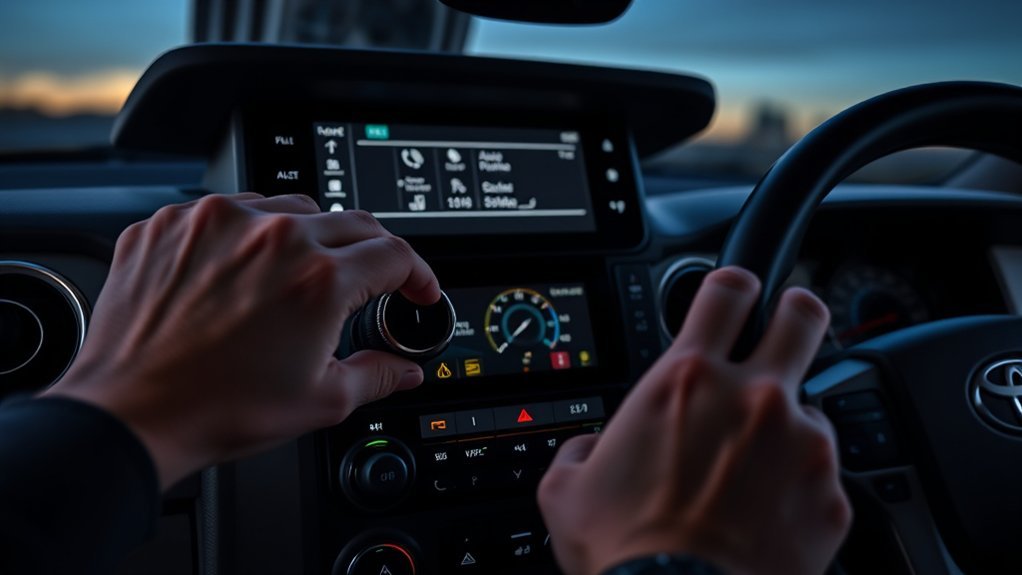
Start with a restart if the screen is slow, frozen, or not responding to taps. This is the safest first move because it does not intentionally erase saved phones, radio presets, navigation favorites, or driver-profile settings.
- Park the Tundra in a safe place.
- Turn the vehicle on or place it in accessory/on mode so the multimedia screen has power.
- Press and hold the PWR/VOL knob for at least 3 seconds.
- Wait for the display to go dark and reload.
- Test the touchscreen, audio source, Bluetooth, and navigation before trying deeper resets.
Note: Menu names and timing can vary by model year, region, software version, and screen size. For the exact procedure, check your Tundra Multimedia System Owner’s Manual.
Perform a Soft Reset (PWR/VOL Method)
A soft reset is the same basic restart procedure: it reboots the Toyota Audio Multimedia system without choosing the full System reset option. Use it for temporary glitches such as a frozen touchscreen, missing audio source, slow menus, or a one-time Bluetooth drop.
Hold the PWR/VOL Knob
Press and hold the PWR/VOL knob until the system begins to restart. If the screen comes back normally, do not continue to a factory reset. Instead, test the feature that was acting up.
| Step | Purpose |
|---|---|
| Park the vehicle | Prevents distraction and keeps the reset safe |
| Vehicle on/accessory mode | Gives the screen power to reboot |
| Hold PWR/VOL at least 3 seconds | Starts the multimedia restart |
| Wait for screen reload | Confirms the system restarted |
| Test functions | Checks whether the problem is fixed |
Confirm the System Reboot
After the restart, wait until the home screen, clock, audio menu, and phone status icons load. Then test the problem area:
- If the screen was frozen, tap several menu icons and confirm they open normally.
- If Bluetooth failed, make a short test call and play audio from your phone.
- If navigation was slow, enter a simple destination and confirm the map responds.
- If audio was missing, switch between radio, Bluetooth, and USB if available.
If the same issue returns right away, move to the targeted troubleshooting steps below instead of jumping straight to a full system reset.
Choose the Right Reset Before Wiping Data
Not every infotainment problem needs a factory reset. Use this order so you do not erase settings unnecessarily.
| Problem | Try First | Use Full System Reset? |
|---|---|---|
| Frozen or slow screen | Restart with the PWR/VOL knob | Only if the problem keeps returning |
| One phone will not connect | Forget that phone and pair it again | No, unless multiple devices fail after updates |
| Wrong driver profile loads | Check profile, primary device, and Toyota app status | Usually no |
| Forgot user-profile PIN | Reset the PIN in the Toyota app | No |
| Persistent software glitches after restart and updates | Back up settings, then use System reset | Yes, as a last step |
Pro Tip: Before any full reset, take photos of your audio settings, paired-device list, navigation favorites, and profile screen. Photos are faster than trying to remember every setting later.
[Products Worth Considering]

Application: Compatible with Ford Focus DCT Dual Clutch Transmission DPS6

Fitment - Pulley Puller Fit for 2007-2021 Toyota Tundra/Sequoia 5.7L TRD Magnuson TVS1900.This set does not include a pulley. Please be sure to carefully review the contents of your order before placing it.
Do a Factory Reset: When and How
A factory reset is the “last resort” fix for persistent infotainment problems that survive a restart, phone re-pairing, and software-update check. On current Toyota Tundra multimedia systems, Toyota calls this option System reset.
Warning: System reset initializes multimedia-system data and restores factory defaults. Once completed, the system cannot return to its previous state. If privacy lock is enabled, keep your password available.
[Products Worth Considering]

【Wireless Apple Carplay & Android Auto】The Radio for Toyota Tundra 2007-2013 Sequoia 2008-2012(not Fit JBL) with Wireless Apple CarPlay & Android Auto. Use smart voice assistant or touch the display, you can get directions, make calls, send and receive messages, and enjoy music etc (Please note: Compatibility may vary with some Samsung phone models)

【8-Core Power & Ample Storage】This radio for Toyota Tundra 2014, 2015, 2016, 2017, 2018, 2019, 2020, 2021 delivers lightning-fast responsiveness that matches the power of your truck. Its advanced 8-Core processor and 4GB RAM ensure seamless multitasking between navigation, music streaming, and apps without any lag. With 64GB of built-in storage, it provides ample space for offline maps, high-quality audio files, and all your favorite applications

Applicable Car Models:This 10 inch touch screen car radio fits 2007 2008 2009 2010 2011 2012 2013 Toyota Tundra . Please verify your center console’s year and design before purchase. Need help? Send us a message or photo—we’re here to assist.
When To Factory Reset
Use System reset only after simpler fixes fail. It can help when menus remain unresponsive, multiple phones will not connect, user profiles behave incorrectly, or the screen keeps glitching after a software update.
Do not use a full reset just because one phone had a one-time pairing issue. In that case, delete that phone from Bluetooth & Devices, restart the phone, and pair it again first.
Backup Before Reset
Before you reset the Tundra’s infotainment system, protect anything you may need to rebuild afterward:
- Write down or photograph radio presets and sound settings.
- Save important navigation destinations to your phone or another account when available.
- Make sure your phone contacts are backed up to your phone or cloud account.
- Confirm you know your Toyota app login and user-profile PIN.
- Unpair or forget problem phones if the reset is being done for Bluetooth trouble.
A full reset can remove paired devices, preferences, profile links, and saved multimedia data. Connected profile details may still exist in Toyota’s cloud services, but the vehicle may need to be linked again.
Step-By-Step Reset
- Park safely and keep the vehicle on or in accessory/on mode.
- Tap the Settings icon on the multimedia screen.
- Open Info & Security.
- Select System reset.
- Read the on-screen warning carefully.
- Confirm only when you are ready to erase the multimedia-system data.
- Wait for the system to finish and restart.
- Re-pair your phone, reconnect your driver profile, and restore settings.
If your Tundra uses different menu names, check the Multimedia System Owner’s Manual for your model year or ask a Toyota dealer before continuing.
Reset Bluetooth, Phone Profiles & Guest Accounts
Bluetooth and user-profile problems often look like full infotainment failures, but they usually need a smaller fix. Start by removing only the device that is failing.
To forget a Bluetooth device on current Toyota Audio Multimedia systems:
- Tap Settings.
- Open Bluetooth & Devices.
- Select the phone or device you want to remove.
- Tap Forget.
- Confirm Forget again if prompted.
- Restart the phone and the vehicle screen, then pair the phone again.
If the phone is set as a primary device for another driver profile, the system may not let you delete it from your profile. Switch to the correct profile or remove the profile link first.
[Products Worth Considering]

【Convenience and Savings for All Users】: This car scanner diagnostic tool is designed to be user-friendly, with an application that can interpret the indicator lights, assess the severity of the problem, and provide suggestions for fixing it, along with operating guides and tutorials to help users eliminate the fault lights on their own and save money on repairs, suitable for both novice and experienced automotive enthusiasts.

Applicable Car Model for Tundra: Perfect fit for Toyota Tundra 2007,2008,2009,2010,2011,2012,2013 (Compatible with JBL audio systems), this car radio comes with a plug-and-play kit for hassle-free upgrade. Equipped with 4-Core CPU, 4GB RAM & 64GB ROM, it delivers faster running speeds and more stable performance for Tundra’s off-road and daily driving. 10" touch screen (1280*720 resolution) offers clear display, responsive control and split screen, allowing easy and comfortable operation
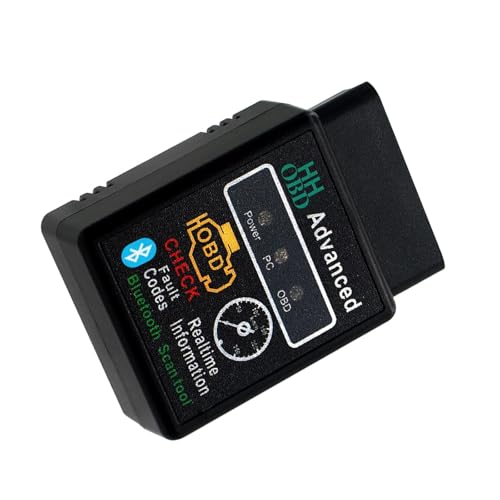
Premium Shell: The car diagnostic tool is equipped with a high-quality plastic shell. The shell is sturdy and durable, with good impact resistance, which can protect the internal components from accidental collisions and ensure long-term reliable use.
Fix Driver Profile Problems
If the wrong profile loads, check the basics before resetting the whole system:
- Turn Bluetooth on for the phone linked to your profile.
- Open the Toyota app on that phone.
- Confirm the phone is paired and set as the primary device when needed.
- Sign out to Guest mode only when you want to protect or hide personal profile information, such as during valet use.
- Use Reset settings for the selected profile if only that profile’s multimedia settings are wrong.
If you forgot your user-profile PIN, reset it in the Toyota app instead of wiping the infotainment system.
Update Software and Change Infotainment PIN
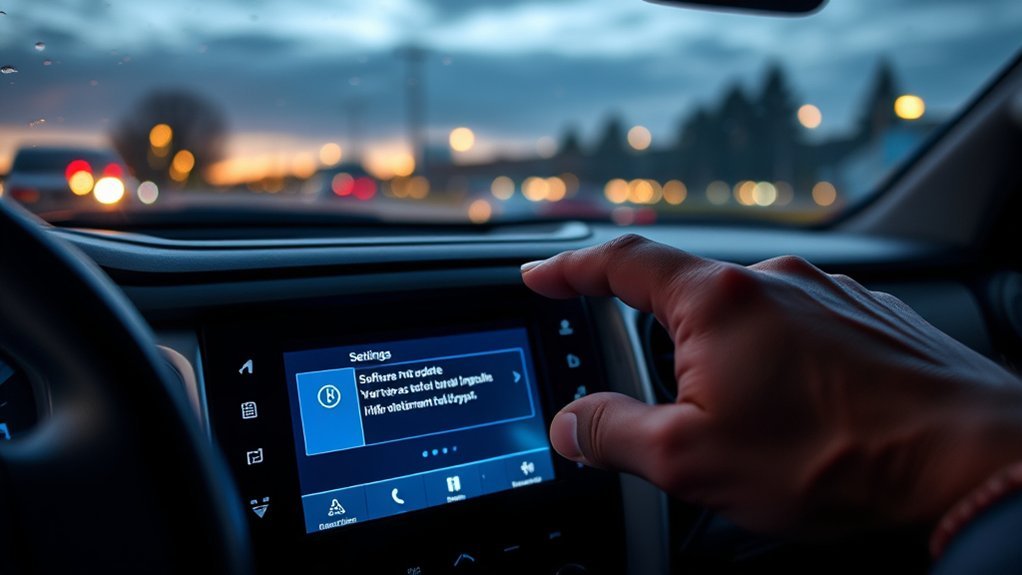
Software updates can fix bugs, improve performance, and reduce repeat infotainment glitches. Toyota supports several update paths depending on vehicle equipment, region, and software version.
Check for Software Updates
- Tap the Settings icon on the main menu.
- Open Software update.
- Tap View under updates if available.
- Follow the on-screen terms and instructions.
- Wait for the download and installation to finish.
- If the system asks to restart, tap Yes.
Some Tundra systems can update over the air through the vehicle display. Eligible vehicles can also use Toyota’s software download portal with a compatible USB drive. A Toyota dealer can help when the vehicle does not support self-service updates or when the update fails.
Note: Multimedia software updates and navigation map updates are not always the same thing. Toyota’s software download site states that navigation and map updates are handled through a Toyota dealer.
Reset the User Profile PIN
The Toyota user-profile PIN is reset in the Toyota app, not through a full infotainment factory reset. In the Toyota app, go to Account settings, open Security Settings, and choose Reset PIN. App menu names can vary slightly by app version and region.
After changing the PIN, return to the Tundra, select your saved profile, and enter the new PIN if the vehicle asks for it.
Fix Post-Reset Symptoms: Bluetooth, Nav, Audio
After a full reset, the system may work normally but feel unfinished because your old preferences are gone. Use this checklist to rebuild the setup.
Bluetooth, Apple CarPlay, and Android Auto
- Delete the old Tundra connection from your phone’s Bluetooth settings.
- Restart the phone.
- Pair the phone again from Settings > Bluetooth & Devices.
- Approve contacts, calls, messages, and media permissions when prompted.
- Reconnect Apple CarPlay or Android Auto if you use it.
- Set your main phone as the primary device if multiple phones are paired.
Navigation and Maps
- Check whether your navigation service or Drive Connect subscription is active, if equipped.
- Re-enter saved destinations that were removed.
- Confirm map guidance volume and route preferences.
- Ask a dealer about map updates if the issue is outdated road data rather than a frozen screen.
Audio Settings
- Select the correct source: radio, Bluetooth, USB, Apple CarPlay, or Android Auto.
- Reset volume, balance, fade, bass, midrange, and treble.
- Restore radio presets.
- Test audio from more than one source before assuming the reset failed.
If Resets Fail: Toyota Support, Logs & Dealer Options
If the screen still freezes, Bluetooth will not pair, or the system cannot complete an update, gather details before calling Toyota or scheduling service. Clear details help the dealer reproduce the issue.
- Write down your model year, trim, and whether it is a Tundra or Tundra Hybrid.
- Record the multimedia software version from the Software update or Model info screen.
- Take photos of error messages.
- Note when the problem happens: startup, phone pairing, navigation, calls, CarPlay, Android Auto, or software update.
- List the phone model and operating-system version if the problem involves Bluetooth.
- Tell the dealer which fixes you already tried: restart, Forget device, PIN reset, software update, or System reset.
For official help, contact Toyota support or your local Toyota dealer. If a dealer confirms a software reflash, hardware fault, or paid navigation update, ask for the estimate and timeline in writing.
Frequently Asked Questions
What happens if I factory reset my Toyota Tundra infotainment system?
A factory reset, called System reset in current Toyota Tundra multimedia documentation, restores factory defaults and initializes multimedia-system data. You may lose paired phones, saved preferences, audio settings, profile links, and navigation favorites. Afterward, you need to re-pair devices and rebuild your settings.
Will a soft reset erase my settings?
No. Restarting the screen with the PWR/VOL knob is a reboot, not a full factory reset. It is meant to clear temporary slowdowns or frozen-screen behavior without intentionally deleting phones, profiles, presets, or saved settings.
Why won’t my Tundra delete a Bluetooth device?
A Bluetooth device may not delete if it is set as the primary device for another user profile, if the device is busy, or if the system cannot complete the request on the first try. Switch to the correct profile, restart the phone, then try Settings > Bluetooth & Devices > device name > Forget again.
How do I reset the Toyota user-profile PIN?
Reset the user-profile PIN in the Toyota app. Open Account settings, go to Security Settings, and choose Reset PIN. The exact app labels may vary by app version and region, but you do not need a full vehicle infotainment reset just to change a forgotten profile PIN.
Should I disconnect the 12-volt battery to reset the infotainment system?
No, not as a normal troubleshooting step. Use the PWR/VOL restart first. Toyota warns that if the 12-volt battery terminal is removed before system data is saved, data may not save correctly. Leave battery disconnection to a qualified technician unless your owner’s manual or dealer instructs otherwise.
Conclusion
You can fix many Toyota Tundra infotainment problems without wiping the system. Start with the PWR/VOL restart, then fix the exact trouble area: forget and re-pair a phone, reset the Toyota app profile PIN, or check for a software update. Use Settings > Info & Security > System reset only when simpler steps fail and you are ready to rebuild your saved settings.
Sources
- Toyota 2026 Tundra Multimedia System Owner’s Manual — restart procedure, System reset path, Bluetooth device handling, user-profile PIN troubleshooting, and safety warnings
- Toyota 2024 Tundra Multimedia System Owner’s Manual — earlier Toyota Audio Multimedia settings and software update guidance
- Toyota Audio Multimedia System Updates — OTA, USB, and dealer update options
- Toyota Audio Multimedia Software Download Portal — USB update eligibility and navigation/map update note
- Toyota Support: User Profile PIN Reset — Toyota app PIN reset guidance
- Toyota Contact Us — official Toyota support and dealer-help resources

[…] touch commands, perform a standard soft reboot before attempting an update. Review our step-by-step Toyota Tundra infotainment reset guide to restore system responsiveness […]