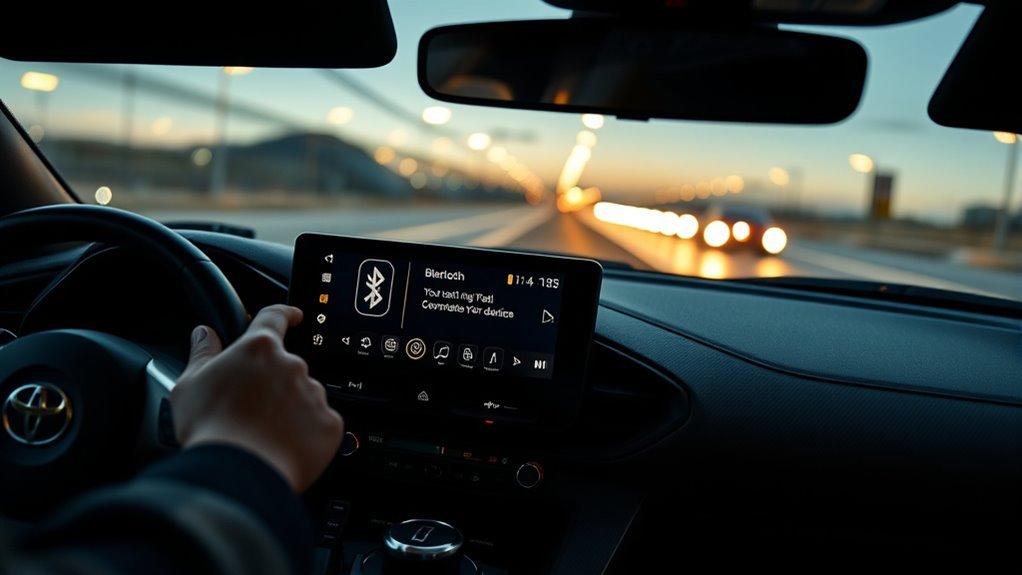
Pairing Bluetooth in a Toyota Supra is easiest when the car is parked, your phone is unlocked and discoverable, and you know which menu your Supra uses. Most modern GR Supra models use Toyota Supra Command rather than the standard Toyota Entune path, so start with the Supra Command steps below, then test calls, music, and navigation before you drive away.
Quick Answer
To pair Bluetooth in a Toyota Supra, park the car, turn on Bluetooth on your phone, then open Toyota Supra Command and go to My Vehicle > System settings > Mobile devices > Connect new device. Select your phone, confirm the matching code, and allow contacts, calls, and media permissions.
Key Takeaways
- Use the Toyota Supra Command mobile-device menu first; “Menu > Setup > Bluetooth” is the older/general Toyota Audio Multimedia path and may not match every Supra screen.
- Always confirm the same pairing code on the Supra display and your phone before allowing contacts, calls, messages, or media access.
- Bluetooth is best for calls and audio streaming; Apple CarPlay gives iPhone users richer navigation, messaging, and app control when equipped.
- If Bluetooth drops, forget the device from both the car and phone, restart both, update your phone, then pair again from scratch.
At a Glance
| Time Required | 3–5 minutes |
| Difficulty | Easy |
| Tools Needed | Your phone, your Toyota Supra key, and access to the car display |
| Cost | Free |
Warning: Do not pair, troubleshoot, or change phone settings while driving. Toyota’s owner materials warn that using integrated information and communication systems while driving can distract you, and the NHTSA defines distracted driving as any activity that takes attention away from safe driving.
Get Your Phone and Supra Ready Before Pairing
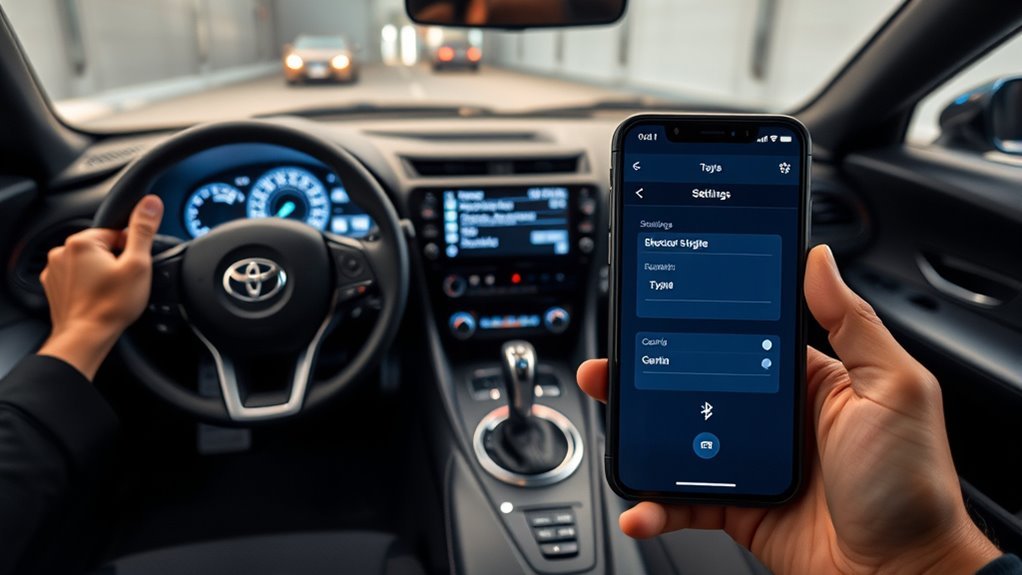
Before you start, make the connection as clean as possible. Put the Supra in Park, keep the ignition or multimedia system on, and keep your phone within a few feet of the display. Unlock your phone, turn on Bluetooth, and leave the Bluetooth settings screen open so the phone stays easy to find.
Next, install any pending iOS or Android updates if you have time. Phone software updates can fix Bluetooth bugs, but they can also reset permissions, so it is smart to pair only after the phone has finished updating and restarted. If your phone is already connected to earbuds, a smartwatch, or another vehicle, disconnect those temporarily during the first pairing attempt.
- Delete old or duplicate “Supra,” “Toyota,” or “HandsFreeLink” entries from your phone if you have paired before.
- Remove unknown or unused phones from the Supra’s mobile-device list if the list is crowded.
- Turn off battery saver or low-power mode during setup if it limits Bluetooth background activity.
- Have your phone passcode, Apple ID, or Google account available in case your phone asks for permission changes.
Note: Screen names vary by model year, region, and software version. For many 2020 and newer GR Supra models, use Toyota Supra Command. For other Toyota multimedia systems, Toyota’s Bluetooth guide shows a Settings > Bluetooth & Devices path, and some older Toyota systems use Menu > Setup > Bluetooth.
Pair Bluetooth in a Toyota Supra Step by Step
Use these steps for the Toyota Supra Command-style interface found in many modern GR Supra models. Toyota’s 2026 Supra owner materials note that Bluetooth and Apple CarPlay connections require one-time pairing, after which paired devices can be recognized automatically later when they are nearby and enabled.
- Park safely. Keep the car stationary with the multimedia display on.
- Open the Supra’s mobile-device menu. On the car display, go to Toyota Supra Command > My Vehicle > System settings > Mobile devices.
- Choose Connect new device. Select the function you want, such as phone calls, Bluetooth audio, or Apple CarPlay if your iPhone and Supra equipment support it.
- Open Bluetooth on your phone. On iPhone, go to Settings > Bluetooth. On Android, go to Settings > Connected devices or Bluetooth.
- Select the Supra entry. Tap the Toyota, Supra, or vehicle Bluetooth name when it appears on your phone.
- Confirm the pairing code. A code should appear on both screens. Confirm only if the numbers match.
- Allow permissions. Approve contacts, favorites, call history, media audio, and message access only if you want those features available through the car.
- Set the device priority. If the Supra asks whether to make the phone the primary device, choose Yes for your everyday phone.
- Finish and test. Wait for the pairing confirmation, then test music, a call, and navigation prompts before you start driving.
Pro Tip: Give your phone a clear Bluetooth name before pairing, such as “Hasan iPhone” or “Pixel 9.” It makes the correct device easier to spot when multiple phones are in the car.
[Products Worth Considering]

This 2-in-1 wireless adapter converts factory-wired CarPlay into a cable-free experience for compatible vehicles, helping you enjoy seamless phone integration with less clutter. It supports automatic reconnection, stable Bluetooth and Wi-Fi pairing, and broad compatibility with many factory-installed CarPlay systems. Built with a durable metal and acrylic design, it also includes firmware updates and lifetime technical support for continued convenience.

The HEYINCAR+ H-Air adapter upgrades compatible factory wired CarPlay and Android Auto systems to wireless convenience with a compact plug-and-play design. It connects automatically after setup, delivering fast startup, stable performance, and support for your car’s original touchscreen, steering wheel controls, and voice commands. Built for broad vehicle compatibility and ongoing firmware updates, it offers a simple way to enjoy cable-free driving with minimal clutter.

This compact adapter converts factory-wired CarPlay and Android Auto systems to wireless for a cleaner, more convenient driving experience. It offers fast auto-connect, stable performance, and plug-and-play setup so you can enjoy navigation, music, calls, and voice control without extra cables. The included USB-to-USB-C converter helps it fit a wide range of vehicle ports.
Pair an iPhone, Android Phone, or Apple CarPlay
The basic Bluetooth pairing process is similar for iPhone and Android, but the available features are not identical.
[Products Worth Considering]

Convert factory wired CarPlay to a wireless experience with this compact plug-and-play adapter designed for compatible vehicles. It supports GPS navigation, music, calls, Siri, and messaging while automatically reconnecting for a smoother drive. The slim mini design helps keep your cabin tidy and delivers a stable, responsive connection with preserved audio quality.

This upgraded wireless CarPlay adapter converts factory wired CarPlay into a wireless experience with a simple one-time setup and automatic reconnection at every startup. Its mini design saves space while the dual-chip wireless technology helps deliver fast, stable performance with low latency. Compatible with most factory-installed wired CarPlay systems and iPhone models with supported iOS versions, it adds convenient hands-free access to navigation, music, calls, Siri, and messaging.

Applicable Models: Glass Fiber key fob cover compatible with Toyota Supra GR A90 A91 2019-2025; NOTE: To avoid buying the wrong key fob, please check your key refer to the picture before purchasing
iPhone: Bluetooth and Apple CarPlay
An iPhone can pair over Bluetooth for calls and audio. If your Supra is equipped with Apple CarPlay, you may also see a prompt to activate CarPlay during pairing. Apple says CarPlay uses the car’s built-in controls, such as a touchscreen, rotary knob, or touchpad, and Siri can control CarPlay functions when enabled on the iPhone.
For wireless CarPlay, keep both Bluetooth and Wi-Fi turned on. On your iPhone, you can also check Settings > General > CarPlay to remove an old Supra profile and reconnect cleanly.
Android: Bluetooth for Calls and Audio
Android phones can connect to the Supra by Bluetooth for hands-free calls and music streaming. Android Auto is different from Bluetooth and depends on vehicle support. Toyota’s official 2026 GR Supra comparison lists Android Auto compatibility as not available for the 2026 Supra, so Android owners should plan on Bluetooth audio, Bluetooth calling, and the Supra’s built-in navigation features where equipped.
Test the Connection: Audio, Calls, and Navigation
Once the phone is paired, test the features you actually use. Do this while parked so you can fix permissions without rushing.
- Music: Play a track from your preferred audio app. Confirm the sound comes through the Supra speakers, the volume is consistent, and steering-wheel controls work.
- Calls: Make a short hands-free call. Ask the other person whether your voice sounds clear, then check that you can hear them through the car speakers.
- Contacts: Open the phone or contacts menu on the car display. If names are missing, allow contact sharing on your phone and reconnect.
- Navigation prompts: Start a route on your phone. Make sure voice prompts play through the car audio if you expect them to. Some apps require the app’s own audio setting to be set to Bluetooth.
- Auto-reconnect: Turn the car off, leave for a minute, then restart the system and confirm the phone reconnects automatically.
Why Bluetooth Drops and Quick Fixes
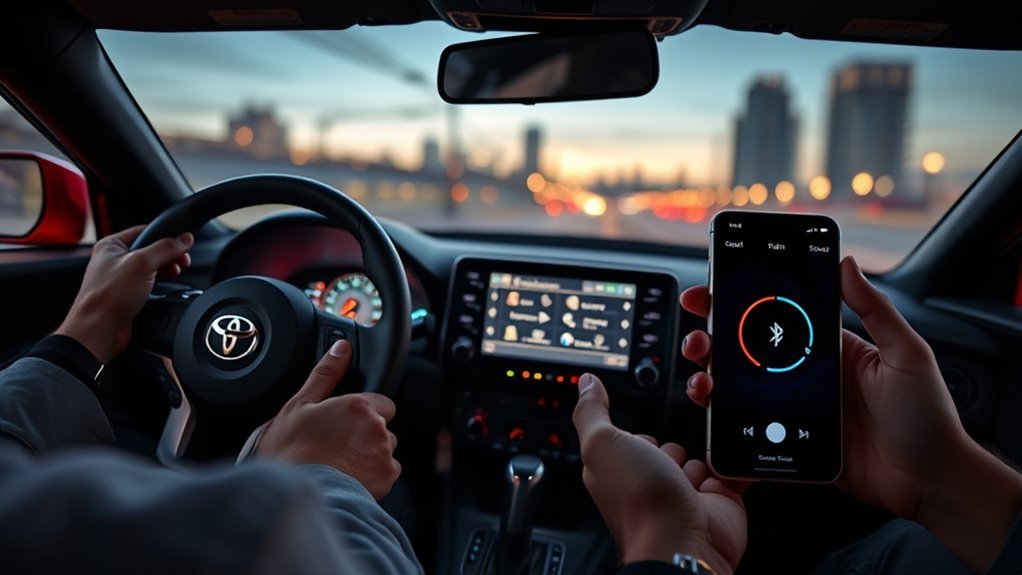
Bluetooth drops usually come from stale pairing profiles, phone software changes, competing connections, low battery modes, or temporary infotainment glitches. Use this quick fix order before assuming the hardware is faulty.
- Restart the phone. A full restart clears temporary Bluetooth and app glitches.
- Restart the Supra multimedia system. Turn the vehicle off, open the door, wait briefly, then start again. If your owner’s manual gives a specific reboot method for your model year, use that method.
- Forget the device on both sides. Delete the Supra from your phone’s Bluetooth list and delete the phone from the Supra’s mobile-device list.
- Pair again from scratch. Reconnect using the steps above and confirm the code on both screens.
- Update your phone. Install current iOS or Android updates, then restart before pairing again.
- Check permissions. Make sure calls, media audio, contacts, and notifications are enabled for the Supra connection.
- Reduce interference. Move the phone out from under metal objects, away from other paired devices, and off any accessory that seems to trigger disconnects.
- Ask a dealer about updates. If multiple phones fail, ask a Toyota dealer to check for applicable multimedia software updates or service information for your exact VIN.
| Problem | Likely Cause | Best Fix |
|---|---|---|
| Phone will not appear on the Supra screen | Phone is not discoverable, Bluetooth is off, or the car is searching the wrong function | Open the phone’s Bluetooth screen, choose Connect new device on the car, and keep both screens active |
| Pairing code does not match | Wrong nearby device selected | Cancel, restart pairing, and select the correct Supra or phone name |
| Music works but calls do not | Call audio permission is disabled | Open the Bluetooth device details on your phone and enable phone calls |
| Calls work but music does not | Media audio permission is disabled or the wrong source is selected | Enable media audio on the phone and choose Bluetooth audio on the Supra |
| Connection drops after a phone update | Old pairing profile or changed permissions | Forget the device on both sides, restart both systems, and pair again |
Manage, Delete, or Reset a Paired Phone
Bluetooth pairing stores personal access, so clean up old devices. In the Supra’s mobile-device menu, select the phone you want to manage. You can usually connect, disconnect, change what the phone is used for, or remove it from the system. On the phone, open the Bluetooth details for the Supra and choose Forget This Device or Unpair.
Delete your phone from the Supra before selling the car, returning a lease, using valet service for an extended period, or letting another driver pair as the primary device. This helps protect contacts, call history, and message access.
CarPlay vs Bluetooth on the Supra: What Works Best?
Bluetooth and Apple CarPlay are not the same connection. Bluetooth is simple and works well for basic calls and audio. CarPlay, when available, gives compatible iPhone users a fuller phone interface for maps, music, calls, messages, and Siri on the Supra display.
| Feature | Bluetooth | Apple CarPlay |
|---|---|---|
| Best for | Calls and music streaming | Maps, messages, media apps, and Siri |
| Phone support | iPhone and Android phones with Bluetooth | Compatible iPhone only |
| Display apps on Supra screen | No full app mirroring | Yes, for supported CarPlay apps |
| Navigation | Audio prompts only, depending on app settings | Maps appear on the car display when supported |
| When to use it | Quick calls, Android phones, or backup audio | Long trips, active navigation, and iPhone app control |
If CarPlay fails, Bluetooth can still keep calls and audio working. If Bluetooth is unstable but CarPlay works, use CarPlay for navigation and media until you have time to reset the Bluetooth pairing.
[Products Worth Considering]

The Ultimate Smarter Copilot: Stay on Top of Your Driving- The 3A magic link CarPlay box control everything with a word, Or a touch, Or a twist. Save your 40% of time by quick auto conn and seamless operation, such as navigation, music playing, Siri assistant, phone calls, radio etc(Our Carplay Only Compatible with wired Apple CarPlay Car systems)

Plug and Play: Easily convert your factory wired CarPlay to wireless with a one-time pairing setup. No app download required—it automatically connects at every subsequent startup, maintaining a seamless connection(Not compatible with Android)

RELIABLE PERFORMANCE – Powered by 2.4 + 5.8GHz dual-band Wi-Fi and Bluetooth 5.4, delivering 40% better performance than other wireless CarPlay adapter for Apple. Provides an ultra-stable link between your iPhone and the vehicle's Information Display Modules for GPS, music, and calls, with near-zero latency and no Digital Media stuttering. Enjoy smooth and reliable performance on every drive.
Frequently Asked Questions
How do I put a Toyota Supra in Bluetooth pairing mode?
Park the car, turn on the multimedia display, then open Toyota Supra Command > My Vehicle > System settings > Mobile devices > Connect new device. Keep your phone’s Bluetooth screen open, select the Supra when it appears, and confirm the matching pairing code.
Can an Android phone connect with a Toyota Supra?
Yes. An Android phone can pair with a Toyota Supra by Bluetooth for hands-free calling and audio streaming. Android Auto is separate from Bluetooth and may not be available on GR Supra models, including the 2026 U.S. Supra, so Android users should use Bluetooth or built-in navigation where equipped.
Why does my Supra Bluetooth keep disconnecting?
Common causes include old pairing profiles, changed phone permissions, software updates, competing Bluetooth devices, low-power phone settings, or temporary infotainment glitches. Forget the Supra on your phone, delete the phone from the car, restart both, and pair again.
Why do I see Entune instructions if my Supra uses Supra Command?
Many Toyota Bluetooth guides use general Toyota Audio Multimedia or Entune wording. The GR Supra uses a different interface on many model years, often called Toyota Supra Command. If the Entune path does not match your screen, use the Supra Command mobile-device menu or check your exact owner’s manual.
Can I pair more than one phone to a Toyota Supra?
Yes, the system can store paired devices, but behavior varies by model year and software. If two phones are in the car, the Supra may connect to the primary or most recently used phone first. Set your everyday phone as the primary device when prompted.
Should I use Bluetooth or Apple CarPlay in a Supra?
Use Bluetooth for simple calls and audio, especially with Android phones. Use Apple CarPlay if you have a compatible iPhone and your Supra is equipped for it, because CarPlay gives better access to maps, messages, Siri, and supported media apps on the vehicle display.
Conclusion
You’re ready to connect your Toyota Supra and phone the right way. Start with safe pre-pairing checks, use the Toyota Supra Command mobile-device menu, confirm the matching code, and grant only the permissions you want. After pairing, test music, calls, contacts, navigation prompts, and automatic reconnect. If the connection drops, the fastest cure is usually a clean forget-and-repair on both the Supra and your phone.
Sources
- Toyota 2026 Supra Owner’s Manual: Connections — supports one-time pairing guidance and safety cautions for integrated communication systems.
- Toyota Connected Services: Bluetooth Pairing — supports Bluetooth use for hands-free calling and audio streaming.
- Toyota Bluetooth Pairing How-To Guide — supports matching-code confirmation, contact/media permissions, and device-management steps.
- Toyota GR Supra Audio Multimedia Support — supports GR Supra technology features, Apple CarPlay, and Bluetooth feature context.
- Toyota 2026 GR Supra vs. Nissan Z Comparison — supports Android Auto availability details for the 2026 GR Supra.
- Apple Support: Use CarPlay with Your iPhone — supports CarPlay setup, Siri use, and built-in control guidance.