How to Fix Apple CarPlay Not Working in a Toyota Tundra
What’s in This Article
- Common Symptoms and Likely Causes
- Quick Fix: Restart iPhone and Tundra to Restore CarPlay
- Enable CarPlay and Siri on Your iPhone
- Troubleshoot Wireless CarPlay
- Use a Wired Connection
- Resolve Pairing Conflicts
- Factory Reset Tundra Infotainment
- Update iOS and Refresh Apps
- Toyota Multimedia Software 2050 and Dealer Escalation
- Prevent Future Drops
- Frequently Asked Questions
A failed CarPlay connection can turn a simple drive into a frustrating guessing game. Your Tundra may show the phone, play Bluetooth audio, or charge your iPhone while CarPlay still refuses to open. This guide walks you through the checks that fix most connection, pairing, USB, software, and Toyota multimedia issues.
Quick Answer
If your Tundra’s Apple CarPlay won’t connect, restart your iPhone and the Toyota multimedia system first. Then check Siri, CarPlay permissions, Bluetooth, Wi-Fi, the CarPlay USB port, and your cable. If those steps fail, forget the Tundra on your iPhone, remove old phone profiles from the truck, update iOS and Toyota multimedia software, then contact a dealer if the problem continues.
Key Takeaways
- Restart your iPhone and Tundra multimedia system before you change deeper settings.
- Turn on Siri, CarPlay permissions, Bluetooth, and Wi-Fi before you try wireless CarPlay.
- Use the correct USB data port and a reliable cable when wired CarPlay fails.
- Remove old phone profiles when several devices compete for the same connection.
- Ask a Toyota dealer to check multimedia software if resets and re-pairing do not fix the issue.
Common Symptoms and Likely Causes
Tundra CarPlay problems usually fit a few clear patterns. Your phone may charge without launching CarPlay, wireless pairing may fail, or CarPlay may freeze after it connects.
Start with the symptom you see, then match it to the most likely cause:
- Phone charges but CarPlay does not open: check the USB port, cable, and CarPlay permission prompt.
- Wireless CarPlay will not pair: check Bluetooth, Wi-Fi, and the saved CarPlay network on your iPhone.
- CarPlay worked before but fails now: restart both devices, then forget and re-pair the Tundra.
- CarPlay drops while driving: remove competing phones and check for Toyota multimedia software updates.
- Only one app fails: update that app and test another CarPlay app before you reset the truck.
Quick Fix: Restart iPhone and Tundra to Restore CarPlay
Restart your iPhone first, then restart the Tundra’s infotainment system. This clears short-term software errors that can block the CarPlay handshake.
Turn off the iPhone, wait about ten seconds, then turn it back on. Shut the truck off, open the driver door for a short pause, then restart the vehicle and try CarPlay again.
For wired CarPlay, reconnect with a cable that supports data transfer. For wireless CarPlay, keep Bluetooth and Wi-Fi on, then select the Tundra again from your iPhone’s CarPlay menu.
Pro tip: Test CarPlay after each fix so you know which step solved the problem.
Enable CarPlay and Siri on Your iPhone
Apple CarPlay needs Siri, CarPlay access, and the right permission settings before your Tundra can use it. Open Settings > Siri & Search, then turn on Siri.
Next, open Settings > General > CarPlay. Select your Tundra, then confirm that CarPlay can connect to the vehicle.
If your iPhone blocks CarPlay through Screen Time, open Settings > Screen Time > Content & Privacy Restrictions > Allowed Apps. Turn on CarPlay if that menu has restricted it.
Turn on Allow CarPlay While Locked if your iPhone shows that option for your Tundra. This helps CarPlay stay connected after your phone locks during a drive.
Troubleshoot Wireless CarPlay (Wi-Fi, Bluetooth, Smart Network)
Wireless CarPlay uses both Bluetooth and Wi-Fi during setup and reconnection. Keep both turned on before you try to pair your iPhone with the Tundra.
Open Settings > Bluetooth on your iPhone and forget the Tundra if the old pairing fails. Then open the Toyota multimedia Bluetooth device menu, remove the same phone, and pair it again.
Apple recommends checking the CarPlay Wi-Fi network and turning on Auto-Join when wireless CarPlay needs that saved network. If your iPhone shows a Toyota CarPlay network, tap it and confirm Auto-Join.
Avoid turning off Wi-Fi as a long-term fix for wireless CarPlay. Wireless CarPlay needs Wi-Fi after the initial Bluetooth pairing step, so Wi-Fi must stay available for normal use.
Use a Wired Connection: Best USB Port and Cable for CarPlay
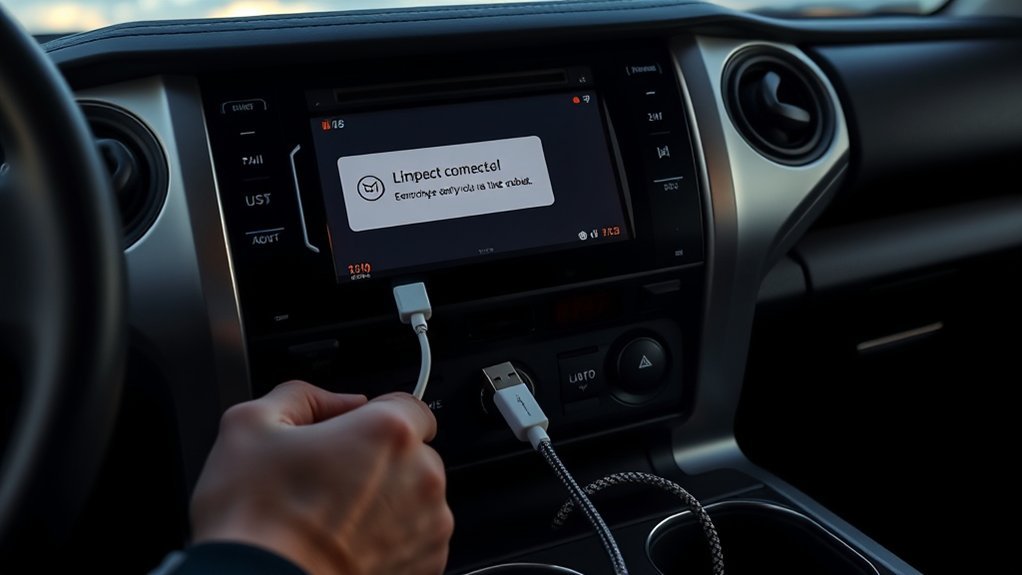
A wired test can quickly separate phone settings from wireless pairing issues. Plug your iPhone into the Tundra’s USB data port, not a charge-only port.
Use a clean, undamaged Apple cable or another certified cable that supports data. Power-only cords can charge your phone while CarPlay still fails to launch.
Check the center console and dash for a USB port marked with a phone icon or CarPlay-style label. If one port fails, try another data-capable port listed in your owner’s manual.
Unlock your iPhone when you connect it. Accept any CarPlay or accessory permission prompt on the phone and the Toyota screen.
Resolve Pairing Conflicts: Remove Other Paired Devices and Auto-Join Tips
Multiple phones can confuse the Toyota multimedia system, especially when more than one phone tries to connect at startup. Remove old phones from the Tundra’s Bluetooth and devices menu.
On your iPhone, open Bluetooth settings and forget vehicle profiles you no longer use. Then open Settings > General > CarPlay, select the Tundra, and use Forget This Car before you pair again.
Keep one primary phone active during troubleshooting. Ask passengers to turn off Bluetooth for a minute while your iPhone connects.
If your iPhone shows a Toyota CarPlay network, leave Auto-Join on for the CarPlay network. Turn off Auto-Join only for unrelated hotspots that steal your phone’s Wi-Fi connection.
Factory Reset Tundra Infotainment (How to Re-Pair CarPlay)
Use a factory reset only after you try restarts, permission checks, cable tests, and device removal. A reset can erase saved phones, profiles, presets, and some personal settings.
Warning: Back up or note your saved settings before you reset the Tundra multimedia system.
Open the Toyota multimedia settings menu and look for system reset, personal data reset, or factory reset. The exact menu name can vary by model year and multimedia version.
After the reset, turn Bluetooth and CarPlay back on in the truck settings. Then forget the Tundra on your iPhone, restart the phone, and pair it again from a clean state.
Use a reliable USB cable during the first re-pairing if wireless setup keeps failing. This gives the Toyota screen a direct path to launch CarPlay and confirm permissions.
Update iOS and Refresh Apps (Waze, Music) to Fix CarPlay Glitches
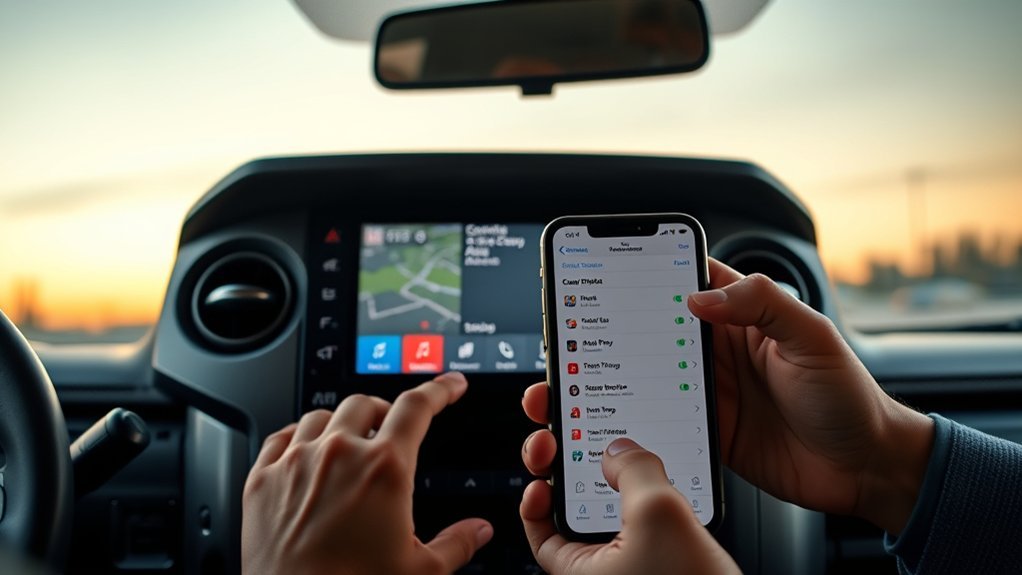
Install any available iOS update before you spend more time on deeper fixes. Apple lists current iOS software and vehicle firmware as key checks when CarPlay does not work as expected.
Open Settings > General > Software Update, then install the update if your iPhone shows one. Restart the iPhone after the update finishes.
Update navigation and music apps that you use through CarPlay, including Waze, Apple Music, Amazon Music, Spotify, and Google Maps. If only one app fails, force-close that app and test another CarPlay app.
Do not rely on a setting called Enhanced Intervention for CarPlay. Apple and Toyota do not list that as a standard CarPlay troubleshooting control.
Toyota Multimedia Software 2050 and Dealer Escalation
Toyota issued service bulletin T-SB-0012-24 for certain 2022 to 2024 Tundra, Tundra Hybrid, and related Toyota Multimedia systems. The bulletin says software version 2050 addresses CarPlay freezes or reboots, missing navigation guidance in the meter, and other multimedia bugs.
This means software 2050 works as a fix target for some factory Toyota systems, not proof that aftermarket head units caused the issue. If your truck uses an aftermarket unit, contact that unit’s maker for firmware support.
Check your Toyota multimedia model information screen before you visit a dealer. Write down the head unit version, your iPhone model, iOS version, cable type, and the exact symptom.
Ask the dealer to check Toyota service bulletins, recall status, and multimedia software updates. If the screen also shows backup camera problems, treat that as a safety issue and schedule dealer service.
Note: A CarPlay reset cannot fix every Toyota multimedia software fault, so keep service records when the issue returns.
Prevent Future Drops: Multi-Device Best Practices and Monitoring
After you restore CarPlay, reduce future drops by keeping your setup simple. Use one primary phone and remove old devices you no longer connect.
Keep Bluetooth, Wi-Fi, Siri, and CarPlay access on for your main iPhone. If you prefer wired CarPlay, keep a short, data-capable cable in the truck.
Restart your iPhone before long drives if CarPlay often acts up after app updates. Update your key CarPlay apps before the trip instead of while you sit in the truck.
Track repeat failures with the date, time, cable, connection type, and app in use. A clear log helps your dealer spot patterns and confirm whether your truck needs a software update.
Frequently Asked Questions
How do you fix CarPlay if it is not working in a Toyota Tundra?
Restart your iPhone and the Tundra multimedia system first. Then check Siri, CarPlay permissions, Bluetooth, Wi-Fi, the USB data port, and your cable before you reset anything.
Can Apple CarPlay usually be fixed without a dealer?
Yes, many CarPlay issues come from settings, cables, old pairings, or software glitches. You can often fix them by updating iOS, forgetting the vehicle, removing old phone profiles, and pairing again.
Why does my iPhone charge but not open CarPlay?
Your cable or USB port may support power but not data. Try a data-capable cable and the Tundra USB port meant for smartphone projection.
Should Wi-Fi stay on for wireless CarPlay?
Yes. Wireless CarPlay uses Wi-Fi after Bluetooth helps start the connection, so Wi-Fi needs to stay on during normal use.
When should a Toyota dealer check a Tundra CarPlay problem?
Contact a dealer when CarPlay still freezes, reboots, or drops after restarts, updates, cable checks, and re-pairing. Ask the dealer to check multimedia software, service bulletins, and recall status.
Conclusion
Most Tundra CarPlay problems trace back to a setting, cable, pairing conflict, or multimedia software issue. Start with the simple checks, then move to device removal, updates, and a clean re-pair.
If the same problem returns, write down the exact symptoms and ask Toyota service to check the head unit software. A steady CarPlay connection makes your drive easier, safer, and less distracting.
References
- If you need help with CarPlay — Apple Support, 2025
- How do I setup Apple CarPlay? — Toyota Support
- Head Unit Software Update (Panasonic), T-SB-0012-24 — Toyota Motor Sales USA via NHTSA, 2024
- Safety Recall 25TA10 Remedy Notice — Toyota via NHTSA, 2025