If your Toyota Camry’s Apple CarPlay isn’t working, start by ensuring both your iPhone and Camry have the latest software updates. Use the original Apple cable for wired connections, and double-check that Bluetooth and Wi-Fi are enabled for wireless CarPlay. Restart both devices to refresh the connection, and verify CarPlay isn’t blocked in your iPhone settings. If issues persist, you might need to re-pair your devices or seek assistance from your dealer for expert support and troubleshooting tips.
Understanding Apple CarPlay in Your Toyota Camry
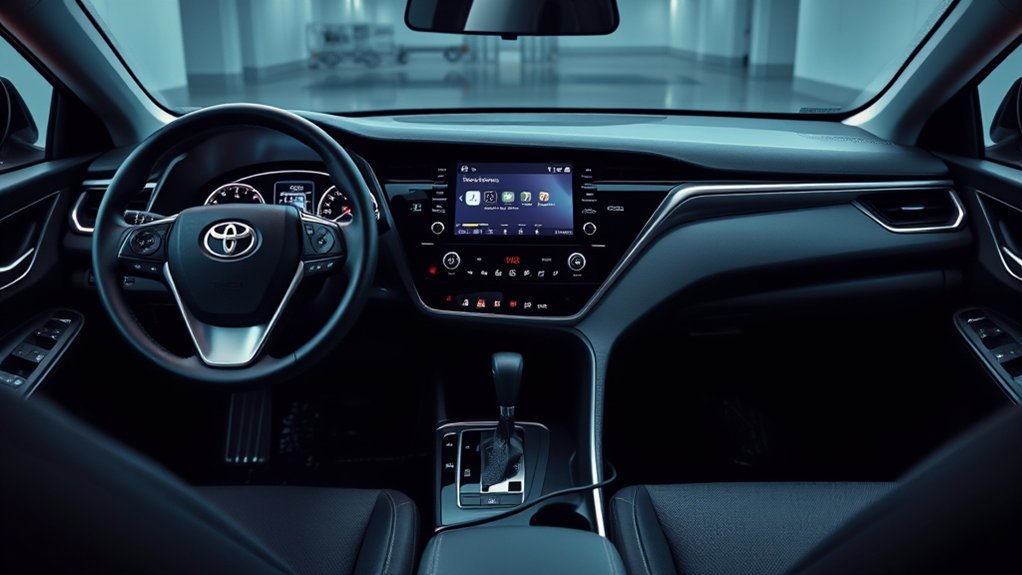
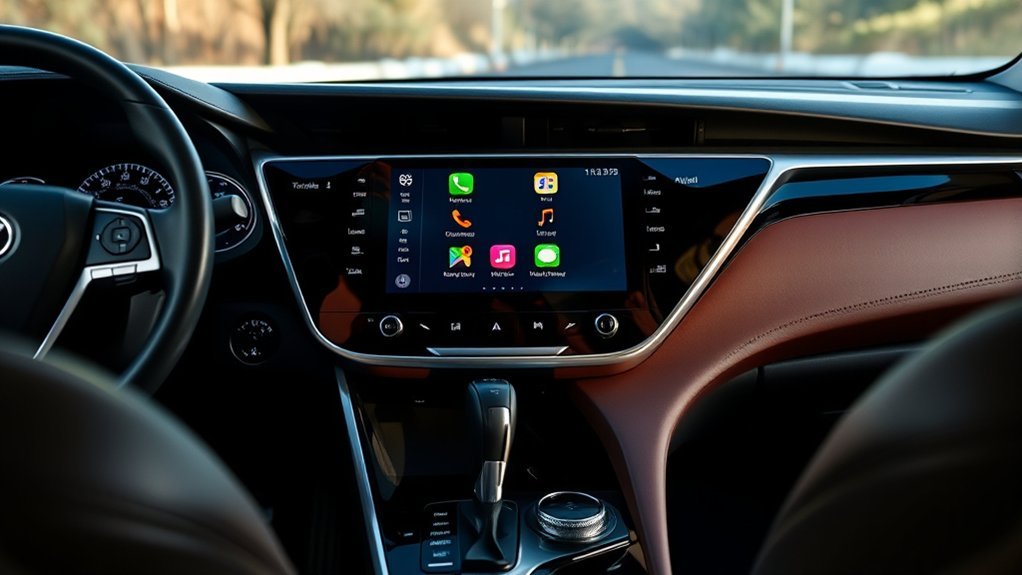
When you connect your iPhone to your Toyota Camry, Apple CarPlay transforms your driving experience by integrating your phone seamlessly with the car’s infotainment system. This powerful feature lets you access apps, navigation, and music directly from the display, enhancing your journey. To enjoy the full range of CarPlay features, make certain both your iPhone and the Camry’s infotainment system are running the latest software versions.
Using the original Apple cable for wired connections is essential, as it helps avoid common issues like a blank screen. If you prefer wireless CarPlay, verify Bluetooth and Wi-Fi are enabled on your iPhone, and don’t hesitate to re-pair the device if you face connection problems. Familiarizing yourself with CarPlay settings on your iPhone can also aid in troubleshooting, guaranteeing maximum device compatibility and a smoother user experience. Embrace the freedom of connectivity while you drive!
Identifying Common CarPlay Issues
Identifying common Apple CarPlay issues in your Toyota Camry can save you time and frustration. One prevalent symptom is a blank screen or apps failing to load, often due to outdated software. Verify both your iPhone and the Camry’s infotainment system are up to date to prevent compatibility problems. User experiences show that using the original Apple cable is essential; third-party cables can lead to unreliable connections. Additionally, check your iPhone’s settings under Settings > Screen Time > Content and Privacy Restrictions to confirm CarPlay isn’t blocked. If you’re facing connectivity issues, a simple restart of both your iPhone and Camry can often resolve the problem, giving you a fresh start in establishing that critical connection. By addressing these common issues, you can enhance your experience and make the most out of Apple CarPlay in your Camry.
Keep Your iPhone and Camry Updated
Keeping your iPhone and Camry updated is essential for a seamless Apple CarPlay experience. Regular iPhone maintenance means updating to the latest iOS version, ensuring compatibility with your Toyota Camry. Don’t overlook your Camry updates either; outdated infotainment software can lead to frustrating connection issues.
If you’re using Wired CarPlay, always opt for the original Apple cable. Third-party cables often lack support for all CarPlay features, which could hinder performance. For Wireless CarPlay, make sure both your iPhone and Camry are connected to the same Wi-Fi network to maintain a stable connection.
Additionally, regularly review your CarPlay settings under Settings > Screen Time > Content and Privacy Restrictions. This helps you avoid accidental blocks that can disrupt your Apple CarPlay experience. Keeping everything updated will empower you to enjoy the full potential of your iPhone and Camry on the road.
Comparing Wired and Wireless CarPlay: Key Differences
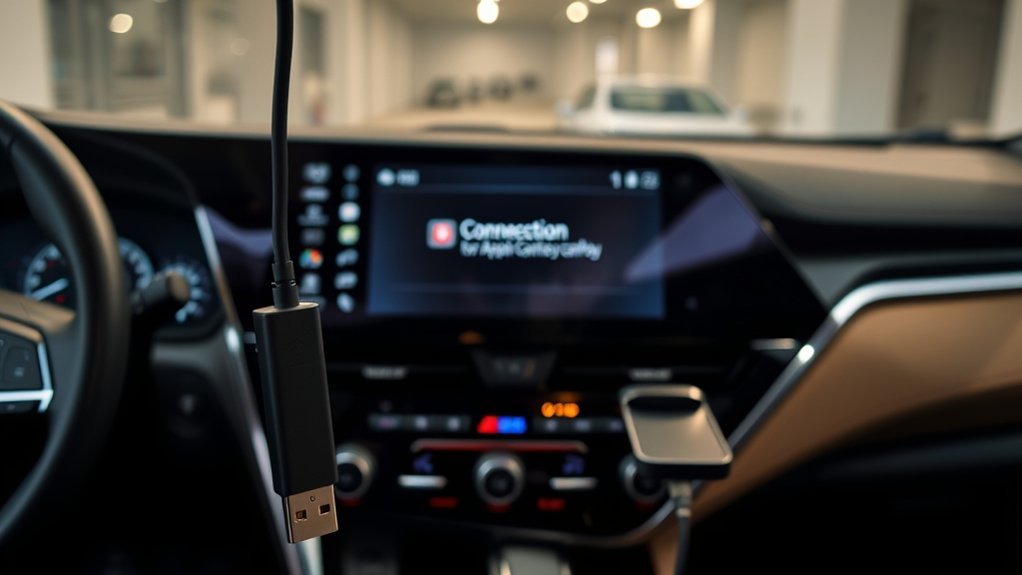
Understanding the differences between Wired and Wireless CarPlay can greatly enhance your experience in the Toyota Camry. Wired CarPlay offers several advantages, including a straightforward setup—just plug in your iPhone with an original Apple cable. This method also delivers faster data transfer and lower latency, ensuring a responsive experience. Plus, it charges your device while you drive, keeping your battery topped up.
On the other hand, Wireless CarPlay provides unmatched flexibility. It connects via Bluetooth and Wi-Fi, allowing you to move freely without being tethered to a cable. However, this convenience comes at a cost; you might experience slight delays and won’t charge your iPhone, which can drain your battery on longer trips. Not all Toyota Camry models support Wireless CarPlay, so check compatibility if you prefer that cable-free experience. Ultimately, your choice depends on whether you value wired advantages or wireless flexibility.
How to Troubleshoot a Blank CarPlay Screen
Sometimes, a blank CarPlay screen can be frustrating, but troubleshooting it is often straightforward. You can regain your connection with these effective troubleshooting tips:
- Update Software: Make sure both your iPhone and the Camry’s infotainment system are running the latest software versions.
- Use an Original Cable: Verify you’re using an original Apple cable, as third-party cables can lead to compatibility issues.
- Check CarPlay Settings: Navigate to Settings > Screen Time > Content and Privacy Restrictions on your iPhone to confirm CarPlay isn’t blocked.
- Restart Devices: Restart both your iPhone and the Camry to refresh the connection before trying again.
If the blank screen persists after these steps, consider deleting the Camry from your iPhone’s Bluetooth settings and re-pairing it. This fresh connection may resolve lingering CarPlay compatibility issues, allowing you to enjoy seamless functionality once again.
Restarting Devices: A Simple Yet Effective Fix
If you’re facing persistent CarPlay issues, restarting both your iPhone and Toyota Camry can be a surprisingly effective solution. This simple act refreshes system settings, enhancing connection stability and resolving temporary glitches.
To restart your devices:
- For your iPhone, hold the power button until the slider appears, drag it to turn off, then press the power button again to turn it back on.
- For the Camry, turn off the engine, exit the vehicle, lock it for a few moments, then open and start it again.
After restarting, try reconnecting your iPhone to CarPlay. Regularly restarting your devices is an essential step in device maintenance, helping to prevent future connectivity issues.
| Device | Restart Steps |
|---|---|
| iPhone | Hold power button, slide to turn off, press again. |
| Toyota Camry | Turn off engine, exit, lock, open, and restart. |
Next Steps if Restarting Doesn’t Work
If restarting doesn’t resolve your CarPlay issues, start by double-checking all connections. Make sure both your iPhone and Toyota Camry’s infotainment system are updated to the latest software versions for ideal performance. These simple steps can greatly enhance compatibility and help you get back on the road with CarPlay functioning smoothly.
Check Connections Again
Before diving deeper into troubleshooting, double-check your connections to verify everything’s working as it should. Confirming connection stability can save you time and frustration. Here’s what to check:
- Use the Original Cable: Third-party cables often compromise cable quality, leading to issues.
- Update Software: Make sure both your iPhone and Toyota Camry’s infotainment system are running the latest software.
- Check CarPlay Settings: Navigate to Settings > Screen Time > Content and Privacy Restrictions to confirm CarPlay isn’t blocked.
- For Wireless CarPlay: Verify Bluetooth and Wi-Fi are enabled, and consider removing and re-pairing your Camry.
If issues persist, don’t hesitate to consult your local Toyota dealer or Apple’s support for further assistance.
Update Software Versions
Updating software versions is often an essential step when troubleshooting Apple CarPlay issues in your Toyota Camry. First, confirm your iPhone is running the latest iOS version by checking Settings > General > Software Update. Outdated software can hinder iOS compatibility. Next, update your Camry’s infotainment system by visiting the Toyota website or your local dealership for the latest software. Regularly checking for firmware updates enhances your experience and resolves potential bugs. If you’re using a wired connection, verify that your Apple lightning cable is undamaged and certified. After all updates, restart both devices to apply new settings effectively.
| Device | Update Check | Result |
|---|---|---|
| iPhone | Settings > General | Confirm iOS compatibility |
| Toyota Camry | Toyota website/dealership | Update Toyota software |
| Connection Type | Original or certified cable | Prevent connection issues |
When to Seek Help for Apple Carplay Issues From Your Toyota Dealer?
When should you consider reaching out to your Toyota dealer for help with Apple CarPlay issues? If you’ve tried basic troubleshooting without success, it’s time for professional assistance. Here are some signs that signal a dealer visit:
- You experience a blank screen or apps won’t load, even after updates.
- CarPlay remains blocked despite checking settings on your iPhone.
- Wireless connections fail repeatedly after multiple pairing attempts.
- You’ve exhausted online resources and Apple support without resolution.
Your dealer can provide dealer diagnostics to identify underlying problems. Don’t let persistent issues steal your driving joy; seeking help can lead to a smoother, more enjoyable experience. Liberation from tech frustrations is just a visit away!
Additional Resources for Apple CarPlay Support
If you’re facing ongoing Apple CarPlay issues with your Toyota Camry, exploring additional resources can be incredibly helpful. Start by visiting the official Apple support site for detailed troubleshooting guides specifically tailored for CarPlay. You’ll find the latest solutions to common problems. Toyota’s official website also offers resources and FAQs about CarPlay compatibility and updates for your Camry model.
Don’t underestimate the power of community support; online forums can provide invaluable user-generated tips that address unique issues you might encounter. YouTube is another great resource, featuring video tutorials that visually guide you through common fixes, making the troubleshooting process easier to grasp. Finally, consider downloading Apple’s support app for immediate assistance and to schedule service appointments with local technicians if necessary. Utilizing these resources can liberate you from ongoing frustrations and help you enjoy seamless connectivity in your Camry.
Frequently Asked Questions
How to Reset Camry Carplay?
To reset CarPlay in your Camry, unplug your iPhone, restart both devices, and reconnect using the original cable. Check your CarPlay settings and Bluetooth connectivity to guarantee everything’s properly configured.
How to Fix Carplay if It’s Not Working?
To fix CarPlay, check your Bluetooth connectivity and guarantee both your iPhone and Camry have software updates. Restart both devices, and if problems persist, consider re-pairing your iPhone or consult support for help.
Can Carplay Be Fixed?
Yes, CarPlay can be fixed. Make certain your iPhone and car’s software updates are current, check CarPlay compatibility, and use the original cable. Restart both devices and re-pair Bluetooth if issues persist for peak performance.
Conclusion
In the digital dance between your iPhone and Toyota Camry, a hiccup can disrupt the rhythm of seamless connectivity. By following the troubleshooting steps outlined, you can often restore harmony to your CarPlay experience. If all else fails, don’t hesitate to reach out to your dealer for expert assistance. Remember, technology is a tool—when it works, it’s a symphony; when it doesn’t, a simple fix can bring back the music.