To update Toyota 4Runner infotainment software, first identify the model year and current multimedia version. A 2025-or-newer 4Runner with Toyota Audio Multimedia can use supported DCM or Wi-Fi updates and may also offer a USB method. Many eligible 2020–2024 systems use Toyota’s software portal and a vehicle-matched USB package. Follow the instructions for your exact head unit and never interrupt the required power state during installation.
Last updated: September 16, 2026 — verified against Toyota’s current software portal, 2025–2026 4Runner multimedia documentation, and the superseding Panasonic head-unit bulletin.
Quick Answer
Check your 4Runner’s model year first. A 2025-or-newer model normally updates through the Toyota Audio Multimedia screen over DCM or Wi-Fi. Most eligible 2020–2024 models use Toyota’s software portal and a compatible USB drive. Download only the package matched to your vehicle and never interrupt power during installation.
Key Takeaways
- Use the update method shown in your exact 4Runner’s multimedia manual or software screen.
- The 2025-and-newer Toyota Audio Multimedia system can receive updates through its data connection or Wi-Fi.
- Eligible older systems may require a blank USB drive and a vehicle-matched download from Toyota.
- Do not remove the USB drive, switch off the system, or change the engine state until the screen tells you to do so.
- Multimedia firmware does not normally add factory CarPlay to a 2019-or-older head unit or update the navigation map database.
At a Glance
| Time Required | About 10–15 minutes for installation in cited Toyota USB procedures, plus download, preparation, and restart time; network update time varies |
| Difficulty | Easy to moderate |
| Tools Needed | Owner’s manual, internet-connected computer, and a compatible blank USB drive if required |
| Cost | Toyota’s public portal shows the software download without a listed charge; dealer diagnostic or labor charges may apply |
Note: Screen names and installation steps can differ by model year, head-unit supplier, trim, country, and installed software. Treat the instructions downloaded for your vehicle as the final authority.
How to Tell If Your 4Runner Needs an Infotainment Update
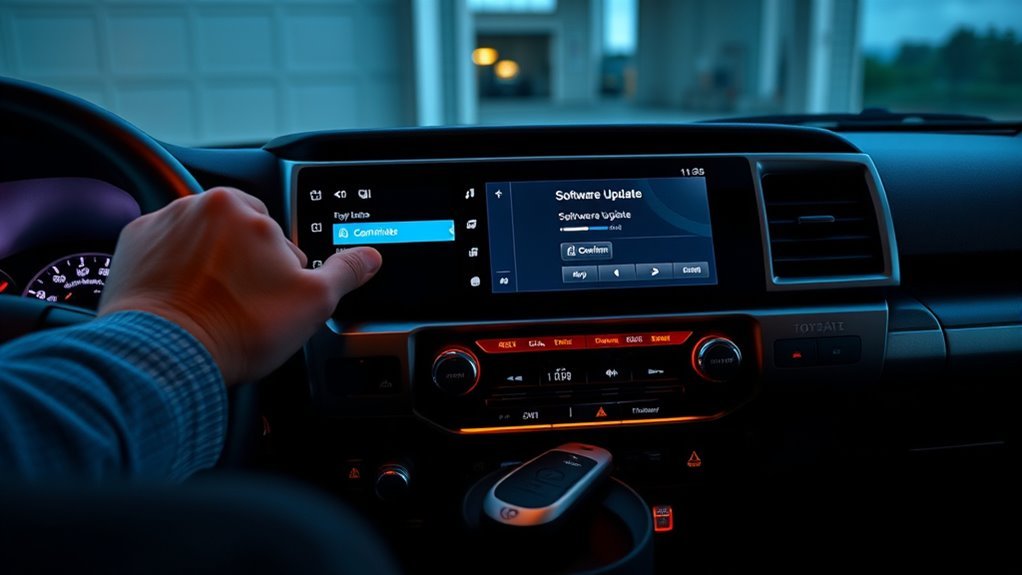
Your 4Runner may benefit from a multimedia update if the head unit repeatedly reboots, freezes, responds slowly, loses Bluetooth connections, displays missing or incorrect audio information, or has repeatable Apple CarPlay or Android Auto problems.
Toyota’s superseding Panasonic head-unit bulletin, T-SB-0043-21 Rev2, applies to certain 2020–2022 4Runners and lists software-related symptoms including intermittent rebooting, blank or frozen screens, slow startup, missing song information, USB audio problems, and Apple CarPlay connection or call-quality issues. These symptoms do not prove that software is the cause, but they make the installed version worth checking.
| Symptom | Check before updating | Best next step |
| Repeated reboots, freezes, slow startup, or missing audio metadata | Record the current software version and confirm the symptom is repeatable | Check Toyota’s portal or the vehicle’s Software update screen for a matched update |
| CarPlay or Android Auto fails with one phone or cable | Restart, re-pair, and test a known-good data cable or another compatible phone | Update the head unit only if Toyota offers a relevant package or the problem persists across devices |
| USB update drive is not detected | Verify the data port, capacity, file-system instructions, root-directory placement, and vehicle match | Reprepare the drive before retrying the installation |
| Blank screen, boot loop, or repeat failure at the same installation stage | Record the error and current version; do not keep cycling power or retrying blindly | Stop the DIY process and contact a Toyota dealer |
Check the Current Software Version
On many 2020–2024 4Runners, use this path:
- Press Menu on the multimedia unit.
- Select Setup.
- Select General.
- Scroll down and select Software Update.
- Record the current audio, navigation, DCU, or MEU information shown on the screen.
On a 2025-or-newer 4Runner, open the main settings menu, select Software update, and view the available update or model-information screen. The exact wording may change after a software revision.
Pro Tip: Take clear photos of the software-version screen, paired-phone list, radio presets, and sound settings before you begin. Some settings may need to be restored after an update.
Know What an Update Can and Cannot Change
A multimedia update may improve system stability, phone compatibility, Bluetooth operation, voice recognition, screen behavior, audio playback, or station and song information. The exact changes depend on the update package matched to your head unit.
A firmware update does not normally install new hardware-dependent features. Toyota introduced factory Apple CarPlay and Android Auto across the 4Runner lineup for the 2020 model year. An original 2019-or-older head unit will not normally gain factory CarPlay through a standard software update.
Multimedia firmware and navigation map data are also separate. Toyota states that map updates are not supplied through its public multimedia firmware portal. Contact a Toyota dealer or use the navigation-specific update process for your system if you need new map data.
Choose the Correct Update Method for Your Model Year
| Model year | Common update method | Important note |
| 2025 and newer | DCM or Wi-Fi update through Toyota Audio Multimedia; USB may also be offered | Follow the update notification or the Software update menu |
| 2020–2024 | Toyota software portal and a compatible USB drive for eligible packages | Use the VIN, head-unit details, or exported vehicle information to obtain the correct file |
| 2019 and older | Model- and head-unit-specific Entune procedure or dealer update | Update availability varies, and factory CarPlay is not normally added by firmware |
Start with Toyota’s official Audio Multimedia Software Update portal. Enter the requested vehicle information or upload the vehicle-information file created by the head unit. If the portal reports that no update is available, your system may already have the latest public package or may require dealer service.
[Products Worth Considering]

Replace a cracked or unresponsive navigation screen with this touch screen glass digitizer designed for compatible Toyota infotainment units. It restores touch functionality for supported RAV4, Prius C, Corolla, and Camry models with a precise 12-pin interface and the correct cable position requirements. Built with a slim 1.5mm profile, it is a practical repair solution for keeping your factory navigation system working properly.

This CANBUS wiring harness is designed to connect compatible Android head units to select Toyota models with mid-trim OEM JBL systems, helping simplify installation and reduce cutting or splicing. It supports retained factory features such as steering wheel controls, factory backup camera, original USB, and JBL amplifier functions when the vehicle and radio are compatible. Built for select Toyota fitments, it offers a plug-and-play upgrade path for a smoother stereo replacement.
Prepare a USB for Your Toyota 4Runner Infotainment Update
Use a USB drive only when Toyota’s instructions for your vehicle require one. Back up anything stored on the drive because formatting or preparing it may erase all existing files.
USB Drive Requirements
Toyota’s public multimedia download guide calls for a blank USB flash drive with at least 2 GB of storage. The 2025–2026 Toyota Audio Multimedia documentation for newer systems requires more than 4 GB of available space for the USB update method. Use the capacity and file-system format listed in the instructions for your exact vehicle rather than assuming that one specification applies to every 4Runner.
- Use a reliable blank USB drive.
- Connect it directly to the computer instead of through an unreliable hub.
- Use the 4Runner’s multimedia data port, not a charge-only USB port.
- Keep unrelated music, photos, documents, and software off the drive.
- Do not use a file downloaded for another model, region, or head unit.
Preparing and Formatting the USB Drive
- Back up any files you want to keep.
- Format the drive only as directed by Toyota’s vehicle-specific instructions. Use FAT32 when those instructions require FAT32.
- Download the update through Toyota’s official portal.
- Extract the downloaded archive if Toyota tells you to extract it.
- Copy the update data to the USB drive’s root directory unless the official instructions show a different structure.
- Do not place the update inside an extra folder.
- Do not rename the files unless Toyota’s downloaded instructions explicitly require a name change.
- Safely eject the USB drive after copying finishes.
Export Vehicle Information When Required
Some newer multimedia systems identify the exact update by writing a vehicle-information file to the USB drive. If your screen offers Output info to USB memory, complete that step before visiting Toyota’s portal.
- Insert the blank USB drive into the vehicle’s multimedia data port.
- Open Software update.
- Select Output info to USB memory.
- Wait until the system says the export is complete.
- Move the drive to your computer.
- Upload the exported vehicle-information file through Toyota’s software portal.
- Download the matched update data to the same drive.
- Keep the exported vehicle information on the drive until the installation is complete if the instructions tell you to retain it.
Install the Update From USB: Step by Step
The following is the common workflow for eligible 2020–2024 4Runners. Your downloaded Toyota instructions take priority if the screen wording or power sequence differs.
Warning: Park before starting. Do not drive during the update. Keep the required ignition or engine state unchanged, and do not remove the USB drive until the screen confirms that it is safe. If the procedure requires the engine to run, work outdoors or use approved exhaust extraction.
- Park safely. Apply the parking brake and switch off unneeded electrical loads.
- Confirm the current software. Open Menu > Setup > General > Software Update on systems that use this path.
- Prepare the matched update. Confirm that the files belong to your exact vehicle and head unit.
- Set the vehicle power state. Follow Toyota’s installation sheet exactly. Do not assume that accessory mode, ignition-on mode, or a running engine is correct for every update.
- Insert the USB drive. Use the multimedia data port.
- Wait for detection. Give the head unit time to read and verify the update package.
- Select the update option. Choose Update Software, Update, or the equivalent button when it becomes available.
- Review the package. Confirm the displayed new version and accept the terms or warnings.
- Start the installation. Select Yes or Start.
- Do not interrupt the process. Avoid pressing controls, disconnecting the drive, opening other menus, or changing the vehicle’s power state.
- Follow the final power prompt. Some 2020–2021 procedures instruct you to turn the engine off only after the screen says that the software is ready, then turn the ignition on again to finish. Follow the message shown on your unit.
- Remove the USB only after completion. Wait for the final confirmation screen.
- Verify the version. Return to the Software Update or Software Information screen and confirm that the displayed version changed as expected.
A USB installation may take about 10–15 minutes on some systems, but preparation, file verification, and final restart time can make the complete job longer.
[Products Worth Considering]
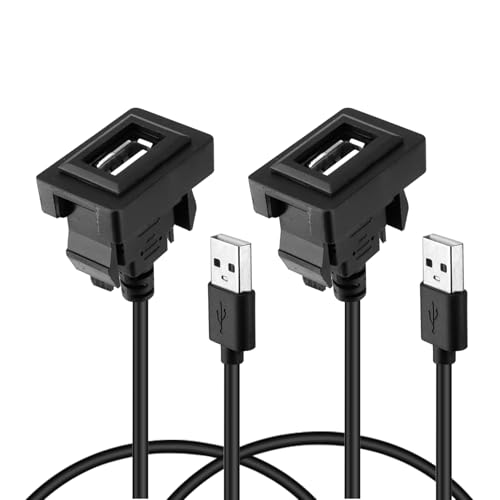
Package list: 1Pcs USB socket extender in Toyota vehicles such as Corolla, Prius, Rav4, and more, providing a perfect fit for (1.34"x0.91") 34x23mm holes
Update a 2025-or-Newer 4Runner Over the Air
The sixth-generation 2025-and-newer 4Runner uses Toyota Audio Multimedia. Toyota’s 2026 4Runner Multimedia Owner’s Manual lists DCM, Wi-Fi, and USB as supported software-update methods, with availability depending on region and system conditions.
- Park the 4Runner in a location with a reliable connection.
- Open the main settings menu.
- Select Software update.
- Select View beside Updates available, or open the update notification displayed by the system.
- Read the update description, precautions, and terms.
- Approve the download and installation.
- Allow the system to complete the process. Some multimedia functions may operate slowly during the update.
- If the system asks to restart, select Yes.
- Return to the software-information screen and confirm the installed version.
Toyota’s current manual says a network installation may resume the next time the vehicle starts if it was suspended when the vehicle was switched off. Download and installation time depends on the connection and package size, so do not apply the older 10-minute estimate to every OTA update.
Note: Toyota’s U.S. public firmware portal is intended for eligible vehicles manufactured for the continental United States, Alaska, and Hawaii. Canadian, imported, or other regional vehicles may need a regional Toyota site or dealer assistance.
Troubleshooting USB Issues, Failed Installs, and Post-Update Bugs
Do not repeatedly retry a failed update without checking the cause. Record the message on the screen, the current version, the downloaded filename, and the point where the failure occurred.
The USB Drive Is Not Recognized
- Confirm that you are using the multimedia data port rather than a charge-only port.
- Check that the drive meets the capacity and formatting requirements in Toyota’s instructions.
- Remove all unrelated files.
- Confirm that the update data is in the root directory and is not buried inside an extra folder.
- Make sure you extracted the download if Toyota supplied it as a compressed archive.
- Check that the package matches the vehicle, head unit, and region.
- Safely reformat the USB drive and download a fresh copy if file corruption is possible.
- Try another reliable compatible USB drive if the first one still fails.
The Update Button Does Not Appear
Wait several minutes after inserting the drive because the system may need time to inspect or unpack the files. If the button remains unavailable, recheck the current software version, file placement, package compatibility, and USB specifications. The absence of an update button may also mean that the installed version is already current.
The Installation Stops or Shows an Error
- Do not remove power while the system is actively writing the update.
- Follow any recovery message displayed by the head unit.
- Confirm that the 12-volt battery is healthy before trying again.
- Redownload the vehicle-matched package instead of reusing a questionable copy.
- Do not attempt to install an older package as a rollback. Toyota does not provide a normal owner procedure for restoring a successfully updated system to its previous version.
- Contact a dealer if the unit will not start, continually reboots, or fails at the same point again.
CarPlay or Android Auto Still Malfunctions
A head-unit update cannot fix every phone-side, cable, app, or hardware problem. After confirming that the Toyota software is current:
- Restart the phone and the multimedia system.
- Install the latest stable phone operating-system update.
- Use a known-good data cable if your 4Runner uses wired projection.
- Remove the phone from the vehicle’s paired-device list and pair it again.
- Check the phone’s CarPlay or Android Auto permissions.
- Test another compatible phone or cable to isolate the cause.
- Follow Apple’s official CarPlay troubleshooting guidance if you use an iPhone.
For connection-specific steps rather than firmware installation, see our Toyota 4Runner Apple CarPlay setup guide or Toyota 4Runner Android Auto setup guide.
When to Ask a Dealer for Help With Your 4Runner Update
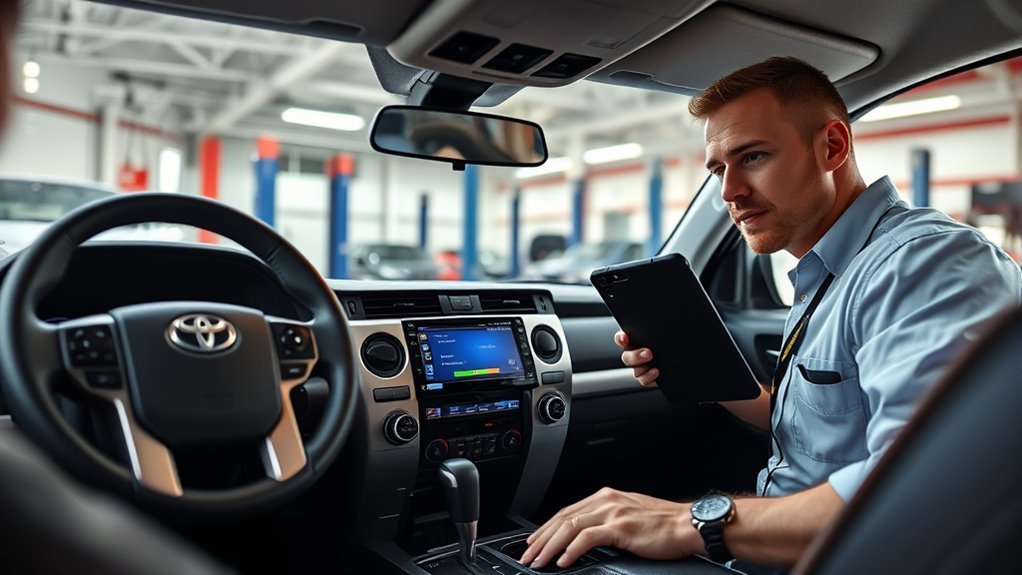
Contact a Toyota dealer when the update repeatedly fails, the head unit will not boot, the screen remains blank, the vehicle does not provide a customer update option, or you cannot identify the correct package. Dealer technicians can compare the current versions, check applicable service information, test power and data circuits, and determine whether the fault is software or hardware.
When Dealers Should Intervene
Dealer assistance is the safer choice when:
- The head unit continually restarts or remains stuck on the startup screen.
- The installation stops at the same point after a fresh download and compatible USB drive.
- The vehicle’s 12-volt battery is weak or unstable.
- The software portal does not recognize the vehicle or regional configuration.
- The current version does not match the expected head-unit information.
- The unit has been replaced, modified, or fitted with aftermarket multimedia hardware.
- A post-update problem affects the backup camera, audio output, controls, or other essential operation.
Dealer Warranty and Tools
Do not assume that every dealer update is free. Coverage depends on the vehicle’s age, mileage, warranty terms, and whether the complaint matches an applicable Toyota service bulletin or warranty condition.
For example, Toyota’s superseding T-SB-0043-21 Rev2 applies to certain 2020–2022 4Runners and lists Toyota Basic Warranty coverage of 36 months or 36,000 miles, whichever occurs first, only for the conditions described in that bulletin. That bulletin superseded T-SB-0066-20. Many vehicles in the covered model years are now outside the original warranty period, so ask the dealer for a diagnosis and price estimate before authorizing out-of-warranty work.
When to Check for Updates and What Each Update Changes
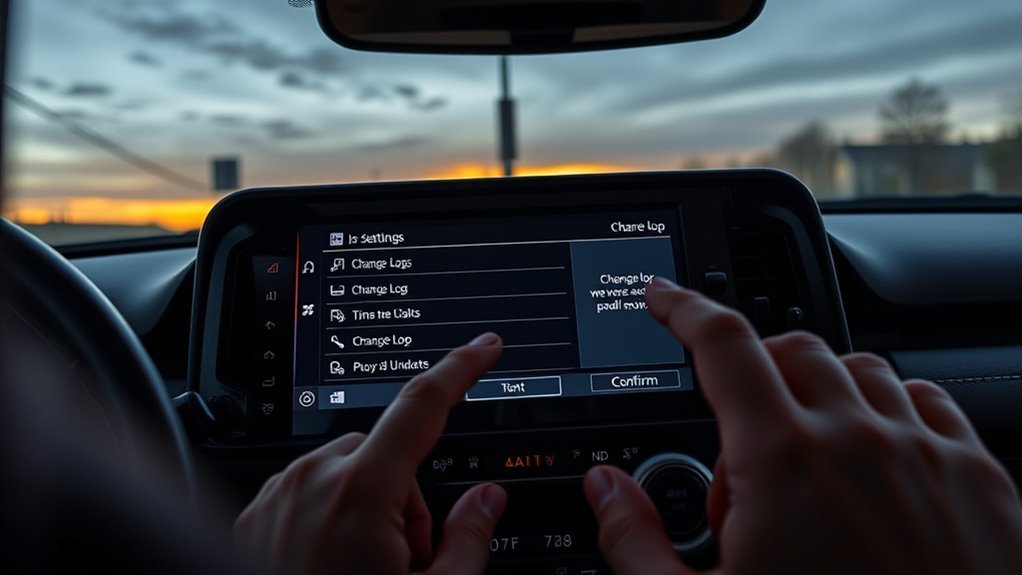
You do not need to check on a fixed four-week schedule. Toyota releases multimedia updates as needed. Check when:
- The vehicle displays an update notification.
- The head unit repeatedly freezes, reboots, or loses a phone connection.
- Toyota or a dealer identifies an update for a problem you can reproduce.
- You are troubleshooting a new CarPlay, Android Auto, Bluetooth, or audio problem.
- Your 4Runner is already at the dealer for routine service.
Read the update details before installing. Most packages correct specific bugs or improve compatibility rather than adding major visible features.
| An update may improve | An update normally will not |
| Screen stability and startup behavior | Repair a physically damaged screen or USB port |
| Bluetooth, CarPlay, or Android Auto compatibility | Add factory CarPlay to an incompatible older head unit |
| Audio playback, metadata, calls, or voice recognition | Update the navigation map database through the firmware portal |
| Known software bugs listed for the matched package | Guarantee a fix for every phone, cable, app, or hardware problem |
Do not choose a file merely because its name resembles an identifier found online. A label such as 17TDT2NA-DA30 identifies a software family or component, while the complete filename and version suffix identify a particular package. Obtain the current matched file through Toyota’s portal or a dealer.
Frequently Asked Questions
How do you update a Toyota 4Runner infotainment system?
First identify the model year and current software version. A 2025-or-newer 4Runner can usually update through the Software update menu over DCM or Wi-Fi. Many eligible 2020–2024 systems use a vehicle-matched download from Toyota’s firmware portal and a compatible USB drive. Follow the exact on-screen and downloaded instructions without interrupting power.
Can a Toyota 4Runner update over Wi-Fi?
A 2025-or-newer 4Runner with Toyota Audio Multimedia can check for and install supported updates through its data connection or an available Wi-Fi connection. Earlier systems may require a USB drive instead.
What USB format is required for a 4Runner software update?
Use the format and capacity specified in the Toyota instructions generated for your exact vehicle. Toyota’s public guide calls for a blank USB flash drive of at least 2 GB, while 2025–2026 Toyota Audio Multimedia documentation requires more than 4 GB of available space for the USB update method. Use FAT32 only when your model-specific instructions require it.
Can a software update add Apple CarPlay to a 2019-or-older 4Runner?
Normally, no. Toyota introduced factory Apple CarPlay and Android Auto across the 4Runner lineup for the 2020 model year. Earlier original head units generally need compatible aftermarket hardware rather than a standard Toyota firmware update.
Does the Toyota firmware portal update navigation maps?
No. Toyota states that navigation and map updates are not available through its public multimedia firmware portal. Use the map-update process for your navigation system or contact a Toyota dealer.
What should you do if the 4Runner update fails?
Record the error, confirm the current version, check the USB format and file placement, download a fresh vehicle-matched package, and verify that the 12-volt battery is healthy. Stop the DIY process and contact a Toyota dealer if the unit will not boot or repeatedly fails at the same stage.
How long does a Toyota 4Runner infotainment update take?
Toyota’s cited USB procedures put the installation itself at about 10–15 minutes on applicable systems, but downloading, preparing the drive, verifying files, and restarting can make the full job longer. Network-update time varies with the connection and package size, and a suspended supported update may resume after the vehicle is restarted.
Conclusion
A successful Toyota 4Runner infotainment update starts with identifying the correct system. Use the network update menu on compatible 2025-and-newer models or Toyota’s vehicle-matched USB process on eligible older systems. Keep power stable, follow every prompt in order, and never remove the USB drive early.
After the update, confirm the displayed software version and test the radio, Bluetooth, phone calls, CarPlay or Android Auto, navigation application, USB audio, and saved settings. If the head unit still reboots, freezes, or refuses to install the matched package, document the problem and ask a Toyota dealer to diagnose it.
Sources
- Toyota Audio Multimedia Software Update Portal — checks eligible vehicles and provides matched USB software packages.
- Toyota Audio Multimedia System Updates — explains OTA, USB, and dealer update options.
- 2025 Toyota 4Runner Multimedia Owner’s Manual — covers software information, DCM/Wi-Fi updates, USB updates, and update precautions.
- 2026 Toyota 4Runner Multimedia Owner’s Manual — confirms the same update methods and current USB-space requirement for the 2026 system.
- Toyota T-SB-0043-21 Rev2 — supersedes T-SB-0066-20 and documents applicable 2020–2022 4Runner symptoms, warranty terms, and the USB installation procedure.
- Toyota Multimedia System Update Download Guide — provides Toyota’s public USB download requirements.
- Toyota 2020 4Runner Multimedia Announcement — confirms the introduction of factory Apple CarPlay and Android Auto for the 2020 4Runner.