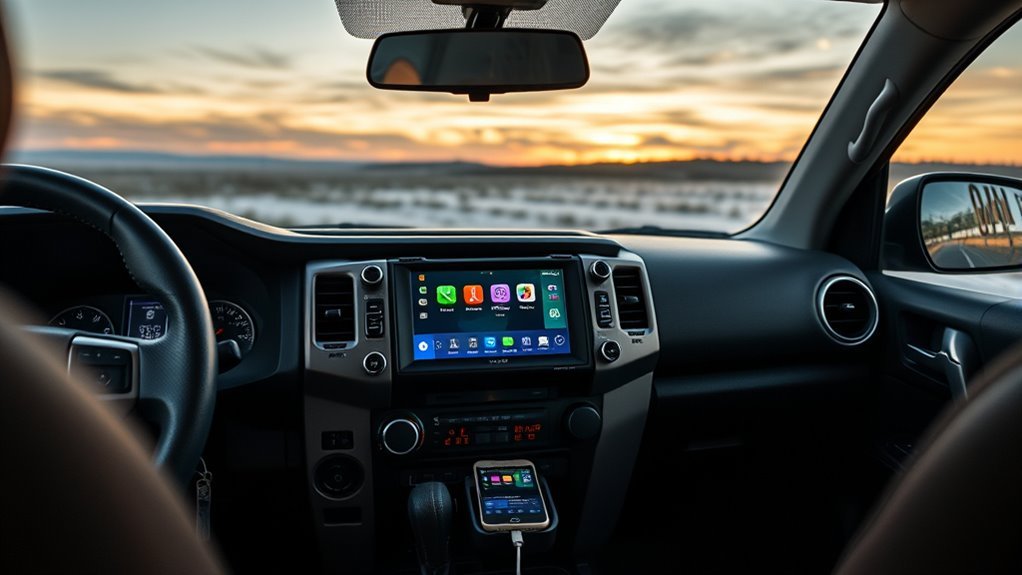
Connecting Android Auto to a Toyota 4Runner depends on the vehicle’s model year. U.S.-market 4Runners gained factory Android Auto for 2020, and the 2020–2024 factory system normally connects through the USB media port. The redesigned 2025-and-newer 4Runner supports both wireless and wired Android Auto. Use the compatibility check below before troubleshooting your phone or cable.
Quick Answer
To connect Android Auto, park your 4Runner, turn on the multimedia system, and use the USB media port on a 2020–2024 model. On a wireless-capable 2025-or-newer model, pair the phone through Bluetooth & Devices and approve Android Auto. Grant the requested phone permissions and follow the on-screen prompts.
Key Takeaways
- Factory Android Auto became available on the U.S.-market Toyota 4Runner for model year 2020.
- A 2020–2024 factory system normally requires a data-capable USB cable connected to the media port.
- The redesigned 2025-and-newer 4Runner supports wireless Android Auto as well as a wired connection.
- Current wired Android Auto requires Android 9 or newer. General wireless compatibility requires Android 11, 5 GHz Wi-Fi support, and a wireless-capable vehicle.
- A phone that charges without launching Android Auto is usually connected through the wrong port or a charge-only cable.
At a Glance
| Time Required | About 5–10 minutes for first-time setup |
| Difficulty | Easy |
| Tools Needed | Compatible Android phone and, for wired use, a short data-capable USB cable |
| Cost | No subscription is required for Android Auto, but mobile data and paid app services may have separate charges |
Warning: Complete the first connection, permission changes, and menu setup while your 4Runner is parked. Do not pair a phone, read messages, or change detailed settings while driving.
Check Your 4Runner’s Android Auto Compatibility
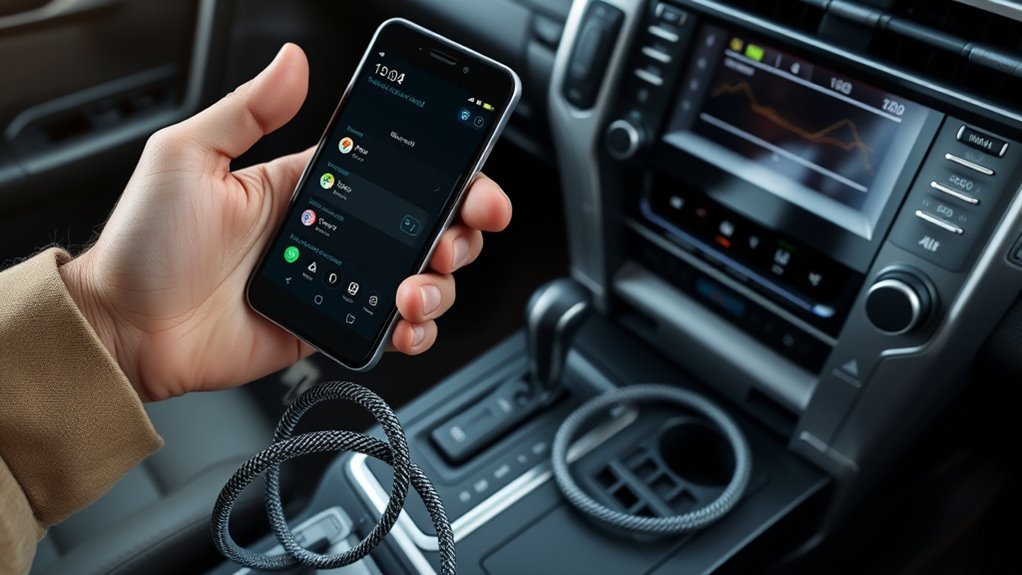
Start with the model year because the factory connection method changed during the 4Runner’s production run. Toyota introduced Android Auto on all U.S.-market 4Runner grades for 2020. The redesigned 2025 model added Toyota’s newer multimedia system with wireless Android Auto support.
| 4Runner model year | Factory Android Auto | Normal connection method |
|---|---|---|
| 2019 and older | Not included in the original U.S. factory multimedia system | A compatible aftermarket receiver is normally required |
| 2020–2024 | Yes | Wired connection through the USB media/data port |
| 2025 and newer | Yes | Wireless Bluetooth/Wi-Fi connection or a compatible USB data connection |
| Any year with an aftermarket receiver | Depends on the installed receiver | Follow the receiver manufacturer’s wired or wireless instructions |
Note: Specifications can vary outside the United States, and an earlier 4Runner may have an aftermarket head unit. Check the installed multimedia system rather than relying only on the vehicle’s model year.
Phone, Cable, and Setting Requirements
For a current wired Android Auto connection, Google requires a phone running Android 9.0 or newer, an active data plan, a compatible vehicle, and a high-quality USB cable. Android Auto is integrated into supported modern Android phones, so you normally do not need to install a separate app.
For wireless Android Auto, you need all of the following:
- An Android phone that supports wireless projection, generally Android 11 or newer
- 5 GHz Wi-Fi support on the phone
- An active mobile data plan
- Bluetooth, Wi-Fi, and Location Services enabled during initial setup
- A wireless Android Auto-compatible vehicle or aftermarket receiver
Before connecting, update Android, Google Play services, Google Maps, and the media apps you plan to use. A Toyota multimedia software update is not a routine prerequisite, but you should install an update when your vehicle reports that one is available or Toyota recommends one for a known problem.
[Products Worth Considering]

This wireless CarPlay adapter upgrades compatible factory wired CarPlay or Android Auto systems with wireless connectivity and built-in entertainment apps. Enjoy navigation, calls, music, and hands-free control through Apple CarPlay, plus streaming from popular video platforms when connected to a hotspot. It also supports USB media playback and an HD media port for rear-seat entertainment on road trips and daily drives.

Miracase car phone holder uses a metal hook clip with silicone padding to grip vent blades securely, helping prevent slips even on bumpy roads. It supports a wide range of smartphones and thicker cases, and the one-hand release makes mounting and removing your phone quick and convenient. A 360-degree rotating design lets you adjust for landscape or portrait viewing for safer navigation and hands-free use.

The HEYINCAR+ H-Air adapter upgrades compatible factory wired CarPlay and Android Auto systems to wireless convenience with a compact plug-and-play design. It connects automatically after setup, delivering fast startup, stable performance, and support for your car’s original touchscreen, steering wheel controls, and voice commands. Built for broad vehicle compatibility and ongoing firmware updates, it offers a simple way to enjoy cable-free driving with minimal clutter.
Choose the Correct USB Cable
A cable can provide power without carrying reliable data. Use a cable designed for both charging and data transfer. Google recommends a high-quality cable that is less than 1 meter or 3 feet long, connected without an extension or USB hub.
Pro Tip: When Android Auto suddenly stops working after months of normal use, test a different short cable before resetting the phone or multimedia system. Internal cable damage is a common cause of charging-only behavior and random disconnections.
Find the Media or Data USB Port
Use the port identified for media or smartphone data. Other USB ports in the cabin may be intended only for charging. A charge-only port can increase the phone’s battery level but cannot send Android Auto data to the display.
On a 2020–2024 4Runner, look for the USB media port near the center controls or console area. On a 2025-and-newer model, use the data-capable USB-C port identified in the multimedia documentation. Port placement can vary by equipment and market.
How to Connect Android Auto With a USB Cable
Use this method for a 2020–2024 factory system. It can also be used on newer systems when you prefer a stable connection and simultaneous charging.
- Park the 4Runner. Turn on the engine or place the vehicle in the appropriate accessory mode, then allow the multimedia system to start.
- Unlock your phone. Confirm that mobile data is available and Android Auto is enabled.
- Connect the phone to the USB media port. Use a short, data-capable cable and avoid hubs, adapters, and extensions during testing.
- Approve the phone prompts. Accept the Android Auto terms and grant the requested permissions for calls, contacts, notifications, location, and audio.
- Enable projection on the Toyota screen. If prompted, select On, Enable Once, or Always Enable.
- Open Android Auto. Select Android Auto from the Toyota menu if it does not open automatically.
- Test the main functions. Open Google Maps, play audio, and test the steering-wheel voice button while the vehicle remains parked.
[Products Worth Considering]

Turn your factory wired CarPlay into a wireless experience with this compact plug-and-play adapter from Enhanlife. It delivers fast auto-connection, stable performance with Bluetooth 5.3 and 5GHz Wi-Fi, and smooth access to navigation, music, calls, and Siri without cable clutter. Designed for broad vehicle compatibility and easy setup, it helps keep your dashboard clean while preserving the convenience of CarPlay.

This compact adapter converts factory-wired CarPlay and Android Auto systems to wireless for a cleaner, more convenient driving experience. It offers fast auto-connect, stable performance, and plug-and-play setup so you can enjoy navigation, music, calls, and voice control without extra cables. The included USB-to-USB-C converter helps it fit a wide range of vehicle ports.
![CONMDEX Android Auto USB Cable [3ft, 2-Pack] 10Gbps, 3A Fast Charging | USB 3.1 Gen 2 | Stable Android Auto & CarPlay | Flexible & Durable | for iPhone 18 Pro Max Duo/17/16, iPad Pro, Galaxy S26](https://m.media-amazon.com/images/I/41vy0X7qsdL._SL500_.jpg)
[Reliable Car Connectivity & Android Auto] Engineered specifically to solve "falling short" connection issues in vehicles. This cable provides a stable, high-speed link for Android Auto and Apple CarPlay, ensuring consistent navigation and music streaming in models like the Ford Raptor and other modern consoles
Enable Android Auto on a 2020–2024 System
If the phone charges but Android Auto never appears, check the Toyota projection setting. Menu names can vary slightly, but the path is generally:
MENU → Setup → General → Projection Settings → Android Auto → On
Reconnect the phone after changing the setting. When the connection is active, the Toyota menu should display an Android Auto option. Select it to open the Android Auto interface.
Grant Phone Permissions
Android Auto needs permission to use supported phone features. Approve only the features you plan to use, such as calls, messages, contacts, microphone access, and notifications. A denied notification or microphone permission can prevent message reading or voice commands even when maps and audio work normally.
Permission names vary by phone manufacturer. You can usually review them through:
Phone Settings → Apps → Android Auto → Permissions
You can also find Android Auto settings under Connected devices or Connection preferences on many phones.
How to Connect Wireless Android Auto
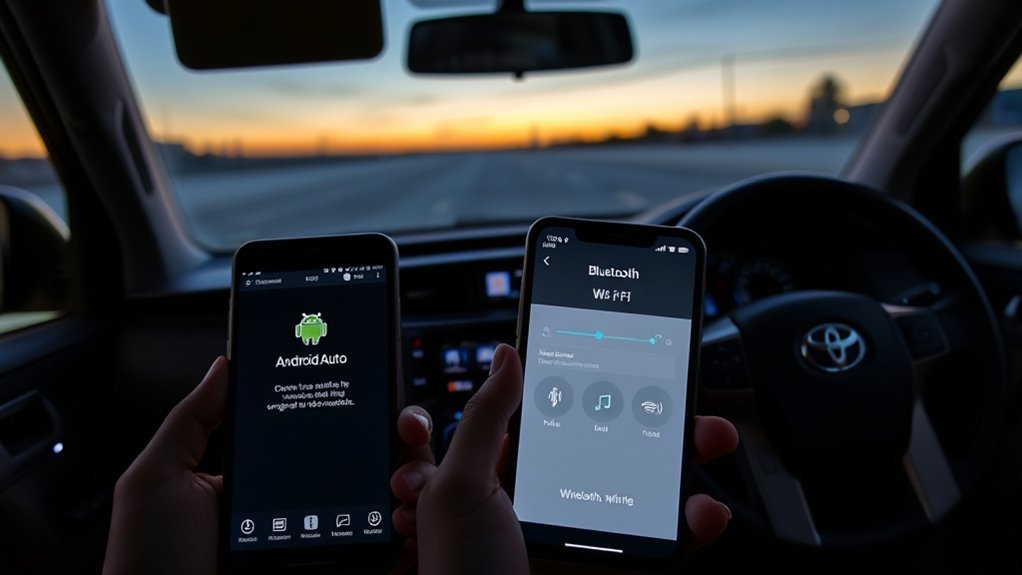
Use these steps with a wireless-capable 4Runner, including the redesigned 2025-and-newer U.S. model. Do not use this section to troubleshoot a stock 2020–2024 system that was designed for wired Android Auto.
- Park the vehicle and turn on the multimedia system.
- Enable Bluetooth, Wi-Fi, and Location Services on the phone.
- Open the Toyota device menu. Select Settings or the gear icon, followed by Bluetooth & Devices.
- Add the phone. Select Add another device or Search for devices.
- Select your phone. Confirm that the PIN shown on the Toyota screen matches the PIN on the phone.
- Approve Android Auto. Accept the pairing, permission, and Android Auto prompts on both screens.
- Allow the connection to finish. Keep Wi-Fi enabled. The multimedia system manages the Wi-Fi projection link after Bluetooth pairing, so you normally do not need to join a vehicle hotspot manually.
- Open Android Auto. Select its icon from the Toyota main menu if the home screen does not appear automatically.
[Products Worth Considering]

Upgrade to Wireless CarPlay & Android Auto The 2 in 1 Wireless CarPlay and Android Auto Adapter converts your factory wired system into a wireless experience. It’s perfect for families using both iPhone and Android phones, allowing effortless switching without unplugging or swapping cables. This adapter is compatible with over 1,000 vehicle models—supporting 800+ with wired CarPlay and 500+ with wired Android Auto. Works with iPhone 6 or later and Android 11 or above devices.

Keep Your Phone in Your Pocket: Turn factory wired CarPlay or Android Auto into a wireless setup and keep using your car’s original screen. This 2-in-1 wireless adapter is ideal for households with both iPhone and Android phones sharing a vehicle. Connects to one phone at a time; disconnect the current phone before connecting another.
Enable “Use for Android Auto” on Newer Toyota Systems
On newer Toyota Audio Multimedia systems, “Use for Android Auto” is part of the registered phone’s vehicle settings. It is not a universal switch in the phone’s Bluetooth menu.
Open Bluetooth & Devices, select the registered phone, and confirm that Use for Android Auto is enabled. Turning it off disconnects Android Auto for that device.
Choose Between Multiple Paired Phones
When several phones are registered, the 4Runner may connect to the device with the highest priority or the device used most recently. If the wrong phone keeps connecting, open Bluetooth & Devices and select the phone you want to use. On supported systems, set the regular driver’s phone as the primary device.
Temporarily turning off Bluetooth on the unwanted phone can also help during troubleshooting.
Note: Bluetooth audio alone is not wireless Android Auto. Bluetooth can play music and handle calls, but Android Auto’s maps, apps, and full interface require USB projection or a supported Bluetooth/Wi-Fi wireless connection.
What You’ll See When Android Auto Launches
Android Auto displays compatible navigation, communication, and media apps in a driving-focused interface. The exact layout depends on the phone, screen size, Android Auto version, and app activity, so button positions may not match older screenshots.
Dashboard and App Launcher
The dashboard can show navigation, media controls, recent destinations, calls, or another relevant app at the same time. Use the app-launcher icon to open compatible apps installed on your phone.
An app will not appear merely because it is installed. The developer must support Android Auto, the app may need an update, and some services require you to sign in or maintain a subscription.
Notifications and Messages
Android Auto displays supported notifications that are permitted by your phone settings. It does not duplicate every notification exactly as it appears on the handset.
Use voice control to hear or answer supported messages whenever possible. You can reduce interruptions through the Android Auto notification settings on your phone, including message previews, conversation chimes, and notification access.
Audio, Navigation, and Voice Controls
Use the touchscreen or steering-wheel controls to switch tracks, adjust volume, answer calls, or activate the phone’s supported voice assistant. A press-and-hold of the steering-wheel voice button commonly opens the Android Auto voice assistant while the connection is active.
Navigation volume and media volume may be adjusted separately. Change the volume while the relevant sound is playing. For example, adjust the volume during spoken route guidance to change the guidance level rather than the music level.
Switch Back to Toyota Multimedia
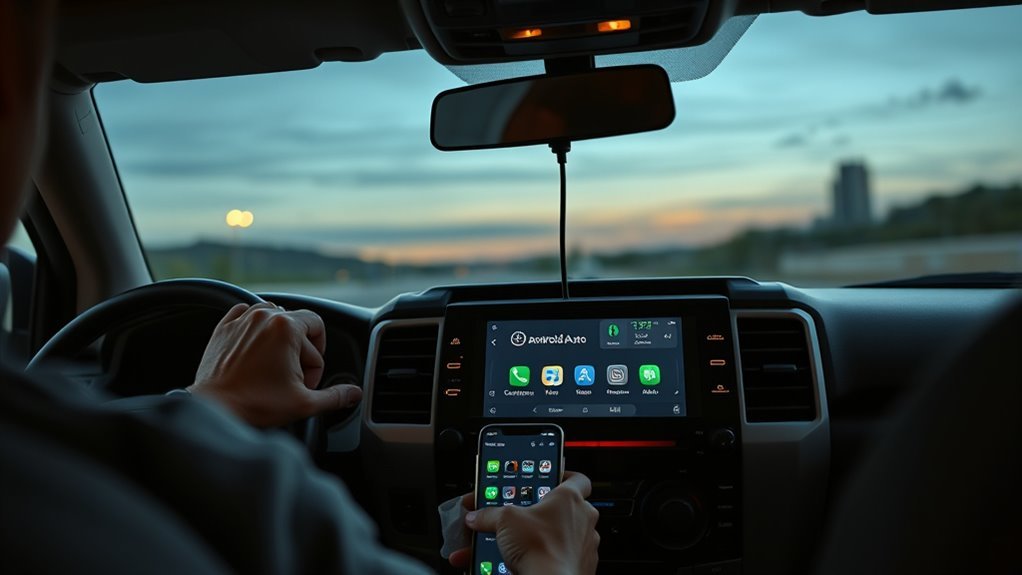
To leave Android Auto, select the Toyota, Exit, or system icon shown within Android Auto. You can also use the Toyota multimedia main-menu control. The icon’s position and appearance differ between the 2020–2024 system and the newer Toyota Audio Multimedia interface.
Returning to the Toyota interface does not necessarily disconnect the phone. Music or navigation may continue in the background, depending on the active app. Select the Android Auto icon from the Toyota menu to reopen it.
Troubleshooting Android Auto Connection Problems
Start with the symptom rather than resetting every setting at once. This makes it easier to identify whether the problem involves compatibility, the USB connection, permissions, or wireless pairing.
| Symptom | Likely cause | What to do |
|---|---|---|
| The phone charges, but Android Auto does not open | Charge-only cable, charge-only port, or Android Auto disabled in Projection Settings | Use the USB media port, replace the cable, and confirm Android Auto is enabled in the Toyota settings |
| Android Auto disconnects over bumps | Loose connector, damaged cable, dirty phone port, or cable strain | Try a short replacement cable, inspect the phone port, and secure the phone so the plug is not pulled sideways |
| Bluetooth music works, but Android Auto does not appear | Bluetooth audio is active without an Android Auto projection connection | Connect the USB cable on a 2020–2024 model or enable “Use for Android Auto” on a compatible newer system |
| Wireless pairing succeeds, but Android Auto never starts | Unsupported vehicle, unsupported phone, disabled Wi-Fi, or Android Auto disabled for that device | Confirm the vehicle supports wireless Android Auto, enable Wi-Fi and Bluetooth, and check the registered-device settings |
| The wrong phone connects automatically | Another registered phone has higher connection priority | Select the preferred phone manually, change its priority, or temporarily disable Bluetooth on the other device |
| Maps work, but messages or voice commands do not | Notification, microphone, contact, or message permission was denied | Review Android Auto permissions and notification access on the phone |
| Android Auto worked before but has stopped | Cable failure, software change, corrupted pairing, or temporary system fault | Replace the cable, restart both systems, update available software, and remove and pair the vehicle again |
Restart Both Systems
Disconnect the phone and restart it. Then restart the Toyota multimedia system according to the vehicle manual or shut down the vehicle, open and close the driver’s door, and allow the system to power down before trying again.
A restart clears temporary connection errors without deleting your saved devices or settings.
Forget and Pair the Vehicle Again
For a wired connection, open Android Auto settings on the phone and remove the 4Runner from Previously connected cars. For a wireless connection, also remove the phone from the Toyota Bluetooth & Devices list and remove the Toyota entry from the phone’s Bluetooth menu.
Restart both devices and complete the first-time setup again while parked.
Check for Software Updates
Update the phone’s operating system, Android Auto components, Google Play services, Google Maps, and affected media apps. On a newer Toyota multimedia system, check the software-information menu for an available update. For an older system, consult the correct Toyota owner’s manual or a dealer before attempting a manual firmware installation.
Test Another Compatible Phone
Connecting a second phone can isolate the problem. If another phone works with the same port and cable, review the original phone’s permissions and connection settings. If neither phone works, focus on the USB cable, USB media port, multimedia settings, or vehicle software.
Wireless Adapters and Older 4Runners
A wireless adapter may convert the wired Android Auto connection in a 2020–2024 4Runner into a wireless link. However, the adapter is an aftermarket device rather than a factory Toyota feature. Startup delay, audio lag, connection reliability, firmware support, and phone compatibility vary by adapter.
Confirm that wired Android Auto works correctly before adding an adapter. The adapter cannot repair a disabled projection setting, damaged media port, or unsupported factory head unit.
For a 2019-or-older 4Runner with its original U.S. multimedia system, a small USB wireless adapter is not enough because the factory receiver lacks Android Auto. A compatible aftermarket head unit is normally required.
Manage Audio, Notifications, and Navigation
Android Auto settings are split between the phone, the Android Auto interface, individual apps, and the Toyota multimedia system.
- App launcher: Open Android Auto settings on the phone to arrange or hide compatible apps.
- Notifications: Control message previews, conversation sounds, and notification permissions from the phone.
- Navigation: Choose a compatible navigation app and set location access to the level required for routing.
- Media: Sign in to compatible music or podcast apps before starting the drive.
- Voice control: Grant microphone access and press and hold the steering-wheel voice control when Android Auto is active.
- Automatic startup: Review Android Auto’s start and lock-screen settings if the interface does not open automatically.
Maps, traffic information, streaming, and voice searches can use mobile data. Android Auto itself does not require a separate subscription, but your carrier plan and individual apps may have charges.
Frequently Asked Questions
Does every Toyota 4Runner have Android Auto?
No. Toyota introduced factory Android Auto on the U.S.-market 4Runner for model year 2020. A 2019-or-older 4Runner with its original factory receiver normally needs a compatible aftermarket head unit.
Can a 2020–2024 4Runner use wireless Android Auto?
The factory Android Auto connection on these models normally uses the USB media port. An aftermarket wireless adapter may add cable-free operation after wired Android Auto is working, but adapter performance and compatibility vary.
Why does my phone charge without showing Android Auto?
The phone may be connected to a charge-only USB port or through a cable that does not transfer data reliably. Use the Toyota USB media port, try a short data-capable cable, and confirm Android Auto is enabled in Projection Settings.
How do I get Google Maps on my 4Runner screen?
Connect Android Auto, open the app launcher, and select Google Maps. Make sure Google Maps is updated, location permission is enabled, and the phone has a mobile-data connection for traffic and online searches.
Do I need to download the Android Auto app?
Android Auto is integrated into current supported Android phones. You normally manage it through the phone’s Connected devices, Connection preferences, or app settings rather than installing a separate dashboard app.
Why does Android Auto keep disconnecting?
For wired use, the most common causes are a damaged cable, loose connector, dirty phone port, or the wrong USB port. For wireless use, check phone compatibility, Wi-Fi, Bluetooth, device priority, battery restrictions, and the registered Android Auto setting.
Conclusion
Start with your 4Runner’s model year before choosing a connection method. A stock 2020–2024 model normally uses wired Android Auto through its USB media port, while the redesigned 2025-and-newer model supports wireless and wired connections. A 2019-or-older factory system normally requires an aftermarket receiver.
Complete the first setup while parked, use a reliable data cable when connecting by USB, and grant only the phone permissions needed for the features you use. When Android Auto fails, check the correct port, cable, projection setting, and saved-device pairing before assuming the multimedia system needs repair.
Sources
- Google Android Auto requirements — current phone, operating-system, data-plan, cable, and wireless requirements
- Google Android Auto setup instructions — official wired and wireless pairing procedures and parked-vehicle safety guidance
- Google Android Auto troubleshooting guide — cable, vehicle-setting, restart, and previously connected car guidance
- Toyota 2020 4Runner information — confirms the introduction of Android Auto on the 2020 4Runner
- Toyota 2025 4Runner announcement — confirms wireless Android Auto support on the redesigned model
- Toyota Android Auto support — Toyota setup guidance, compatible functions, and owner resources