Connecting Apple CarPlay to a Toyota 4Runner is simple once you know which multimedia system your vehicle has. Factory CarPlay arrived on the U.S. 4Runner for the 2020 model year. Most 2020–2024 models use a wired USB connection, while redesigned 2025 and 2026 models support factory wireless CarPlay. Follow the instructions below for your model year.
Quick Answer
To connect Apple CarPlay, park the 4Runner, enable Siri, and use the vehicle’s USB data port on most 2020–2024 models. On 2025–2026 models, you can pair wirelessly with Bluetooth and Wi-Fi. Accept the prompts on the iPhone and multimedia screen, then select the CarPlay icon if it does not open automatically.
Key Takeaways
- 2020–2024 4Runners: Factory Apple CarPlay normally connects through the USB media port.
- 2025–2026 4Runners: Toyota’s newer multimedia system supports factory wireless Apple CarPlay.
- Wireless CarPlay needs both Bluetooth and Wi-Fi; Bluetooth pairing alone is not enough.
- Use a short, high-quality data-capable cable that matches your iPhone and the vehicle’s USB port.
- A 2019 or older 4Runner needs compatible aftermarket equipment for CarPlay.
At a Glance
| Time Required | About 3–10 minutes |
| Difficulty | Easy |
| Tools Needed | Compatible iPhone; data-capable USB cable for wired models |
| Cost | No CarPlay subscription fee; a replacement cable or aftermarket receiver may cost extra |
Warning: Complete pairing, app arrangement, software updates, and other detailed setup while the 4Runner is safely parked. CarPlay can reduce the need to handle your phone, but it does not remove the risk of driver distraction.
Toyota 4Runner Apple CarPlay Compatibility by Model Year
Start by checking the model year and whether the vehicle still has its original Toyota multimedia system. Toyota introduced factory Apple CarPlay on the U.S.-market 4Runner for 2020. The redesigned 2025 system added factory wireless compatibility, which continues on the 2026 4Runner.
| 4Runner Model Year | Factory CarPlay | Normal Connection |
|---|---|---|
| 2019 and older | No factory CarPlay | Aftermarket receiver or integration interface required |
| 2020–2024 | Yes | Wired through the USB media/data port |
| 2025–2026 | Yes | Wireless or wired, depending on the selected setup |
Toyota’s official information describes Apple CarPlay as a new multimedia addition for the 2020 4Runner. Toyota identifies wireless Apple CarPlay as part of the newer multimedia system used in the 2026 4Runner.
Note: An older 4Runner may already have an aftermarket stereo that supports wired or wireless CarPlay. In that case, follow the receiver manufacturer’s instructions rather than the factory Toyota steps.
Why Use Apple CarPlay in a Toyota 4Runner?
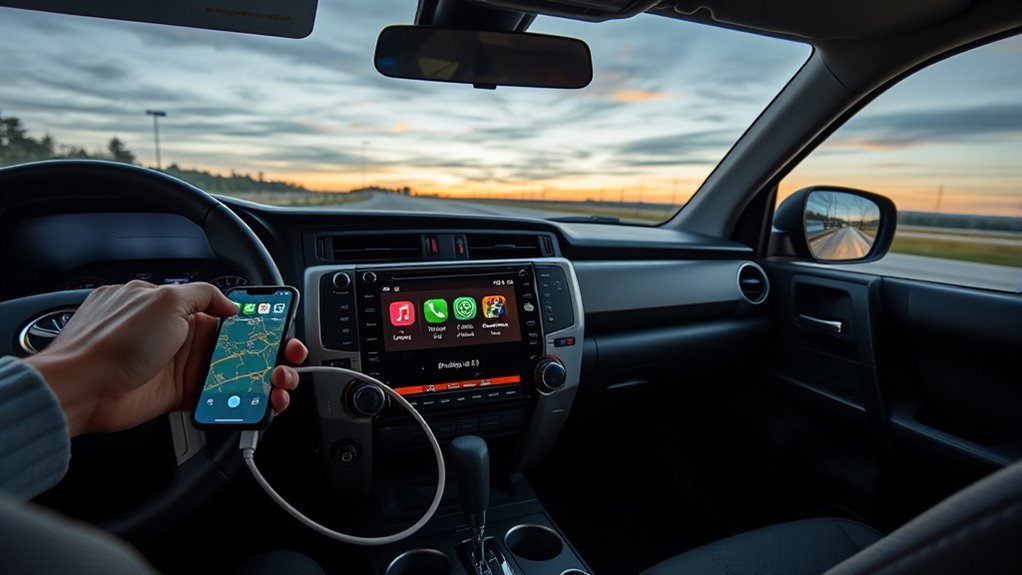
Apple CarPlay places compatible iPhone apps on the 4Runner’s multimedia display. You can use Apple Maps, Google Maps, or Waze for directions, make calls, hear and dictate messages with Siri, and play music, audiobooks, or podcasts.
CarPlay also keeps commonly used controls in a driving-friendly layout. You can use the touchscreen, steering-wheel controls, or Siri instead of reaching for the phone. Available apps and features depend on the iPhone, installed apps, region, vehicle system, and software version.
Prepare Your iPhone and 4Runner for CarPlay
Complete these checks before connecting:
- Park the vehicle: Shift the 4Runner into Park and keep it stationary during setup.
- Update the iPhone: Open Settings > General > Software Update and install an available supported iOS update.
- Enable Siri: Open Settings > Siri or Settings > Apple Intelligence & Siri, depending on the iPhone and iOS version. Make sure voice or button activation is enabled.
- Check CarPlay restrictions: If Screen Time restrictions are active, open Settings > Screen Time > Content & Privacy Restrictions > Allowed Apps & Features and make sure CarPlay is allowed.
- Unlock the phone: Keep the iPhone unlocked during the first connection.
- Turn on Bluetooth and Wi-Fi: Both are needed for wireless CarPlay.
- Remove connection conflicts: Disconnect another phone that is already using CarPlay if the system does not select your iPhone.
Choose the Correct USB Cable
For a wired connection, use a short, undamaged cable that supports data transfer, not a charge-only cable.
| iPhone Connector | Vehicle Data Port | Cable |
|---|---|---|
| Lightning | USB-A | USB-A to Lightning |
| USB-C | USB-A | USB-A to USB-C data cable |
| USB-C | USB-C | USB-C to USB-C data cable |
Pro Tip: Use the USB port marked with a smartphone, media, or data symbol. Some ports in the cabin supply power only and cannot start CarPlay. A direct cable usually works more reliably than a chain of adapters.
4Runner Readiness Checklist
- Turn on the vehicle and multimedia display.
- Confirm that the original Toyota system or installed aftermarket receiver supports CarPlay.
- Remove any damaged cable, loose adapter, or debris from the iPhone connector.
- Disconnect unused phones if the system automatically connects to the wrong device.
- Keep the iPhone close to the display during wireless setup.
- Accept connection and privacy prompts on both screens.
Connect Apple CarPlay via USB on a 2020–2024 4Runner
- Park the 4Runner and turn on the multimedia system.
- Enable Siri on the iPhone.
- Connect the iPhone to the 4Runner’s USB media or data port with the correct data-capable cable.
- Unlock the iPhone if it is not detected immediately.
- Accept the CarPlay prompt on the iPhone. Choose the option that allows CarPlay while the phone is locked if you want it to reconnect more easily.
- Accept the projection or Apple CarPlay prompt on the Toyota display.
- If the interface does not open automatically, select the Apple CarPlay, Projection, or smartphone icon shown on the multimedia screen.
- Test Maps, Siri, and audio before driving.
The USB connection normally provides both data and charging. If the iPhone charges but CarPlay does not start, the phone may be connected to a charge-only port, the cable may not support data, or CarPlay may be restricted on the iPhone.
[Products Worth Considering]

This 2-in-1 wireless adapter converts factory-wired CarPlay into a cable-free experience for compatible vehicles, helping you enjoy seamless phone integration with less clutter. It supports automatic reconnection, stable Bluetooth and Wi-Fi pairing, and broad compatibility with many factory-installed CarPlay systems. Built with a durable metal and acrylic design, it also includes firmware updates and lifetime technical support for continued convenience.

These car purse hooks turn unused headrest space into convenient storage for handbags, groceries, backpacks, and other everyday essentials. Built with durable leather and reinforced metal, they offer a secure, damage-free way to keep your vehicle organized while adding a clean, stylish look to the interior. Their universal fit and tool-free installation make them a practical choice for daily commutes, road trips, and family use.
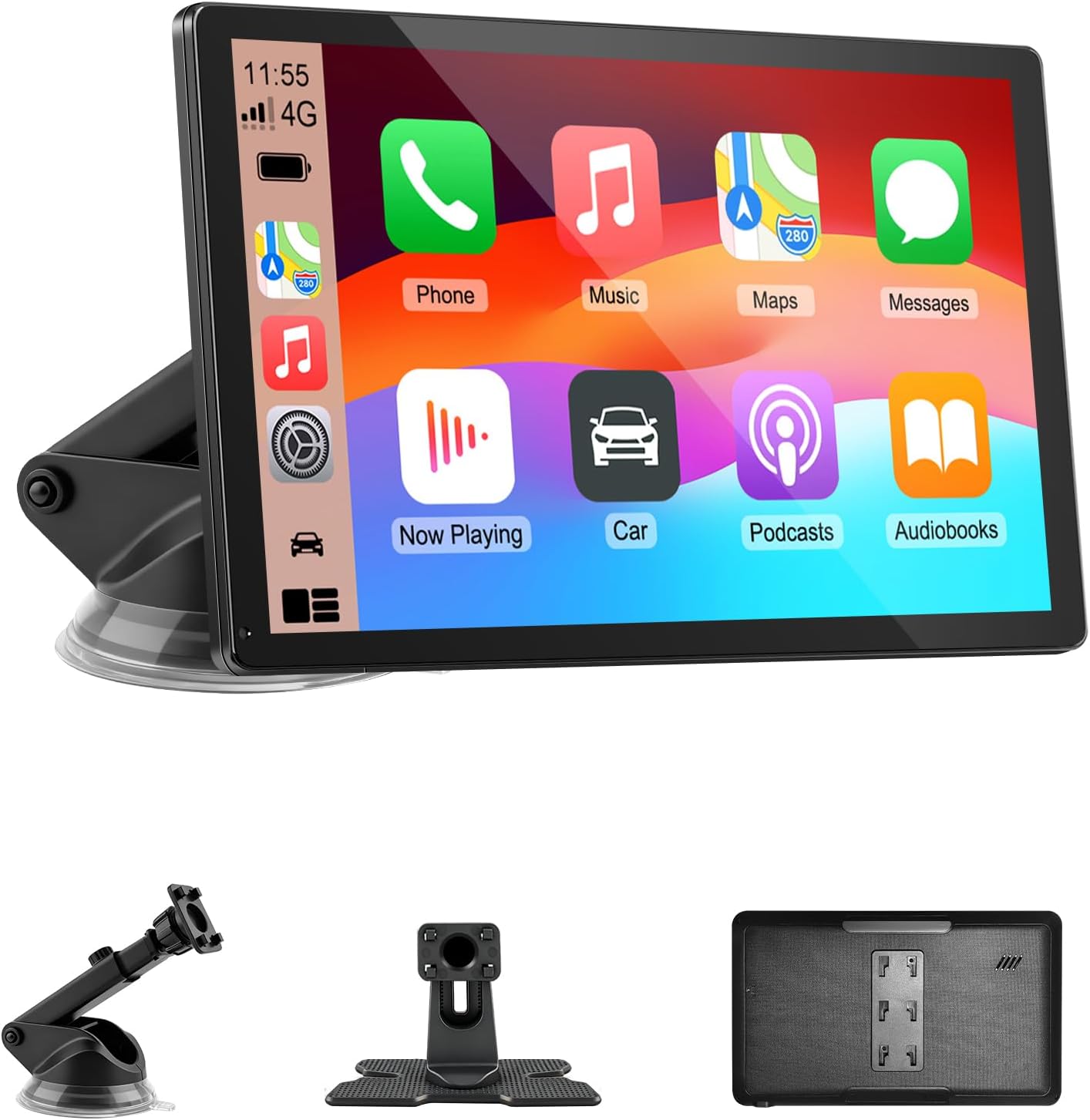
Upgrade your vehicle with this portable 9-inch touchscreen that brings wireless CarPlay and Android Auto to almost any car. It supports GPS navigation, voice control, hands-free calling, and multiple audio output options, making everyday driving safer and more convenient. With plug-and-play installation, mirror link support, and a bright HD display, it delivers a smart, flexible in-car entertainment and navigation solution.
Connect Apple CarPlay Wirelessly on a 2025–2026 4Runner
The newer 4Runner multimedia system supports wireless Apple CarPlay. Bluetooth begins the pairing process, while Wi-Fi carries the active CarPlay connection.
- Park the 4Runner and turn on the multimedia display.
- On the iPhone, turn on both Bluetooth and Wi-Fi.
- Enable Siri.
- On the Toyota display, open Settings and choose Bluetooth & Devices, Link Devices, Add Device, or the equivalent device-pairing option shown by your software version.
- Select Add Device and choose your iPhone when it appears.
- Confirm that the pairing code on the iPhone matches the code on the Toyota display.
- Accept the Bluetooth pairing request.
- When asked how the phone should connect, enable Apple CarPlay.
- Accept the CarPlay prompt on the iPhone.
- Select the Apple CarPlay icon if the interface does not open automatically.
Check the Wireless CarPlay Wi-Fi Setting
If Bluetooth pairing succeeds but CarPlay does not open, check the Wi-Fi connection:
- Open Settings > Wi-Fi on the iPhone.
- Find the vehicle or CarPlay network.
- Tap its information button.
- Make sure Auto-Join is enabled.
- Return to Settings > General > CarPlay and select the 4Runner.
Multiple Phones and the Primary Device
A wireless system may automatically connect to the last-used or primary phone. If the wrong phone connects, open the Toyota device list and select the intended iPhone. You may also need to disconnect CarPlay on the other phone temporarily.
For a recurring conflict, set the preferred iPhone as the primary device where the Toyota software provides that option, or remove phones that are no longer used.
What to Tap on the 4Runner Multimedia Screen
The exact labels depend on the model year and installed software. Look for one of these controls:
- 2020–2024 systems: Menu, Setup, Projection Settings, Apple CarPlay, or a smartphone projection icon.
- 2025–2026 systems: Settings, Bluetooth & Devices, Link Devices, Add Device, or the Apple CarPlay icon.
- After connection: Select the CarPlay logo to enter the Apple interface.
- To return to Toyota controls: Select the Toyota icon, Menu control, or vehicle-system shortcut shown on the display.
Once CarPlay is open, use the app grid or Dashboard to access Maps, Phone, Messages, Now Playing, podcasts, and other compatible apps. Only supported CarPlay apps appear on the vehicle screen.
Customize the Apple CarPlay App Layout
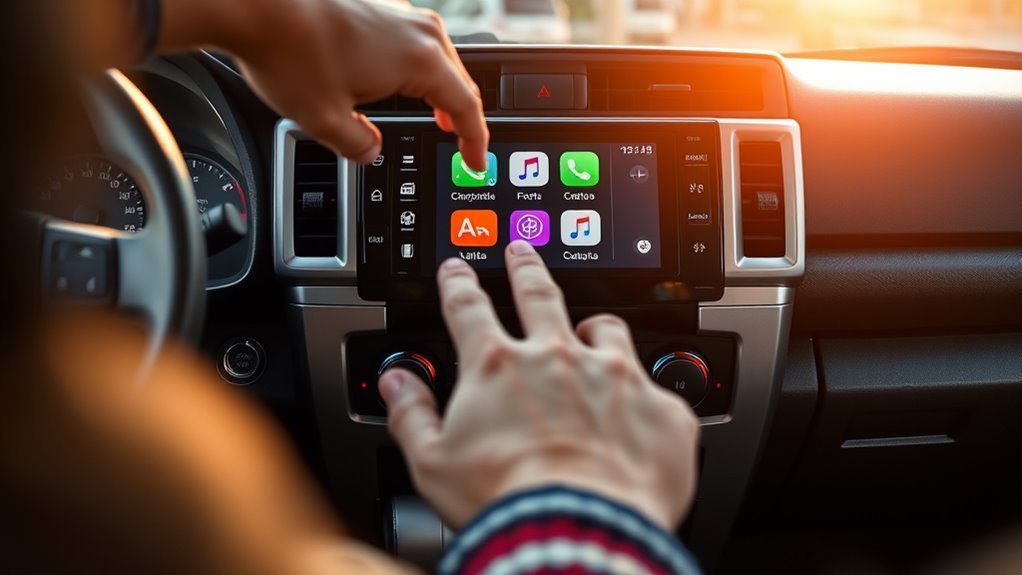
You customize the app order from the iPhone rather than by dragging icons on the Toyota screen.
- Open Settings on the iPhone.
- Tap General > CarPlay.
- Select the 4Runner.
- Tap Customize.
- Drag apps into the preferred order.
- Use the add or remove controls to manage optional supported apps.
Place navigation, audio, Phone, and Messages near the beginning of the list. The new order should appear the next time the iPhone connects. Apple provides the current procedure in its CarPlay setup and customization guide.
Siri, Navigation, and Audio Settings
Enable and Test Siri
Open Settings > Siri or Settings > Apple Intelligence & Siri. The exact wording depends on the iPhone and iOS version. Enable voice activation or button activation, then test Siri before driving.
Once connected, you can usually start Siri by pressing and holding the 4Runner’s voice-command button or by touching and holding the CarPlay Home control. Try simple commands such as:
- “Navigate to the nearest gas station.”
- “Call Alex.”
- “Play my driving playlist.”
- “Send a message to Maria.”
Configure Navigation Preferences
Install and update your preferred compatible mapping app before connecting. Apple Maps, Google Maps, and Waze may all appear in CarPlay when installed and supported in your region.
- Grant the selected app the location access it needs for navigation.
- Download offline maps where supported before traveling through areas with poor cellular coverage.
- Place the preferred map app near the beginning of the CarPlay app layout.
- Test a destination and voice command while parked.
CarPlay does not provide one universal setting that forces every voice command to use a third-party map app. To avoid confusion, name the app in the request when necessary, such as “Get directions to the airport using Google Maps.”
Adjust CarPlay Audio
Media, Siri, phone-call, and navigation-prompt volume may be handled separately by the multimedia system. For the most reliable adjustment, change the volume while the sound you want to adjust is actively playing.
- Adjust music volume while music is playing.
- Adjust guidance volume while a navigation prompt is speaking.
- Adjust Siri volume while Siri is responding.
- Adjust call volume during a phone call.
If sound plays through the iPhone instead of the vehicle, confirm that CarPlay is active and that the Toyota system is selected as the current audio output. Also check whether another Bluetooth device, such as headphones, has taken over the audio connection.
Common Apple CarPlay Problems and Solutions
| Problem | What to Check | Recommended Fix |
|---|---|---|
| The iPhone charges, but CarPlay does not open | Charge-only port or cable | Use the USB media/data port and another data-capable cable |
| Wireless pairing works, but CarPlay fails | Wi-Fi off or Auto-Join disabled | Enable Wi-Fi, open the CarPlay network, and turn on Auto-Join |
| CarPlay icon is missing | Unsupported model year, disabled projection, or incomplete pairing | Check compatibility, reconnect, and review projection settings |
| CarPlay is restricted | Screen Time settings | Allow CarPlay under Content & Privacy Restrictions |
| The wrong phone connects | Multiple registered devices | Select the desired phone, change the primary device, or remove old pairings |
| Connection drops repeatedly | Damaged cable, dirty port, software issue, or wireless interference | Change the cable, clean the port carefully, restart, and install updates |
| No sound from Maps or Siri | Prompt volume or audio routing | Raise volume while the prompt is speaking and disconnect competing audio devices |
Forget the 4Runner and Pair Again
When basic checks do not work, remove the saved connection and start again:
- On the iPhone, open Settings > General > CarPlay.
- Select the 4Runner.
- Tap Forget This Car.
- Open Settings > Bluetooth and forget the Toyota Bluetooth entry if it remains.
- Delete the iPhone from the Toyota multimedia device list.
- Restart the iPhone and the vehicle multimedia system.
- Repeat the correct wired or wireless setup procedure.
Apple’s official CarPlay troubleshooting guide also recommends checking the cable, Bluetooth, Wi-Fi, Siri, Screen Time restrictions, vehicle firmware, and saved CarPlay connection.
Identify Whether the Phone or Vehicle Is the Problem
- Try another known-good data cable.
- Test a different compatible iPhone in the same 4Runner.
- Test your iPhone in another CarPlay-equipped vehicle if possible.
- Check whether ordinary Bluetooth calling and audio work.
- Record any error message shown on either screen.
If another iPhone works in the 4Runner, the issue is probably related to the first phone, its settings, connector, or software. If no compatible phone works, focus on the Toyota USB port, multimedia settings, firmware, or installed aftermarket hardware.
Update iOS or Toyota Multimedia Software
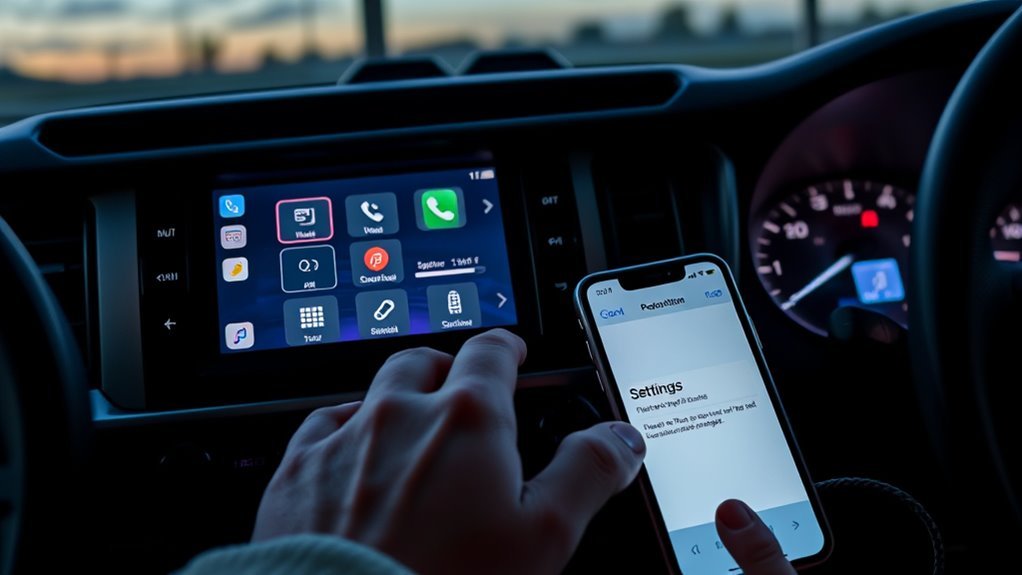
Install an available supported iOS update when CarPlay becomes unstable after an app or phone change. Open Settings > General > Software Update on the iPhone.
For the Toyota system, first check the multimedia settings for an over-the-air update option. Availability depends on the model year and system. Toyota also provides a multimedia software update portal for eligible U.S.-market vehicles. Some updates require a USB drive, while others may need dealer assistance.
Before requesting support, record:
- The 4Runner model year and trim
- Whether the multimedia system is factory or aftermarket
- The iPhone model and iOS version
- Whether the connection is wired or wireless
- The cable and port being used
- The exact error message
- The troubleshooting steps already completed
Adding CarPlay to a 2018 or Older 4Runner
A 2018 4Runner does not have factory Apple CarPlay. You can add it with an aftermarket touchscreen receiver or a vehicle-specific integration interface.
Before buying equipment, confirm that the installation can retain the features your 4Runner uses, including:
- Backup camera
- Steering-wheel audio controls
- Factory JBL amplifier, if equipped
- USB input
- Factory microphone or a replacement microphone
- Vehicle settings displayed through the original radio
A professional installer is the safer choice when the vehicle has a factory amplifier, navigation, multiple cameras, or other integrated equipment. Ask whether the quoted system includes wired CarPlay, wireless CarPlay, installation parts, programming, and warranty coverage.
[Products Worth Considering]

This wireless CarPlay screen adds modern smartphone connectivity to almost any vehicle with easy plug-and-play installation. It supports Apple CarPlay and Android Auto, online maps, voice control, phone mirroring, and multiple audio output options for safer, more convenient driving. The included night vision backup camera and OTA updates help improve visibility, compatibility, and long-term performance.

These black license plate screws are designed to securely fasten rear metal plates on compatible Lexus, Toyota, and Honda vehicles. Made from rust-resistant 18-8 stainless steel with a black oxidized finish, they offer durable protection against corrosion while maintaining a clean, low-profile look. The M6-1.0 x 16 mm pan-head design fits many vehicles with a metal threaded screw retainer and comes in a convenient pack for easy installation.
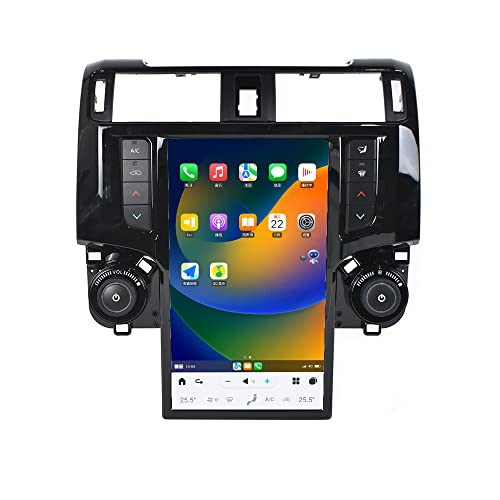
👍-【Applicable Models & Years】This android 13 car radio can work with Toyota 4Runner 2009 2010 2011 2012, 2013 2014 2015 2016 2017 2018. It has a 13.6-inch high-definition touch screen, 8-core CPU fast processor, Can keep original factory rear camera or 360 camera use. Non-destructive installation, Plug and play, direct docking with the original car screen cable, Easy Installation and Operation.
Local Setup Options and Dealership Contact Information
If the original Toyota system supports CarPlay but still will not connect, a Toyota dealer can check the multimedia system, USB media port, available firmware, and vehicle-specific settings. An aftermarket car-audio installer is usually the better contact when a nonfactory receiver or integration module is installed.
For owners near Irvine, California, AutoNation Toyota Irvine is listed at 9101 Research Drive, Irvine, CA 92618. Its official directions page lists 844-930-1722 as a contact number. Ask to be connected with the service department for multimedia diagnosis rather than assuming the sales team handles technical support.
- Bring the iPhone and the cable that normally causes the problem.
- Explain whether CarPlay ever worked correctly.
- Provide the phone and vehicle software versions.
- Ask the technician to test the USB data port, wireless pairing, audio routing, and available multimedia updates.
View AutoNation Toyota Irvine’s official contact and directions page.
[Products Worth Considering]

Seamless CarPlay Connection: Supports full CarPlay functionality so you can charge your phone, navigate, take calls, and stream music without lag.

Main Specifications: USB 2.0 fast data transmission and device charge power, 12V-30V input, 1.2 A 5V output, 9.84 inches / 25 cm car extension cable; USB socket extender replacement fits the hole of (1.34 " x 0.91 " ) 34 x 23 mm

USB-A to USB-C Media Carplay, Android Auto, Navigation & Charger Cable Cord Wire for Samsung Galaxy/Note, Google Pixel, Motorola/Moto, LG, iPhone 17 16 15 & Other Android Phones with a USBC Port
Frequently Asked Questions
How do I get Apple CarPlay on a Toyota 4Runner?
On a factory-equipped 2020–2024 4Runner, enable Siri and connect the iPhone to the USB media port with a data-capable cable. On a 2025–2026 model, you can also pair wirelessly by enabling Bluetooth and Wi-Fi, adding the iPhone through the Toyota device menu, and accepting the CarPlay prompts.
Which Toyota 4Runner years have factory Apple CarPlay?
Toyota introduced factory Apple CarPlay on the U.S.-market 4Runner for model year 2020. Models from 2019 and earlier require compatible aftermarket equipment unless a previous owner has already installed it.
Does a 2024 Toyota 4Runner have wireless Apple CarPlay?
The factory system in a 2024 4Runner normally uses wired Apple CarPlay through the USB media port. Factory wireless CarPlay arrived with the redesigned 2025 4Runner. A 2024 vehicle may still have wireless CarPlay if an aftermarket adapter or receiver has been installed.
Can I add Apple CarPlay to a 2018 Toyota 4Runner?
Yes. A 2018 4Runner needs a compatible aftermarket receiver or integration interface because it did not include factory CarPlay. Confirm that the installation retains the backup camera, steering-wheel controls, factory amplifier, and other original functions.
Why will my Toyota 4Runner CarPlay not activate?
Common causes include an unsupported model year, a charge-only USB port, a damaged cable, disabled Siri, Screen Time restrictions, Wi-Fi being off during wireless setup, another phone taking priority, or outdated phone or multimedia software. Forget the vehicle on the iPhone, remove the phone from the Toyota system, restart both devices, and pair again.
Does wireless CarPlay use Bluetooth or Wi-Fi?
It uses both. Bluetooth is normally used for discovery and initial pairing, while Wi-Fi carries the active wireless CarPlay connection. Keep both Bluetooth and Wi-Fi enabled.
Can a USB-C iPhone connect to wired CarPlay?
Yes. Use a direct data-capable USB-A-to-USB-C or USB-C-to-USB-C cable that matches the 4Runner’s data port. If an adapter causes connection problems, replace it with a direct cable.
Does Apple CarPlay require a Toyota subscription?
CarPlay itself does not require a Toyota subscription. Your iPhone still needs the appropriate cellular data, app subscription, or downloaded content for services such as streaming music, live traffic, and online navigation.
Conclusion
The correct Apple CarPlay setup depends mainly on your 4Runner’s model year. Use the USB media port on most factory-equipped 2020–2024 models. On 2025–2026 models, enable both Bluetooth and Wi-Fi for wireless CarPlay. A good data cable, enabled Siri settings, correct vehicle permissions, and current software solve most connection problems.
If CarPlay still fails after you forget the vehicle, restart both systems, try another cable or phone, and install available updates, have the factory system checked by a Toyota dealer. Contact a qualified car-audio installer when the 4Runner uses an aftermarket receiver or when adding CarPlay to a 2019 or older model.
Sources
- Apple iPhone User Guide: Connect iPhone to CarPlay — wired and wireless connection requirements.
- Apple Support: Use CarPlay with Your iPhone — setup, Siri, and app customization.
- Apple Support: If You Need Help with CarPlay — cable, Wi-Fi, restrictions, resetting, and troubleshooting.
- Toyota USA Newsroom: 2020 4Runner Multimedia Technology — introduction of factory Apple CarPlay on the 4Runner.
- Toyota USA Newsroom: 2026 Toyota 4Runner — current wireless Apple CarPlay compatibility.
- Toyota Audio Multimedia Software Updates — update availability for eligible Toyota systems.