If your Toyota Tundra Bluetooth won’t connect, first park with the engine running, enable Bluetooth on your phone, and make sure it’s not paired elsewhere. Force‑reboot the head unit by holding the power button, then test pairing and audio. If that fails, perform the factory reset (cycle power/buttons as specified) but note it erases saved GPS and preferences. After reset, verify Bluetooth and phone icons, update head unit firmware, and check harnesses; continue below for exact steps and troubleshooting.
Quick Checks for Tundra Bluetooth Issues (Phone, Park State, and Software)
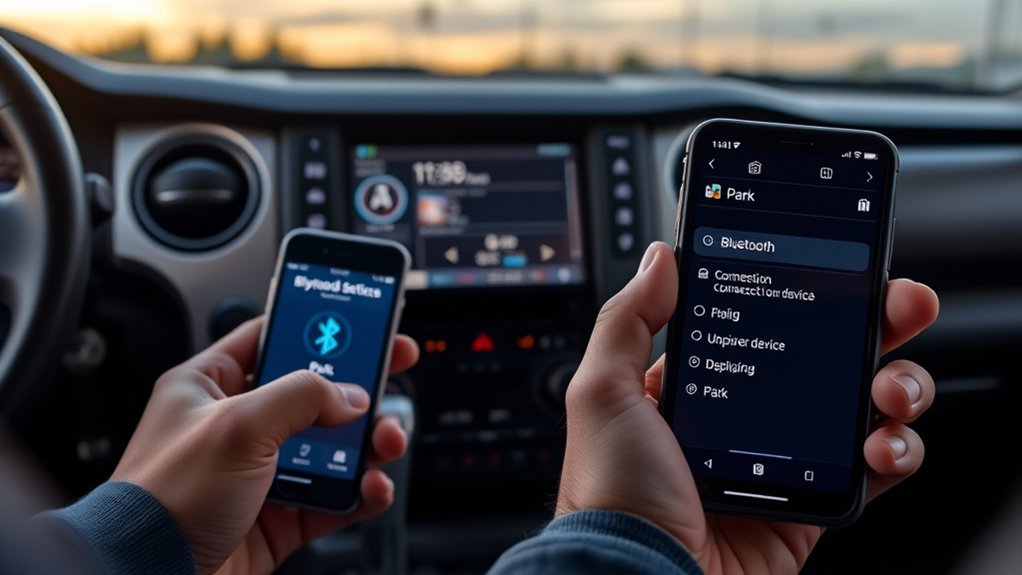
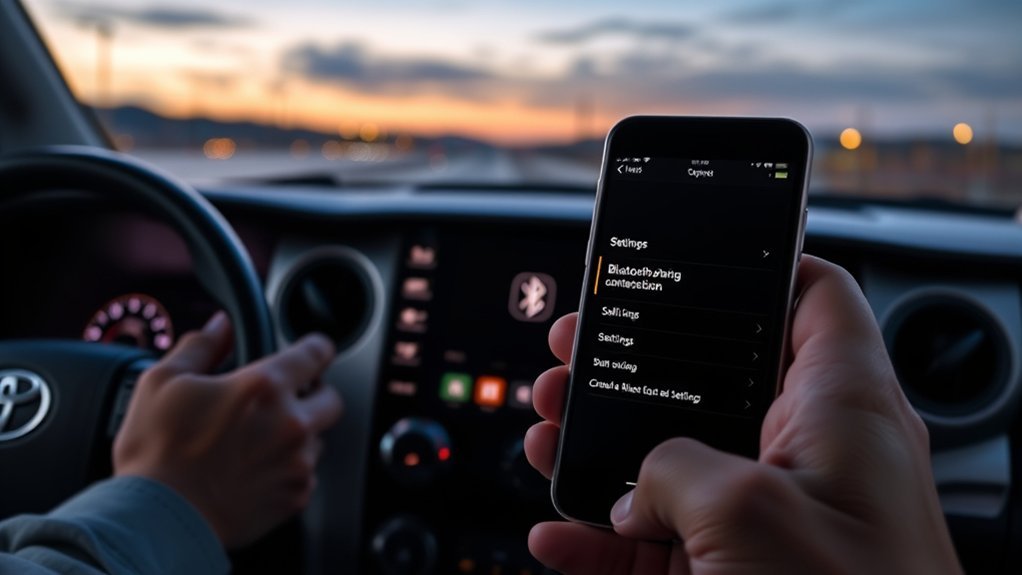
Start by confirming three quick conditions that often explain Bluetooth failures: the Tundra must be in Park with the engine running, your phone’s Bluetooth must be on and not paired to another device, and the head unit’s software should be up to date. You’ll first verify Bluetooth settings on your phone, ensuring it’s discoverable and not holding an active connection elsewhere. If one phone fails, try another to isolate device-specific faults. Inspect the head unit for visible errors or warning lights that suggest hardware or power issues before deeper intervention. Check the head unit’s software version against Toyota’s release notes and apply updates if available; outdated firmware often breaks pairing protocols. Use methodical connectivity troubleshooting: confirm Park/engine state, toggle phone Bluetooth, confirm no competing pairings, and log observed behavior. These steps free you from guessing, letting you escalate only when software or hardware evidence demands a service visit.
Power‑Cycle the Tundra Head Unit : Safe Restart Steps to Try First
Because a simple restart often clears temporary glitches, power‑cycling the Tundra head unit is the first safe step to try when Bluetooth is grayed out or won’t pair. Hold the power button until the unit restarts; the cycle can take a few moments and may show a family picture while rebooting. Stay in Park with the engine running to avoid power issues and to preserve system stability. After restart, check Bluetooth settings and audio connectivity—try pairing again and test audio. If the problem persists, you’ll need deeper troubleshooting.
| Step | Purpose |
|---|---|
| Hold power button | Force reboot to clear transient faults |
| Wait for picture | Confirms proper reboot sequence |
| Engine running | Prevents voltage drops during cycle |
| Recheck Bluetooth settings | Confirm device visibility and pairing mode |
| Test audio connectivity | Verify sound path and hands‑free call function |
This method is low‑risk, fast, and lets you reclaim control before more invasive resets.
Factory‑Reset the Tundra Head Unit : What You’ll Lose and Exact Button Steps
If you need to fully clear persistent Bluetooth faults, a factory reset on the Tundra head unit will restore defaults but erase all saved GPS addresses and personal preferences. You’ll lose stored navigation points, paired devices, and every customized setting — user preferences go away. Proceed only if you accept that loss.
To perform the factory reset: cycle the push button twice without starting the engine, then press and hold the Apps button. While holding Apps, cycle the headlights on/off three times. On-screen, navigate to the option labeled “I am IT” and hold it for two seconds to trigger the reset sequence. When prompted, select “Yes” to confirm. After the reset completes, power off the unit as directed.
This procedure force-returns the unit to factory defaults and removes corrupted profiles that block Bluetooth. Restore your setup deliberately: re-pair phones and rebuild user preferences to regain control and the freedom of a clean system.
Verify Bluetooth, Phone, and Audio Icons After Reset
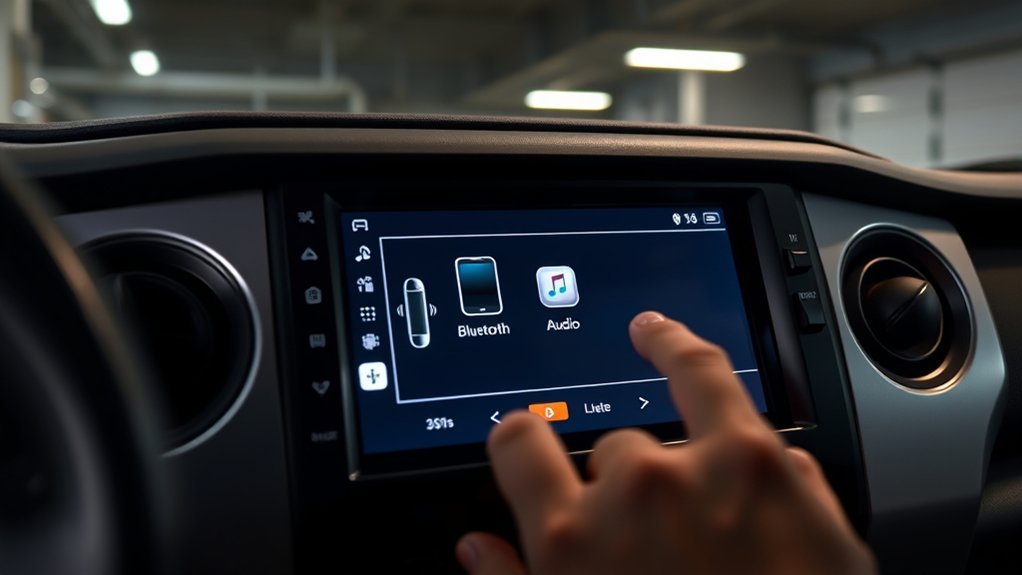
After the reset, check the head unit display for the Bluetooth audio icon, a responsive phone icon (not grayed out), and accessible audio controls—these three indicators confirm Bluetooth and telephony services were restored and that media playback can route through the Tundra. You’ll want to verify visual cues and functional behavior immediately.
- Bluetooth audio icon visible and stable on the head unit.
- Phone icon active, selectable, and not dimmed.
- Audio controls respond: volume, track skip, and source select work.
- Your phone lists the Tundra as an available device; pairing is permitted.
- Test audio playback from a streaming app to confirm signal routing.
If icons and controls are present, the factory reset likely fixed the issue and restored Bluetooth compatibility and basic telephony. You can then reclaim control of your drive, using hands‑free features and audio playback without compromise. If any element stays grayed out or nonresponsive, further troubleshooting is required.
If Bluetooth Still Grayed Out : Firmware, Wiring, and Dealership Next Steps
When Bluetooth stays grayed out despite a reset, start by checking the head unit firmware and the physical connections behind it—outdated software or a loose harness can disable radio and telephony functions. Verify available firmware updates from Toyota or the head unit maker and apply them per instructions; updated code often restores Bluetooth stacks and fixes known bugs. Perform a targeted wiring inspection: remove the head unit trim, confirm harness pins seat fully, and look for frayed wires or corrosion at connectors that could interrupt antenna, ground, or CAN bus signals. Consult the owner’s manual for any model-specific Bluetooth settings you might’ve missed. If firmware updates and wiring inspection don’t restore functionality, document error messages, steps taken, and observed behavior. Bring that documentation to a Toyota dealership so technicians can run diagnostics, reprogram or replace the head unit, and verify cellular/telephony modules. You’ll move from frustration to control by following these decisive, technical steps.
Frequently Asked Questions
Why Is My Toyota Bluetooth Not Connecting?
Your Toyota Bluetooth isn’t connecting because of Bluetooth compatibility issues or a head unit malfunction; try common troubleshooting tips: verify Park/engine on, unpair/re-pair devices, update firmware, and if needed perform a factory reset to regain control and freedom.
Conclusion
You’ve run through the basics, but don’t throw in the towel yet: start with quick checks, then safely power‑cycle the head unit, and only factory‑reset if you accept losing saved settings. After reset, confirm Bluetooth, phone, and audio icons behave. If Bluetooth stays grayed out, troubleshoot firmware and wiring or see your dealer. Stay methodical, document each step, and you’ll either fix it yourself or hand over a clear, actionable report.