Last updated: July 31, 2026
By Auto Review Nest Editorial Team · Documentation review based on Toyota Tundra multimedia manuals, Toyota software-update guidance, and Toyota recall notices.
When your Toyota Tundra Bluetooth won’t connect, park the truck and rebuild the connection from both sides. Forget the Tundra on the phone, forget the phone in the truck, restart the phone and multimedia system, then pair again and confirm the same passkey on both screens. Test hands-free calls and Bluetooth Audio separately. If one phone works, focus on the first phone. If two compatible phones fail, check Toyota multimedia updates and recall status before using a full system reset.
Quick Answer
Use this order: Park → forget the pairing on both devices → restart both devices → pair again → enable phone and media functions → test calls and music separately → try a second compatible phone → check software and recalls → reset only as a last step. Do not use an undocumented service-menu reset.
Key Takeaways
- Keep the Tundra in Park while you pair, remove, or manage Bluetooth devices.
- Delete the saved connection from both the phone and truck before you pair again.
- Test calls and Bluetooth music separately because each uses different settings and profiles.
- Use Toyota’s documented restart and reset menus, not an Apps-and-headlight service-menu shortcut.
- Check software, phone compatibility, and both current Tundra display-recall groups before you assume the head unit has failed.
How this guide was checked: The steps below were compared with Toyota’s 2021 and 2025 Tundra multimedia guidance, Toyota’s software-update portal, Toyota’s owner-facing system-reset instructions, and the October 2025 and January 2026 Tundra display-recall notices. This is a documentation-based troubleshooting guide; menu wording can vary by model year, screen, trim, and software version.
How to Fix Toyota Tundra Bluetooth That Won’t Connect
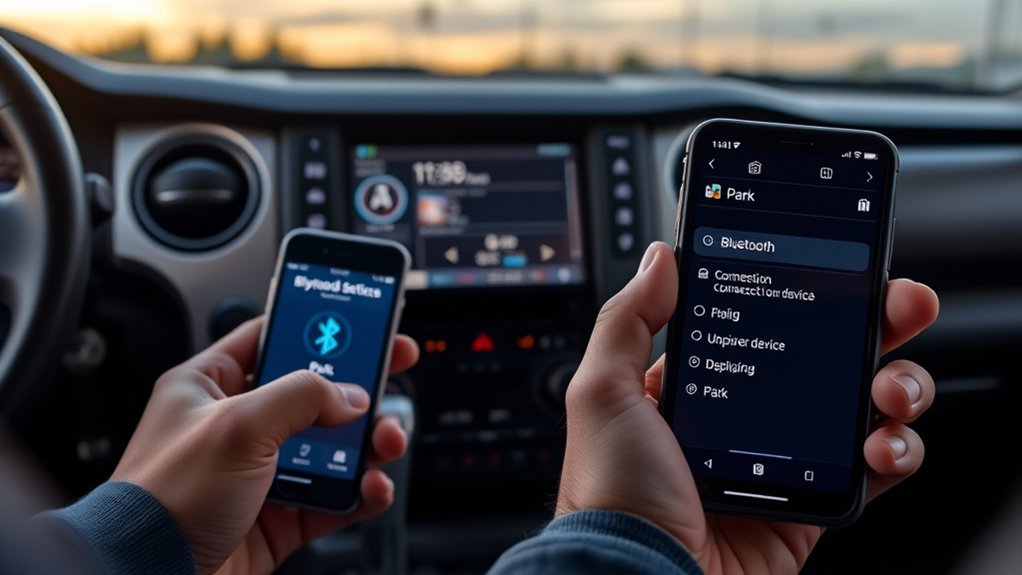
Start with a clean pairing while the truck is safely parked. Toyota multimedia systems can restrict device registration and management while the vehicle is moving, so a grayed-out control does not always mean the radio has failed.
Turn Bluetooth off and back on through your phone’s settings. Then forget the Tundra on the phone and remove the phone from the truck’s saved-device list. Restart the phone before you begin a new pairing.
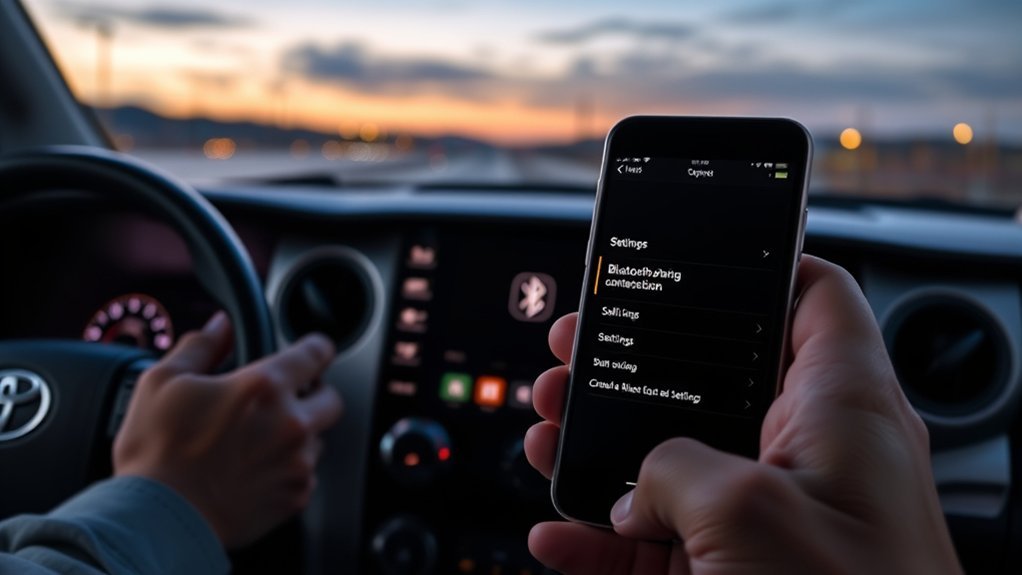
On newer Toyota Audio Multimedia systems, open Settings > Bluetooth & Devices, select the phone, and choose Forget. Some versions show Manage Devices before the phone list. After re-pairing, open the phone’s device card and confirm that Use for phone and Use for media are enabled. Older systems may use Menu > Setup > Bluetooth > Remove Device.
| Symptom | Check First | What the Result Suggests |
|---|---|---|
| Phone cannot find the Tundra | Keep the truck in Park and open the truck’s device-search screen. | The truck may not be discoverable, or an old registration may be blocking a new one. |
| Tundra sees the phone, but pairing fails | Delete the registration from both systems and confirm the same PIN on both screens. | Old pairing data or an incomplete approval is the likely cause. |
| Phone pairs, but music has no sound | Select Bluetooth Audio and confirm media audio is allowed on the phone. | Pairing works, but the audio source or media profile is not active. |
| Calls work, but contacts are missing | Enable Sync Contacts and approve contact sharing on the phone. | The phone connection works, but contact permission is blocked. |
| Bluetooth disconnects repeatedly | Restart both systems and temporarily disable the truck’s Wi-Fi or hotspot. | Software state, connection priority, or wireless interference may be involved. |
| Bluetooth controls remain grayed out | Confirm the truck is in Park, then restart the multimedia system. | If the controls remain disabled while parked, check software and system status. |
| Screen freezes, turns black, or loses radio functions | Check software, recall status, power supply, and professional diagnosis. | The problem extends beyond one Bluetooth pairing. |
[Products Worth Considering]
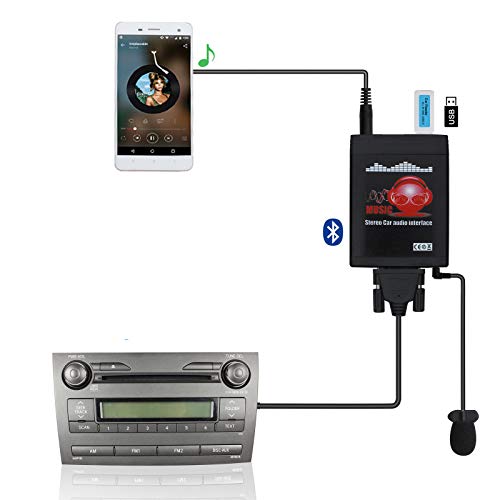
Turn your Toyota's factory radio into a Bluetooth-enabled system for hands-free calls and wireless music streaming — no need to replace the head unit. Built-in Bluetooth 5.0 chip and noise-suppressing microphone ensure crystal-clear conversations, keeping your focus on the road.

🚗Exact Fit for Tundra Car Models: Custom designed for Toyota Tundra 2014-2022 with base or JBL audio systems.direct plug-and-play installation with matching wiring harness, fully retaining original car steering wheel control and functional interfaces.
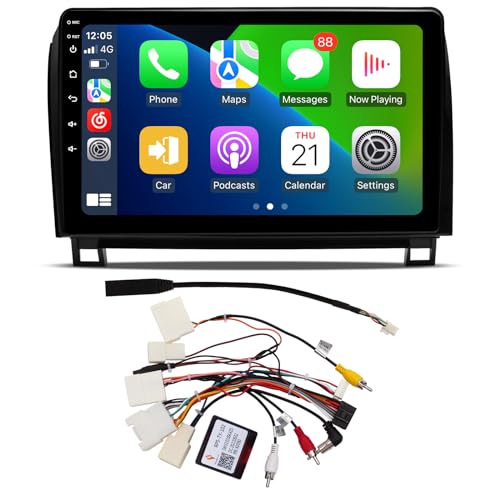
🚗 [Compatible with Toyota Tundra 2007-2013, Sequoia 2008-2018] - Our dash kit includes a Plug-and-Play harness and a dash frame that simplifies the installation process. You can easily install a 10.2” Touch Screen Radio in your Tundra with dash kit. The CAN005-X harness retains factory steering wheel controls, JBL amp and backup camera. Note: You can send us the dashboard photo to check before you order the head unit.
Is the Problem the Phone or the Tundra?
- Pair only one phone and test a call, Bluetooth music, contact sync, and automatic reconnection.
- Remove that phone, then repeat the same test with a second compatible phone.
- If only the first phone fails, check its operating-system update, Bluetooth permissions, saved vehicle record, and CarPlay or Android Auto settings.
- If both phones fail in the same way, move to the Tundra’s software, device-priority, reset, recall, and hardware checks.
Change one variable at a time. This prevents a phone-side permission problem from being mistaken for a failed head unit.
Test another compatible phone after the clean pairing. If the second phone connects, focus on the first phone’s software, permissions, saved Bluetooth settings, or active CarPlay and Android Auto connection. If neither phone connects, continue with the truck-side checks below.
What Different Bluetooth Symptoms Mean
A successful pairing does not prove that every Bluetooth function is active. Hands-free calling, contact transfer, media audio, and remote track control use separate Bluetooth profiles and permissions.
The Tundra Pairs, but Bluetooth Music Has No Sound
Select Bluetooth Audio from the Tundra’s audio-source menu. On the phone, open the saved Tundra connection and confirm that media audio is enabled. If more than one phone is paired, make sure the correct phone is selected as the active audio device.
Temporarily disconnect Apple CarPlay or Android Auto before testing ordinary Bluetooth Audio. Toyota systems may limit standard Bluetooth functions while a phone is actively connected through CarPlay or Android Auto.
This article covers standard Bluetooth audio and hands-free calls. For an interface-specific problem, use the Tundra CarPlay disconnecting guide or the Tundra CarPlay setup guide.
Calls Work, but Contacts Do Not Sync
Open the phone’s Bluetooth permissions for the Tundra and allow contact sharing. On the truck, enable Sync Contacts if that option appears. Approve the contact-transfer request on the phone and select the persistent approval option when one is offered.
If contacts still fail, delete the pairing from both devices and register the phone again. Contact synchronization can remain broken when an older approval or registration record survives on either device.
Bluetooth Connects and Disconnects Repeatedly
Restart the phone and multimedia system first. As an isolation test, temporarily turn off the truck’s Wi-Fi or Wi-Fi Hotspot and pause nearby wireless accessories. Test Bluetooth again, then restore each connection one at a time. If the result does not change, leave Wi-Fi enabled and continue to the next check.
Also check which phone is set as the primary or secondary device. On newer Toyota Audio Multimedia systems, the connection order is the primary device, the secondary device, and then the latest device in the connection history. Disconnect or reprioritize another phone if it keeps taking the connection.
Bluetooth Is Grayed Out
Confirm that the truck is fully stopped and in Park. Toyota prevents some Bluetooth registration and device-management operations while driving.
If the controls remain grayed out while parked, restart the multimedia system. Continue to software and system-reset checks only if the controls remain disabled after the restart.
Restart the Tundra Multimedia System Before Resetting It
A multimedia restart clears temporary software state without intentionally deleting saved devices or settings. It should come before a System Reset or Delete Personal Data operation.
On supported Toyota Audio Multimedia systems, press and hold the PWR/VOL or VOL knob for at least three seconds. Release it when the system restarts. If your Tundra has a different control layout, use the restart procedure in the multimedia manual for that model year and screen.
Keep the truck in Park while you use the display. After the restart, open Bluetooth settings, reconnect the phone, and test hands-free calling and Bluetooth Audio separately.
| Step | Purpose |
|---|---|
| Put the truck in Park | Makes device-management and pairing controls available. |
| Hold the multimedia power control or VOL knob | Restarts supported systems without intentionally erasing personal data. |
| Wait for the startup screen | Confirms that the multimedia system completed the restart. |
| Reconnect the saved phone | Checks whether the fault was temporary. |
| Test calls and music separately | Identifies whether the phone, hands-free profile, or media-audio profile still has a problem. |
Do not disconnect the 12-volt battery as your first multimedia reset. A battery disconnect can affect saved data and other vehicle settings without correcting the underlying phone registration.
[Products Worth Considering]

Provides wireless music streaming and hands-free phone calls from your phone to your car stereo. In hands free mode: accept & reject phone calls, voice dial. Bluetooth Audio streams directly from your phone to the stereo.

🚗【Applicable Car Models】This toyota tundra stereo is designed specifically for Toyota Tundra 2007 2008 2009 2010 2011 2012 2013 and for Toyota Sequoia 2008 2009 2010 2012 2013 2014 2015 2016 2017 2018. It comes with a comprehensive plug-and-play kit that includes all necessary components for installation. Retains the factory steering wheel controls, reverse camera, and factory antenna adapter.
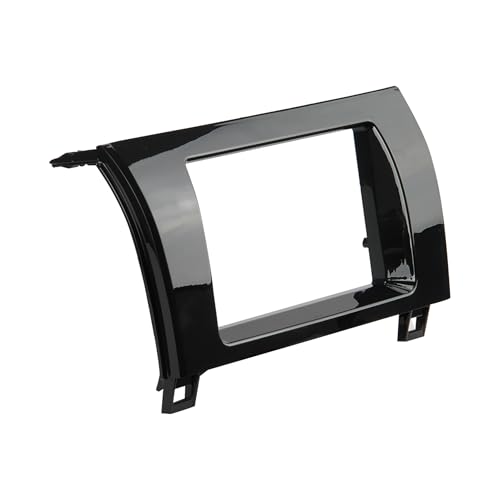
Perfect Fit - Designed specifically for 2007-2013 Toyota Tundra & 2008-2022 Toyota Sequoia, the TA2073B car radio installation dash kit ensures a seamless fit for your aftermarket car stereo. Accomidates Single DIN Radios with the included storage pocket.
Choose the Correct Reset Path for Your Tundra System
Toyota Tundras do not all use the same multimedia interface. The 2022 Tundra introduced Toyota’s newer Audio Multimedia platform, while earlier trucks may use Entune, Display Audio, or another Toyota interface.
[Products Worth Considering]
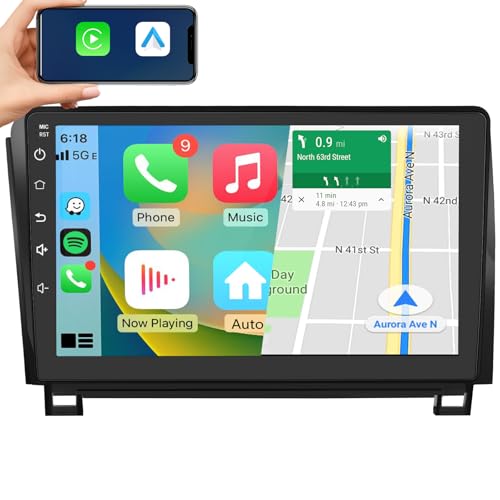
【Applicable Car Models】This Toyota Tundra stereo is specifically designed for the 2007, 2008, 2009, 2010, 2011, 2012, 2013 Toyota Tundra and the 2008, 2009, 2010, 2012, 2013, 2014, 2015, 2016, 2017, 2018 Toyota Sequoia. It comes with a complete plug-and-play kit that includes all the necessary components for installation. It retains your factory steering wheel controls, rearview camera, and factory antenna adapter.

🚨 [IMPORTANT] Please reach to us for installation support. Do not return before reaching us. Installation may require assesment with connections and software. We will get back quick to answer any questions.
Most 2022-and-Newer Toyota Audio Multimedia Systems
For individual phone cleanup, open Settings > Bluetooth & Devices, select the phone, and choose Forget. Register it again through Manage Devices > Search for Devices, then confirm that the PIN matches on both screens.
For a full reset, open the main settings menu, choose Info & Security, and select System Reset. This restores system data and settings to factory defaults, so use it only after a clean pairing, restart, second-phone test, and software check have failed.
Older Entune and Display Audio Systems
On many older Toyota systems, remove one phone through Menu > Setup > Bluetooth > Remove Device. Also check for a Bluetooth Power or automatic-connection setting and make sure it is on. A broader reset may appear under Menu > Setup > General > Delete Personal Data. Select Delete and confirm only after reviewing what the screen says will be erased.
Your Tundra’s exact wording may differ. Use the multimedia owner’s manual for the model year and installed screen instead of following a service-menu procedure from another Toyota model.
Use a Full System Reset Only After Basic Fixes Fail
A full system reset can clear corrupted device profiles and persistent software settings. It can also remove registered phones, contacts, call history, audio settings, user preferences, and other personal data, depending on the multimedia system.
Warning: Do not use an Apps-and-headlight service-menu sequence. Use the owner-facing System Reset or Delete Personal Data control documented for your multimedia system.
Before you confirm the reset, save any navigation destinations, radio presets, phone details, user-profile information, and preferences you still need. Read the confirmation screen carefully because the deleted information may not be recoverable.
After the reset, restart the multimedia system if prompted. Pair one phone as a new device and test calls, contact synchronization, Bluetooth music, track controls, and automatic reconnection before you rebuild other settings.
Verify Bluetooth, Phone, and Audio Functions After Re-Pairing
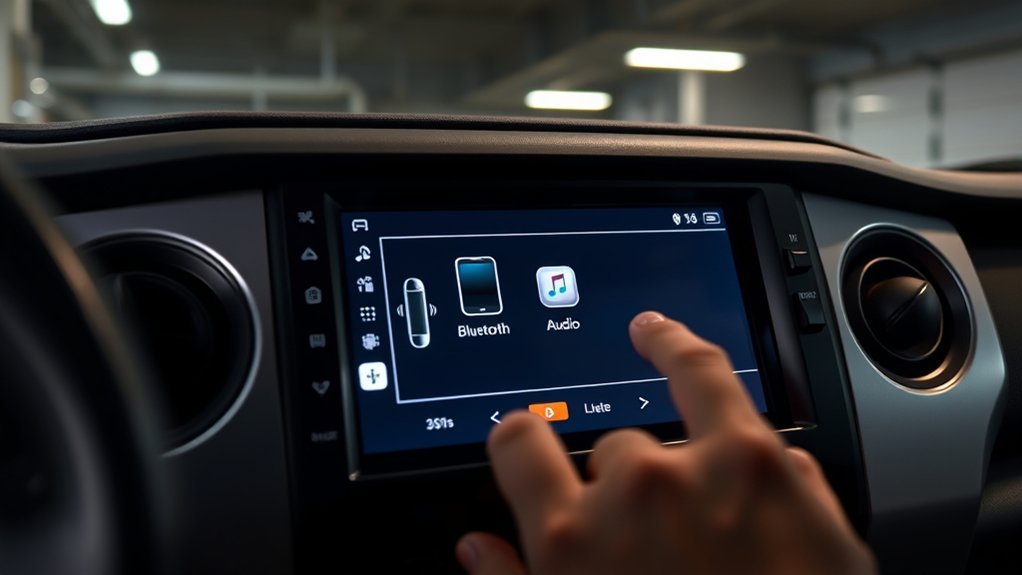
A pairing confirmation alone is not a complete test. Check each function separately so you know which Bluetooth profile or permission still needs attention.
- Confirm that the truck shows the correct connected phone.
- Make a short hands-free call and verify that sound uses the truck’s speakers and microphone.
- Select Bluetooth Audio and play music from the phone.
- Test volume, play, pause, and track-skip controls.
- Confirm that contacts appear only after you approve contact sharing.
- Turn the truck off and restart it to check automatic reconnection.
If one feature fails while the others work, troubleshoot that function instead of resetting the entire system again. For example, missing contacts point to synchronization permissions, while silent music points to the selected audio source or media-audio profile.
Check Multimedia Software, Compatibility, and Recall Status
When Bluetooth still fails after a clean pairing and restart, check the multimedia software. Toyota’s official update portal can identify eligible updates for supported systems, and newer Toyota Audio Multimedia systems may also show available updates through the vehicle’s settings menu.
On newer systems, open the main settings menu and look for Software Update. Review the current version, available update, and update history. Follow the on-screen instructions and keep the vehicle in the required state until installation finishes.
Also check the phone through Toyota’s Audio Multimedia and phone compatibility resource. A phone can pair successfully while individual features remain limited by its operating system, Bluetooth profiles, permissions, or current software.
Which Tundra Display Recalls Should You Check?
Two Toyota recall announcements can overlap with broader multimedia symptoms. Neither recall is a Bluetooth-only campaign, and a Bluetooth pairing fault by itself does not prove that the truck is included.
| Toyota Announcement | Vehicles Named | Display Symptom | Toyota Remedy |
|---|---|---|---|
| October 1, 2025 | Certain 2022–2025 Tundra and Tundra Hybrid models with the 14-inch center display | The display may show a half-green, full-green, or full-black screen. | Dealer multimedia-display software update, free of charge. |
| January 23, 2026 | Certain 2024–2025 Tundra and Tundra Hybrid models | The display may remain stuck on a camera view or show a black image. | Dealer Parking Assist ECU software update, free of charge. |
Recall check: Use Toyota’s VIN lookup when Bluetooth trouble occurs with a black, green, frozen, or camera-stuck display. Recall coverage depends on the VIN, not only the model year or symptom.
Use Toyota’s official recall and service-campaign lookup before paying for display diagnosis. You can also read Toyota’s October 2025 display-recall announcement and January 2026 display-recall announcement.
Consider a power-supply, fuse, connector, or head-unit fault only when the problem affects more than one phone or appears with broader symptoms. These include a display that reboots, loses power, forgets settings, freezes, or fails together with the radio and other multimedia functions.
Note: A Toyota dealer or qualified auto-electronics shop can check multimedia software versions, module communication, power supply, stored diagnostic information, connectors, and wiring.
Document the phone model, operating-system version, truck model year, screen type, software version, symptoms, and every step you completed. This information helps a technician reproduce the fault without repeating basic pairing work.
When to Get Professional Help
Arrange professional diagnosis when two compatible phones both fail after a clean pairing, multimedia restart, and software check. You should also escalate the problem when Bluetooth controls remain disabled in Park or the screen freezes, turns black, reboots, or loses other audio functions.
Stop removing settings repeatedly once the same failure returns after a full system reset. At that point, the likely causes include multimedia software, module communication, power supply, wiring, or an internal head-unit problem.
Bring your troubleshooting record and recall-check result to the appointment. Clear symptom details help the technician separate a phone-compatibility issue from a vehicle-side failure.
Frequently Asked Questions
Why is my Toyota Tundra Bluetooth not connecting?
Your Tundra Bluetooth may not connect because Bluetooth is off, the truck is not in a pairing screen, old registration data remains on one device, another phone has connection priority, or the phone and multimedia software need updates. Delete the registration from both devices, restart them, and pair again while the truck is in Park.
How do I reset Toyota Tundra Bluetooth without a factory reset?
Forget the Tundra in your phone’s Bluetooth settings and remove or forget the phone in the truck’s Bluetooth menu. Restart the phone and multimedia system, then register the phone again. This rebuilds the Bluetooth connection without intentionally deleting all multimedia settings.
How do I reset a 2022 or newer Tundra multimedia system?
On most newer Toyota Audio Multimedia systems, open the main settings menu, select Info & Security, and choose System Reset. Confirm the warning only after you accept that saved devices, profiles, and personal settings may be removed.
Why is my phone paired but Bluetooth audio has no sound?
Select Bluetooth Audio as the truck’s source, enable media audio for the Tundra connection on the phone, and confirm the correct phone is selected as the active audio device. Temporarily disconnect CarPlay or Android Auto before testing ordinary Bluetooth Audio.
Will a factory reset delete my saved settings?
Yes. Depending on the multimedia system, a full reset can remove registered phones, contacts, call history, audio settings, user preferences, navigation information, and other personal data. Review the on-screen warning before you confirm it.
Should I update my Tundra multimedia software?
Check for a Toyota multimedia update when Bluetooth problems continue after a clean pairing and restart. Some systems provide updates through the vehicle display, while others use Toyota’s update portal or require dealer assistance.
Why is the phone or Bluetooth control grayed out?
First confirm that the truck is fully stopped and in Park because Toyota restricts some device-management functions while driving. If the control remains disabled while parked, restart the multimedia system and check its software before arranging professional diagnosis.
Can another paired phone prevent my phone from connecting?
Yes. On newer Toyota Audio Multimedia systems, another phone may connect first because it is set as the primary or secondary device. Open Bluetooth & Devices, check the device roles, disconnect the competing phone, or change the priority before you pair again.
Can Wi-Fi interfere with Toyota Tundra Bluetooth?
It can contribute to slower connections, audio skipping, or disconnections on some Toyota systems when Bluetooth and the Wi-Fi Hotspot are active together. Turn the hotspot off only as a temporary test, check Bluetooth again, and then restore the other connections one at a time.
Conclusion
Most Toyota Tundra Bluetooth problems come from saved pairing data, device priority, phone permissions, audio routing, or temporary multimedia software state. Start by deleting both registrations, restarting both systems, and pairing one phone again while the truck is in Park.
Use the menu path that matches your multimedia generation. Restart the system before you reset it, and use only Toyota’s owner-facing System Reset or Delete Personal Data control. Do not use an undocumented Apps-and-headlight service-menu procedure.
If a second compatible phone also fails after a clean pairing, restart, and software check, stop deleting settings and arrange multimedia diagnosis. Check recall status first when a 2022–2025 Tundra has a black, green, frozen, or camera-stuck display; VIN eligibility and the required software remedy differ between the October 2025 and January 2026 campaigns.
References
- Why is my Bluetooth device not connecting as I turn on my vehicle? — Toyota Support
- Why is my Bluetooth connection spotty or intermittent? — Toyota Support
- How do I delete a paired Bluetooth device from my vehicle? — Toyota Support
- 2022 Toyota Tundra Owner’s and Multimedia Manuals — Toyota
- 2025 Tundra: Setting Bluetooth Devices — Toyota Owners
- 2021 Tundra: Phone and Contact Settings — Toyota Owners
- Toyota Audio Multimedia Change of Ownership and System Reset Guide — Toyota
- Toyota Audio Multimedia System Updates — Toyota
- Over-the-Air Audio Multimedia System Updates — Toyota Owners
- Toyota Audio Multimedia and Phone Compatibility — Toyota
- Toyota Safety Recall and Service Campaign Lookup — Toyota
- Toyota Recalls Certain 2022–2025 Tundra and Tundra Hybrid Models With 14-Inch Displays — Toyota USA Newsroom
- Toyota Recalls Certain 2024–2025 Tundra and Tundra Hybrid Vehicles — Toyota USA Newsroom
- Toyota Audio & Connected Services Support — Toyota Motor North America