
By: Auto Review Nest Editorial Team · Last updated: August 20, 2026
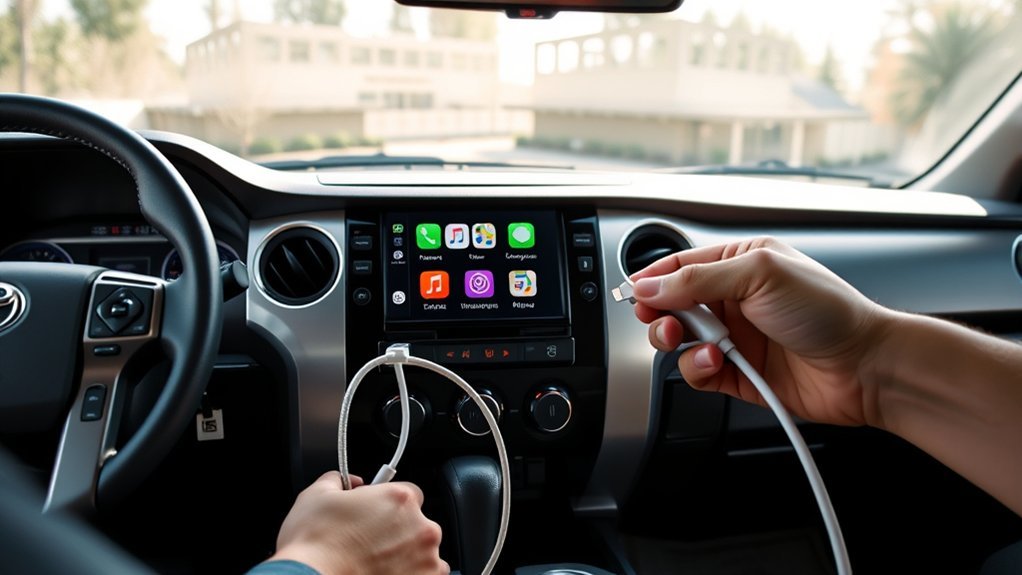
To connect Apple CarPlay in a Toyota Tundra, park the truck, start the multimedia system, and make sure Siri is on. For wired CarPlay, connect your iPhone to the CarPlay-capable USB port with a USB-C-to-USB-C cable (iPhone 15 and later) or a USB-C-to-Lightning cable (iPhone 14 and earlier) that supports data, not just charging. For wireless CarPlay, turn on Bluetooth and Wi-Fi, add the iPhone from the Tundra’s device menu, and approve CarPlay on both screens. Menu wording differs slightly between the 2020–2021 Tundra’s Entune 3.0 system and the 2022 and newer Tundra’s Toyota Audio Multimedia system — see the breakdown below.
If CarPlay does not start, select the CarPlay icon on the truck display. Then check the cable or wireless connection, confirm that CarPlay is allowed in Screen Time, restart the iPhone and truck, and forget and pair the vehicle again if needed.
Quick Answer
Park your Tundra, turn on Siri, and connect your iPhone by USB (USB-C for iPhone 15+, Lightning for older models). If your multimedia system supports wireless CarPlay, turn on Bluetooth and Wi-Fi, pair the phone from the device menu, and accept the prompts on both devices. If the connection fails, try a direct data cable, check Wi-Fi Auto-Join and Screen Time permissions, restart both systems, and set up CarPlay again.
What’s in This Article
- Which Toyota Tundra Years Support Apple CarPlay?
- Which Multimedia System Does Your Tundra Have?
- What You Need Before Setting Up CarPlay in Your Tundra
- Quick Start: Get Apple CarPlay Working in Two Minutes
- How to Connect Wired CarPlay in a Tundra
- How to Connect Wireless CarPlay in a Tundra
- How to Enable Siri and CarPlay Permissions
- Use Core CarPlay Apps: Maps, Phone, Music
- Why Is Apple CarPlay Not Working in Your Tundra?
- Make CarPlay More Stable
- When to Contact Toyota or Visit the Dealer
- Frequently Asked Questions
Estimated time: 2 to 5 minutes for basic setup, or 10 to 15 minutes if you need to troubleshoot.
Key Takeaways
- Apple currently lists the Toyota Tundra for model years 2020 through 2025; wireless CarPlay is also standard on the 2026 Tundra according to Toyota’s own documentation, even though Apple’s public list hasn’t been updated to add 2026 yet.
- The 2020–2021 Tundra (Entune 3.0) and the 2022-and-newer Tundra (Toyota Audio Multimedia) use different menu wording for CarPlay setup — check which system your truck has before following generic steps.
- Use a USB-C-to-USB-C cable (iPhone 15+) or USB-C-to-Lightning cable (iPhone 14 and earlier) that supports data for wired CarPlay, preferably without an adapter.
- Turn on Siri before setup and enable both Bluetooth and Wi-Fi for wireless CarPlay.
- Check Wi-Fi Auto-Join and Screen Time restrictions if your iPhone does not appear.
- Toyota has also documented a service bulletin covering multimedia software on certain 2022–2025 Tundra and Tundra Hybrid units that can affect CarPlay stability — ask your dealer if your VIN is covered.
- Contact Toyota or a dealer if the entire display freezes, no phone is detected, or basic resets and updates do not help.
Which Toyota Tundra Years Support Apple CarPlay?
Apple’s current compatibility list names the Toyota Tundra for model years 2020 through 2025. Apple also notes that support can depend on the vehicle’s configuration and market. That means the truck’s model year alone does not confirm whether your exact multimedia unit uses wired CarPlay, wireless CarPlay, or both.
| Tundra model year | What is confirmed | What you should check |
|---|---|---|
| 2020–2025 | Apple lists these Tundra years as CarPlay-compatible. | Check the owner’s manual or device menu to confirm wired, wireless, or dual-mode support for your multimedia system. |
| 2026 | Wireless Apple CarPlay is standard across all 2026 Tundra trims, including the base 8-in. Toyota Audio Multimedia display, according to Toyota’s own 2026 Connected Services and Audio Multimedia applicability documentation. Apple’s public compatibility list has not yet been updated to list the 2026 model year separately. | Confirm there are no trim or market exceptions before treating this as universal. |
| 2019 and earlier | Apple’s current factory-compatibility list does not name these Tundra years. | Check whether the truck has an aftermarket CarPlay receiver or a manufacturer-approved upgrade. |
For a 2026 truck or any vehicle with a replaced head unit, use the exact owner’s manual or contact Toyota before treating a generic year list as a fitment guarantee. Toyota’s current Tundra page confirms that Toyota Audio Multimedia is offered, but the screen size and features vary by trim.
Which Multimedia System Does Your Tundra Have?
The Tundra has used two different infotainment platforms since CarPlay became available, and the exact menu wording in this guide can vary depending on which one your truck has.
- 2020–2021 Tundra (Entune 3.0): CarPlay setup is generally reached through a Menu button, then Setup, then General, where you enable Apple CarPlay before connecting.
- 2022 and newer Tundra (Toyota Audio Multimedia): This is a completely redesigned system introduced with the third-generation Tundra. Settings are generally reached through a gear icon into a General or CarPlay-specific settings area, rather than the older Menu > Setup path.
If a step below doesn’t match what you see on your screen, check the other generation’s menu path first before assuming CarPlay isn’t supported. For a deeper look at menu differences and how to confirm your current software version, see the site’s Toyota Tundra infotainment update guide.
What You Need Before Setting Up CarPlay in Your Tundra
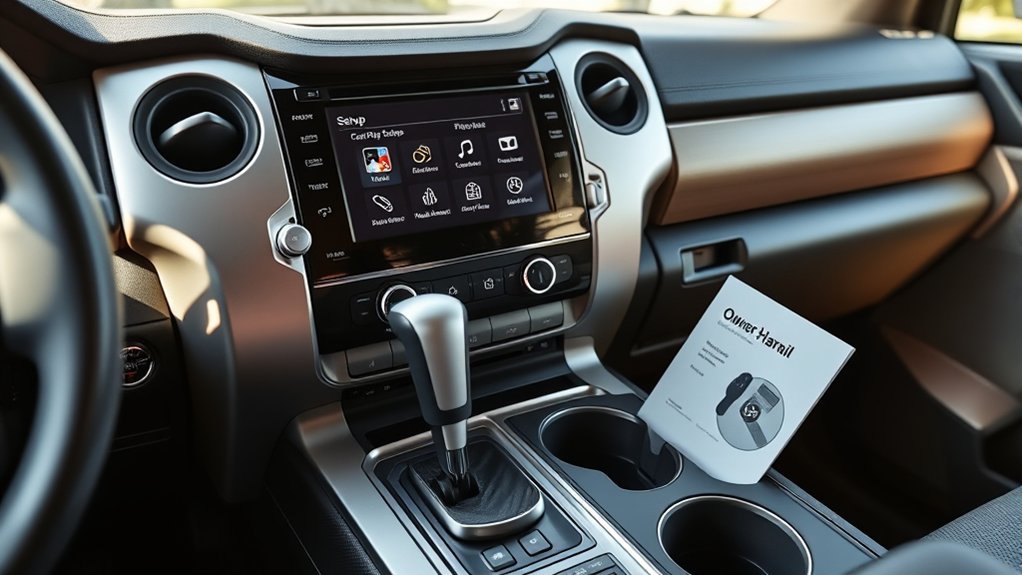
Before you begin, park your Tundra and keep the gear selector in Park. Gather a USB-C-to-USB-C cable (iPhone 15 and later) or a USB-C-to-Lightning cable (iPhone 14 and earlier) that fits both your iPhone and the truck’s USB port and supports data, not just charging. A charging-only cable can power the phone without starting CarPlay.
Open your iPhone’s Settings and search for Siri, then make sure Siri is on. The Siri menu name can vary by iPhone model and iOS version. Next, open Settings > General > CarPlay and check whether your Tundra already appears.
For wireless setup, turn on Bluetooth and Wi-Fi. If the phone has connected before, open the CarPlay network in Wi-Fi settings and confirm that Auto-Join is enabled.
Warning: Do not set up or troubleshoot CarPlay while driving, because the screen prompts can distract you.
For the mechanics of pairing a phone to the Tundra over Bluetooth itself — PIN confirmation, saved-device limits, and renaming devices — see the site’s full Toyota Tundra Bluetooth setup guide.
[Products Worth Considering]

This 2-in-1 wireless adapter converts factory-wired CarPlay into a cable-free experience for compatible vehicles, helping you enjoy seamless phone integration with less clutter. It supports automatic reconnection, stable Bluetooth and Wi-Fi pairing, and broad compatibility with many factory-installed CarPlay systems. Built with a durable metal and acrylic design, it also includes firmware updates and lifetime technical support for continued convenience.

This compact adapter converts factory-wired CarPlay and Android Auto systems to wireless for a cleaner, more convenient driving experience. It offers fast auto-connect, stable performance, and plug-and-play setup so you can enjoy navigation, music, calls, and voice control without extra cables. The included USB-to-USB-C converter helps it fit a wide range of vehicle ports.

The HEYINCAR+ H-Air adapter upgrades compatible factory wired CarPlay and Android Auto systems to wireless convenience with a compact plug-and-play design. It connects automatically after setup, delivering fast startup, stable performance, and support for your car’s original touchscreen, steering wheel controls, and voice commands. Built for broad vehicle compatibility and ongoing firmware updates, it offers a simple way to enjoy cable-free driving with minimal clutter.
Quick Start: Get Apple CarPlay Working in Two Minutes
With the Tundra parked, unlock your iPhone and confirm that Siri is on. For wired setup, plug the phone into the USB port that supports phone projection. The port may show a CarPlay icon, smartphone icon, or USB label.
Accept the prompt on the Tundra display, then accept the prompt on your iPhone. CarPlay should open on the truck’s screen and show supported apps for navigation, calls, messages, and audio.
For wireless setup, open the Tundra multimedia settings and use the Bluetooth or device menu to add your iPhone. Confirm the passkey, approve CarPlay on both screens, and keep Wi-Fi enabled on your iPhone.
[Products Worth Considering]

These premium stainless steel license plate screws are designed to help secure your plate firmly while resisting rust and reducing rattling noise. Built for broad compatibility with most domestic cars and trucks, they offer a simple, reliable upgrade for cleaner-looking and better-protected license plate mounting.

The IIWEY iK11 adds a large wireless Apple CarPlay and Android Auto display to almost any vehicle, making it easy to upgrade older cars with modern smart connectivity. It combines voice control, Bluetooth, wireless mirroring, and built-in navigation support with a front dash cam and rear camera for added driving confidence. Designed for quick installation and everyday convenience, it delivers a portable all-in-one infotainment and safety solution.
How to Connect Wired Apple CarPlay in a Toyota Tundra
Start your Tundra, keep it in Park, and plug your iPhone into the correct USB port. Use a direct cable that can carry data, not only charging power. Apple notes that some adapter-and-cable combinations can disrupt wired CarPlay, so test a direct USB connection first.
- Start the Tundra and wait for the multimedia system to load.
- Unlock your iPhone and confirm that Siri is on.
- Connect the iPhone to the Tundra’s CarPlay-capable USB port using a data-capable cable.
- Tap “Yes,” “Enable,” or the equivalent prompt when the truck asks to use Apple CarPlay.
- Tap “Allow” on your iPhone when it asks for CarPlay access.
- Select the CarPlay icon on the Tundra screen if it does not open on its own.
A wired connection is the simplest diagnostic path because it removes Bluetooth and Wi-Fi pairing from the setup. It also charges the iPhone while CarPlay is active.
If the Tundra does not detect your iPhone, try another data-capable cable and another USB port if the truck has one. Restart your iPhone and the multimedia system before changing deeper settings. for a Toyota Tundra USB port troubleshooting guide once one exists on the site.
[Products Worth Considering]

Seamless CarPlay Connection: Supports full CarPlay functionality so you can charge your phone, navigate, take calls, and stream music without lag.
How to Connect Wireless Apple CarPlay in a Toyota Tundra
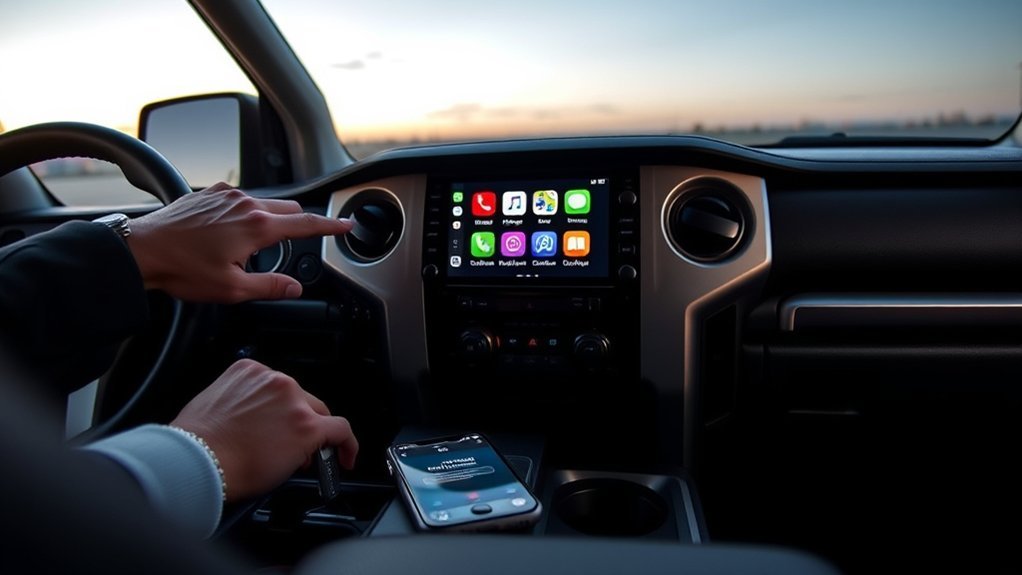
If your Tundra supports wireless CarPlay, turn on Bluetooth and Wi-Fi on your iPhone. Then open the truck’s multimedia settings and choose the Bluetooth or device menu to add your phone — see the site’s Bluetooth pairing guide for the full pairing walkthrough, including PIN confirmation and saved-device limits. Once your iPhone is paired to the Tundra:
- Choose “Yes” when the system asks to use Apple CarPlay.
- Approve the CarPlay prompt on your iPhone as well.
Wireless CarPlay may open automatically after the first setup. If it does not, select the CarPlay icon on the Tundra display or open Settings > General > CarPlay on your iPhone and select your truck.
If pairing fails, turn Bluetooth and Wi-Fi off and on, then restart the iPhone and multimedia system. You can also forget the truck on your iPhone and remove the iPhone from the Tundra device list before pairing again — or work through the dedicated Toyota Tundra Bluetooth fix guide if the problem is with the Bluetooth connection itself rather than CarPlay specifically.
Note: Wireless CarPlay uses Bluetooth during setup and Wi-Fi for the active connection. Keep both enabled, and confirm that Auto-Join is on for the CarPlay network.
How to Enable Siri and Grant CarPlay Permissions
CarPlay uses Siri for voice control, so turn Siri on before you connect. Open Settings and search for Siri, then enable the Siri controls you want to use. If you want voice commands while the phone stays locked, allow Siri when locked.
Next, open Settings > General > CarPlay and select your Tundra if it appears. If your iPhone asks for permission after connection, approve CarPlay access on the phone and on the truck display.
Enable Siri Settings
The exact Siri menu wording can change by iOS version and iPhone model. Use Settings search if you do not see the same label shown in an older guide.
- Turn on the Siri options you want to use.
- Allow Siri when locked if you want hands-free access from the driver’s seat.
- Install the newest iOS update available for your iPhone.
- Restart the iPhone if Siri or CarPlay does not respond.
These settings help you use navigation, calls, messages, and music without handling your phone.
Allow CarPlay Access
After Siri works, confirm that your iPhone allows CarPlay. Open Settings > General > CarPlay, select your Tundra, and check the connection status. If you blocked a prompt by mistake, forget the truck and set it up again.
| Step | Action |
|---|---|
| 1 | Enable Siri on the iPhone |
| 2 | Confirm the Tundra in the CarPlay list |
| 3 | Accept prompts on both devices |
If CarPlay still does not appear, check Settings > Screen Time > Content & Privacy Restrictions. Open Allowed Apps and make sure CarPlay is enabled.
Use Core CarPlay Apps: Maps, Phone, Music
After setup, use CarPlay for tasks designed for a driving screen. Apple supports directions, calls, messages, audio, and compatible third-party apps that reduce phone handling.
- Maps: Use Apple Maps, Google Maps, Waze, or another supported navigation app for directions, traffic, and estimated arrival times.
- Phone: Make calls, return missed calls, and use your contacts through Siri or the Tundra screen.
- Messages: Let Siri read and send messages so you do not need to type while driving.
- Music: Play Apple Music, Spotify, podcasts, audiobooks, or other supported audio apps.
You can rearrange CarPlay apps from Settings > General > CarPlay on your iPhone. Put your most-used navigation and audio apps on the first screen so you need fewer taps. for a “best CarPlay apps” roundup once one exists on the site.
Why Is Apple CarPlay Not Working in Your Toyota Tundra?
CarPlay problems usually come from the USB connection, an iPhone permission, wireless pairing, outdated phone or vehicle software, or in some cases a known multimedia software issue. Check one cause at a time and test CarPlay after each step.
| Symptom | First check | Next step |
|---|---|---|
| CarPlay is not detected | Use a direct, data-capable USB cable and the CarPlay-capable port. | Check Siri and Screen Time permissions, then restart the iPhone and truck. |
| Wireless CarPlay will not connect | Turn on Bluetooth and Wi-Fi, then confirm Wi-Fi Auto-Join for the CarPlay network. | Forget the Tundra on the iPhone, remove the phone from the truck, and pair again. |
| CarPlay opens with no audio | Confirm the Tundra’s active audio source and raise media or call volume. | Disconnect, reconnect, and restart both systems. |
| The connection keeps dropping | Test a direct cable without an adapter, or test wired CarPlay instead of wireless. | Update iOS and check the owner’s manual or dealer for multimedia firmware updates. |
| Repeated reboots, CarPlay or Bluetooth issues on a 2022–2025 Tundra | Ask your dealer whether your VIN is covered by Toyota’s documented multimedia software bulletin for these model years. | Have the dealer confirm and install the current head-unit software version if applicable. |
| The entire display freezes or turns black | Treat this as a multimedia-system issue, not only a CarPlay connection issue. | Check the VIN for open recalls and contact Toyota or a dealer. |
If you changed several settings, reset the connection. On your iPhone, go to Settings > General > CarPlay, tap your Tundra, and choose Forget This Car. Then remove the phone from the Tundra device list and set up CarPlay again.
Apple’s current troubleshooting sequence also recommends trying a different cable or USB port, restarting the phone and vehicle, checking Siri and Screen Time, and confirming that the vehicle stereo has current firmware. Toyota has separately documented a service bulletin covering CarPlay, Android Auto, Bluetooth, and reboot behavior tied to specific head-unit software on certain 2022–2025 Tundra and Tundra Hybrid units.
Make CarPlay More Stable: iOS, USB, and Head-Unit Tips
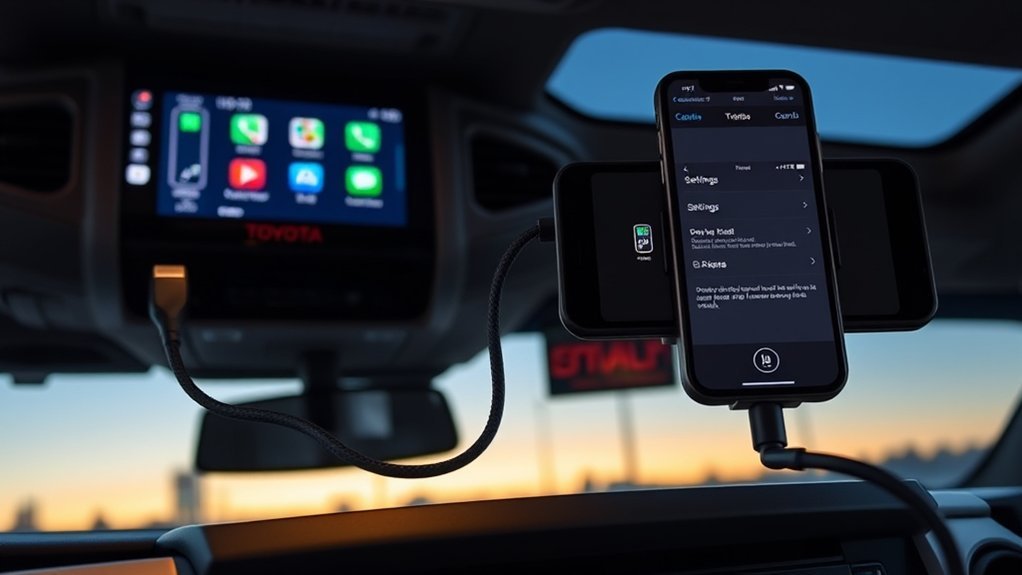
You can improve CarPlay stability by checking the phone, cable, wireless settings, and Tundra multimedia system as one connection path. A weak link in any part can cause drops, lag, or missing audio.
- Update your iPhone: Install the newest iOS version available for your device.
- Check vehicle software: Review your Tundra manual, the Toyota app, or dealer guidance for multimedia firmware updates, including any applicable service bulletins for your model year.
- Use a direct cable: Choose a data-capable USB-C or Lightning cable, matched to your iPhone’s connector, and avoid adapters while diagnosing a wired connection.
- Confirm Auto-Join: For wireless CarPlay, open the CarPlay Wi-Fi network and make sure Auto-Join is enabled.
- Remove duplicate pairings: Delete old phone profiles from the truck if several drivers have paired devices.
- Retest after each fix: Change one item at a time so you know what solved the problem.
Pro tip: Keep one known-good data cable in the truck so you can separate a cable problem from a phone or head-unit problem.
CarPlay Help: When to Contact Toyota or Visit the Dealer
Contact Toyota support or schedule a dealer visit if your Tundra still drops CarPlay after basic troubleshooting. Bring your iPhone, the cable you use, and notes about when the issue happens.
Ask for help if the USB port feels loose, the multimedia system freezes, the whole display turns black, or the truck never detects any phone. Before paying for diagnosis, use the NHTSA VIN recall lookup or Toyota’s recall tool to check for an open safety recall, and ask whether your VIN falls under the documented 2022–2025 multimedia software bulletin.
Give the service team your iPhone model, iOS version, Tundra model year, multimedia screen size, and whether the problem happens with wired or wireless CarPlay. Clear notes help the technician reproduce the fault.
Frequently Asked Questions
Why is my Toyota not connecting to Apple CarPlay?
Your Toyota may not connect because the USB cable cannot carry data, Siri is off, CarPlay is restricted, Bluetooth or Wi-Fi is disabled, or the multimedia system needs a restart. Check the connection first, then review Settings > General > CarPlay and Screen Time permissions on your iPhone.
Does every Toyota Tundra have wireless CarPlay?
No. Apple currently lists Tundra model years 2020 through 2025 as CarPlay-compatible, and wireless CarPlay is standard on all 2026 Tundra trims per Toyota’s own documentation. Wired and wireless availability can still vary by market, trim, configuration, and multimedia unit, so check the exact owner’s manual or device menu for your truck.
Does the 2022-and-newer Tundra use a different CarPlay setup than the 2020–2021 Tundra?
Yes. The 2020–2021 Tundra runs the Entune 3.0 system, generally reached through Menu, then Setup, then General. The 2022-and-newer Tundra runs the redesigned Toyota Audio Multimedia system, which uses a different settings layout. If a step in a generic guide doesn’t match your screen, check the other generation’s menu path before assuming your truck lacks CarPlay support.
Do I need Bluetooth for wired CarPlay?
You usually do not need Bluetooth for basic wired CarPlay because the USB cable carries the connection. Wireless CarPlay needs Bluetooth during pairing and Wi-Fi for the active CarPlay link.
Why does CarPlay work and then disconnect?
Frequent disconnects often point to a weak or loose cable, an adapter conflict, a wireless pairing problem, or outdated software. On certain 2022–2025 Tundra units, a documented Toyota multimedia software issue can also cause reboots or dropped connections. Try a direct cable, confirm Wi-Fi Auto-Join, restart both systems, update your iPhone, and ask your dealer about applicable service bulletins before visiting for diagnosis.
Can I use Google Maps or Spotify with CarPlay in a Tundra?
Yes. CarPlay supports compatible third-party navigation and audio apps, including Google Maps, Waze, and Spotify when they are installed on your iPhone. You can rearrange their order from your iPhone’s CarPlay settings.
Which USB port should I use for CarPlay in a Tundra?
Use the USB port that supports data and phone projection. It may show a CarPlay icon or smartphone icon. Some USB ports charge devices only, so try another port or check the owner’s manual if the phone charges but CarPlay does not open.
How do I reset CarPlay in my Toyota Tundra?
On the iPhone, open Settings > General > CarPlay, select the Tundra, and tap Forget This Car. Remove the iPhone from the truck’s device list, restart both systems, and pair or connect the phone again.
Conclusion
The fastest way to connect Apple CarPlay in your Tundra is to park the truck, turn on Siri, and use either the CarPlay-capable USB port or the wireless device menu supported by your multimedia system — keeping in mind that 2020–2021 Entune 3.0 trucks and 2022-and-newer Toyota Audio Multimedia trucks use slightly different menus. Approve the prompts on both screens, then select the CarPlay icon if it does not open automatically.
If CarPlay fails, work through the connection in order: cable or Bluetooth and Wi-Fi, permissions, restarts, re-pairing, iOS, and vehicle firmware — including checking whether a documented Toyota service bulletin applies to your VIN. Contact Toyota when the entire multimedia display fails, no phone works, or an open recall may apply.
References
- Connect iPhone to CarPlay — Apple Support
- If you need help with CarPlay — Apple Support
- Apple CarPlay — Apple
- CarPlay available models — Apple
- How do I set up Apple CarPlay? — Toyota Support
- Toyota Tundra overview — Toyota
- 2026 Connected Services & Audio Multimedia Feature Applicability — Toyota
- Vehicle recall lookup — NHTSA


[…] This article covers standard Bluetooth audio and hands-free calls. For an interface-specific problem, use the Tundra CarPlay disconnecting guide or the Tundra CarPlay setup guide. […]
[…] If you are connecting the phone for the first time rather than diagnosing a connection that drops, follow the separate guide on how to set up Apple CarPlay in a Toyota Tundra. […]