
Last updated: July 31, 2026 — Reviewed for Toyota Audio Multimedia software version 2230, OTA compatibility, and 2025–2026 camera/ECU recall campaigns by [VERIFY: Certified Automotive Specialist].
What’s in This Guide
- Quick Answer
- Choose the Right Update Method
- Before You Begin: Power & Drive Safety Checks
- Check Your Tundra Software Version
- Install an OTA Update on 2022–2026 Tundras
- Install a USB Update (2018–2021 & Eligible 2022+ Tundras)
- What Version 2230 Means for 2022–2025 Tundras
- When to Visit a Dealer for Recall Firmware
- Troubleshoot a Failed or Frozen Update
- Frequently Asked Questions
To update Toyota Tundra infotainment software, navigate to your multimedia display’s Software Update menu to check for an over-the-air (OTA) download or export your system details for a USB update. While most 2022–2026 Tundras support direct OTA updates via Wi-Fi or DCM cellular, 2018–2021 models and specific newer units require a USB flash drive download from Toyota’s portal. Never attempt to install third-party files, maintain steady 12V power throughout installation, and have a Toyota dealer handle safety-critical camera and Parking Assist ECU recalls.
Quick Answer: How to Update Toyota Tundra Infotainment
To update your Toyota Tundra infotainment system in under 20 minutes, follow these steps:
- Park your Tundra in a well-ventilated area and leave the vehicle running (or in READY mode on Hybrids).
- On 2022+ models, tap the Gear icon (Settings) > Software update. On 2018–2021 models, press SETUP/APPS > General > Software Update.
- If an over-the-air update appears, tap Update Software and accept the terms.
- If prompted for USB or no OTA is available, download your vehicle-specific package from Toyota’s Software Portal onto a clean FAT32/exFAT USB drive and insert it into your Tundra’s primary data port.
- Keep the engine running until the progress bar reaches 100% and the screen restarts.
Key Takeaways
- Identify whether your truck uses the newer Toyota Audio Multimedia system (2022–2026) or legacy Entune (2018–2021).
- Keep the engine idling or the hybrid system in READY mode to prevent 12V battery drain and system bricking during firmware writes.
- Routine multimedia updates will not fix safety recalls 25V657 (green screen) or 26V038 (Parking Assist ECU freeze); those require free dealer diagnostic reprogramming.
- Use a dedicated 16GB–32GB USB drive formatted to FAT32 or exFAT with no other files present.
Choose the Right Toyota Tundra Update Method
| What You See on Screen | Recommended Method | System Constraints & Limits |
|---|---|---|
| “New Software Available” popup or active button in Settings | Over-The-Air (OTA) | Requires strong Wi-Fi or active DCM cellular coverage. Available mainly on 2022+ Toyota Audio Multimedia systems. |
| “Update via USB” prompt or eligible package on Toyota Portal | USB Flash Drive | Requires a 16GB–32GB USB flash drive formatted cleanly. Mandatory for 2018–2021 Entune and select 2022+ T-SB updates. |
| Camera display black/green screen, or open recall notice via VIN | Toyota Dealer Service | Safety ECU and instrument cluster firmware updates require Toyota Techstream diagnostic tools. Provided free of charge. |
| “System is Up to Date” but glitches persist | Soft Reset / Dealer TSB | Perform a 10-second volume knob restart, or check dealer service bulletins (e.g., T-SB-0083-25). |
[Products Worth Considering]
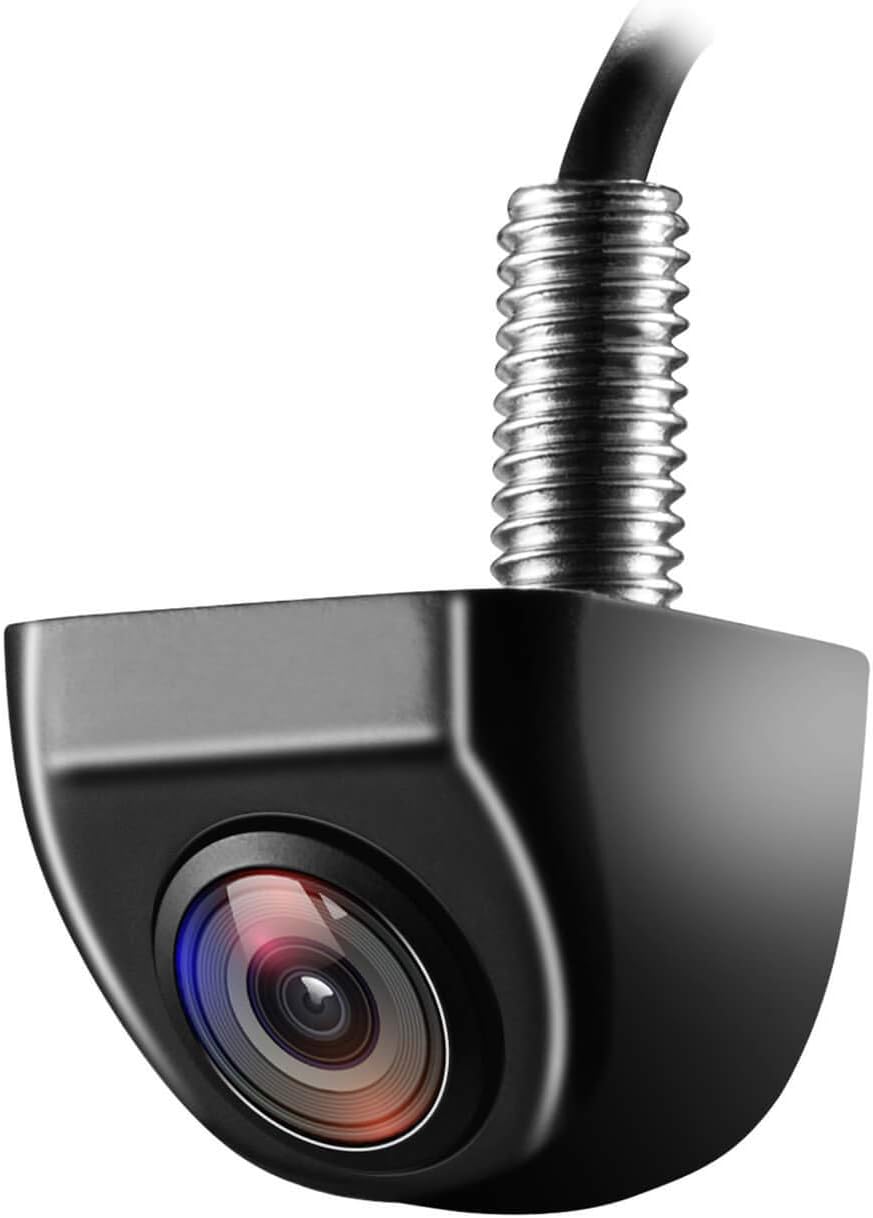
This OEM-style backup camera delivers a clear rear view with a wide-angle HD sensor to help reduce blind spots and make parking easier. Its fully sealed waterproof construction and strong low-light performance support reliable use in all weather and lighting conditions. Designed for cars, trucks, SUVs, vans, and RVs, it also supports front-view switching and selectable guide lines for flexible installation.

This wireless CarPlay screen adds modern smartphone connectivity to almost any vehicle with easy plug-and-play installation. It supports Apple CarPlay and Android Auto, online maps, voice control, phone mirroring, and multiple audio output options for safer, more convenient driving. The included night vision backup camera and OTA updates help improve visibility, compatibility, and long-term performance.

This portable car stereo adds wireless Apple CarPlay and Android Auto to nearly any vehicle without replacing the factory head unit. The 7-inch HD touchscreen supports voice control, GPS navigation, mirror link, Bluetooth calling, and multiple audio output options for a safer, more connected drive. It also includes backup camera support and flexible mounting for easy installation and removal.
Before You Begin: Power & Drive Safety Checks
Do not begin a software installation if you cannot leave the Tundra parked and powered for the entire duration. Installing a major update package can take between 10 and 25 minutes. A sudden voltage drop or accidental shutdown during write operations can corrupt the multimedia ECU.
- Maintain Constant 12V Power: Park in a well-ventilated outdoor area with the transmission in PARK. Leave the engine idling (or keep the system in READY mode on Tundra i-FORCE MAX Hybrids).
- Ensure Battery Health: If your truck has experienced starting issues or voltage drops, resolve the problem first using our Toyota Tundra battery drain guide before updating firmware.
- Prepare the USB Flash Drive: If using the USB route, use a dedicated 16GB–32GB flash drive. Format the drive to FAT32 (or exFAT as specified by Toyota’s portal instructions) and ensure no other files or hidden folders reside on the drive.
- Document Current Version: Take a clear photo of your current Software Version screen and any error codes before initiating the update.
Safety Warning: Never run your vehicle inside a closed garage. During the update process, do not turn the ignition off, do not shift into gear, and do not unplug the USB drive until the on-screen prompt confirms completion.
How Do You Check a Tundra’s Infotainment Software Version?
The exact menu hierarchy depends on whether your Tundra has the modern Toyota Audio Multimedia interface or the previous-generation Entune system:
For 2022–2026 Tundras (Toyota Audio Multimedia System):
- Turn the ignition to ON or start the engine.
- Tap the Gear icon (Settings) located on the left side of the 8-inch or 14-inch touchscreen.
- Scroll to the bottom of the list and tap Software update.
- Note the numerical code displayed under Audio (e.g., 2230, 2055, or earlier) and check if an “Update Software” prompt appears.
For 2018–2021 Tundras (Entune 3.0 / Entune 2.0):
- Press the physical APPS or SETUP button next to the display screen.
- Select General on the touchscreen menu.
- Scroll down and tap Software Update (or System Information).
- Record the Software Model ID and current version string.
If your screen is completely frozen or unresponsive to touch commands, perform a standard soft reboot before attempting an update. Review our step-by-step Toyota Tundra infotainment reset guide to restore system responsiveness safely.
How Do You Install an OTA Update on 2022–2026 Tundras?
Over-the-air updates deliver bug fixes and performance enhancements directly through your truck’s embedded cellular connection (Data Communication Module / DCM) or home Wi-Fi network.
- Park Safely: Position your Tundra outdoors, shift into PARK, and keep the engine running or hybrid system in READY mode.
- Connect Network (Optional): If cellular DCM signal is weak in your area, go to Settings > Wi-Fi and connect to your home Wi-Fi network.
- Open Update Menu: Tap Settings (Gear Icon) > Software update.
- Review Details: If an update is available, tap Update Software to read the release notes and terms of service.
- Start Installation: Tap Accept and begin the process. The display will show a progress bar indicating download and installation status.
- Allow System Reboot: When the progress bar finishes, the screen will prompt you to restart. Let the head unit cycle power automatically.
- Verify Version: Return to Settings > Software update and confirm the new numerical version is active.
[Products Worth Considering]

The IIWEY iK11 adds a large wireless Apple CarPlay and Android Auto display to almost any vehicle, making it easy to upgrade older cars with modern smart connectivity. It combines voice control, Bluetooth, wireless mirroring, and built-in navigation support with a front dash cam and rear camera for added driving confidence. Designed for quick installation and everyday convenience, it delivers a portable all-in-one infotainment and safety solution.

This wireless portable CarPlay screen brings Apple CarPlay and Android Auto to almost any vehicle for safer, hands-free driving and easier access to navigation, calls, music, and messaging. It features a vivid IPS touchscreen, fast wireless performance, OTA updates, multiple audio output options, and an integrated backup camera to improve convenience and parking safety. Plug-and-play setup makes installation simple without dashboard modifications, while steering wheel control support helps keep driving focused and intuitive.

This portable 7-inch car stereo adds wireless Apple CarPlay and Android Auto to nearly any vehicle, giving you easy access to navigation, calls, music, and voice assistants without replacing your factory radio. It also supports phone mirroring, backup camera integration, Bluetooth audio, GPS navigation, and multiple audio output options for a safer, more convenient drive.
How Do You Install a Toyota Tundra USB Software Update?
If your Tundra does not offer an OTA update, or if you are servicing a 2018–2021 model, use Toyota’s official USB update procedure.
- Prepare Flash Drive: Insert a 16GB–32GB USB flash drive into your computer. Format it to FAT32 (for 2018–2021 Entune) or as specified on the portal. Ensure the drive is completely empty.
- Access the Portal: Visit the official Toyota Audio Multimedia Software Download Portal.
- Input Vehicle Data: Select your Tundra model year, multimedia trim, and current head-unit software ID.
- Download Firmware: Download the matching update binary (typically a
.kwior update archive file) directly to your computer. - Transfer Files: Copy the downloaded update file directly to the root directory of your USB drive. Do not rename the file and do not place it inside folders.
- Connect to Vehicle: With your Tundra idling in Park, plug the USB drive into the primary multimedia Data USB Port (located in the center dash below the screen, not a charge-only port in the center console).
- Initiate Update: The head unit will automatically detect the drive and display an update prompt. Confirm the version upgrade on screen.
- Wait for Completion: The system may take 10 to 15 minutes to authenticate and transfer files. Do not shut off the engine.
- Complete Reboot: Remove the USB drive only when prompted on the screen, then let the system complete its restart cycle.
Pro Tip: After a major USB or OTA update, delete your phone from the Tundra’s Bluetooth menu, forget the Tundra on your phone, and pair fresh to eliminate lingering connection drops. If wireless projection remains spotty, review our Toyota Tundra Apple CarPlay troubleshooting guide.
[Products Worth Considering]

Teeran’s 2-in-1 wireless adapter turns compatible factory wired CarPlay or Android Auto systems into a cable-free experience for both iPhone and Android users. It offers fast setup, automatic reconnection, and full support for your vehicle’s original controls so navigation, music, calls, and voice assistants work seamlessly. Its compact flush-fit design helps reduce clutter, while built-in protection and broad compatibility make it a practical everyday upgrade.

Keep your Toyota navigation system current with this SD card map update designed for select factory-installed GPS units. It provides updated coverage for the USA and Canada, including roads, points of interest, and key travel locations for smoother trip planning. Easy plug-and-play installation helps restore accurate guidance without complicated setup.

This portable car stereo brings wireless Apple CarPlay and Android Auto to your vehicle for easier access to navigation, music, calls, and messages. The large HD touch screen supports mirror link and multiple audio output options, while voice control adds safer hands-free use on the road. An included backup camera and simple dashboard mount make installation quick and convenient without replacing your original radio.
What Does Toyota Multimedia Version 2230 Mean?
Toyota technical service bulletin T-SB-0083-25 introduces head-unit software version 2230 for select 2022–2025 Tundra and Tundra Hybrid trucks equipped with Panasonic-manufactured Toyota Audio Multimedia systems.
Version 2230 addresses frequent owner complaints, including:
- Spontaneous multimedia head unit reboots while driving.
- Apple CarPlay and Android Auto intermittent audio dropouts and wireless disconnections.
- User profile loading failures and cloud PIN sync errors.
- Voice recognition lag and navigation prompt freezes.
Version 2230 is not universally applicable to all hardware configurations or international models. Verify your exact head-unit part number via the Settings screen before manually applying USB files sourced from technical bulletins.
When Should a Toyota Dealer Install the Update?
Routine user-installed updates only modify the consumer-facing multimedia interface. You must visit an authorized Toyota dealership if your truck is subject to safety-related recalls or module firmware campaigns that require specialized Techstream diagnostic computers.
Recall 25V657 (Toyota Campaign 25TA10 / 25TB10)
Affects select 2022–2025 Tundra and Tundra Hybrid models with the 14-inch multimedia display. The screen may show a solid black or green screen when shifting into Reverse instead of displaying the backup camera image. The official remedy is a dealer-installed multimedia display ECU software reflash performed free of charge.
Recall 26V038 (Toyota Campaign 26TA02 / 26TB02)
Affects certain 2024–2025 Tundra models equipped with Panoramic View Monitor (PVM). An internal communication timing error causes the camera view to freeze or remain on a previous angle when shifting into reverse. The remedy requires a dealer-installed Parking Assist ECU reprogram.
For detailed background on these safety campaigns, review our Toyota Tundra recall guide. If your camera issues are unrelated to recalls, consult the Tundra backup camera troubleshooting guide for hardware diagnostics.
What Should You Do If the Tundra Update Fails or Freezes?
If your update stalls or displays an “Update Failed” error, do not panic and do not immediately cycle the ignition key.
| Step | Failure Symptom | Corrective Action |
|---|---|---|
| 1 | Screen frozen at 0% or mid-download | Perform a soft reboot: Press and hold the volume/power knob for 10–12 seconds until the Toyota logo reappears. |
| 2 | “USB Device Not Recognized” error | Reformat drive to FAT32 on a PC, re-copy the raw update file to root directory, and verify use of the primary dash data port. |
| 3 | OTA download dropped or paused | Switch from cellular DCM to a strong 2.4GHz home Wi-Fi network, or move vehicle closer to router. |
| 4 | Repeated installation error message | Take a photo of the error code and schedule a dealer inspection; head-unit internal memory may require diagnostic clearing. |
Frequently Asked Questions
How do you update Toyota Tundra infotainment software?
Open the multimedia Settings menu, tap Software Update, and follow on-screen prompts for an Over-The-Air (OTA) install. For older models or offline updates, download the official package from Toyota’s firmware portal onto a clean FAT32 USB drive and plug it into your truck’s dash data port with the engine idling.
How do you know if a Toyota Tundra needs a software update?
Check for an on-screen update notification in the Settings menu, compare your installed Audio version against Toyota’s portal or T-SB-0083-25, and run your VIN through the official Toyota Recall Lookup to verify if camera ECU updates are pending.
Can you update a Tundra without going to the dealer?
Yes. Owners can complete routine Toyota Audio Multimedia and Entune software updates at home via OTA or USB. However, safety recalls involving the backup camera, Parking Assist ECU, or instrument cluster require proprietary dealer Techstream tools.
What should you do if the update freezes?
Do not turn off the engine immediately. Perform a forced soft reboot by pressing and holding the volume/power knob down for 10–12 seconds until the screen cycles off and the Toyota emblem reloads.
Does a software update fix Tundra rearview-camera recall issues?
Yes, but only when installed by a certified Toyota dealer. Recall 25V657 (display green/black screen) and Recall 26V038 (Parking Assist ECU freeze) require dealer-level ECU calibration, not standard user-applied multimedia downloads.
Does a Tundra firmware update also update the navigation maps?
No. On 2022+ Tundras, navigation maps update continuously via cloud connectivity using Toyota Connected Services. On 2018–2021 Entune systems, map updates require a separate navigation micro-SD card or dealer map subscription.
Is Toyota Tundra infotainment version 2230 the right update for every truck?
No. Software version 2230 applies specifically to select 2022–2025 Tundra and Tundra Hybrid models with Panasonic head units covered under service bulletin T-SB-0083-25. Always check your specific Model ID prior to updating.
Safety Disclaimer: This guide is for informational purposes. Always follow your official Toyota owner’s manual instructions. Safety-critical updates affecting braking, steering, cameras, or ECU modules must be completed by an authorized Toyota technician.
Conclusion
Keeping your Toyota Tundra’s infotainment software updated ensures reliable wireless Apple CarPlay and Android Auto connectivity, prevents unexpected screen reboots, and resolves navigation bugs. Identify your generation—using OTA on 2022+ trucks or USB on 2018–2021 models—keep your 12V power supply steady, and always consult an authorized dealer for recall campaigns.
References
- Toyota Audio Multimedia System Updates — Toyota Owners Official Portal, accessed July 31, 2026.
- Toyota Audio Multimedia Software Download Portal — Toyota USA, accessed July 31, 2026.
- Manufacturer Communication T-SB-0083-25: Head Unit Software Update Version 2230 via USB — NHTSA, 2025.
- Toyota Recalls Certain Tundra, Tundra HEV and Sequoia Models (Recall 25V657) — Toyota USA Newsroom, October 1, 2025.
- Part 573 Safety Recall Report 25V657 — NHTSA, 2025.
- Toyota Recalls Certain Toyota Tundra and Tundra Hybrid Vehicles (Recall 26V038) — Toyota USA Newsroom, January 23, 2026.


[…] If a step below doesn’t match what you see on your screen, check the other generation’s menu path first before assuming CarPlay isn’t supported. For a deeper look at menu differences and how to confirm your current software version, see the site’s Toyota Tundra infotainment update guide. […]