
By: Auto Review Nest Editorial Team · Last updated: July 31, 2026
Update notes: Model-year compatibility, Apple troubleshooting steps, Toyota multimedia updates, paired-device priority, and current Toyota display-recall guidance were rechecked for this revision.
If your Toyota Tundra CarPlay keeps disconnecting, first match the test to your truck’s model year and connection. U.S.-market 2020–2021 Tundras with the factory system use a wired USB CarPlay connection. Redesigned 2022–2026 Tundras offer standard wireless Apple CarPlay, while 2019-and-older trucks need an aftermarket or retrofit system to have CarPlay. This guide covers Apple CarPlay specifically; Android Auto uses a similar but separate connection path.
For wired CarPlay, test a direct Apple or MFi-certified data cable and the correct smartphone-data USB port. For wireless CarPlay, confirm Bluetooth, Wi-Fi, and Auto-Join, disconnect competing phones, and rebuild the saved pairing. Update iOS and Toyota multimedia software before using a full factory reset.
This guide is for CarPlay that connects and then drops, stutters, loses the microphone, or repeatedly reconnects. If CarPlay has never appeared, use the separate Toyota Tundra CarPlay not working guide. Perform all phone, pairing, update, and reset steps while parked.
Quick Answer
Restart your iPhone and the Toyota multimedia system, then update iOS. Confirm Siri is on and CarPlay is not blocked under Screen Time. For wired CarPlay, use a direct Apple or MFi-certified data cable in the CarPlay-capable USB port, without a hub or extension. For wireless CarPlay, keep Bluetooth and Wi-Fi on, confirm Auto-Join, and temporarily disconnect other paired phones. If the drops continue, go to Settings > General > CarPlay > your Tundra > Forget This Car, remove the iPhone from the truck, pair it again, and check for Toyota multimedia updates.
Key Takeaways
- Identify the model year, factory or aftermarket system, and wired or wireless connection before changing settings.
- Use a direct data-capable cable and the smartphone-data USB port for wired testing.
- For wireless drops, check Bluetooth, Wi-Fi, Auto-Join, saved pairing data, and paired-device priority.
- Compare CarPlay with Bluetooth-only calling and a second iPhone to separate phone, connection, and truck-side faults.
- If the entire display freezes, goes black, or shows a green screen while reversing, check the VIN for applicable Toyota recalls before paying for repair.
- Document the exact symptom, connection type, software versions, and controlled test results before dealer service.
What’s in This Article
- Which Tundra CarPlay System Do You Have?
- Match the Symptom to the First Test
- Quick Fixes for Tundra CarPlay Disconnects
- Common Causes of Tundra CarPlay Drops
- Check Phone and CarPlay Settings: Siri, Bluetooth, and Cables
- Restart and Reset Your Tundra’s Infotainment System
- Diagnose Mic and Wireless CarPlay Drops Step by Step
- When to Visit the Dealer and What to Document
- Frequently Asked Questions
- Conclusion
Which Tundra CarPlay System Do You Have?
Start by identifying the factory or aftermarket multimedia system. Toyota introduced factory Apple CarPlay across the U.S. Tundra lineup for the 2020 model year. The redesigned 2022 Tundra introduced Toyota Audio Multimedia with standard wireless Apple CarPlay.
| Tundra model year or system | Typical factory CarPlay support | Best starting point |
|---|---|---|
| 2019 and older factory radio | No factory Apple CarPlay; CarPlay requires an aftermarket or retrofit system | Use the head-unit manufacturer’s cable, pairing, firmware, and reset instructions |
| 2020–2021 factory system | Factory CarPlay through the USB media/data connection | Test the direct cable, iPhone connector, correct USB port, Siri, and CarPlay permissions |
| 2022–2026 Toyota Audio Multimedia | Standard wireless Apple CarPlay; recent manuals also describe USB connection | Compare wireless and wired behavior, check device priority, restart the display, and update software |
| Any aftermarket head unit or wireless adapter | Varies by manufacturer and installed equipment | Remove the adapter when possible and test the base wired connection before changing Toyota settings |
Because the 2020–2021 factory system is wired-only, many owners in that range add a third-party USB wireless CarPlay adapter (sometimes called a CarPlay dongle) to avoid plugging in every drive. If your Tundra only drops CarPlay when one of these adapters is in use, treat the adapter as a separate device to isolate: reseat it, update its firmware through its companion app if it has one, and test the original factory-wired connection with the adapter removed before assuming the truck’s USB port itself has failed. [VERIFY: behavior varies by adapter brand/model and isn’t covered by Toyota support.]
If you are connecting the phone for the first time rather than diagnosing a connection that drops, follow the separate guide on how to set up Apple CarPlay in a Toyota Tundra.
Match the Tundra CarPlay Symptom to the First Test
Use the symptom to choose your first test. This keeps you from erasing settings or replacing parts before you isolate the connection path.
| Symptom | First test | What the result suggests |
|---|---|---|
| Wired CarPlay drops when the phone or cable moves | Try a different direct Apple or MFi-certified data cable and inspect both connectors | A stable connection points toward the original cable, adapter, phone connector, or USB port |
| Wireless CarPlay drops, but wired CarPlay stays stable | Check Bluetooth, Wi-Fi, Auto-Join, device priority, then forget and re-pair the Tundra | The fault is more likely in the wireless pairing, phone priority, radio environment, or software path |
| Wireless CarPlay drops at the same location | Repeat the route once wirelessly and once with a direct wired connection | A location-specific wireless failure suggests the local wireless environment may contribute; it does not prove a hardware fault |
| CarPlay switches phones or reconnects inconsistently | Disconnect other paired phones and set the driver’s iPhone as the primary device where supported | A stable result points toward competing paired-device priority or connection history |
| CarPlay never appears | Check vehicle compatibility, Siri, Screen Time restrictions, and the correct USB port | The system may be blocked, unsupported, connected through a charge-only port, or outside this article’s disconnecting scope |
| The microphone fails only during CarPlay calls | Compare a CarPlay call with a normal Bluetooth call | Different results help separate the CarPlay path from a broader microphone or multimedia fault |
| The entire multimedia screen freezes, turns green, or goes black while reversing | Restart the display, check multimedia updates, and check the VIN for applicable Toyota recalls | The issue extends beyond CarPlay and may qualify for Toyota software service or recall repair |
Quick Fixes for Tundra CarPlay Disconnects
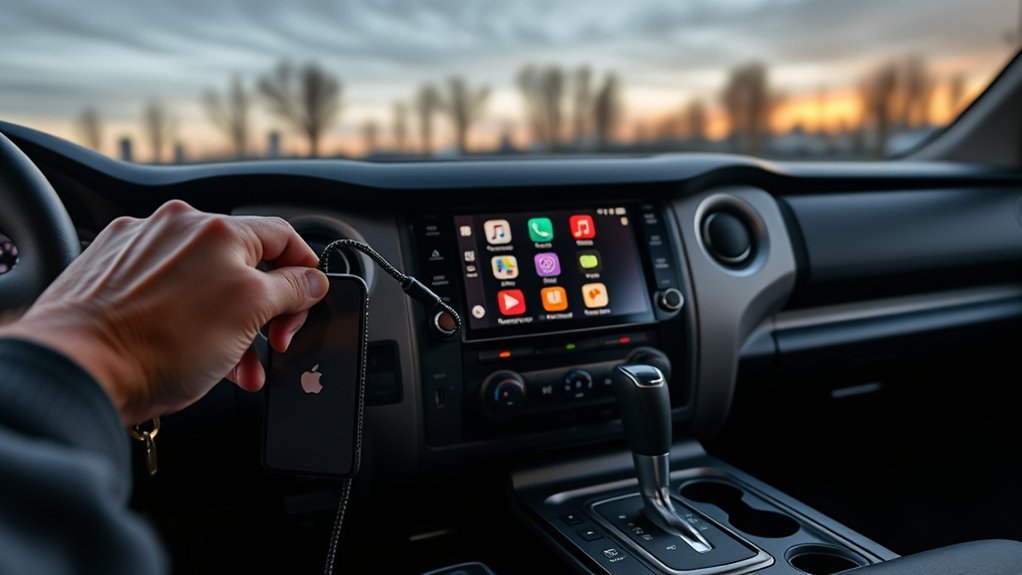
Use this order while your Tundra is parked. Change one item at a time and repeat the same audio, route, or call test after each step.
- Confirm the model year and multimedia system. Use Toyota procedures for the factory system and the manufacturer’s instructions for an aftermarket head unit or adapter.
- Restart the iPhone and multimedia system. On newer Toyota Audio Multimedia systems, press and hold the PWR/VOL knob for at least three seconds to restart the display. [VERIFY: confirm exact button/hold-time in your model-year Owner’s Manual.] Use the model-specific manual for older or aftermarket systems.
- Update iOS. Install the latest version available for your iPhone, then restart the phone again.
- Check Siri and restrictions. Make sure Siri is on. Then confirm CarPlay is allowed under Settings > Screen Time > Content & Privacy Restrictions > Allowed Apps.
- Test the wired connection. Connect the iPhone directly with an Apple or MFi-certified data cable. Remove hubs, extension cables, and multi-part adapters. Use the USB port intended for smartphone data rather than a charging-only port.
- Test the wireless connection. Keep Bluetooth and Wi-Fi on. Open the CarPlay Wi-Fi network and confirm Auto-Join is enabled.
- Remove competing phones. Temporarily turn off Bluetooth on other paired phones. On supported Toyota systems, set the driver’s iPhone as the primary device.
- Forget and reconnect the truck. Go to Settings > General > CarPlay, select your Tundra, tap Forget This Car, remove the iPhone from the truck’s device list, and pair it again.
- Check Toyota multimedia software. Install an eligible over-the-air or USB update, or ask a Toyota dealer to check the system. Update availability and installation method vary by model year, multimedia unit, and region.
- Check recalls for whole-screen faults. If the full display freezes, turns green, or goes black while reversing, enter the VIN in Toyota’s recall lookup before paying for multimedia diagnosis.
Diagnostic method: Isolate one variable at a time, repeat the same task, and compare wired CarPlay, wireless CarPlay, Bluetooth-only calling, and a second-phone test.
[Products Worth Considering]

This wireless adapter upgrades factory wired Apple CarPlay and compatible Android Auto systems into a seamless cordless experience without replacing your original infotainment system. After a quick one-time setup, it reconnects automatically for navigation, music, calls, messages, and voice control, while compact plug-and-play design helps keep your dashboard clean and your driving experience more convenient.

This 2-in-1 wireless adapter converts factory wired CarPlay into a convenient wireless connection for compatible vehicles, making every drive simpler and more flexible. It supports quick auto-connect, easy phone switching, and stable audio and navigation performance for iPhone and Android Auto users. Designed for plug-and-play use, it helps reduce cable clutter while keeping calls, maps, and music running smoothly.

This 2-in-1 wireless adapter converts factory-wired CarPlay into a cable-free experience for compatible vehicles, helping you enjoy seamless phone integration with less clutter. It supports automatic reconnection, stable Bluetooth and Wi-Fi pairing, and broad compatibility with many factory-installed CarPlay systems. Built with a durable metal and acrylic design, it also includes firmware updates and lifetime technical support for continued convenience.
What Causes Tundra CarPlay to Keep Disconnecting?
Tundra CarPlay drops usually trace to the iPhone connection, USB data path, saved pairing, paired-device priority, software, or multimedia system. The failure pattern helps narrow the cause.
- Siri or restriction settings: CarPlay may fail when Siri is off or Screen Time blocks the feature.
- Saved pairing problems: A damaged or outdated CarPlay profile may reconnect poorly until you forget and pair the truck again.
- Wireless settings: Wireless CarPlay needs Bluetooth and Wi-Fi, plus Auto-Join for the CarPlay network.
- Competing paired devices: Another phone may have primary, secondary, or recent-connection priority on newer Toyota multimedia systems.
- USB cable, adapter, connector, or port issues: A connection may still charge the phone while the data link remains unstable.
- Location-specific wireless disruption: If a drop repeats at the same place but not when connected by cable, compare the same route before assuming the truck needs a part.
- Software or firmware: iOS and Toyota multimedia software should be current before deeper diagnosis.
- System compatibility: Wired and wireless support, menu names, restart methods, and update paths vary by model year and multimedia unit.
- Whole-system display fault: A screen that freezes, turns green, or goes fully black during reversing may involve the backup-camera display software rather than CarPlay alone.
If wired CarPlay fails when the connector moves, test the cable and connectors first. If wireless CarPlay fails while wired CarPlay stays stable, focus on Wi-Fi, Bluetooth, Auto-Join, paired-device priority, and saved pairing data.
For broader ownership planning, see the Toyota Tundra maintenance schedule.
How Do You Check iPhone and CarPlay Settings?
Use this checklist before you reset the Toyota multimedia system. Apple’s troubleshooting sequence includes connection checks, Siri, Screen Time restrictions, re-pairing, and vehicle firmware.
- Confirm Siri works. Test a simple Siri request before connecting to the truck. If Siri does not respond on the phone, correct that problem before diagnosing the Tundra.
- Check Screen Time. Go to Settings > Screen Time > Content & Privacy Restrictions > Allowed Apps, then confirm CarPlay is enabled.
- Review the saved vehicle. Go to Settings > General > CarPlay and select your Tundra. Confirm that the expected truck is listed only once.
- Check wireless settings. Keep Bluetooth and Wi-Fi on. Open the CarPlay network and confirm Auto-Join.
- Check truck-side device priority. On newer Toyota Audio Multimedia systems, open Bluetooth & Devices, select the iPhone, confirm Use for Apple CarPlay is on, and set the phone as the primary device where that option is available.
- Disconnect competing devices. Temporarily turn off Bluetooth on other paired phones so the truck cannot select a different device during the test.
- Rebuild the pairing. Tap Forget This Car on the iPhone, remove the iPhone from the truck’s device list, restart both systems, and pair them again.
- Test a direct cable. Replace damaged cables and bypass adapters, hubs, or extensions. Try another CarPlay-capable USB port if your truck has one.
Toyota menu names differ between 2020–2021 factory systems, newer Toyota Audio Multimedia systems, and aftermarket head units. Use the multimedia manual that matches the truck and installed equipment.
How Do You Restart or Reset Tundra Infotainment?
Start with a multimedia restart rather than a factory reset. On newer Toyota Audio Multimedia systems, park safely, keep the display powered, and press and hold the PWR/VOL knob for at least three seconds. [VERIFY: confirm exact button/hold-time in your model-year Owner’s Manual.] Wait for the display to go dark and reload, then test CarPlay before deleting any data.
For model-specific reset details, use the complete Toyota Tundra infotainment reset guide.
Next, check Toyota Audio Multimedia System Updates. Equipped vehicles may receive over-the-air updates. Eligible U.S. systems may also use the Toyota software download portal with a compatible USB drive, while a dealer can check and install applicable updates.
A detailed walkthrough is also available in the Tundra multimedia software update guide.
Use a factory reset only after you record your settings and complete the simpler tests. On current Toyota Audio Multimedia systems, the path is Settings > Info & Security > System reset. Menu names differ on older or aftermarket systems.
A full system reset restores multimedia data to factory defaults and may remove paired phones, preferences, profile links, and other saved information. After the reset, pair only the test iPhone and confirm CarPlay is stable before adding other devices.
Warning: Do not disconnect the 12-volt battery only to reset CarPlay unless the model-specific owner’s manual or a qualified technician directs that procedure.
A battery disconnect can erase settings, trigger additional setup work, and make the diagnosis harder to reproduce. If a multimedia restart, clean pairing, software update, and factory reset do not solve the fault, let a Toyota dealer or qualified automotive-audio technician handle deeper diagnosis.
[Products Worth Considering]

Teeran’s 2-in-1 wireless adapter turns compatible factory wired CarPlay or Android Auto systems into a cable-free experience for both iPhone and Android users. It offers fast setup, automatic reconnection, and full support for your vehicle’s original controls so navigation, music, calls, and voice assistants work seamlessly. Its compact flush-fit design helps reduce clutter, while built-in protection and broad compatibility make it a practical everyday upgrade.

Convert factory wired CarPlay to a wireless experience with this compact plug-and-play adapter designed for compatible vehicles. It supports GPS navigation, music, calls, Siri, and messaging while automatically reconnecting for a smoother drive. The slim mini design helps keep your cabin tidy and delivers a stable, responsive connection with preserved audio quality.

This wireless CarPlay screen adds modern smartphone connectivity to almost any vehicle with easy plug-and-play installation. It supports Apple CarPlay and Android Auto, online maps, voice control, phone mirroring, and multiple audio output options for safer, more convenient driving. The included night vision backup camera and OTA updates help improve visibility, compatibility, and long-term performance.
How Do You Test Mic and Wireless CarPlay Drops?
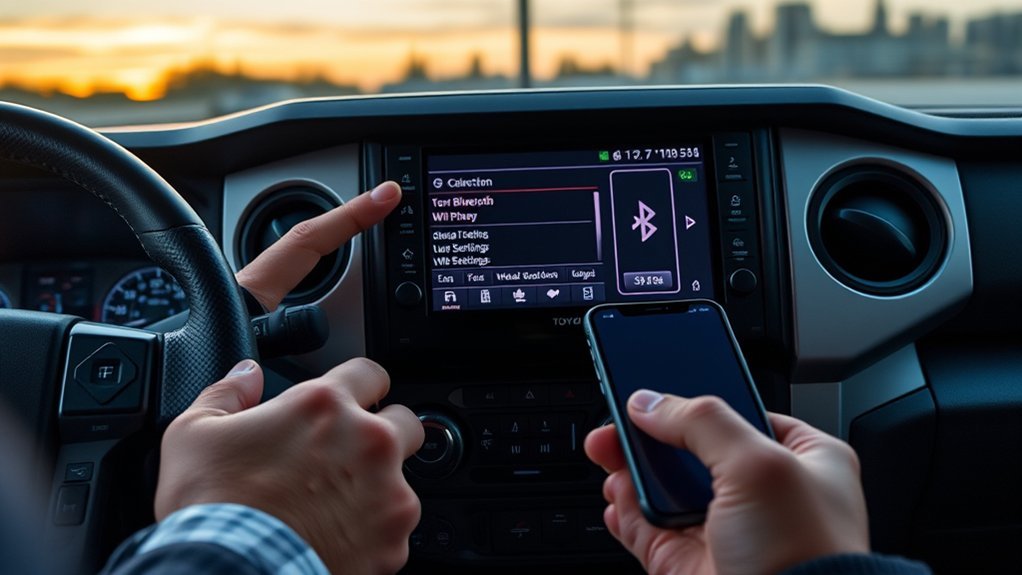
Use controlled tests to separate an iPhone issue, a wireless connection issue, paired-device competition, and a truck-side audio fault. Keep the route, call type, phone position, and test length as consistent as practical.
- Test Siri before connecting. Confirm the iPhone microphone and Siri respond normally.
- Disconnect other paired phones. Turn off Bluetooth on other phones and confirm the test iPhone is selected for CarPlay.
- Test wired CarPlay. Use a direct known-good data cable and note whether the call, microphone, audio, or entire CarPlay session drops.
- Test wireless CarPlay. Disconnect the cable, connect wirelessly, and repeat the same task.
- Test a normal Bluetooth call. Make a call without CarPlay and compare the microphone behavior.
- Try a second compatible iPhone. Use the same connection method, route, and task when another phone is available.
- Repeat a location-specific test. If wireless CarPlay always drops in one area, repeat the route with wired CarPlay to see whether the failure follows the wireless connection.
- Watch the display. Note whether only CarPlay closes or the entire Toyota multimedia system freezes, restarts, turns green, or goes black.
- Record the results. Log the iPhone model, iOS version, Tundra model year, multimedia software version, connection type, time, route, call length, and exact symptom.
If the microphone fails only during CarPlay calls, focus on the CarPlay connection, pairing, and software path. If it also fails during a normal Bluetooth call, the truck may need a broader microphone, audio, communication-module, or multimedia check.
If a second iPhone stays connected, focus on the first phone’s cable or connector, saved CarPlay profile, iOS configuration, and truck-side device-priority setting before assuming that either device has failed.
Repeat the same test after each change. A consistent pass-or-fail result is more useful than a general report that CarPlay “sometimes disconnects.”
[Products Worth Considering]

The HEYINCAR+ H-Air adapter upgrades compatible factory wired CarPlay and Android Auto systems to wireless convenience with a compact plug-and-play design. It connects automatically after setup, delivering fast startup, stable performance, and support for your car’s original touchscreen, steering wheel controls, and voice commands. Built for broad vehicle compatibility and ongoing firmware updates, it offers a simple way to enjoy cable-free driving with minimal clutter.

This wireless CarPlay adapter upgrades compatible factory wired CarPlay or Android Auto systems with wireless connectivity and built-in entertainment apps. Enjoy navigation, calls, music, and hands-free control through Apple CarPlay, plus streaming from popular video platforms when connected to a hotspot. It also supports USB media playback and an HD media port for rear-seat entertainment on road trips and daily drives.

Turn your wired Apple CarPlay system into a seamless wireless experience with this compact adapter for iPhone. It supports fast auto-connection, smooth navigation, music, calls, Siri, and app access with low-latency performance designed to help you stay focused on the road. Built for factory wired CarPlay vehicles, it offers easy plug-and-play setup, online updates, and durable construction for everyday driving.
When Should You Visit the Dealer?
Visit the dealer when CarPlay keeps dropping after you update iOS, restart the multimedia display, test a direct cable and the correct port, remove competing phones, rebuild the pairing, check Toyota software updates, and compare a second iPhone when available.
Bring a short incident log. List the date, time, drive length, call length, iPhone model, iOS version, Tundra model year, multimedia software version, connection type, cable used, other paired devices, and whether wired or wireless CarPlay failed.
Add screenshots or short videos when they can be captured safely while parked. Ask the service team to include the exact complaint, diagnostic findings, software versions, and repair performed on the repair order.
Recall check for full-screen faults: In October 2025, Toyota recalled approximately 394,000 Tundra, Tundra Hybrid, and Sequoia Hybrid vehicles (NHTSA campaign 25V657) because a software error could show the 14-inch display as half green, full green, or full black specifically while the vehicle is being reversed, blocking the rearview camera image. In January 2026, Toyota recalled roughly 162,000 additional 2024–2025 Tundra and Tundra Hybrid vehicles for a related issue where the display could get stuck on a camera view or show a black image during a backing event. Neither recall is CarPlay-specific, both are tied to the backup-camera display during reversing rather than general freezing, and model year alone does not confirm eligibility. Check your VIN using Toyota’s recall lookup.
Ask the advisor to check the VIN for current multimedia updates, safety recalls, service campaigns, and applicable Toyota repair information. For coverage and documentation questions, review the Toyota Tundra warranty coverage guide.
Note: CarPlay availability, wired or wireless support, menu names, update methods, device-priority settings, and reset steps vary by Tundra model year, market, trim, and multimedia system.
Frequently Asked Questions
Why does my Toyota keep disconnecting from CarPlay?
Your Toyota may disconnect from CarPlay because the USB data connection is unstable, wireless pairing data is damaged, Bluetooth or Wi-Fi is interrupted, another paired phone has connection priority, Siri or CarPlay permissions are blocked, or the phone or multimedia system needs a software update. Test wired and wireless connections separately before using a factory reset.
Which Toyota Tundra years have wireless Apple CarPlay?
The redesigned U.S.-market 2022 Toyota Tundra introduced standard wireless Apple CarPlay, and Toyota continued listing standard wireless CarPlay through the 2026 model year. The 2020–2021 factory systems support CarPlay through the USB media or data connection. Earlier Tundras require an aftermarket or retrofit system to have CarPlay.
Does CarPlay need Siri to work in a Tundra?
Yes. Apple tells users to make sure Siri is on when setting up or troubleshooting CarPlay. Test Siri on the iPhone before reconnecting to the truck.
Should I use wired or wireless CarPlay for testing?
Test both when your Tundra supports both. If wired CarPlay stays stable but wireless CarPlay drops, focus on Bluetooth, Wi-Fi, Auto-Join, paired-device priority, and saved pairing data. If wired CarPlay also drops, test the cable, connectors, adapters, and USB port.
Why does CarPlay disconnect even though my iPhone is charging?
Charging does not confirm that the USB data connection is stable. Use a direct Apple or MFi-certified data cable, bypass hubs and extension cables, inspect the iPhone connector, and test the CarPlay-capable USB port.
Can another paired phone interfere with Tundra CarPlay?
It can complicate automatic connection on newer Toyota multimedia systems. Temporarily turn off Bluetooth on other paired phones, confirm Use for Apple CarPlay is enabled for the test iPhone, and set that phone as the primary device where the menu offers the option.
How do I restart the Tundra multimedia system?
On newer Toyota Audio Multimedia systems, park safely, keep the display powered, and press and hold the PWR/VOL knob for at least three seconds. Wait for the screen to reload, then test CarPlay before deleting devices or choosing System reset. Older and aftermarket systems may use a different procedure.
How do I reset CarPlay in my Toyota Tundra?
First go to Settings > General > CarPlay on the iPhone, select the Tundra, and tap Forget This Car. Remove the iPhone from the truck’s device list, restart both systems, and pair them again. Use a full multimedia factory reset only after these steps fail.
Will a factory reset delete my CarPlay settings?
Yes. A factory reset may remove paired phones, saved preferences, profile links, and personal multimedia data. Record important settings and try a multimedia restart and clean pairing first.
Does a black or green Tundra screen mean CarPlay is broken?
Not necessarily. If the entire display turns green or goes black specifically while reversing, the issue is more likely the backup-camera display rather than CarPlay — Toyota’s October 2025 and January 2026 recalls (NHTSA campaign 25V657 and a related January 2026 campaign) cover certain 2022–2025 Tundra, Tundra Hybrid, and Sequoia Hybrid vehicles for exactly this symptom. VIN inclusion determines eligibility, not model year alone. Restart the display, check the VIN, and ask Toyota to document the diagnosis.
What should I bring to the dealer for CarPlay drops?
Bring the iPhone model, iOS version, Tundra model year, multimedia software version, connection type, cable details, paired-device list, incident log, and any safe screenshots or videos. Clear evidence helps the technician reproduce and document the fault.
Conclusion
When Toyota Tundra CarPlay keeps disconnecting, identify the model year and isolate wired and wireless behavior before resetting the multimedia system. Check Siri and Screen Time, test a direct data cable and correct USB port, confirm Bluetooth, Wi-Fi, Auto-Join, and paired-device priority, then forget and re-pair the truck.
Restart the Toyota display before using System reset, update iOS and Toyota multimedia software, and keep a repeatable test log. If another cable or iPhone produces the same fault, or the entire screen freezes, turns green, or goes black while reversing, check the VIN and take the documented results to Toyota.
References
- If you need help with CarPlay — Apple Support
- Connect iPhone to CarPlay — Apple iPhone User Guide
- When Apple CarPlay or Android Auto Might Be Malfunctioning: 2024 Tundra — Toyota Owners
- Setting Bluetooth Devices: 2025 Tundra — Toyota Owners
- 2020 Toyota Tundra Multimedia and Apple CarPlay Announcement — Toyota USA Newsroom
- 2022 Toyota Tundra Wireless Apple CarPlay Announcement — Toyota USA Newsroom
- 2026 Toyota Tundra Multimedia Information — Toyota USA Newsroom
- Toyota Audio Multimedia Software Download Portal — Toyota
- Toyota Display Recall for Certain Tundra, Tundra Hybrid, and Sequoia Models — Toyota USA Newsroom, October 1, 2025
- Toyota Display Recall for Certain 2024–2025 Tundra and Tundra Hybrid Vehicles — Toyota USA Newsroom, January 23, 2026

[…] covers standard Bluetooth audio and hands-free calls. For an interface-specific problem, use the Tundra CarPlay disconnecting guide or the Tundra CarPlay setup […]
[…] CarPlay connects normally but disconnects during calls, navigation, or music, use the dedicated Tundra CarPlay disconnect guide after completing the basic checks […]