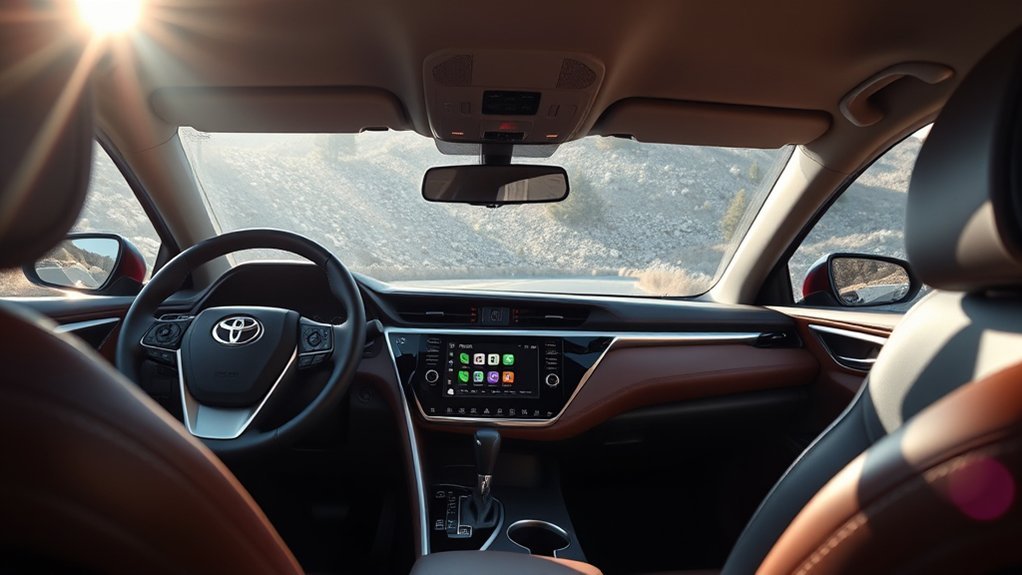
To connect Apple CarPlay in a U.S.-spec 2025 Toyota Camry, park the car, enable Siri, Bluetooth, and Wi-Fi on your iPhone, then open Settings > Bluetooth & devices > Add another device on the Toyota multimedia screen. Select the iPhone, confirm the matching code, and approve the Apple CarPlay prompts. The 2025 Camry supports wireless Apple CarPlay across its U.S. grades, and you can also try the front USB-A media port with a direct data cable if the wireless connection does not start.
Last updated: July 23, 2026 — checked against current Toyota and Apple guidance.
Quick Answer
Turn on Siri, Bluetooth, and Wi-Fi on your iPhone. On the Camry screen, select Settings > Bluetooth & devices > Add another device > Search for devices. Choose the iPhone, confirm the pairing code, and approve CarPlay. If wireless CarPlay fails, check the CarPlay Wi-Fi network’s Auto-Join setting or connect through the Camry’s front USB-A media port with a direct data-capable cable.
Key Takeaways
- Toyota lists wireless Apple CarPlay compatibility across all U.S. 2025 Camry grades.
- Wireless CarPlay needs Siri, Bluetooth, and Wi-Fi; Bluetooth alone is not enough.
- For a wired connection, use the front USB-A media port rather than one of the charging-only ports.
- If CarPlay is missing, check iPhone Screen Time restrictions and confirm CarPlay is enabled for the phone on the Toyota screen.
- This guide covers U.S.-spec 2025 Camry models. Other model years and markets may use different menus, ports, or connection types.
At a Glance
| Setup Time | Varies; allow several minutes for first-time pairing and permission prompts |
| Difficulty | Easy |
| Wireless Requirements | Compatible iPhone, Siri, Bluetooth, Wi-Fi, and approved CarPlay access |
| Wired Backup | Front USB-A media port and a direct USB-A-to-iPhone data cable |
| Vehicle Scope | U.S.-spec 2025 Toyota Camry; verify other years or markets with the VIN-specific manual |
| Cost | No separate CarPlay subscription; cellular data, paid apps, and Toyota Connected Services may cost extra |
How Do You Connect Apple CarPlay to a 2025 Toyota Camry?
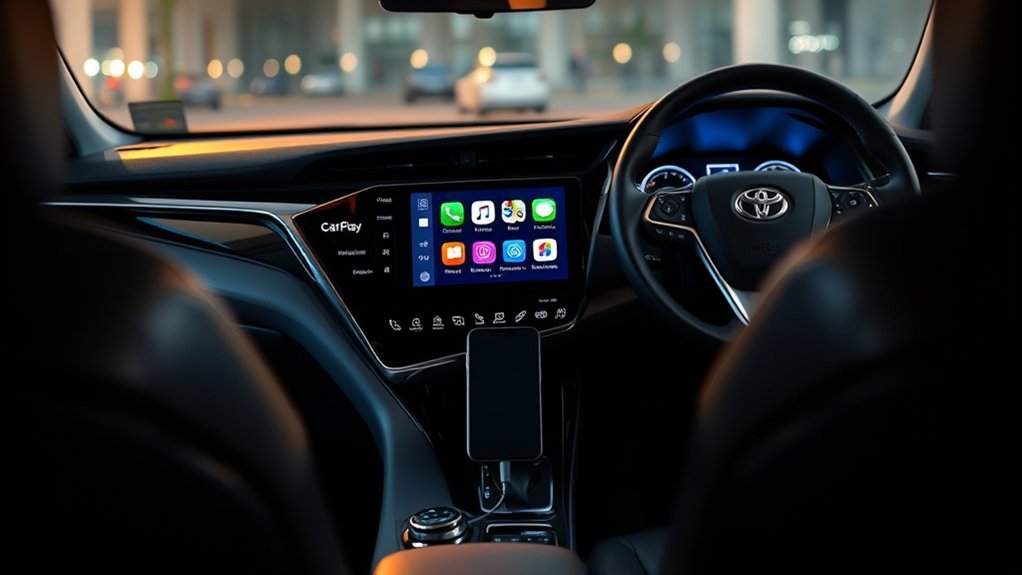
Before pairing, park the Camry, turn on the multimedia screen, unlock the iPhone, and keep the phone nearby. Toyota’s current wireless setup path is Settings > Bluetooth & devices > Add another device > Search for devices. Apple also requires Siri to be enabled and Wi-Fi to remain on for wireless CarPlay.
You can compare the steps below with Toyota’s official Apple CarPlay setup instructions, the 2025 Camry digital manual, and Apple’s CarPlay guide. For basic phone pairing outside CarPlay, see the Toyota Camry Bluetooth pairing guide.
Warning: Set up or troubleshoot CarPlay only while parked. The National Highway Traffic Safety Administration defines fiddling with a stereo, entertainment system, or navigation system as distracted driving when it takes attention away from the road.
[Products Worth Considering]

This 2-in-1 wireless adapter converts factory-wired CarPlay into a cable-free experience for compatible vehicles, helping you enjoy seamless phone integration with less clutter. It supports automatic reconnection, stable Bluetooth and Wi-Fi pairing, and broad compatibility with many factory-installed CarPlay systems. Built with a durable metal and acrylic design, it also includes firmware updates and lifetime technical support for continued convenience.

This wireless CarPlay adapter upgrades compatible factory wired CarPlay or Android Auto systems with wireless connectivity and built-in entertainment apps. Enjoy navigation, calls, music, and hands-free control through Apple CarPlay, plus streaming from popular video platforms when connected to a hotspot. It also supports USB media playback and an HD media port for rear-seat entertainment on road trips and daily drives.
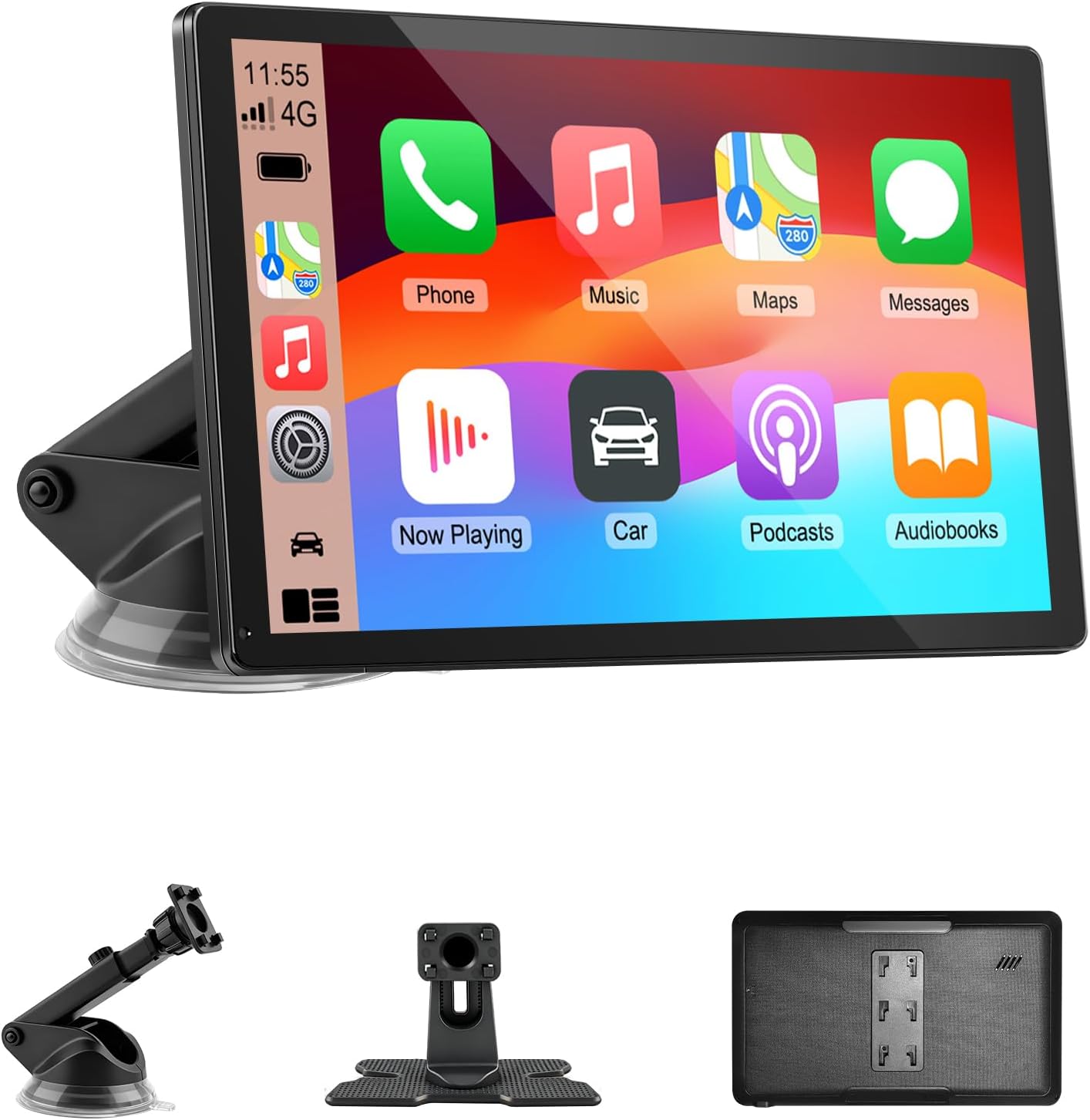
Upgrade your vehicle with this portable 9-inch touchscreen that brings wireless CarPlay and Android Auto to almost any car. It supports GPS navigation, voice control, hands-free calling, and multiple audio output options, making everyday driving safer and more convenient. With plug-and-play installation, mirror link support, and a bright HD display, it delivers a smart, flexible in-car entertainment and navigation solution.
What Should You Check Before Pairing?
- Confirm that you are working with a compatible iPhone and a supported region.
- Open iPhone Settings and tap Siri or Apple Intelligence & Siri, then make sure Siri is enabled.
- Turn on both Bluetooth and Wi-Fi.
- Temporarily disconnect the iPhone from another active CarPlay vehicle or wireless adapter.
- Make sure the Camry is in Park and use its main Toyota multimedia screen.
- If your vehicle is not a U.S.-spec 2025 Camry, check the exact year, market, multimedia system, and VIN-specific manual before following model-specific port instructions.
How to Set Up Wireless Apple CarPlay
- Start the Camry and leave the vehicle in Park.
- On the Toyota multimedia screen, open Settings.
- Select Bluetooth & devices.
- Choose Add another device, then Search for devices.
- Select your iPhone when its name appears on the Toyota screen.
- Confirm that the pairing code on the Camry display matches the code on the iPhone.
- Approve the Bluetooth pairing request on both screens.
- When asked whether to enable Apple CarPlay, select Yes, Use CarPlay, or Allow.
- Wait for the CarPlay Home screen to appear. If it does not open automatically, select the CarPlay icon on the Toyota display.
Which Connection Method and Port Should You Use?
| Connection | What to Use | Common Mistake |
|---|---|---|
| Wireless CarPlay | Siri, Bluetooth, Wi-Fi, and the approved Toyota CarPlay connection | Turning Wi-Fi off because Bluetooth pairing already succeeded |
| Wired CarPlay | The front USB-A media port and a direct USB-A-to-iPhone cable that supports data | Using a charging-only USB port, a charge-only cable, or an unreliable adapter |
| Charging Only | The Camry’s separate USB charging ports | Assuming that a charging phone proves the port and cable can carry CarPlay data |
Toyota’s U.S. 2025 Camry brochure identifies one USB-A media port and four other USB charging ports. Both the 8-inch and 12.3-inch Toyota Audio Multimedia systems use the USB-A media port for media connectivity.
How to Try a Wired USB Connection
If wireless pairing is slow or fails, connect the iPhone directly to the Camry’s front USB-A media port. Use a USB-A-to-Lightning or USB-A-to-USB-C cable, depending on the iPhone, and make sure the cable supports data rather than charging alone.
- Start the Camry, leave it in Park, and unlock the iPhone.
- Connect the cable directly to the Camry’s front USB-A media port.
- Connect the other end directly to the iPhone.
- Accept the CarPlay prompt on the Toyota screen.
- Approve the CarPlay request on the iPhone.
- If asked, choose whether the iPhone may connect to wireless CarPlay on future drives.
Pro Tip: Keep a direct data-capable cable in the center console. Avoid adding adapters while diagnosing a wired failure because Apple notes that some cable-and-adapter combinations can interrupt CarPlay.
Which Permissions Does Camry Apple CarPlay Need?
The required step is approving Apple CarPlay when the iPhone and Toyota screen request phone projection. Other prompts—such as contacts, favorites, recent calls, and call history—mainly control the Camry’s native Bluetooth phone features. You can decline optional data sharing if you do not plan to use those Toyota functions.
Check these iPhone settings when CarPlay does not launch or reconnect:
- Siri: Open Settings > Siri or Settings > Apple Intelligence & Siri and make sure Siri is enabled.
- CarPlay: Open Settings > General > CarPlay, select the Camry, and confirm that the saved connection is present.
- Screen Time: Open Settings > Screen Time > Content & Privacy Restrictions. If restrictions are active, open the allowed-app settings and make sure CarPlay is permitted.
- Wi-Fi: Keep Wi-Fi on. For a saved wireless connection, tap the CarPlay network in Wi-Fi settings and confirm Auto-Join is enabled.
- Bluetooth: Keep Bluetooth on so the iPhone and Camry can discover and authenticate each other.
- Message announcements: To hear supported messages, open Settings > Notifications > Announce Notifications > CarPlay, or adjust Announce Messages from the CarPlay Settings app.
Note: These model-specific instructions cover U.S.-spec 2025 Camry models. Older Camrys may have wired-only CarPlay, different menu labels, or no factory CarPlay. Imported vehicles and other markets can also differ, so verify the exact multimedia system through Toyota’s VIN-specific manual.
Why Isn’t Toyota Camry Apple CarPlay Connecting?
Start by identifying whether you are testing wireless or wired CarPlay. For wireless CarPlay, check Siri, Bluetooth, Wi-Fi, Auto-Join, and the saved device setting. For wired CarPlay, use the front USB-A media port and a direct data-capable cable. Then check permissions before deleting the pairing.
For a longer diagnostic sequence covering additional model years, use the dedicated Toyota Camry Apple CarPlay troubleshooting guide.
| Problem | Likely Cause | Best First Fix |
|---|---|---|
| Camry does not appear on the iPhone | Toyota device discovery is not active | Open Settings > Bluetooth & devices > Add another device > Search for devices, then keep the iPhone Bluetooth screen open. |
| CarPlay pairs but will not launch | CarPlay was not approved or is disabled for the saved device | Select the iPhone in the Toyota device list and confirm Apple CarPlay is enabled, then check Settings > General > CarPlay on the iPhone. |
| Wireless CarPlay will not reconnect | Wi-Fi is off or the CarPlay network’s Auto-Join setting is disabled | Turn on Bluetooth and Wi-Fi, open the CarPlay network in Wi-Fi settings, and enable Auto-Join. |
| CarPlay is missing or blocked | Screen Time restriction | Check Settings > Screen Time > Content & Privacy Restrictions and make sure CarPlay is allowed. |
| iPhone charges but CarPlay does not open | Charging-only port, charge-only cable, adapter problem, or denied CarPlay access | Use the front USB-A media port and a direct data-capable cable, then approve CarPlay on both screens. |
| Siri will not respond | Siri is disabled or restricted | Enable Siri under Siri or Apple Intelligence & Siri settings, then press and hold the steering-wheel voice button. |
| The Camry connects to another phone | Another saved phone reconnects first | Temporarily turn off Bluetooth on the other phone, then select the intended iPhone under Bluetooth & devices. |
| Only some apps appear | The missing apps do not support CarPlay | Update the app and confirm that it supports CarPlay. Unsupported apps will not appear on the vehicle display. |
[Products Worth Considering]

This license plate screw kit provides a complete, rustproof mounting solution for securing front and rear plates on most vehicles. Made from stainless steel with included washers, foam pads, covers, and inserts, it helps prevent corrosion, reduce vibration, and create a clean finished look. The self-tapping design makes installation quick and simple with basic tools.

This USB C to USB A carplay cable is designed to keep compatible iPhone and iPad devices connected and charged while driving. It supports fast charging and data sync for reliable everyday use on road trips and commutes, with broad compatibility across newer iPhone and iPad models. The included cable offers a simple plug-and-play solution for CarPlay and in-car charging needs.

Ultra Mini CarPlay Adapter: This wireless CarPlay adapter features an ultra-compact design, small and sleek, fitting snugly into your car’s USB port and blending seamlessly with the car interior—no more cable clutter! With our 2026 newly upgraded adapter, effortlessly transform your vehicle’s wired Apple CarPlay into a wireless experience. Enjoy seamless CarPlay functions like music streaming, GPS navigation, and hands-free calling for a more convenient driving experience
How to Reset the Connection and Pair Again
- On the iPhone, open Settings > General > CarPlay.
- Select the Camry and tap Forget This Car.
- Open Settings > Bluetooth, tap the information button next to the Toyota connection, and choose Forget This Device.
- On the Toyota screen, open Settings > Bluetooth & devices, select the iPhone, and choose Forget. For more detail, see how to delete a Bluetooth device from a Camry.
- Restart the iPhone and restart the vehicle’s multimedia session.
- Turn Siri, Bluetooth, and Wi-Fi back on.
- Repeat the wireless setup from the beginning.
How to Tell Whether the Problem Is the iPhone or the Camry
Test a second compatible iPhone after completing the basic checks. If the second phone connects, focus on the first iPhone’s restrictions, software, Wi-Fi Auto-Join setting, cable, and saved pairing. If no compatible iPhone connects, focus on the Camry’s device settings, USB-A media port, multimedia software, or hardware.
Check for available iOS updates and Toyota multimedia software updates before arranging service. Contact Toyota when the screen freezes, cannot save devices, does not recognize any compatible phone, or fails with more than one direct data cable and more than one iPhone.
Which Apps Work With Camry Apple CarPlay?
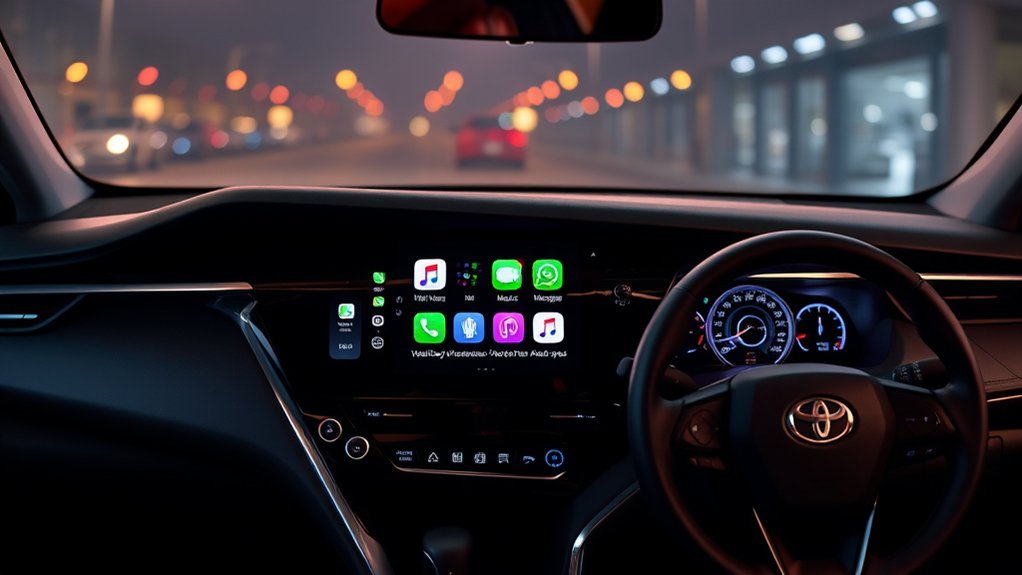
Once connected, CarPlay displays supported iPhone apps in a driving-focused layout. The exact selection depends on the apps installed on the iPhone and whether each developer supports CarPlay.
- Navigation: Use Apple Maps, Google Maps, or Waze for routes, traffic information, and spoken directions.
- Music and audio: Open Apple Music, Spotify, Podcasts, Audible, or another supported audio app.
- Messaging: Ask Siri to read, send, or reply to supported messages.
- Calls: Place calls through Siri, Favorites, Recents, or Contacts.
- Calendar: View supported appointments and navigate to event locations.
How Do You Use Siri With CarPlay?
Press and hold the Camry steering-wheel voice button, touch and hold the CarPlay Dashboard or Home button, or say “Siri” or “Hey Siri” when voice activation is enabled. Siri can start a route, call a contact, send a message, play audio, or read supported notifications.
Set the destination, audio source, and message preferences before moving. Voice control reduces screen interaction, but it does not replace attentive driving.
How Do You Rearrange CarPlay Apps?
On the iPhone, open Settings > General > CarPlay, select the Camry, and tap Customize. Add, remove, or drag supported apps into the preferred order. The new arrangement should appear the next time the iPhone connects.
How Can You Make Camry Apple CarPlay More Reliable?
| Tip | Why It Helps |
|---|---|
| Install current iOS updates | Addresses phone-side compatibility, security, and connection faults |
| Keep Wi-Fi Auto-Join enabled | Allows the saved wireless CarPlay network to reconnect |
| Remove unused saved phones | Reduces confusion when several devices try to reconnect |
| Use Siri for routine commands | Reduces screen tapping for calls, music, messages, and directions |
| Carry a direct USB data cable | Provides a backup connection without relying on adapters |
| Customize the app layout | Places frequently used apps on the first CarPlay screen |
[Products Worth Considering]

The Ultimate Smarter Copilot: Stay on Top of Your Driving- The 3A magic link CarPlay box control everything with a word, Or a touch, Or a twist. Save your 40% of time by quick auto conn and seamless operation, such as navigation, music playing, Siri assistant, phone calls, radio etc(Our Carplay Only Compatible with wired Apple CarPlay Car systems)

【MIni CarPlay Wireless Adapter】Easily transform wired OEM CarPlay to wireless! Supports navigation, music playing, Siri assistant, phone calls, text messaging, etc. Enjoy full Carplay App and keep original car operation. No more tangled cables, leaving your car cleaner and embracing the convenience of wireless Car Play
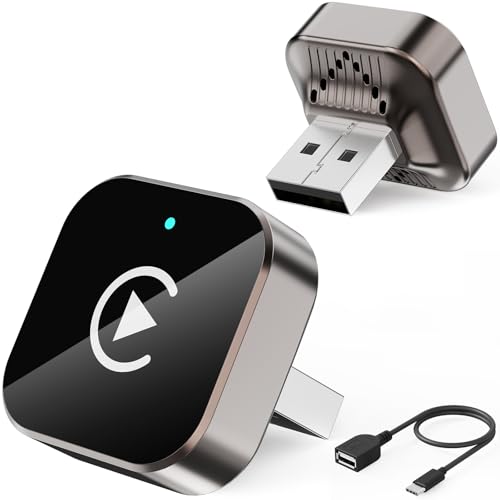
Car System Compatibility: The wireless Carplay adapter is compatible with most vehicles. It supports new versions running iOS10 and above, updated models above iphone6, and Android smartphones that support the latest Android auto function. Android 11 or later is required. It includes a USB-C adapter to ensure compatibility with the USB and USB-c ports of various vehicles and devices.Stable connection, you don't need to be distracted, you can focus on the road, avoid the need to deal with mobile phones while driving, and make your journey safer and more convenient.(Please make sure your car is compatible with wired Carplay or Android auto).
Does Camry Apple CarPlay Require a Subscription?
Apple CarPlay does not have a separate monthly subscription for the factory compatibility listed in the 2025 Camry. It uses supported functions and apps from the connected iPhone, so cellular data charges and paid app, audio, navigation, or podcast subscriptions may still apply.
CarPlay is separate from Toyota Connected Services. Toyota lists wireless Apple CarPlay compatibility separately from Wi-Fi Connect, Drive Connect, Remote Connect, and integrated streaming services. Those Toyota services may have trials, network requirements, or subscription charges. Confirm the equipment and current service terms in the official 2025 Toyota Camry brochure.
Review privacy choices during pairing. CarPlay authorization enables phone projection, while native Toyota Bluetooth prompts may separately request contacts, favorites, call history, messages, or notifications. Approve only the functions you want available in a shared vehicle.
When Should You Contact Toyota or Apple?
Contact Toyota or Apple after you have checked the connection type, permissions, cable or Wi-Fi settings, software updates, and saved pairing. Escalation is appropriate when:
- No compatible iPhone can connect to the Camry.
- The Toyota screen freezes, repeatedly reboots, or cannot save devices.
- The front USB-A media port does not carry data with more than one direct data cable and more than one compatible iPhone.
- The iPhone works in another CarPlay vehicle but not in the Camry.
- The problem began immediately after vehicle service or a multimedia software update.
- A third-party iPhone app fails while Apple’s built-in CarPlay apps continue to work; in that case, contact the app developer.
Frequently Asked Questions
Does the 2025 Toyota Camry have wireless Apple CarPlay?
Yes. Toyota’s U.S. 2025 Camry brochure lists wireless Apple CarPlay compatibility across the LE, SE, XLE, and XSE grades. Equipment and menus can differ in other markets.
Which USB port should I use for CarPlay in a 2025 Camry?
Use the front USB-A media port with a direct data-capable cable. Toyota identifies the other front and rear USB ports as charging ports, so a phone may charge from them without starting CarPlay.
Why does my iPhone charge but not open CarPlay?
The phone may be connected to a charging-only port or cable. Use the Camry’s front USB-A media port and a direct cable that supports data, then approve CarPlay on both the iPhone and Toyota screen.
Is there a monthly fee for Apple CarPlay?
There is no separate monthly CarPlay subscription for the factory compatibility listed by Toyota. Cellular data, paid iPhone apps, audio subscriptions, Toyota Connected Services, and Wi-Fi hotspot service may cost extra.
Why is my Toyota Camry Apple CarPlay not connecting?
Check Siri, Bluetooth, Wi-Fi, the CarPlay network’s Auto-Join setting, Screen Time restrictions, and whether CarPlay is enabled for the saved phone on the Toyota screen. For wired CarPlay, use the front USB-A media port and a direct data cable. If needed, forget the connection on both devices and pair again.
Can I use Google Maps or Spotify with Camry Apple CarPlay?
Yes, when the app is installed on the iPhone and supports CarPlay. Common compatible choices include Apple Maps, Google Maps, Waze, Apple Music, Spotify, Podcasts, and supported audiobook or messaging apps.
Does wireless CarPlay use Bluetooth or Wi-Fi?
It uses both. Bluetooth helps the iPhone and Camry discover and authenticate each other, while Wi-Fi supports the wireless CarPlay connection. Keep both Bluetooth and Wi-Fi enabled.
How can I tell whether the problem is the iPhone or the Camry?
Test another compatible iPhone after checking the basic settings. If the second phone works, focus on the first phone’s permissions, software, cable, Wi-Fi settings, and saved pairing. If no phone works, focus on the Camry’s settings, software, media port, or multimedia hardware.
Conclusion
To set up Apple CarPlay in a U.S.-spec 2025 Toyota Camry, enable Siri, Bluetooth, and Wi-Fi, then add the iPhone through the Toyota screen’s Bluetooth & devices menu. For a wired backup, use the front USB-A media port and a direct data cable—not one of the charging-only ports. If CarPlay fails, check Wi-Fi Auto-Join, Screen Time restrictions, the saved Toyota device setting, and the connection on both devices before re-pairing. Test a second compatible iPhone when you need to determine whether the fault is in the phone or the Camry.
Sources
- Toyota 2025 Camry Brochure — confirms wireless Apple CarPlay across U.S. grades, the USB-A media port, separate charging ports, screen sizes, and connected-service distinctions.
- Toyota Support: How Do I Set Up Apple CarPlay? — supports Toyota’s current wireless pairing menu and setup sequence.
- Toyota 2025 Camry Digital Manual — supports Camry-specific Apple CarPlay connection guidance.
- Apple Support: Use CarPlay With Your iPhone — supports Siri, wired and wireless connection methods, CarPlay controls, announcements, and app arrangement.
- Apple Support: If You Need Help With CarPlay — supports Auto-Join, Screen Time, restart, cable, pairing-reset, and firmware checks.
- Apple iPhone User Guide: Connect iPhone to CarPlay — supports current wired and wireless CarPlay connection requirements.
- NHTSA Distracted Driving — supports the warning against adjusting infotainment and navigation systems while driving.