Last updated: September 16, 2026. Compatibility and setup guidance was rechecked against current Toyota and Google documentation.
Toyota Land Cruiser Android Auto setup depends on the vehicle’s model year, market, and multimedia system. For U.S.-market vehicles, the 2024–2026 Land Cruiser supports factory wireless Android Auto through Toyota Audio Multimedia. The U.S.-market 2021 Land Cruiser did not include factory Android Auto, even though it had USB and Bluetooth connectivity. Before changing cables or phone settings, confirm that your specific Land Cruiser actually supports Android Auto. Google currently requires Android 9.0 or newer for wired Android Auto, an active data plan, a compatible vehicle, and a high-quality USB data cable. See Google’s current Android Auto requirements and Toyota’s current Land Cruiser feature information.
Toyota Land Cruiser Android Auto Compatibility by Model Year
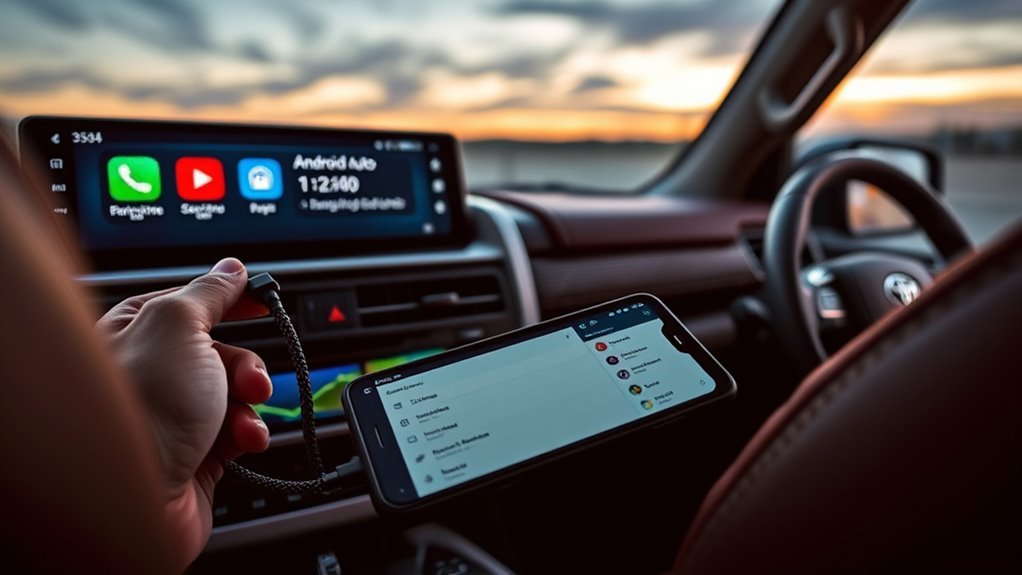
Do not use the presence of Entune, Bluetooth, or a USB port as proof that your Land Cruiser supports Android Auto. Factory compatibility changed between generations and varies by country.
| Land Cruiser | Factory Android Auto | What to Do |
|---|---|---|
| U.S. 2016–2021 200 Series | No factory Android Auto | Use the factory Bluetooth/USB features, or install a compatible aftermarket Android Auto interface or head unit if phone projection is required. |
| U.S. 2024–2026 Land Cruiser | Yes — wireless Android Auto | Pair the phone through Toyota Audio Multimedia. A compatible USB data connection can also be used where supported by the multimedia system. |
| Other markets / imported vehicles | Varies by series, year, and market | Check the exact owner’s or multimedia manual for the vehicle before troubleshooting. |
Toyota’s official 2021 U.S. Land Cruiser brochure lists its 9-inch navigation system, USB port, Bluetooth audio/phone capability, and Siri Eyes Free but does not list Android Auto. The newer Land Cruiser uses Toyota Audio Multimedia rather than the older factory infotainment setup.
If your Land Cruiser is from another country, do not assume the U.S. table applies. Land Cruiser 70, 250, and 300 Series equipment differs by region, and some non-U.S. systems use different wired or wireless Android Auto configurations.
[Products Worth Considering]

This upgraded wireless CarPlay adapter converts factory wired CarPlay into a wireless experience with a simple one-time setup and automatic reconnection at every startup. Its mini design saves space while the dual-chip wireless technology helps deliver fast, stable performance with low latency. Compatible with most factory-installed wired CarPlay systems and iPhone models with supported iOS versions, it adds convenient hands-free access to navigation, music, calls, Siri, and messaging.

Turn your factory wired CarPlay into a wireless experience with this compact plug-and-play adapter from Enhanlife. It delivers fast auto-connection, stable performance with Bluetooth 5.3 and 5GHz Wi-Fi, and smooth access to navigation, music, calls, and Siri without cable clutter. Designed for broad vehicle compatibility and easy setup, it helps keep your dashboard clean while preserving the convenience of CarPlay.

Convert factory wired CarPlay to a wireless experience with this compact plug-and-play adapter designed for compatible vehicles. It supports GPS navigation, music, calls, Siri, and messaging while automatically reconnecting for a smoother drive. The slim mini design helps keep your cabin tidy and delivers a stable, responsive connection with preserved audio quality.
Prepare Your Land Cruiser and Phone for Setup
First confirm that the vehicle has factory Android Auto or a compatible aftermarket system. Then check the phone and connection method. This prevents wasted troubleshooting on a factory head unit that never supported Android Auto.
Check Vehicle Compatibility
For a U.S.-market 2024–2026 Land Cruiser, look for Toyota Audio Multimedia and Android Auto in the vehicle’s device or phone-projection settings. For a U.S.-market 2021 or earlier 200 Series Land Cruiser, the original factory system does not provide Android Auto projection. A USB port that charges the phone or plays media does not by itself mean Android Auto is available.
If the vehicle is imported, has a replacement head unit, or has an aftermarket smartphone-integration interface, follow the documentation for that exact system. Aftermarket equipment can change both the connection method and the menu labels.
Update Phone Software
Android Auto is integrated into current compatible Android phones, so you normally do not need to install a separate Android Auto app. Google’s current wired requirements call for Android 9.0 or newer, an active data plan, a compatible vehicle, and a high-quality USB cable. Wireless Android Auto also requires a compatible phone and vehicle, including the required Wi-Fi capability.
| Check | What You Need |
|---|---|
| Phone software | Android 9.0 or newer for Google’s current wired Android Auto requirements; install pending system and Google Play services updates. |
| Wired connection | A compatible Land Cruiser system, active mobile data, and a high-quality USB data cable. |
| Wireless connection | A wireless-Android-Auto-compatible vehicle and phone, with Bluetooth and Wi-Fi enabled during setup. |
Complete first-time pairing while the Land Cruiser is parked. Unlock the phone and approve the requested Android Auto permissions when they appear.
Connect Android Auto via USB (Step-by-Step)
Use this method only when your Land Cruiser’s multimedia system supports Android Auto through USB. A USB port on an older U.S. Land Cruiser does not add factory Android Auto by itself.
- Park the Land Cruiser. Turn on the vehicle and allow the multimedia system to finish starting.
- Unlock the Android phone. Make sure mobile data is available and finish any pending phone or Google Play services updates.
- Use a data-capable USB cable. A charge-only cable can power the phone without carrying the data Android Auto needs.
- Use the correct media/data port. If the vehicle has several USB ports, use the one designated for multimedia or phone projection rather than a charging-only port.
- Approve the phone prompts. Allow the permissions required for Android Auto to access supported calling, messaging, navigation, notification, and media functions.
- Approve Android Auto on the vehicle screen. Select Android Auto, Enable, Yes, or the equivalent prompt shown by the multimedia system.
- Test the connection while parked. Open navigation and an audio app, then verify that steering-wheel or on-screen voice controls work.
If the phone charges but Android Auto never appears, test a second known-good USB data cable and confirm that you are using the multimedia/data port. If your vehicle is a U.S.-market 2021 or older Land Cruiser with the original factory head unit, stop troubleshooting the phone: that factory system does not provide Android Auto.
[Products Worth Considering]
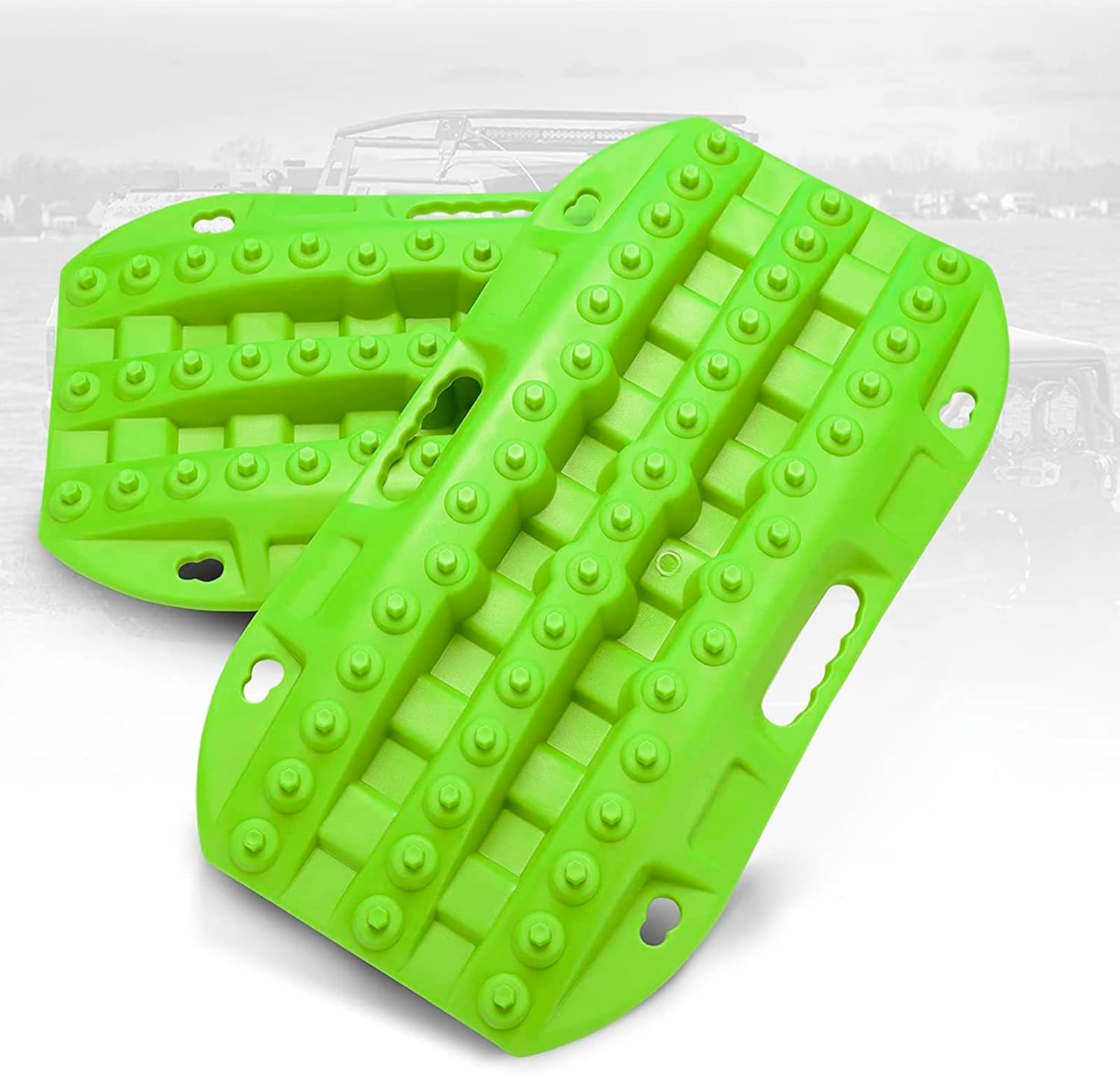
These short recovery traction boards are designed to help ATVs, UTVs, and other off-road vehicles regain grip in mud, sand, and snow. Built with strengthened teeth and a durable polypropylene construction, they provide reliable traction, easy handling, and year-round performance in tough conditions. Their nested, space-saving design and integrated shovels make them practical for carrying and using on remote adventures.

This custom-fit cargo mat is designed for 2025-2026 Toyota Camry models to provide full trunk coverage and reliable protection. Its non-slip design helps keep items secure during daily driving, while the all-weather TPE construction resists spills, dirt, pet hair, and heavy use. Easy to install and simple to clean, it offers a practical upgrade for keeping your cargo area neat and protected.
![CONMDEX Android Auto USB Cable [3ft, 2-Pack] 10Gbps, 3A Fast Charging | USB 3.1 Gen 2 | Stable Android Auto & CarPlay | Flexible & Durable | for iPhone 18 Pro Max Duo/17/16, iPad Pro, Galaxy S26](https://m.media-amazon.com/images/I/41vy0X7qsdL._SL500_.jpg)
[Reliable Car Connectivity & Android Auto] Engineered specifically to solve "falling short" connection issues in vehicles. This cable provides a stable, high-speed link for Android Auto and Apple CarPlay, ensuring consistent navigation and music streaming in models like the Ford Raptor and other modern consoles
Set Up Wireless Android Auto on a 2024–2026 U.S. Land Cruiser
The newer U.S. Land Cruiser uses Toyota Audio Multimedia, not the older Entune-based setup assumed by the original article. Toyota lists wireless Android Auto compatibility on the current Land Cruiser. During first-time setup, keep the phone’s Bluetooth and Wi-Fi enabled and complete the pairing while parked.
[Products Worth Considering]

Upgrade to Wireless CarPlay & Android Auto The 2 in 1 Wireless CarPlay and Android Auto Adapter converts your factory wired system into a wireless experience. It’s perfect for families using both iPhone and Android phones, allowing effortless switching without unplugging or swapping cables. This adapter is compatible with over 1,000 vehicle models—supporting 800+ with wired CarPlay and 500+ with wired Android Auto. Works with iPhone 6 or later and Android 11 or above devices.
Pair the Phone and Enable Android Auto
- Turn on the Land Cruiser and keep it in Park.
- Turn on Bluetooth and Wi-Fi on the Android phone.
- On the Toyota display, open Settings and then Bluetooth & Devices.
- Select the option to add another device or search for devices.
- Select your phone from the available-device list.
- Confirm that the pairing code shown on the phone matches the code on the vehicle display.
- Approve the Android Auto request and the requested permissions.
- If the phone is already paired but Android Auto is not starting, select that phone under Bluetooth & Devices and make sure Use for Android Auto is enabled if the setting appears.
| Step | Expected Result |
|---|---|
| Pair phone | The same PIN appears on the phone and Toyota display. |
| Approve Android Auto | Phone projection is authorized for the paired device. |
| Launch Android Auto | The Android Auto home screen or app launcher appears on the Land Cruiser display. |
Toyota’s general Android Auto support information and Google’s Android Auto setup instructions provide additional connection guidance.
Customize App Preferences
Once Android Auto is working, arrange the apps and notifications before driving. Depending on the Android version, launcher customization is handled through Android Auto settings on the phone rather than through the Toyota screen.
- Keep navigation, phone, messaging, and the media apps you actually use easy to reach.
- Hide unnecessary compatible apps to reduce clutter.
- Select your preferred navigation and audio apps where Android allows a default.
- Review message and notification settings so alerts do not become distracting.
- Keep Android, Google Play services, and frequently used Android Auto apps updated.
Do the customization while parked. Once moving, use steering-wheel controls, the vehicle display, or supported voice commands instead of handling the phone.
Configure Voice Controls
With Android Auto active, use the connected phone’s supported voice assistant for navigation, calls, messages, and media. On compatible Toyota Audio Multimedia systems, pressing and holding the steering-wheel voice-command control starts the Android Auto voice assistant. You can also use the microphone control displayed inside Android Auto.
Test simple commands while parked, such as requesting directions, calling a contact, playing a specific artist or playlist, or reading a supported message. If voice commands fail while Android Auto itself works, check microphone permissions and the phone’s voice-assistant settings before resetting the entire vehicle connection.
Use Android Auto for Navigation, Media, and Voice Control
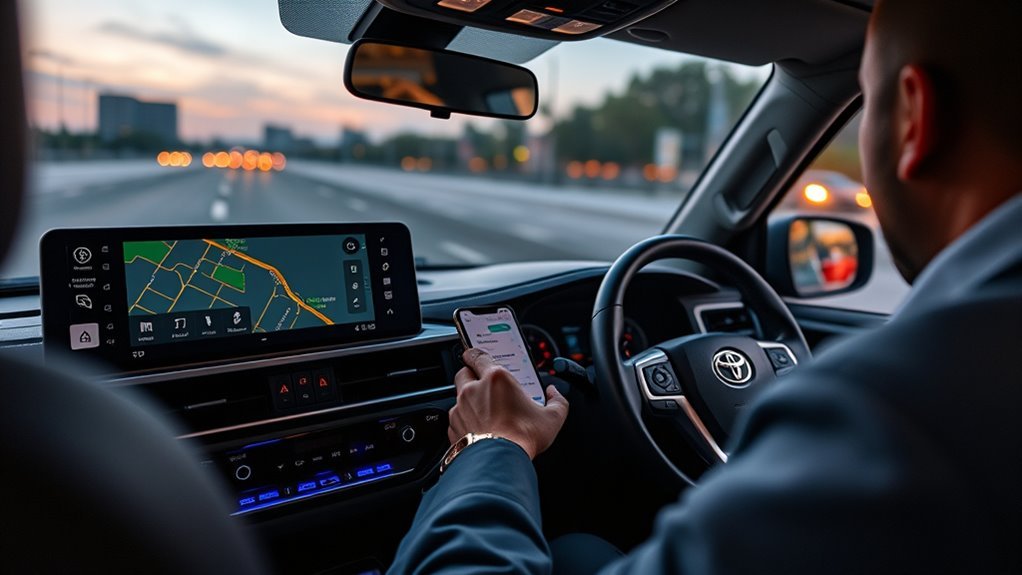
After Android Auto connects, compatible apps run from the phone and appear through the Land Cruiser’s multimedia display. Available apps and functions vary by phone, region, installed apps, and software version.
- Navigation: Use a compatible navigation app for routing, traffic information, and destination search.
- Media: Play supported music, podcast, and audio apps from the Android Auto launcher.
- Calls and messages: Use hands-free calling and supported message functions without picking up the phone.
- Voice control: Use the microphone or steering-wheel voice control for supported commands.
Set destinations, rearrange apps, and troubleshoot the connection before driving. Android Auto reduces the need to handle a phone, but the driver is still responsible for keeping attention on the road.
Quick Fixes: Common Connection Problems and Solutions
Start with compatibility before resetting anything. The correct fix depends on what the phone and Land Cruiser are doing.
| Problem | Likely Cause | First Fix |
|---|---|---|
| Android Auto is completely absent on a U.S. 2021 or older factory system | The original head unit does not support factory Android Auto | Use the factory Bluetooth/USB functions or investigate a compatible aftermarket Android Auto interface or head unit. |
| Phone charges but Android Auto does not launch | Charge-only cable, damaged cable, wrong USB port, or unsupported vehicle system | Confirm factory compatibility, then test the correct media/data port and a second high-quality data cable. |
| Bluetooth calling works but Android Auto does not | The phone is paired for Bluetooth but projection is not enabled | Open Bluetooth & Devices, select the phone, and enable Use for Android Auto if that option appears. |
| Wireless Android Auto will not start | Wi-Fi is off, the phone is not authorized, or pairing data is stale | Keep Bluetooth and Wi-Fi on, remove the saved pairing from both systems, restart them, and pair again. |
| Setup starts but permission prompts fail | Phone locked, permission denied, or outdated software | Unlock and update the phone, reconnect, and approve each requested permission while parked. |
| The wrong saved phone connects | Another paired device is taking priority | Disconnect the competing phone and select the intended Android device in the Toyota device menu. |
If the connection previously worked and suddenly fails, restart the phone and multimedia system after checking the cable or wireless settings. Avoid deleting every saved setting until basic compatibility, port, cable, Wi-Fi, and Android Auto authorization checks are complete.
Related Toyota Android Auto guides: Toyota Tacoma Android Auto setup, Toyota RAV4 Android Auto setup, and Toyota 4Runner Android Auto setup.
Frequently Asked Questions
How Do I Connect Android Auto on a 2024–2026 Land Cruiser?
For a U.S.-market 2024–2026 Land Cruiser, park the vehicle, turn on Bluetooth and Wi-Fi on the Android phone, open Settings > Bluetooth & Devices on the Toyota display, add or select the phone, confirm the pairing code, and approve Android Auto. If the phone is already paired but projection does not start, select the phone and confirm that Use for Android Auto is enabled if that switch appears.
Does the 2021 Toyota Land Cruiser Have Android Auto?
No. The U.S.-market 2021 Toyota Land Cruiser’s original factory multimedia system did not include Android Auto. It provided USB, Bluetooth, integrated navigation, and Siri Eyes Free. If Android Auto projection is required, a compatible aftermarket interface or replacement head unit is needed.
Can I Use Android Auto Wirelessly in a Land Cruiser?
Yes, on compatible newer Land Cruisers. Toyota lists wireless Android Auto on the U.S.-market 2024–2026 Land Cruiser. Keep Bluetooth and Wi-Fi enabled during first-time pairing and approve the Android Auto connection on both the phone and Toyota display. Older factory systems do not gain wireless Android Auto simply by pairing a phone through Bluetooth.
Can I Add Android Auto to an Older Land Cruiser?
Yes, but a U.S.-market older Land Cruiser without factory Android Auto needs compatible aftermarket hardware, such as a smartphone-integration interface or replacement head unit. A software setting, USB cable, or Bluetooth pairing alone cannot add factory Android Auto to a head unit that never supported it. Verify the aftermarket system against the exact model year and factory audio configuration before installation.
Why Won’t Android Auto Connect to My Land Cruiser?
First confirm that the vehicle’s factory or aftermarket multimedia system supports Android Auto. Then check the connection method, correct USB data port or wireless settings, phone software, permissions, cable, and saved pairing. If a U.S.-market 2021 or older Land Cruiser still has its original factory system, the absence of Android Auto is a compatibility limitation rather than a connection fault.
Does Android Auto Require a Toyota Subscription?
Android Auto itself does not require a Toyota Connected Services subscription or separate Android Auto registration. The phone still needs mobile data for online functions, and carrier charges or paid app subscriptions can apply.
Conclusion
Start with the Land Cruiser’s model year and multimedia system. A U.S.-market 2024–2026 Land Cruiser has factory wireless Android Auto and can be paired through Toyota Audio Multimedia. A U.S.-market 2021 or older Land Cruiser with its original factory system does not have Android Auto, so repeatedly changing phone permissions or USB cables will not add it. For a compatible system, use the correct connection method, approve the required permissions, and troubleshoot the cable or wireless pairing only after compatibility is confirmed.