By: Merrick Vaughn · Last updated: July 31, 2026 · Compatibility and setup steps rechecked against current Google and Toyota owner resources.
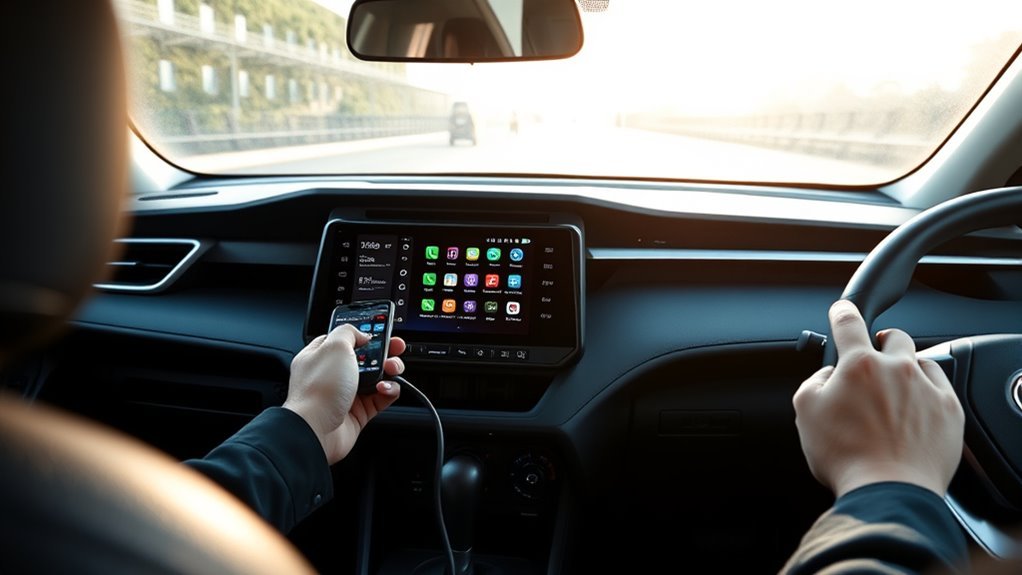
To set up Android Auto in a Toyota RAV4, first use the connection method that matches the vehicle. U.S.-market 2020–2022 RAV4 factory systems normally use a USB data connection, while 2023–2026 models include standard wireless Android Auto. Park the vehicle, unlock the phone, approve every setup prompt, and launch Android Auto from the Toyota multimedia screen.
Your phone must also meet Google’s requirements. Wired Android Auto currently requires Android 9.0 or newer, a compatible vehicle, an active data plan, and a high-quality USB data cable. Wireless Android Auto requires compatible phone and vehicle hardware, including 5 GHz Wi-Fi support.
Quick Answer
For a U.S.-market 2020–2022 Toyota RAV4, connect a compatible Android phone to the front USB media/data port with a high-quality data cable. For a 2023–2026 RAV4, turn on Bluetooth, Wi-Fi, Location Services, and mobile data, pair the phone through the Toyota multimedia system, and approve the wireless Android Auto prompt. Imported vehicles, aftermarket stereos, and region-specific systems may use different steps.
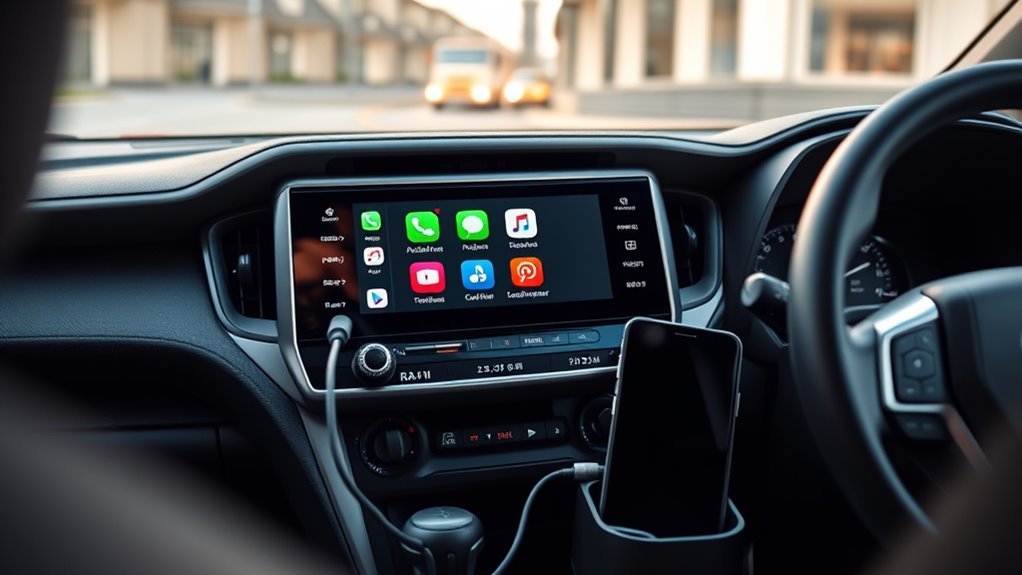
Key Takeaways
- U.S.-market 2020–2022 RAV4 factory systems normally use wired Android Auto; 2023–2026 models include standard wireless Android Auto.
- Use the RAV4’s USB media/data port, not a charge-only port or charge-only cable, for wired Android Auto.
- Google currently requires Android 9.0 or newer for wired Android Auto. Wireless Android Auto also requires compatible vehicle hardware and a phone with 5 GHz Wi-Fi support.
- A Bluetooth connection for calls or music does not automatically mean Android Auto projection is enabled.
- If Android Auto will not launch, test the USB port and cable before deleting pairings or resetting multimedia settings.
At a Glance
| Time Required | 5–10 minutes for first-time setup |
| Difficulty | Easy |
| Tools Needed | Compatible Android phone and a high-quality USB data cable for wired setup |
| Cost | No Android Auto subscription; mobile data or paid-app charges may apply |
Which Toyota RAV4 Models Support Android Auto?
For factory multimedia systems in U.S.-market RAV4s, the connection method changed by model year. Use the table below before attempting setup.
| RAV4 Model Year | Factory Android Auto | Normal Connection | What to Do |
|---|---|---|---|
| 2018 and older | Not included in the U.S. factory RAV4 system | Not applicable | Use a compatible aftermarket receiver if Android Auto is required. |
| 2019 | Not included in the U.S. factory specification | Not applicable | Verify any market-specific retrofit or replacement head unit before following factory setup steps. |
| 2020–2022 | Included on U.S.-market factory systems | Wired USB | Connect to the USB media/data port with a high-quality data cable. |
| 2023–2026 | Included on U.S.-market factory systems | Wireless or wired, depending on the multimedia system and selected connection | Pair through Bluetooth & Devices for wireless use or connect to the media port for USB use. |
Market note: The table describes U.S.-market factory equipment. Toyota introduced Android Auto on different dates in some countries, and certain markets offered retrofits. Check the vehicle’s owner’s manual, VIN-specific equipment, or local Toyota support for an imported RAV4.
Check Phone and Connection Requirements
Confirm that the phone, RAV4 multimedia system, and connection method are compatible before changing settings. A USB port alone does not prove that the vehicle supports Android Auto, and some RAV4 USB ports provide power without phone-projection data.
[Products Worth Considering]

This 2-in-1 wireless adapter converts factory-wired CarPlay into a cable-free experience for compatible vehicles, helping you enjoy seamless phone integration with less clutter. It supports automatic reconnection, stable Bluetooth and Wi-Fi pairing, and broad compatibility with many factory-installed CarPlay systems. Built with a durable metal and acrylic design, it also includes firmware updates and lifetime technical support for continued convenience.

This upgraded wireless CarPlay adapter converts factory wired CarPlay into a wireless experience with a simple one-time setup and automatic reconnection at every startup. Its mini design saves space while the dual-chip wireless technology helps deliver fast, stable performance with low latency. Compatible with most factory-installed wired CarPlay systems and iPhone models with supported iOS versions, it adds convenient hands-free access to navigation, music, calls, Siri, and messaging.
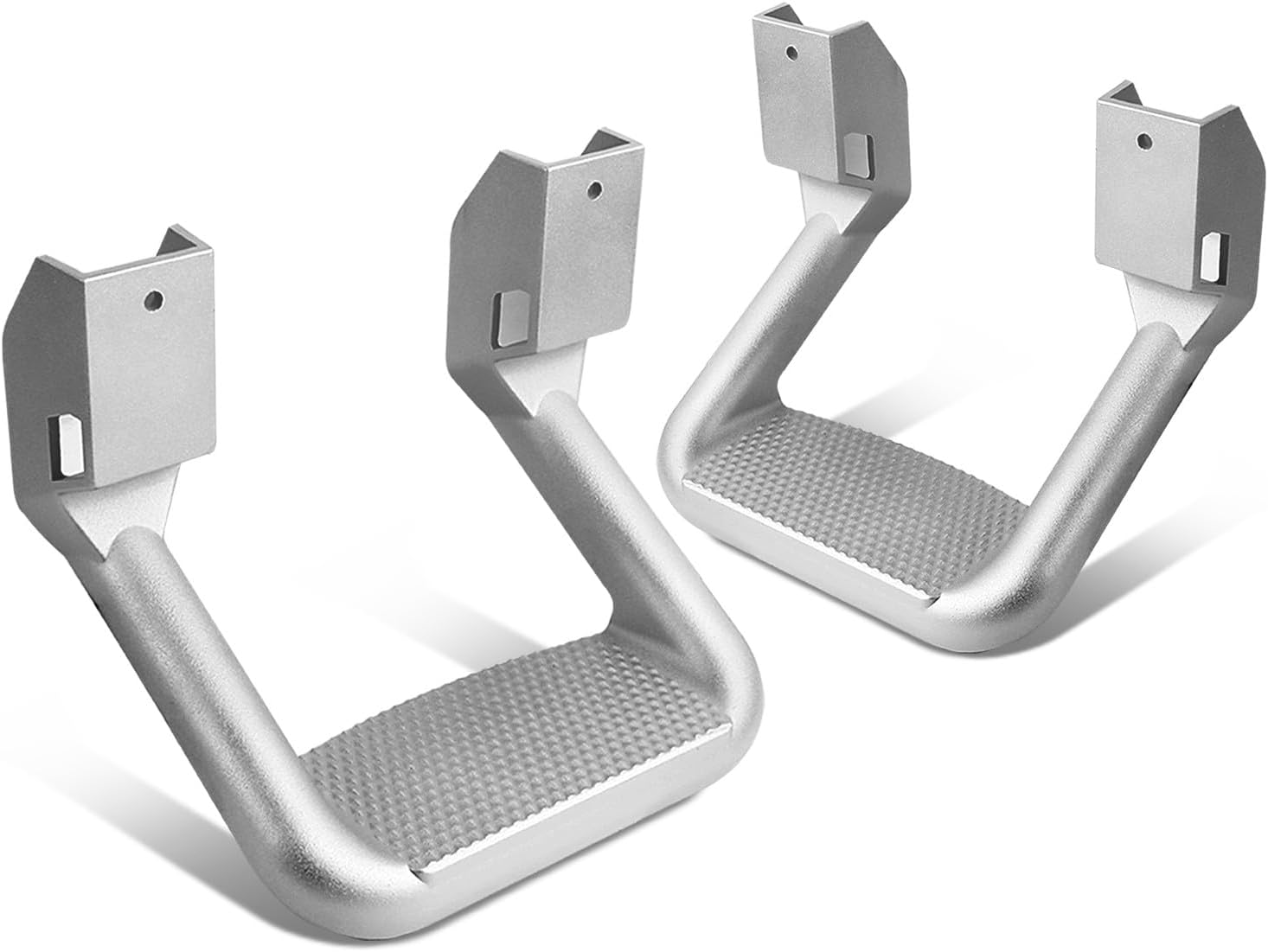
These universal aluminum side hoop steps provide a practical boost for easier entry and exit from pickup trucks and SUVs. Built with solid die-cast brackets and a non-slip step surface, they offer reliable support and a rugged look while helping improve everyday access. The silver powder-coated finish adds durability, and the pair is designed for driver and passenger side installation with included hardware.
Phone Requirements
| Connection Type | What You Need |
|---|---|
| Wired Android Auto | Android 9.0 or newer, an active data plan, a compatible RAV4, and a high-quality USB data cable. |
| Wireless Android Auto | A compatible Android phone with an active data plan and 5 GHz Wi-Fi support, plus a RAV4 multimedia system that supports wireless Android Auto. Google lists Android 11.0 phones as broadly compatible with wireless projection. |
| Android Auto software | Android Auto is integrated into compatible Android phones. Complete any Android Auto, Google Play services, or system update requested during setup. |
See Google’s current Android Auto requirements before troubleshooting an older or unusual phone configuration.
Find the Correct USB Port
For wired setup, use the RAV4’s USB media/data port. Toyota says its location varies by model but is commonly at the front of the cabin or in the center-console area under a flap marked with a media-port symbol. Rear-seat and secondary USB ports may provide charging only.
If the phone displays a charging icon but Android Auto never appears, do not assume the vehicle has detected a data connection. Move the cable to the main front media port and test a second known-good data cable.
Confirm Android Auto Is Allowed for the Phone
A phone may be paired for calls and Bluetooth audio without being authorized for Android Auto. On newer Toyota Audio Multimedia systems, open Settings → Bluetooth & Devices, select the phone, and confirm that Use for Android Auto is enabled if that option appears.
For broader pairing instructions covering both Android and iPhone devices, see the Toyota RAV4 phone and multimedia setup guide.
How to Set Up Android Auto in a Toyota RAV4
Park the RAV4, apply the parking brake, and allow the multimedia system to finish starting. First-time setup requires phone permissions and screen prompts that should not be handled while driving.
Warning: Do not configure Android Auto, pair Bluetooth, type destinations, or rearrange apps while driving. The NHTSA defines distracted driving as any activity that diverts attention from driving, including phone and navigation-system interaction.
[Products Worth Considering]

The ANCEL AD410 PRO combines engine diagnostics and 12V battery testing in one easy-to-use tool, helping you read and clear check engine codes while checking battery health, cranking, and charging performance. It also provides live data, freeze frame details, and I/M readiness checks to help you diagnose issues faster and prepare for emissions testing. With plug-and-play operation, a clear screen, and broad vehicle compatibility, it is a practical solution for home mechanics and everyday drivers.

Miracase car phone holder uses a metal hook clip with silicone padding to grip vent blades securely, helping prevent slips even on bumpy roads. It supports a wide range of smartphones and thicker cases, and the one-hand release makes mounting and removing your phone quick and convenient. A 360-degree rotating design lets you adjust for landscape or portrait viewing for safer navigation and hands-free use.
![CONMDEX Android Auto USB Cable [3ft, 2-Pack] 10Gbps, 3A Fast Charging | USB 3.1 Gen 2 | Stable Android Auto & CarPlay | Flexible & Durable | for iPhone 18 Pro Max Duo/17/16, iPad Pro, Galaxy S26](https://m.media-amazon.com/images/I/41vy0X7qsdL._SL500_.jpg)
[Reliable Car Connectivity & Android Auto] Engineered specifically to solve "falling short" connection issues in vehicles. This cable provides a stable, high-speed link for Android Auto and Apple CarPlay, ensuring consistent navigation and music streaming in models like the Ford Raptor and other modern consoles
Wired Android Auto Setup for a RAV4
Use this method for U.S.-market 2020–2022 RAV4 factory systems, or whenever a compatible newer RAV4 is being connected through USB.
- Start the RAV4 and keep it in Park. Wait for the multimedia home screen to load.
- Unlock the Android phone. Turn on mobile data and complete any pending Android or Google Play services update.
- Use a short, high-quality USB data cable. Avoid charge-only cables, USB hubs, extensions, and loose adapters.
- Connect the phone to the RAV4’s USB media/data port. Use the main front media port rather than a rear or charging-only port.
- Approve the phone prompts. Allow the permissions required for calls, messages, contacts, notifications, location, and media.
- Approve Android Auto on the Toyota screen. Select “Yes,” “On,” “Enable,” or the Android Auto tile, depending on the multimedia version.
- Test the connection while parked. Open Maps, Phone, Messages, and an audio app, then test the voice button or microphone icon.
Pro Tip: If the phone charges but Android Auto does not launch, test another data-capable cable before changing vehicle settings. Power can pass through a cable even when its data connection is unavailable or unreliable.
Wireless Android Auto Setup for a RAV4
Use this method for U.S.-market 2023–2026 RAV4 factory multimedia systems. Keep Bluetooth, Wi-Fi, Location Services, and mobile data enabled during first-time pairing.
- Park the RAV4 and turn on the multimedia system.
- Open Bluetooth settings on the phone. Confirm Bluetooth and Wi-Fi are on.
- Open the vehicle device menu. On Toyota Audio Multimedia, select Settings → Bluetooth & Devices → Add Another Device, or use the equivalent device-pairing menu shown on your screen.
- Select the phone and confirm the pairing code. Approve the same code on both screens.
- Approve phone projection. Accept the Android Auto prompt and enable Use for Android Auto if the vehicle displays that switch.
- Launch Android Auto. It may open automatically after pairing. Otherwise, select the Android Auto icon or the paired phone on the Toyota screen.
Wireless Android Auto uses Bluetooth during initial pairing and Wi-Fi for the projection connection. If the phone connects only for calls or music, return to the phone’s entry under Bluetooth & Devices and verify that Android Auto use is enabled.
What Happens After Setup?
Supported navigation, calling, messaging, and audio apps appear on the RAV4 display. The apps still run from the phone, and online features may use the phone’s mobile-data connection. Android Auto itself does not require a Toyota subscription, but carrier data charges and paid-app subscriptions can still apply.
The available apps and screen layout can change after Android, Android Auto, Google Maps, or third-party app updates. Not every Android app is designed for the in-vehicle Android Auto interface.
Launch and Control Android Auto From the RAV4 Screen
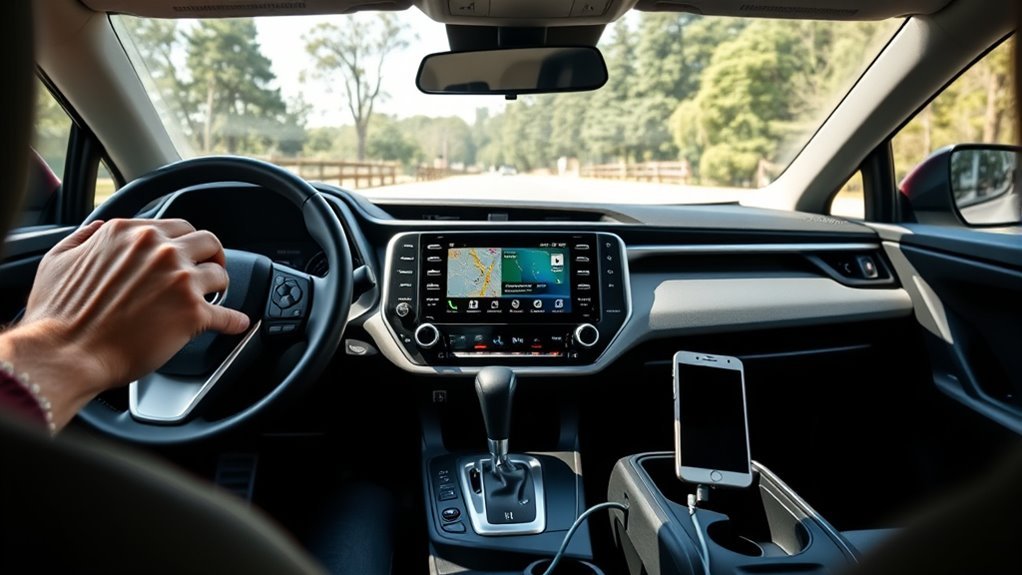
Once Android Auto is active, the RAV4 touchscreen provides access to compatible navigation, calling, messaging, and audio apps. Use the screen for brief selections and use voice controls for tasks that would otherwise require several taps.
How Do You Open Android Auto Again?
For wired use, connect the phone to the USB media port. For wireless use, start the RAV4 with Bluetooth and Wi-Fi enabled on the paired phone. Android Auto may open automatically or appear as an icon on the Toyota home screen.
If the icon is missing, open Bluetooth & Devices, select the phone, and check that Android Auto or phone projection is enabled for it.
Use the Touchscreen
Use short taps for Maps, Phone, Messages, and audio apps. Avoid repeatedly tapping a slow screen because delayed responses can open the wrong menu. If the entire display freezes or stops responding, use the separate RAV4 touchscreen troubleshooting guide.
Use Steering-Wheel and Voice Controls
With Android Auto running, press and hold the RAV4’s voice-command button to activate Google Assistant on supported systems. You can also use the microphone icon or a supported voice wake phrase.
Useful commands include:
- “Navigate to home.”
- “Call Mom.”
- “Play my driving playlist.”
- “Read my messages.”
Exit to Toyota Multimedia
Select the Toyota icon, Home control, Menu control, or system-return icon shown by your multimedia version. You can return to Toyota radio, settings, Bluetooth, or vehicle screens without deleting the phone connection.
Disconnecting the USB cable ends a wired Android Auto session. A wireless session can be disconnected through the vehicle’s device menu or the phone’s Android Auto controls.
Customize Android Auto Before Driving
Arrange the apps and notification behavior while the RAV4 is parked. Keep navigation, calling, and the audio service you use most in easy-to-reach positions.
Customize App Shortcuts From Your Phone
Open Android Auto settings on the phone and select Customize launcher. Show, hide, or reorder compatible apps. Exact menu wording can vary by phone manufacturer and Android version.
| App Type | Suggested Placement | Why It Helps |
|---|---|---|
| Navigation | Near the top | Reduces searching when starting or changing a route. |
| Phone | Top row or voice-first | Makes calls easier to start without handling the phone. |
| Messages | Visible but secondary | Supports voice reading and replies without emphasizing notifications. |
| Music or podcasts | Near navigation | Reduces menu changes when selecting audio before a drive. |
Reduce Notification Distractions
Use Android Auto settings to limit conversation previews, alert sounds, or message notifications that distract you. Android Auto is intended to simplify essential driving-related phone functions, not duplicate the phone’s full interface.
Note: Toyota steering-wheel buttons retain the functions assigned by the vehicle and multimedia system. Android Auto does not provide unrestricted custom remapping of every button to third-party apps.
Why Is Android Auto Not Connecting to the RAV4?
Use this diagnostic order: confirm model-year compatibility, select the correct data port, test a second cable, unlock the phone and approve prompts, enable Android Auto for the device, remove stale pairing records, and then restart both systems.
The table below covers setup failures. For recurring dropouts, app errors, firmware checks, and deeper resets, use the dedicated RAV4 Android Auto not working guide.
| Problem | Likely Cause | First Fix |
|---|---|---|
| Android Auto does not appear | Unsupported model year, wrong USB port, charge-only cable, or projection disabled | Confirm compatibility, use the front media port, test a data cable, and enable Android Auto for the phone. |
| Phone charges but does not connect | The cable or port is supplying power without a working data connection | Move to the main USB media port and test another short data-capable cable. |
| Phone connects only for calls or music | Bluetooth is paired, but Android Auto projection is not authorized | Select the phone under Bluetooth & Devices and enable Use for Android Auto. |
| Setup prompt appears but fails | The phone was locked, permissions were denied, or setup was interrupted | Disconnect, unlock the phone, reconnect, and approve each prompt. |
| Wireless Android Auto will not start | Unsupported RAV4 system, Wi-Fi disabled, stale pairing, or the wrong phone selected | Confirm wireless support, turn on Bluetooth and Wi-Fi, remove both pairing records, and pair again. |
| The wrong phone connects | Another saved device or driver profile has priority | Disconnect the competing phone and select the intended device in Bluetooth & Devices. |
| Apps are missing | The app is not Android Auto compatible or is hidden in launcher settings | Update the app and check Customize launcher on the phone. |
[Products Worth Considering]

Note: Car models with USB 2.0 ports may experience protocol mismatch with USB 3.2 Android Auto cable, potentially causing device recognition failure, slow charging speeds, or even complete charging failure.

10Gbps Data Transfer: SUNGUY USB 3.1 Gen 2 cable supports super speed data transmission up to 10Gbps, transfer HD movies, songs, file or photos in seconds. Backwards compatible to USB 3.0 and 2.0; DOES NOT support video output.

✅【10Gbps High-Speed Data Transfer】USB 3.1 Gen2 USB A to USB C Data Cable supports super speed data transmission up to 10Gbps, transfer HD movies, music, files or photos in seconds. Backwards compatible to USB 3.0 and 2.0. Note: Not support video output.
Reset the Connection in the Right Order
- Restart the Android phone.
- Restart the RAV4 multimedia system using the procedure supported by that unit.
- Remove the phone from the RAV4’s saved-device list.
- Forget the RAV4 in the phone’s Bluetooth and Android Auto settings.
- Turn Bluetooth, Wi-Fi, Location Services, and mobile data back on.
- Pair again while parked and approve every prompt.
For Bluetooth-specific pairing failures, follow the RAV4 Bluetooth connection guide.
Check for Updates
Install available Android system, Google Play services, Google Maps, and compatible app updates. Also check the RAV4 multimedia settings or Toyota owner resources for an available vehicle software update.
Do not disconnect the vehicle’s 12-volt battery solely as a first Android Auto reset. Battery disconnection can erase settings and trigger model-specific initialization requirements.
When Should You Contact Toyota?
Contact Toyota or a qualified dealer if two compatible phones fail with known-good cables, the USB media port does not transfer data, Android Auto remains unavailable after projection is enabled, or the multimedia system repeatedly freezes or restarts.
Use Toyota’s Android Auto setup support and Google’s Android Auto setup instructions before requesting service.
Frequently Asked Questions
Why won’t my Android Auto connect to my Toyota RAV4?
Common causes include an unsupported RAV4 model year, a charge-only USB cable, the wrong USB port, denied phone permissions, disabled Android Auto projection, stale pairing records, or outdated software. Start by confirming compatibility and testing a known-good data cable in the main front USB media port.
How do I get Android Auto to show on my RAV4 screen?
Park the RAV4 and unlock the phone. For a wired system, connect to the USB media port with a data-capable cable and approve the prompts. For a wireless system, pair the phone through Bluetooth & Devices, enable Use for Android Auto if shown, and select the Android Auto icon.
Which Toyota RAV4 years have wireless Android Auto?
For U.S.-market factory systems, Toyota made wireless Android Auto standard across the RAV4 lineup beginning with the 2023 model year. U.S. 2020–2022 factory systems normally use wired Android Auto. Imported vehicles and replacement multimedia systems may differ.
Does every Toyota RAV4 have Android Auto?
No. The U.S.-market 2019 RAV4 did not include factory Android Auto. Toyota added factory Android Auto for the 2020 model year, while older RAV4s generally require a compatible aftermarket receiver. Availability can differ by country and multimedia system.
Why does my phone charge without launching Android Auto?
The cable or USB port may be carrying power without a working data connection. Use the main front USB media port, remove hubs or adapters, unlock the phone, and test another short data-capable cable.
Does Android Auto use USB, Bluetooth, or Wi-Fi?
Wired Android Auto uses a USB data connection. Wireless Android Auto uses Bluetooth for initial pairing and Wi-Fi for phone projection. The phone can also use mobile data for navigation, streaming, voice results, and messages.
Is Android Auto free in a Toyota RAV4?
Android Auto does not require a separate Toyota subscription. It uses your phone and compatible apps, so carrier data charges and subscriptions for music or other services can still apply.
Conclusion
The correct Toyota RAV4 Android Auto setup depends mainly on model year. U.S.-market 2020–2022 RAV4 factory systems normally connect through the USB media port, while 2023–2026 models include standard wireless Android Auto.
Complete the setup while parked, approve every phone and vehicle prompt, and test navigation, calling, audio, and voice controls before driving. If the phone charges without connecting, rule out the USB port and cable first. For wireless failures, confirm Android Auto is enabled for the selected phone before deleting and rebuilding the pairing.
Sources
- Google Android Auto Help: Get started with Android Auto — current wired and wireless phone requirements.
- Google Android Auto Help: Set up Android Auto — wired and wireless connection procedures.
- Android Auto Vehicle Compatibility — official manufacturer compatibility directory.
- Toyota Connected Services: Android Auto — Toyota setup, USB media port, features, and voice-control guidance.
- Toyota Owners: 2020 RAV4 Hybrid Android Auto — factory USB Android Auto operation.
- Toyota USA Newsroom: What’s New for 2023 — standard wireless Android Auto across 2023 RAV4 grades.
- Toyota USA Newsroom: All-New 2026 RAV4 — standard wireless Android Auto on the redesigned model.
- NHTSA: Distracted Driving — safety guidance for phone and infotainment interaction.