
To connect a phone to a Toyota RAV4, put the vehicle in Park and use the menu path that matches your screen. On newer Toyota Audio Multimedia systems, select Settings → Bluetooth & devices → Add another device → Search for devices. On older Entune-style systems, select Menu → Setup → Bluetooth → Add Device. Choose your phone, confirm the matching code, and approve Apple CarPlay or Android Auto when prompted. Use the USB data port if your RAV4 does not support wireless phone projection.
Last updated: July 14, 2026 ·
Quick Answer
Turn on Bluetooth, keep the RAV4 in Park, and add your phone through the vehicle’s Bluetooth or Devices menu. Confirm the same pairing code on both screens. Then allow Apple CarPlay or Android Auto. A U.S.-market 2019 RAV4 supports factory Apple CarPlay, Android Auto was added for 2020, and the newer Toyota Audio Multimedia system brought standard wireless Apple CarPlay and Android Auto to the 2023 RAV4. Equipment can differ by region, head unit, or aftermarket modifications.
Key Takeaways
- Use the menu path that matches your multimedia generation: newer Toyota Audio Multimedia screens and older Entune screens use different labels.
- For U.S.-market models, 2019 introduced factory Apple CarPlay, 2020 added Android Auto, and 2023 introduced standard wireless support for both.
- Bluetooth handles calls and audio, but CarPlay and Android Auto require a separate phone-projection connection through Wi-Fi or a USB data port.
- A cable that charges your phone may still lack the data connection needed for CarPlay or Android Auto.
- Complete pairing, navigation setup, and permission prompts before driving.
At a Glance
| Time Required | 3–10 minutes |
| Difficulty | Easy |
| Tools Needed | Your phone, the RAV4 multimedia display, and a data-capable USB cable if using wired setup |
| Cost | No vehicle fee for Bluetooth, CarPlay, or Android Auto pairing. Mobile-data charges may apply, and separate Toyota Connected Services may require a subscription. |
Which RAV4 Years Support CarPlay and Android Auto?
Your RAV4 model year helps determine whether you should start with Bluetooth, a USB cable, or wireless phone projection. The table below covers original U.S.-market factory systems. Imported vehicles, replacement head units, regional specifications, and dealer-installed equipment can differ. If you’re exploring aftermarket stereo upgrades, understanding the hardware used to mount a new receiver can also help; this Metra Electronics 99-5700 radio installation kit review provides a useful example of how installation kits are used when fitting aftermarket radios in compatible older vehicles.
| RAV4 Model Year | Factory Phone Integration | Best First Step |
|---|---|---|
| 2018 and older | Bluetooth calling or audio may be available, but factory CarPlay and Android Auto are not guaranteed. | Use the owner’s manual and older Menu → Setup → Bluetooth path. |
| 2019 U.S. model | Toyota’s launch specifications list factory Apple CarPlay. Android Auto was not included in the 2019 launch equipment list. | Pair Bluetooth for calls, then connect an iPhone to the USB data port for CarPlay. |
| 2020–2022 U.S. models | Toyota added Android Auto for 2020 alongside Apple CarPlay. Original connection methods vary by multimedia package. | Start with the USB data port unless your specific owner’s manual or screen offers wireless projection. |
| 2023–2025 U.S. models | Toyota Audio Multimedia supports standard wireless Apple CarPlay, wireless Android Auto, and dual Bluetooth phone connectivity. | Pair through Settings → Bluetooth & devices and approve wireless projection. |
| 2026 U.S. model | The redesigned multimedia system includes standard wireless Apple CarPlay, wireless Android Auto, and simultaneous dual Bluetooth phone connectivity. | Use Settings → Bluetooth & devices. The newer interface also provides a persistent home control for moving between interfaces. |
Note: Model-year guidance above applies to original U.S.-market equipment. Check Toyota’s multimedia feature lookup and your vehicle’s owner’s manual before assuming a different region, trim, or replacement head unit has the same features.
What Type of Phone Connection Do You Need?
Bluetooth pairing, CarPlay or Android Auto, USB charging, and Toyota Connected Services are separate functions. Identifying the function you need prevents you from troubleshooting the wrong connection.
| Connection | What It Controls | What It Requires |
|---|---|---|
| Bluetooth | Hands-free calls, contacts, and Bluetooth audio | Bluetooth enabled on the phone and vehicle |
| Wireless CarPlay or Android Auto | Maps, messages, calls, music, podcasts, and compatible apps on the vehicle screen | Compatible vehicle and phone, plus Bluetooth and Wi-Fi during setup |
| Wired CarPlay or Android Auto | The same projected phone interface through a physical connection | The vehicle’s USB data or media port and a data-capable cable |
| USB charging only | Charges the phone without displaying the phone interface | Any suitable charging port and cable |
| Toyota Connected Services | Separate Toyota app, account, cloud, remote, navigation, or vehicle services | Compatible vehicle, Toyota account, and an active trial or subscription where required |
[Products Worth Considering]

This 2-in-1 wireless adapter converts factory-wired CarPlay into a cable-free experience for compatible vehicles, helping you enjoy seamless phone integration with less clutter. It supports automatic reconnection, stable Bluetooth and Wi-Fi pairing, and broad compatibility with many factory-installed CarPlay systems. Built with a durable metal and acrylic design, it also includes firmware updates and lifetime technical support for continued convenience.
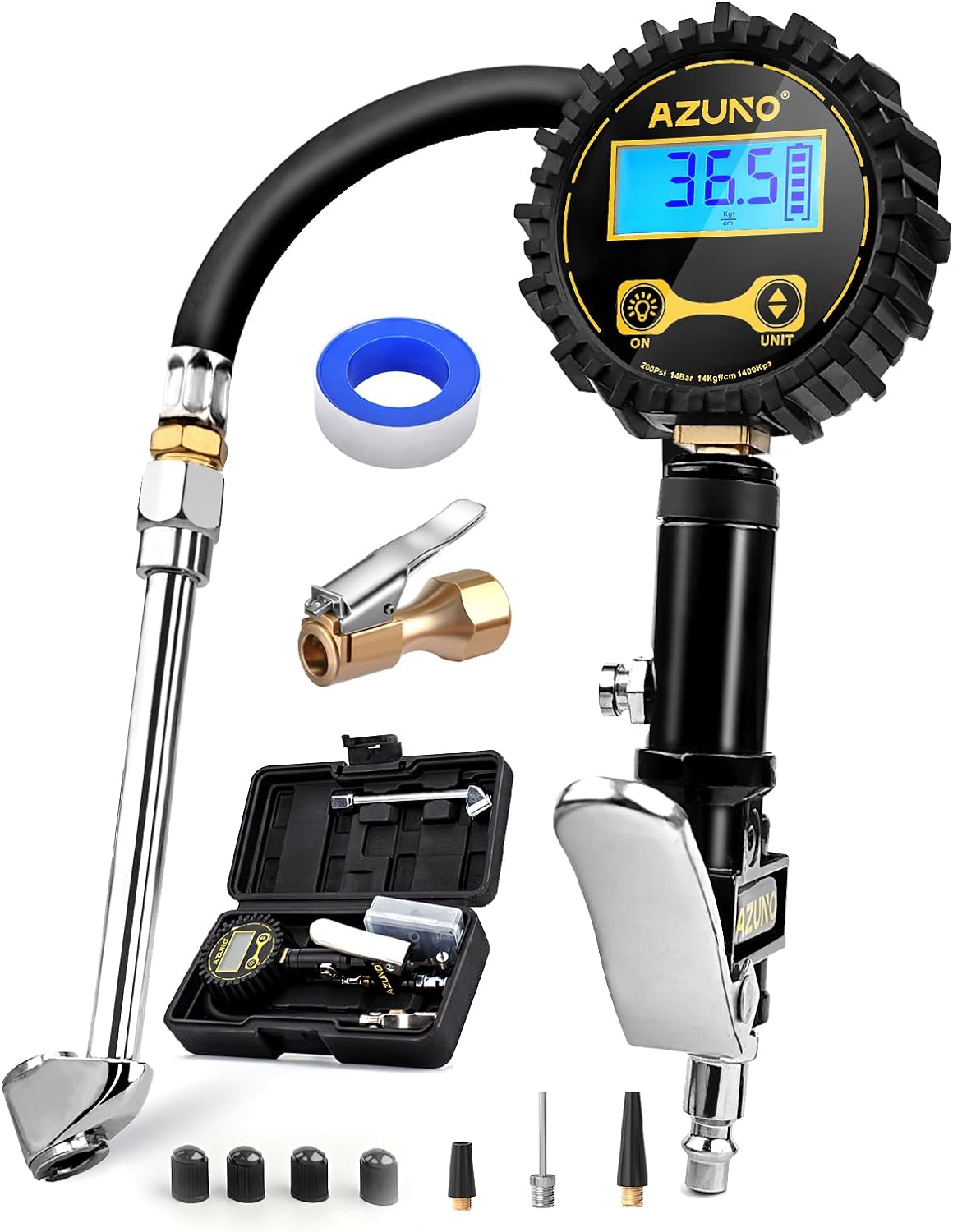
This digital tire inflator delivers accurate, easy-to-read pressure measurements with a bright backlit LCD and precise 0.1 resolution for confident inflation. Designed for single-handed use, it makes it simple to inflate or deflate tires while staying organized in the included portable carrying box. Built for a wide range of vehicles, it is a practical air compressor accessory for cars, trucks, SUVs, motorcycles, and more.

This wireless CarPlay screen adds modern smartphone connectivity to almost any vehicle with easy plug-and-play installation. It supports Apple CarPlay and Android Auto, online maps, voice control, phone mirroring, and multiple audio output options for safer, more convenient driving. The included night vision backup camera and OTA updates help improve visibility, compatibility, and long-term performance.
How Do You Pair a Phone with the Toyota RAV4?
Start with the RAV4 in Park and the multimedia system turned on. Enable Bluetooth on your phone, then use the path that matches your vehicle:
- Newer Toyota Audio Multimedia: Settings → Bluetooth & devices → Add another device → Search for devices.
- Older Entune-style multimedia: Menu → Setup → Bluetooth → Add Device.
Select your phone when it appears. Confirm that the same pairing code appears on the phone and the RAV4 display, then approve contacts, calls, messages, notifications, and microphone access as needed.
After Bluetooth pairing, the RAV4 may ask whether you want to enable Apple CarPlay or Android Auto. Accept the prompts on both screens. If the vehicle supports wireless projection, it should reconnect on later drives. If it supports wired projection, connect the phone through the USB data or media port.
Note: Bluetooth pairing can succeed even when CarPlay or Android Auto does not launch. If calls work but the phone interface never appears, check phone-projection permissions, Wi-Fi, and the USB data connection instead of repeating only the Bluetooth steps.
What Should You Check Before Connecting the Phone?
Prepare the phone, vehicle, and cable before you begin. These checks prevent many first-time pairing failures.
- Update the phone to the latest software version available for that device.
- Turn on Bluetooth and Wi-Fi before starting wireless setup.
- Turn on Siri before setting up Apple CarPlay.
- Keep Location Services available during wireless Android Auto setup.
- Keep the RAV4 in Park while pairing and accepting permissions.
- Use a direct, data-capable USB cable for wired Apple CarPlay or Android Auto.
- Use the USB port marked for media, data, a smartphone, or CarPlay when available.
- Remove old or duplicate RAV4 Bluetooth profiles if the phone was paired previously.
- Allow phone, contacts, microphone, notification, message, and location permissions when prompted.
- Confirm that your phone and exact RAV4 multimedia system support the connection type you want.
Warning: Complete setup before moving the vehicle. Do not type, approve permissions, change connection settings, or troubleshoot the multimedia system while driving. NHTSA includes interaction with entertainment and navigation systems among activities that can divert attention from safe driving.
How Do You Connect an iPhone to a Toyota RAV4?
You can connect an iPhone through wireless Apple CarPlay on a compatible RAV4 or through the USB data port on a wired system. Turn on Siri before setup because CarPlay uses it for voice commands.
[Products Worth Considering]

This USB C to USB A carplay cable is designed to keep compatible iPhone and iPad devices connected and charged while driving. It supports fast charging and data sync for reliable everyday use on road trips and commutes, with broad compatibility across newer iPhone and iPad models. The included cable offers a simple plug-and-play solution for CarPlay and in-car charging needs.

The HEYINCAR+ H-Air adapter upgrades compatible factory wired CarPlay and Android Auto systems to wireless convenience with a compact plug-and-play design. It connects automatically after setup, delivering fast startup, stable performance, and support for your car’s original touchscreen, steering wheel controls, and voice commands. Built for broad vehicle compatibility and ongoing firmware updates, it offers a simple way to enjoy cable-free driving with minimal clutter.

The Ultimate Smarter Copilot: Stay on Top of Your Driving- The 3A magic link CarPlay box control everything with a word, Or a touch, Or a twist. Save your 40% of time by quick auto conn and seamless operation, such as navigation, music playing, Siri assistant, phone calls, radio etc(Our Carplay Only Compatible with wired Apple CarPlay Car systems)
Wireless Apple CarPlay Setup
- Start the RAV4 and keep the vehicle in Park.
- On the iPhone, turn on Bluetooth, Wi-Fi, and Siri.
- On a newer RAV4 screen, open Settings → Bluetooth & devices → Add another device → Search for devices.
- Select the iPhone and confirm the matching pairing code.
- Approve Apple CarPlay on the iPhone and vehicle display.
- Allow CarPlay while the phone is locked if you want automatic reconnection.
- Keep Auto-Join enabled for the CarPlay Wi-Fi network.
Wired Apple CarPlay Setup
- Use a direct Apple-compatible data cable with the correct connector for your iPhone.
- Plug it into the RAV4’s USB data or media port, not a charging-only port.
- Connect the iPhone and approve the CarPlay prompts on both screens.
- Allow CarPlay while the phone is locked if you want it to launch without unlocking the phone each time.
If the iPhone charges but CarPlay does not appear, try the front media port and another direct data cable. The compatible USB port may carry a smartphone or CarPlay symbol. Apple’s official CarPlay setup guide covers USB and wireless connections.
How Do You Connect Android Auto to a Toyota RAV4?
Android Auto can connect wirelessly on a compatible RAV4 or through the vehicle’s USB data port. On current Android versions, Android Auto is integrated into the phone. Android 9 or earlier may require the separate Android Auto app.
[Products Worth Considering]

Main Specifications: USB 2.0 fast data transmission and device charge power, 12V-30V input, 1.2 A 5V output, 9.84 inches / 25 cm car extension cable; USB socket extender replacement fits the hole of (1.34 " x 0.91 " ) 34 x 23 mm
![CONMDEX Android Auto USB Cable [3ft, 2-Pack] 10Gbps, 3A Fast Charging | USB 3.1 Gen 2 | Stable Android Auto & CarPlay | Flexible & Durable | for iPhone 18 Pro Max Duo/17/16, iPad Pro, Galaxy S26](https://m.media-amazon.com/images/I/41vy0X7qsdL._SL500_.jpg)
[Reliable Car Connectivity & Android Auto] Engineered specifically to solve "falling short" connection issues in vehicles. This cable provides a stable, high-speed link for Android Auto and Apple CarPlay, ensuring consistent navigation and music streaming in models like the Ford Raptor and other modern consoles

Compatible for Toyota Camry Sienna RAV4 CH-R 2018+ w/Original USB Function, please check and confirm it is the correct USB adapter you need!
Wireless Android Auto Setup
Bluetooth begins the first pairing, while Wi-Fi carries the projected Android Auto interface. Keep Bluetooth, Wi-Fi, and Location Services on during setup.
- Put the RAV4 in Park and turn on the multimedia system.
- Turn on Bluetooth, Wi-Fi, and Location Services on the Android phone.
- Open Settings → Bluetooth & devices → Add another device → Search for devices on a newer RAV4 screen.
- Select the phone on the RAV4 display or select the RAV4 on the phone.
- Confirm the same pairing code on both devices.
- Approve Android Auto, contacts, calls, messages, microphone, notification, and location permissions.
- Tap the Android Auto icon on the display if the interface does not open automatically.
Wired Android Auto Setup
Connect the Android phone to the RAV4’s USB data or media port with a compatible data cable. Follow the prompts on the phone and multimedia display. Google’s Android Auto setup guide recommends keeping the vehicle in Park and completing the on-screen setup before driving.
| Action | Purpose |
|---|---|
| Connect a data-capable USB cable | Starts wired Android Auto through the vehicle’s data connection |
| Accept phone and vehicle prompts | Authorizes Android Auto and its required permissions |
| Keep mobile data available | Supports maps, messages, traffic, and streaming apps |
| Try another direct cable if setup fails | Rules out a damaged, adapter-based, or charge-only cable |
| Try the front media port | Avoids USB ports intended only for charging |
How Do You Choose Between Wireless and USB?
Use wireless projection for convenience and a wired connection when you want steadier data transfer or simultaneous charging. If both options are available, manage automatic connection and phone priority through the Toyota Bluetooth & devices menu.
If another driver’s phone takes over, select your phone in the Devices menu and enable it for phone or projection use. You can also disable Bluetooth temporarily on the competing phone.
Pro Tip: Test one variable at a time when a connection drops. Try a different direct cable first, restart both systems second, and delete and re-pair the phone third. Changing several settings at once makes the actual cause harder to identify.
How Do You Switch Between Toyota Multimedia and the Phone Interface?
You can move between Toyota’s native multimedia interface and Apple CarPlay or Android Auto without pairing again. The exact icon location depends on the multimedia generation.
Use the Toyota, Home, or Quick-Access Control
Earlier Toyota Audio Multimedia systems may provide a Toyota icon, app shortcut, or quick-access taskbar. The redesigned 2026 RAV4 multimedia interface adds a home control that remains available while you use Toyota multimedia, CarPlay, or Android Auto.
- Tap the CarPlay or Android Auto icon to reopen the phone interface.
- Tap the Toyota, app, back, or home control to return to the native interface.
- Use the Devices menu to change which paired phone controls calls or phone projection.
- Use steering-wheel voice controls when possible instead of moving through screen menus.
- Arrange your most-used CarPlay or Android Auto apps before driving.
What Happens When You Switch Navigation Apps?
You can use Toyota navigation, Apple Maps, Google Maps, or Waze when the app and projection system support it. An active route may not transfer from one navigation app to another.
Choose the navigation app and enter the destination while parked. If you switch apps, verify the destination, route, and next turn before moving.
Why Won’t Your Phone Connect to the Toyota RAV4?
First identify whether Bluetooth, phone projection, or USB data has failed. If calls work but CarPlay or Android Auto does not appear, Bluetooth is already paired. Focus on projection permissions, Wi-Fi, the USB data port, and software rather than repeating only the Bluetooth setup.
| Problem | Likely Cause | Fix |
|---|---|---|
| Phone will not pair by Bluetooth | Old pairing record, device conflict, or Bluetooth is disabled | Delete the RAV4 from the phone and forget the phone from the RAV4, restart both, then pair again. |
| Bluetooth works but CarPlay or Android Auto does not appear | Phone projection was declined, Wi-Fi is off, or the wrong USB port is in use | Enable CarPlay or Android Auto in the phone and vehicle settings, turn on Wi-Fi for wireless projection, or use the USB data port. |
| CarPlay is blocked on the iPhone | Siri or Screen Time restrictions prevent CarPlay | Turn on Siri. Then check Settings → Screen Time → Content & Privacy Restrictions → Allowed Apps and confirm CarPlay is allowed. |
| Wired connection keeps disconnecting | Charge-only, damaged, loose, excessively long, or adapter-based cable | Use a short, direct data cable, clean lint from the phone port, and try the front USB media port. |
| Wireless connection drops | Wi-Fi or Bluetooth is off, another phone is competing, pairing data is stale, or software needs restarting | Disconnect competing phones, restart the phone and multimedia system, forget the old pairing, and pair again. |
| Wireless projection stops during a vehicle software update | The RAV4 connects to another Wi-Fi network for an over-the-air update | Allow the update process to finish or disconnect the vehicle from the competing Wi-Fi network before reconnecting wireless CarPlay or Android Auto. |
| Wrong phone connects first | Another paired device or driver profile has priority | Open Bluetooth & devices, select the preferred phone, and enable it for phone or projection use. Disable the competing phone temporarily if needed. |
| Audio plays from the wrong source | The RAV4 is using radio, Bluetooth audio, USB, or another phone | Select CarPlay, Android Auto, Bluetooth audio, or USB from the vehicle’s audio-source menu. |
Reset the Connection in the Right Order
- Confirm Bluetooth and Wi-Fi are on.
- Disconnect other nearby paired phones.
- Restart the phone.
- Restart the RAV4 multimedia system according to the owner’s manual.
- On newer systems, select Settings → Bluetooth & devices → the phone → Forget.
- On older systems, select Setup → Bluetooth → Remove Device.
- Forget the RAV4 from the phone’s Bluetooth, CarPlay, or Android Auto settings.
- Pair again while parked and approve every required prompt.
For iPhone-specific failures, use the RAV4 Apple CarPlay troubleshooting guide. For deeper Android fixes, use the RAV4 Android Auto troubleshooting guide.
How Do You Keep CarPlay and Android Auto Connected?
Keep the phone, cable, and multimedia system in a stable configuration. Frequent device changes, weak cables, competing phones, and stale pairing records cause many repeat failures.
- Restart the phone after a major iOS or Android update if connection behavior changes.
- Keep Bluetooth and Wi-Fi enabled for wireless projection.
- Use a direct data cable that fits securely for wired projection.
- Clean lint from the phone port if the connector feels loose.
- Remove unused paired phones and old driver profiles.
- Keep the preferred phone selected for calling and projection.
- Check Toyota’s RAV4 multimedia owner’s manual for model-specific controls.
How Can You Use the Connected Phone More Safely?
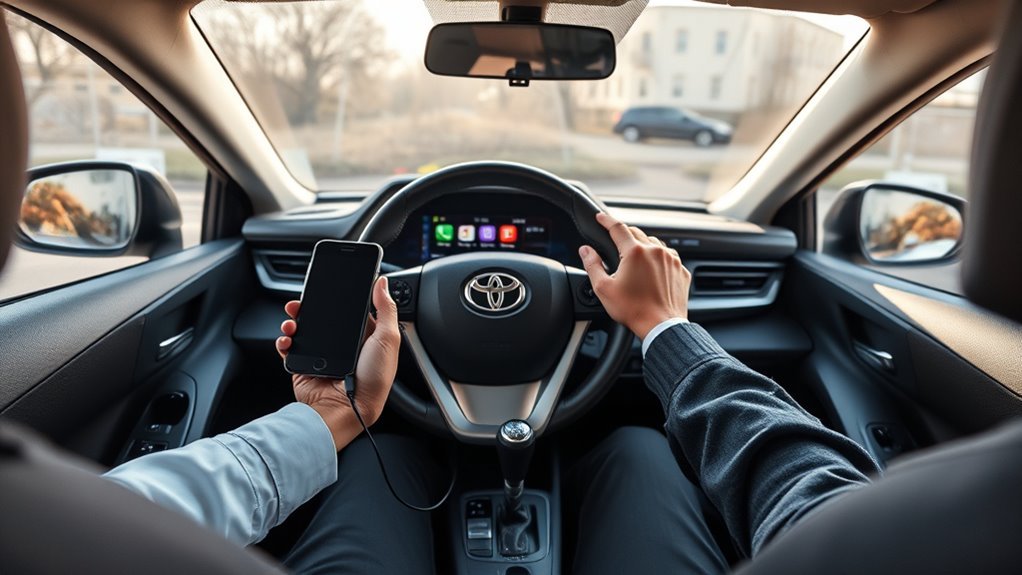
CarPlay and Android Auto reduce the need to handle the phone, but scrolling, typing, changing settings, or troubleshooting the display can still distract you. Set up your route, calls, podcasts, and playlists before you drive.
- Use Siri or Android Auto’s available voice controls for calls, messages, audio, and route changes.
- Limit notification alerts to those you need while driving.
- Store or mount the phone securely so it cannot slide around the cabin.
- Do not troubleshoot pairing or approve permissions while the vehicle is moving.
- Follow local laws governing phone use and screen interaction.
Finish the setup before shifting out of Park: pair the phone, approve permissions, choose the audio source, and start navigation before driving.
Frequently Asked Questions
How do I connect my phone to Toyota RAV4 multimedia?
Keep the RAV4 in Park and turn on Bluetooth. On newer systems, select Settings → Bluetooth & devices → Add another device → Search for devices. On older systems, select Menu → Setup → Bluetooth → Add Device. Choose the phone, confirm the matching code, and approve CarPlay or Android Auto. Use the USB data port when wireless projection is unavailable.
Which Toyota RAV4 years have Apple CarPlay and Android Auto?
For original U.S.-market systems, Toyota introduced factory Apple CarPlay on the 2019 RAV4 and added Android Auto for 2020. The newer Toyota Audio Multimedia system brought standard wireless Apple CarPlay and Android Auto to the 2023 RAV4. The 2024, 2025, and 2026 U.S. models continue to support wireless phone projection. Regional and replacement systems can differ.
Why does Bluetooth work but CarPlay or Android Auto does not?
Bluetooth calling and phone projection are separate connections. If calls work, the phone is already paired. Check that CarPlay or Android Auto is allowed, turn on Wi-Fi for wireless projection, approve the phone prompts, and use the vehicle’s USB data port rather than a charging-only port for wired projection.
Which RAV4 USB port should I use for CarPlay or Android Auto?
Use the USB data or media port identified in the owner’s manual. It may have a smartphone, CarPlay, media, or USB data symbol. Other cabin ports may provide charging only. If the phone charges but the interface does not appear, try the front media port and another direct data-capable cable.
Do I need the Toyota app to use Bluetooth, CarPlay, or Android Auto?
No. Basic Bluetooth pairing, Apple CarPlay, and Android Auto can work through guest mode on compatible Toyota multimedia systems. The Toyota app may still be required for separate account features, Remote Connect, cloud services, or other Connected Services.
Can I connect more than one phone to a RAV4?
Many Toyota multimedia systems can store multiple paired phones, and newer systems support dual Bluetooth phone connectivity. Only one phone normally controls the active CarPlay or Android Auto interface at a time. Use Bluetooth & devices to select the phone used for calls and projection.
Do I need to install the Android Auto app?
On current Android versions, Android Auto is integrated into the phone, so you normally do not download a separate app. Android 9 or earlier may require the Android Auto app. The phone may also request updates to Android Auto or related Google services during setup.
Conclusion
Connect your phone by first checking the RAV4 model year and multimedia generation. Pair through the newer Bluetooth & devices menu or the older Setup and Bluetooth menu, then approve CarPlay or Android Auto. Use a direct data cable and the USB media port when wireless projection is unavailable.
If the connection later fails, identify the broken layer before resetting everything. Calls without a projected phone interface point to a CarPlay, Android Auto, Wi-Fi, permission, or USB-data problem rather than basic Bluetooth pairing. Use the dedicated CarPlay or Android Auto guide when the basic reset sequence does not solve it.
Sources
- Toyota Support: How to Set Up Apple CarPlay — Toyota’s current wireless pairing path and first-time setup requirements.
- Toyota Support: How to Set Up Android Auto — Toyota’s current wireless and wired Android Auto guidance.
- Toyota Support: Pair a Smartphone Through Bluetooth — the older Menu, Setup, Bluetooth, and Add Device path.
- Toyota Newsroom: 2019 RAV4 Multimedia — official confirmation of Apple CarPlay compatibility for the 2019 U.S. RAV4.
- Toyota Newsroom: 2020 RAV4 Multimedia Enhancements — official confirmation that Android Auto joined the 2020 RAV4 lineup.
- Toyota Newsroom: 2023 RAV4 Multimedia — official confirmation of wireless CarPlay, wireless Android Auto, and dual Bluetooth connectivity.
- Toyota Newsroom: 2025 RAV4 — official 2025 wireless smartphone-integration details.
- Toyota Newsroom: 2026 RAV4 Technology — official 2026 wireless Apple CarPlay and Android Auto compatibility.
- Apple Support: Use CarPlay with Your iPhone — official CarPlay setup, USB, wireless, and Siri guidance.
- Apple Support: CarPlay Troubleshooting — official restart, Auto-Join, Screen Time, and Forget This Car steps.
- Google Help: Set Up Android Auto — official wired and wireless setup requirements.
- Google Help: Android Auto Troubleshooting — official infotainment and connection recovery guidance.
- NHTSA: Distracted Driving — guidance on phone, entertainment, and navigation distractions.

[…] For the rest of the infotainment setup, including Apple CarPlay, Android Auto, profiles, and connected features, see the RAV4 multimedia setup guide. […]
[…] guide: If the touchscreen works after the restart but one phone still fails, follow the separate RAV4 phone and multimedia setup guide or the RAV4 Apple CarPlay troubleshooting guide instead of disconnecting the vehicle […]
[…] For broader pairing instructions covering both Android and iPhone devices, see the Toyota RAV4 phone and multimedia setup guide. […]
[…] If the displayed menu does not match either path, check the RAV4 owner’s manual. For first-time phone setup rather than fault diagnosis, use the guide to set up the RAV4 multimedia system. […]