
What’s in This Article
- Does Your RAV4 Support Android Auto?
- Quick Fixes to Try First for RAV4 Android Auto
- Check the Cable, Phone, and Head Unit
- Fix Wireless Android Auto Connection Problems
- Verify RAV4 and Android Software Versions
- How to Isolate the Problem With Another Phone
- Reset Android Auto and Bluetooth Settings
- Workarounds: Wireless Adapters or Built-In Navigation
- When to Contact Toyota or Your Dealer
- Frequently Asked Questions
RAV4 Android Auto problems are usually caused by one of five things: unsupported model-year equipment, the wrong USB port or cable, stale phone pairing data, disabled phone-projection settings, or outdated software. First confirm how your RAV4 connects. U.S.-market 2020–2022 models use factory wired Android Auto, while 2023 and newer models have standard wireless Android Auto. A U.S.-market 2019 RAV4 did not include factory Android Auto.
Work through the checks below in order while parked. For first-time connection instructions rather than troubleshooting, see how to set up Android Auto in a Toyota RAV4. If the multimedia screen itself is frozen or unresponsive, use the separate RAV4 touchscreen troubleshooting guide.
Last updated: July 31, 2026. Model-year support and troubleshooting steps were checked against current Toyota U.S. and Google Android Auto guidance.
Quick Answer
If RAV4 Android Auto is not working, confirm your model year supports it, then use the correct connection method. For wired models, plug a high-quality data cable under 3 feet (1 meter) directly into the USB media port, with no hub or extension. For wireless models, keep Bluetooth, Wi-Fi, and Location Services on, delete the old phone profile from both devices, and pair again. Restart the phone and multimedia system, install available updates, and test a second phone before blaming the head unit.
Key Takeaways
- U.S. 2019 RAV4 models did not include factory Android Auto; 2020–2022 models use wired Android Auto; 2023 and newer models support wireless Android Auto.
- Use the USB media/data port and a high-quality cable under 3 feet for wired troubleshooting.
- Keep Bluetooth, Wi-Fi, and Location Services enabled during wireless setup.
- Forget the RAV4 on the phone and delete the phone from the vehicle before pairing again.
- Test another Android phone and record the exact result before visiting a dealer.
Does Your RAV4 Support Android Auto?
Check compatibility before changing phone settings. The table below applies to factory multimedia equipment in U.S.-market RAV4 models. Imported vehicles, retrofits, aftermarket stereos, and region-specific equipment can differ, so confirm the feature in your owner’s manual or Toyota Owners account if the vehicle history is unclear.
| RAV4 model year | Factory Android Auto | What to troubleshoot first |
|---|---|---|
| 2019 U.S. | Not included from the factory | Confirm whether an aftermarket head unit or region-specific retrofit was installed. |
| 2020–2022 U.S. | Wired Android Auto | USB media port, data cable, projection setting, and saved-car records. |
| 2023–2025 U.S. | Standard wireless Android Auto | Bluetooth/Wi-Fi pairing, primary-device profile, phone permissions, and updates. |
| 2026 U.S. | Standard wireless Android Auto on the new multimedia system | Device profile, wireless pairing, system restart, and over-the-air updates. |
Toyota added Android Auto to the U.S. RAV4 for 2020 and made wireless Android Auto standard across the 2023 lineup. Toyota also lists standard wireless Android Auto for the all-new 2026 RAV4. Check Toyota’s Android Auto support page and your model-specific manual before assuming that every USB port or multimedia unit supports phone projection.
Quick Fixes to Try First for RAV4 Android Auto
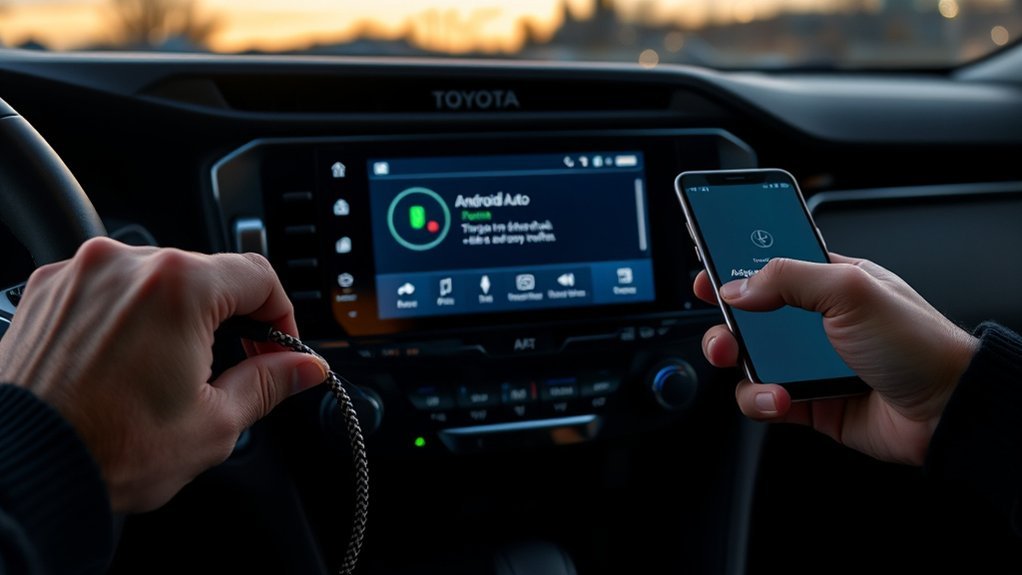
Start with the checks that separate a setup problem from a hardware problem. Keep the RAV4 in Park, unlock the phone, and confirm that Android Auto is enabled in the vehicle’s phone-projection or connected-device settings.
- Confirm the RAV4 model year and connection type in the table above.
- Restart the Android phone.
- Restart the multimedia system using the power/volume control for your specific unit, following the owner’s manual.
- For wired models, replace the cable with a short, proven data cable and use the USB media port.
- For wireless models, turn Bluetooth, Wi-Fi, and Location Services off and back on, then reconnect.
- Delete old phone and vehicle records from both devices if the connection still fails.
Test Android Auto after each step. Changing several settings at once makes it harder to identify the actual cause.
Check the Cable, Phone, and Head Unit
For a wired RAV4, a phone that charges but does not launch Android Auto usually points to the cable, the selected USB port, a permission prompt, or the vehicle’s projection setting. Test those items before resetting the phone or replacing multimedia hardware.
[Products Worth Considering]

This trailer hitch pin lock is designed to secure Class III and IV 2-inch and 2-1/2-inch tow receivers, helping keep hitch-mounted gear protected during travel and storage. Its rotating head, tubular key design, and weather-resistant cap make it easy to use while helping guard against moisture, dust, and rust. Built from solid carbon steel with a zinc alloy lock core, it offers dependable towing security for trailers, cargo carriers, bike racks, and more.

This 2-in-1 wireless adapter converts factory-wired CarPlay into a cable-free experience for compatible vehicles, helping you enjoy seamless phone integration with less clutter. It supports automatic reconnection, stable Bluetooth and Wi-Fi pairing, and broad compatibility with many factory-installed CarPlay systems. Built with a durable metal and acrylic design, it also includes firmware updates and lifetime technical support for continued convenience.

This 2-in-1 wireless adapter converts factory wired CarPlay into a convenient wireless connection for compatible vehicles, making every drive simpler and more flexible. It supports quick auto-connect, easy phone switching, and stable audio and navigation performance for iPhone and Android Auto users. Designed for plug-and-play use, it helps reduce cable clutter while keeping calls, maps, and music running smoothly.
Inspect Your USB Cable and USB Media Port
Use a high-quality USB data cable that is under 3 feet (1 meter). Google advises against USB hubs and cable extensions because they can make the connection less reliable. A cable can still charge the phone even when its data conductors are damaged or unsupported.
Connect directly to the RAV4’s USB media/data port, not a charge-only port. Toyota notes that the media-port location varies by model and is commonly near the front console or center console. Inspect both connectors for looseness or visible debris. Do not insert metal tools or liquid into either port; get the port professionally cleaned if debris is packed inside.
Pro tip: Keep one short cable that has already transferred data successfully with your phone. Use it as the control cable whenever Android Auto fails.
Verify Phone Settings and Android Auto Permissions
Android Auto currently requires a compatible phone running Android 9.0 or newer for use on a car display. On Android 10 and newer, Android Auto is built into the phone, although its components can still receive updates through Google Play and Google Play Services.
While parked, open Android Auto under the phone’s connected-device or app settings. Confirm that new cars are allowed, the RAV4 is not in a rejected-car list, and the requested permissions are approved. Keep the phone unlocked during the first reconnection attempt. Menu names can vary by phone maker and Android version.
If the phone only charges, check the USB notification and select Android Auto or data transfer when that option appears. Do not enable USB debugging for normal Android Auto troubleshooting.
Restart the RAV4 Multimedia System
A system restart can clear a stalled phone-projection session without erasing all vehicle settings. Toyota uses different multimedia controls across RAV4 model years, so follow the owner’s manual for your screen rather than relying on one universal button time.
- Park the vehicle and leave the multimedia system on.
- Use the physical power/volume control to restart the system as described in the manual.
- Wait for the Toyota screen to reload fully.
- Restart the phone before reconnecting.
- Test with the known-good cable or repeat the wireless pairing.
If the entire screen is freezing, rebooting repeatedly, or failing outside Android Auto, follow the RAV4 touchscreen troubleshooting steps instead of treating it as a phone-only problem.
How Do You Fix Wireless Android Auto on a 2023 or Newer RAV4?
Wireless Android Auto depends on Bluetooth for discovery and Wi-Fi for the active projection connection. During setup, Google recommends keeping Bluetooth, Wi-Fi, and Location Services turned on. The RAV4 must also recognize the phone as an approved or primary device.
- Turn on Bluetooth, Wi-Fi, mobile data, and Location Services on the phone.
- Open the RAV4’s Bluetooth or connected-device menu and confirm the correct phone is selected.
- Delete duplicate or unused phone profiles from the vehicle.
- Forget the RAV4 in the phone’s Bluetooth and Android Auto settings.
- Restart both devices, pair through Bluetooth again, and approve the Android Auto prompts.
- If wired Android Auto works but wireless does not, focus on Bluetooth/Wi-Fi pairing and the vehicle profile rather than the USB cable.
Wireless Android Auto also requires a compatible phone with 5 GHz Wi-Fi support. Google lists Android 11 as the general requirement for wireless projection, with limited earlier-phone exceptions. Check the current Google Android Auto setup requirements if the phone is older or imported.
[Products Worth Considering]

This Tesla interior cleaner kit is designed to safely clean and protect vegan leather seats, trim, and other delicate cabin surfaces across Model 3, Y, S, and X vehicles. Its pH-balanced formula helps lift dirt, spills, and dye transfer without harming factory coatings, while the included microfiber towel supports scratch-free, streak-free detailing. It is a simple all-in-one solution for keeping your Tesla interior looking fresh and well maintained.
This YIMU license plate backup camera helps improve rear visibility with a wide 150° viewing angle, clear HD imaging, and full-color night vision powered by 7 LED lights. It supports CVBS and AHD switching for compatible screens, includes a long RCA video cable for flexible installation, and is built for reliable use in a variety of vehicles with waterproof and shockproof protection.

Upgrade to Wireless CarPlay & Android Auto The 2 in 1 Wireless CarPlay and Android Auto Adapter converts your factory wired system into a wireless experience. It’s perfect for families using both iPhone and Android phones, allowing effortless switching without unplugging or swapping cables. This adapter is compatible with over 1,000 vehicle models—supporting 800+ with wired CarPlay and 500+ with wired Android Auto. Works with iPhone 6 or later and Android 11 or above devices.
Verify RAV4 and Android Software Versions
Software updates can correct compatibility faults, but the update method depends on the multimedia generation. Some Toyota systems support over-the-air updates, while others use Toyota’s USB firmware portal or require dealer installation.
Check the RAV4 Multimedia Software
Open the vehicle’s system-information or software-update menu and record every version shown before making changes. Then check Toyota’s multimedia software update portal or ask a Toyota dealer to check the VIN for applicable updates.
Follow Toyota’s instructions exactly if a USB update is available. Use the required USB format, keep stable vehicle power, and do not remove the drive or shut down the system during installation. If the portal does not list your system, do not install a file intended for another model year or head unit.
Confirm the Android and Google Components
Check the phone’s Android version, Android Auto component, Google Play Services, Google Maps, and the apps that fail inside Android Auto. Install pending updates, restart the phone, and test again before clearing storage.
If the failure began immediately after a phone update, record the update date and build number. That detail helps distinguish a phone-side regression from a vehicle fault and gives Google or the phone maker more useful diagnostic information.
Verify the Update and Retest
- Record the phone model, Android version, and Android Auto version or build.
- Record the RAV4 model year, trim, and multimedia software version.
- Restart both devices after updates finish.
- Retest with the same known-good cable or the same wireless profile.
- Test a second phone if the failure continues.
Use the same test conditions before and after an update. Otherwise, a new cable or changed pairing can hide which action actually fixed the problem.
How to Isolate the Problem With Another Phone
A second compatible Android phone turns guesswork into a controlled test. Use the same RAV4 connection, the same USB media port, and the same known-good cable. For wireless testing, delete old profiles first so the RAV4 is not trying to connect to the wrong device.
| Test result | Most likely area | Next step |
|---|---|---|
| Original phone fails; second phone works | Original phone settings, port, software, or saved-car data | Forget the car, update the phone, clear Android Auto cache, and reconnect. |
| Both phones fail with one cable; both work with another | USB cable | Replace the failed cable with the proven data cable. |
| Both phones charge but neither launches Android Auto | Wrong USB port, charge-only cable, disabled projection, or USB data fault | Use the media port, confirm projection is enabled, then have the port checked. |
| Wired works; wireless fails | Bluetooth/Wi-Fi pairing, device profile, or wireless compatibility | Delete both profiles, restart, and pair again with Bluetooth, Wi-Fi, and Location Services on. |
| Both phones fail after updates and resets | Vehicle USB module, multimedia software, or head unit | Document the tests and request dealer diagnosis. |
This matrix does not prove a failed part by itself, but it gives a dealer a repeatable symptom instead of a vague “Android Auto does not work” complaint.
Reset Android Auto and Bluetooth Settings
Reset saved connections only after the basic cable and compatibility checks. Old records can point Android Auto to the wrong profile or preserve a rejected setup.
- Open Android Auto settings on the phone and forget the RAV4. If the menu offers “Forget all cars,” use it only when you are prepared to reconnect every saved vehicle.
- Open Bluetooth settings on the phone and forget the RAV4 or Toyota entry.
- Open the RAV4’s Bluetooth or connected-device menu and delete the phone.
- Restart the phone and the RAV4 multimedia system.
- Reconnect while parked and approve every requested prompt.
If the problem continues, clear the Android Auto cache in the phone’s app settings. Clear storage or app data only as a later step because it resets Android Auto preferences and saved setup information. For broader pairing failures, see the RAV4 Bluetooth pairing guide.
Workarounds: Wireless Adapters or Built-In Navigation
A wireless Android Auto adapter can convert a working factory wired Android Auto connection into a wireless bridge. It still depends on a functioning USB media port and compatible factory Android Auto, so it is not a repair for a failed port or unsupported head unit.
- Confirm that wired Android Auto works before buying an adapter.
- Confirm the adapter supports the exact RAV4 model year, phone, and USB connector.
- Check the maker’s firmware and support policy.
- Test the adapter within the seller’s return period.
- Keep a safe backup, such as the vehicle’s built-in navigation or a secured phone mount.
For a U.S.-market 2019 or older RAV4 without factory Android Auto, a normal wired-to-wireless adapter will not add the missing platform. An aftermarket head unit or a specifically supported retrofit is a separate installation decision.
Note: An adapter may reduce wear on the phone’s USB port, but it adds another device, firmware layer, and wireless connection that can also fail.
[Products Worth Considering]
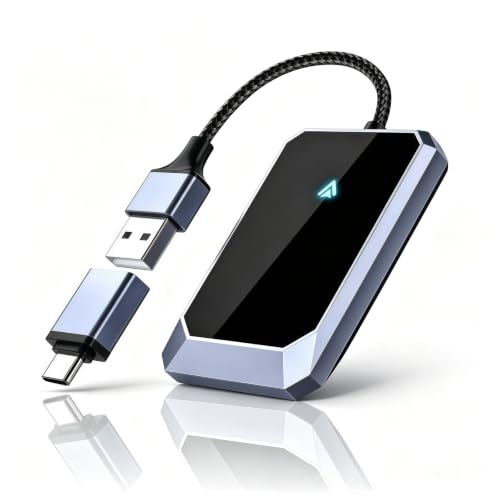
Effortless Plug-and-Play Connection: Ditch the hassle of tangled wires and embrace the convenience of wireless CarPlay. Simply plug our adapter into your car's USB port, and it will automatically pair with your Android 10+ phones or later device, ready to go in seconds.

Keep Your Phone in Your Pocket: Turn factory wired CarPlay or Android Auto into a wireless setup and keep using your car’s original screen. This 2-in-1 wireless adapter is ideal for households with both iPhone and Android phones sharing a vehicle. Connects to one phone at a time; disconnect the current phone before connecting another.
When to Contact Toyota or Your Dealer
Contact a Toyota dealer when two compatible phones fail with a proven cable or when both wired and wireless tests point back to the vehicle. Also book service if the USB media port is loose, the multimedia screen freezes outside Android Auto, or the same fault returns after a confirmed software update.
Bring the RAV4 model year, trim, VIN, phone model, Android version, Android Auto build, multimedia version, exact error message, and a short test log. Note whether the phone charges, whether Bluetooth calls work, whether wired Android Auto works, and whether a second phone produces the same result.
Ask the dealer to check the USB media port, connected-device settings, multimedia software, and any VIN-applicable service information. You can also check Toyota multimedia software updates before the appointment. Keep the repair order and software-version record for follow-up visits.
Warning: Complete pairing, permission changes, resets, and screen troubleshooting while parked. Do not perform these steps while driving.
Frequently Asked Questions
Does every Toyota RAV4 have Android Auto?
No. For U.S.-market factory systems, the 2019 RAV4 included Apple CarPlay but not Android Auto. Toyota added factory Android Auto for 2020, used wired Android Auto through 2022, and made wireless Android Auto standard for 2023 and newer RAV4 models. Other regions and aftermarket systems can differ.
How do you enable Android Auto on a RAV4?
Park the vehicle and confirm the correct method for the model year. On a wired system, connect a compatible phone to the USB media port with a high-quality data cable and approve the prompts. On a wireless system, pair the phone through Bluetooth with Bluetooth, Wi-Fi, and Location Services enabled, then approve Android Auto on both screens.
How do you update Android Auto in a RAV4?
Update Android, Android Auto components, Google Play Services, and related apps on the phone. Update the RAV4 multimedia system through its over-the-air menu, Toyota’s USB firmware portal, or a dealer, depending on the head unit. Never install firmware intended for another model year or system.
Why does Android Auto keep disconnecting in a RAV4?
Wired disconnects often come from a weak or long cable, a loose connector, the wrong USB port, or debris in a port. Wireless disconnects more often involve Bluetooth/Wi-Fi pairing, duplicate vehicle profiles, phone compatibility, or software. Test a second phone and a proven cable to separate the causes.
Does a wireless Android Auto adapter fix RAV4 connection problems?
Only in limited cases. A wired-to-wireless adapter needs a working factory wired Android Auto connection and a functioning USB media port. It can bypass repeated phone-cable handling, but it will not repair failed vehicle hardware or add normal factory Android Auto to an unsupported head unit.
Should you turn on USB debugging for Android Auto?
No. USB debugging is a developer option and is not required for normal Android Auto setup or troubleshooting. Use the correct media port, a proven data cable, approved permissions, current software, and fresh pairing records first.
Conclusion
Fix RAV4 Android Auto by matching the test to the model year. For 2020–2022 wired systems, start with the USB media port and a short, proven data cable. For 2023 and newer wireless systems, rebuild the Bluetooth/Wi-Fi pairing and confirm the correct phone profile. Then update both systems and test a second phone. If two phones fail under the same controlled conditions, take the test log and software versions to Toyota for vehicle-side diagnosis.
Sources
- Google Android Auto Help: troubleshooting and USB cable guidance
- Google Android Auto Help: wired and wireless setup requirements
- Toyota Owners: Android Auto setup and USB media-port guidance
- Toyota USA Newsroom: 2019 RAV4 multimedia features
- Toyota USA Newsroom: Android Auto added for the 2020 RAV4
- Toyota USA Newsroom: wireless Android Auto standard for the 2023 RAV4
- Toyota USA Newsroom: 2026 RAV4 multimedia and wireless Android Auto

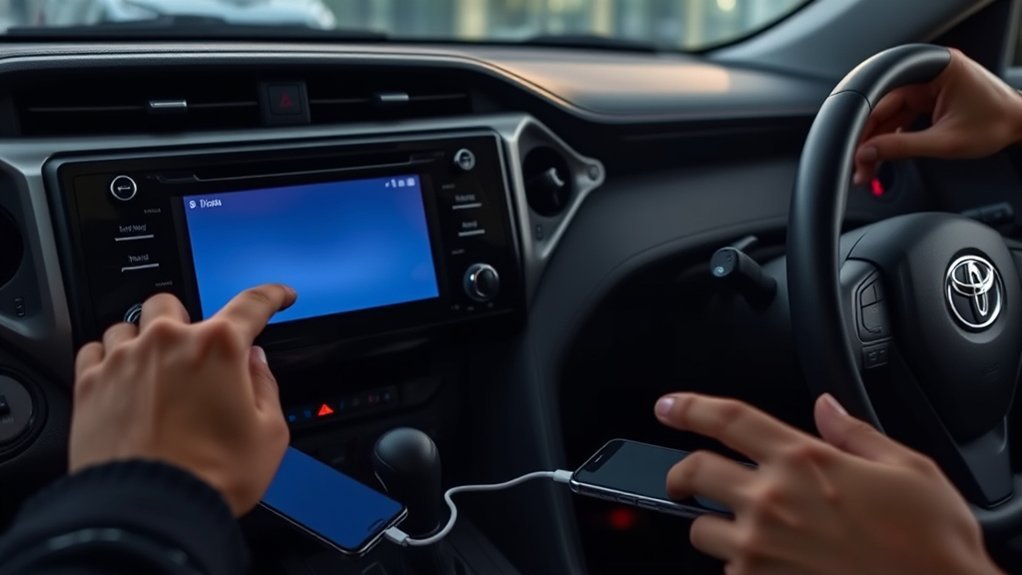
[…] or Android Auto does not launch, use the dedicated RAV4 Apple CarPlay troubleshooting guide or RAV4 Android Auto troubleshooting guide. Wireless phone projection may require both Bluetooth and […]