
If your RAV4 shows “Lane Tracing Assist Unavailable,” first confirm cruise control is engaged and the LTA toggle is on in the MID; the system won’t run without those. Inspect and clean the windshield camera and surrounding glass, guarantee hands-on-wheel torque is detected, then cycle ignition. If the icon stays off or DTCs appear, scan for camera, steering, or calibration codes and note them. Follow service calibration or dealer steps if faults persist; more precise troubleshooting follows.
Is Lane Tracing Assist Off or Broken? Quick Checklist
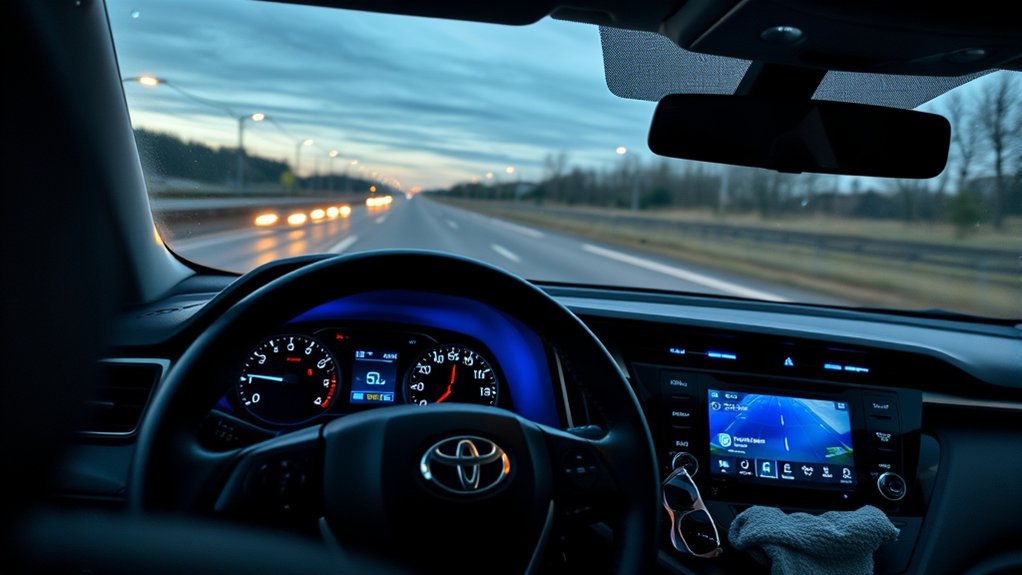
Wondering whether your RAV4’s Lane Tracing Assist (LTA) is simply turned off or actually malfunctioning? Start with an LTA functionality overview: confirm cruise control engagement, since LTA may be disabled by default when cruise isn’t active. Next, inspect vehicle settings and the Multi Information Display (MID) for any LTA-specific toggles or custom parameters you can enable or tighten. Visually check the camera housing at the rearview mirror—clean, unobstructed optics are required for reliable lane detection. Scan the dashboard for blue LTA icons; their absence signals either deactivation or a fault condition. Verify you’re providing required steering input—LTA often disables if hands-off is detected. Use these troubleshooting techniques in sequence: settings, MID configuration, sensor cleanliness, icon presence, and driver-input confirmation. Proceed methodically, document any changes, and retain autonomy by applying fixes that restore system function without unnecessary dealer dependency.
Try These On-Board Fixes: Buttons, Cruise Control, Wheel Detection
Start by confirming the Lane Tracing Assist button is pressed and check the dashboard icons for confirmation. Verify cruise control is engaged for lane centering to operate and ensure the wheel torque sensor detects your hands — prolonged hand removal will disengage the feature. Finally, review MID settings to adjust sensitivity and disable the system on winding roads where alerts become frequent.
Buttons And Controls
Begin by verifying the physical controls: press the LTA button on the dashboard to enable the system, then set and engage cruise control so lane-centering can operate. Check button functions and control layout methodically: confirm the LTA LED illuminates blue when active. Use the settings menu to adjust sensitivity and alerts to match your preferences; this grants you greater autonomy over assistance behavior. Keep hands on the wheel—lack of torque input can deactivate LTA. If the LTA indicator blinks or fails to stay lit, cycle the ignition and re-enable the feature, then recheck the control layout for any stuck or unresponsive buttons. You’ll regain reliable lane-tracing by systematic confirmation of switches, indicators, and menu parameters.
Cruise And Wheel Detection
If LTA won’t center lanes, first confirm you’ve engaged cruise control—lane tracing requires an active set speed—and verify the LTA button LED and MID icons show the system is on. Next, set cruise control to a steady speed within system limits; unstable speeds prevent engagement. Check the dashboard LTA indicator and the MID for blue lane-centering confirmation. Maintain light, continuous contact with the steering wheel; the system monitors torque and will disengage if it detects no hands. If you get frequent alerts on curved roads, temporarily disable LTA to avoid interruptions and regain manual control. Use these onboard checks methodically: button illumination, MID status, set cruise control, and tactile steering wheel input. Repeat until LTA reliably centers lanes.
Clean Camera & Windshield for Lane Tracing Assist
Inspect the camera assembly near the rearview mirror and the adjacent windshield area for dirt, film, or physical damage, since any obstruction or scratch on the lens will degrade lane marking detection and can prevent Lane Tracing Assist from engaging (you’ll also lose the double-line indicators on the MID). You’ll perform camera maintenance and windshield cleaning methodically: use a microfiber cloth and approved glass cleaner, avoid abrasives, and inspect the lens for scratches or chips. If grime persists, remove exterior deposits gently; if damage exists, replace the camera module.
| Step | Action | Criteria |
|---|---|---|
| 1 | Visual inspect lens/windshield | No dirt, film, scratches |
| 2 | Clean with microfiber | Streak-free surface |
| 3 | Re-inspect for damage | No cracks on lens |
| 4 | Power-cycle vehicle | System refresh |
| 5 | Replace if damaged | Restore function |
After cleaning, cycle power or reset to reinitialize lane detection. Act decisively to reclaim reliable LTA function and driving autonomy.
Check Your MID/Dashboard for Lane Assist Icons and Lines
Check the MID icon locations to confirm where lane assist status and lane line indicators appear. Verify that double lane lines and blue engagement lights are visible when LTA is active, and note any missing or grayed icons that indicate deactivation or malfunction. If you don’t see lane information, inspect the MID display configuration options and enable lane assist elements in the settings.
MID Icon Locations
Your MID (Multi Information Display) shows clear visual cues for Lane Tracing Assist: a steering wheel icon indicates LTA is active, and paired lane lines represent detected lane boundaries. You’ll use MID iconography to verify Lane assist functionality quickly and decisively. Check these specific locations and settings:
- Center-top of the MID for the steering wheel activation icon.
- Lower-left/right zones for paired lane line graphics indicating detected boundaries.
- Settings menu entry to toggle display preferences and alerts.
- Error indicators that appear if camera obstruction or malfunction is detected.
You should routinely scan these positions before driving. If icons or lines are missing, inspect the windshield and camera, then adjust MID settings. This disciplined check frees you from uncertainty and restores control.
Lane Line Indicators
When Lane Tracing Assist (LTA) is active, the MID should display paired lane line graphics and a steering-wheel icon so you can confirm the system’s lane detection and centering at a glance; if those lane lines are absent, treat it as an operational fault—verify that lane-centering is enabled in MID settings and that the forward-facing camera at the rearview mirror is clean and unobstructed. Check the MID for warning icons or alerts that signal malfunctions. If indicators remain missing, methodically inspect the camera housing for contamination, then reboot the vehicle electronics by cycling ignition. Document any persistent display visibility issues and consult dealer diagnostics for sensor calibration or software updates. You’ll regain control and freedom by following these technical steps to restore reliable lane assistance technology feedback.
Display Configuration Options
1 clear step you can take is to review and adjust the MID display settings so lane assist icons and the paired lane lines are visible whenever Lane Tracing Assist is enabled. Check the instrument cluster layout and confirm icon visibility for lane departure and LTA status; missing double lines often mean camera or detection issues. Use the MID menu to enable lane assist indicators and set preferences that match your driving needs to regain control and clarity.
- Access MID settings via steering controls and enter vehicle assistance menu.
- Toggle lane assist icons on/off and confirm paired lane lines are shown.
- If lines are absent, inspect camera alignment and cleanliness.
- Save settings and verify icon visibility while driving to guarantee liberation through informed feedback.
When Software or Calibration Causes LTA Failures : How to Reset
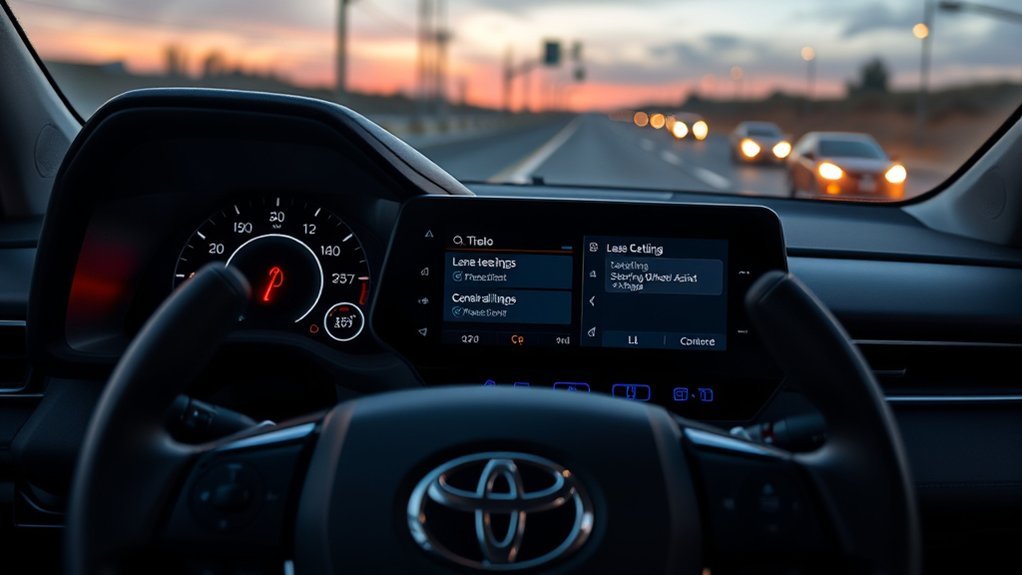
If LTA stops working due to software or calibration issues, start by performing a controlled reset: switch the ignition off, wait a full minute to allow systems to power down, then restart the vehicle and verify LTA status on the Multi Information Display (MID). After that software reset, inspect the windshield camera area; clear any dirt or obstruction that can compromise optical alignment and trigger calibration issues. Use the MID to confirm LTA is enabled and review related settings you can toggle manually. If LTA remains unavailable, arrange a software update through your dealership or authorized service center—updates often resolve latent control module faults and restore feature logic. Maintain records of reset attempts and update versions to preserve accountability. If repeated resets and updates fail, seek professional calibration or hardware evaluation; don’t accept degraded autonomy without technical verification. You’re reclaiming control: systematic resets, visual checks, configuration confirmation, and documented escalation will restore reliable LTA function.
Diagnose LTA-Specific Error Codes, Sensors, and Common Faults
After you’ve attempted resets, visual checks, and software updates, you’ll need to read and interpret LTA-specific diagnostic trouble codes (DTCs) and sensor status to pinpoint failures. You’ll connect an OBD-II scanner that can display manufacturer LTA error codes and note codes referencing camera obstruction, steering input faults, or configuration disabled. Inspect the camera housing and windshield for dirt; many faults clear after cleaning.
- Extract LTA error codes and record timestamps to correlate with driver inputs.
- Verify camera view and lane-marking detection in live sensor data; dirty lenses mimic sensor failure.
- Confirm MID lane-centering settings are enabled; configuration faults prevent engagement.
- Check for steering-angle and torque-sensor discrepancies that force LTA off when heavy manual input is detected.
If codes indicate calibration drift, perform sensor calibration per service manual. Accurate sensor calibration and clean optics restore autonomy and free you from avoidable system lockouts.
When to Visit a Dealer or Shop : What to Bring and Ask
Wondering when it’s time to bring your RAV4 to a dealer or independent shop for Lane Tracing Assist issues? Use a dealer visit when self-checks and diagnostics (camera cleaning, fuse inspection, basic resets) don’t restore function or when error codes persist. For documentation preparation, gather service history, any prior fault records, and photos or video showing the missing lane indicators and absence of warnings. At the appointment, describe symptoms precisely: when LTA fails, which indicators are absent, and the conditions you observed.
Ask the technician to inspect the windshield camera for dirt, obstruction, alignment, and mounting integrity. Request that they scan for LTA-specific codes and report firmware levels; inquire about software updates or recalls for your 2020 RAV4 XLE that might affect lane assistance. Finally, insist on a post-repair demonstration and verification drive before you leave so you reclaim confidence in the system’s restored operation.
Frequently Asked Questions
Why Does It Say My Lane Assist Is Unavailable?
Your Lane assist shows unavailable because sensor issues, dirt, weather, or settings block detection; perform maintenance checks, make certain hands on wheel, adjust MID, and try a System reset to restore function and reclaim driving freedom.
Conclusion
Lane Tracing Assist failures are usually fixable with methodical checks: confirm LTA is enabled, verify adaptive cruise engagement, guarantee hands-on-wheel detection, and clean the windshield and camera housing. Resetting the system or updating software often resolves calibration faults; persistent errors need dealer diagnostics. Note: studies show advanced driver assistance systems reduce certain types of crashes by about 40%, so restoring LTA isn’t just convenience—it’s safety critical. Bring error codes and recent symptoms.